<?xml version="1.0" encoding="utf-8"?><?xml-stylesheet type="text/xsl" href="atom.xsl"?>
<feed xmlns="http://www.w3.org/2005/Atom">
    <id>https://www.drawio.com/blog</id>
    <title>draw.io Blog</title>
    <updated>2025-09-24T00:00:00.000Z</updated>
    <generator>https://github.com/jpmonette/feed</generator>
    <link rel="alternate" href="https://www.drawio.com/blog"/>
    <subtitle>draw.io Blog</subtitle>
    <icon>https://www.drawio.com/favicon.ico</icon>
    <rights>Copyright © 2026 JGraph Ltd.</rights>
    <entry>
        <title type="html"><![CDATA[The draw.io app for Confluence Cloud transitions to Forge-only]]></title>
        <id>https://www.drawio.com/blog/drawio-forge-migration</id>
        <link href="https://www.drawio.com/blog/drawio-forge-migration"/>
        <updated>2025-09-24T00:00:00.000Z</updated>
        <summary type="html"><![CDATA[Atlassian has encouraged all Connect apps to transition to Forge where their modernised Forge architecture can provide increased data security, updated integrated tools and UIs and other useful features. Our hybrid Connect/Forge draw.io app is currently migrating to be fully Forge-only, allowing for enough time to troubleshoot before the first migration deadline in January 2026, should any problems arise.]]></summary>
        <content type="html"><![CDATA[<p>Atlassian has <a href="https://www.atlassian.com/blog/developer/updates-to-marketplace-revenue-share-2026" target="_blank" rel="noopener noreferrer" class="">encouraged all Connect apps to transition to Forge</a> where their modernised Forge architecture can provide increased data security, updated integrated tools and UIs and other useful features. Our hybrid Connect/Forge draw.io app is currently migrating to be fully Forge-only, allowing for enough time to troubleshoot before the first migration deadline in January 2026, should any problems arise.</p>
<p>You should see no difference in functionality - the diagram editor is not changing, and your existing diagrams and draw.io macros will not be changed through this transition.</p>
<p><strong>No full-screen custom macro UI on Forge</strong></p>
<p>We, like many other app developers, delayed moving draw.io to Forge as Atlassian has not yet implemented the full-screen custom UI dialog that is widely used by many Marketplace apps.</p>
<p>A reduced diagram editor size may impact productivity or cause distractions as it does not fully cover the page behind. Some have also reported related display issues with dialogs not appearing correctly on mobile devices in the Forge-only apps.</p>
<p>While we reported this issue back in November 2021, it is currently scheduled by Atlassian to be implemented in FY26Q2 (although, it is not yet included in the <a href="https://developer.atlassian.com/platform/adopting-forge-from-connect/connect-forge-equivalences/connect-forge-capabilities-notavailable/" target="_blank" rel="noopener noreferrer" class="">Connect-Forge capability equivalence roadmap</a>).</p>
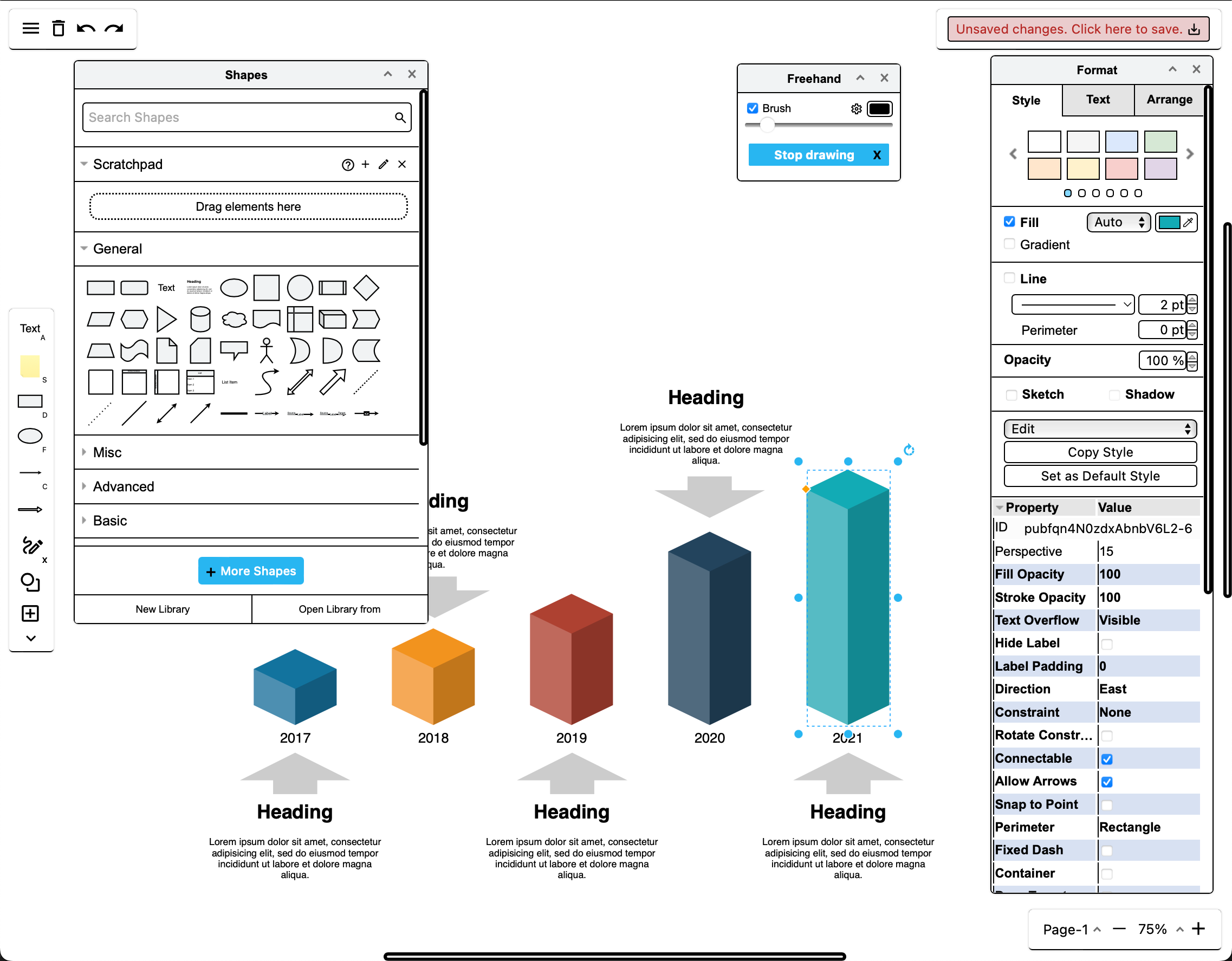
<img decoding="async" loading="lazy" src="https://www.drawio.com/img/blog/drawio-no-fullscreen-forge.png" style="width:100%;max-width:500px;height:auto" alt="The Forge-only draw.io app cannot run in full screen as Atlassian does not currently support full screen apps in their Forge UI suite - if this is an issue, please add a comment to Atlassian's FRGE-557 or ECO-195 bug reports" class="img_ev3q">
<p>If full-screen diagramming or mobile diagramming is a priority for your teams, or if you are an app developer that is affected by this bug, please do comment on the original <a href="https://ecosystem.atlassian.net/browse/FRGE-557" target="_blank" rel="noopener noreferrer" class="">FRGE-557 issue</a> and the more recent <a href="https://jira.atlassian.com/browse/ECO-195" target="_blank" rel="noopener noreferrer" class="">ECO-195 issue</a>.</p>
<p>As soon as this issue has been implemented by Atlassian, the draw.io macros in your Confluence Cloud instance will once again work in full screen.</p>
<h2 class="anchor anchorTargetStickyNavbar_Vzrq" id="updating-your-drawio-app">Updating your draw.io app<a href="https://www.drawio.com/blog/drawio-forge-migration#updating-your-drawio-app" class="hash-link" aria-label="Direct link to Updating your draw.io app" title="Direct link to Updating your draw.io app" translate="no">​</a></h2>
<p>Atlassian may choose to rollout these updated Forge-only apps automatically, or your administrator may need to manually update the draw.io app.</p>
<p>If your teams require the full-screen app functionality as described above, we recommend not updating the draw.io app until Atlassian has resolved this issue.</p>
<p><strong>Note:</strong> No diagrams or macros will be removed from any pages in which they are used or edited in any way. There is no danger of losing data on this update.</p>
<h2 class="anchor anchorTargetStickyNavbar_Vzrq" id="migrating-from-dc-to-cloud">Migrating from DC to Cloud?<a href="https://www.drawio.com/blog/drawio-forge-migration#migrating-from-dc-to-cloud" class="hash-link" aria-label="Direct link to Migrating from DC to Cloud?" title="Direct link to Migrating from DC to Cloud?" translate="no">​</a></h2>
<p>Atlassian has also recently <a href="https://www.atlassian.com/blog/announcements/atlassian-ascend" target="_blank" rel="noopener noreferrer" class="">announced the end of life for Data Center</a>, with a three-year staged transition period starting in March 2026.</p>
<p>If you are migrating from Confluence DC to Cloud because of this, or to take advantage of the enhanced security features of Atlassian's modernised Forge architecture, <a class="" href="https://www.drawio.com/docs/integrations/atlassian/confluence/migrate-confluence">migrate your draw.io diagrams in Confluence using the <code>PageID</code> method</a> that preserves in-diagram links and embedded diagrams.</p>
<h2 class="anchor anchorTargetStickyNavbar_Vzrq" id="which-drawio-app-for-confluence-cloud">Which draw.io app for Confluence Cloud?<a href="https://www.drawio.com/blog/drawio-forge-migration#which-drawio-app-for-confluence-cloud" class="hash-link" aria-label="Direct link to Which draw.io app for Confluence Cloud?" title="Direct link to Which draw.io app for Confluence Cloud?" translate="no">​</a></h2>
<p>The <a href="https://marketplace.atlassian.com/apps/1210933/draw-io-diagrams-uml-bpmn-aws-erd-flowcharts?hosting=cloud&amp;tab=pricing" target="_blank" rel="noopener noreferrer" class="">draw.io for Confluence Cloud app</a> that is transitioning to Forge is available in two editions - Standard and Advanced. The diagramming features of these two editions are the same.</p>
<p>The <em>Advanced edition</em> of the draw.io app includes premium support, custom security reviews, and additional data security options.</p>
<p>The <a href="https://marketplace.atlassian.com/apps/1235446/draw-io-zero-egress-diagramming-secured-on-forge?hosting=cloud&amp;tab=overview" target="_blank" rel="noopener noreferrer" class="">draw.io Zero Egress app</a> is already Forge-only, and provides strict data security, ensuring no diagram data leaves your Confluence instance (zero egress). For customers with such strict data security requirements, Atlassian plans to offer a single tenant <em>Isolated Cloud</em> and their <em>Atlassian Government Cloud</em>. The draw.io Zero Egress app is designed to work with Atlassian's new secure Cloud offerings.</p>
<p><a class="" href="https://www.drawio.com/docs/integrations/atlassian/confluence/confluence-cloud-drawio-zero-egress-vs-app-editions">Read more about the differences between the draw.io apps for Confluence Cloud</a></p>]]></content>
        <author>
            <name>draw.io</name>
            <uri>https://www.drawio.com</uri>
        </author>
        <category label="features" term="features"/>
        <category label="atlassian" term="atlassian"/>
    </entry>
    <entry>
        <title type="html"><![CDATA[Shape library updates for multi-colour shapes]]></title>
        <id>https://www.drawio.com/blog/shape-library-colour-updates</id>
        <link href="https://www.drawio.com/blog/shape-library-colour-updates"/>
        <updated>2025-09-10T00:00:00.000Z</updated>
        <summary type="html"><![CDATA[There are many shapes in the draw.io shape libraries that use more than one line or fill colour. These shapes are being updated so you can change each of the colours and style your diagram with more flexibility.]]></summary>
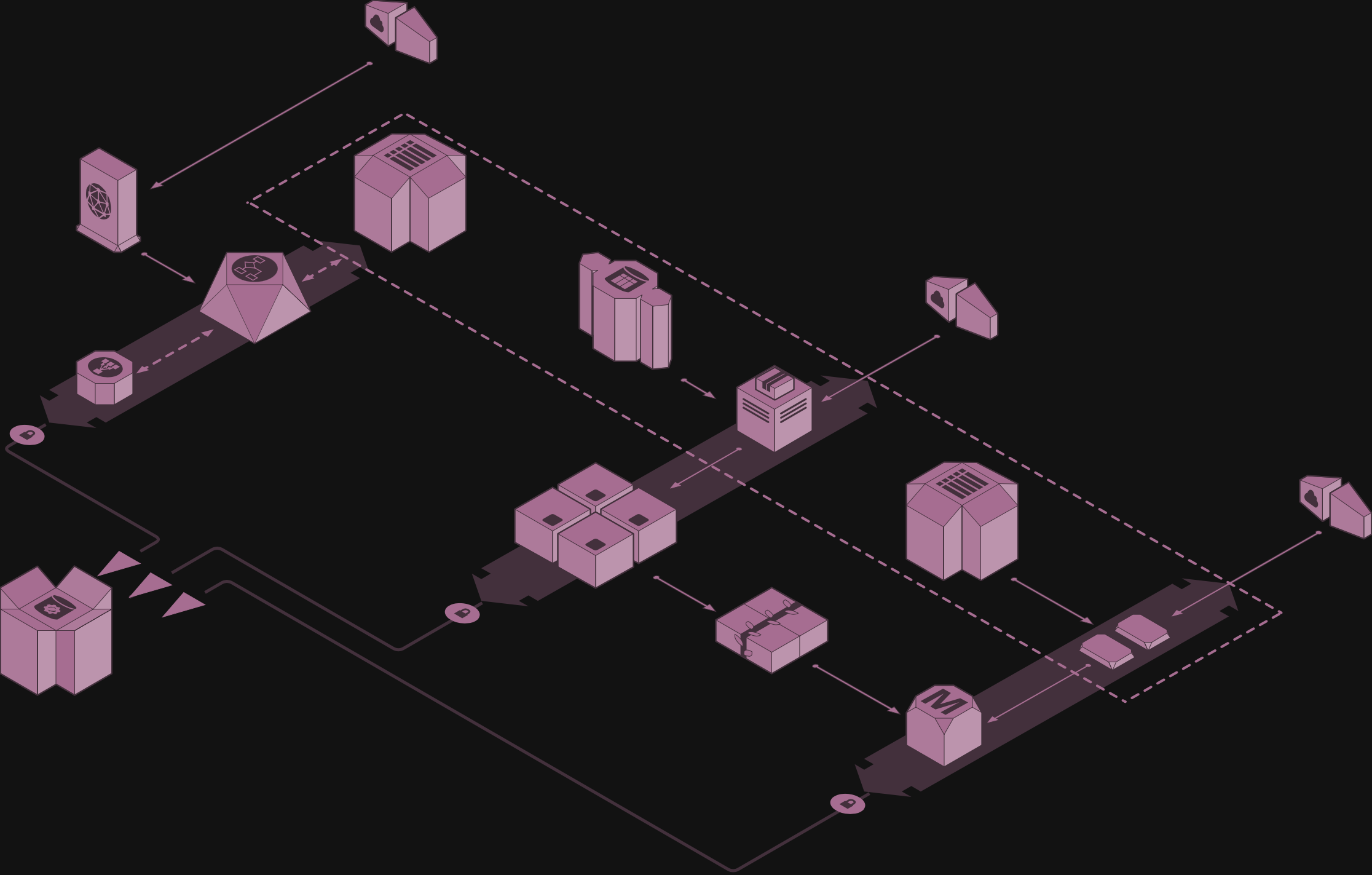
        <content type="html"><![CDATA[<p>There are many shapes in the draw.io shape libraries that use more than one line or fill colour. These shapes are being updated so you can change each of the colours and style your diagram with more flexibility.
<br><img decoding="async" loading="lazy" src="https://www.drawio.com/img/blog/aws-3d-colours-dark.png" style="width:100%;max-width:500px;height:auto" alt="The updated AWS shapes allow you to customise all of the colours in the shapes" class="img_ev3q"></p>
<p>As the collection of shape libraries is rather large in draw.io, it will take some time to update all of those that contain multi-coloured shapes. The first two libraries that have been updated are Mockups and the AWS 3D shapes.</p>
<p>Each shape still contains a Fill and a Line (outline) colour that typically forms the background colour and the outer line colour of the shape. The additional colours are defined with new, customisable style settings.</p>
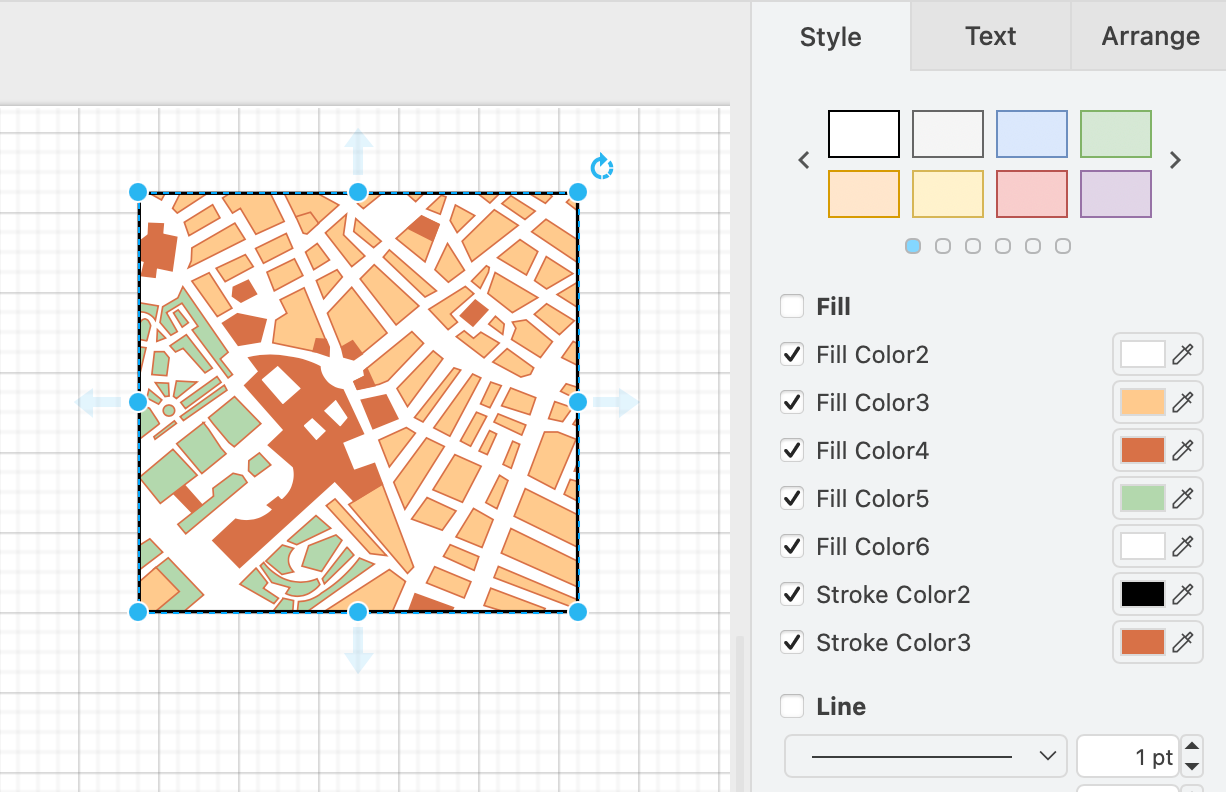
<p>For example, the Mockup Map shape has a white background and black outline, but also internal areas with different fill colours and a different internal outline colour.
<br><img decoding="async" loading="lazy" src="https://www.drawio.com/img/blog/shapes-extra-colours-map.png" style="width:100%;max-width:400px;height:auto" alt="The updated Mockups Map shape has many customisable internal fill and outline colours" class="img_ev3q"></p>
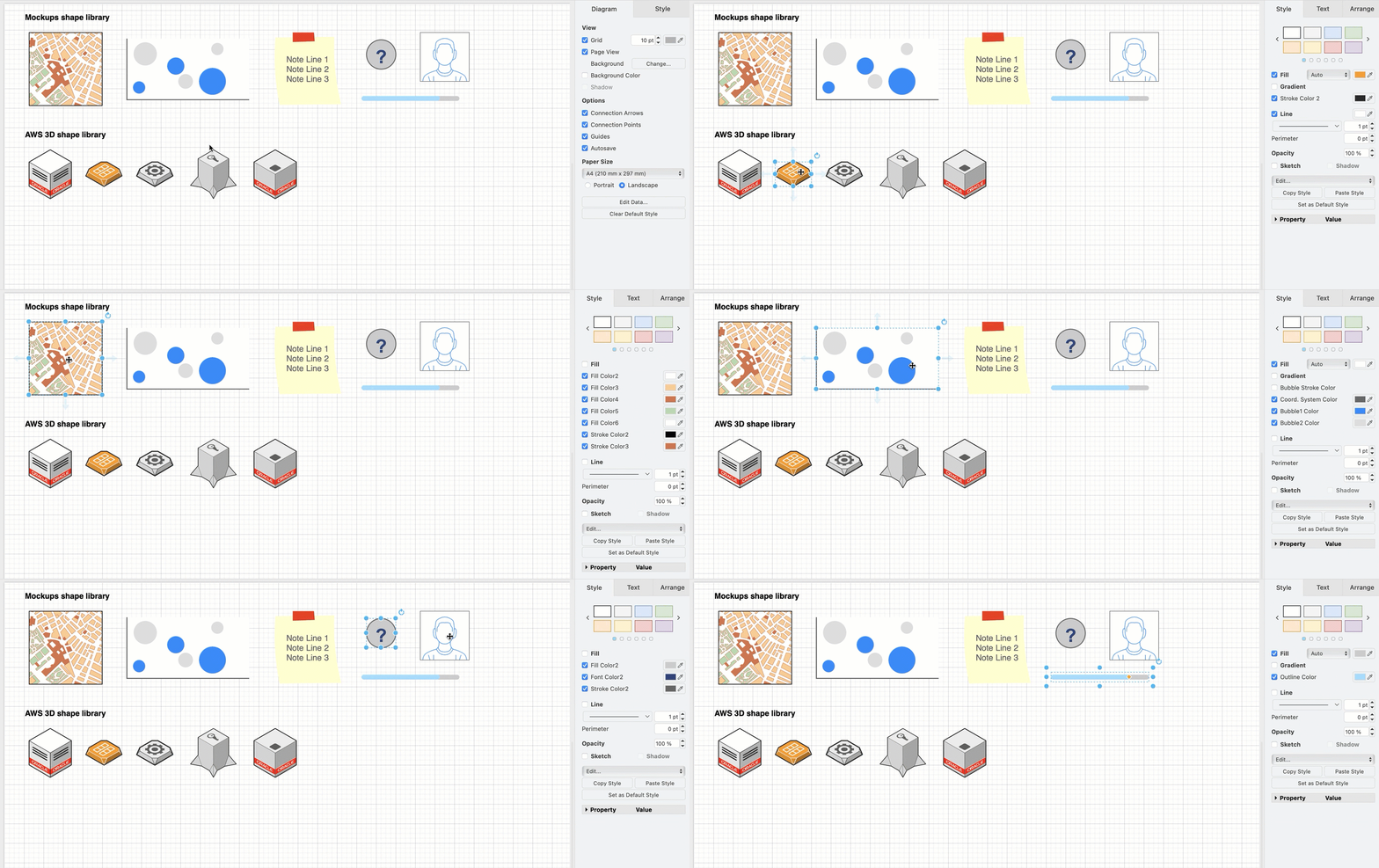
<p>The list of fill and outline colours will be different for each shape.
<br><img decoding="async" loading="lazy" src="https://www.drawio.com/img/blog/shapes-extra-colours.gif" style="width:100%;max-width:500px;height:auto" alt="The updated Mockups and AWS 3D shape libraries allow you to customise multi-colour shapes" class="img_ev3q"></p>
<p><strong>How it works</strong></p>
<p>A <code>default</code> attribute was introduced for the <code>fillcolor</code> and <code>strokecolor</code> attributes.</p>
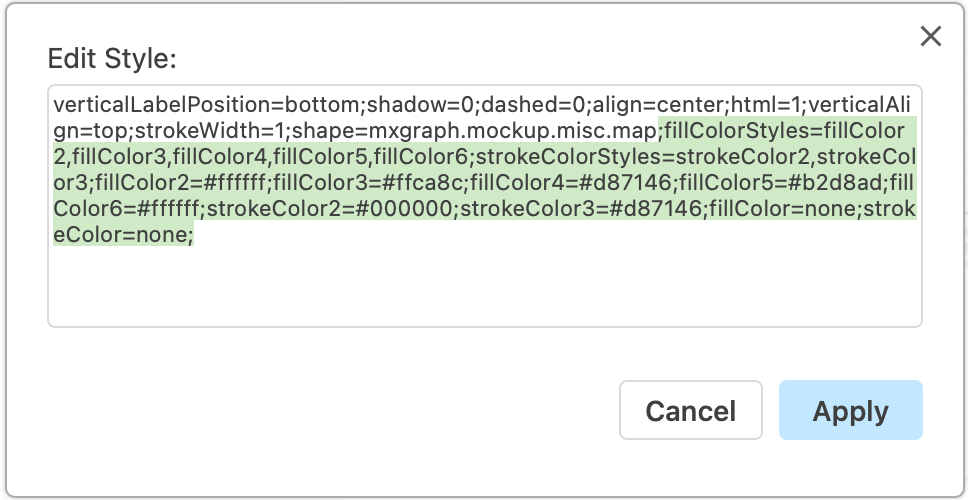
<p>Each shape has a list of <code>defaultFillColors</code> and <code>defaultStrokeColors</code> attributes which are used to show the customisable colours in multi-colour shapes. These are comma-separated lists that define the default colours in the <code>fillColorStyles</code> and <code>strokeColorStyles</code> attributes within a shape.</p>
<p>Right click on a shape, then edit the colour style attributes, then click <em>Apply</em>.
<br><img decoding="async" loading="lazy" src="https://www.drawio.com/img/blog/shapes-extra-colours-edit-style.png" style="width:100%;max-width:300px;height:auto" alt="Right click on a shape and select Edit Style to change the colours of the shape directly" class="img_ev3q"></p>
<p><strong>Which libraries have been updated?</strong></p>
<p>The updated AWS 3D and Mockups shape libraries are available now in the current version of the web-based draw.io editor. The Cloud and IT shape libraries are in the process of being updated to this new, more flexible system of colours. Multi-colour shapes in other shape libraries will be updated after the IT shapes are finished.</p>
<p>Go to <a href="https://app.diagrams.net/clear.html" target="_blank" rel="noopener noreferrer" class="">app.diagrams.net/clear.html</a> to ensure you are using the most recent version of the online draw.io editor.</p>
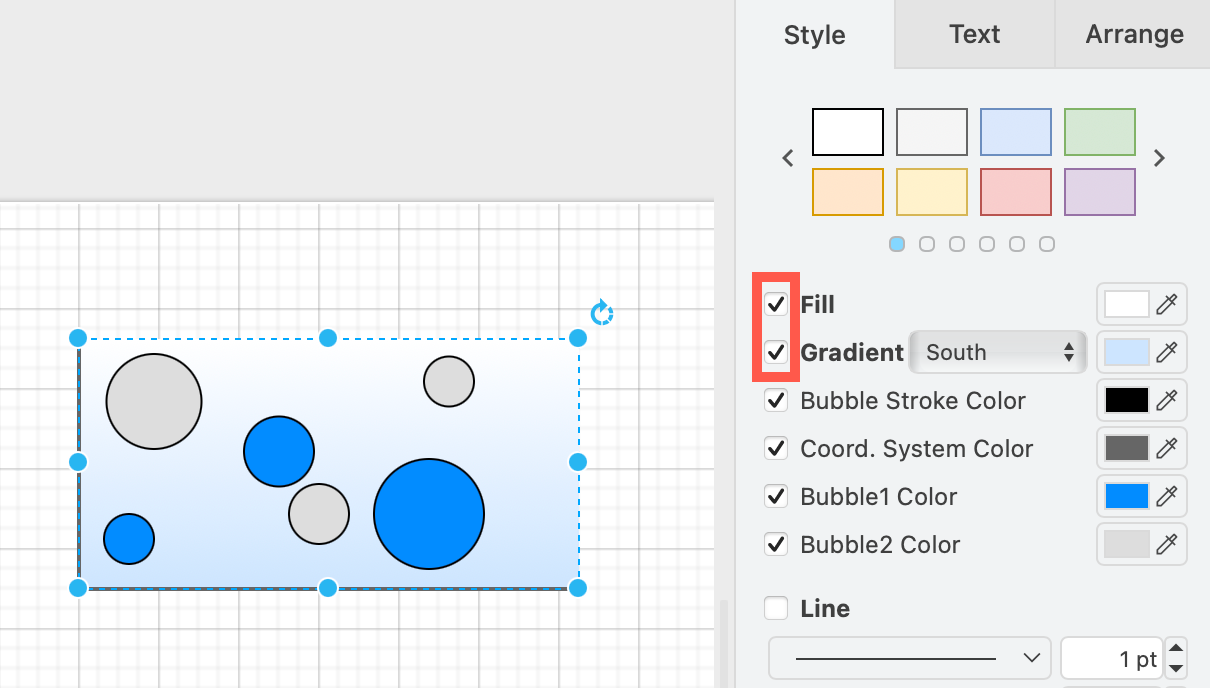
<h2 class="anchor anchorTargetStickyNavbar_Vzrq" id="gradients-with-multi-coloured-shapes">Gradients with multi-coloured shapes<a href="https://www.drawio.com/blog/shape-library-colour-updates#gradients-with-multi-coloured-shapes" class="hash-link" aria-label="Direct link to Gradients with multi-coloured shapes" title="Direct link to Gradients with multi-coloured shapes" translate="no">​</a></h2>
<p>The gradient option in the <em>Style</em> tab of the format panel will use the main background fill colour. The gradient does not apply to any of the other additional colour styles within the multi-colour shape.
<br><img decoding="async" loading="lazy" src="https://www.drawio.com/img/blog/shapes-extra-colours-gradient.png" style="width:100%;max-width:400px;height:auto" alt="The updated Mockups Map shape has many customisable internal fill and outline colours" class="img_ev3q"></p>
<h2 class="anchor anchorTargetStickyNavbar_Vzrq" id="reset-to-the-original-colour-styles">Reset to the original colour styles<a href="https://www.drawio.com/blog/shape-library-colour-updates#reset-to-the-original-colour-styles" class="hash-link" aria-label="Direct link to Reset to the original colour styles" title="Direct link to Reset to the original colour styles" translate="no">​</a></h2>
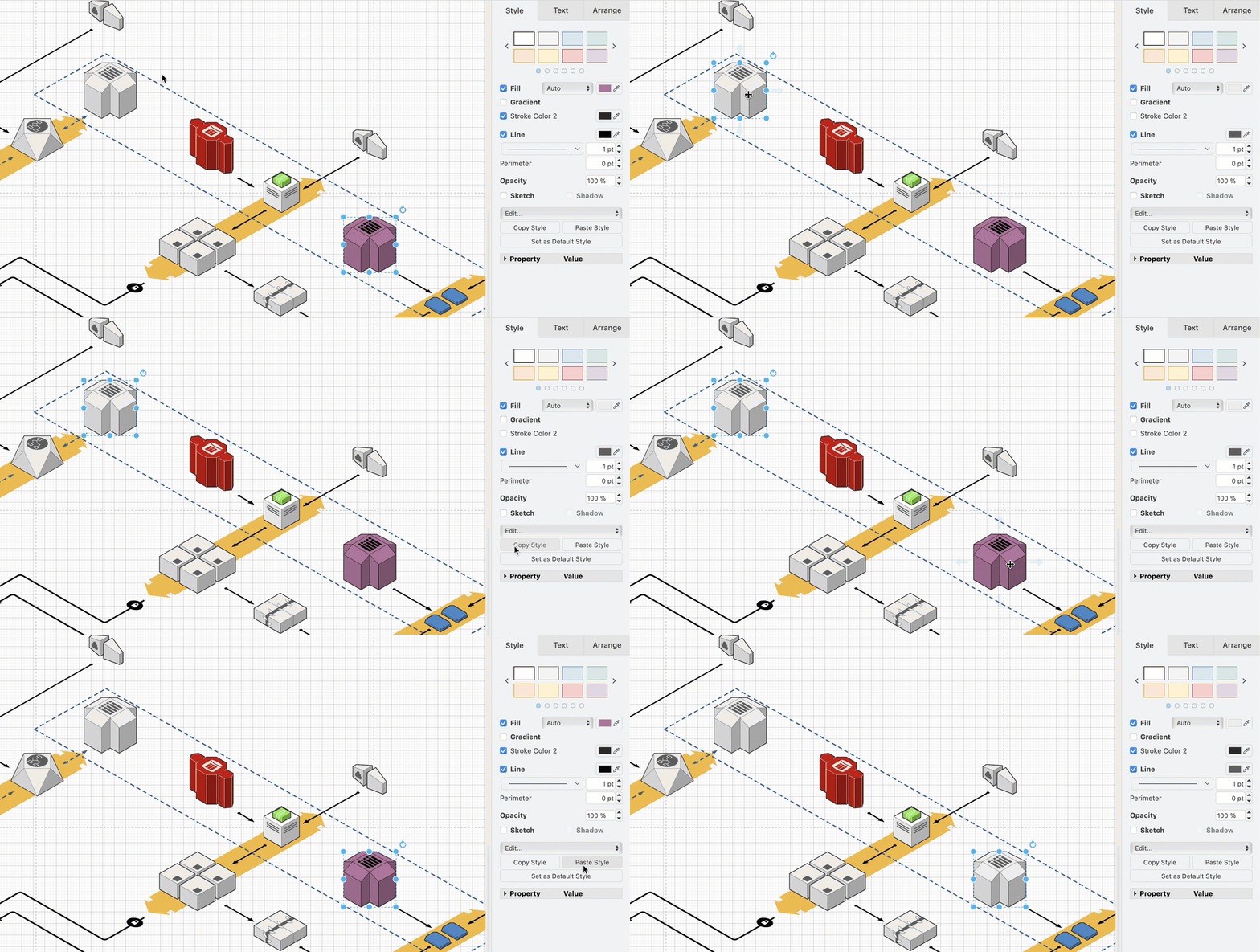
<p>To revert to the original colour, the easiest is to copy the original style from an unstyled shape and apply it to the customised shape.</p>
<ol>
<li class="">Select the unstyled shape. In the Style tab, click <em>Copy Style</em>.</li>
<li class="">Select the customised shape. In the Style tab, click <em>Paste Style</em>.
<br><img decoding="async" loading="lazy" src="https://www.drawio.com/img/blog/shapes-extra-colours-copy-style.gif" style="width:100%;max-width:500px;height:auto" alt="The updated Mockups and AWS 3D shape libraries allow you to customise multi-colour shapes" class="img_ev3q"></li>
</ol>
<p><a class="" href="https://www.drawio.com/docs/manual/styles/shape-styles">Learn more about styling shapes</a></p>]]></content>
        <author>
            <name>draw.io</name>
            <uri>https://www.drawio.com</uri>
        </author>
        <category label="use-cases" term="use-cases"/>
        <category label="shape-libraries" term="shape-libraries"/>
    </entry>
    <entry>
        <title type="html"><![CDATA[Configure draw.io online to disable AI diagrams]]></title>
        <id>https://www.drawio.com/blog/disable-ai-diagrams</id>
        <link href="https://www.drawio.com/blog/disable-ai-diagrams"/>
        <updated>2025-08-11T00:00:00.000Z</updated>
        <summary type="html"><![CDATA[Like many software apps, diagramming tools now have AI-powered features that 'help' you diagram. These can be premium features and may not be easily disabled. With the free online draw.io editor, you have access to the diagram generation features by default. It's easy to disable this in draw.io - configure the editor or use the fully offline draw.io Desktop app.]]></summary>
        <content type="html"><![CDATA[<p>Like many software apps, diagramming tools now have AI-powered features that 'help' you diagram. These can be premium features and may not be easily disabled. With the free online draw.io editor, you have access to the diagram generation features by default. It's easy to disable this in draw.io - configure the editor or use the fully offline draw.io Desktop app.</p>
<img decoding="async" loading="lazy" src="https://www.drawio.com/img/blog/configure-drawio-example.png" style="width:100%;max-width:400px;height:auto" alt="All version of draw.io are highly configurable, with options for custom colours and fonts, and to enable or disable specific features" class="img_ev3q">
<p><strong>Note:</strong> <a class="" href="https://www.drawio.com/docs/manual/generate/">Diagram generation features</a> are disabled by default in the draw.io apps for Confluence - ask your instance administrator to <a class="" href="https://www.drawio.com/docs/integrations/atlassian/confluence/customise/confluence-cloud-enable-diagram-generation">configure the draw.io editor</a> if you want to (and are allowed to) use this feature.</p>
<p>While draw.io only shares the <a class="" href="https://www.drawio.com/docs/best-practice/write-query-generate-diagram">text you enter as the query</a> to generate a diagram, and only at the time of generation.</p>
<p>draw.io does not share your diagram data with these LLM tools unless you specifically request that the generator modify your diagram or a selection of your diagram (this behaviour can be <a class="" href="https://www.drawio.com/docs/reference/diagram-generation/configure-ai-options">customised or disabled in the draw.io configuration</a>).</p>
<p>Note, other diagramming applications typically share your diagram data in full and by default with these generation tools, and do not allow you to customise or limit this behaviour.</p>
<p>If you need to include sensitive data or draw confidential diagrams, your diagramming application must not share your diagram data.</p>
<h2 class="anchor anchorTargetStickyNavbar_Vzrq" id="use-an-offline-tool-like-drawio-desktop">Use an offline tool like draw.io Desktop<a href="https://www.drawio.com/blog/disable-ai-diagrams#use-an-offline-tool-like-drawio-desktop" class="hash-link" aria-label="Direct link to Use an offline tool like draw.io Desktop" title="Direct link to Use an offline tool like draw.io Desktop" translate="no">​</a></h2>
<p>Since version 10.7.5, draw.io Desktop has been a fully offline application. You do not need a connection to the internet to use all the built-in shape libraries and templates, or use your own custom shape libraries, fonts or templates stored on your device.</p>
<p>Diagram generation features are not available in <a class="" href="https://www.drawio.com/docs/security/diagrams-offline">draw.io Desktop</a>.</p>
<img decoding="async" loading="lazy" src="https://www.drawio.com/img/blog/desktop.png" style="width:100%;max-width:500px;height:auto" alt="The draw.io desktop app works on MacOS, Windows and Linux" class="img_ev3q">
<p>Choose your platform (Windows, macOS or Linux), and <a href="https://get.diagrams.net/" target="_blank" rel="noopener noreferrer" class="">download draw.io Desktop</a> to start diagramming securely and privately.</p>
<p><strong>Tip:</strong> Many extra template and example diagrams are available in the <a href="https://github.com/jgraph/drawio-diagrams" target="_blank" rel="noopener noreferrer" class="">JGraph/drawio-diagrams</a> repository on GitHub. Download these in advance to use them in draw.io Desktop.</p>
<h2 class="anchor anchorTargetStickyNavbar_Vzrq" id="configure-the-drawio-web-application">Configure the draw.io web application<a href="https://www.drawio.com/blog/disable-ai-diagrams#configure-the-drawio-web-application" class="hash-link" aria-label="Direct link to Configure the draw.io web application" title="Direct link to Configure the draw.io web application" translate="no">​</a></h2>
<p>Alternatively, you can run the web app while offline as a <a class="" href="https://www.drawio.com/docs/security/diagrams-offline">progressive web app</a>, or configure the editor in your browser to disable the diagram generation features.</p>
<p>All versions of the draw.io application are highly configurable, including but not limited to:</p>
<ul>
<li class="">default palette colours and styles</li>
<li class="">default and custom fonts</li>
<li class="">custom templates and a customised template library</li>
<li class="">default and custom shape libraries to automatically open by default</li>
<li class="">default page and grid size</li>
</ul>
<p>Here's a full list of the <a class="" href="https://www.drawio.com/docs/reference/configure-diagram-editor">draw.io editor configuration options</a> for the web application, draw.io Desktop, and the draw.io apps for Confluence Cloud and DC.</p>
<p>Only the online draw.io web application has the diagram generation enabled by default. To <a class="" href="https://www.drawio.com/docs/manual/generate/generated-diagram-disable">disable the diagram generation features</a>, add a line to the editor configuration and refresh the tab to reload the draw.io editor.</p>
<h3 class="anchor anchorTargetStickyNavbar_Vzrq" id="disable-diagram-generation-in-the-drawio-configuration">Disable diagram generation in the draw.io configuration<a href="https://www.drawio.com/blog/disable-ai-diagrams#disable-diagram-generation-in-the-drawio-configuration" class="hash-link" aria-label="Direct link to Disable diagram generation in the draw.io configuration" title="Direct link to Disable diagram generation in the draw.io configuration" translate="no">​</a></h3>
<p>This removes the Generate tool from template library and menu, the <em>Generate</em> option from the <a class="" href="https://www.drawio.com/docs/manual/editor/panels/search-omnibox">search field</a>, and the <a class="" href="https://www.drawio.com/docs/manual/generate/">sparkle tool</a> from the toolbar.</p>
<p><strong>Note:</strong> Be careful about capitalisation - draw.io configuration options are written using lower camel case (Java).</p>
<ol>
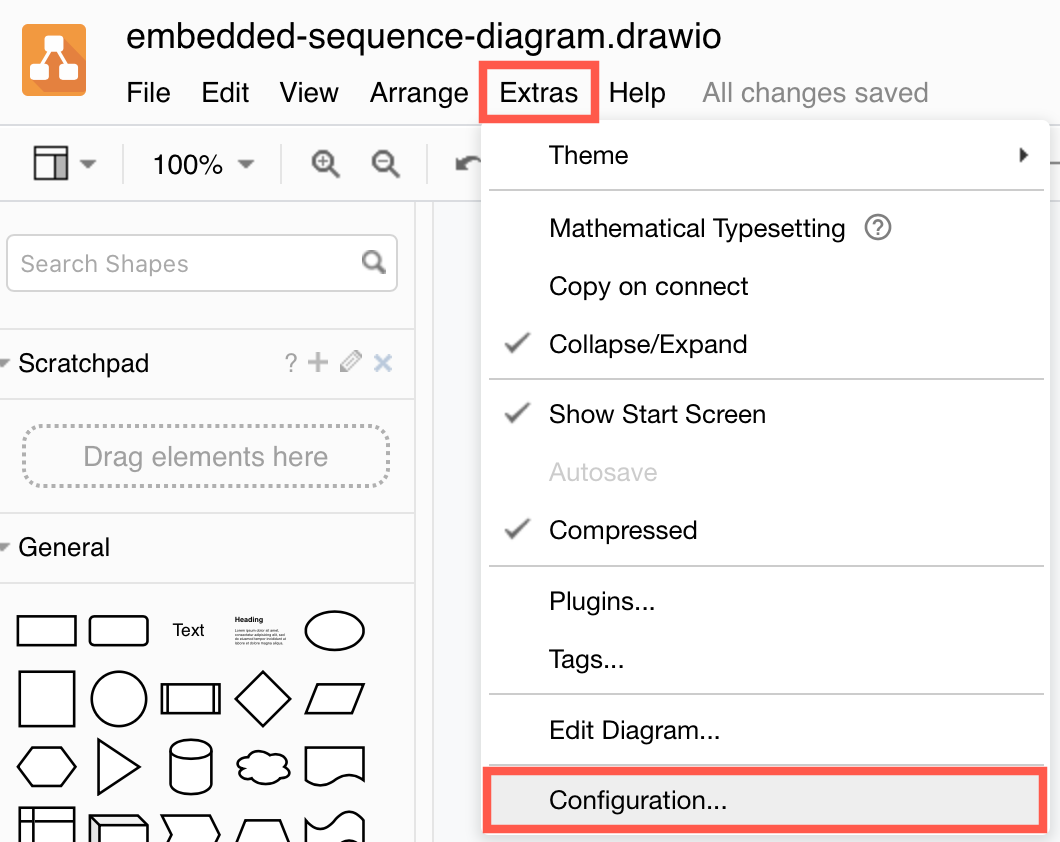
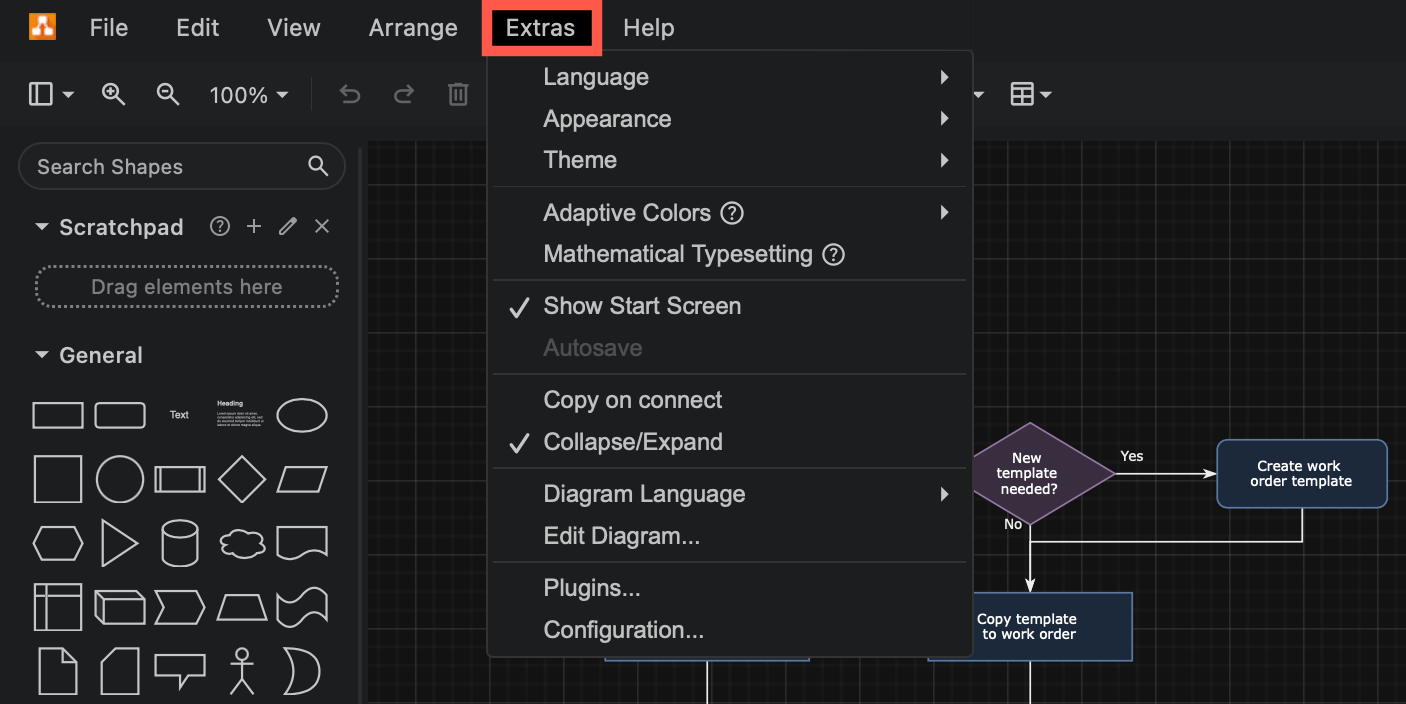
<li class="">Select <em>Extras &gt; Configuration</em> from the menu, or <em>... &gt; Settings &gt; Configuration</em> from the toolbar.
<br><img decoding="async" loading="lazy" src="https://www.drawio.com/img/blog/extras-configuration-menu.png" style="width:100%;max-width:400px;height:auto" alt="Access the draw.io configuration via Extras /> Configuration" class="img_ev3q"></li>
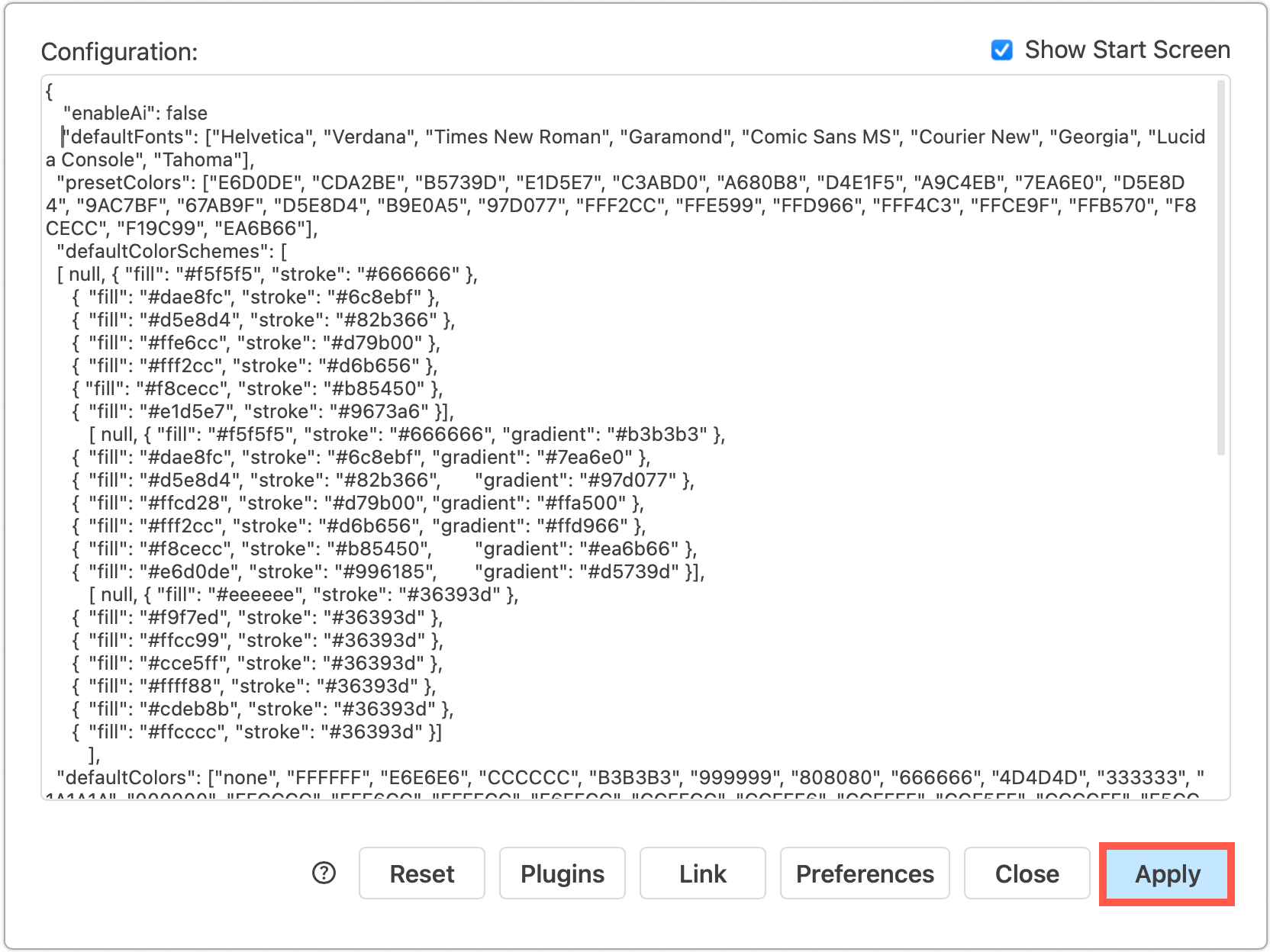
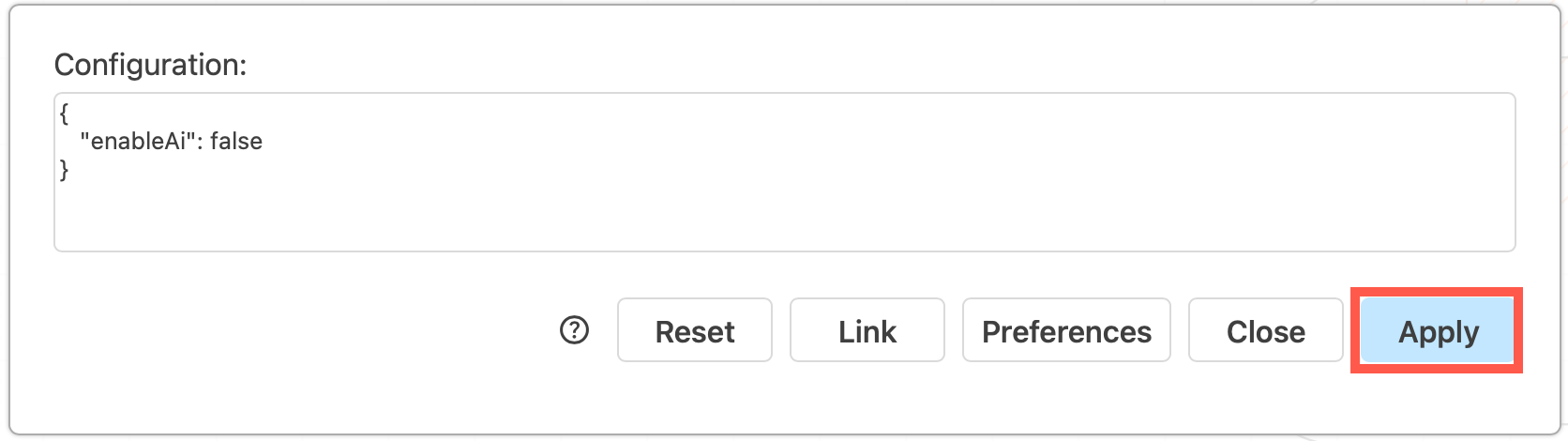
<li class="">Add the following JSON string to the configuration: <code>"enableAi": false</code>
<br><img decoding="async" loading="lazy" src="https://www.drawio.com/img/blog/configuration-enableai-false.png" style="width:100%;max-width:300px;height:auto" alt="Set the enableAI option to false in the draw.io configuration to disable the Generate in the template library, the Generate menu and search options, and the sparkle tool" class="img_ev3q"></li>
<li class="">Click <em>Apply</em> to save your changes. Reload the browser tab to load the new draw.io configuration and disable the diagram generation features.</li>
</ol>
<p><strong>Note:</strong> If you set the <a class="" href="https://www.drawio.com/docs/security/data-governance-lockdown"><code>lockdown</code> option</a> to <code>true</code> in the draw.io configuration, this will also disable the diagram generation features.</p>]]></content>
        <author>
            <name>draw.io</name>
            <uri>https://www.drawio.com</uri>
        </author>
        <category label="features" term="features"/>
    </entry>
    <entry>
        <title type="html"><![CDATA[Deprecated - draw.io apps for Docs, Sheets and Slides]]></title>
        <id>https://www.drawio.com/blog/diagrams-google</id>
        <link href="https://www.drawio.com/blog/diagrams-google"/>
        <updated>2025-07-10T00:00:00.000Z</updated>
        <summary type="html"><![CDATA[Previously, the draw.io apps for Google Docs, Slides and Sheets allowed you to embed the diagrams directly into your documents. Unfortunately, Google has instituted new security permissions limitations that limit access to your files stored on Google Drive. This means that new installations of the draw.io apps for Docs, Slides or Sheets are unable to access the diagram data in those files.]]></summary>
        <content type="html"><![CDATA[<p>Previously, the <a class="" href="https://www.drawio.com/docs/integrations/google/google-docs-diagrams">draw.io apps for Google Docs, Slides and Sheets</a> allowed you to embed the diagrams directly into your documents. Unfortunately, Google has instituted <a href="https://github.com/jgraph/drawio/issues/4589#issuecomment-2857181827" target="_blank" rel="noopener noreferrer" class="">new security permissions limitations</a> that limit access to your files stored on Google Drive. This means that new installations of the draw.io apps for Docs, Slides or Sheets are unable to access the diagram data in those files.</p>
<p>If you have older, installed versions of these apps, you may be able to continue to embed and work with diagram file in your documents.</p>
<p><strong>Important:</strong> We have not disabled the Google Store listings for these apps as that would immediately disable all existing installations. Currently, those older installed versions of these apps still work.</p>
<p>We recommend you convert your embedded diagrams to images in those documents.</p>
<p>The <a href="https://gsuite.diagrams.net/" target="_blank" rel="noopener noreferrer" class="">draw.io apps for Google Workspace</a> and the <a class="" href="https://www.drawio.com/docs/integrations/drawio-chrome-app">draw.io Chrome app for Google Drive</a> are unaffected - you can continue to store your <code>.drawio</code> diagram files in Google Drive and work with them in our <a href="https://app.diagrams.net/" target="_blank" rel="noopener noreferrer" class="">free online editor</a>.</p>
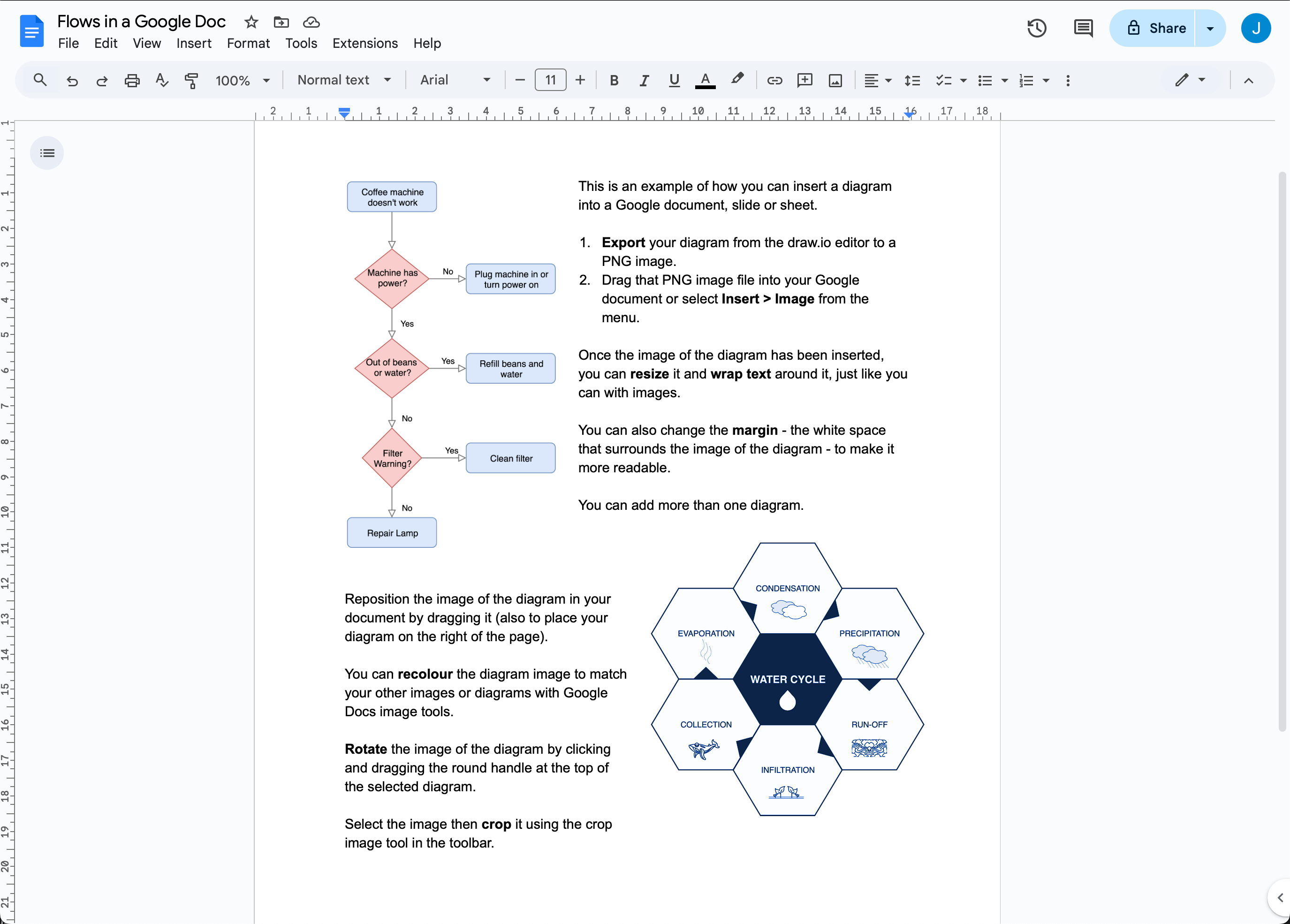
<img decoding="async" loading="lazy" src="https://www.drawio.com/img/blog/google-docs-examples.png" style="max-width:100%;height:auto" alt="It's easy to import images of diagrams in Google Docs" class="img_ev3q">
<h2 class="anchor anchorTargetStickyNavbar_Vzrq" id="use-drawio-diagrams-in-google-docs-slides-and-sheets">Use draw.io diagrams in Google Docs, Slides and Sheets<a href="https://www.drawio.com/blog/diagrams-google#use-drawio-diagrams-in-google-docs-slides-and-sheets" class="hash-link" aria-label="Direct link to Use draw.io diagrams in Google Docs, Slides and Sheets" title="Direct link to Use draw.io diagrams in Google Docs, Slides and Sheets" translate="no">​</a></h2>
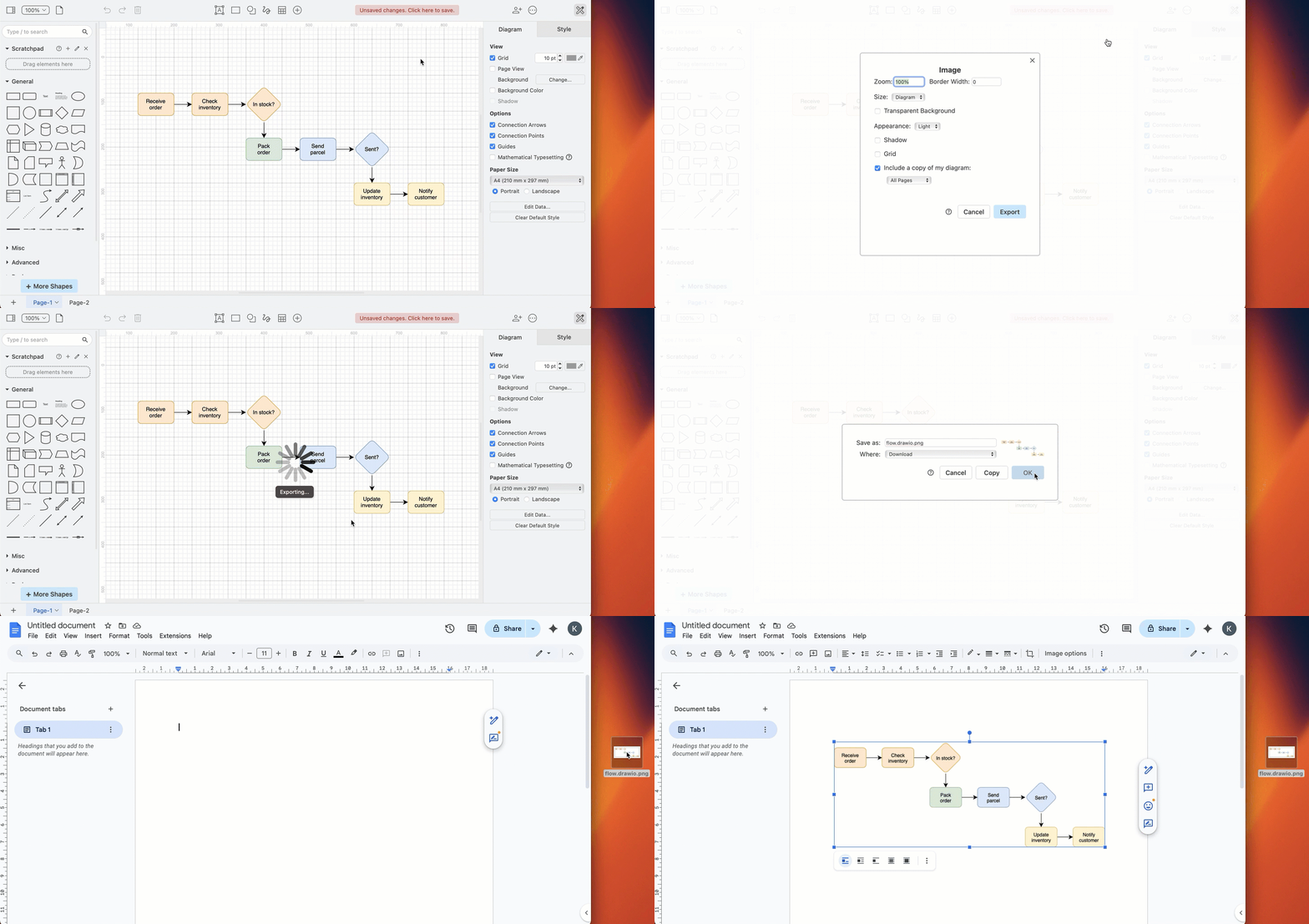
<p>Export your draw.io diagrams to PNG image files and then import them into your Google Docs, Slides and Sheets - drag and drop the image file into your document.
<br><img decoding="async" loading="lazy" src="https://www.drawio.com/img/blog/drawio-google-image.gif" style="width:100%;max-width:500px;height:auto" alt="Export a draw.io diagram to a PNG image, then import it into your Google document" class="img_ev3q"></p>
<ol>
<li class="">Open your <code>.drawio</code> diagram file in the draw.io editor (either our <a href="https://app.diagrams.net/" target="_blank" rel="noopener noreferrer" class="">online editor</a> or <a href="https://get.diagrams.net/" target="_blank" rel="noopener noreferrer" class="">draw.io Desktop</a>)</li>
<li class="">In the draw.io menu, select <em>File &gt; Export As &gt; PNG</em>, then click <em>Export</em> to save your diagram as an image.</li>
<li class="">In your Google Document, Slide, or Sheet select <em>Insert Image</em> from the menu, or drag and drop your image into your document.</li>
</ol>
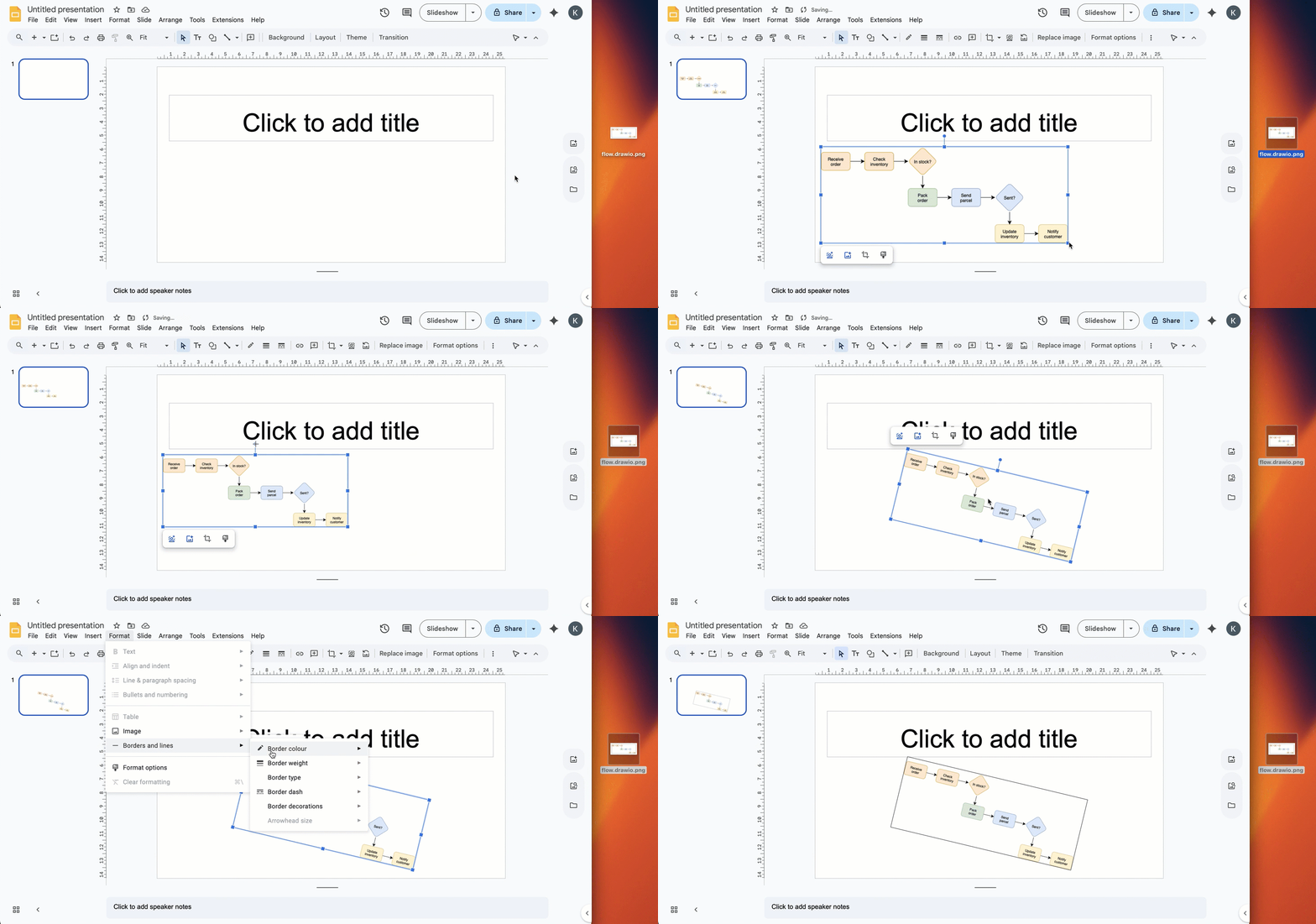
<img decoding="async" loading="lazy" src="https://www.drawio.com/img/blog/drawio-google-slide.gif" style="width:100%;max-width:500px;height:auto" alt="Export a draw.io diagram to a PNG image, then import it into your Google presentation slide" class="img_ev3q">
<p>You can work with the image of your diagram in your Google document (Docs, Slides or Sheets) as you would any other image - you can move, resize, rotate, and style it as needed.</p>
<h3 class="anchor anchorTargetStickyNavbar_Vzrq" id="reopen-your-diagram-from-a-drawio-image-file">Reopen your diagram from a draw.io image file<a href="https://www.drawio.com/blog/diagrams-google#reopen-your-diagram-from-a-drawio-image-file" class="hash-link" aria-label="Direct link to Reopen your diagram from a draw.io image file" title="Direct link to Reopen your diagram from a draw.io image file" translate="no">​</a></h3>
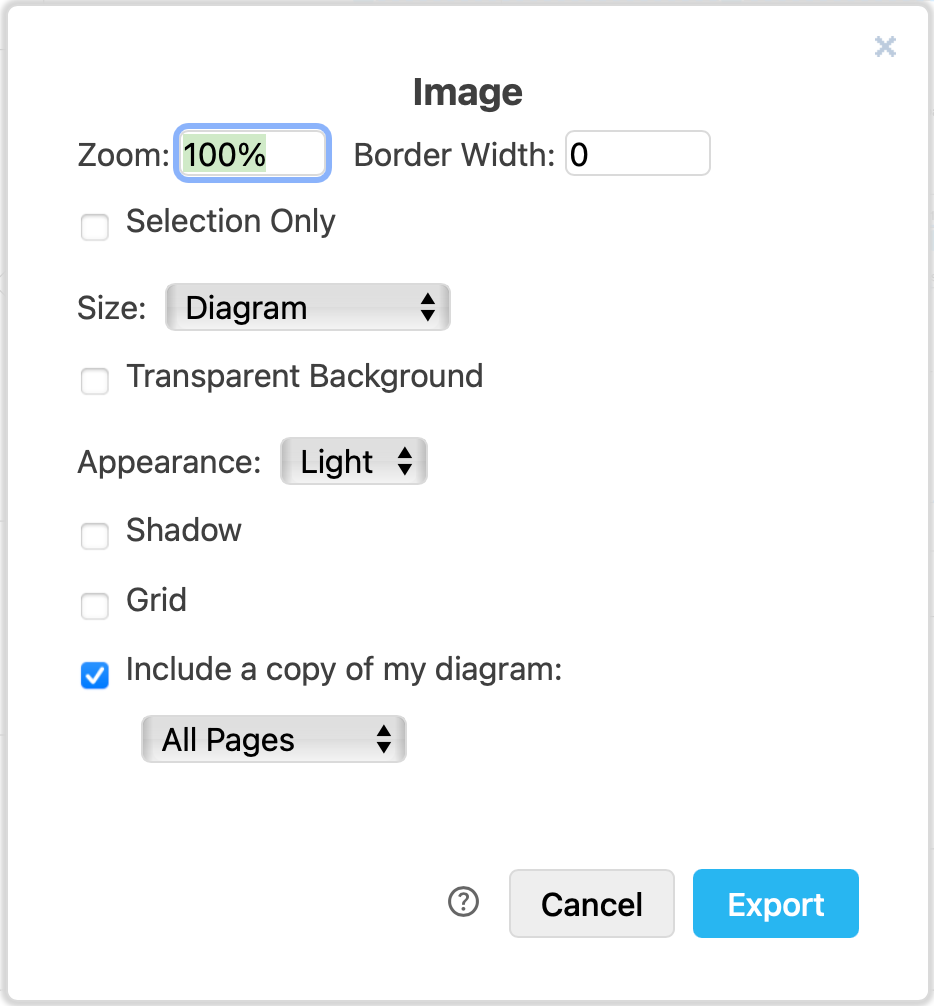
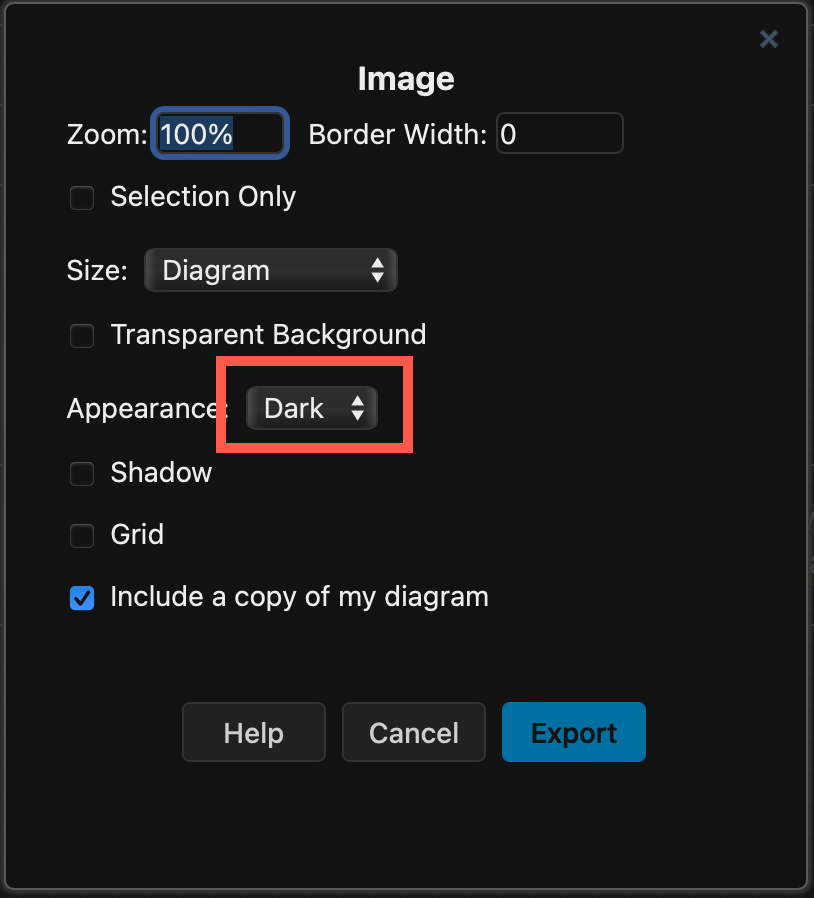
<p>If you export your diagram from draw.io to a PNG image with <em>Include a copy of my diagram</em> enabled, you will be able to drop that image file onto the draw.io editor to load the diagram data embedded in that file and continue diagramming.
<br><img decoding="async" loading="lazy" src="https://www.drawio.com/img/blog/export-png-options.png" style="width:100%;max-width:200px;height:auto" alt="Choose the export settings for the PNG image" class="img_ev3q"></p>
<p><strong>Note:</strong> You cannot reopen images from within Google documents as diagrams as Google strips the embedded diagram data.</p>
<h3 class="anchor anchorTargetStickyNavbar_Vzrq" id="overlay-or-fill-a-cell-in-google-sheets">Overlay or fill a cell in Google Sheets<a href="https://www.drawio.com/blog/diagrams-google#overlay-or-fill-a-cell-in-google-sheets" class="hash-link" aria-label="Direct link to Overlay or fill a cell in Google Sheets" title="Direct link to Overlay or fill a cell in Google Sheets" translate="no">​</a></h3>
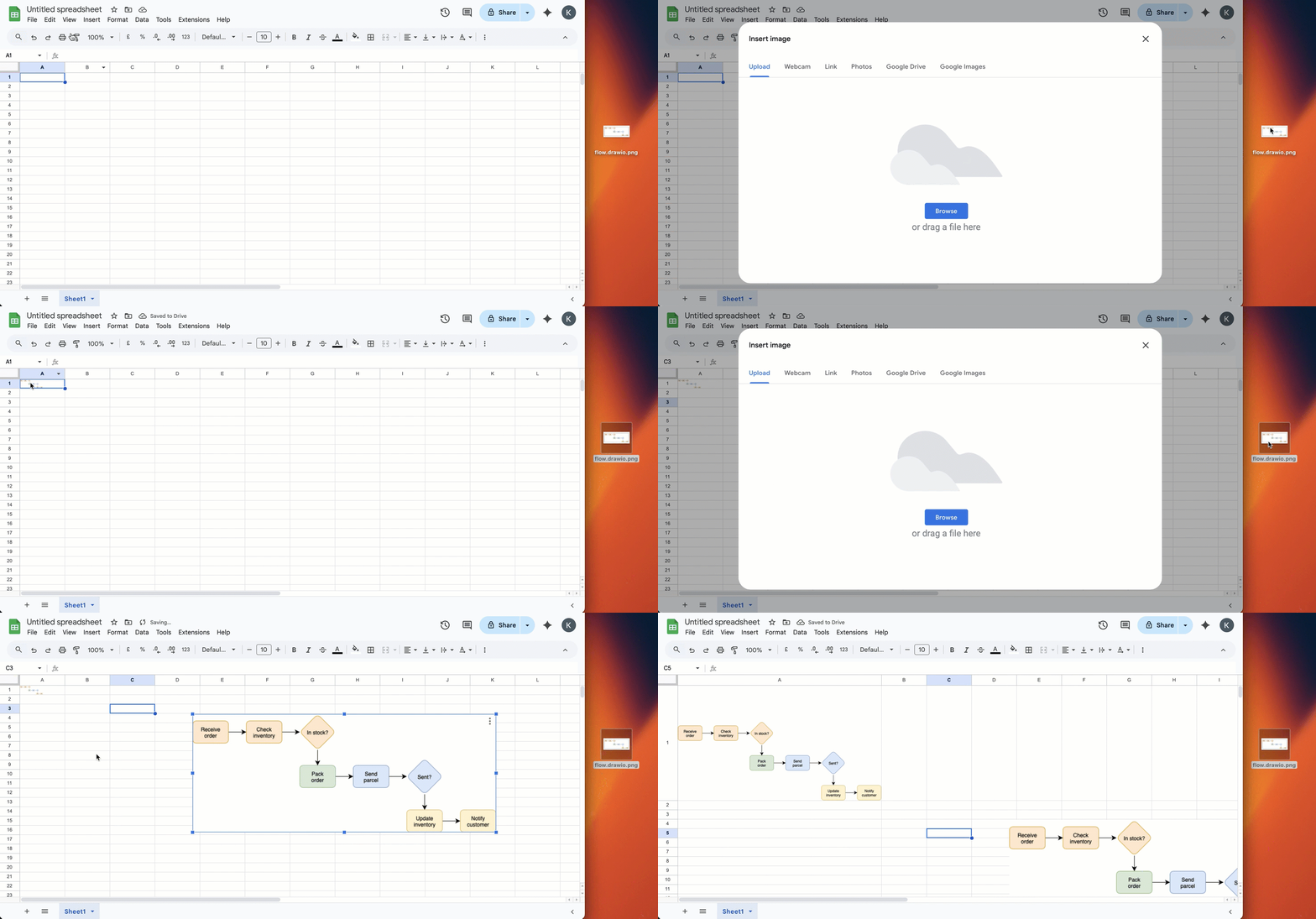
<p>In Google Sheets, you can either import an image of your diagram into a cell or overlay the cells.
<br><img decoding="async" loading="lazy" src="https://www.drawio.com/img/blog/drawio-google-sheet.gif" style="width:100%;max-width:500px;height:auto" alt="Export a draw.io diagram to a PNG image, then import it into your Google spreadsheet" class="img_ev3q"></p>]]></content>
        <author>
            <name>draw.io</name>
            <uri>https://www.drawio.com</uri>
        </author>
        <category label="integrations" term="integrations"/>
    </entry>
    <entry>
        <title type="html"><![CDATA[A modern and streamlined interface for draw.io]]></title>
        <id>https://www.drawio.com/blog/drawio-editor-update</id>
        <link href="https://www.drawio.com/blog/drawio-editor-update"/>
        <updated>2025-02-07T00:00:00.000Z</updated>
        <summary type="html"><![CDATA[The draw.io editor is being freshened up to match the new Google Drive user interface with a modernised and streamlined user interface. All the drawing editor tools are in the same locations around the drawing canvas, so your workflow will not be disrupted.]]></summary>
        <content type="html"><![CDATA[<p>The draw.io editor is being freshened up to match the new Google Drive user interface with a modernised and streamlined user interface. All the drawing editor tools are in the same locations around the drawing canvas, so your workflow will not be disrupted.
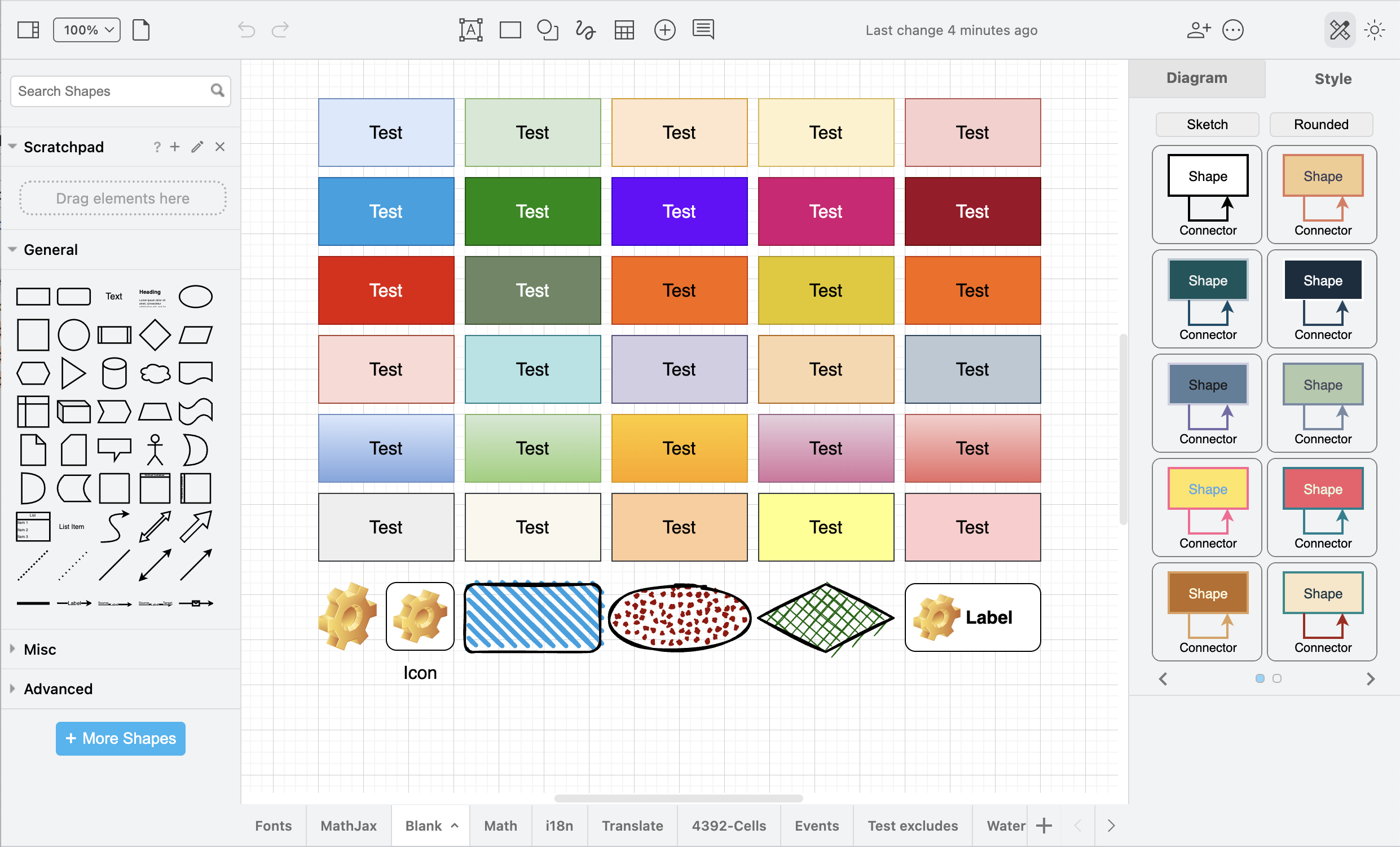
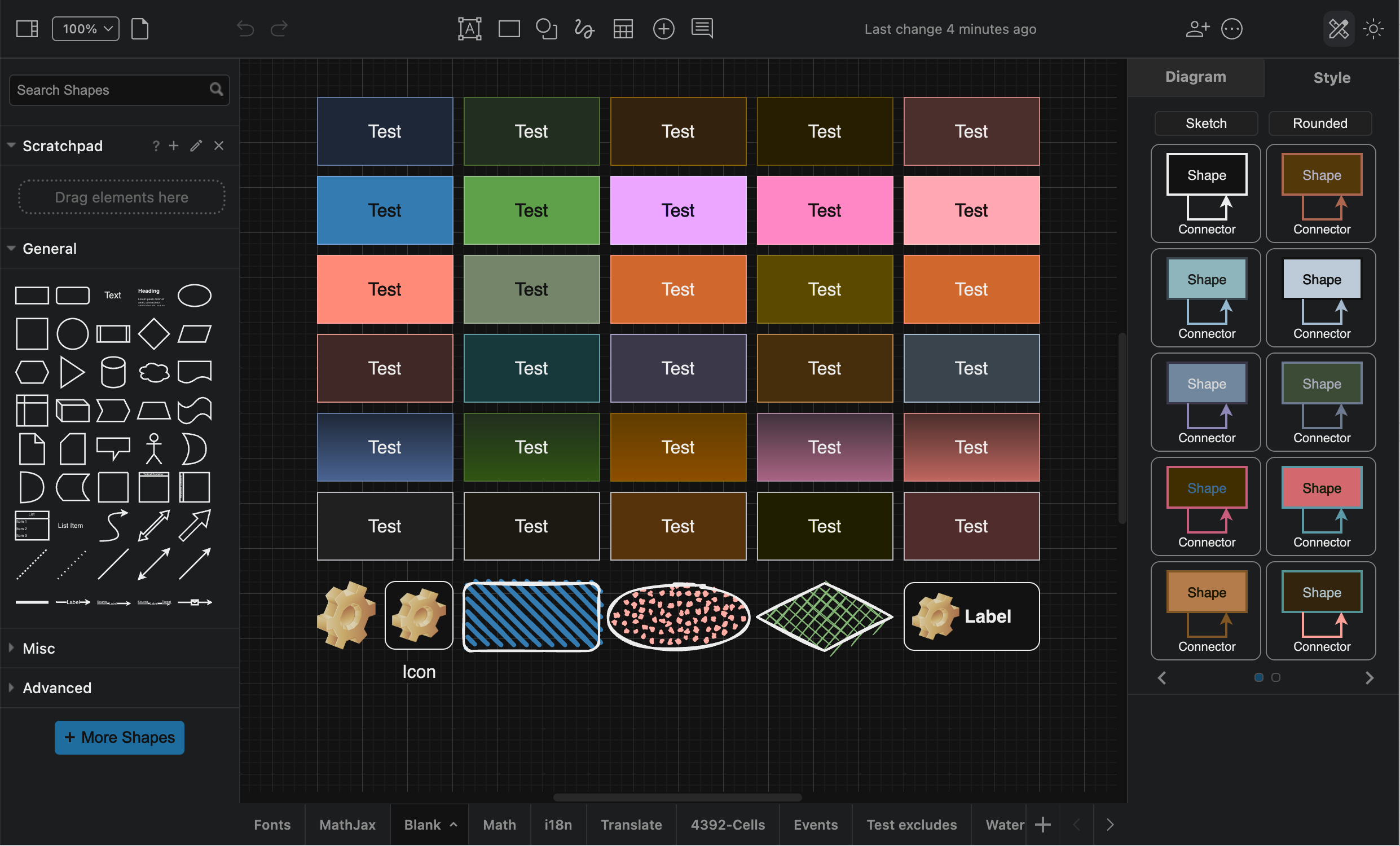
<br><img decoding="async" loading="lazy" src="https://www.drawio.com/img/blog/ui-refresh-dark-classic.png" style="width:100%;max-width:500px;height:auto" alt="The draw.io user interface has been modernised and streamlined, but all the editor tools are in their normal places - your workflow will not be disrupted" class="img_ev3q"></p>
<p>Edges and buttons have been rounded, fonts updated, colours softened, related menu items grouped together, and every aspect styled uniformly to match the current UI standards for modern web applications.</p>
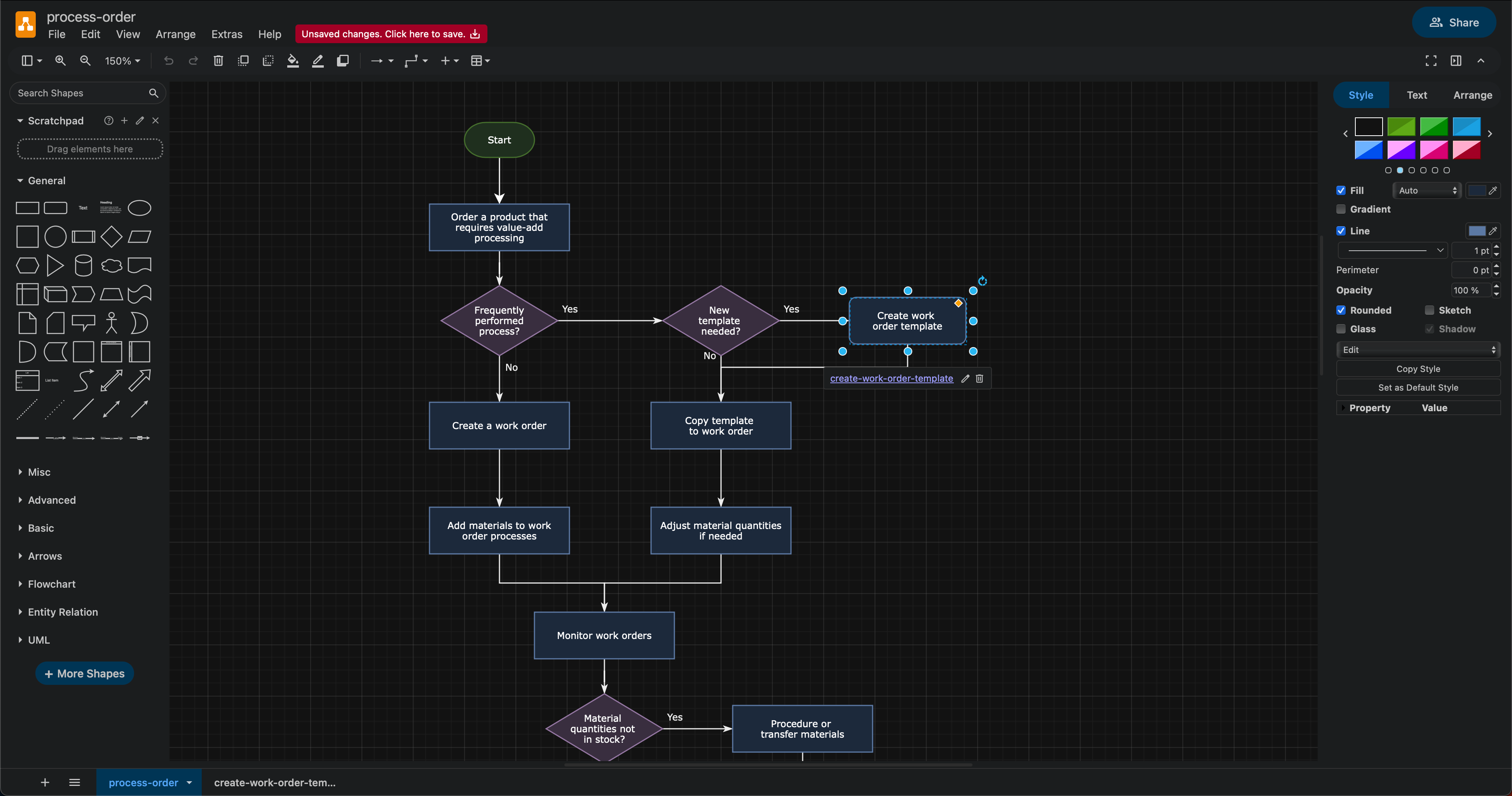
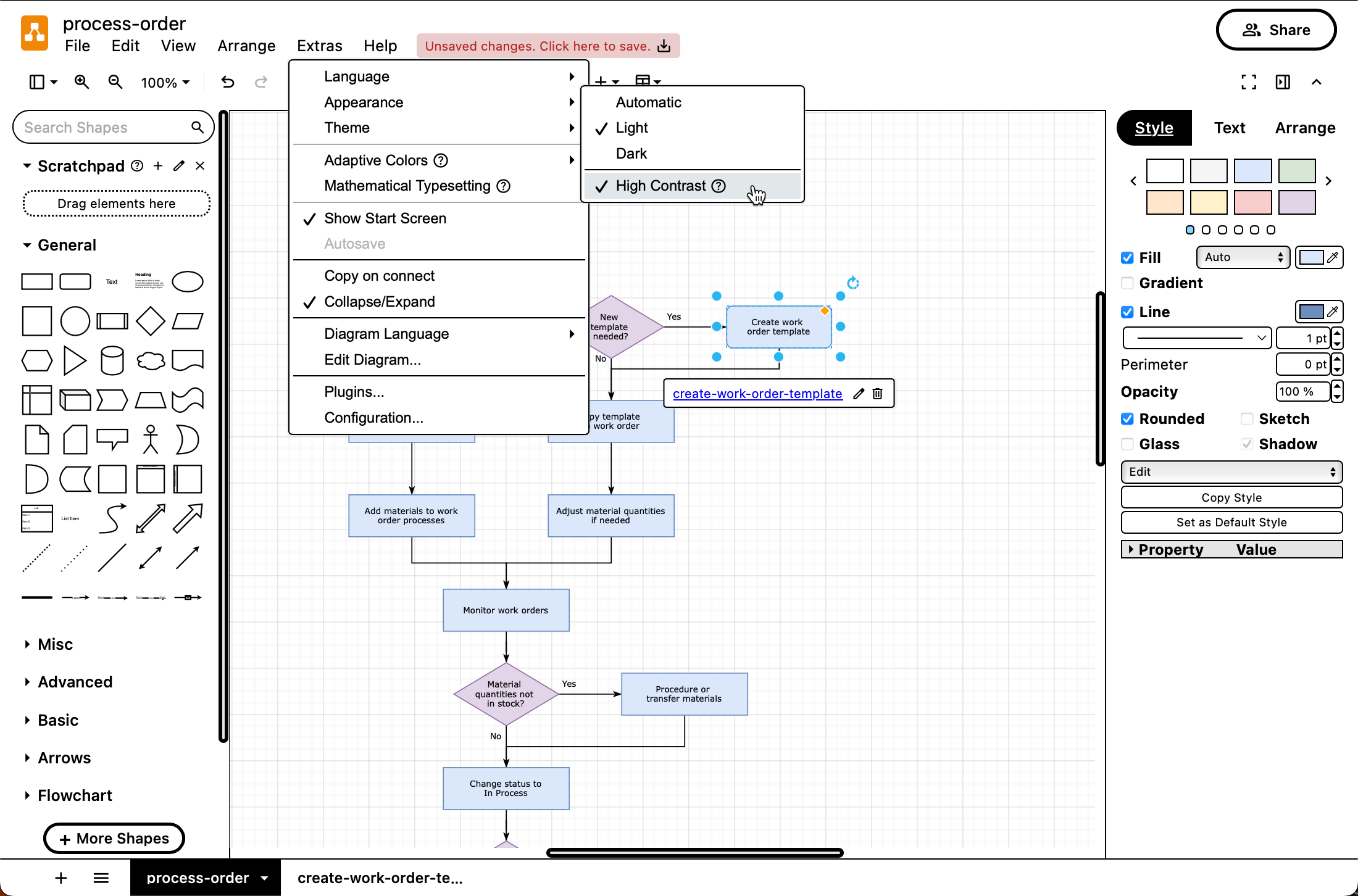
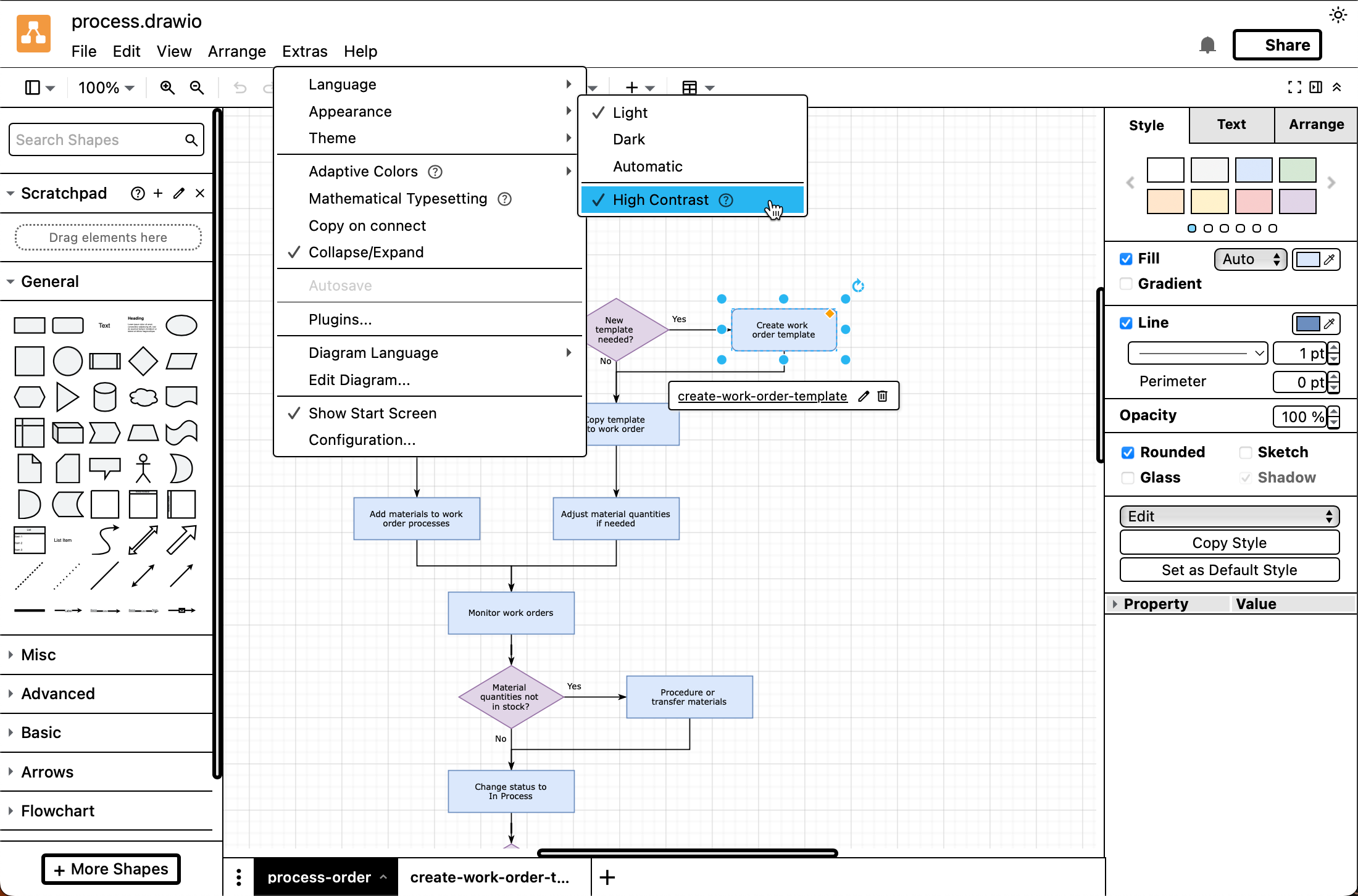
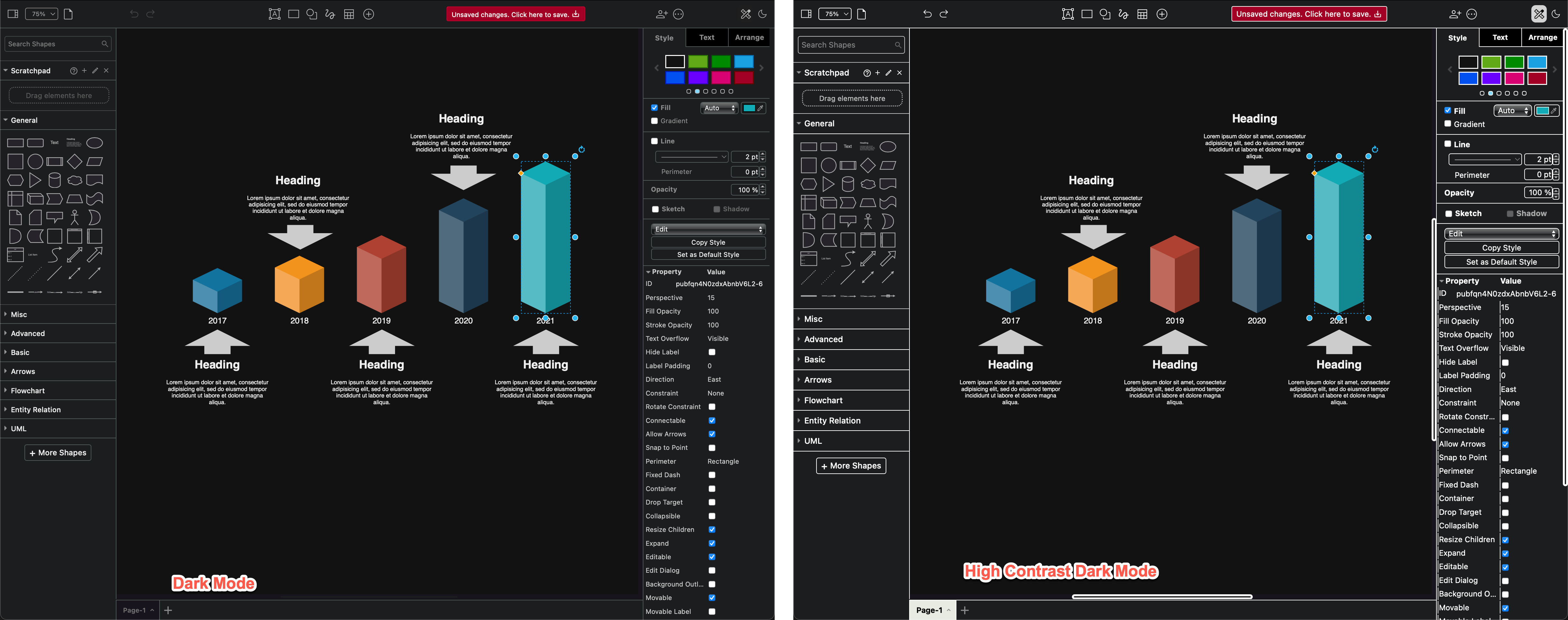
<p>This new streamlined design with fewer obvious separators in the header, panels and tabs, and improved text and shape library contrast ensures the draw.io editor is easier to use in high-contrast mode, whether you prefer to work in dark or light mode.</p>
<p><img decoding="async" loading="lazy" src="https://www.drawio.com/img/blog/ui-refresh-light-contrast-new.png" style="width:100%;max-width:400px;height:auto" alt="The draw.io user interface has been modernised and streamlined, but all the editor tools are in their normal places - your workflow will not be disrupted" class="img_ev3q"> <img decoding="async" loading="lazy" src="https://www.drawio.com/img/blog/ui-refresh-light-contrast-old.png" style="width:100%;max-width:400px;height:auto" alt="The draw.io user interface has been modernised and streamlined, but all the editor tools are in their normal places - your workflow will not be disrupted" class="img_ev3q">
<br><em>The new user interface in the first image above has fewer distracting separating lines in high contrast mode. The older interface in the second image is more cluttered with superfluous separators.</em></p>
<p>It's not just a visual refresh - the buttons and controls in the draw.io user interface have been optimised to be more responsive, and the codebase has been reworked to improve the editor's efficiency, especially on mobile devices, and allow for future improvements and feature updates.</p>
<h2 class="anchor anchorTargetStickyNavbar_Vzrq" id="switch-between-modes-and-editor-themes">Switch between modes and editor themes<a href="https://www.drawio.com/blog/drawio-editor-update#switch-between-modes-and-editor-themes" class="hash-link" aria-label="Direct link to Switch between modes and editor themes" title="Direct link to Switch between modes and editor themes" translate="no">​</a></h2>
<p>Although the refreshed UI is easiest to see in <em>Classic</em> and <em>Simple</em>, the three other <a class="" href="https://www.drawio.com/docs/manual/editor/appearance">draw.io editor themes</a> - Minimal, Sketch and Atlas - have also been updated with contrast improvements and modernised dialog elements.</p>
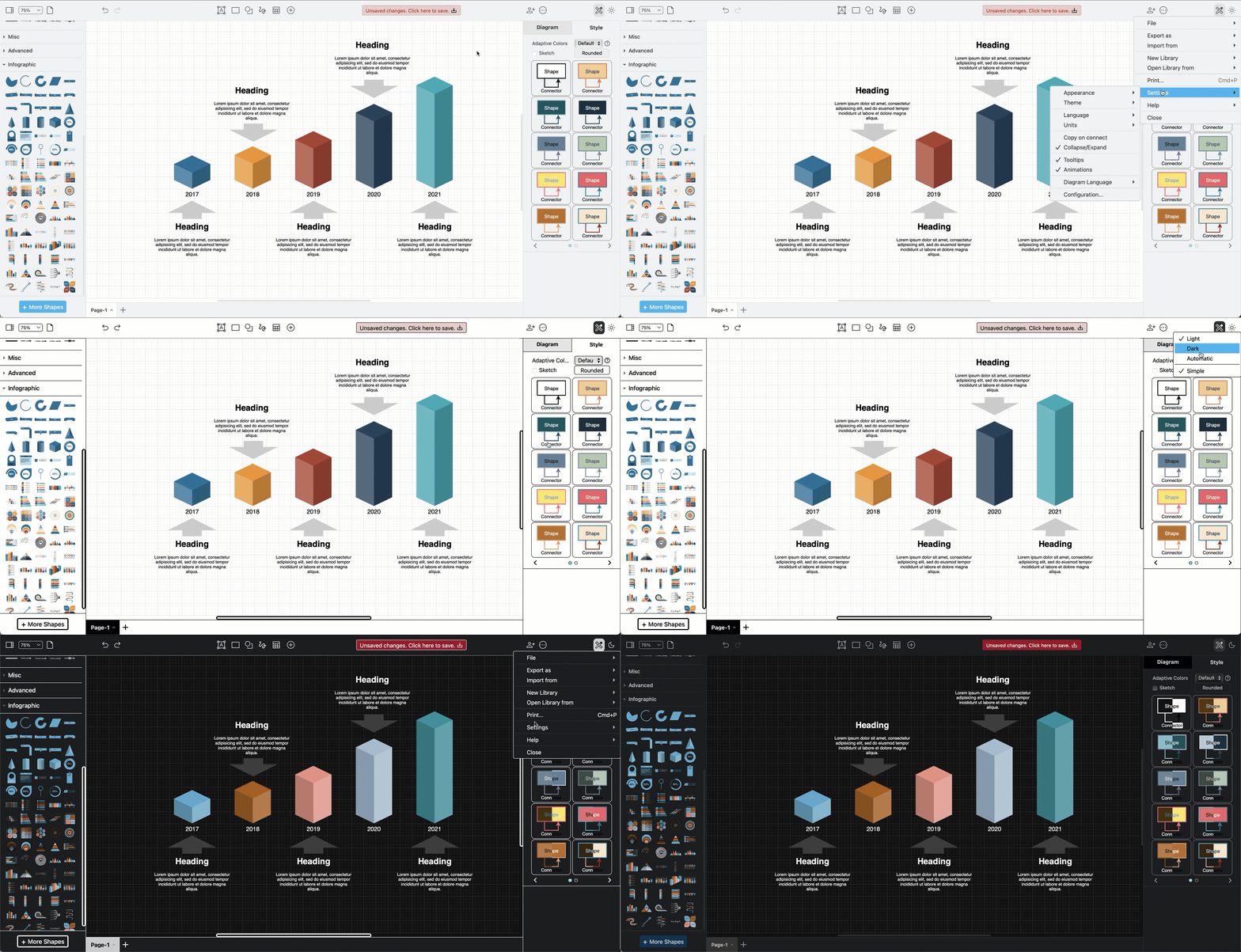
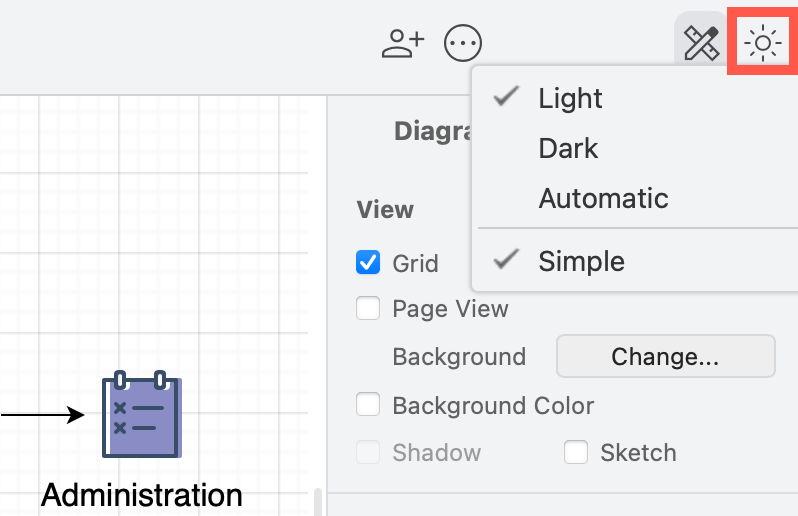
<p>The mode switch icon (sun/moon) for <a class="" href="https://www.drawio.com/docs/manual/editor/appearance/dark-mode">dark/light modes</a> and the <a class="" href="https://www.drawio.com/docs/manual/editor/appearance/simple-mode-diagrams">classic/simple editor layout</a> that was previously in the top right of the editor has been moved into the menu for all themes.</p>
<ul>
<li class=""><strong><em>Appearance</em> submenu:</strong> automatic, dark, light and high contrast modes</li>
<li class=""><strong><em>Themes</em> submenu:</strong> automatic, Classic, Simple, Minimal, Sketch, and Atlas themes</li>
</ul>
<p>These submenus are accessed slightly differently in each editor theme.</p>
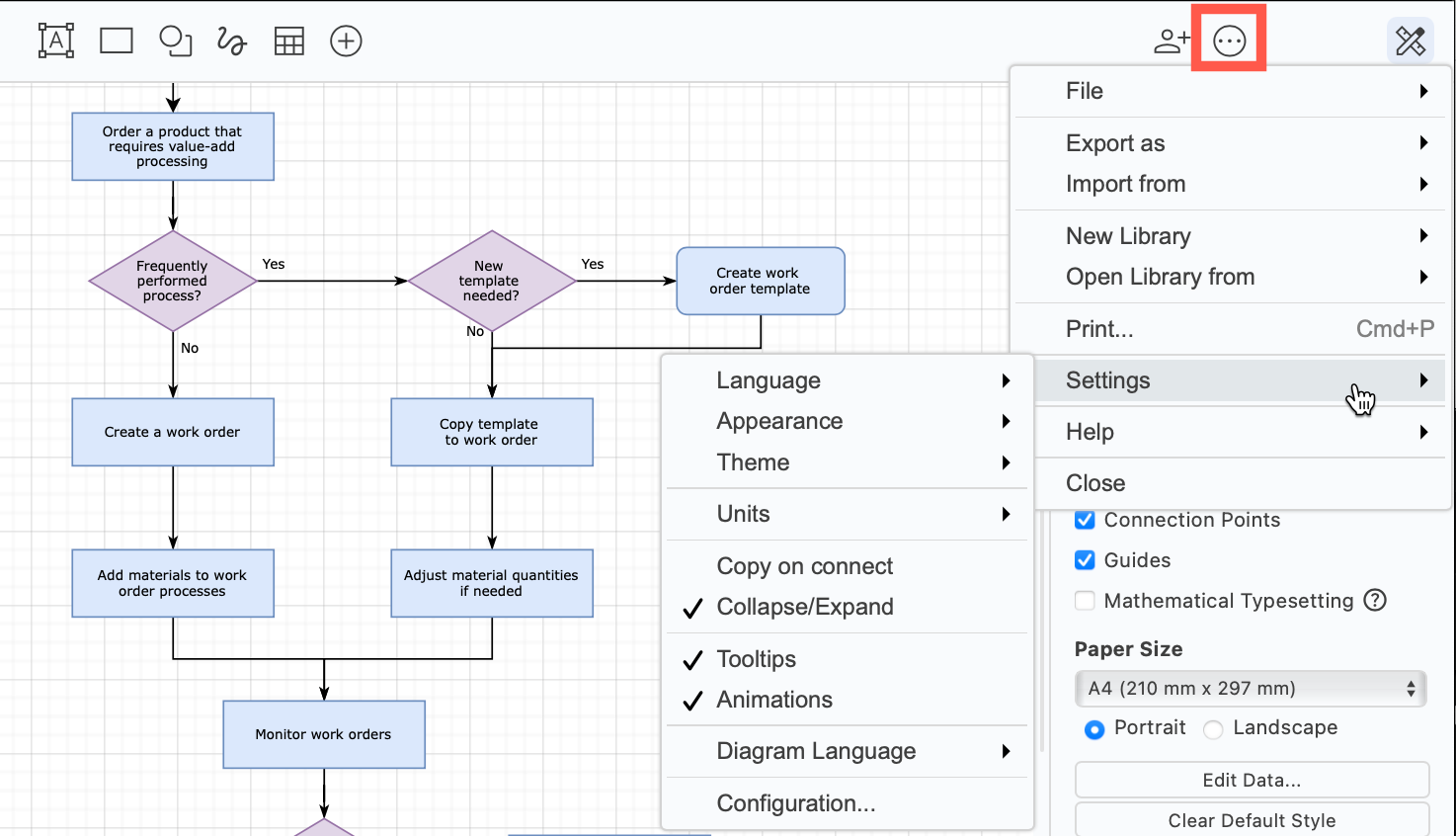
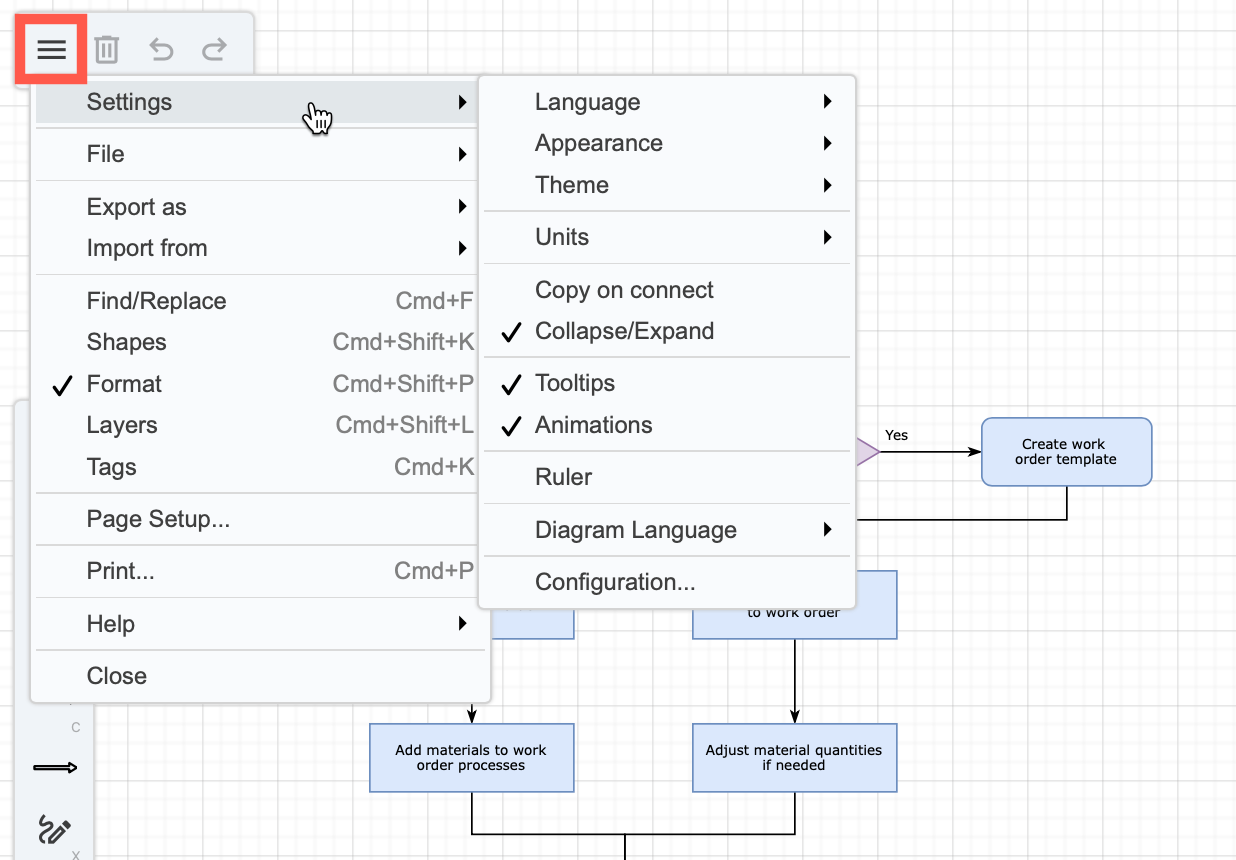
<p><strong>Simple:</strong> Click <code>...</code> in the toolbar and select <em>Settings</em>.
<br><img decoding="async" loading="lazy" src="https://www.drawio.com/img/blog/ui-refresh-simple-menu.png" style="width:100%;max-width:300px;height:auto" alt="Click ... and select Settings to access the appearance and themes menu when using the Simple draw.io editor theme" class="img_ev3q"></p>
<p><strong>Classic and Atlas:</strong> Select the <em>Extras</em> menu.
<br><img decoding="async" loading="lazy" src="https://www.drawio.com/img/blog/ui-refresh-atlas-menu.png" style="width:100%;max-width:300px;height:auto" alt="Click ... and select Settings to access the appearance and themes menu when using the Atlas or Classic draw.io editor themes" class="img_ev3q"></p>
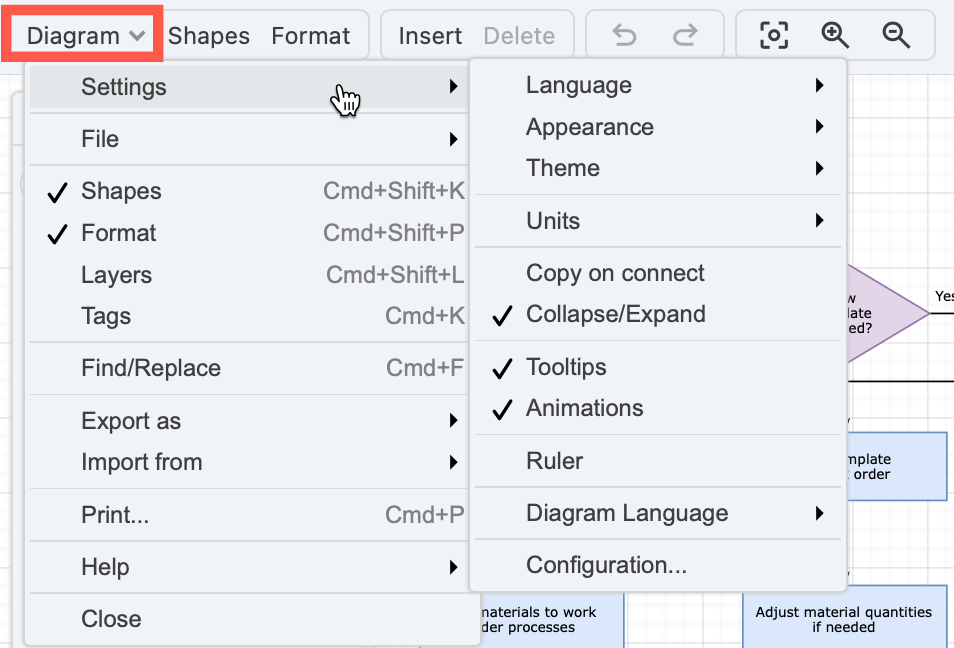
<p><strong>Minimal:</strong> Select <em>Diagram &gt; Settings</em> from the toolbar.
<br><img decoding="async" loading="lazy" src="https://www.drawio.com/img/blog/ui-refresh-minimal-menu.png" style="width:100%;max-width:300px;height:auto" alt="Click ... and select Settings to access the appearance and themes menu when using the Minimal draw.io editor theme" class="img_ev3q"></p>
<p><strong>Sketch:</strong> Select the triple horizontal bar in the top left, then select <em>Settings</em>.
<br><img decoding="async" loading="lazy" src="https://www.drawio.com/img/blog/ui-refresh-sketch-menu.png" style="width:100%;max-width:300px;height:auto" alt="Click ... and select Settings to access the appearance and themes menu when using the Sketch draw.io editor theme" class="img_ev3q"></p>
<h2 class="anchor anchorTargetStickyNavbar_Vzrq" id="work-with-multi-page-diagrams">Work with multi-page diagrams<a href="https://www.drawio.com/blog/drawio-editor-update#work-with-multi-page-diagrams" class="hash-link" aria-label="Direct link to Work with multi-page diagrams" title="Direct link to Work with multi-page diagrams" translate="no">​</a></h2>
<p>In Atlas, Classic and Simple themes with the refreshed user interface, the <code>+</code> to add a new diagram page has moved to the bottom left of the editor.
<br><em>The diagram page tools in the Minimal and Sketch editor themes are unaltered.</em></p>
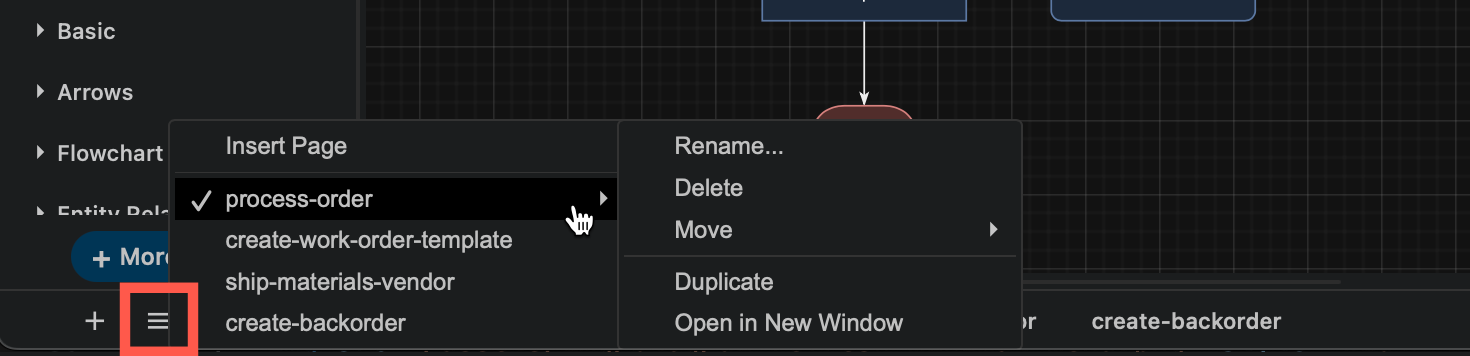
<p>Click on the horizontal lines to see a list of all pages in the diagram (if there are too many to fit) and work with the current page directly, or right click on any page tab at the bottom of the editor to rename, duplicate, move and delete it.
<br><img decoding="async" loading="lazy" src="https://www.drawio.com/img/blog/ui-refresh-dark-multipage.png" style="width:100%;max-width:500px;height:auto" alt="Click on the + in the bottom left to add a new page, and the horizontal lines to see a list of all pages in your diagram" class="img_ev3q"></p>
<p><a class="" href="https://www.drawio.com/docs/manual/pages"><em>Learn more about working with multi-page diagrams in draw.io</em></a></p>]]></content>
        <author>
            <name>draw.io</name>
            <uri>https://www.drawio.com</uri>
        </author>
        <category label="features" term="features"/>
    </entry>
    <entry>
        <title type="html"><![CDATA[draw.io app Editions for Atlassian Confluence Cloud (early access program)]]></title>
        <id>https://www.drawio.com/blog/drawio-app-editions</id>
        <link href="https://www.drawio.com/blog/drawio-app-editions"/>
        <updated>2024-12-20T00:00:00.000Z</updated>
        <summary type="html"><![CDATA[App editions for Atlassian Confluence Cloud will soon be available for customers who sign up for Atlassian's early-access program. App editions is a new Atlassian Marketplace feature introduced with Forge, and draw.io will be available in Standard and Advanced editions.]]></summary>
        <content type="html"><![CDATA[<p>App editions for Atlassian Confluence Cloud will soon be available for customers who sign up for Atlassian's early-access program. App editions is a new Atlassian Marketplace feature introduced with Forge, and <a class="" href="https://www.drawio.com/docs/integrations/atlassian/confluence/confluence-cloud-drawio-zero-egress-vs-app-editions">draw.io will be available in Standard and Advanced editions</a>.</p>
<p>If you are not in the early access program, your draw.io Confluence Cloud app will continue to receive regular updates and support as in your current subscription, and of course, the full features of the draw.io diagram editor, including AI-generated diagrams.</p>
<p>If you sign up for the new early access programme for app Editions in the Atlassian Marketplace, draw.io will be available in the following two editions for Confluence Cloud.</p>
<ul>
<li class="">
<p>The <em>Standard edition</em> includes all the diagramming features of the draw.io editor, including AI-generated diagrams. When you need support, your Confluence Cloud administrators can submit support tickets and receive the standard level of support (9/5 business hours).</p>
</li>
<li class="">
<p>The <em>Advanced edition</em> of draw.io for Atlassian Cloud products is for <em>large enterprise customers</em> who require advanced support and stricter data security. Along with the fully featured draw.io app from the Standard edition, you will receive the following additional support:</p>
<ul>
<li class="">Extended support hours and shorter initial response times.</li>
<li class="">A dedicated account manager as your single point of contact for enquiries.</li>
<li class="">Custom security reviews for compliance submissions.</li>
<li class="">Access to development feature previews.</li>
<li class="">In-depth and targeted training materials.</li>
<li class="">A zero-egress switch that can disable all data egress except for Atlassian API calls in the draw.io Forge app version.</li>
</ul>
</li>
</ul>
<h2 class="anchor anchorTargetStickyNavbar_Vzrq" id="related">Related<a href="https://www.drawio.com/blog/drawio-app-editions#related" class="hash-link" aria-label="Direct link to Related" title="Direct link to Related" translate="no">​</a></h2>
<p>See how to use draw.io in Confluence with <a class="" href="https://www.drawio.com/docs/integrations/google/google-drive-diagrams">diagram files stored in Google Drive</a>.</p>
<p>Administrators can <a class="" href="https://www.drawio.com/docs/manual/advanced/configure-drawio-app">configure the draw.io app</a> in Confluence Cloud in the Advanced edition to enable the <a class="" href="https://www.drawio.com/docs/security/data-governance-lockdown">lockdown option</a>.</p>
<p>You can diagram offline with the <a class="" href="https://www.drawio.com/docs/security/diagrams-offline">draw.io desktop app</a> if you need to work in a highly secure environment.</p>
<p>We are fully committed to data security and privacy - <a class="" href="https://www.drawio.com/docs/security/">learn more about data protection while diagramming and using draw.io</a>.</p>]]></content>
        <author>
            <name>draw.io</name>
            <uri>https://www.drawio.com</uri>
        </author>
        <category label="features" term="features"/>
        <category label="atlassian" term="atlassian"/>
    </entry>
    <entry>
        <title type="html"><![CDATA[More updated networking and cloud shape libraries]]></title>
        <id>https://www.drawio.com/blog/more-cloud-shapes</id>
        <link href="https://www.drawio.com/blog/more-cloud-shapes"/>
        <updated>2024-12-05T00:00:00.000Z</updated>
        <summary type="html"><![CDATA[In addition to updating the main AWS and Azure shape libraries in draw.io, several new networking and cloud shape libraries have been added, including shapes for Alibaba Cloud, Dynamics365 and OpenStack.]]></summary>
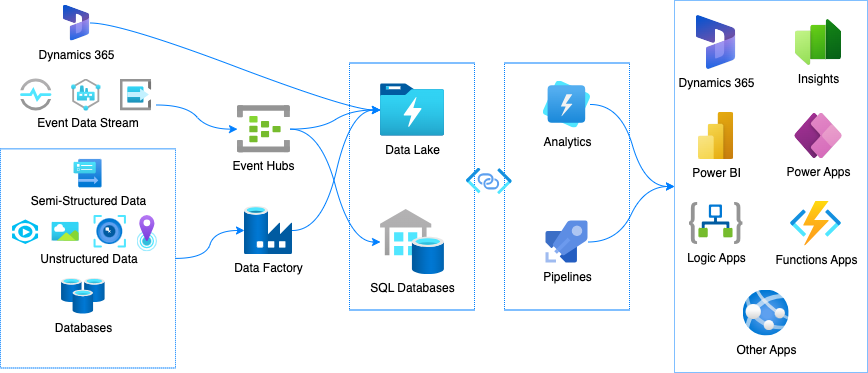
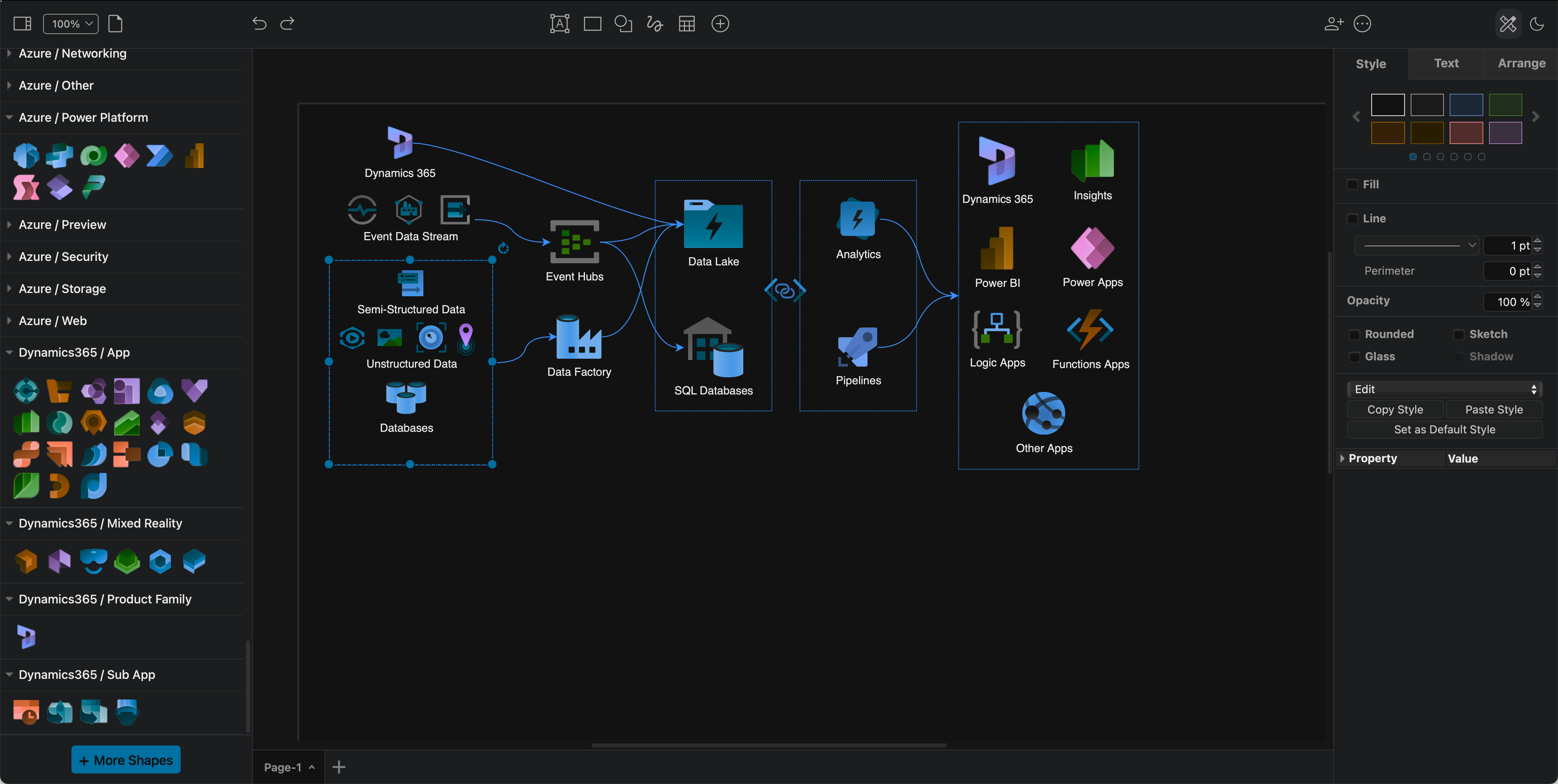
        <content type="html"><![CDATA[<p>In addition to updating the main <a class="" href="https://www.drawio.com/docs/diagram-types/aws-diagrams">AWS</a> and <a class="" href="https://www.drawio.com/docs/diagram-types/azure-diagrams">Azure</a> shape libraries in draw.io, several new networking and cloud shape libraries have been added, including shapes for Alibaba Cloud, Dynamics365 and OpenStack.
<br><img decoding="async" loading="lazy" src="https://www.drawio.com/img/blog/azure-dynamics365-example.png" style="width:100%;max-width:500px;height:auto" alt="Several new cloud infrastructure libraries have been added, and the Azure and AWS shape libraries have been updated in draw.io" class="img_ev3q"></p>
<h2 class="anchor anchorTargetStickyNavbar_Vzrq" id="open-cloud-infrastructure-shape-libraries">Open cloud infrastructure shape libraries<a href="https://www.drawio.com/blog/more-cloud-shapes#open-cloud-infrastructure-shape-libraries" class="hash-link" aria-label="Direct link to Open cloud infrastructure shape libraries" title="Direct link to Open cloud infrastructure shape libraries" translate="no">​</a></h2>
<ol>
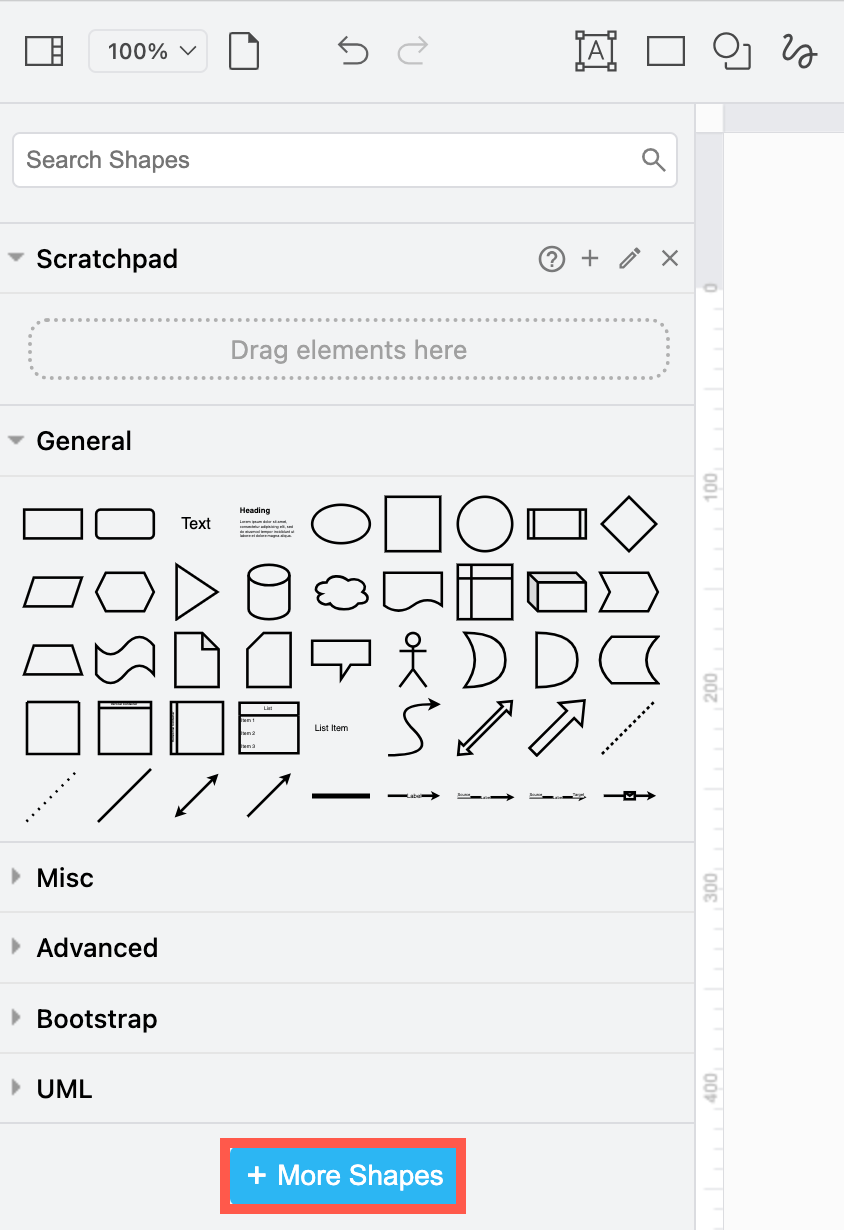
<li class="">Click on <em>More Shapes</em> at the bottom of the shapes panel on the left.
<br><img decoding="async" loading="lazy" src="https://www.drawio.com/img/blog/simple-mode-more-shapes.png" style="width:100%;max-width:200px;height:auto" alt="Click on More Shapes in the shapes panel to open the shape library collection in draw.io" class="img_ev3q"></li>
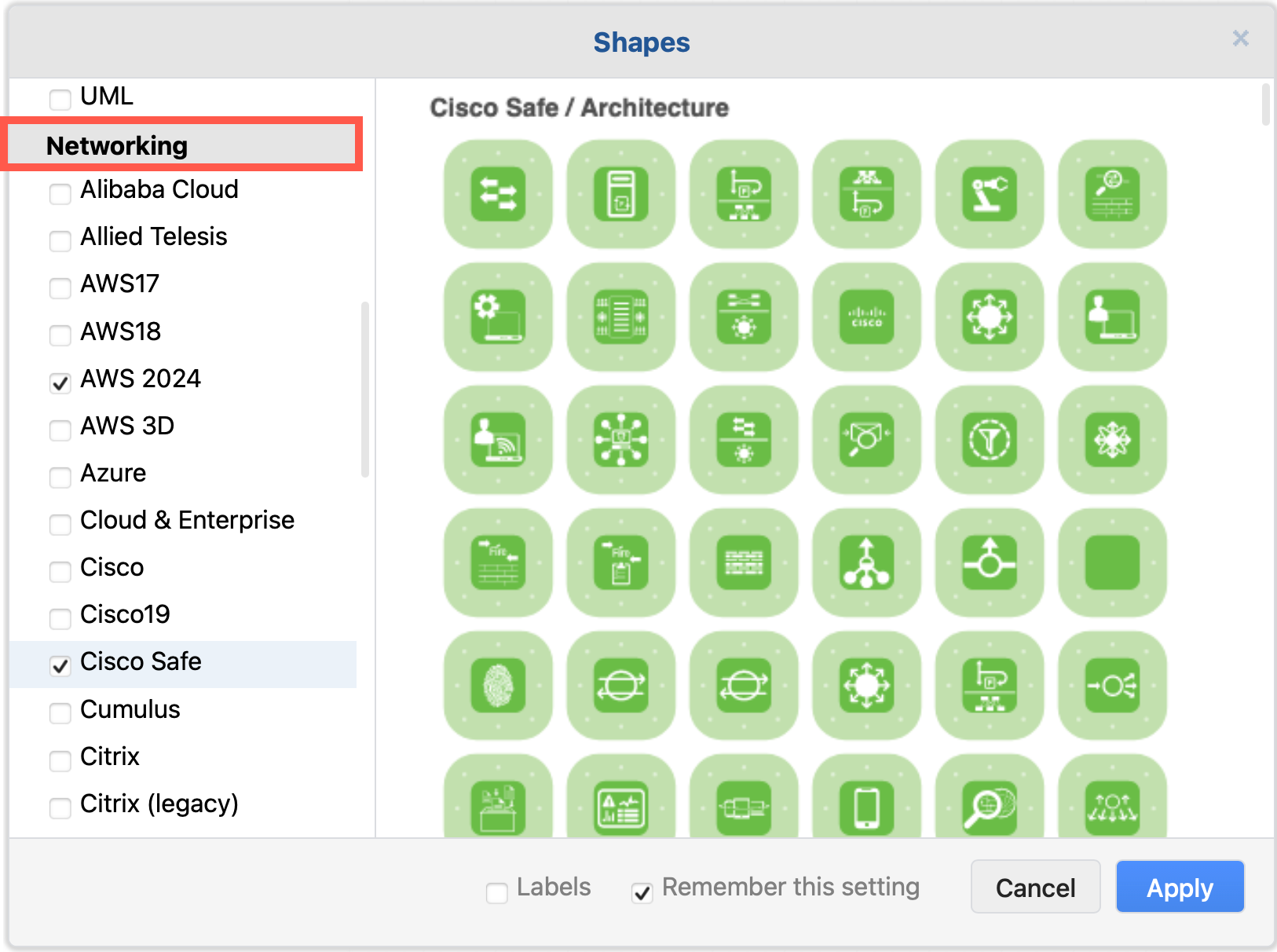
<li class="">Scroll down to the <em>Networking</em> section and enable the shape libraries you want to use.
<br><img decoding="async" loading="lazy" src="https://www.drawio.com/img/blog/networking-shape-libraries.png" style="width:100%;max-width:300px;height:auto" alt="Enable the cloud infrastructure libraries you want to use in draw.io" class="img_ev3q"></li>
<li class="">Click <em>Apply</em> to open them in the shapes panel next to the drawing canvas.</li>
</ol>
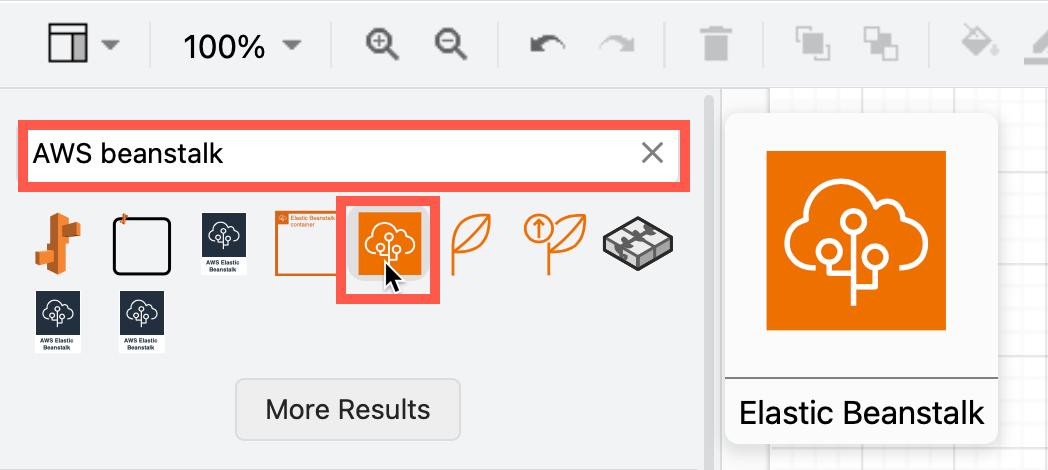
<p><strong>Tip:</strong> Alternatively, you can always search for a shape if you know its name. For example, searching for "AWS beanstalk" will show all the shapes from the various AWS libraries that have both "AWS" and "beanstalk" in their shape names, even if you don't have the AWS shape libraries open. Hover over any of the shapes to see a larger preview.
<br><img decoding="async" loading="lazy" src="https://www.drawio.com/img/blog/aws-search-hover.png" style="width:100%;max-width:300px;height:auto" alt="Search for any cloud infrastructure shape by its name to see all related shapes, even if you don't have the shape libraries open in draw.io" class="img_ev3q"></p>
<h2 class="anchor anchorTargetStickyNavbar_Vzrq" id="azure-power-platform-and-dynamics-365">Azure Power Platform and Dynamics 365<a href="https://www.drawio.com/blog/more-cloud-shapes#azure-power-platform-and-dynamics-365" class="hash-link" aria-label="Direct link to Azure Power Platform and Dynamics 365" title="Direct link to Azure Power Platform and Dynamics 365" translate="no">​</a></h2>
<p>The Power Platform shapes have been added to the Azure shape library. These components are often combined with Dynamics365 services and applications in cloud infrastructures.</p>
<p><em>Tip:</em>* If you prefer to <a class="" href="https://www.drawio.com/docs/manual/editor/appearance/dark-mode">diagram in dark mode</a>, the Azure and Dynamics365 shapes and their labels will automatically change colours to remain readable when you switch between dark and light modes.
<br><img decoding="async" loading="lazy" src="https://www.drawio.com/img/blog/azure-dynamics365-example-dark-mode.png" style="width:100%;max-width:600px;height:auto" alt="Several new cloud infrastructure libraries have been added, and the Azure and AWS shape libraries have been updated in draw.io" class="img_ev3q"></p>
<h2 class="anchor anchorTargetStickyNavbar_Vzrq" id="openstack-shapes-library">OpenStack shapes= library<a href="https://www.drawio.com/blog/more-cloud-shapes#openstack-shapes-library" class="hash-link" aria-label="Direct link to OpenStack shapes= library" title="Direct link to OpenStack shapes= library" translate="no">​</a></h2>
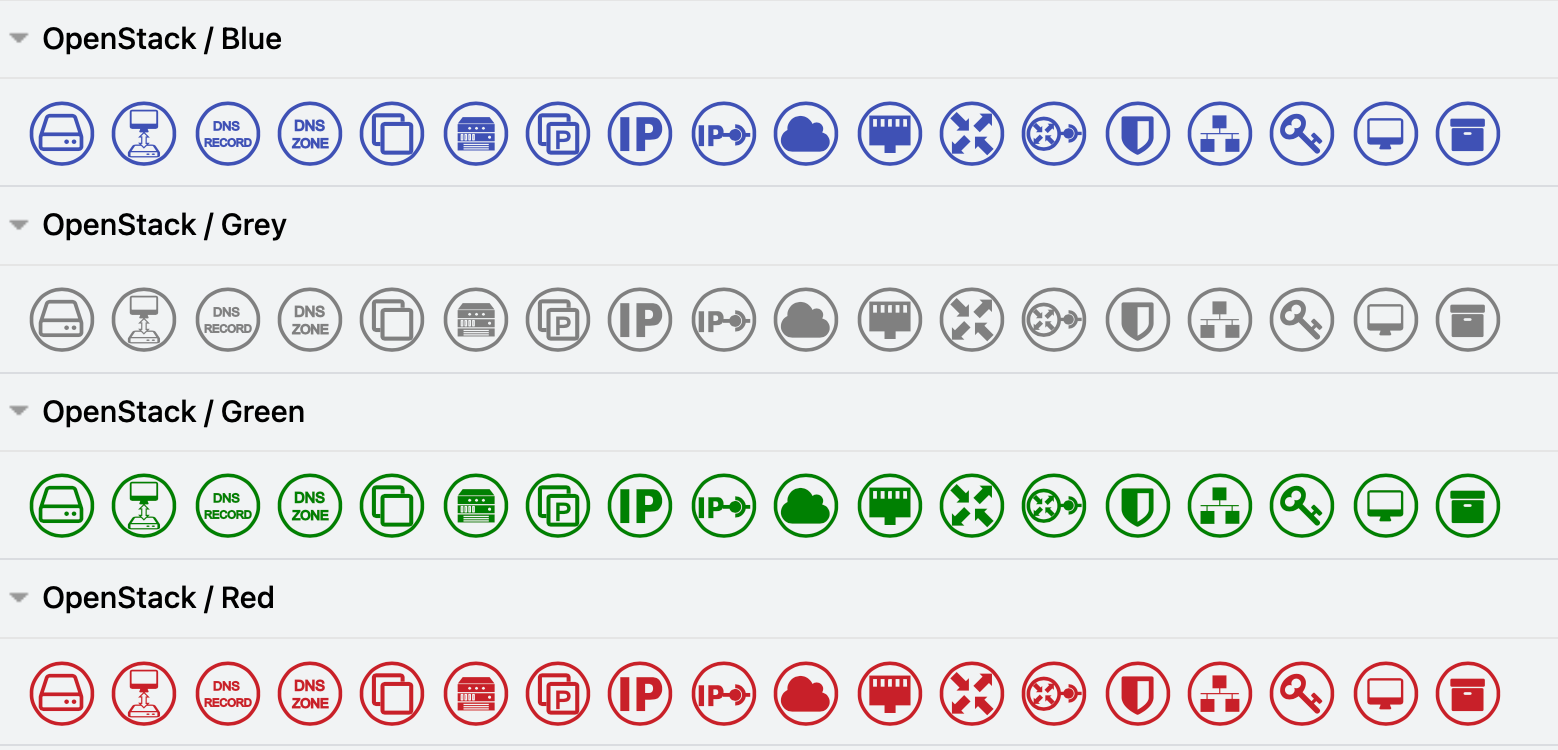
<p>OpenStack services and apps are common components of Citrix, GCP, IBM and other large hybrid cloud infrastructures. To clearly indicate which components are provided by OpenStack in your infrastructure diagrams, enable the OpenStack shape library.
<br><img decoding="async" loading="lazy" src="https://www.drawio.com/img/blog/openstack-shape-library.png" style="width:100%;max-width:400px;height:auto" alt="Use the OpenStack shapes in your hybrid multi-cloud infrastructure diagrams" class="img_ev3q"></p>
<h2 class="anchor anchorTargetStickyNavbar_Vzrq" id="alibaba-cloud-shape-library">Alibaba Cloud shape library<a href="https://www.drawio.com/blog/more-cloud-shapes#alibaba-cloud-shape-library" class="hash-link" aria-label="Direct link to Alibaba Cloud shape library" title="Direct link to Alibaba Cloud shape library" translate="no">​</a></h2>
<p>Enable the Alibaba Cloud shape library to document your infrastructure in Alibaba Cloud platform. These shapes cover a wide range of apps and services.
<br><img decoding="async" loading="lazy" src="https://www.drawio.com/img/blog/alibaba-cloud-shape-library.png" style="width:100%;max-width:600px;height:auto" alt="Use the Alibaba shapes to document your Alibaba Cloud infrastructure" class="img_ev3q"></p>
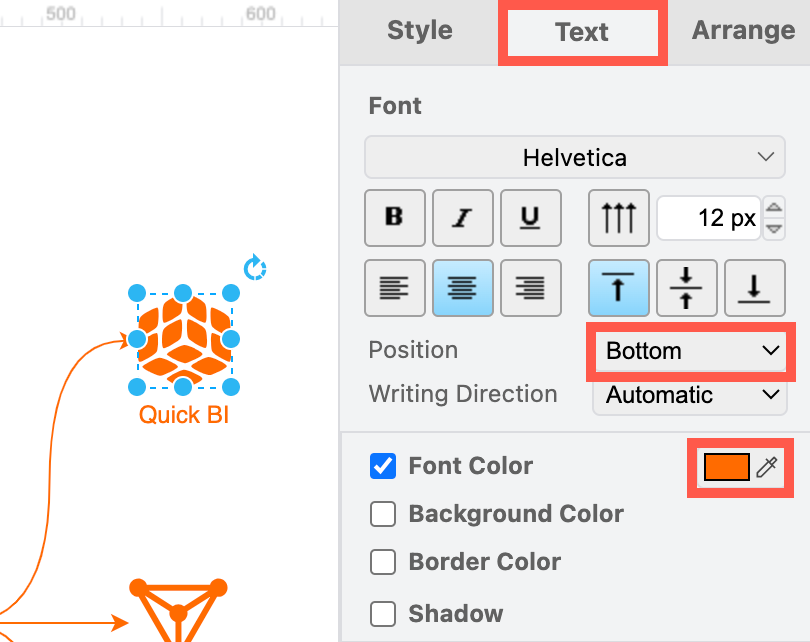
<p>Most of the infrastructure shapes don't have labels by default, as designers tend to rely on logo-recognition for their infrastructure components.
<br><img decoding="async" loading="lazy" src="https://www.drawio.com/img/blog/alibaba-shape-label-style.png" style="width:100%;max-width:250px;height:auto" alt="Add and style shape labels so your Alibaba Cloud infrastructure diagram is readable and consistent" class="img_ev3q"></p>
<p>To make your diagram more accessible, select a shape and start typing to add a label. In the <em>Text</em> tab of the format panel, select the <em>Bottom</em> position, and update the Font Colour to match the colour of the Alibaba shape so it is consistent.</p>
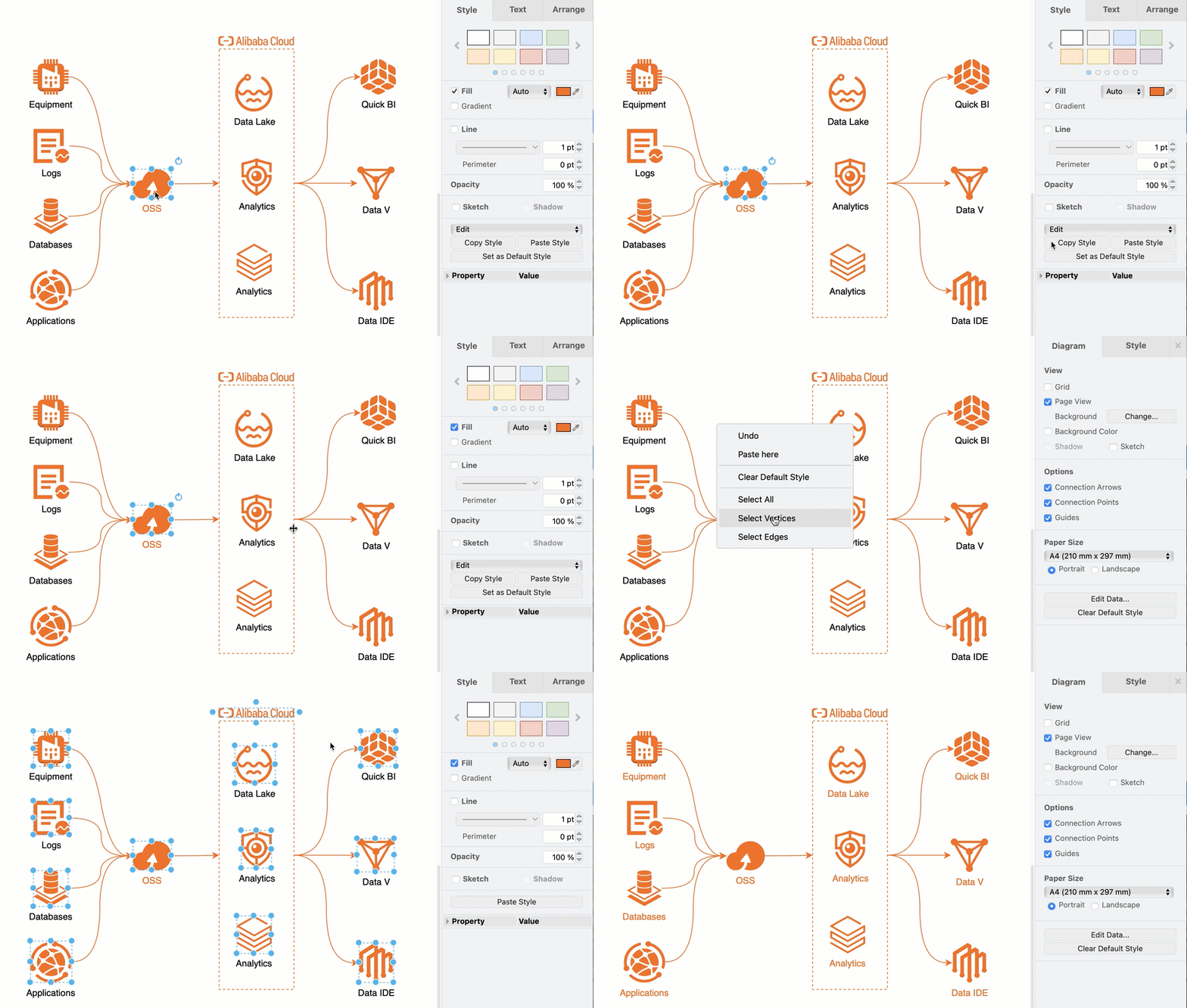
<p><strong>Tip:</strong> Format one shape and click on <em>Copy Style</em> in the <em>Style</em> tab of the format panel. Then, right-click on the canvas and choose <em>Select Vertices</em>, deselect any regions you may have added, and then click on <em>Paste Style</em> in the Style tab to copy the style onto all of the selected shapes.
<br><img decoding="async" loading="lazy" src="https://www.drawio.com/img/blog/alibaba-copy-paste-style.gif" style="width:100%;max-width:400px;height:auto" alt="Copy and paste shape styles to make your diagram labels and colours consistent" class="img_ev3q"></p>
<h2 class="anchor anchorTargetStickyNavbar_Vzrq" id="related">Related<a href="https://www.drawio.com/blog/more-cloud-shapes#related" class="hash-link" aria-label="Direct link to Related" title="Direct link to Related" translate="no">​</a></h2>
<p>Learn more about drawing various types of <a class="" href="https://www.drawio.com/docs/diagram-types/network-diagrams">network and infrastructure diagrams</a>.</p>
<p>Other cloud platform shape libraries in draw.io include <a class="" href="https://www.drawio.com/docs/diagram-types/salesforce-diagrams">Salesforce</a>, <a class="" href="https://www.drawio.com/docs/diagram-types/citrix-diagrams">Citrix</a>, <a class="" href="https://www.drawio.com/blog/gcp-aws-shapes-network-diagrams">Google GCP</a>, <a class="" href="https://www.drawio.com/docs/diagram-types/aws-diagrams">Amazon AWS</a>, <a class="" href="https://www.drawio.com/blog/ibm-technical-diagrams">IBM</a>, and more.</p>
<p>Export AWS diagrams generated from your actual deployed infrastructure to the <code>.drawio</code> format from <a class="" href="https://www.drawio.com/docs/integrations/cloudockit-to-drawio">Cloudockit</a> and <a class="" href="https://www.drawio.com/docs/integrations/drawio-aws-cloudcraft">Cloudcraft</a>.</p>]]></content>
        <author>
            <name>draw.io</name>
            <uri>https://www.drawio.com</uri>
        </author>
        <category label="use-cases" term="use-cases"/>
        <category label="shape-libraries" term="shape-libraries"/>
    </entry>
    <entry>
        <title type="html"><![CDATA[New IBM Cloud shape library for technical diagrams]]></title>
        <id>https://www.drawio.com/blog/ibm-technical-diagrams</id>
        <link href="https://www.drawio.com/blog/ibm-technical-diagrams"/>
        <updated>2024-11-15T00:00:00.000Z</updated>
        <summary type="html"><![CDATA[The new IBM Cloud shape library in draw.io (right) reflects IBM's updated design language, and extends the existing IBM shape library (left) with a wide range of additional groups, connectors and infrastructure components.]]></summary>
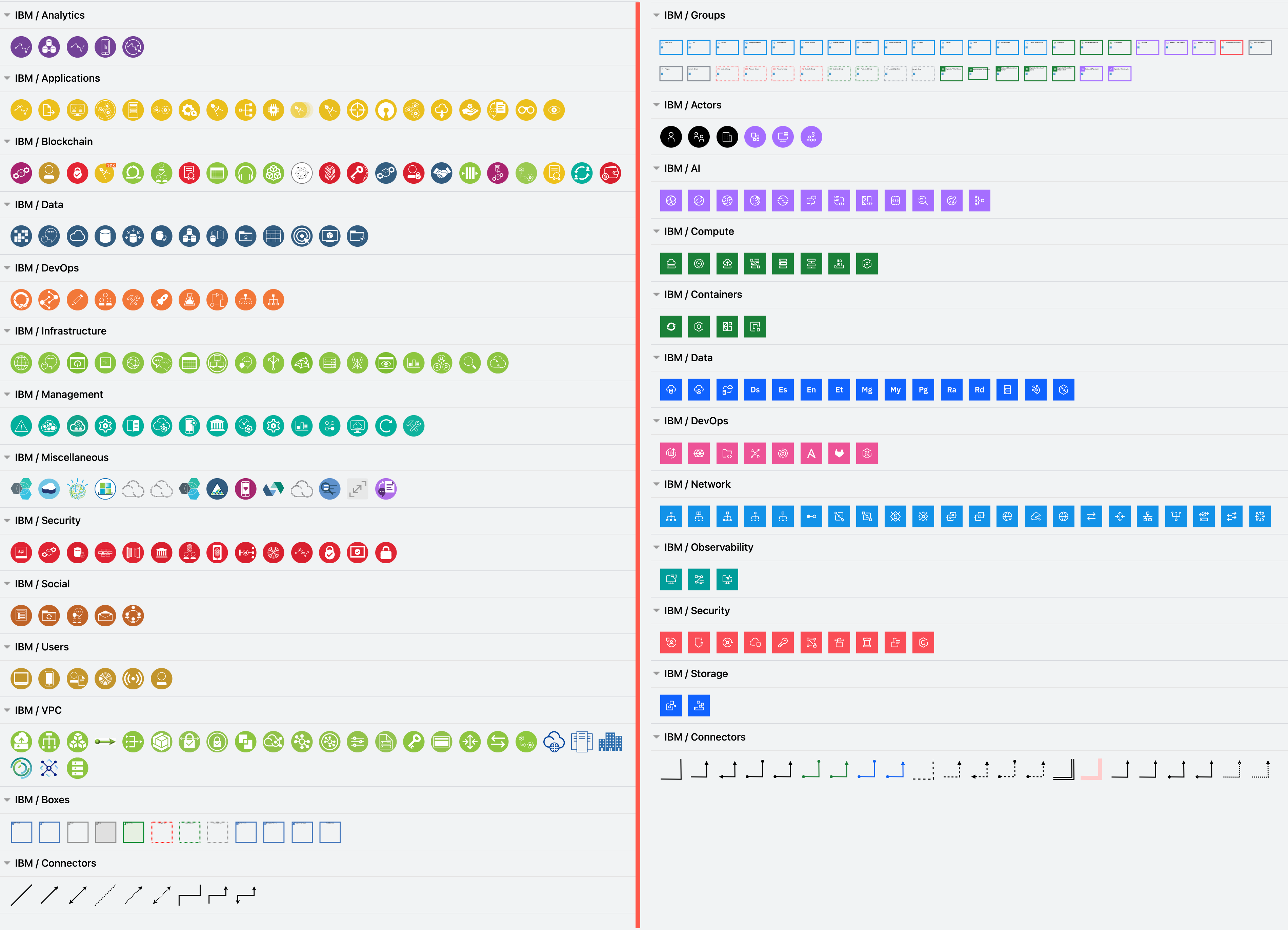
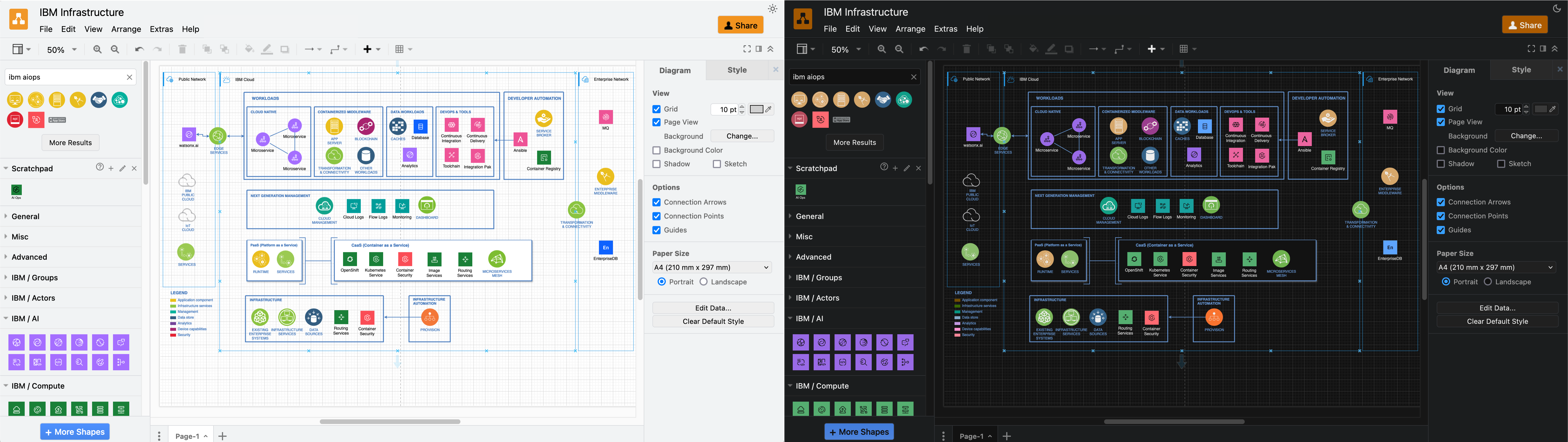
        <content type="html"><![CDATA[<p>The new <em>IBM Cloud</em> shape library in draw.io (right) reflects IBM's updated design language, and extends the existing <em>IBM</em> shape library (left) with a wide range of additional groups, connectors and infrastructure components.
<br><img decoding="async" loading="lazy" src="https://www.drawio.com/img/blog/ibm-shape-libraries.png" style="width:100%;max-width:500px;height:auto" alt="Enable the new IBM and IBM shape libraries to draw IBM infrastructure diagrams" class="img_ev3q"></p>
<p>IBM has provided their updated shapes for the new IBM Cloud shape library in draw.io. Please refer to their documentation for their <a href="https://www.ibm.com/design/language/infographics/technical-diagrams/design" target="_blank" rel="noopener noreferrer" class="">design language style guide</a>, where they explain how shapes and icons should be used in a wide variety of technical diagrams.</p>
<p><strong>Enable the IBM shape libraries in draw.io</strong></p>
<ol>
<li class="">Click on <em>More Shapes</em> at the bottom of the shapes panel in draw.io.</li>
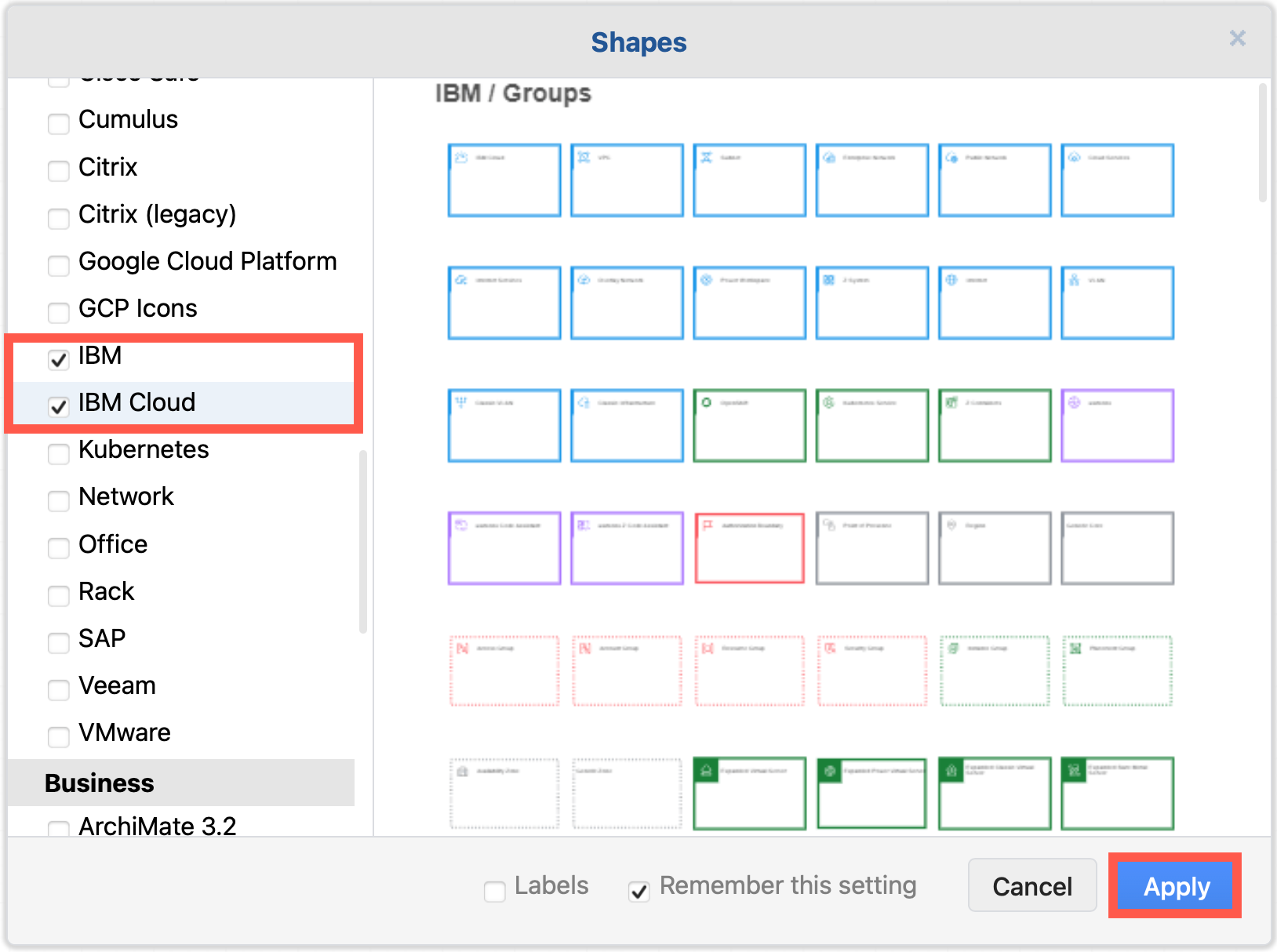
<li class="">Enable the checkbox next to the <em>SAP</em> shape library in the <em>Networking</em> section and click <em>Apply</em>.
<br><img decoding="async" loading="lazy" src="https://www.drawio.com/img/blog/shape-library-ibm-enable.png" style="width:100%;max-width:300px;height:auto" alt="Enable the IBM shape libraries to draw IBM infrastructure diagrams" class="img_ev3q"></li>
</ol>
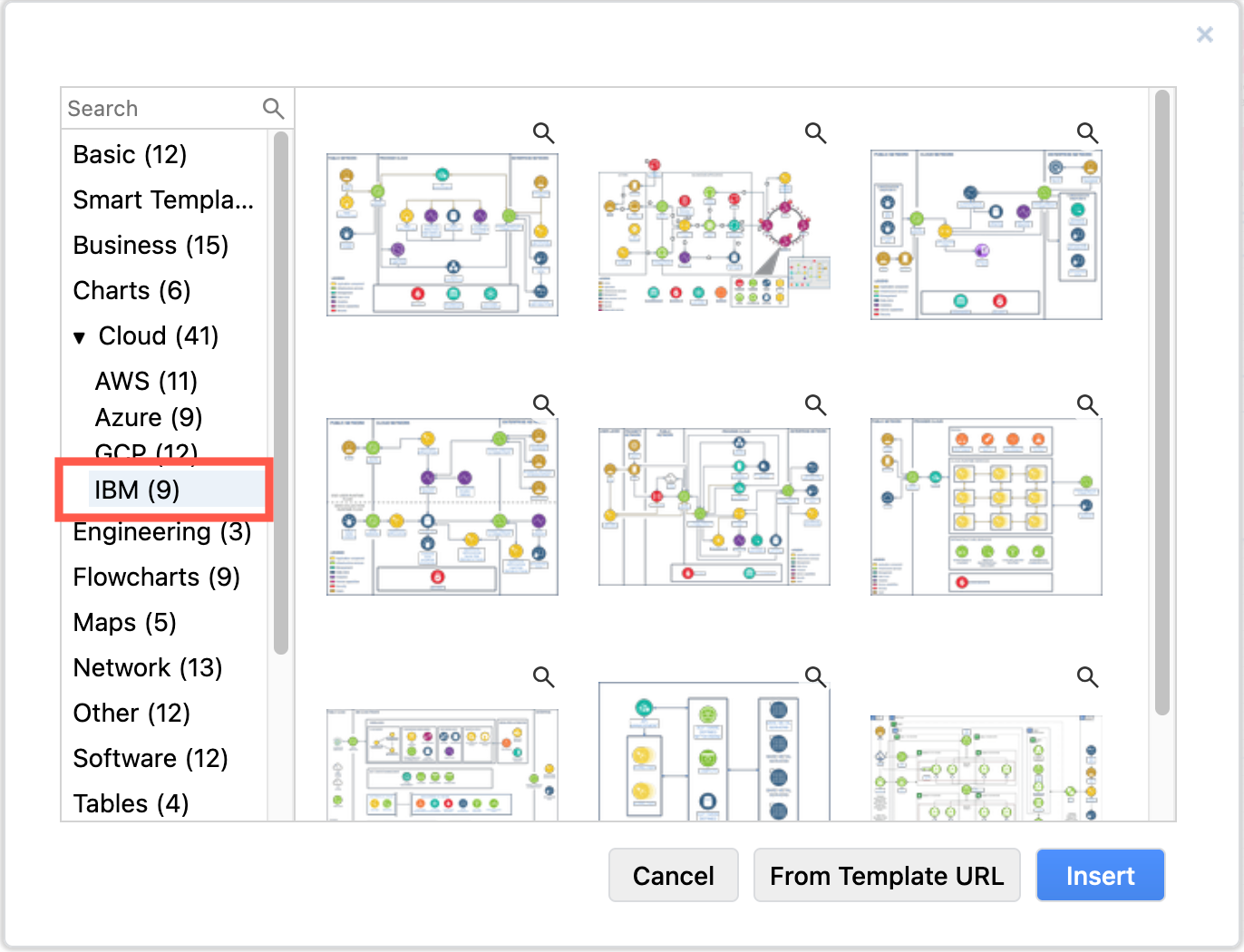
<p><strong>Tip:</strong> There are also several IBM infrastructures in the template library. Select <em>Arrange &gt; Insert &gt; Template</em> from the menu or <em>+ &gt; Template</em> in the toolbar, and look in the <em>Cloud &gt; IBM</em> category.
<br><img decoding="async" loading="lazy" src="https://www.drawio.com/img/blog/ibm-template-library.png" style="width:100%;max-width:300px;height:auto" alt="draw.io has several example IBM infrastructures in the template library" class="img_ev3q"></p>
<h2 class="anchor anchorTargetStickyNavbar_Vzrq" id="using-old-and-new-ibm-shapes-in-one-diagram">Using old and new IBM shapes in one diagram<a href="https://www.drawio.com/blog/ibm-technical-diagrams#using-old-and-new-ibm-shapes-in-one-diagram" class="hash-link" aria-label="Direct link to Using old and new IBM shapes in one diagram" title="Direct link to Using old and new IBM shapes in one diagram" translate="no">​</a></h2>
<p>The new IBM Cloud shapes are compound shapes - a coloured background shape and an icon on top in the centre. This gives you more flexibility in styling your diagram as you can change the two shapes' fill colours independently.</p>
<p>The older shapes are round with a white icon and blue text label, while the new IBM Cloud shapes are square with a white icon and text (in light mode) or black icon and text (in dark mode).</p>
<p>There is also a larger and more varied set of groups (region shapes) in the new <em>IBM Cloud</em> shape library.
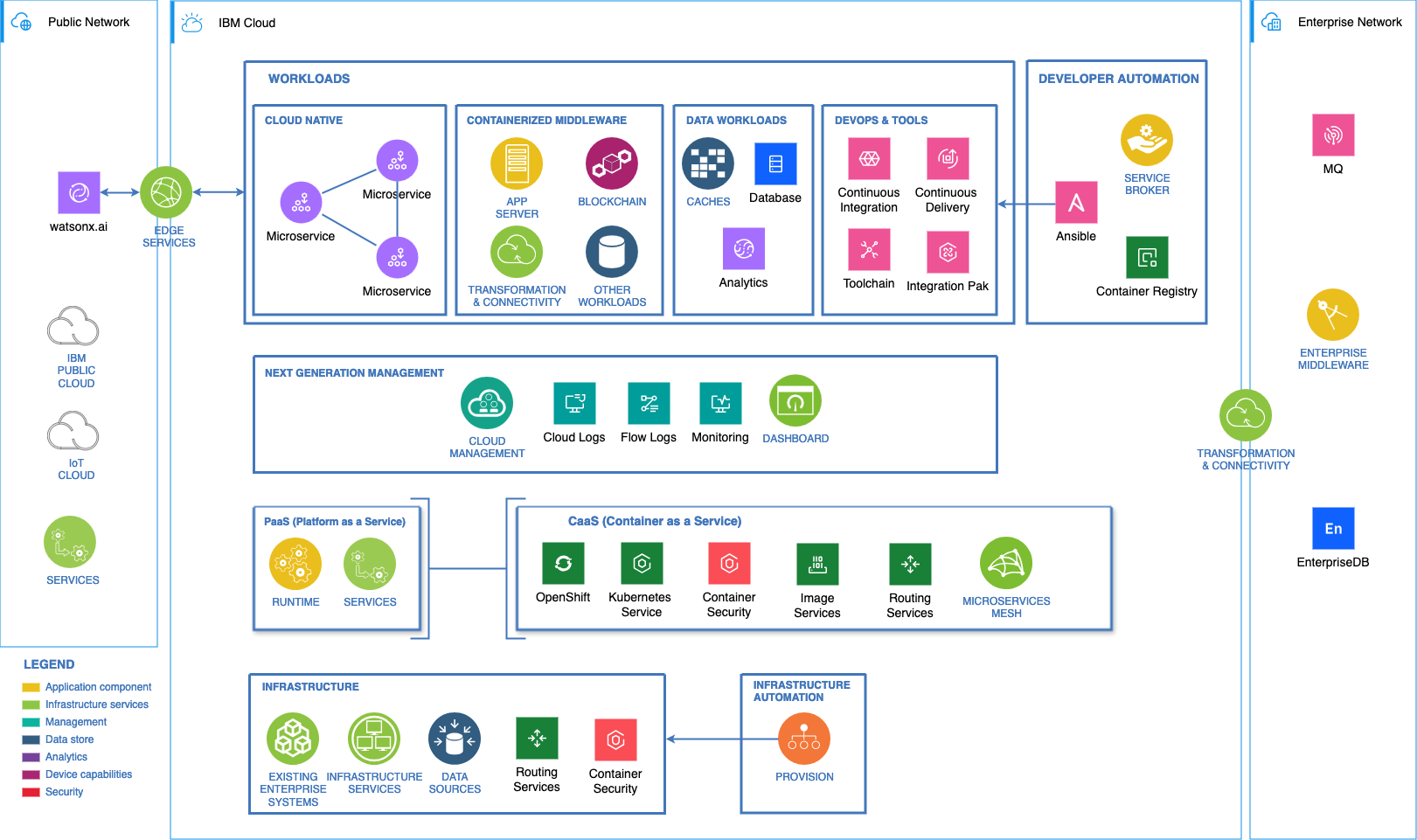
<br><img decoding="async" loading="lazy" src="https://www.drawio.com/img/blog/ibm-infrastructure-cloud-icons.png" style="width:100%;max-width:600px;height:auto" alt="The new IBM Cloud shapes work well with the older IBM shape library in draw.io" class="img_ev3q">
<br>The example above is one of the IBM templates available in draw.io with the new IBM Cloud shapes replacing some older components.</p>
<p>Both sets of shapes work well when diagramming in dark mode - the new shapes will switch icon and label colours automatically to remain readable.
<br><img decoding="async" loading="lazy" src="https://www.drawio.com/img/blog/ibm-dark-light-mode.png" style="width:100%;max-width:600px;height:auto" alt="The new IBM Cloud shapes automatically swap colours to remain readable in dark and light mode in draw.io" class="img_ev3q"></p>
<p><strong>Tip:</strong> To make the labels look the same on all of your IBM and IBM Cloud shapes, you'll need to edit the text labels to ensure their case matches and the <em>Font Color</em> in the <em>Text</em> tab of the format panel.</p>
<p>However, mixing shapes from the two shape libraries and using their default label styles shows which components of your infrastructure are more recent at a glance, such as for IBM's newer cloud and Watson AI services.</p>
<h2 class="anchor anchorTargetStickyNavbar_Vzrq" id="make-your-own-ibm-shapes">Make your own IBM shapes<a href="https://www.drawio.com/blog/ibm-technical-diagrams#make-your-own-ibm-shapes" class="hash-link" aria-label="Direct link to Make your own IBM shapes" title="Direct link to Make your own IBM shapes" translate="no">​</a></h2>
<p>The shapes in both the <em>IBM</em> and <em>IBM Cloud</em> shape libraries represent only part of the constantly expanding IBM Design Language.</p>
<p>You can easily make your own IBM shapes in draw.io using the black IBM <code>.svg</code> icons.</p>
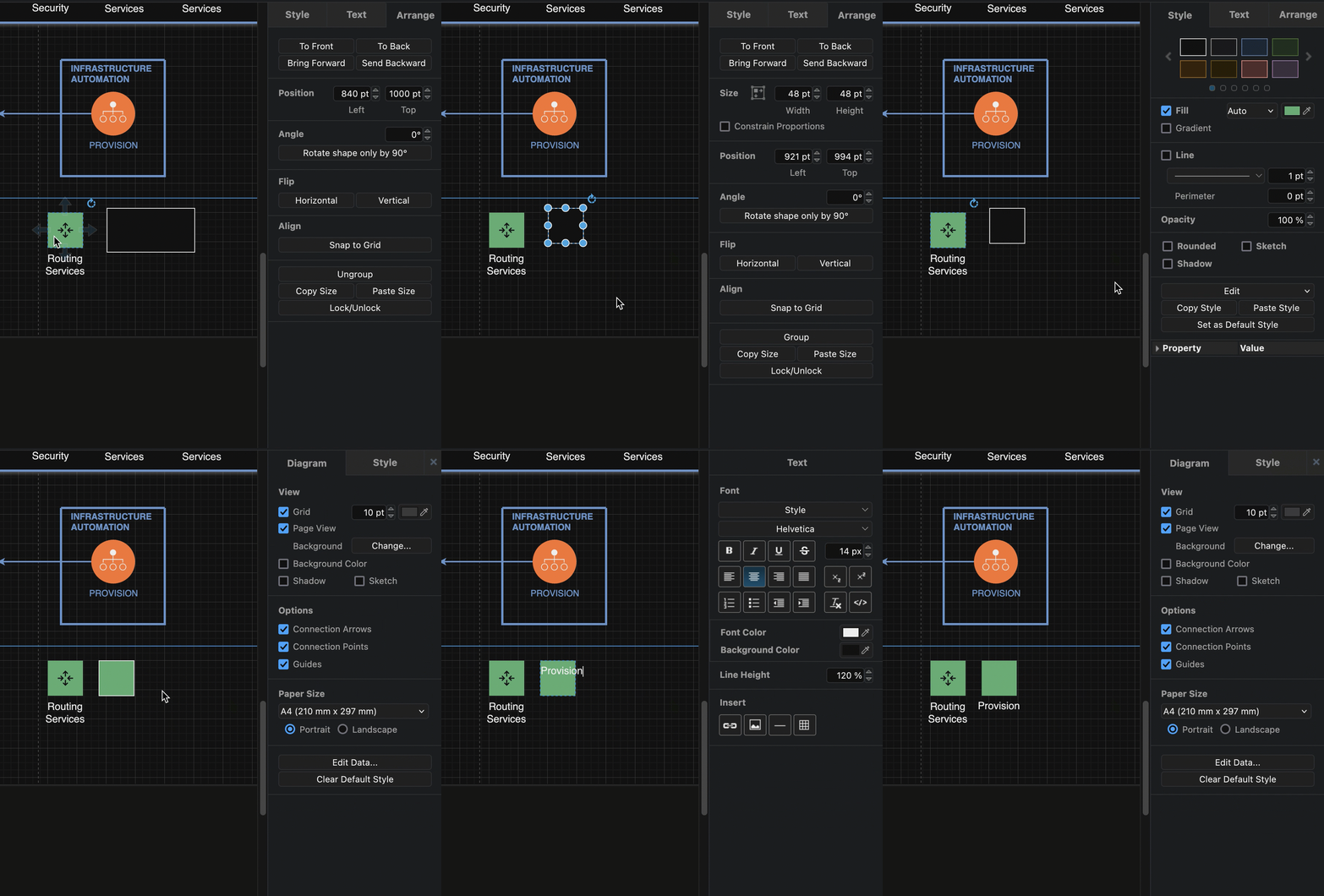
<ol>
<li class="">Add one of the <em>IBM Cloud</em> shapes that matches the colour you want to use to the drawing canvas to serve as a template for your new shape.</li>
<li class="">Add a simple rectangle from the <em>General</em> shape library.</li>
<li class="">Select the IBM Cloud shape on the drawing canvas and select then select <em>Copy Size</em> in the <em>Arrange</em> tab of the format panel. Select the rectangle and click on <em>Paste Size</em>.</li>
<li class="">Select the IBM Cloud shape again, then select <em>Copy Style</em> in the <em>Style</em> tab of the format panel. Select the rectangle again and click on <em>Paste Style</em>.
<br><img decoding="async" loading="lazy" src="https://www.drawio.com/img/blog/ibm-make-new-shape1.gif" style="width:100%;max-width:300px;height:auto" alt="Make your own IBM shape using an existing IBM Cloud shape as a template for style and size" class="img_ev3q"></li>
<li class="">You may need to deselect the <em>Line</em> checkbox in the <em>Style</em> tab, but your shape background should now look correct.</li>
<li class="">Add a label, and move its <em>Position</em> to the <em>Bottom</em> via the <em>Text</em> tab of the format panel.</li>
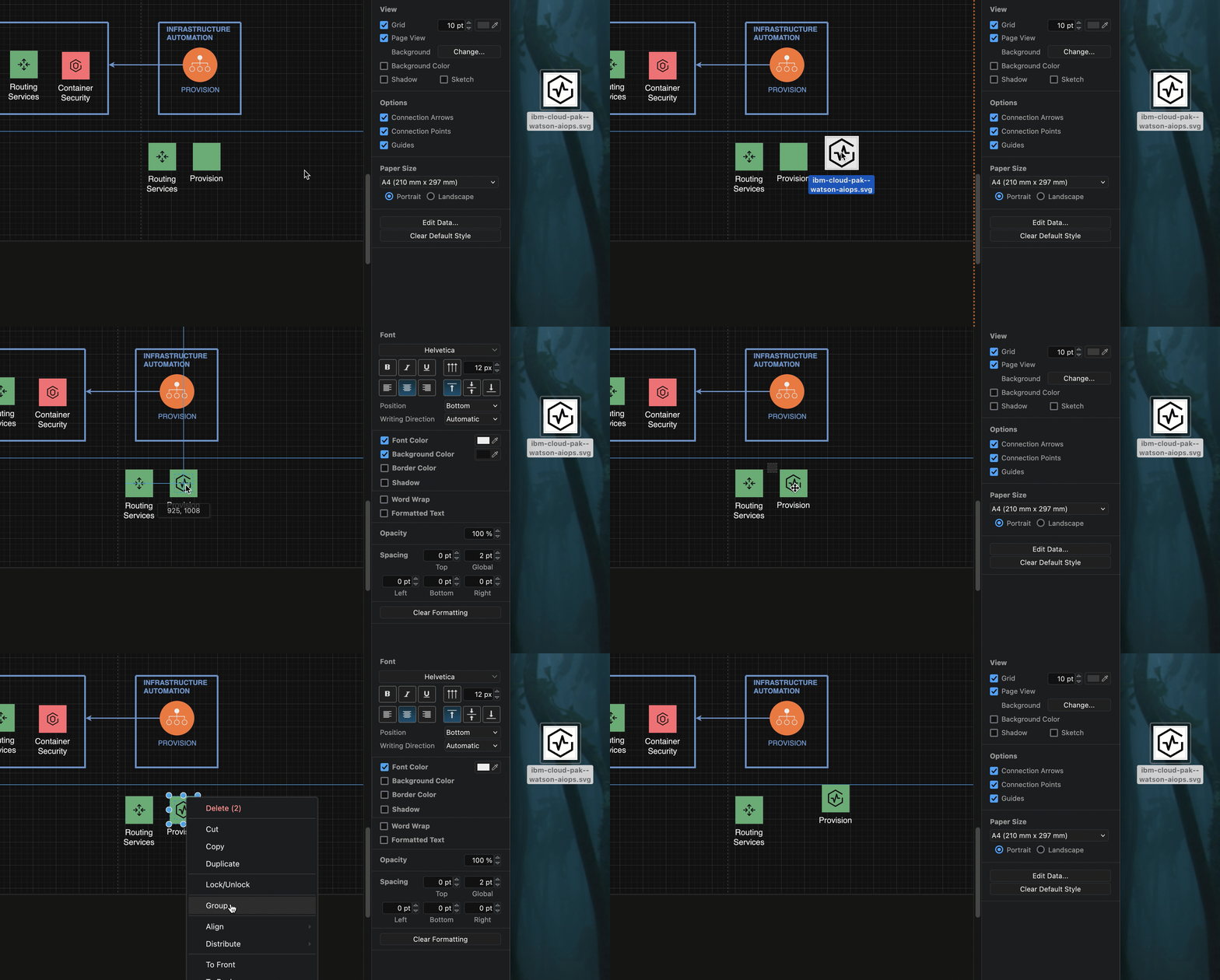
<li class="">Now, make the compound icon. Drag the <code>.svg</code> file of the UI icon from the <a href="https://www.ibm.com/design/language/iconography/ui-icons/library/" target="_blank" rel="noopener noreferrer" class="">UI Icons list in the IBM Design Language</a> - either from the webpage directly, or from your device - onto the drawing canvas to import it. Then drag it over the centre of the background square.</li>
<li class="">Finally, drag a selection box around the new compound shape, right click and select <em>Group</em> from the context menu.
<br><img decoding="async" loading="lazy" src="https://www.drawio.com/img/blog/ibm-make-new-shape2.gif" style="width:100%;max-width:300px;height:auto" alt="Make your own IBM shape using an existing IBM Cloud shape as a template for style and size" class="img_ev3q"></li>
</ol>
<p><strong>Tip:</strong> To use this new shape in multiple diagrams, drag the group onto the <a class="" href="https://www.drawio.com/docs/manual/editor/panels/scratchpad">Scratchpad</a> in the shapes panel.
<br><img decoding="async" loading="lazy" src="https://www.drawio.com/img/blog/ibm-scratchpad-shape.png" style="width:100%;max-width:200px;height:auto" alt="Make your own IBM shape and save it in the draw.io scratchpad" class="img_ev3q"></p>
<p>You can also save the Scratchpad with your custom shapes to share them with your colleagues.</p>
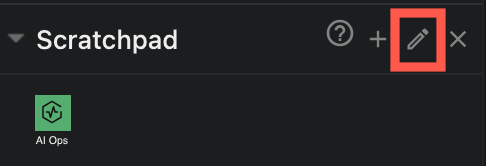
<ol>
<li class="">Click on the pencil to the right of the <em>Scratchpad</em> library.
<br><img decoding="async" loading="lazy" src="https://www.drawio.com/img/blog/ibm-scratchpad-edit.png" style="width:100%;max-width:150px;height:auto" alt="Edit the draw.io scratchpad and export the shapes in it to a custom shape library" class="img_ev3q"></li>
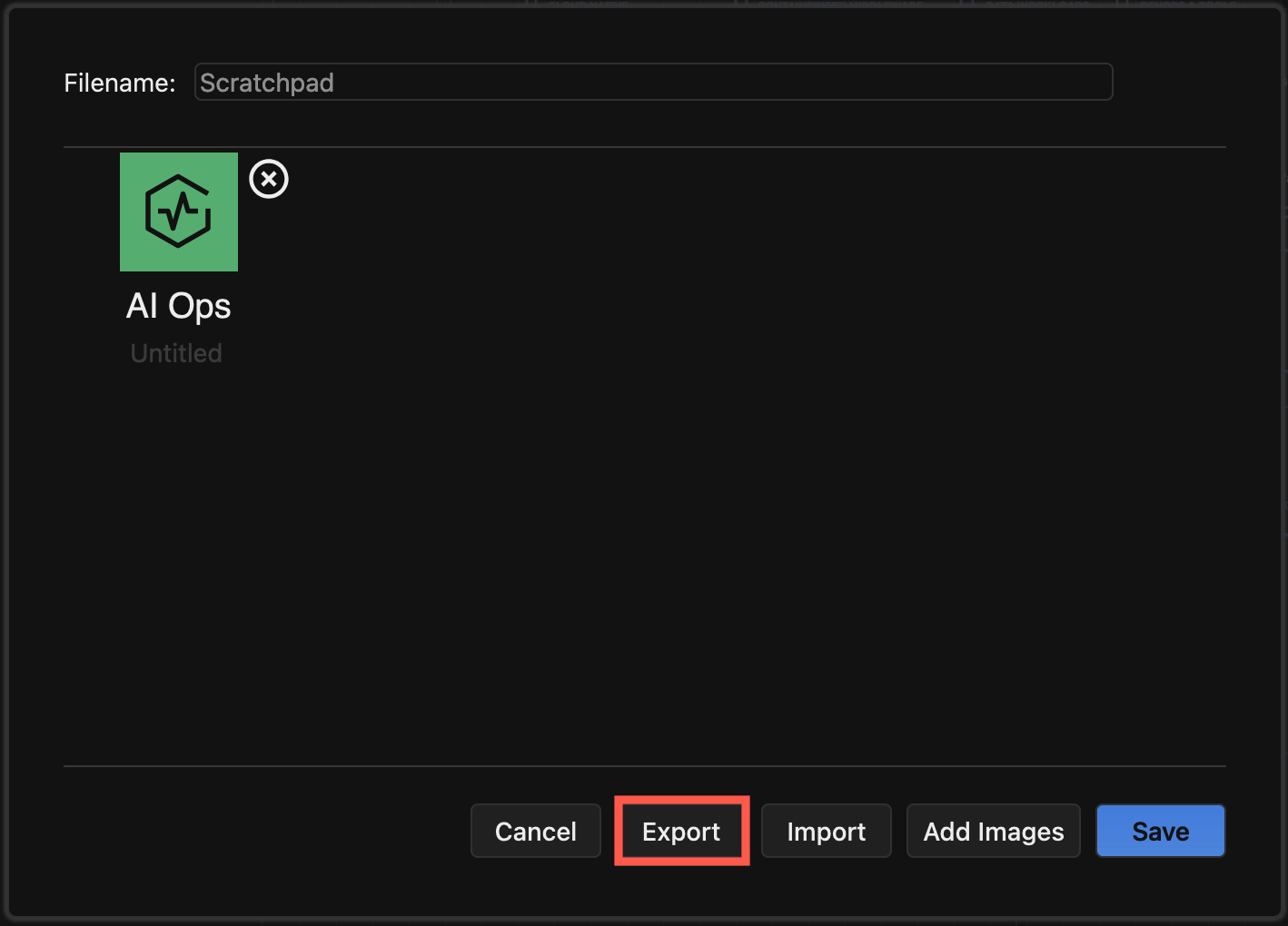
<li class="">Select <em>Export</em> to save all the shapes in the Scratchpad to a custom shape library.
<br><img decoding="async" loading="lazy" src="https://www.drawio.com/img/blog/ibm-export-scratchpad.png" style="width:100%;max-width:300px;height:auto" alt="Edit the draw.io scratchpad and export the shapes in it to a custom shape library" class="img_ev3q"></li>
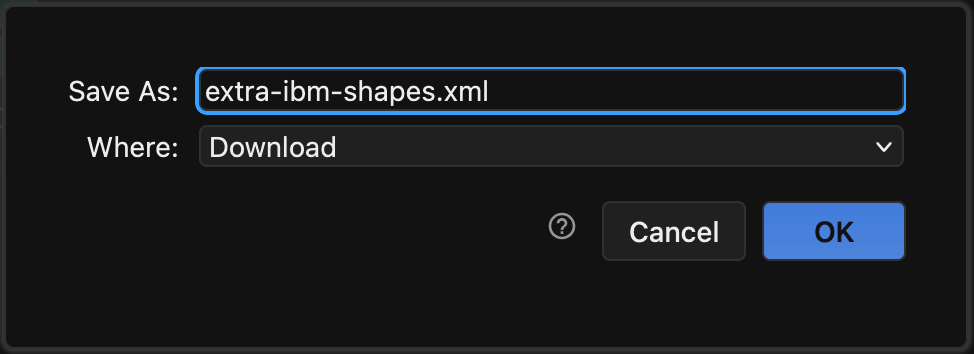
<li class="">Enter a filename, select where to save the custom shape library file and click <em>OK</em>.
<br><img decoding="async" loading="lazy" src="https://www.drawio.com/img/blog/ibm-save-custom-shape-library.png" style="width:100%;max-width:250px;height:auto" alt="Edit the draw.io scratchpad and export the shapes in it to a custom shape library" class="img_ev3q"></li>
</ol>
<p><a class="" href="https://www.drawio.com/docs/manual/advanced/custom-shape-libraries">Learn more about custom shape libraries</a></p>]]></content>
        <author>
            <name>draw.io</name>
            <uri>https://www.drawio.com</uri>
        </author>
        <category label="use-cases" term="use-cases"/>
        <category label="shape-libraries" term="shape-libraries"/>
    </entry>
    <entry>
        <title type="html"><![CDATA[lign connectors easily with a waypoint shape]]></title>
        <id>https://www.drawio.com/blog/aligned-connectors</id>
        <link href="https://www.drawio.com/blog/aligned-connectors"/>
        <updated>2024-10-09T00:00:00.000Z</updated>
        <summary type="html"><![CDATA[In any diagram with branches - trees and org charts, Ishikawa diagrams, wiring diagrams, and even some flow charts - you will have multiple overlapping connectors attached to the parent shape. Using a waypoint shape between connectors will prevent manual alignment frustration when you move the parent or child shapes.]]></summary>
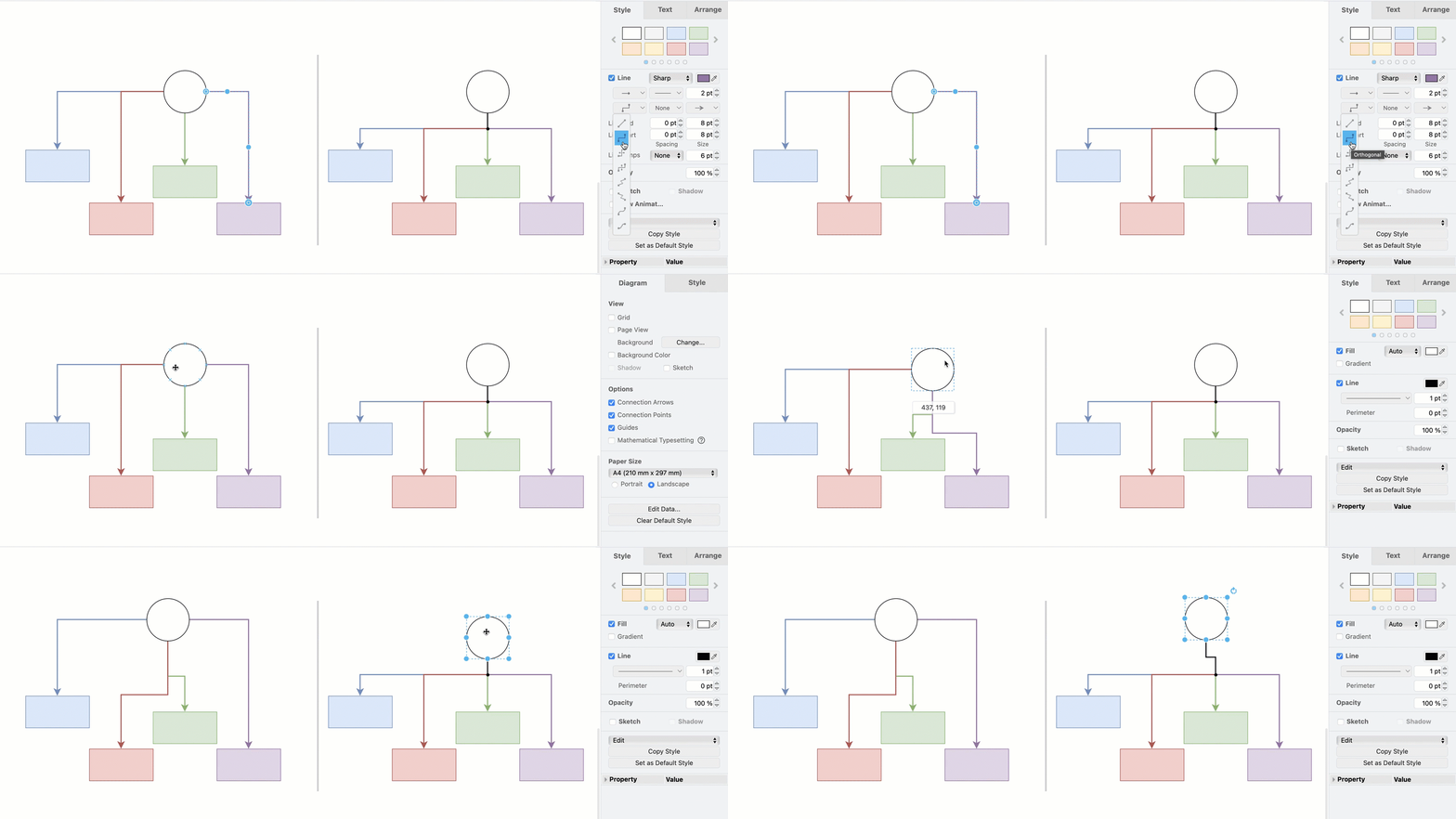
        <content type="html"><![CDATA[<p>In any diagram with branches - trees and org charts, Ishikawa diagrams, wiring diagrams, and even some flow charts - you will have multiple overlapping connectors attached to the parent shape. Using a <a class="" href="https://www.drawio.com/docs/manual/shapes/waypoint-shape">waypoint shape</a> between connectors will prevent manual alignment frustration when you move the parent or child shapes.
<br><img decoding="async" loading="lazy" src="https://www.drawio.com/img/blog/waypoint-orthogonal-connectors.gif" style="width:100%;max-width:500px;height:auto" alt="A waypoint shape will make your tree connectors neater" class="img_ev3q"></p>
<h2 class="anchor anchorTargetStickyNavbar_Vzrq" id="the-waypoint-shape">The waypoint shape<a href="https://www.drawio.com/blog/aligned-connectors#the-waypoint-shape" class="hash-link" aria-label="Direct link to The waypoint shape" title="Direct link to The waypoint shape" translate="no">​</a></h2>
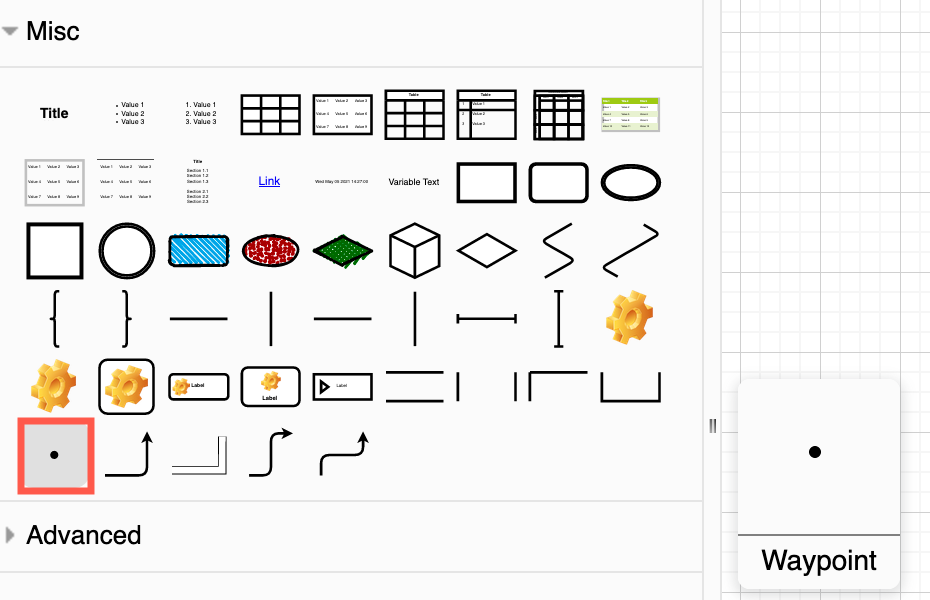
<p>The <em>Waypoint</em> shape is in the <em>Misc</em> shape library, which is a subcategory in the <em>General</em> shape library.
<br><img decoding="async" loading="lazy" src="https://www.drawio.com/img/blog/waypoint-shape-misc-shape-library.png" style="width:100%;max-width:400px;height:auto" alt="The waypoint shape is available in the shape library" class="img_ev3q"></p>
<p>If you are going to use the waypoint shape or any other shape often, add it to the <a class="" href="https://www.drawio.com/docs/manual/editor/panels/scratchpad">scratchpad</a> so you can find it easily.</p>
<ol>
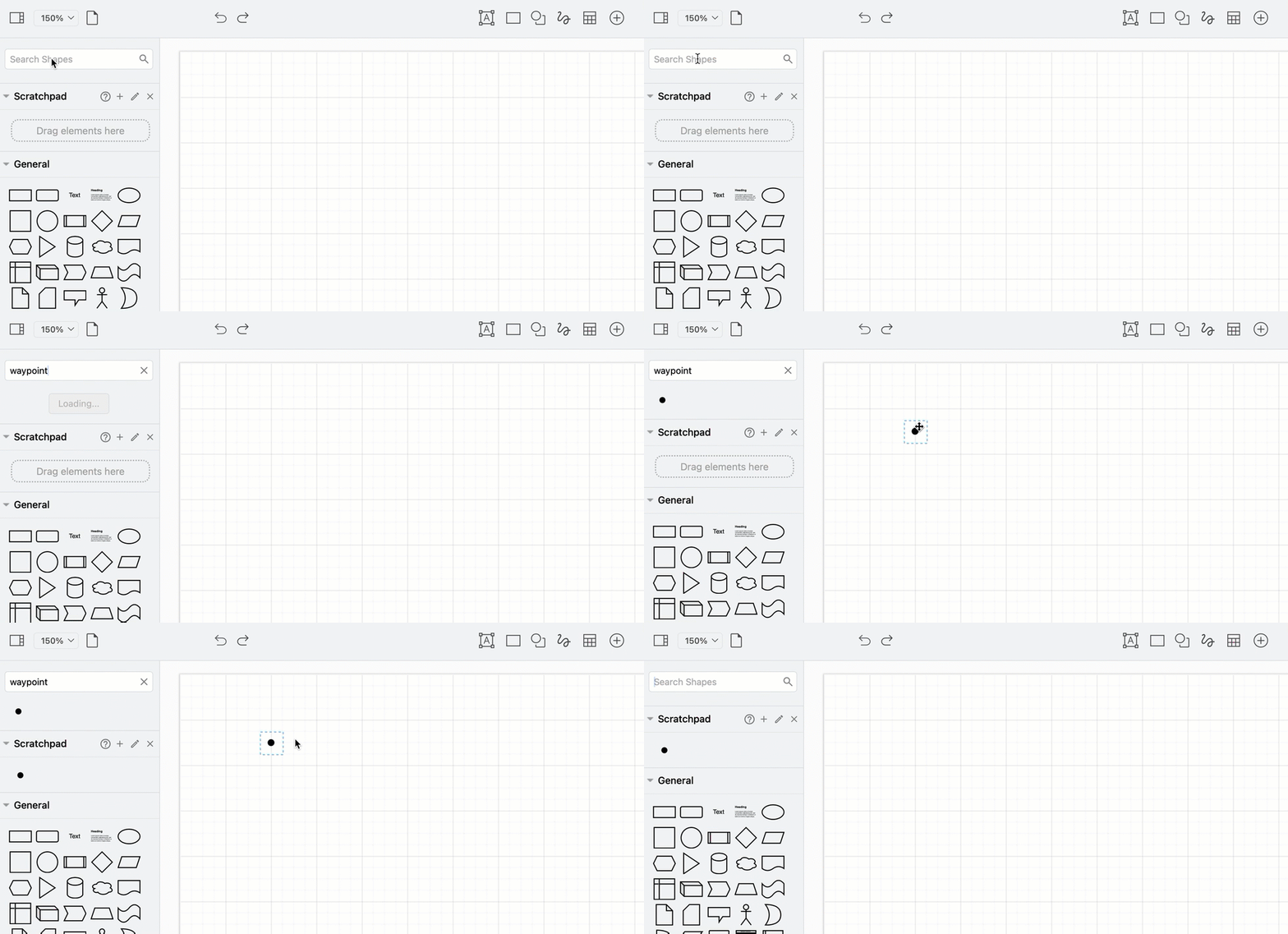
<li class=""><a class="" href="https://www.drawio.com/docs/manual/editor/panels/search-omnibox">Search</a> for <code>waypoint</code> in the shape panel.</li>
<li class="">Add this <em>Waypoint</em> shape to the canvas.</li>
<li class="">Drag it back onto the <em>Scratchpad</em> in the shape panel - by putting in the Scratchpad, you won't have to go search for it.
<br><img decoding="async" loading="lazy" src="https://www.drawio.com/img/blog/waypoint-scratchpad.gif" style="width:100%;max-width:500px;height:auto" alt="If you are going to use a shape often, like this waypoint shape, drag one from the drawing canvas to the scratchpad for easy access" class="img_ev3q"></li>
</ol>
<h2 class="anchor anchorTargetStickyNavbar_Vzrq" id="faster-and-neater-diagrams">Faster and neater diagrams<a href="https://www.drawio.com/blog/aligned-connectors#faster-and-neater-diagrams" class="hash-link" aria-label="Direct link to Faster and neater diagrams" title="Direct link to Faster and neater diagrams" translate="no">​</a></h2>
<p>Tree diagrams, org charts and flowcharts look great with neat <strong>orthogonal connectors</strong> - lines with aligned vertical and horizontal bends. These connections look best when 'tied together' where multiple connectors attach to a single parent shape, instead of overlapping.</p>
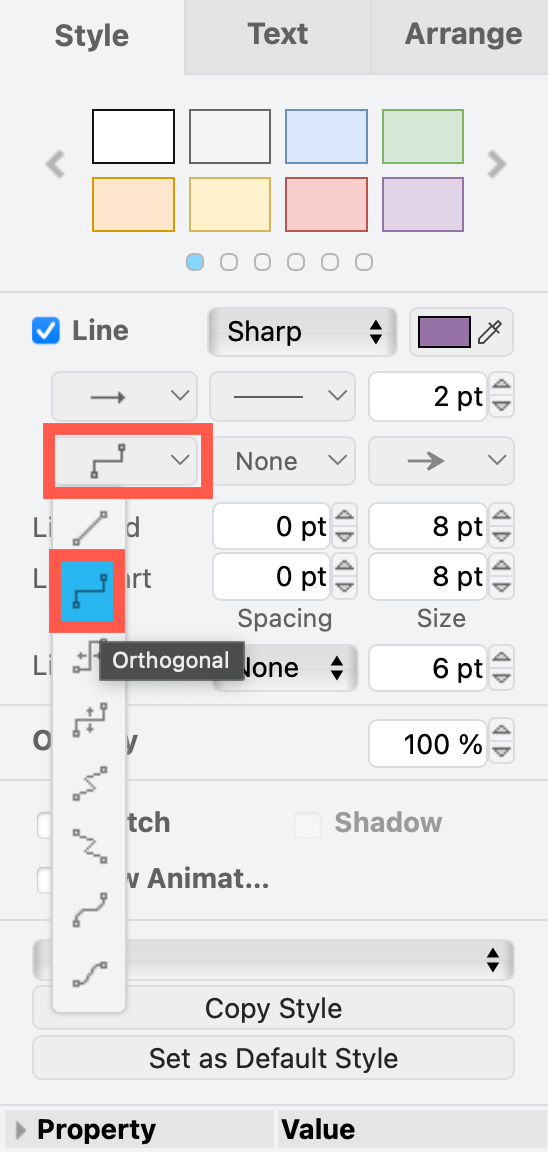
<p>Select one or more connectors and choose <em>Orthogonal</em> (or <em>Vertical</em> or <em>Horizontal</em>) from the <em>Waypoints</em> drop down list in the <em>Style</em> tab of the format panel.
<br><img decoding="async" loading="lazy" src="https://www.drawio.com/img/blog/connector-orthogonal.png" style="width:100%;max-width:150px;height:auto" alt="Orthogonal connectors are ideal for neat trees, graphs and flowcharts" class="img_ev3q"></p>
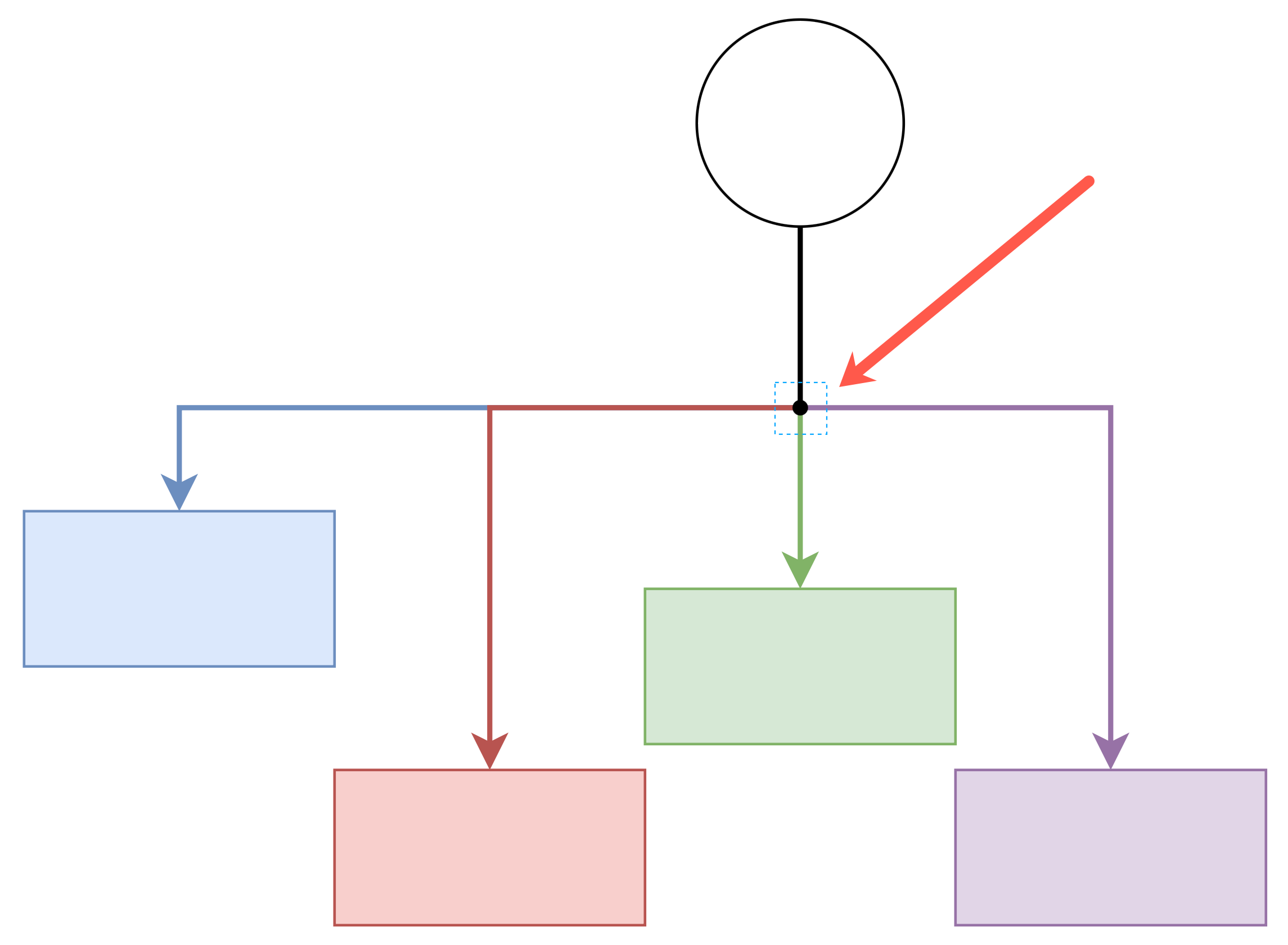
<p>Place a waypoint shape in between the parent shape and the child shapes at the spot where the connectors would neatly separate. Then <a class="" href="https://www.drawio.com/docs/manual/connectors/">drag a connector</a> from the parent shape to the waypoint shape. And drag connectors from the waypoint shape to each of the child shapes.
<br><img decoding="async" loading="lazy" src="https://www.drawio.com/img/blog/waypoint-shape-place-tree.png" style="width:100%;max-width:400px;height:auto" alt="Place the waypoint shape between the parent and child shapes at the spot where the connectors neatly separate" class="img_ev3q"></p>
<p>draw.io automatically repositions connectors as you move shapes around the drawing canvas, especially if you use <a class="" href="https://www.drawio.com/docs/manual/connectors/connector-fixed-vs-floating">floating connectors</a>. Waypoint shapes help you keep your connector alignment neat.
<br><img decoding="async" loading="lazy" src="https://www.drawio.com/img/blog/waypoint-orthogonal-connectors.gif" style="width:100%;max-width:500px;height:auto" alt="A waypoint shape will make your tree connectors neater" class="img_ev3q"></p>
<h3 class="anchor anchorTargetStickyNavbar_Vzrq" id="hide-the-waypoint-shape">Hide the waypoint shape<a href="https://www.drawio.com/blog/aligned-connectors#hide-the-waypoint-shape" class="hash-link" aria-label="Direct link to Hide the waypoint shape" title="Direct link to Hide the waypoint shape" translate="no">​</a></h3>
<p>While it is useful to see the waypoint shape in some diagrams, such as electrical wiring diagrams, you may want to hide it in <a class="" href="https://www.drawio.com/docs/diagram-types/tree-diagrams">tree diagrams</a> and <a class="" href="https://www.drawio.com/docs/diagram-types/org-charts">org charts</a>.</p>
<ol>
<li class="">Select the waypoint shape.</li>
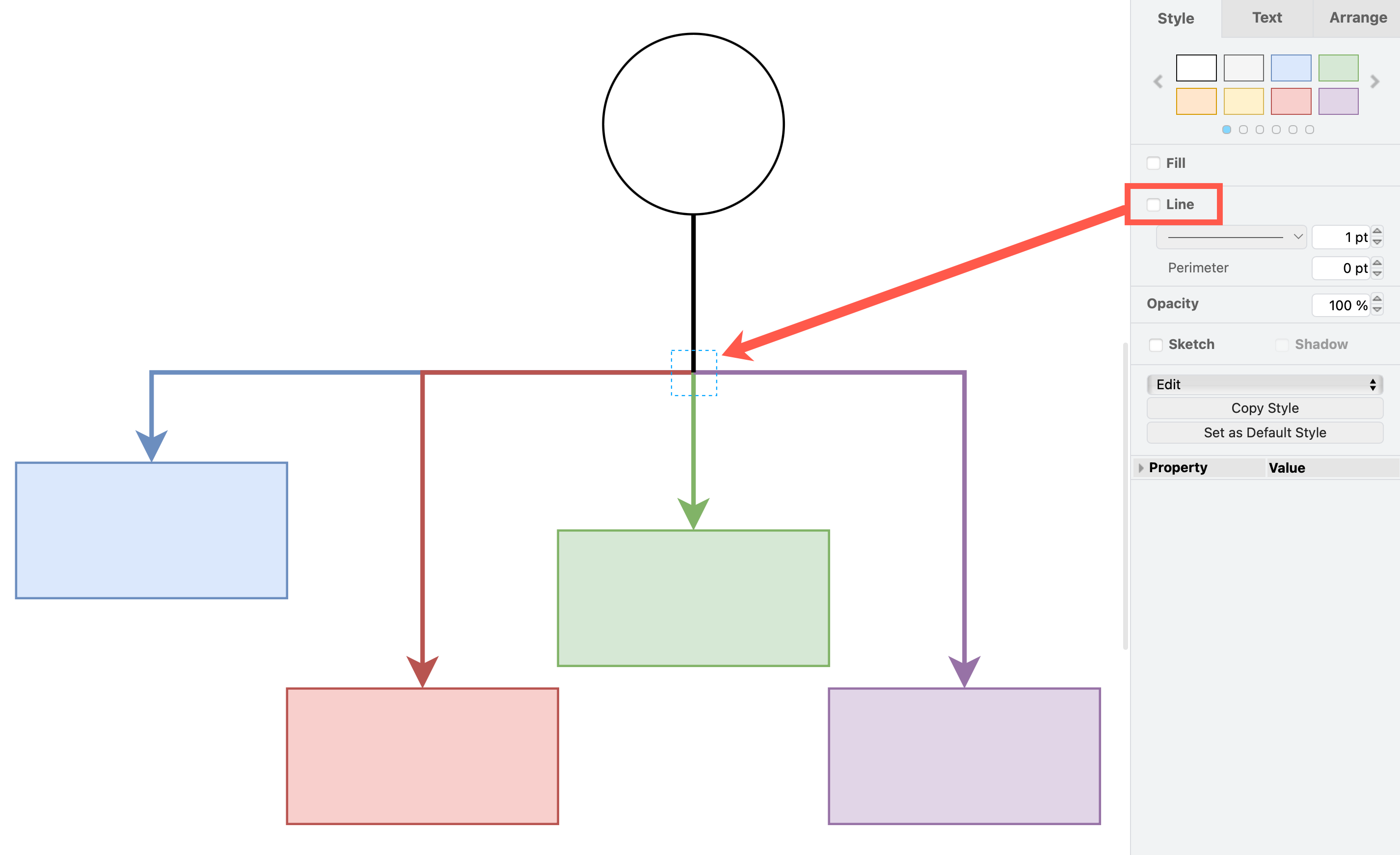
<li class="">In the <em>Style</em> tab of the format panel, deselect the <em>Line</em> checkbox.
<br><img decoding="async" loading="lazy" src="https://www.drawio.com/img/blog/waypoint-shape-invisible.png" style="width:100%;max-width:400px;height:auto" alt="Deselect the Line style checkbox to turn a waypoint shape invisible" class="img_ev3q"></li>
</ol>
<p>The waypoint shape will become invisible but still exist. The connectors will neatly line up and go through that point. Click on that spot to select the invisible waypoint shape if you need to move it.</p>]]></content>
        <author>
            <name>draw.io</name>
            <uri>https://www.drawio.com</uri>
        </author>
        <category label="connectors" term="connectors"/>
        <category label="shapes" term="shapes"/>
    </entry>
    <entry>
        <title type="html"><![CDATA[draw.io updated for Atlassian Jira Software 10.0]]></title>
        <id>https://www.drawio.com/blog/drawio-jira10</id>
        <link href="https://www.drawio.com/blog/drawio-jira10"/>
        <updated>2024-09-05T00:00:00.000Z</updated>
        <summary type="html"><![CDATA[Atlassian has recently released Jira Software 10.0 and Data Center Platform 7, which includes a large collection of security and automation improvements. The draw.io app has been updated to support Jira Software 10.0 and its long awaited dark theme - your diagrams will switch to dark mode automatically to match your Jira user settings.]]></summary>
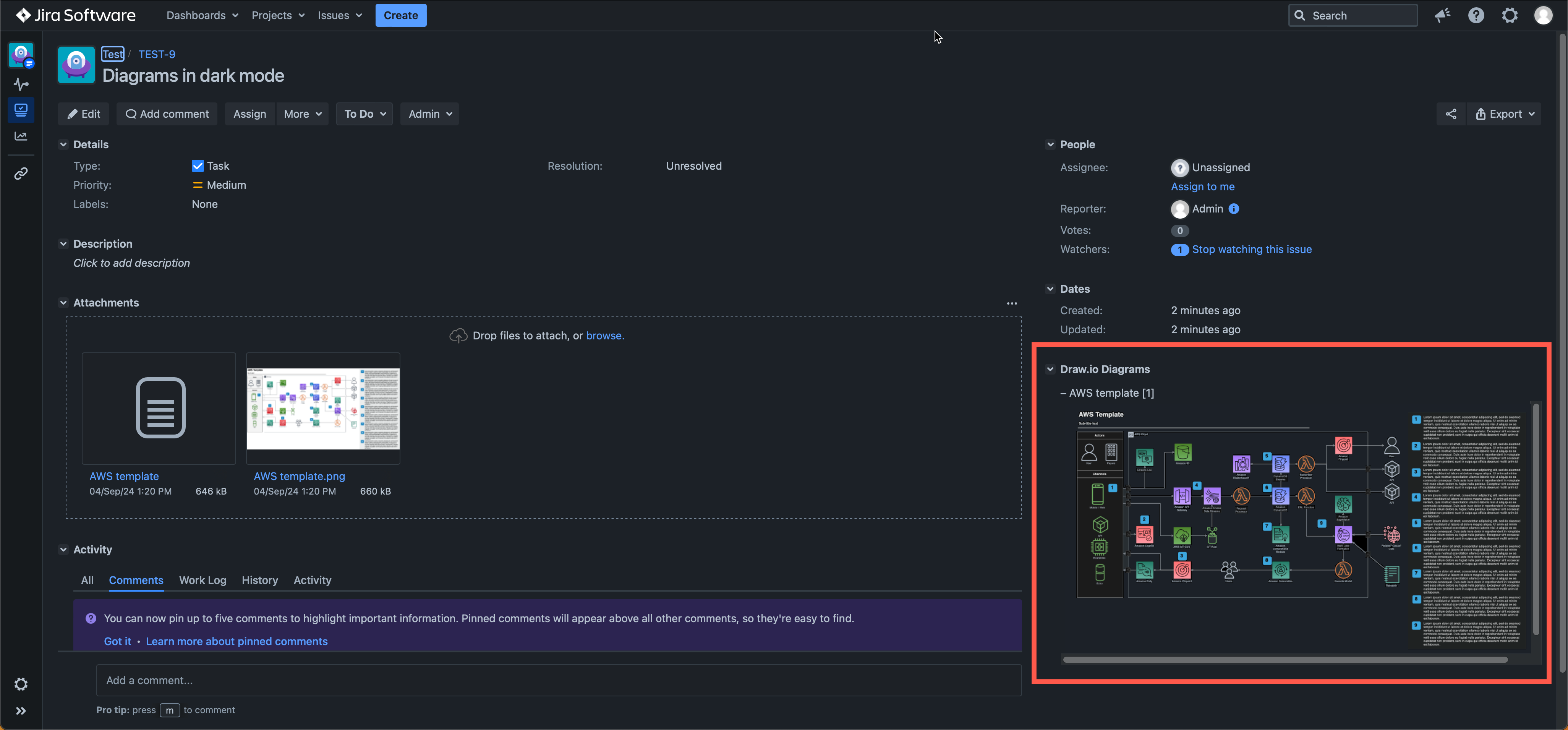
        <content type="html"><![CDATA[<p>Atlassian has recently released Jira Software 10.0 and Data Center Platform 7, which includes a large collection of security and automation improvements. The draw.io app has been updated to support Jira Software 10.0 and its long awaited dark theme - your diagrams will switch to dark mode automatically to match your Jira user settings.
<br><img decoding="async" loading="lazy" src="https://www.drawio.com/img/blog/jira-dc-dark-theme-diagrams.png" style="width:100%;max-width:500px;height:auto" alt="draw.io diagrams in Jira DC 10.0 will automatically switch to a dark mode palette when you use the new Jira Dark theme" class="img_ev3q"></p>
<p><strong>Important</strong></p>
<p>If you are planning to <a href="https://confluence.atlassian.com/jirasoftware/jira-software-10-0-x-release-notes-1416825224.html" target="_blank" rel="noopener noreferrer" class="">upgrade to Jira 10.0</a>, Atlassian recommends you update all Marketplace apps that support the new version - like draw.io does - beforehand.</p>
<h2 class="anchor anchorTargetStickyNavbar_Vzrq" id="dark-theme-jira-issues-and-diagrams">Dark theme Jira issues and diagrams<a href="https://www.drawio.com/blog/drawio-jira10#dark-theme-jira-issues-and-diagrams" class="hash-link" aria-label="Direct link to Dark theme Jira issues and diagrams" title="Direct link to Dark theme Jira issues and diagrams" translate="no">​</a></h2>
<ol>
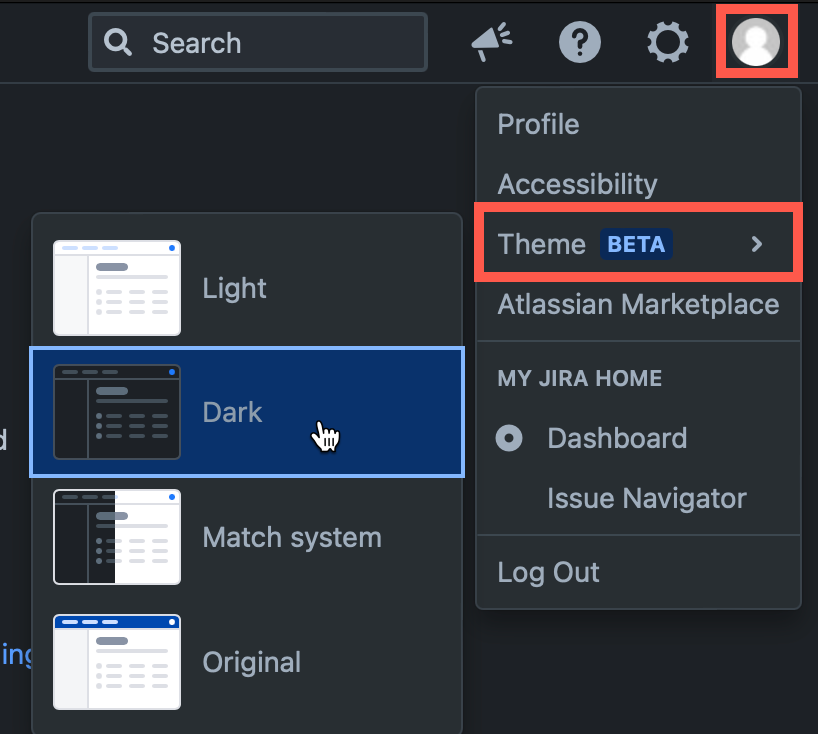
<li class="">In Jira, click on your user profile image in the top right, then select <em>Theme</em>.</li>
<li class="">Choose Dark theme, Light theme, or to <em>Match System</em> to match your operating system's theme.
<br><img decoding="async" loading="lazy" src="https://www.drawio.com/img/blog/jira-dc-dark-theme-switch.png" style="width:100%;max-width:200px;height:auto" alt="draw.io diagrams in Jira DC 10.0 will automatically switch to a dark mode palette when you use the new Jira Dark theme" class="img_ev3q"></li>
</ol>
<p>To add a new diagram to a Jira issue, click on <em>More &gt; Add draw.io Diagram</em> to open the draw.io editor.</p>
<p>Once you have saved your diagram to the issue, the <em>Draw.io Diagrams</em> section will be added in the right column.</p>
<p>Diagrams in the <em>Draw.io Diagrams</em> section will be displayed in whichever theme you selected in Jira automatically.</p>
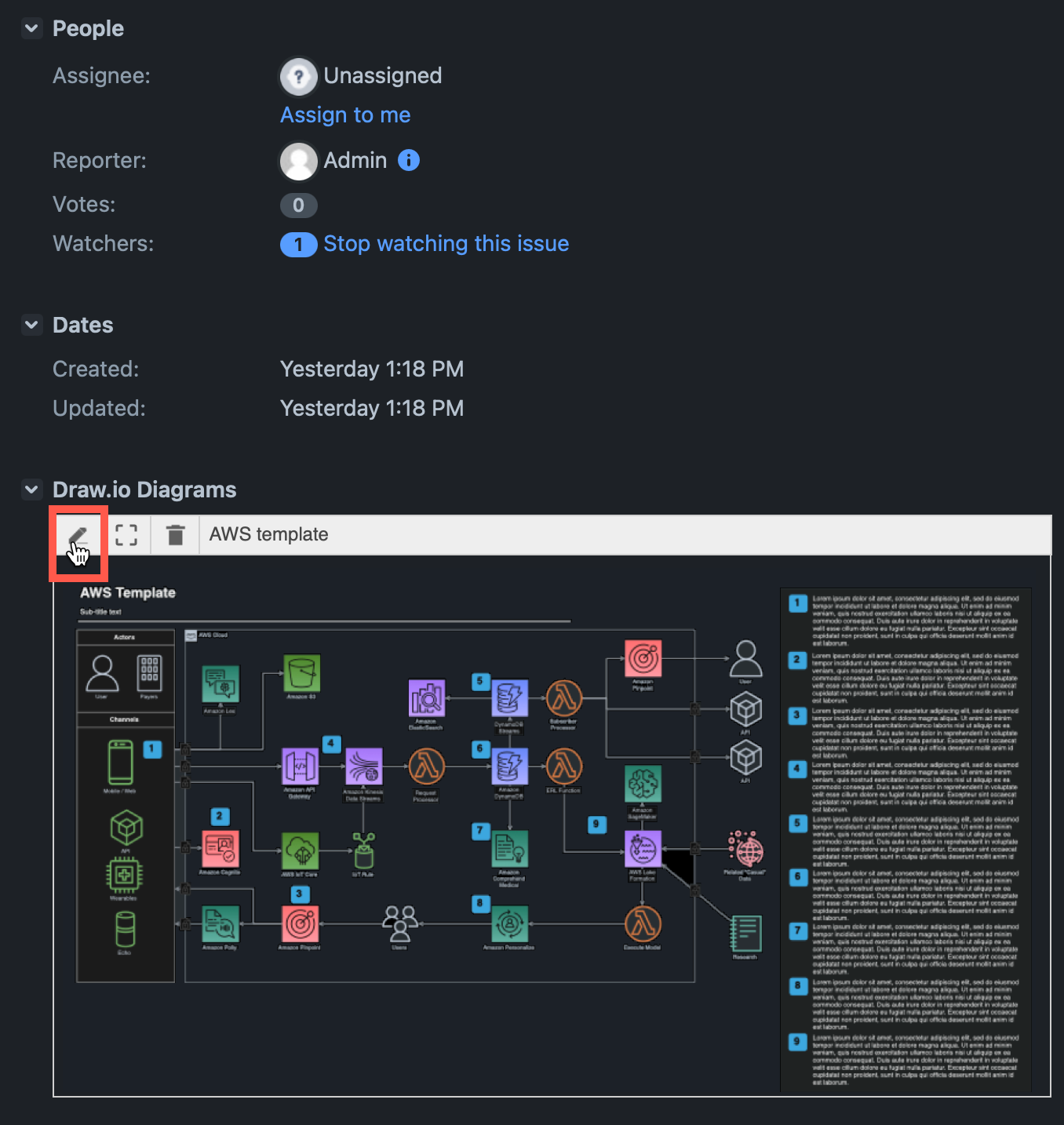
<p><strong>Note:</strong> The draw.io diagram in the <em>Attachments</em> section of the Jira issue is saved and shown as if it were light mode. To edit or open a larger version of the diagram, click on the diagram in the <em>Draw.io Diagrams</em> section of the issue.</p>
<p>Hover over the diagram and click on the edit pencil to open it in the draw.io editor.
<br><img decoding="async" loading="lazy" src="https://www.drawio.com/img/blog/jira-dc-dark-theme-issue.png" style="width:100%;max-width:300px;height:auto" alt="draw.io diagrams in Jira DC 10.0 will automatically switch to a dark mode palette when you use the new Jira Dark theme" class="img_ev3q"></p>
<h2 class="anchor anchorTargetStickyNavbar_Vzrq" id="using-drawio-in-jira-dc">Using draw.io in Jira DC<a href="https://www.drawio.com/blog/drawio-jira10#using-drawio-in-jira-dc" class="hash-link" aria-label="Direct link to Using draw.io in Jira DC" title="Direct link to Using draw.io in Jira DC" translate="no">​</a></h2>
<ul>
<li class=""><a class="" href="https://www.drawio.com/docs/integrations/atlassian/jira/migrate-drawio-jira">Migrate from Jira Server or DC to Jira Cloud</a>.</li>
<li class=""><a class="" href="https://www.drawio.com/docs/integrations/atlassian/jira/jira-diagram-versions">Work with diagram revisions on Jira DC issues</a>.</li>
<li class=""><a class="" href="https://www.drawio.com/docs/integrations/atlassian/jira/convert-gliffy-drawio-jira-server">Convert a Gliffy diagram</a> stored on a Jira DC issue to a draw.io diagram.</li>
</ul>]]></content>
        <author>
            <name>draw.io</name>
            <uri>https://www.drawio.com</uri>
        </author>
        <category label="features" term="features"/>
        <category label="atlassian" term="atlassian"/>
    </entry>
    <entry>
        <title type="html"><![CDATA[draw.io for Confluence Data Center 9.0]]></title>
        <id>https://www.drawio.com/blog/drawio-confluence-dc9</id>
        <link href="https://www.drawio.com/blog/drawio-confluence-dc9"/>
        <updated>2024-08-06T00:00:00.000Z</updated>
        <summary type="html"><![CDATA[Atlassian has just released Confluence Data Center 9.0, with a wide range of security improvements and user-friendly updates. The draw.io app is fully compatible with Confluence DC 9.0 - when you use the new Dark theme in your Confluence instance, you'll automatically see draw.io diagrams in dark mode.]]></summary>
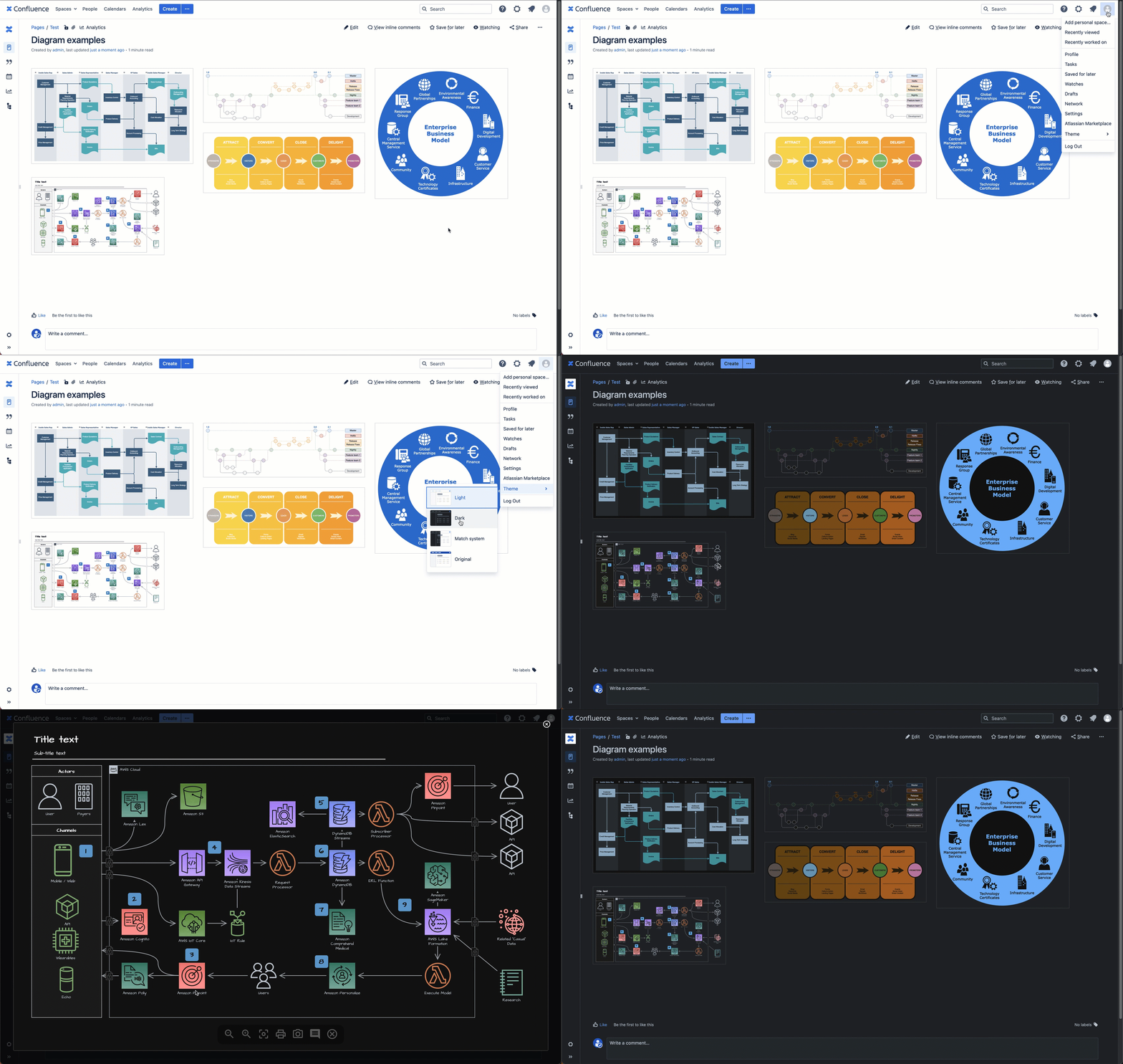
        <content type="html"><![CDATA[<p>Atlassian has just released Confluence Data Center 9.0, with a wide range of security improvements and user-friendly updates. The draw.io app is fully compatible with Confluence DC 9.0 - when you use the new Dark theme in your Confluence instance, you'll automatically see draw.io diagrams in dark mode.
<br><img decoding="async" loading="lazy" src="https://www.drawio.com/img/blog/confluence-dark-theme-switch.gif" style="width:100%;max-width:500px;height:auto" alt="draw.io diagrams in Confluence DC 9.0 will automatically switch to a dark mode palette when you use the new Confluence Dark theme" class="img_ev3q"></p>
<h2 class="anchor anchorTargetStickyNavbar_Vzrq" id="dark-mode-diagrams-in-confluence-dc">Dark mode diagrams in Confluence DC<a href="https://www.drawio.com/blog/drawio-confluence-dc9#dark-mode-diagrams-in-confluence-dc" class="hash-link" aria-label="Direct link to Dark mode diagrams in Confluence DC" title="Direct link to Dark mode diagrams in Confluence DC" translate="no">​</a></h2>
<p>Just as Confluence has updated their colour palette for accessibility contrast to ensure text page content remains readable on a dark background, draw.io automatically switches to an enhanced dark-mode palette.</p>
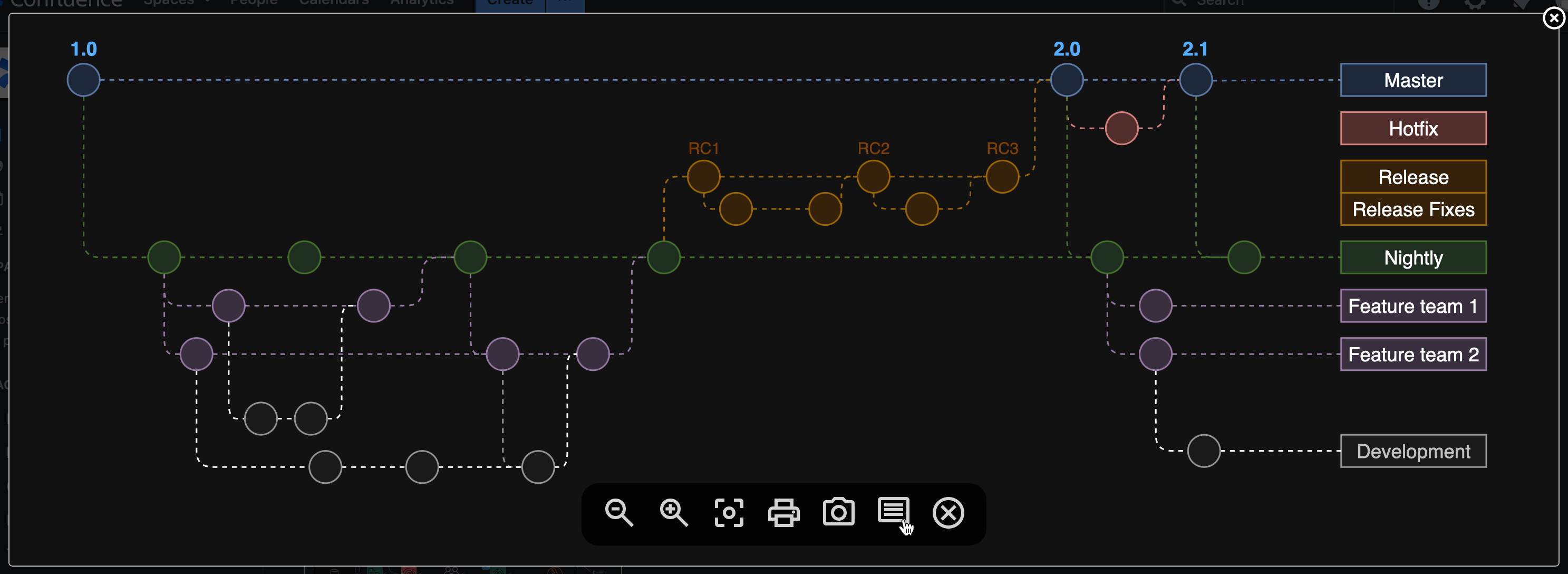
<p>Dark mode colours with improved contrast are automatically applied to the diagram previews when you look at any Confluence DC 9.0 page, and also when you click on the diagram to open it in the draw.io lightbox viewer.
<br><img decoding="async" loading="lazy" src="https://www.drawio.com/img/blog/confluence-dark-mode-lightbox.png" style="width:100%;max-width:500px;height:auto" alt="When you open a draw.io diagram from a Confluence DC 9.0 page into the lightbox, it will automatically apply your light or dark theme and change the diagram colours to stay readable" class="img_ev3q"></p>
<h3 class="anchor anchorTargetStickyNavbar_Vzrq" id="edit-drawio-diagrams-in-dark-mode">Edit draw.io diagrams in dark mode<a href="https://www.drawio.com/blog/drawio-confluence-dc9#edit-drawio-diagrams-in-dark-mode" class="hash-link" aria-label="Direct link to Edit draw.io diagrams in dark mode" title="Direct link to Edit draw.io diagrams in dark mode" translate="no">​</a></h3>
<p>If you use the Confluence Dark theme, draw.io diagram macros and draw.io board macros will open the draw.io editor automatically in dark mode.</p>
<p><strong>Improved contrast dark mode palette by default</strong></p>
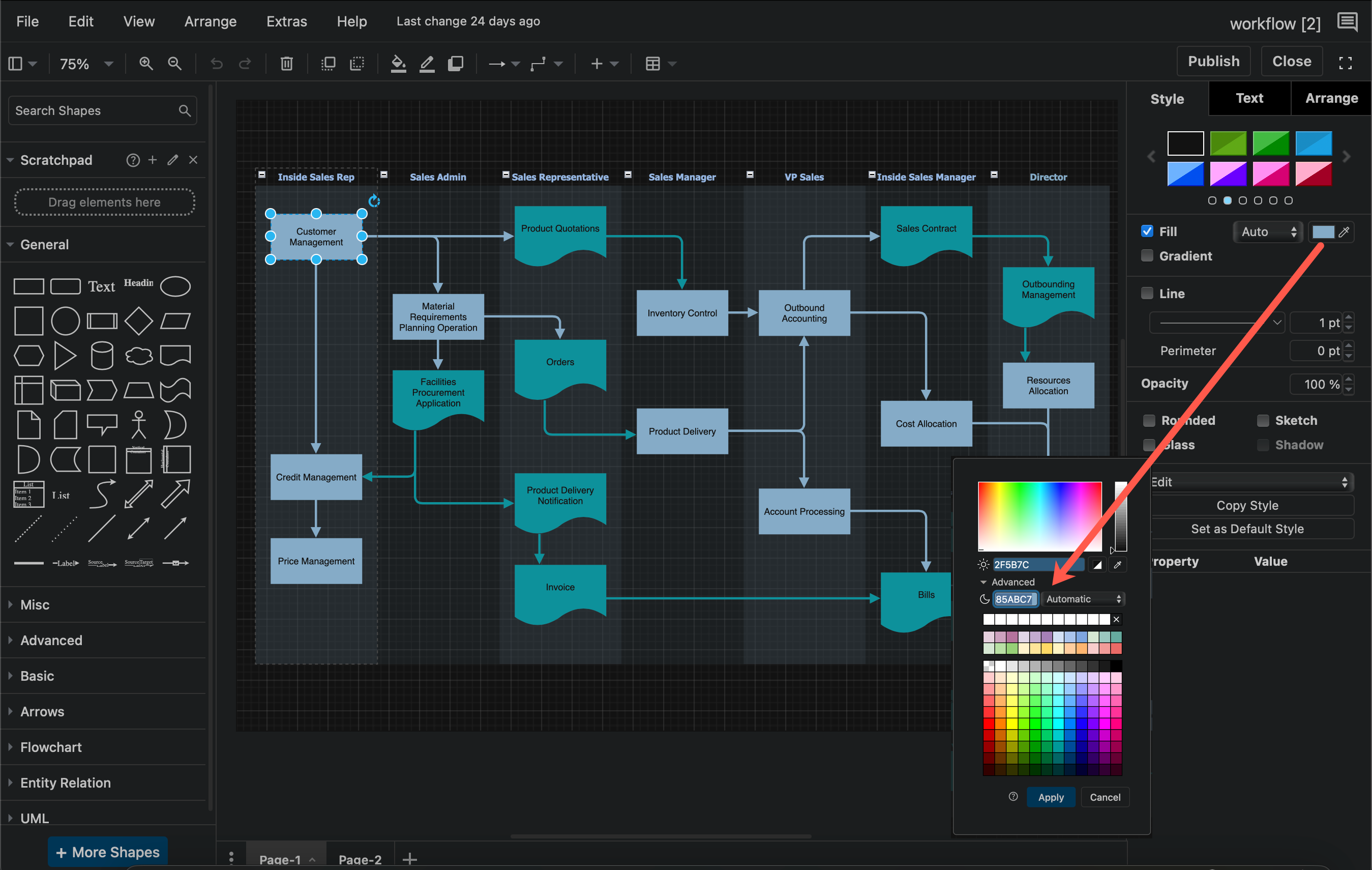
<p>The draw.io dark mode palette in Confluence DC 9.0 uses <a class="" href="https://www.drawio.com/docs/manual/editor/appearance">improved contrast colours</a> by default, ensuring maximum readability of your diagrams when viewed in both dark and light modes.
<br><img decoding="async" loading="lazy" src="https://www.drawio.com/img/blog/confluence-drawio-editor-dark-mode-palette.png" style="width:100%;max-width:500px;height:auto" alt="The dark mode palette in draw.io for Confluence DC 9.0 is designed for the best readability" class="img_ev3q"></p>
<p><strong>draw.io board macro in dark mode</strong></p>
<p>The whiteboard-like simple interface of the draw.io board macro also uses dark mode automatically when you have enabled Dark theme in Confluence DC 9.0.
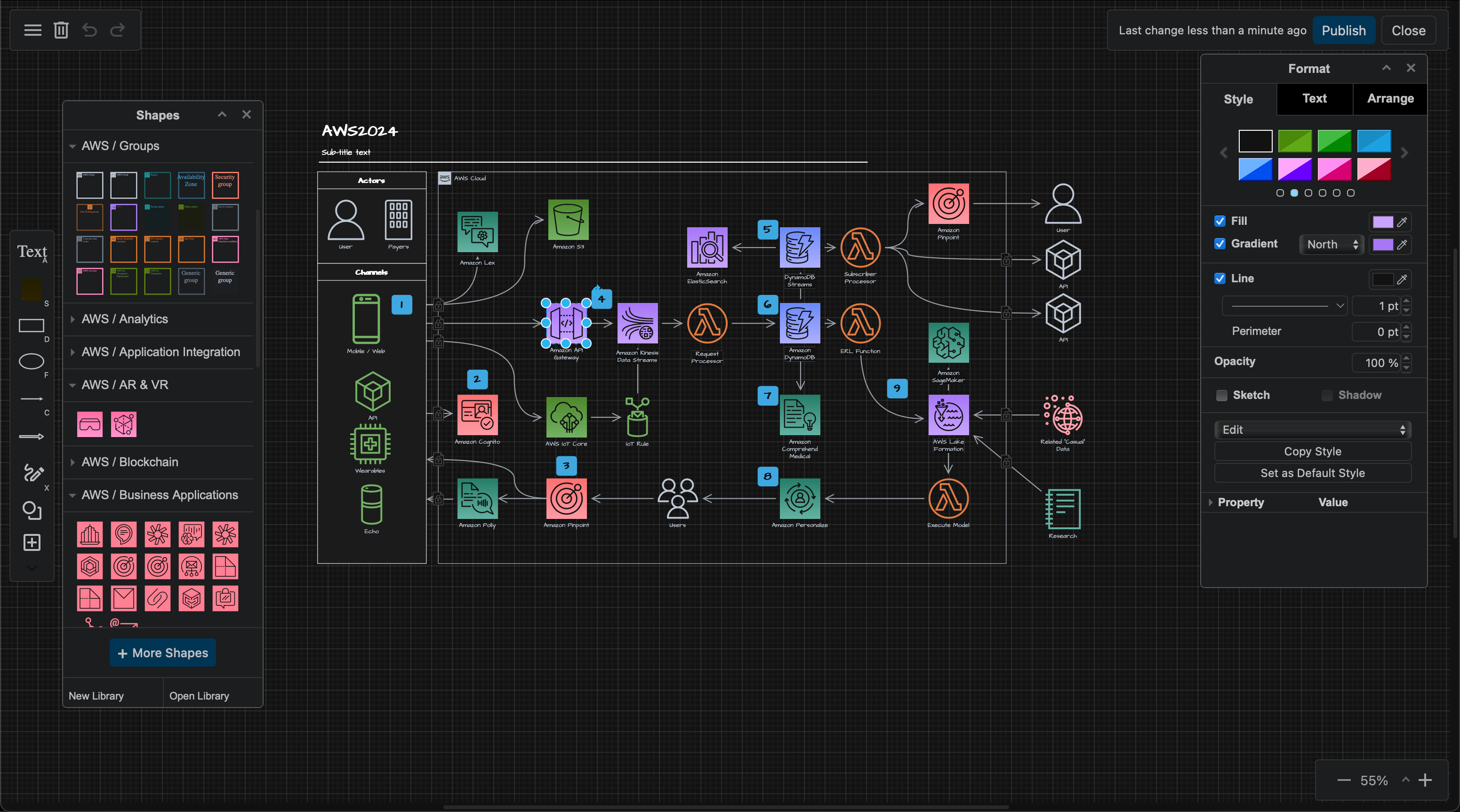
<br><img decoding="async" loading="lazy" src="https://www.drawio.com/img/blog/confluence-drawio-board-editor-dark-mode.png" style="width:100%;max-width:500px;height:auto" alt="Dark mode is used for the draw.io board editor automatically when you use Dark theme inConfluence DC 9.0 " class="img_ev3q"></p>
<p><strong>Switch to light mode</strong></p>
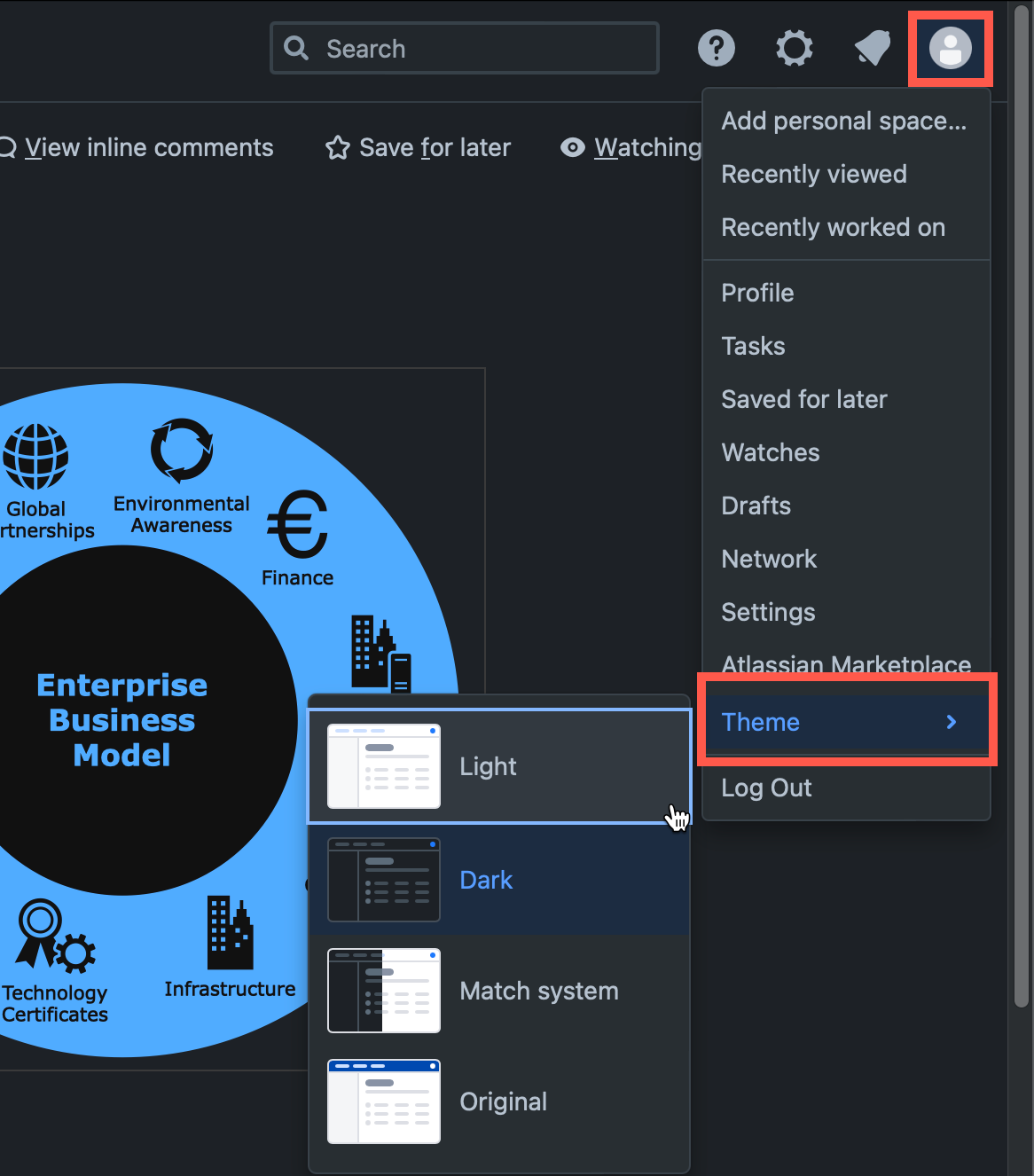
<p>To edit a diagram in light mode, change your Confluence Theme to Light first. Select your user icon in the top right, then select <em>Theme &gt; Light</em> from the menu.
<br><img decoding="async" loading="lazy" src="https://www.drawio.com/img/blog/confluence-dc-theme.png" style="width:100%;max-width:200px;height:auto" alt="To edit a diagram in light mode, switch your Confluence theme to light mode first. " class="img_ev3q"></p>
<h2 class="anchor anchorTargetStickyNavbar_Vzrq" id="search-for-diagrams-with-opensearch">Search for diagrams with OpenSearch<a href="https://www.drawio.com/blog/drawio-confluence-dc9#search-for-diagrams-with-opensearch" class="hash-link" aria-label="Direct link to Search for diagrams with OpenSearch" title="Direct link to Search for diagrams with OpenSearch" translate="no">​</a></h2>
<p>The new integration of OpenSearch will find draw.io diagrams in the same way the built-in Confluence search does - your diagrams are fully searchable via the Confluence search.</p>
<p>draw.io provides the file names and diagram label text to the Confluence search index  used by both the built-in basic and advanced search functionality and OpenSearch.</p>
<p>See how <a class="" href="https://www.drawio.com/docs/integrations/atlassian/confluence/confluence-diagram-search">searching for diagrams in Confluence Cloud and Data Center</a> works and compare it with other diagramming tools.</p>


<table><thead><tr><th>Filename</th><th>Label text</th></tr></thead><tbody><tr><td><img decoding="async" loading="lazy" src="https://www.drawio.com/img/blog/confluence-server-search-filename.png" style="max-width:100%;height:auto" alt="Search for a diagram filename in Confluence Server" class="img_ev3q"></td><td><img decoding="async" loading="lazy" src="https://www.drawio.com/img/blog/confluence-server-search-label.png" style="max-width:100%;height:auto" alt="Search for label text inside a diagram in Confluence Server" class="img_ev3q"></td></tr></tbody></table>
<p>To set up your Confluence DC 9.0 instance to use the new optional search integration, please refer to <a href="https://confluence.atlassian.com/doc/configuring-opensearch-for-confluence-1387594125.html" target="_blank" rel="noopener noreferrer" class="">Atlassian's OpenSearch documentation</a>.</p>
<p>See all the <a href="https://confluence.atlassian.com/doc/confluence-9-0-release-notes-1387867170.html" target="_blank" rel="noopener noreferrer" class="">security and usability updates available in Confluence DC 9.0</a>.</p>]]></content>
        <author>
            <name>draw.io</name>
            <uri>https://www.drawio.com</uri>
        </author>
        <category label="features" term="features"/>
        <category label="atlassian" term="atlassian"/>
    </entry>
    <entry>
        <title type="html"><![CDATA[Mermaid in draw.io updated to support ELK layout]]></title>
        <id>https://www.drawio.com/blog/mermaid-elk-layout</id>
        <link href="https://www.drawio.com/blog/mermaid-elk-layout"/>
        <updated>2024-06-11T00:00:00.000Z</updated>
        <summary type="html"><![CDATA[Mermaid is a text-based syntax that you can use to describe a diagram, and automatically lay it out neatly on the diagram canvas. Enter your Mermaid diagram description in draw.io via Arrange > Insert > Mermaid in the draw.io menu or + > Mermaid from the toolbar. draw.io has updated to Mermaid version 10.9.1 to support the new ELK automatic layout.]]></summary>
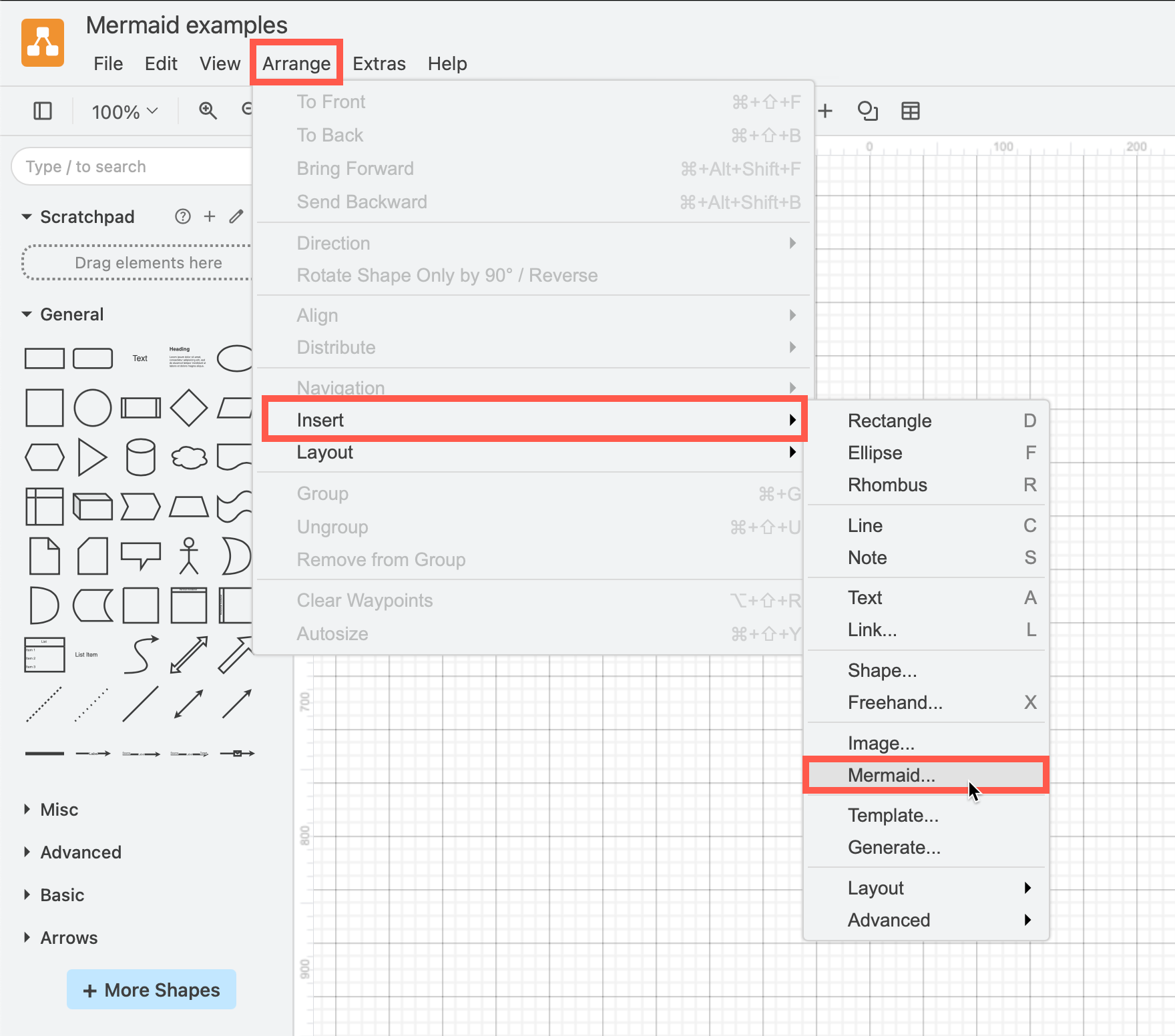
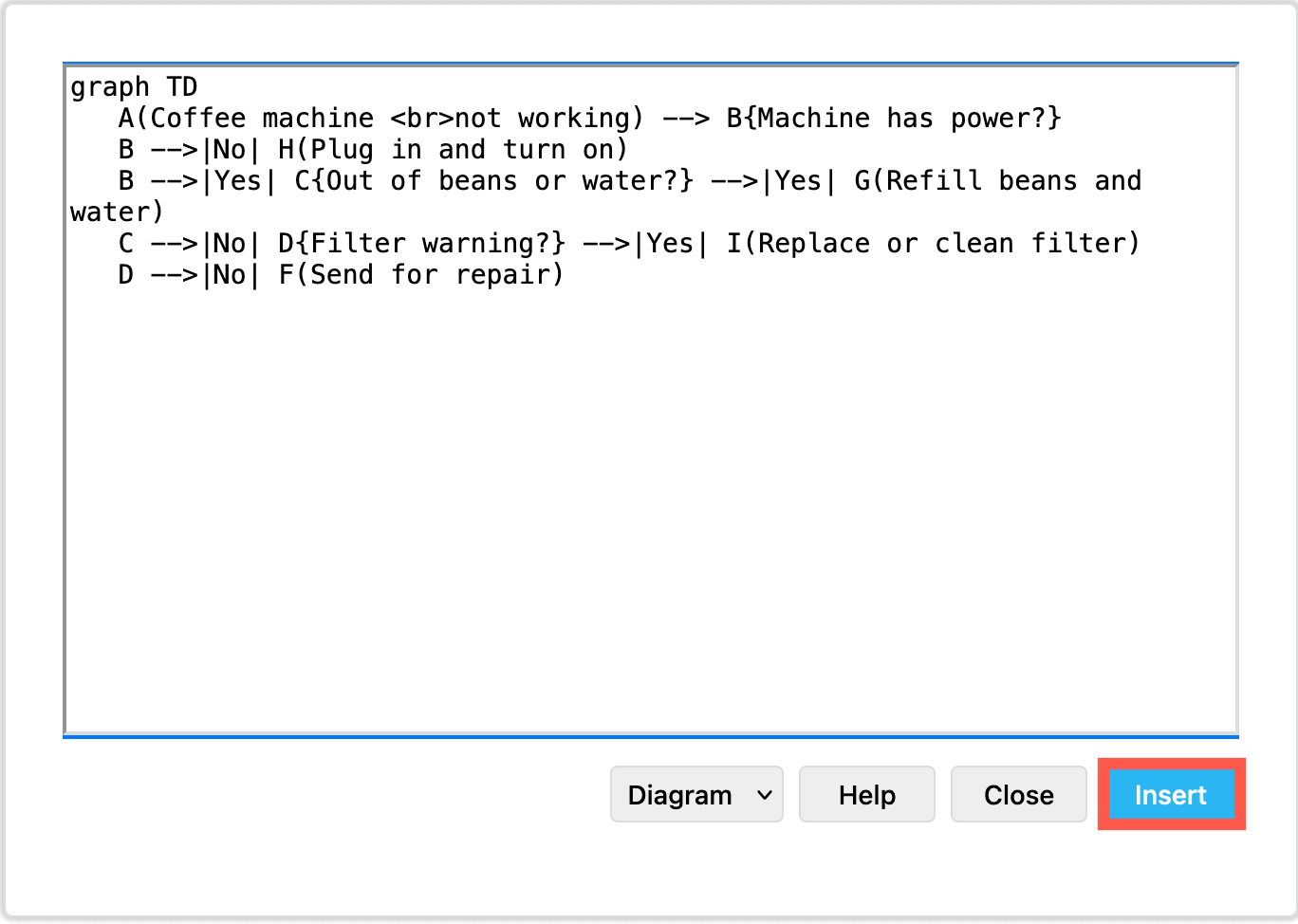
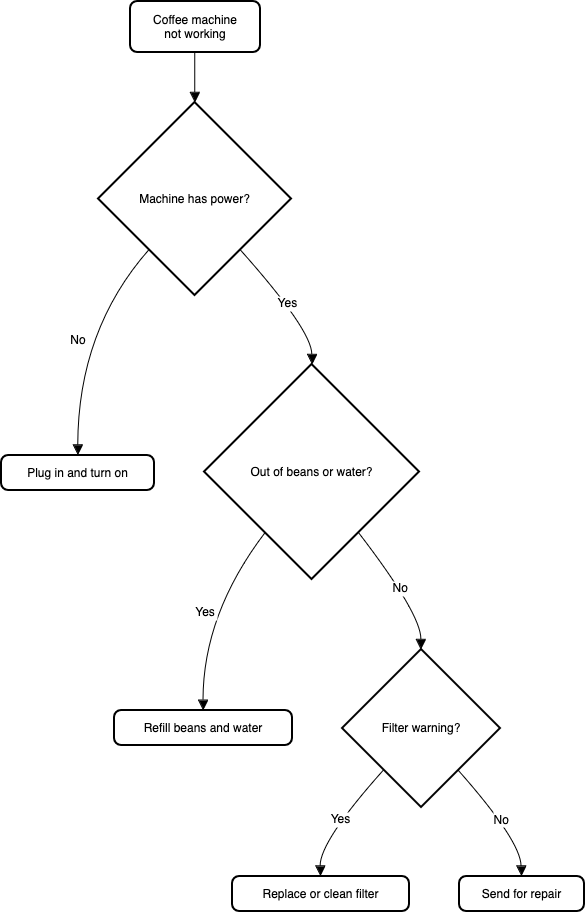
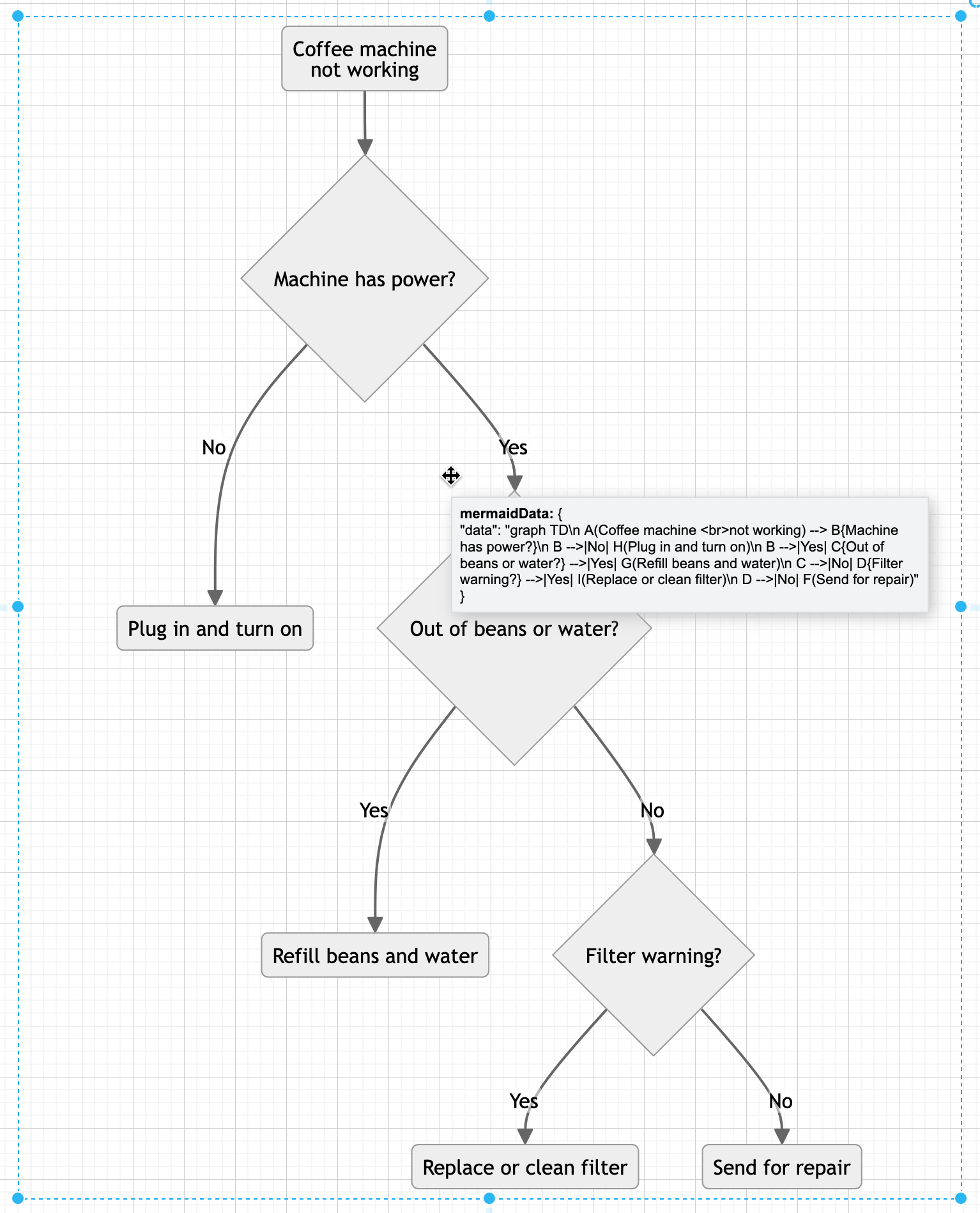
        <content type="html"><![CDATA[<p>Mermaid is a text-based syntax that you can use to describe a diagram, and automatically lay it out neatly on the diagram canvas. Enter your Mermaid diagram description in draw.io via <em>Arrange &gt; Insert &gt; Mermaid</em> in the draw.io menu or <em>+ &gt; Mermaid</em> from the toolbar. draw.io has updated to Mermaid version 10.9.1 to support the new ELK automatic layout.
<br><img decoding="async" loading="lazy" src="https://www.drawio.com/img/blog/mermaid-flow-elk-insert.png" style="width:100%;max-width:350px;height:auto" alt="Tell the Mermaid diagram generation tool to use the ELK layout option in your text diagram description" class="img_ev3q"></p>
<h2 class="anchor anchorTargetStickyNavbar_Vzrq" id="text-to-diagram-tools-in-drawio">Text to diagram tools in draw.io<a href="https://www.drawio.com/blog/mermaid-elk-layout#text-to-diagram-tools-in-drawio" class="hash-link" aria-label="Direct link to Text to diagram tools in draw.io" title="Direct link to Text to diagram tools in draw.io" translate="no">​</a></h2>
<p>There are several text-to-diagram tools built into draw.io:</p>
<ul>
<li class=""><a class="" href="https://www.drawio.com/docs/manual/mermaid">Mermaid diagrams</a></li>
<li class=""><a class="" href="https://www.drawio.com/docs/manual/insert/insert-sql">SQL to entity shapes</a></li>
<li class=""><a class="" href="https://www.drawio.com/docs/manual/insert/insert-from-csv">Specially formatted CSV data</a></li>
<li class=""><a class="" href="https://www.drawio.com/docs/manual/insert/insert-from-text">Basic text-to-diagram converter for trees and lists</a>.</li>
</ul>
<p><img decoding="async" loading="lazy" src="https://www.drawio.com/img/blog/mermaid-gantt-example-insert.png" style="width:100%;max-width:200px;height:auto" alt="Paste the Mermaid syntax text version of your diagram and Insert it onto the draw.io canvas" class="img_ev3q"> <img decoding="async" loading="lazy" src="https://www.drawio.com/img/blog/mermaid-gantt-example.png" style="width:100%;max-width:400px;height:auto" alt="An example Gantt chart inserted from Mermaid code" class="img_ev3q">
<br><em>Example Gantt chart generated from Mermaid syntax</em></p>
<p>Some of these text-to-diagram features generate a diagram as an image on the drawing canvas, and some use draw.io shapes to automatically layout your diagram and let you continue adding draw.io shapes and connectors to it.</p>
<p>You can choose your preferred output when you generate a diagram from Mermaid syntax, although some diagram types - like the Gantt chart above - will only generate to an image.</p>
<h2 class="anchor anchorTargetStickyNavbar_Vzrq" id="insert-a-mermaid-diagram-in-drawio">Insert a Mermaid diagram in draw.io<a href="https://www.drawio.com/blog/mermaid-elk-layout#insert-a-mermaid-diagram-in-drawio" class="hash-link" aria-label="Direct link to Insert a Mermaid diagram in draw.io" title="Direct link to Insert a Mermaid diagram in draw.io" translate="no">​</a></h2>
<p>An example coffee machine debugging flow is described in Mermaid syntax below.</p>
<div class="language-text codeBlockContainer_Ckt0 theme-code-block" style="--prism-color:#393A34;--prism-background-color:#f6f8fa"><div class="codeBlockContent_QJqH"><pre tabindex="0" class="prism-code language-text codeBlock_bY9V thin-scrollbar" style="color:#393A34;background-color:#f6f8fa"><code class="codeBlockLines_e6Vv"><span class="token-line" style="color:#393A34"><span class="token plain">graph TD</span><br></span><span class="token-line" style="color:#393A34"><span class="token plain">   A(Coffee machine &lt;br /&gt;not working) --&gt; B{Machine has power?}</span><br></span><span class="token-line" style="color:#393A34"><span class="token plain">   B --&gt;|No| H(Plug in and turn on)</span><br></span><span class="token-line" style="color:#393A34"><span class="token plain">   B --&gt;|Yes| C{Out of beans or water?} --&gt;|Yes| G(Refill beans and water)</span><br></span><span class="token-line" style="color:#393A34"><span class="token plain">   C --&gt;|No| D{Filter warning?} --&gt;|Yes| I(Replace or clean filter)</span><br></span><span class="token-line" style="color:#393A34"><span class="token plain">   D --&gt;|No| F(Send for repair)</span><br></span></code></pre></div></div>
<p>Add this Mermaid diagram to draw.io.</p>
<ol>
<li class="">Select <em>Arrange &gt; Insert &gt; Mermaid</em> from the menu or <em>+ &gt; Mermaid</em> from the toolbar if you are using the <a class="" href="https://www.drawio.com/docs/manual/editor/appearance/simple-mode-diagrams">Simple mode</a> or the <a class="" href="https://www.drawio.com/docs/getting-started/online-whiteboard">Sketch editor theme</a>.
<br><img decoding="async" loading="lazy" src="https://www.drawio.com/img/blog/insert-mermaid-menu.png" style="max-width:100%;height:auto" alt="Click Arrange /> Insert > Mermaid to create a diagram from Mermaid Markdown-inspired code" class="img_ev3q"></li>
<li class="">Enter the text description of your diagram using Mermaid syntax in the large text box.</li>
<li class="">From the drop-down list, select whether you want to insert the diagram with draw.io shapes (<em>Diagram</em>), or as a single image (<em>Image</em>), and click <em>Insert</em>.
<br><img decoding="async" loading="lazy" src="https://www.drawio.com/img/blog/mermaid-flowchart-example-code.png" style="width:100%;max-width:400px;height:auto" alt="Paste the text in Mermaid syntax, then click Insert" class="img_ev3q"></li>
</ol>
<p><strong>Diagram</strong> (default): When you insert the Mermaid diagram using the draw.io shapes, you can connect additional shapes and connectors and style your diagram. To change the original Mermaid syntax, first delete the previously inserted shapes, and re-enter the Mermaid description of your diagram by repeating the steps above.
<br><img decoding="async" loading="lazy" src="https://www.drawio.com/img/blog/mermaid-flowchart-example.png" style="width:100%;max-width:300px;height:auto" alt="By default, Mermaid diagrams are added to the drawing canvas with draw.io shapes so you can style and add to your diagram as needed" class="img_ev3q"></p>
<p><strong>Image</strong>: To generate the Mermaid diagram as a single SVG image on the drawing canvas instead, select <em>Image</em> from the drop-down list before you <em>Insert</em>. If you hover over the SVG image, the Mermaid syntax is visible in the tooltip. Note that you can't edit or style the individual shapes or connectors in this SVG image version.
<br><img decoding="async" loading="lazy" src="https://www.drawio.com/img/blog/mermaid-flow-example-image.png" style="width:100%;max-width:350px;height:auto" alt="Hover over a Mermaid diagram image in draw.io to see the Mermaid syntax for that diagram in a tooltip" class="img_ev3q"></p>
<p>To change a Mermaid diagram added as an image, double click on the SVG on the drawing canvas and edit the Mermaid syntax to regenerate the image.</p>
<p>Please refer to the <a href="https://mermaid.js.org/intro/syntax-reference.html" target="_blank" rel="noopener noreferrer" class="">Mermaid documentation for the complete syntax and styling options</a>.</p>
<h2 class="anchor anchorTargetStickyNavbar_Vzrq" id="new-elk-layouts-for-large-flowcharts">New ELK layouts for large flowcharts<a href="https://www.drawio.com/blog/mermaid-elk-layout#new-elk-layouts-for-large-flowcharts" class="hash-link" aria-label="Direct link to New ELK layouts for large flowcharts" title="Direct link to New ELK layouts for large flowcharts" translate="no">​</a></h2>
<p>The new ELK layout option, introduced in Mermaid version 9.4, can generate compacter versions of large and complex flowcharts.</p>
<p>Add the following renderer directive to the top your Mermaid diagram text description:</p>
<div class="language-text codeBlockContainer_Ckt0 theme-code-block" style="--prism-color:#393A34;--prism-background-color:#f6f8fa"><div class="codeBlockContent_QJqH"><pre tabindex="0" class="prism-code language-text codeBlock_bY9V thin-scrollbar" style="color:#393A34;background-color:#f6f8fa"><code class="codeBlockLines_e6Vv"><span class="token-line" style="color:#393A34"><span class="token plain">%%{init: {"flowchart": {"defaultRenderer": "elk"}} }%%</span><br></span></code></pre></div></div>
<p>For example, to layout the example Mermaid graph shown above with the ELK renderer command, the insert Mermaid dialog looks as follows.
<br><img decoding="async" loading="lazy" src="https://www.drawio.com/img/blog/mermaid-flow-elk-insert.png" style="width:100%;max-width:400px;height:auto" alt="Tell the Mermaid diagram generation tool to use the ELK layout option in your text diagram description" class="img_ev3q"></p>
<p>Click <em>Insert</em>, and the Mermaid diagram will be generated ad drawn with draw.io shapes.
<br><img decoding="async" loading="lazy" src="https://www.drawio.com/img/blog/mermaid-flow-elk-example.png" style="width:100%;max-width:300px;height:auto" alt="The ELK layout may be more suited for larger and more complex flows" class="img_ev3q"></p>
<p>While this example is small and simple, larger flows with complex decisions and many branches may be displayed better using this ELK renderer option.</p>
<p><strong>Note:</strong> As this is an experimental feature from the Mermaid developers, it currently only supports the flowchart layout.</p>
<p><strong>Large Mermaid flowchart with and without ELK</strong></p>
<p>Below, one of the more complex draw.io flowchart templates has described in text using Mermaid syntax and inserted as an image. The more compact version on the left used the new ELK renderer directive, and the one on the right did not.</p>
<img decoding="async" loading="lazy" src="https://www.drawio.com/img/blog/mermaid-elk-flow-comparison.png" style="width:100%;max-width:600px;height:auto" alt="The ELK layout may be more suited for larger and more complex flows" class="img_ev3q">
<p>With the ELK renderer directive, the Mermaid code for this flowchart looks as follows.</p>
<div class="language-text codeBlockContainer_Ckt0 theme-code-block" style="--prism-color:#393A34;--prism-background-color:#f6f8fa"><div class="codeBlockContent_QJqH"><pre tabindex="0" class="prism-code language-text codeBlock_bY9V thin-scrollbar" style="color:#393A34;background-color:#f6f8fa"><code class="codeBlockLines_e6Vv"><span class="token-line" style="color:#393A34"><span class="token plain">%%{init: {"flowchart": {"defaultRenderer": "elk"}} }%%</span><br></span><span class="token-line" style="color:#393A34"><span class="token plain" style="display:inline-block"></span><br></span><span class="token-line" style="color:#393A34"><span class="token plain">graph TD</span><br></span><span class="token-line" style="color:#393A34"><span class="token plain">  A[\Replenish Value Add stock/] ---&gt;C</span><br></span><span class="token-line" style="color:#393A34"><span class="token plain">  B(Order product with Value Add) ---&gt;C</span><br></span><span class="token-line" style="color:#393A34"><span class="token plain">  C{Frequent process?} ---&gt;|Yes|D </span><br></span><span class="token-line" style="color:#393A34"><span class="token plain">  C ---&gt;|No|F</span><br></span><span class="token-line" style="color:#393A34"><span class="token plain">  D{New template?} ---&gt;|Yes|E </span><br></span><span class="token-line" style="color:#393A34"><span class="token plain">  D ---&gt;|No|G</span><br></span><span class="token-line" style="color:#393A34"><span class="token plain">  E(Create work order template) ---&gt;G</span><br></span><span class="token-line" style="color:#393A34"><span class="token plain">  F(Create work order) ---&gt;H</span><br></span><span class="token-line" style="color:#393A34"><span class="token plain">  G(Copy template to work order) ---&gt;I</span><br></span><span class="token-line" style="color:#393A34"><span class="token plain">  H(Add materials to work order processes) ---&gt;J</span><br></span><span class="token-line" style="color:#393A34"><span class="token plain">  I(Adjust material quantities) ---&gt;J</span><br></span><span class="token-line" style="color:#393A34"><span class="token plain">  J(Monitor work orders) ---&gt;K</span><br></span><span class="token-line" style="color:#393A34"><span class="token plain">  K{Material quantities in stock?} ---&gt;|No|L </span><br></span><span class="token-line" style="color:#393A34"><span class="token plain">  K ---&gt;|Yes|M</span><br></span><span class="token-line" style="color:#393A34"><span class="token plain">  L(Procure materials) ---&gt;M</span><br></span><span class="token-line" style="color:#393A34"><span class="token plain">  M(Change status to In Progress) ---&gt;N</span><br></span><span class="token-line" style="color:#393A34"><span class="token plain">  N{External Vendor to perform step?} ---&gt;|Yes|O </span><br></span><span class="token-line" style="color:#393A34"><span class="token plain">  N ---&gt;|No|P</span><br></span><span class="token-line" style="color:#393A34"><span class="token plain">  O(Add vendor costs) ---&gt;Q</span><br></span><span class="token-line" style="color:#393A34"><span class="token plain">  P[\Perform work order step/] ---&gt;R</span><br></span><span class="token-line" style="color:#393A34"><span class="token plain">  Q([Ship materials to Vendor]) ---&gt;S ---&gt;X</span><br></span><span class="token-line" style="color:#393A34"><span class="token plain">  R{Additional processing required?} ---&gt;|Yes|N </span><br></span><span class="token-line" style="color:#393A34"><span class="token plain">  R---&gt;|No|T</span><br></span><span class="token-line" style="color:#393A34"><span class="token plain">  S[\Perform work order step/] ---&gt;U</span><br></span><span class="token-line" style="color:#393A34"><span class="token plain">  T(Receive final stock) ---&gt;V</span><br></span><span class="token-line" style="color:#393A34"><span class="token plain">  U(Receive product from vendor) ---&gt;W</span><br></span><span class="token-line" style="color:#393A34"><span class="token plain">  V(Ship product on order) ---&gt;Y</span><br></span><span class="token-line" style="color:#393A34"><span class="token plain">  W{Partial quantity received?} ---&gt;|Yes|X </span><br></span><span class="token-line" style="color:#393A34"><span class="token plain">  W ---&gt;|No|Z</span><br></span><span class="token-line" style="color:#393A34"><span class="token plain">  X[Create work order backorder] ---&gt; J</span><br></span><span class="token-line" style="color:#393A34"><span class="token plain">  Y(Change status to complete) ---&gt;AA</span><br></span><span class="token-line" style="color:#393A34"><span class="token plain">  Z(Pay vendor invoice) ---&gt;R</span><br></span><span class="token-line" style="color:#393A34"><span class="token plain">  AA([Finish])</span><br></span></code></pre></div></div>]]></content>
        <author>
            <name>draw.io</name>
            <uri>https://www.drawio.com</uri>
        </author>
        <category label="integrations" term="integrations"/>
        <category label="features" term="features"/>
        <category label="use-cases" term="use-cases"/>
        <category label="import" term="import"/>
    </entry>
    <entry>
        <title type="html"><![CDATA[Privacy policy updates]]></title>
        <id>https://www.drawio.com/blog/policy-updates</id>
        <link href="https://www.drawio.com/blog/policy-updates"/>
        <updated>2024-05-30T00:00:00.000Z</updated>
        <summary type="html"><![CDATA[Data security and privacy are central to our draw.io diagramming tool - using our application platform, your diagram data storage means saving and loading is direct between your browser and whichever location your choose to save your diagram file. We don't allow your diagram data to be stored on our servers.]]></summary>
        <content type="html"><![CDATA[<p>Data security and privacy are central to our draw.io diagramming tool - using our application platform, your diagram data storage means saving and loading is direct between your browser and whichever location your choose to save your diagram file. We don't allow your diagram data to be stored on our servers.</p>
<p>We take the same privacy and security focused approach to non-diagram data too here at JGraph - <a class="" href="https://www.drawio.com/docs/security/">we don't use cookies or tracking pixels on our website</a>.</p>
<p>Of course, if you contact us here at JGraph for support via GitHub, Google Groups, or one of our social channels, we will have your contact details - necessary to resolve your query.</p>
<p>In our <a href="https://github.com/jgraph/www.diagrams.net-source/blob/release/trust/index.md" target="_blank" rel="noopener noreferrer" class="">updated privacy policy</a>, we have now clarified that we will not send you any marketing communication using your details or data. We will also not share your personal data with any third-party company for marketing purposes.</p>
<p><strong>Note:</strong> The draw.io app listings in the Atlassian Marketplace for Confluence and Jira are managed by Seibert Group GmbH, and therefore are governed by <a href="http://seibert.biz/dataprivacy" target="_blank" rel="noopener noreferrer" class="">their privacy policy</a>.</p>
<h2 class="anchor anchorTargetStickyNavbar_Vzrq" id="use-drawio-desktop-to-diagram-offline">Use draw.io Desktop to diagram offline<a href="https://www.drawio.com/blog/policy-updates#use-drawio-desktop-to-diagram-offline" class="hash-link" aria-label="Direct link to Use draw.io Desktop to diagram offline" title="Direct link to Use draw.io Desktop to diagram offline" translate="no">​</a></h2>
<p>Our draw.io desktop app runs fully offline on your local device, and your diagram data stays on your local device. The only external communications from the software are to check for application updates.</p>
<p>draw.io runs on Windows, macOS and Linux - <a href="https://get.diagrams.net/" target="_blank" rel="noopener noreferrer" class="">download the draw.io Desktop installer</a> for your operating system.</p>
<h2 class="anchor anchorTargetStickyNavbar_Vzrq" id="configure-data-transmission-lockdown">Configure data transmission lockdown<a href="https://www.drawio.com/blog/policy-updates#configure-data-transmission-lockdown" class="hash-link" aria-label="Direct link to Configure data transmission lockdown" title="Direct link to Configure data transmission lockdown" translate="no">​</a></h2>
<p>Set <a class="" href="https://www.drawio.com/docs/security/data-governance-lockdown"><code>"lockdown": true</code></a> in the editor configuration. Lockdown options only apply to cloud-based draw.io versions.</p>
<p>This will disable data transmission apart from directly between your browser where you are editing your diagram, and the <a class="" href="https://www.drawio.com/docs/manual/storage-location-select">cloud platform or location</a> you have chosen to store the diagram file.</p>
<ol>
<li class="">In the online version of draw.io at <a href="https://app.diagrams.net/" target="_blank" rel="noopener noreferrer" class="">app.diagrams.net</a>, select <em>Extras &gt; Configuration</em> in classic mode, <em>... &gt; Settings &gt; Configuration</em> in Simple mode or the Sketch <a class="" href="https://www.drawio.com/docs/manual/editor/appearance/">editor theme</a> to open the configuration.</li>
<li class="">Enter the <code>"lockdown": true</code> JSON string and click <em>Apply</em>.</li>
</ol>
<p>In the draw.io app for Confluence Cloud (advanced edition only), go to the administration area, then the <em>draw.io Configuration</em> tab. Add <code>"lockdown": true</code> to the UI Configuration, and click <em>Save changes</em>.
<br><img decoding="async" loading="lazy" src="https://www.drawio.com/img/blog/drawio-confluence-lockdown-config.png" style="width:100%;max-width:400px;height:auto" alt="Configure draw.io for Confluence Cloud to lock down your diagram data to match your Atlassian data residency settings" class="img_ev3q"></p>
<p><strong>Note:</strong> There are few functions that use the draw.io servers to perform operations that browsers are not capable of, including to generate a PDF version of your diagram, and import a diagram file in .gliffy format. These functions won't be available if you lockdown data transmission.</p>
<p><a class="" href="https://www.drawio.com/docs/integrations/atlassian/confluence/customise">Learn more about configuring the draw.io diagram editor</a></p>]]></content>
        <author>
            <name>draw.io</name>
            <uri>https://www.drawio.com</uri>
        </author>
        <category label="trust" term="trust"/>
        <category label="features" term="features"/>
    </entry>
    <entry>
        <title type="html"><![CDATA[Collaborative editing in draw.io in Confluence DC]]></title>
        <id>https://www.drawio.com/blog/collaborative-editing-confluence-dc</id>
        <link href="https://www.drawio.com/blog/collaborative-editing-confluence-dc"/>
        <updated>2024-04-23T00:00:00.000Z</updated>
        <summary type="html"><![CDATA[Collaborative editing has long been possible in draw.io for Confluence Cloud. From the draw.io for Confluence DC release 13.0, you and your team will be able to edit the same diagram and see each other's changes.]]></summary>
        <content type="html"><![CDATA[<p>Collaborative editing has long been possible in draw.io for Confluence Cloud. From the draw.io for Confluence DC release 13.0, you and your team will be able to edit the same diagram and see each other's changes.
<br><img decoding="async" loading="lazy" src="https://www.drawio.com/img/blog/confluence-dc-collaborative-editing.gif" style="width:100%;max-width:600px;height:auto" alt="Collaborative editing is available in draw.io for Confluence DC (version 8.x)" class="img_ev3q"></p>
<p>Collaborative editing works in both the draw.io Diagram macro and the draw.io Board macro in Confluence DC. Note the collaboration isn't real-time, we need to ensure a slower update rate is stable and causes no performance issues in the first release.</p>
<h2 class="anchor anchorTargetStickyNavbar_Vzrq" id="real-time-multi-user-diagramming">Real-time multi-user diagramming<a href="https://www.drawio.com/blog/collaborative-editing-confluence-dc#real-time-multi-user-diagramming" class="hash-link" aria-label="Direct link to Real-time multi-user diagramming" title="Direct link to Real-time multi-user diagramming" translate="no">​</a></h2>
<p>Just like in draw.io for Confluence Cloud, the new collaborative editing feature in draw.io for Confluence DC uses the built-in auto-save feature.</p>
<ol>
<li class="">When you make a change to a draw.io diagram - add, style, or delete shapes, text and connectors, the diagram will be automatically saved to the Confluence page attachments.</li>
<li class="">The draw.io diagram editor regularly polls the Confluence DC instance to see if any changes were made by other users, then loads these changes into your editor.</li>
</ol>
<p>You don't need to manually save or synchronise the diagrams - changes will automatically appear in the draw.io editor for everyone editing the diagram.</p>
<p><strong>No shared cursors?</strong></p>
<p>As Confluence DC is not a cloud service with web sockets, there is no way to share and synchronise users' cursors as they work inside the diagram editor.</p>
<p>You can still make gestures on the diagram with the freehand brush to discuss a draw.io diagram in online meetings with your team - the freehand shape will appear in the other users' draw.io editor shortly after you draw it.</p>
<img decoding="async" loading="lazy" src="https://www.drawio.com/img/blog/confluence-dc-collaborative-editing2.gif" style="width:100%;max-width:600px;height:auto" alt="Collaborative editing is available in draw.io for Confluence DC (version 8.x)" class="img_ev3q">
<h2 class="anchor anchorTargetStickyNavbar_Vzrq" id="changes-are-merged-from-multiple-users">Changes are merged from multiple users<a href="https://www.drawio.com/blog/collaborative-editing-confluence-dc#changes-are-merged-from-multiple-users" class="hash-link" aria-label="Direct link to Changes are merged from multiple users" title="Direct link to Changes are merged from multiple users" translate="no">​</a></h2>
<p>If several users add shapes to the same location on a diagram, draw.io will take all those shapes and simply overlap them.</p>
<p>If one user adds and connects a new shape to an existing shape, but another user deletes the existing shape, both user's changes are saved:</p>
<ul>
<li class="">The child shape will appear to stand alone as its parent was deleted.</li>
<li class="">The existing parent shape and any connectors from it to new shapes added by other users will be deleted.</li>
</ul>
<p>This is the same process followed by the <a class="" href="https://www.drawio.com/docs/integrations/atlassian/confluence/collaborative-editing-confluence-cloud">collaborative editing function in draw.io for Confluence Cloud</a>.</p>
<p>Because draw.io <a class="" href="https://www.drawio.com/docs/integrations/atlassian/confluence/gliffy-to-drawio">merges all the changes made to a diagram</a>, and does not overwrite the attachment with the most recent saved state from one user, you won't lose any data when you are editing a diagram as a team.</p>
<h2 class="anchor anchorTargetStickyNavbar_Vzrq" id="change-the-synchronisation-speed-and-auto-save-interval">Change the synchronisation speed and auto-save interval<a href="https://www.drawio.com/blog/collaborative-editing-confluence-dc#change-the-synchronisation-speed-and-auto-save-interval" class="hash-link" aria-label="Direct link to Change the synchronisation speed and auto-save interval" title="Direct link to Change the synchronisation speed and auto-save interval" translate="no">​</a></h2>
<p>If your Confluence DC users find that changes appear in diagrams they are editing together too slowly, an administrator can increase the polling speed in the draw.io app configuration, by specifying the number of seconds between each poll in the <em>Add-on Configuration</em> field.</p>
<p>Also, you can shorten the time between auto-saving the diagram. A shorter interval will mean more attachment versions of diagrams will be created and added to a Confluence page.</p>
<ol>
<li class="">Go to the administration area of your Confluence DC instance.</li>
<li class="">Go to the <em>Configuration</em> tab in the <em>draw.io Add-on Configuration</em> section.</li>
<li class="">Add the following lines to the <em>Add-on Configuration</em> text field: <code>pollingInterval=10000</code> and <code>maxAutosaveDelay=5000</code></li>
<li class="">Click <em>Save changes</em> to update the draw.io configuration.
<br><img decoding="async" loading="lazy" src="https://www.drawio.com/img/blog/confluence-dc-polling-interval.png" style="width:100%;max-width:400px;height:auto" alt="Set a faster polling interval for collaborative editing in Confluence DC 8.x via the app configuration in your Confluence administration" class="img_ev3q"></li>
</ol>
<p>In the example above, we have set the polling interval to 10 seconds (which is 10,000 milliseconds).</p>
<p><strong>Note:</strong> If you collaborate on extremely large and complex diagrams, you may need to set a longer polling interval.</p>
<p><a class="" href="https://www.drawio.com/docs/integrations/atlassian/confluence/customise/configure-drawio-confluence-server">See how to configure the draw.io editor for Confluence DC</a></p>]]></content>
        <author>
            <name>draw.io</name>
            <uri>https://www.drawio.com</uri>
        </author>
        <category label="features" term="features"/>
        <category label="atlassian" term="atlassian"/>
    </entry>
    <entry>
        <title type="html"><![CDATA[High contrast mode in draw.io]]></title>
        <id>https://www.drawio.com/blog/high-contrast-mode</id>
        <link href="https://www.drawio.com/blog/high-contrast-mode"/>
        <updated>2024-04-16T00:00:00.000Z</updated>
        <summary type="html"><![CDATA[The new high contrast mode is available in draw.io: High Contrast makes the editor interface easier to read without adjusting your monitor's contrast settings, similar to the accessibility options in your operating system.]]></summary>
        <content type="html"><![CDATA[<p>The new high contrast mode is available in draw.io: <em>High Contrast</em> makes the editor interface easier to read without adjusting your monitor's contrast settings, similar to the accessibility options in your operating system.
<br><img decoding="async" loading="lazy" src="https://www.drawio.com/img/blog/high-contrast.gif" style="width:100%;max-width:500px;height:auto" alt="High contrast simplifies the draw.io editor interface so that it is easier to read, and improve contrast updates the colours in dark mode to make diagrams easier to see on a dark background" class="img_ev3q"></p>
<p>High contrast mode simplifies and removes non-essential backgrounds and increases the definition between interface elements by adding clear outlines. You may find it is easier to read text and it can reduce eye strain.</p>
<h2 class="anchor anchorTargetStickyNavbar_Vzrq" id="high-contrast-mode">High Contrast mode<a href="https://www.drawio.com/blog/high-contrast-mode#high-contrast-mode" class="hash-link" aria-label="Direct link to High Contrast mode" title="Direct link to High Contrast mode" translate="no">​</a></h2>
<p>Choose <em>Settings &gt; Appearance &gt; High Contrast</em> from the draw.io menu.</p>
<p>When you enable high contrast modes or themes in your operating system, the range of colours in the interface is reduced and visual elements are simplified. Panels, tools, buttons, and toolbars have simpler backgrounds (white in light mode, black in dark mode), with a clear outline to better separate the various parts of the application's interface.</p>
<p>In the draw.io editor, <strong>High Contrast</strong> mode works in the same way.</p>
<ul>
<li class="">Panel backgrounds are simplified to off-white (light mode) or nearly black (dark mode).</li>
<li class="">Text labels, shapes, and tools that were previously grey are clearer - black (light mode) or white (dark mode).</li>
<li class="">Strong contrasting outlines are added around buttons, between the shape libraries, around the format panel tabs and other elements in the editor interface: a crisp white outline in dark mode, and a black outline in light mode.</li>
</ul>
<p>The default dark mode is on the left in the screenshot below, and High Contrast mode on the right.
<br><img decoding="async" loading="lazy" src="https://www.drawio.com/img/blog/high-contrast-dark-mode-comparison.png" style="width:100%;max-width:500px;height:auto" alt="High contrast works on all of the draw.io editor themes and in both dark and light mode" class="img_ev3q"></p>
<p>High contrast mode works with all draw.io themes in both dark and light mode, including the Sketch online whiteboard theme.
<br><img decoding="async" loading="lazy" src="https://www.drawio.com/img/blog/sketch-theme-high-contrast.png" style="width:100%;max-width:400px;height:auto" alt="High contrast works on all of the draw.io editor themes" class="img_ev3q"></p>
<h2 class="anchor anchorTargetStickyNavbar_Vzrq" id="better-colours-for-dark-mode">Better colours for dark mode<a href="https://www.drawio.com/blog/high-contrast-mode#better-colours-for-dark-mode" class="hash-link" aria-label="Direct link to Better colours for dark mode" title="Direct link to Better colours for dark mode" translate="no">​</a></h2>
<p>Dark mode is often used to reduce eye strain - with draw.io you can diagram in dark mode using any of our editor themes (click the sun/moon icon in the top right and select the mode you want to use. Alternatively, select <em>Settings &gt; Appearance &gt; Dark Mode</em> from the menu).</p>
<p>A while back, we updated <a class="" href="https://www.drawio.com/docs/manual/editor/appearance/dark-mode">colours automatically change when working with draw.io in dark mode</a>, but continue to use the light mode palette as the default. When you switch to dark mode, by default, shapes, connectors and text change intensity to ensure an improved contrast that remains readable.</p>
<ul>
<li class="">
<p>To disable adaptive colours for light and dark mode, make sure nothing is selected in your diagram, then in the document <em>Style</em> tab of the format panel, set <em>Adaptive Colors</em> to <em>None</em>. (Also available in the Classic mode menu via <em>Extras &gt; Adaptive Colors</em>).
<br><img decoding="async" loading="lazy" src="https://www.drawio.com/img/blog/adaptive-colors-none.png" style="width:100%;max-width:400px;height:auto" alt="Set Adaptive Colors to none if you don't want your diagram to automatically change colours in dark and light modes" class="img_ev3q"></p>
</li>
<li class="">
<p>If you want only the black and white parts of your diagram to invert in dark or light mode, set <em>Adaptive Colors</em> to <em>Simple</em>.</p>
</li>
<li class="">
<p>If you want to <a class="" href="https://www.drawio.com/docs/manual/editor/appearance/adaptive-colours">choose specific dark mode colours</a> for shapes, connectors and text instead of using an automatic adaptive colour, add the dark mode colour for that shape in the colour palette under <em>Advanced</em>.</p>
</li>
</ul>
<p><strong>Note:</strong> draw.io Desktop uses the original simple adaptive colours. Set Adaptive colour</p>]]></content>
        <author>
            <name>draw.io</name>
            <uri>https://www.drawio.com</uri>
        </author>
        <category label="features" term="features"/>
    </entry>
    <entry>
        <title type="html"><![CDATA[draw.io in Confluence DC - full version support and regular updates]]></title>
        <id>https://www.drawio.com/blog/drawio-confluence-dc</id>
        <link href="https://www.drawio.com/blog/drawio-confluence-dc"/>
        <updated>2024-02-23T00:00:00.000Z</updated>
        <summary type="html"><![CDATA[The draw.io app for Confluence Data Center provides you with a secure and fully featured diagramming tool for visual documentation, along with a simpler whiteboard macro that also includes everything you need to draw complex technical diagrams.]]></summary>
        <content type="html"><![CDATA[<p>The draw.io app for Confluence Data Center provides you with a secure and fully featured diagramming tool for visual documentation, along with a simpler whiteboard macro that also includes everything you need to draw complex technical diagrams.</p>
<h2 class="anchor anchorTargetStickyNavbar_Vzrq" id="works-on-all-supported-dc-versions">Works on all supported DC versions<a href="https://www.drawio.com/blog/drawio-confluence-dc#works-on-all-supported-dc-versions" class="hash-link" aria-label="Direct link to Works on all supported DC versions" title="Direct link to Works on all supported DC versions" translate="no">​</a></h2>
<p>draw.io works on all supported versions of Confluence Data Center, 7.x and later.</p>
<p><a href="https://marketplace.atlassian.com/apps/1210933/draw-io-diagrams-whiteboards/version-history" target="_blank" rel="noopener noreferrer" class="">Regular updates are released</a> for all supported DC versions, such as updated technical icon sets (shape libraries), new and improved features, and of course bug fixes and optimisations.
<br><img decoding="async" loading="lazy" src="https://www.drawio.com/img/blog/drawio-dc-gcp-diagram.png" style="width:100%;max-width:400px;height:auto" alt="The draw.io desktop app has all the same shape libraries and tools as draw.io in Confluence DC - collaborate securely with your external partners using our offline app" class="img_ev3q"></p>
<h2 class="anchor anchorTargetStickyNavbar_Vzrq" id="focused-on-security">Focused on security<a href="https://www.drawio.com/blog/drawio-confluence-dc#focused-on-security" class="hash-link" aria-label="Direct link to Focused on security" title="Direct link to Focused on security" translate="no">​</a></h2>
<p>While many organisations have opted to move to Confluence Cloud now that Confluence Server has reached its end of life, you may have found that Confluence Data Center is a better fit for your needs, especially if you are in a regulated industry like finance or healthcare.</p>
<p>draw.io is engineered differently to other diagramming apps - <a class="" href="https://www.drawio.com/docs/security/">we take data security seriously</a> so you can keep your diagram data secure.  We participate in Atlassian's bug bounty program and release regular updates for all supported versions of Data Center.</p>
<h3 class="anchor anchorTargetStickyNavbar_Vzrq" id="secure-desktop-app-for-external-partners">Secure desktop app for external partners<a href="https://www.drawio.com/blog/drawio-confluence-dc#secure-desktop-app-for-external-partners" class="hash-link" aria-label="Direct link to Secure desktop app for external partners" title="Direct link to Secure desktop app for external partners" translate="no">​</a></h3>
<p>When you do need to collaborate confidentially with external partners, your partners can edit draw.io diagram files securely with the free <a href="https://get.diagrams.net/" target="_blank" rel="noopener noreferrer" class="">draw.io desktop app</a>, which keeps the diagram data isolated on their computer. The desktop app has the same shape libraries, templates, and tools, and is designed to work fully offline on Windows, macOS and Linux.
<br><img decoding="async" loading="lazy" src="https://www.drawio.com/img/blog/drawio-dc-uml-shape-library.png" style="width:100%;max-width:400px;height:auto" alt="The draw.io desktop app has all the same shape libraries and tools as draw.io in Confluence DC - collaborate securely with your external partners using our offline app" class="img_ev3q"></p>
<h2 class="anchor anchorTargetStickyNavbar_Vzrq" id="technical-diagrams-plus-an-online-whiteboard">Technical diagrams plus an online whiteboard<a href="https://www.drawio.com/blog/drawio-confluence-dc#technical-diagrams-plus-an-online-whiteboard" class="hash-link" aria-label="Direct link to Technical diagrams plus an online whiteboard" title="Direct link to Technical diagrams plus an online whiteboard" translate="no">​</a></h2>
<p>draw.io has a wide range of shape libraries with up-to-date icon sets, and a large collection of templates for many different types of technical diagrams.</p>
<p>Even when using the simple <a class="" href="https://www.drawio.com/docs/integrations/atlassian/confluence/online-whiteboard-confluence">draw.io board macro in Confluence</a>, you have access to all the shape libraries, features, and tools. You can use draw.io in meetings and for brainstorming, as well as to document your complex infrastructures and business procedures in great detail.
<br><img decoding="async" loading="lazy" src="https://www.drawio.com/img/blog/drawio-dc-board-shapes-panel.png" style="width:100%;max-width:400px;height:auto" alt="Access all the technical diagramming shape libraries, templates and tools via + in the toolbar in the draw.io macro for Confluence DC" class="img_ev3q"></p>
<h2 class="anchor anchorTargetStickyNavbar_Vzrq" id="migration-and-import-tools">Migration and import tools<a href="https://www.drawio.com/blog/drawio-confluence-dc#migration-and-import-tools" class="hash-link" aria-label="Direct link to Migration and import tools" title="Direct link to Migration and import tools" translate="no">​</a></h2>
<p>If you choose at some point to migrate to Cloud from DC/Server, to maintain diagram links and embedded diagrams we recommend using the <a class="" href="https://www.drawio.com/docs/integrations/atlassian/confluence/migrate-confluence/">PageID export/import method</a>, now that Atlassian supports 'mass permission change'.</p>
<p>If directed to by draw.io support, you may use the <a class="" href="https://www.drawio.com/docs/integrations/atlassian/confluence/migrate-confluence/confluence-drawio-migration">new draw.io migration tool</a> in your old DC instance, but it may have issues if you rename pages during the migration process.
<br><img decoding="async" loading="lazy" src="https://www.drawio.com/img/blog/confluence-server-cloud-migration.png" style="width:100%;max-width:400px;height:auto" alt="Start the Confluence DC/Server to Cloud migration preparation for draw.io diagrams in the administration area via draw.io add-on /> Configuration > Cloud Migration" class="img_ev3q"></p>
<p>draw.io makes it easy to migrate and import from other diagramming tools in Confluence DC.</p>
<ul>
<li class=""><a class="" href="https://www.drawio.com/docs/integrations/atlassian/confluence/confluence-server/mass-import-gliffy-confluence-server">Import all your Gliffy diagrams in your instance</a> as a Confluence administrator.</li>
<li class="">Drag and drop an individual diagram file, <a class="" href="https://www.drawio.com/docs/integrations/atlassian/confluence/confluence-server/open-vsd-files-confluence-server">including <code>vsdx</code> files</a> and Gliffy and onto the drawing canvas to import them.
<br><img decoding="async" loading="lazy" src="https://www.drawio.com/img/blog/gliffy-import-confluence-server.png" style="width:100%;max-width:400px;height:auto" alt="Go to the Gliffy Import tab in the draw.io add-on configuration in Confluence server to convert all of your diagrams at once" class="img_ev3q"></li>
</ul>
<h2 class="anchor anchorTargetStickyNavbar_Vzrq" id="configure-the-diagram-editor-and-drawio-settings">Configure the diagram editor and draw.io settings<a href="https://www.drawio.com/blog/drawio-confluence-dc#configure-the-diagram-editor-and-drawio-settings" class="hash-link" aria-label="Direct link to Configure the diagram editor and draw.io settings" title="Direct link to Configure the diagram editor and draw.io settings" translate="no">​</a></h2>
<p>As an administrator, you can <a class="" href="https://www.drawio.com/docs/integrations/atlassian/confluence/customise/configure-drawio-confluence-server">configure the draw.io backend in Confluence Data Center</a> via the app administration and set up <a class="" href="https://www.drawio.com/docs/integrations/atlassian/confluence/customise/custom-templates-confluence-server">custom diagram templates</a> and shape libraries.</p>
<p>If your technical diagramming team always use a set palette of colours or shape styles, you can also <a class="" href="https://www.drawio.com/docs/reference/configure-diagram-editor">configure this for everyone in your instance</a>.
<br><img decoding="async" loading="lazy" src="https://www.drawio.com/img/blog/drawio-dc-configuration.png" style="width:100%;max-width:400px;height:auto" alt="Configure default colours and styles in the draw.io configuration in Confluence Data Center for all users in your instance" class="img_ev3q"></p>]]></content>
        <author>
            <name>draw.io</name>
            <uri>https://www.drawio.com</uri>
        </author>
        <category label="features" term="features"/>
        <category label="atlassian" term="atlassian"/>
    </entry>
    <entry>
        <title type="html"><![CDATA[draw.io is sponsoring FOSDEM 2024]]></title>
        <id>https://www.drawio.com/blog/fosdem24-sponsor</id>
        <link href="https://www.drawio.com/blog/fosdem24-sponsor"/>
        <updated>2023-11-17T00:00:00.000Z</updated>
        <summary type="html"><![CDATA[We are proud to be be once again sponsoring the popular FOSDEM two-day event for open source software, held at the Université Libre de Bruxelles Solbosch Campus in Brussels, Belgium on 3-4 February 2024. There is no registration and the event is free to attend.]]></summary>
        <content type="html"><![CDATA[<p>We are proud to be be once again sponsoring the popular <a href="https://staging.fosdem.org/2024/" target="_blank" rel="noopener noreferrer" class="">FOSDEM</a> two-day event for open source software, held at the Université Libre de Bruxelles Solbosch Campus in Brussels, Belgium on 3-4 February 2024. There is no registration and the event is free to attend.</p>
<img decoding="async" loading="lazy" src="https://www.drawio.com/img/blog/fosdem24.png" style="max-width:100%;height:auto" alt="draw.io is sponsoring the FOSDEM'24 conference for open source developers" class="img_ev3q">
<p>FOSDEM is organised by a large team of volunteers, and provides a space for open source software developers and users to meet, share ideas, and collaborate on open source projects.</p>
<p>If you would like to join a developer room at FOSDEM'24, keep an eye on list of <a href="https://staging.fosdem.org/2024/news/2023-11-08-devrooms-announced/" target="_blank" rel="noopener noreferrer" class="">developers that will be calling for participation shortly</a> and the <a href="https://staging.fosdem.org/2024/schedule/" target="_blank" rel="noopener noreferrer" class="">FOSDEM'24 schedule</a> as speakers and projects are confirmed.</p>
<p><strong>FOSDEM: hundreds of open source speakers and events</strong></p>
<p>With well over 5000 developers and speakers attending from all over the world, it’s easily one of the largest events for open source projects.</p>
<p>As usual, there will be a wide variety of presentations by speakers across several tracks, along with keynotes, developer rooms and hacking sessions, lightning talks, project stands with demos and merchandise, and open discussions. You can attend as few or as many activities as you like for free - just turn up on the day.</p>
<p>Unlike previous events, no certification exams are planned for this year. There will be an area for recruiting and job opportunities for open source positions, and <a href="https://staging.fosdem.org/2024/fringe/" target="_blank" rel="noopener noreferrer" class="">several related fringe events</a> that you may be interested in attending.</p>
<h2 class="anchor anchorTargetStickyNavbar_Vzrq" id="open-source-diagramming">Open source diagramming<a href="https://www.drawio.com/blog/fosdem24-sponsor#open-source-diagramming" class="hash-link" aria-label="Direct link to Open source diagramming" title="Direct link to Open source diagramming" translate="no">​</a></h2>
<p>We greatly appreciate our open source community of developers, bug reporters, translators, contributors and sponsors, as well as the developers of the open source projects that we sponsor directly.</p>
<p>As one of the world’s most widely used browser-based diagramming applications, draw.io can be used online, as a desktop app, deployed locally in a variety of formats. Plus, there is an <a href="https://www.drawio.com/integrations.html" target="_blank" rel="noopener noreferrer" class="">increasing number of third-party integrations</a>, where developers have embedded our open-source diagram editor into their content and project management tools.</p>]]></content>
        <author>
            <name>draw.io</name>
            <uri>https://www.drawio.com</uri>
        </author>
        <category label="news" term="news"/>
        <category label="open-source" term="open-source"/>
    </entry>
    <entry>
        <title type="html"><![CDATA[Swap and replace shapes and connectors]]></title>
        <id>https://www.drawio.com/blog/swap-shapes</id>
        <link href="https://www.drawio.com/blog/swap-shapes"/>
        <updated>2023-09-06T00:00:00.000Z</updated>
        <summary type="html"><![CDATA[You can swap shapes on the drawing canvas in draw.io via the Arrange tab of the format panel, or by dropping a new shape from the shape libraries on top of an existing shape. You can also reverse the arrows on a connector easily via the Arrange tab.]]></summary>
        <content type="html"><![CDATA[<p>You can swap shapes on the drawing canvas in draw.io via the <em>Arrange</em> tab of the format panel, or by dropping a new shape from the shape libraries on top of an existing shape. You can also reverse the arrows on a connector easily via the <em>Arrange</em> tab.</p>
<img decoding="async" loading="lazy" src="https://www.drawio.com/img/blog/shapes-swap.gif" style="width:100%;max-width:500px;height:auto" alt="Select two shapes, go to the Arrange tab of the format panel and click Swap" class="img_ev3q">
<p>Connectors to and from a swapped shape will move with it, staying attached and automatically updating its path.</p>
<p>If you want to <a class="" href="https://www.drawio.com/docs/manual/connectors/connector-reverse">swap the direction of the connector as well</a>, select the connector after you swap the shapes, then click <em>Reverse</em> on the <em>Arrange</em> tab of the format panel.</p>
<img decoding="async" loading="lazy" src="https://www.drawio.com/img/blog/connector-swap.png" style="width:100%;max-width:500px;height:auto" alt="Hold down shift and drag one shape over another shape to swap them" class="img_ev3q">
<h2 class="anchor anchorTargetStickyNavbar_Vzrq" id="replace-an-existing-shape-with-a-different-shape">Replace an existing shape with a different shape<a href="https://www.drawio.com/blog/swap-shapes#replace-an-existing-shape-with-a-different-shape" class="hash-link" aria-label="Direct link to Replace an existing shape with a different shape" title="Direct link to Replace an existing shape with a different shape" translate="no">​</a></h2>
<p>Drag a shape from the shape libraries and hover over an existing shape on the drawing canvas until the <em>replace</em> symbol appears, then drop the shape.
<br><img decoding="async" loading="lazy" src="https://www.drawio.com/img/blog/shapes-swap-from-library.gif" style="width:100%;max-width:500px;height:auto" alt="Drag a new shape from the shape library in draw.io and drop it onto an existing shape to replace it" class="img_ev3q"></p>
<p>Alternatively, double-click on an empty spot on the drawing canvas to open the quick selection box and drag a shape from there over an existing shape, and drop it when the <em>replace</em> symbol appears.
<br><img decoding="async" loading="lazy" src="https://www.drawio.com/img/blog/shapes-swap-from-selection.gif" style="width:100%;max-width:500px;height:auto" alt="Drag a new shape from the shape library in draw.io and drop it onto an existing shape to replace it" class="img_ev3q"></p>
<h2 class="anchor anchorTargetStickyNavbar_Vzrq" id="do-more-with-shapes-in-drawio">Do more with shapes in draw.io<a href="https://www.drawio.com/blog/swap-shapes#do-more-with-shapes-in-drawio" class="hash-link" aria-label="Direct link to Do more with shapes in draw.io" title="Direct link to Do more with shapes in draw.io" translate="no">​</a></h2>
<p>There are many more ways you can quickly work with shapes in draw.io. Use these FAQs, tutorials and blog posts to learn how to diagram faster and easier.</p>
<p><a class="" href="https://www.drawio.com/docs/reference/shortcuts/shortcut-shape-library">Work faster with shape libraries</a> using keyboard shortcuts, and use <a class="" href="https://www.drawio.com/docs/reference/shortcuts/modifier-shortcuts-in-diagrams">keyboard + mouse modifier shortcuts</a> to work with shapes faster on the drawing canvas.</p>
<p><a class="" href="https://www.drawio.com/docs/manual/editor/panels/arrange-tab">Use the Arrange tab tools on shapes and connectors</a> - move shapes forwards and backwards, group multiple shapes, resize shapes and groups of shapes, reposition shapes, rotate shapes and groups of shapes, and work with connector waypoints to perfectly path your connectors.</p>
<p><a class="" href="https://www.drawio.com/docs/manual/styles/shape-styles">Style shapes</a> using the <em>Style</em> tab in the format panel. The styles that are available will depend on the shapes you have selected.</p>
<p>See how you can modify the <a class="" href="https://www.drawio.com/docs/manual/shapes/shape-properties">shape properties in the Style tab</a> of a selected shape to turn a shape into a container, change the perimeter, disallow connectors, prevent it from being deleted or clones, and much more. Select a shape and click on <em>Properties</em> at the bottom of the style tab.
<br><img decoding="async" loading="lazy" src="https://www.drawio.com/img/blog/shape-properties-expand.png" style="width:100%;max-width:300px;height:auto" alt="Drag a new shape from the shape library in draw.io and drop it onto an existing shape to replace it" class="img_ev3q"></p>
<p>And finally, print out these <a href="https://app.diagrams.net/shortcuts.svg" target="_blank" rel="noopener noreferrer" class="">draw.io keyboard shortcuts</a> for easy reference.</p>]]></content>
        <author>
            <name>draw.io</name>
            <uri>https://www.drawio.com</uri>
        </author>
        <category label="features" term="features"/>
    </entry>
    <entry>
        <title type="html"><![CDATA[New keyboard shortcuts in draw.io]]></title>
        <id>https://www.drawio.com/blog/new-keyboard-shortcuts</id>
        <link href="https://www.drawio.com/blog/new-keyboard-shortcuts"/>
        <updated>2023-07-14T00:00:00.000Z</updated>
        <summary type="html"><![CDATA[As new features are added to draw.io and the menu is refined, new keyboard shortcuts are also built into the editor. Here are some of the new and useful shortcuts for diagramming in draw.io.]]></summary>
        <content type="html"><![CDATA[<p>As new features are added to draw.io and the menu is refined, new <a class="" href="https://www.drawio.com/docs/reference/shortcuts">keyboard shortcuts</a> are also built into the editor. Here are some of the new and useful shortcuts for diagramming in draw.io.</p>
<h2 class="anchor anchorTargetStickyNavbar_Vzrq" id="move-selected-remote-shapes-and-connectors">Move selected remote shapes and connectors<a href="https://www.drawio.com/blog/new-keyboard-shortcuts#move-selected-remote-shapes-and-connectors" class="hash-link" aria-label="Direct link to Move selected remote shapes and connectors" title="Direct link to Move selected remote shapes and connectors" translate="no">​</a></h2>
<p>Select the shapes and connectors you want to move, then hold <code>Shift+Alt+drag</code> and drag the cursor to reposition the selection even if it is not currently under the cursor.
<br><img decoding="async" loading="lazy" src="https://www.drawio.com/img/blog/keyboard-shortcut-move-shape.gif" style="width:100%;max-width:500px;height:auto" alt="Press Shift+Alt and drag the cursor to move a selected shape, even if your cursor is not over that shape" class="img_ev3q"></p>
<h2 class="anchor anchorTargetStickyNavbar_Vzrq" id="increasedecrease-font-size">Increase/decrease font size<a href="https://www.drawio.com/blog/new-keyboard-shortcuts#increasedecrease-font-size" class="hash-link" aria-label="Direct link to Increase/decrease font size" title="Direct link to Increase/decrease font size" translate="no">​</a></h2>
<p>Select a shape or connector or label, and press <code>Ctrl+Shift +/- (NumPad)</code> to increase or decrease the text size. This only works with the <code>+</code> and <code>-</code> keys on the number pad.
<br><img decoding="async" loading="lazy" src="https://www.drawio.com/img/blog/keyboard-shortcut-increase-decrease-text-size.gif" style="width:100%;max-width:500px;height:auto" alt="Press Ctrl+Shift +/- Numpad to increase or decrease the text size of a selected shape or connector label" class="img_ev3q"></p>
<h2 class="anchor anchorTargetStickyNavbar_Vzrq" id="increasedecrease-shape-size">Increase/decrease shape size<a href="https://www.drawio.com/blog/new-keyboard-shortcuts#increasedecrease-shape-size" class="hash-link" aria-label="Direct link to Increase/decrease shape size" title="Direct link to Increase/decrease shape size" translate="no">​</a></h2>
<p>Select a shape, and press <code>Ctrl+Shift+arrow key</code> to increase or decrease the right or lower edge of the shape.
<br><img decoding="async" loading="lazy" src="https://www.drawio.com/img/blog/keyboard-shortcut-increase-decrease-shape-size.gif" style="width:100%;max-width:500px;height:auto" alt="Press Ctrl+Shift+arrow key to increase or decrease the size of the selected shape" class="img_ev3q"></p>
<h2 class="anchor anchorTargetStickyNavbar_Vzrq" id="clear-all-extra-waypoints-on-a-connector">Clear all extra waypoints on a connector<a href="https://www.drawio.com/blog/new-keyboard-shortcuts#clear-all-extra-waypoints-on-a-connector" class="hash-link" aria-label="Direct link to Clear all extra waypoints on a connector" title="Direct link to Clear all extra waypoints on a connector" translate="no">​</a></h2>
<p>Select a connector and press <code>Alt+Shift+R</code> to reset the waypoints back to the default path.
<br><img decoding="async" loading="lazy" src="https://www.drawio.com/img/blog/keyboard-shortcut-reset-waypoints.gif" style="width:100%;max-width:500px;height:auto" alt="Press Alt+Shift+R to reset the waypoints of a selected connector" class="img_ev3q"></p>
<h2 class="anchor anchorTargetStickyNavbar_Vzrq" id="more-keyboard-shortcuts-in-drawio">More keyboard shortcuts in draw.io<a href="https://www.drawio.com/blog/new-keyboard-shortcuts#more-keyboard-shortcuts-in-drawio" class="hash-link" aria-label="Direct link to More keyboard shortcuts in draw.io" title="Direct link to More keyboard shortcuts in draw.io" translate="no">​</a></h2>
<p>There are many other <a class="" href="https://www.drawio.com/docs/reference/shortcuts/modifier-shortcuts-in-diagrams">mouse + keyboard shortcut combinations</a> in draw.io to help you diagram faster, as well as many <a class="" href="https://www.drawio.com/docs/reference/shortcuts">other key combinations</a>.</p>
<p>Next time you go through the draw.io menu, or right-click and open the context menu, check and see if there is a keyboard shortcut next to the command you want to use.
<br><img decoding="async" loading="lazy" src="https://www.drawio.com/img/blog/keyboard-shortcuts-in-menu.png" style="width:100%;max-width:500px;height:auto" alt="There are many keyboard shortcuts available in draw.io" class="img_ev3q"></p>
<p>Here's a one-page reference sheet that you can print out containing the most common and useful <a href="https://app.diagrams.net/shortcuts.svg" target="_blank" rel="noopener noreferrer" class="">keyboard shortcuts in draw.io</a>.</p>
<p><a href="https://app.diagrams.net/shortcuts.svg" target="_blank" rel="noopener noreferrer" class=""><img decoding="async" loading="lazy" src="https://app.diagrams.net/shortcuts.svg" style="width:100%;max-width:600px;height:auto" alt="Shortcuts available in the draw.io diagramming apps" class="img_ev3q"></a></p>]]></content>
        <author>
            <name>draw.io</name>
            <uri>https://www.drawio.com</uri>
        </author>
        <category label="features" term="features"/>
    </entry>
    <entry>
        <title type="html"><![CDATA[Updates to draw.io dark mode diagrams improve readability]]></title>
        <id>https://www.drawio.com/blog/dark-mode-diagrams</id>
        <link href="https://www.drawio.com/blog/dark-mode-diagrams"/>
        <updated>2023-07-06T00:00:00.000Z</updated>
        <summary type="html"><![CDATA[draw.io is one of very few diagram editors that lets you work in dark mode. Colours of shapes, text and connectors change automatically when you switch between light and dark modes. Now with adaptive colours, instead of changing the hue, all colours in a diagram will remain the same hue in both modes, but their intensity will be altered to significantly improve readability in dark mode.]]></summary>
        <content type="html"><![CDATA[<p>draw.io is one of very few diagram editors that lets you work in <a class="" href="https://www.drawio.com/docs/manual/editor/appearance/dark-mode">dark mode</a>. Colours of shapes, text and connectors change automatically when you switch between light and dark modes. Now with <a class="" href="https://www.drawio.com/docs/manual/editor/appearance/adaptive-colours">adaptive colours</a>, instead of changing the hue, all colours in a diagram will remain the same hue in both modes, but their intensity will be altered to significantly improve readability in dark mode.
<br><img decoding="async" loading="lazy" src="https://www.drawio.com/img/blog/dark-mode-new.png" style="width:100%;max-width:500px;height:auto" alt="The new and improved dark mode makes diagrams much more readable on a dark drawing canvas after switching colour intensity automatically" class="img_ev3q"></p>
<h2 class="anchor anchorTargetStickyNavbar_Vzrq" id="switch-to-dark-mode-in-the-drawio-editor">Switch to dark mode in the draw.io editor<a href="https://www.drawio.com/blog/dark-mode-diagrams#switch-to-dark-mode-in-the-drawio-editor" class="hash-link" aria-label="Direct link to Switch to dark mode in the draw.io editor" title="Direct link to Switch to dark mode in the draw.io editor" translate="no">​</a></h2>
<p>Click on the sun icon in the top right and select <em>Dark</em> to change to dark mode. Alternatively, from the draw.io menu select <em>Settings &gt; Appearance &gt; Dark</em>.
<br><img decoding="async" loading="lazy" src="https://www.drawio.com/img/blog/mode-switch-simple.png" style="width:100%;max-width:250px;height:auto" alt="Click on the sun/moon in the top right and switch between any of the four editor themes and the simple mode, as well as between dark and light modes" class="img_ev3q"></p>
<p>To switch back, click on the moon icon and select <em>Light</em>, or <em>Settings &gt; Appearance &gt; Light</em> from the menu.</p>
<p><strong>Tip:</strong> Choose <em>Automatic</em> if you want the editor to reflect your operating system or browser mode.</p>
<p>Dark mode is available in <a href="https://get.diagrams.net/" target="_blank" rel="noopener noreferrer" class="">draw.io Desktop</a>, our free online editor at <a href="https://app.diagrams.net/?splash=0&amp;ui=dark" target="_blank" rel="noopener noreferrer" class="">app.diagrams.net</a>, and in integrations such as the <a href="https://www.drawio.com/blog/edit-diagrams-with-github-dev.html" target="_blank" rel="noopener noreferrer" class="">unofficial draw.io extension for VSCode</a>, and the <a href="https://www.drawio.com/blog/drawio-notion.html" target="_blank" rel="noopener noreferrer" class="">draw.io Chrome extension for Notion</a>.</p>
<p>Dark is available in <a href="https://marketplace.atlassian.com/apps/1210933/draw-io-diagrams-for-confluence" target="_blank" rel="noopener noreferrer" class="">draw.io for Confluence Cloud</a> and <a href="https://marketplace.atlassian.com/apps/1211413/draw-io-diagrams-for-jira?hosting=cloud&amp;tab=overview" target="_blank" rel="noopener noreferrer" class="">Jira Cloud</a>, and diagram thumbnails and the draw.io editor will switch modes automatically when you switch between dark and light themes in Confluence or Jira.</p>
<h2 class="anchor anchorTargetStickyNavbar_Vzrq" id="light-and-dark-colours-in-drawio">Light and dark colours in draw.io<a href="https://www.drawio.com/blog/dark-mode-diagrams#light-and-dark-colours-in-drawio" class="hash-link" aria-label="Direct link to Light and dark colours in draw.io" title="Direct link to Light and dark colours in draw.io" translate="no">​</a></h2>
<p>All colours in a diagram - shapes, text, connectors and the drawing canvas background colour - now have their intensity changed when you switch modes.</p>
<p>This makes sure that text that is readable and connectors that are visible in one mode, are just as legible in the other mode.</p>
<p>All of the style palette colours (in the Style tab of the format panel), and the global diagram styles are changed to reflect the mode you are working in.</p>
<p><strong>Light mode palette colours</strong>
<br><img decoding="async" loading="lazy" src="https://www.drawio.com/img/blog/colour-test-light-mode.png" style="width:100%;max-width:400px;height:auto" alt="All the colours of the Style tab palettes and the global style in light mode in draw.io" class="img_ev3q"></p>
<p><strong>Dark mode palette colours</strong>
<br><img decoding="async" loading="lazy" src="https://www.drawio.com/img/blog/colour-test-dark-mode.png" style="width:100%;max-width:400px;height:auto" alt="All the colours of the Style tab palettes and the global style in dark mode in draw.io" class="img_ev3q"></p>
<h3 class="anchor anchorTargetStickyNavbar_Vzrq" id="set-specific-colours-for-light-and-dark-mode">Set specific colours for light and dark mode<a href="https://www.drawio.com/blog/dark-mode-diagrams#set-specific-colours-for-light-and-dark-mode" class="hash-link" aria-label="Direct link to Set specific colours for light and dark mode" title="Direct link to Set specific colours for light and dark mode" translate="no">​</a></h3>
<ol>
<li class="">Select a shape or connector, and click on the <em>Fill</em> or <em>Line</em> colour block in the <em>Style</em> tab of the format panel. For text colour, select the colour block in the <em>Text tab</em> of the format panel.</li>
<li class="">The first value (default) is for light mode. Change this to a new hex colour code.
<br>By default, this will automatically shift hues to remain readable when someone views or edits the diagram in dark mode.</li>
<li class="">Expand <em>Advanced</em> and enter a hex colour code for dark mode. Now, when you are in dark mode, the shape or connector will use this defined colour value instead of an automatic shifted hue.</li>
</ol>
<h3 class="anchor anchorTargetStickyNavbar_Vzrq" id="exporting-diagrams-from-dark-mode">Exporting diagrams from dark mode<a href="https://www.drawio.com/blog/dark-mode-diagrams#exporting-diagrams-from-dark-mode" class="hash-link" aria-label="Direct link to Exporting diagrams from dark mode" title="Direct link to Exporting diagrams from dark mode" translate="no">​</a></h3>
<p>When you <a class="" href="https://www.drawio.com/docs/manual/export/">export a diagram</a> to an image, you can select <em>Dark</em> in the <em>Appearance</em> list. Your diagram will be saved over a dark background in the exported image.
<br><img decoding="async" loading="lazy" src="https://www.drawio.com/img/blog/export-image-dark-theme.png" style="width:100%;max-width:200px;height:auto" alt="Make sure to leave the Dark checkbox enabled when exporting a diagram as an image from the Dark editor theme" class="img_ev3q"></p>
<p>When you export a diagram to a PDF, HTML file, draw.io file or URL, or export to a light-mode image, the diagram will be displayed on a light background with the light colour palette.</p>
<h2 class="anchor anchorTargetStickyNavbar_Vzrq" id="colours-in-existing-diagrams">Colours in existing diagrams<a href="https://www.drawio.com/blog/dark-mode-diagrams#colours-in-existing-diagrams" class="hash-link" aria-label="Direct link to Colours in existing diagrams" title="Direct link to Colours in existing diagrams" translate="no">​</a></h2>
<p>It is assumed when using dark mode that all diagrams have been created in light mode. As this is by far the most common case, it will ensure the colour intensity change when switching to dark mode will be correct, and your diagram readable.</p>
<p><strong>Note:</strong> The mode colour intensity change is a CSS filter - this does not change the colours in your diagram data.</p>
<h3 class="anchor anchorTargetStickyNavbar_Vzrq" id="diagrams-not-using-the-right-colours">Diagrams not using the right colours?<a href="https://www.drawio.com/blog/dark-mode-diagrams#diagrams-not-using-the-right-colours" class="hash-link" aria-label="Direct link to Diagrams not using the right colours?" title="Direct link to Diagrams not using the right colours?" translate="no">​</a></h3>
<p>If you drew a diagram in dark mode and set specific colours to suit the dark background, when you re-open that diagram in the most recent version of the editor, the colours will not be as you originally set.</p>
<p>This is because the algorithm for converting light-mode colour intensity to dark mode is applied to <em>all</em> colours in a diagram when using dark mode. This will affect a minority of users - not many have been using dark mode exclusively to diagram.</p>
<p>If you want to continue using the old dark mode and your customised diagram colours, open the <a class="" href="https://www.drawio.com/docs/integrations/atlassian/confluence/customise/">draw.io configuration</a> (<em>Settings &gt; Configuration</em> via the draw.io menu), add the following property, and click <em>Apply</em>.</p>
<div class="language-text codeBlockContainer_Ckt0 theme-code-block" style="--prism-color:#393A34;--prism-background-color:#f6f8fa"><div class="codeBlockContent_QJqH"><pre tabindex="0" class="prism-code language-text codeBlock_bY9V thin-scrollbar" style="color:#393A34;background-color:#f6f8fa"><code class="codeBlockLines_e6Vv"><span class="token-line" style="color:#393A34"><span class="token plain">{</span><br></span><span class="token-line" style="color:#393A34"><span class="token plain">  "enableCssDarkMode": false</span><br></span><span class="token-line" style="color:#393A34"><span class="token plain">}</span><br></span></code></pre></div></div>
<p><br><img decoding="async" loading="lazy" src="https://www.drawio.com/img/blog/configuration-css-dark-mode.png" style="width:100%;max-width:200px;height:auto" alt="Turn off the new CSS dark mode to use the old system if you have customised colours in diagrams specifically for dark mode" class="img_ev3q"></p>
<p>Then, reload the tab or restart draw.io Desktop to load the new configuration. The colours in the diagrams you had customised for dark mode will now look as expected.</p>
<p>For more information, please visit the <a href="https://github.com/jgraph/drawio/discussions/3701" target="_blank" rel="noopener noreferrer" class="">related discussion in our draw.io GitHub repository</a>.</p>]]></content>
        <author>
            <name>draw.io</name>
            <uri>https://www.drawio.com</uri>
        </author>
        <category label="features" term="features"/>
        <category label="atlassian" term="atlassian"/>
    </entry>
</feed>