Migrate draw.io diagrams between Confluence instances
When you migrate Confluence between instances (e.g., Data Center to Cloud), Confluence Page IDs change. This breaks two things in draw.io:
- Links inside diagrams that point to Confluence pages
- Embedded diagrams that reference a diagram on another page
Your diagram files and macros migrate automatically with Confluence. This guide fixes the broken Page IDs afterward.
Quick overview
- Before migration: Export Page IDs from your source instance
- Run your Confluence migration (standard Atlassian process)
- After migration: Import Page IDs into your target instance
Which method should I use?
There are two approaches. Most users should use the Page IDs method described on this page.
| Scenario | Recommended method |
|---|---|
| DC/Server → Cloud | Page IDs method (this page) |
| Cloud → Cloud | Page IDs method (this page) |
| Cloud → DC/Server | Contact draw.io support |
| DC/Server → Cloud with permission restrictions | Migration tool |
| Pages will be renamed during migration | Page IDs method (this page) |
The migration tool updates macros on your DC/Server instance before migration, which avoids Cloud permission issues but can break if pages are renamed. It requires draw.io 11.3.8+ on Confluence 7.x, or draw.io 12.2.0+ on Confluence 8.x.
Migration steps (DC/Server to Cloud)
Prerequisites
- Admin permissions on both instances (view/add attachments/pages/spaces)
- If migrating from Gliffy: complete the Gliffy mass import on DC before starting
Step 1: Export Page IDs from your DC/Server instance
Do this before you run your Confluence migration.
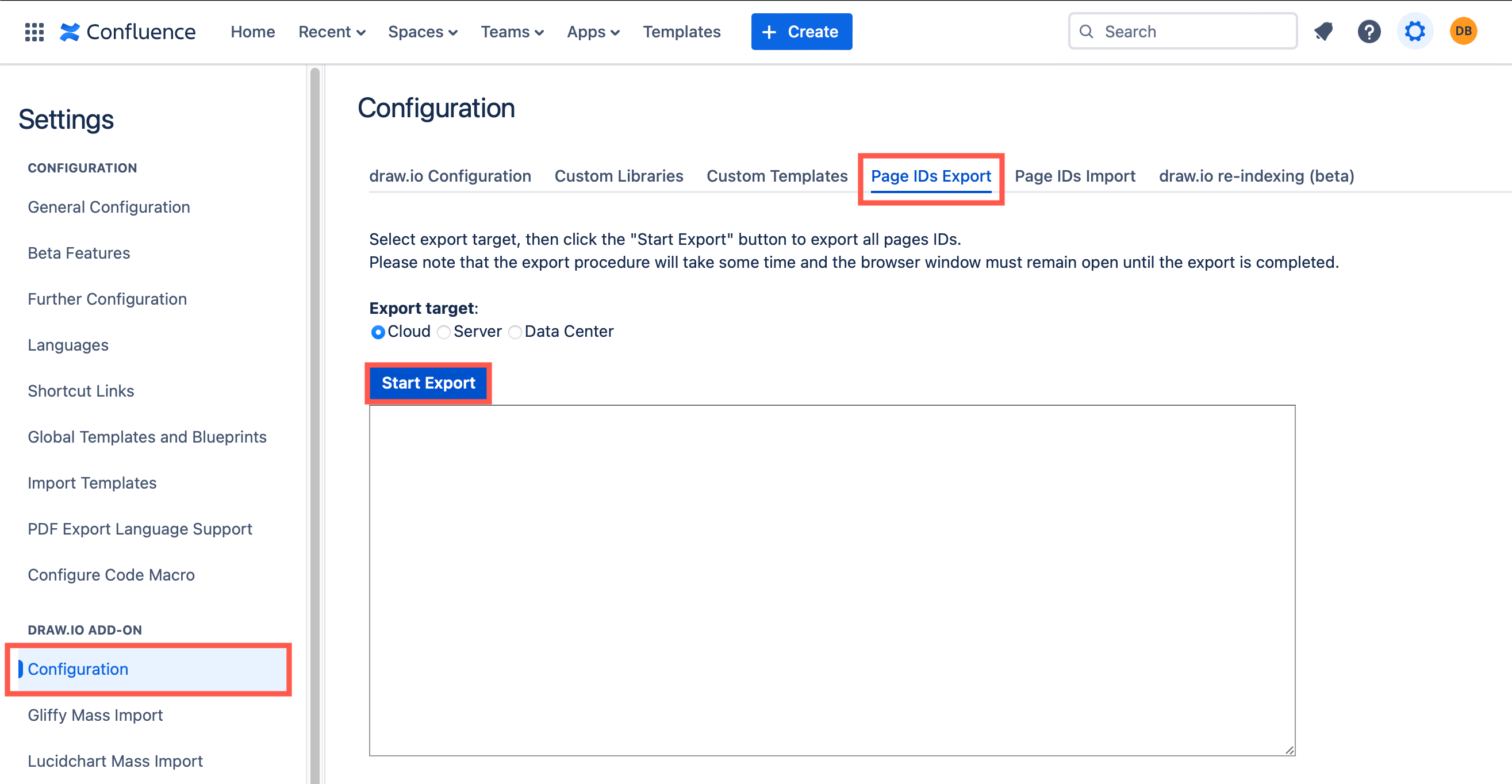
- In Confluence administration, go to Draw.io add-on → Configuration
- Select the Page IDs Export tab
- Click Start Export and wait for it to complete
- Click Download to save the mapping file locally
Keep this file safe — you’ll need it after migration.
Tip: Run a Confluence re-index before exporting to ensure all attachments are correctly indexed.
Step 2: Run your Confluence migration
Follow Atlassian’s migration process to move your Confluence instance. draw.io diagrams (attachments and macros) migrate automatically as part of this process.
Step 3: Import Page IDs into your Cloud instance
Do this after your Confluence migration is complete.
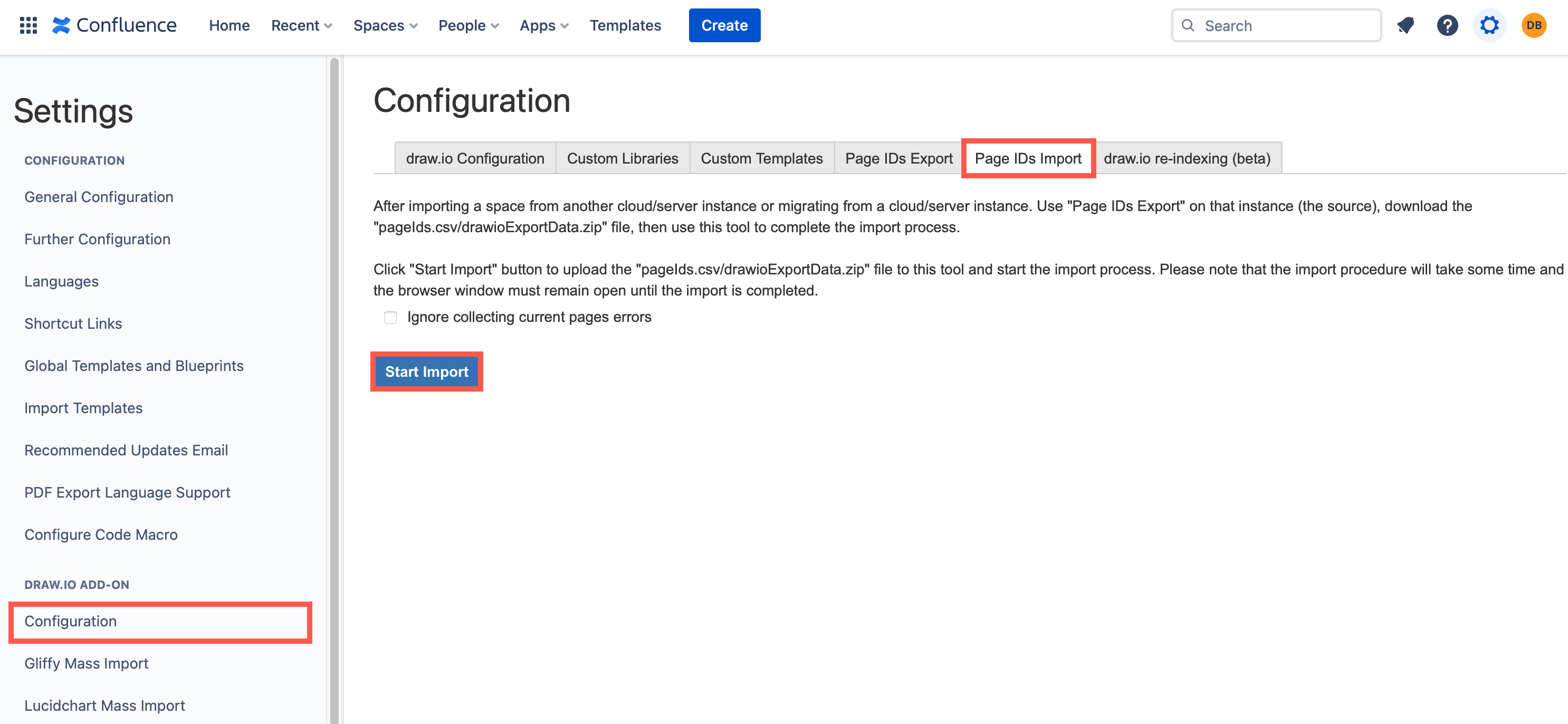
- In your new Cloud instance, go to Confluence administration
- Select Draw.io add-on → Configuration
- Select the Page IDs Import tab
- Click Start Import, select your saved mapping file, and click Upload
- Wait for the import to complete
Step 4: Verify
Your diagram links and embedded diagrams should now work correctly. Spot-check a few diagrams that contained Confluence page links.
Optional: Re-index your Cloud instance via the draw.io re-indexing tab to verify all attachments are indexed.

Troubleshooting
Import times out due to short sessions
If your organisation limits session times, enable these options before starting the import:
- Cache page IDs mapping
- Remember imported pages
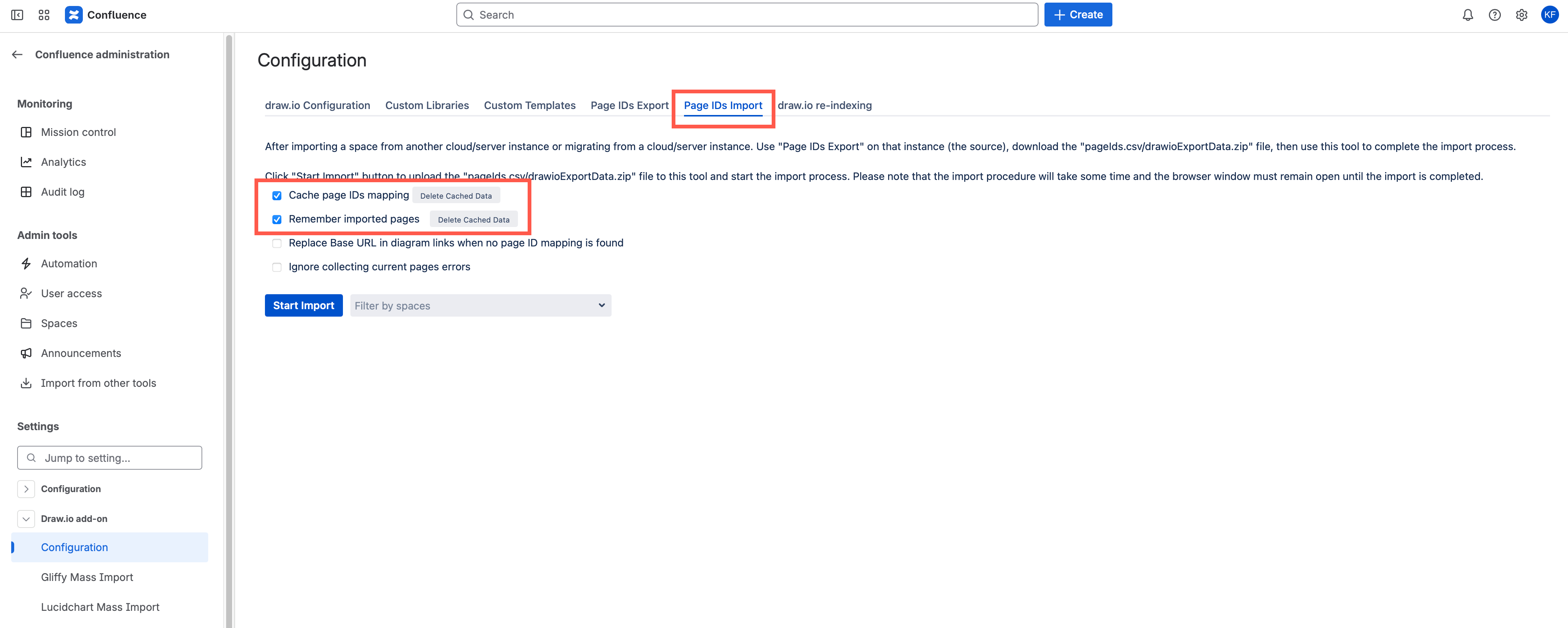
If the session times out, return to the same page (same machine, same browser) and run the import again. It will continue where it left off.
Keep your logs
Save both the export and import logs generated by draw.io. These help with troubleshooting if something goes wrong.
Data security note
No diagram data leaves your Confluence instances during this process. The Page ID mapping file contains only ID mappings, not diagram content.