Add multiple pages to your diagrams
Some diagrams can get very large and complex, for example, business processes, UML diagrams, floor plans, or even large brainstorm mind maps and hierarchical tree diagrams. These diagrams are often more readable when they are broken into smaller component diagrams.
With draw.io, you can keep these smaller component diagrams together by adding multiple pages. These are displayed as page tabs at the bottom of the drawing canvas.
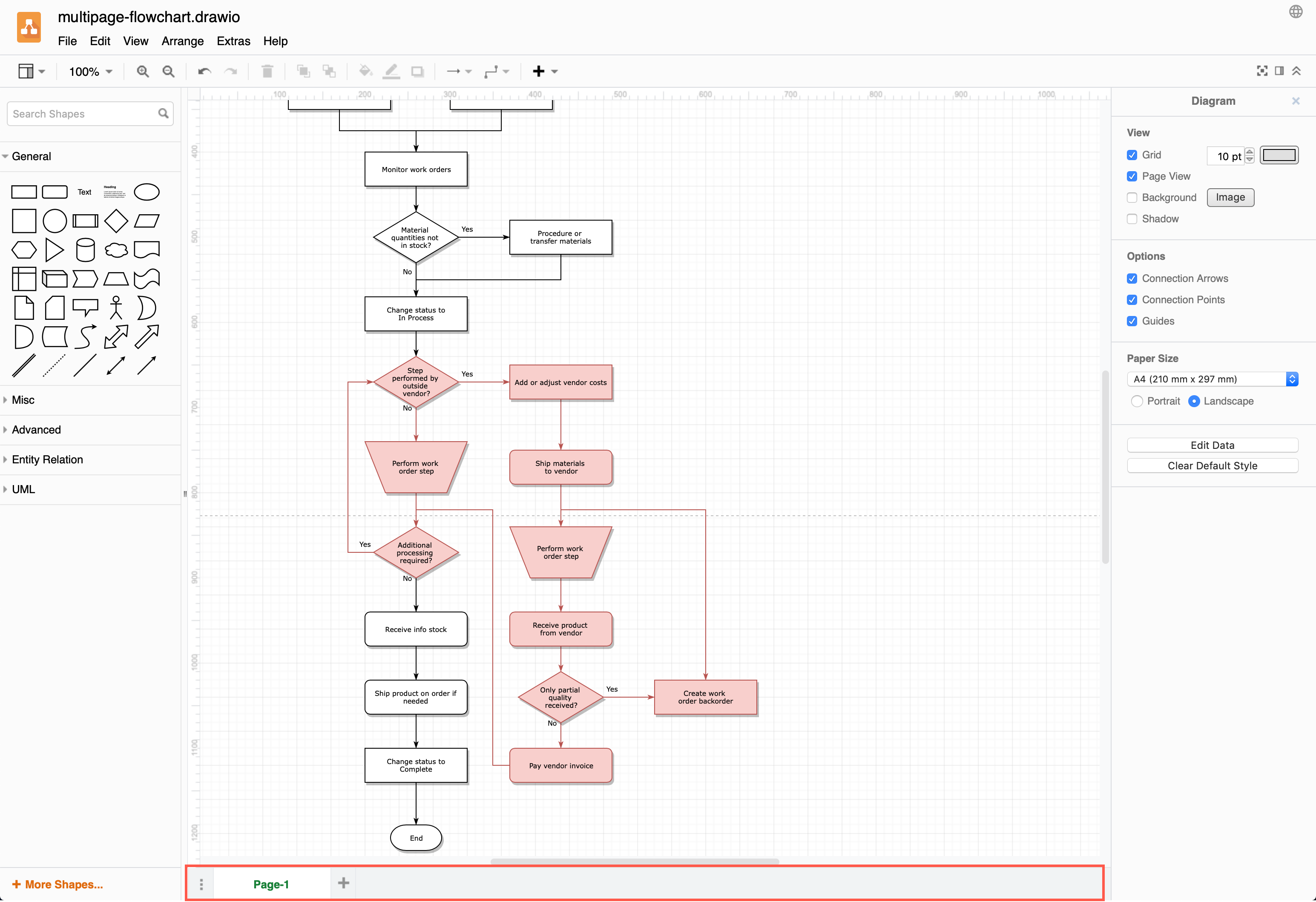
With more than one page in your diagram, you can make it easier for your colleagues or readers to navigate and understand.
- Add a link to a shape or connector that when clicked on, takes you to a specific diagram page.
- Rename pages to help your readers navigate your diagram.
- Organise many pages in page groups that you can collapse and expand.
- Print multi-page diagrams to a PDF file.
Add a new page to a diagram
- In the page tab bar, click on the plus
+symbol to add a new page to your diagram.
Alternatively, right-click on an existing tab or on the three horizontal bars in the page tab bar, and select Insert Page.
Tip: Page groups let you organise multi-page diagrams that have a large number of pages.
Duplicate a diagram page
If you are simplifying a completed complex diagram by splitting sections of it into additional pages, it is easier to duplicate the diagram page with all of the shapes and then delete what you don't need.
- Right-click on a tab, then select Duplicate Page.

For example, the red section of this flow chart has been duplicated to a second page to make the main flowchart a bit more readable. Links on entry and exit shapes to the appropriate pages make it easy for viewers to navigate through the diagram.
To add a link to a shape: right-click on a shape, select Edit Link from the context menu, select the page your want to link to from the list, then click Apply. When the diagram layer you are working on is unlocked, selecting the shape with the link will display the link as a tooltip underneath.

Rename a diagram page
Rename new and duplicated diagram pages so they make sense.
- Right-click on a page tab, then select Rename Page.
- Enter your new name in the dialog that pops up, and click Rename.
When you rename a diagram page, if there are any links from shapes to that page, the linked page name will automatically be updated.
Reorder diagram pages
- Drag the page tabs at the bottom of the drawing canvas into the order you want.
- Select Sort Pages from the page menu to re-order pages into alphabetical order.
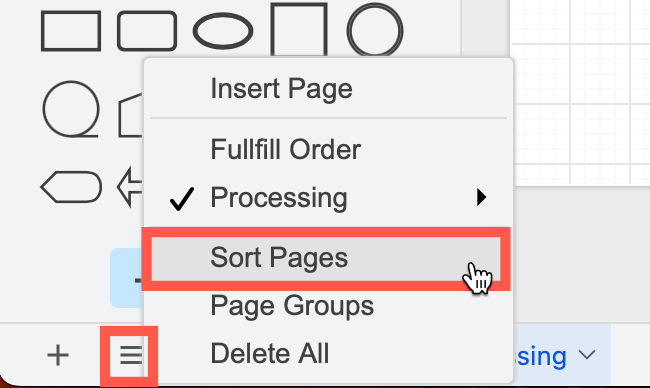
When you have enabled page groups, drag a page and drop it to the left of the group name to add it to the group.
Delete a diagram page
- Right-click on a tab, then select Remove Page.
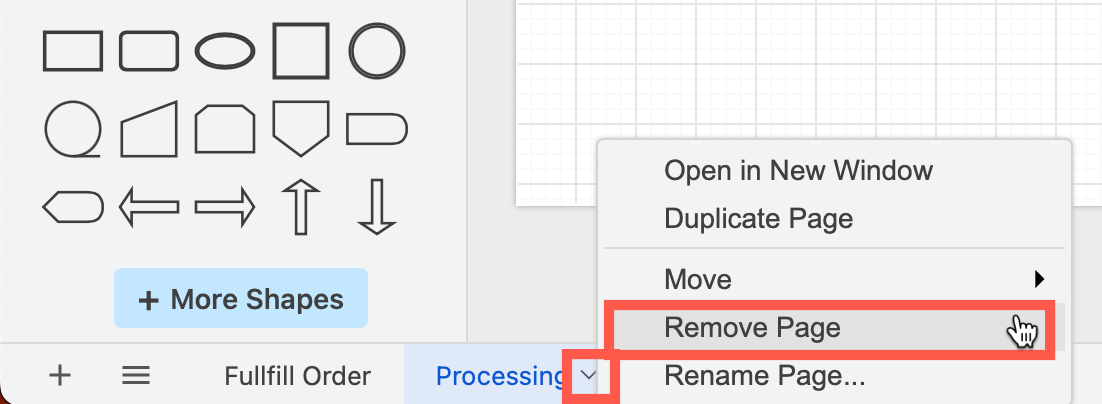
Note: adding and deleting pages can be undone and redone just like any other changes you make to your diagrams. Use the keyboard shortcuts Ctrl+Z to undo and Ctrl+Shift+Z to redo changes (Cmd+Z and Cmd+Shift+Z on MacOS).
Group pages
Put related pages into groups to keep the page tabs of a large diagram tidy. The pages of a group sit next to each other in the page tab bar, after the tab of their group.
- Click on the three vertical dots in the page tab bar, then select Page Groups.
- Right-click on a page tab, then select Group > New.
- Enter a name for the group, then click Create.
The page will be shown in the new group.
- Add a page to a group: Right-click on its tab, then select the group in the Group submenu.
- Remove a page from a group: Right-click on its tab, then select Group > Remove from Group.
- Collapse or expand a group: Click on the tab of the group. The current page stays visible.
- Move a group: Drag the tab of the group. When you move, sort or drag pages, the pages of each group stay together.
- Insert a page, rename or ungroup: Right-click on the tab of the group, then select Insert Page, Rename or Ungroup.
To show all pages without their groups, select Page Groups again. The pages keep their groups, which will be shown again when you select Page Groups.
Print a multipage diagram
Go to File > Print and then print this to a PDF using the browser's built-in print functionality to create a printable diagram that has multiple pages in the PDF file. If you are on Windows, make sure you have an appropriate printer driver installed.
Display a different page in the Confluence Server macro
If you are using Confluence Server, you can filter what viewers see in your draw.io macro to display a specific page or set of layers. Edit the draw.io macro settings, click on Select viewer page and layers, then select which page you want viewers to see.
In the example below, the macros are all displaying different pages and layers of the same diagram file.

Related
Add a custom link to shapes on one page that when clicked on, will open a different page in your multi-page diaram. These custom links help you navigate complex diagrams with many pages in both the editor and in presentation mode or the lightbox viewer.
Each diagram page can have its own page animation that will autoplay by default whenever that page is displayed in the lightbox viewer or presentation mode.