Configure the draw.io editor
The draw.io editor can be configured in draw.io for Confluence Server/Data Center/Cloud, Jira Server, embed mode, the online editor, and the desktop app. You can customise the following aspects:
- Fonts and web fonts
- Colour palettes and themes
- Shape and connector styling
- Built-in and custom libraries in the left panel
- CSS for the editor appearance
- Entry dimensions in the left panel
- XML for blank diagrams and libraries
- Global variables
- XML compression
- Default connector length
- Default autosave delay
- AI diagram generation
The following video shows what can be customised in draw.io.
Accessing the configuration
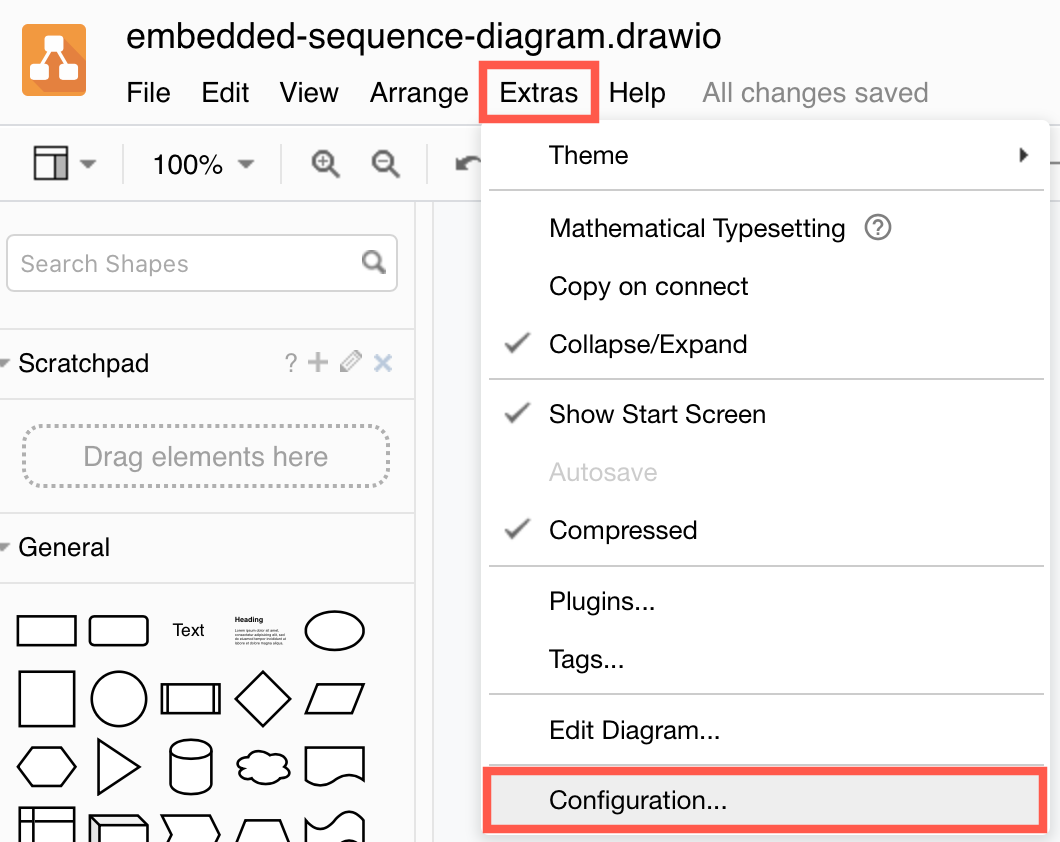
Online and Desktop: Select Extras > Configuration to customise the draw.io editor.
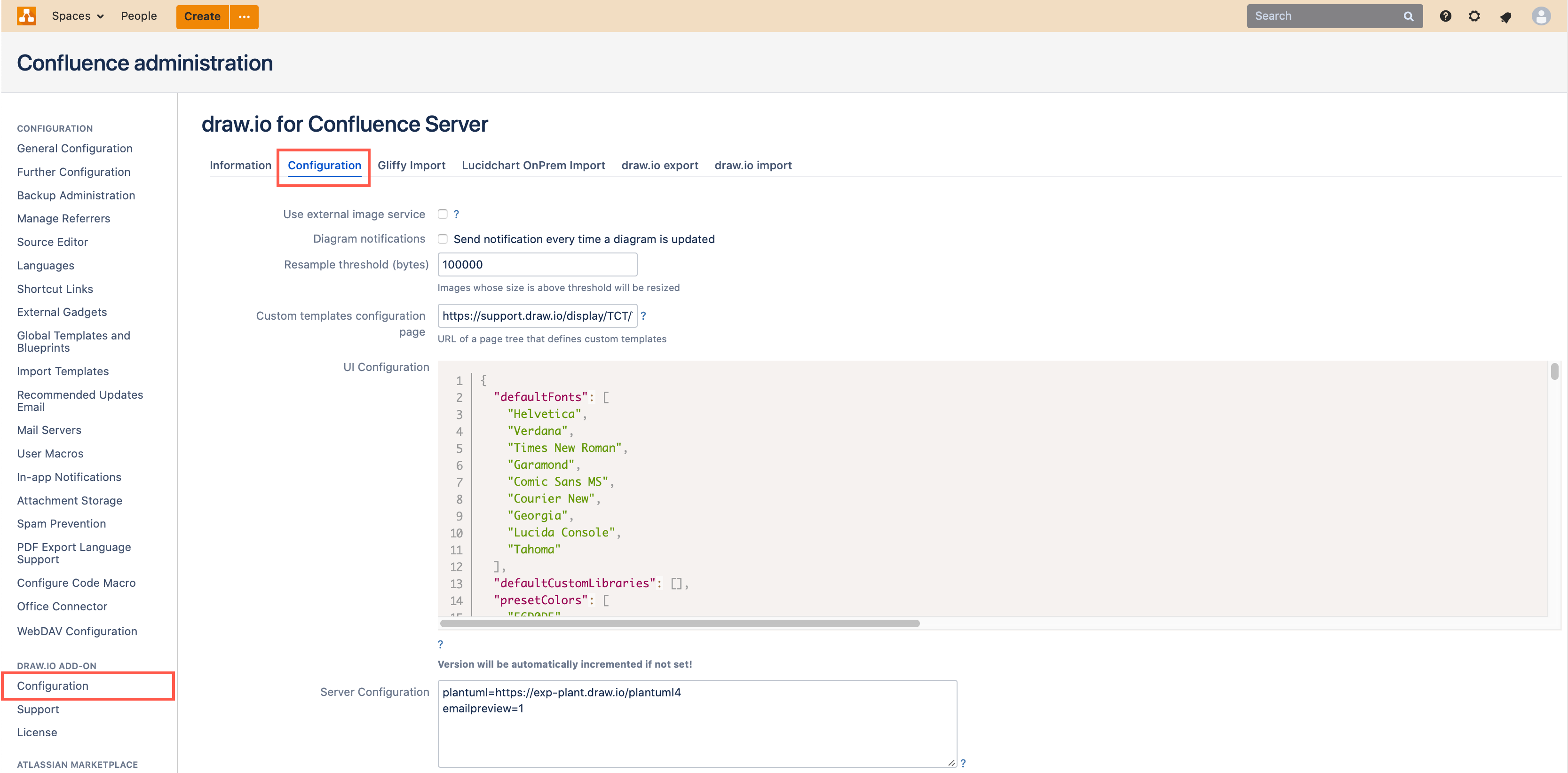
Confluence Data Center or Server: Go to your instance's settings as an administrator, scroll down to the draw.io add-on section in the left navigation, and click on the Configuration tab.
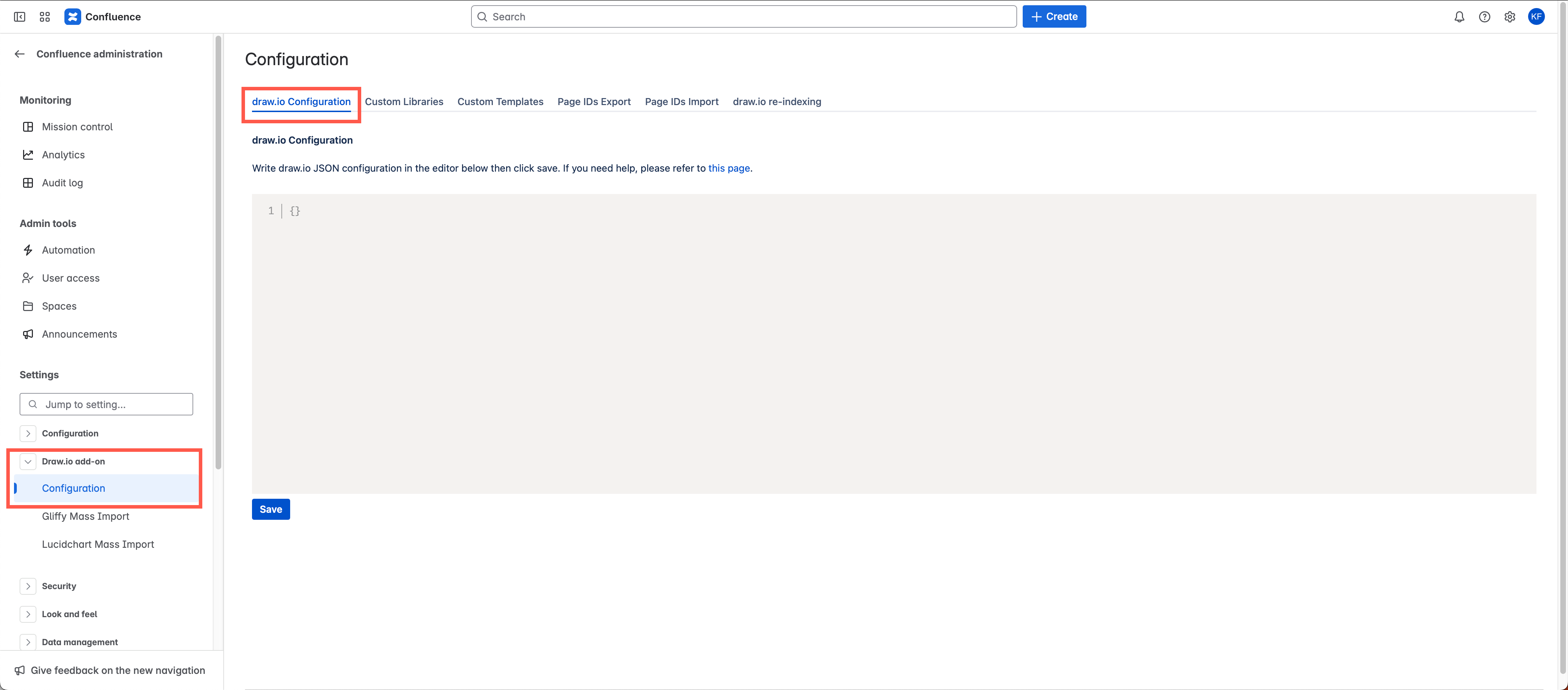
Confluence Cloud: As an administrator, go to the draw.io Configuration section in your instance's Settings.
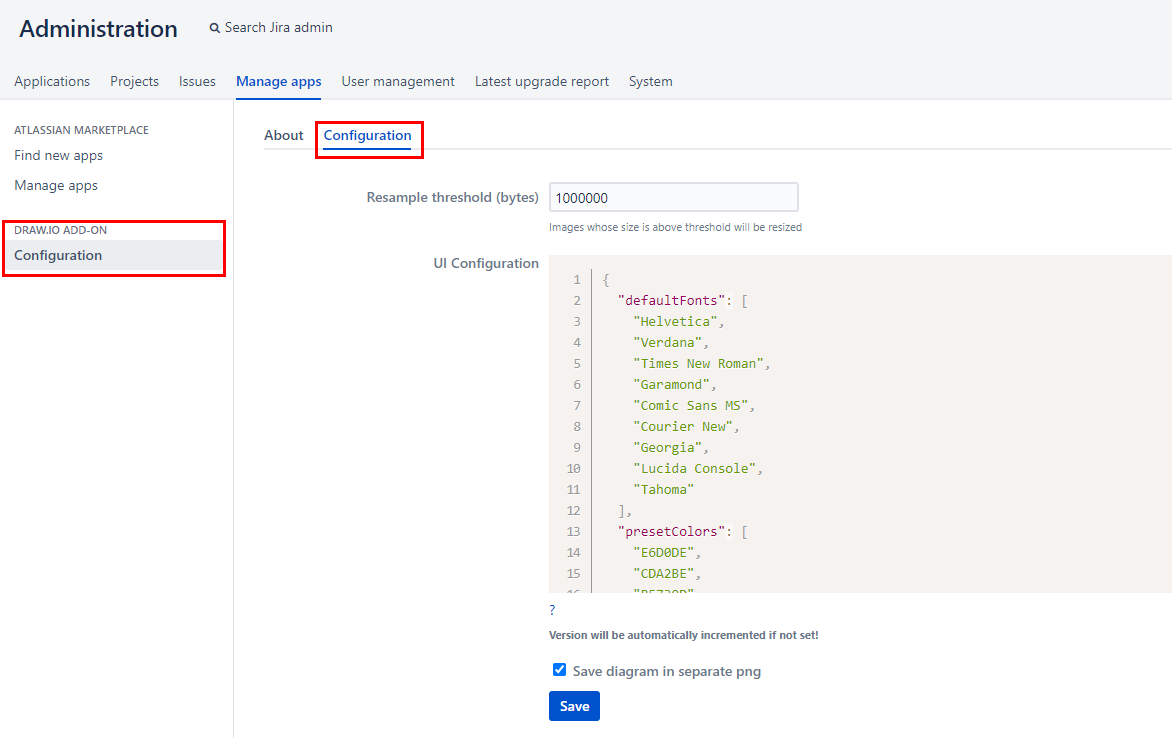
Jira Server: Click on the Settings icon as an administrator. Select Manage apps (or Manage add-ons in older Jira versions). Open the draw.io add-on configuration in the left navigation, and click on the Configuration tab.
Embedded: Add the configure=1 URL parameter and send the JSON configuration via postMessage.
Configuration dialog
The Configuration dialog is organised into two tabs - Editor and JSON. The Editor tab provides a graphical way to build the JSON configuration code. Toggle options, set colours, add the locations of custom fonts and more via the Editor tab.
When you modify an option on the Editor tab, the JSON tab will update to reflect that change, but you must click Apply to save those changes.
Search for a string and press Enter to find a configuration option quickly. For example, searching for colors:
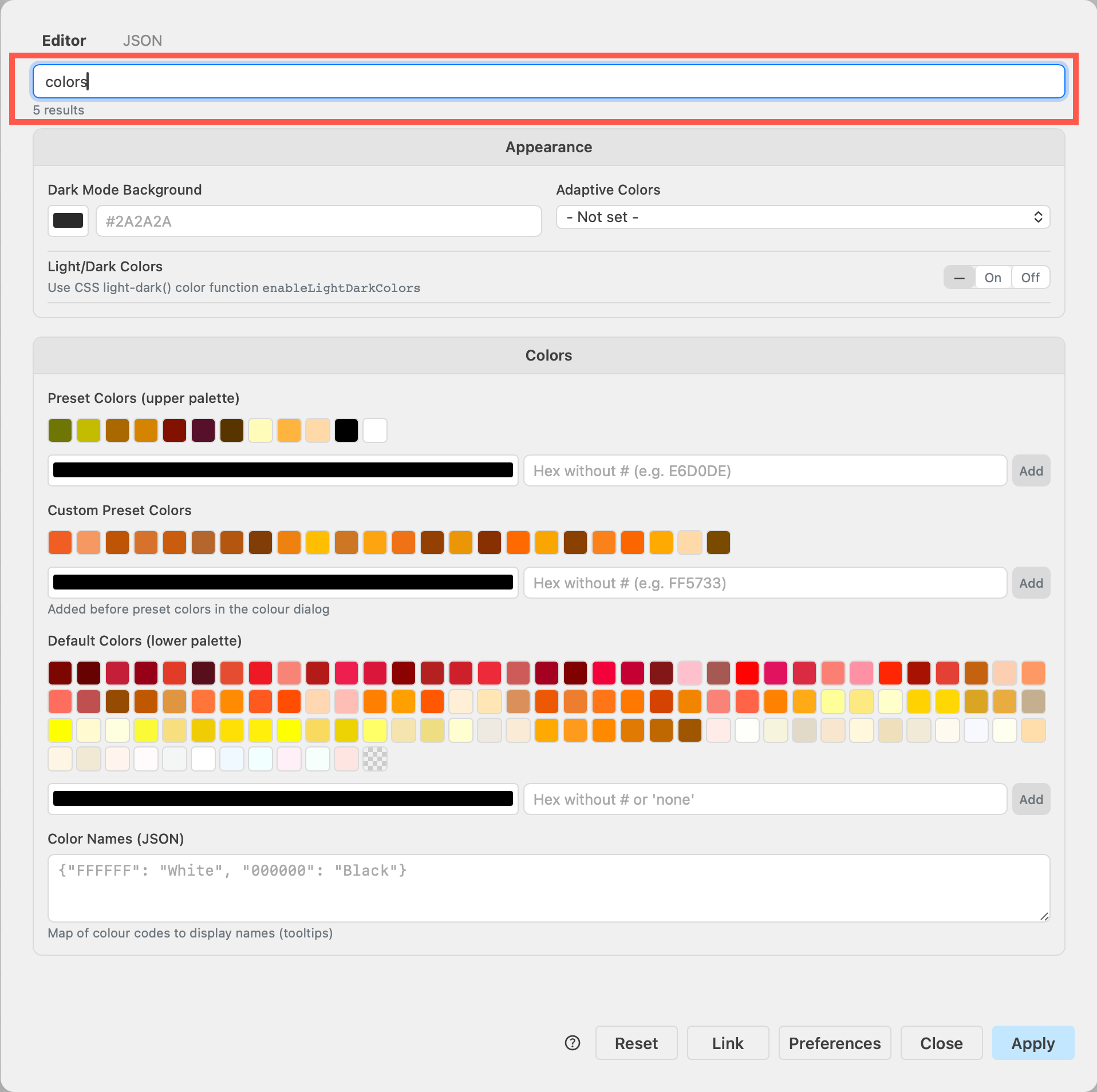
- Click on Preferences to see additional editor defaults (described in JSON) including language settings, dialog sizes and behaviour and more.
- Click on Link to generate a link that embeds this configuration so another person can open the editor with your defaults.
- Click on Reset to delete all custom settings and revert to the draw.io defaults.
After every change to the editor configuration you must reload the browser tab.
The JSON JavaScript Object Notation strings to set the various options in the configuration are described below.
Fonts
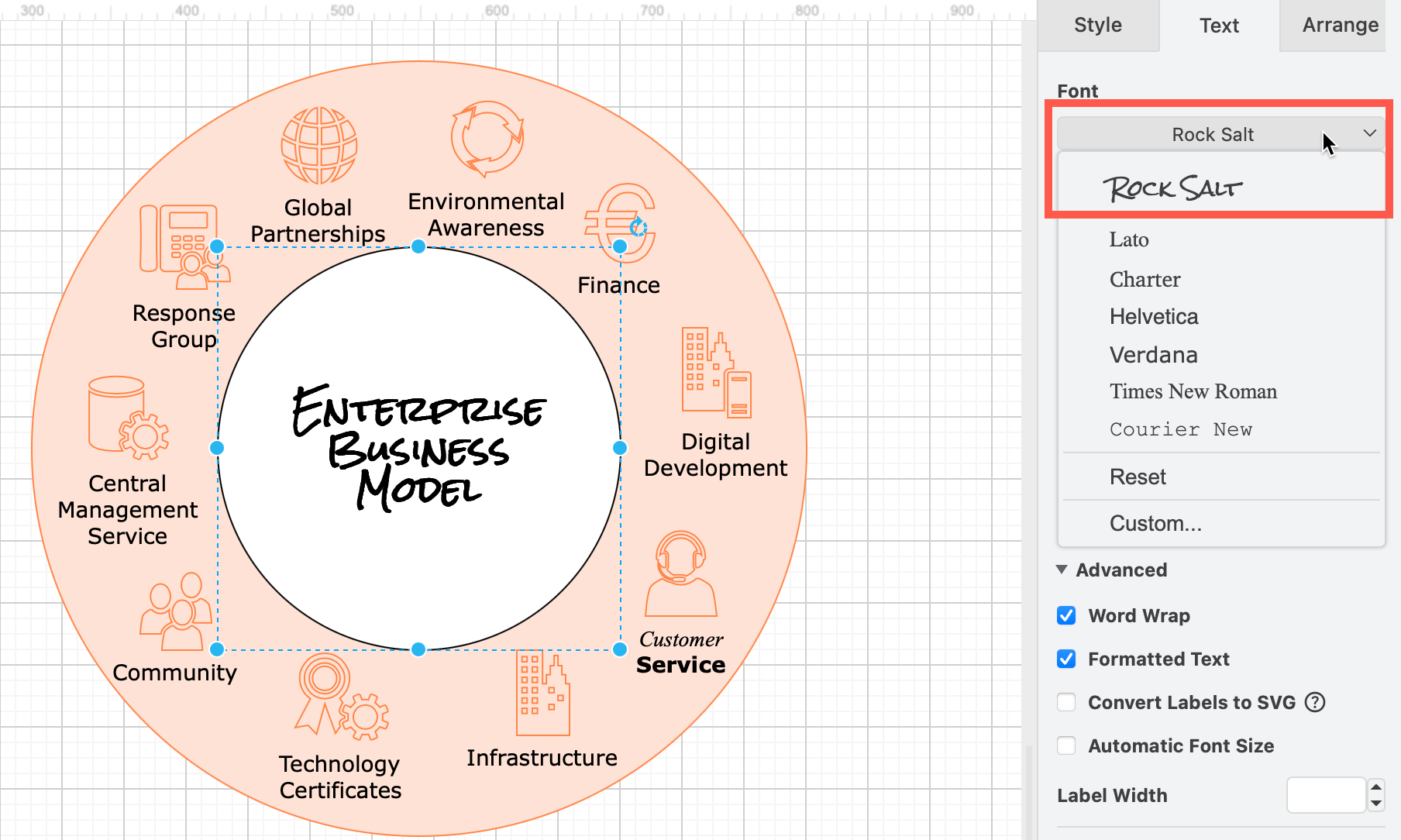
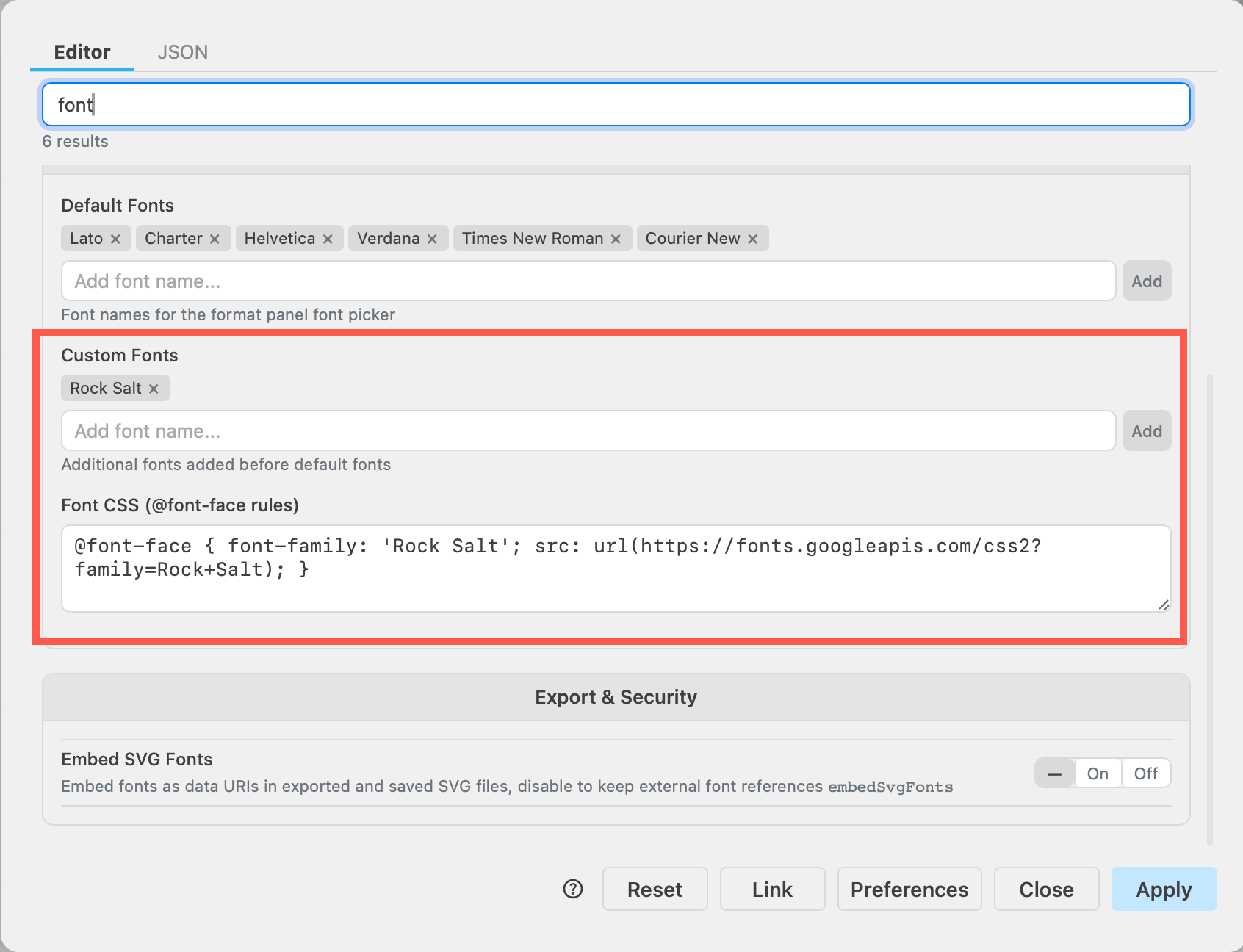
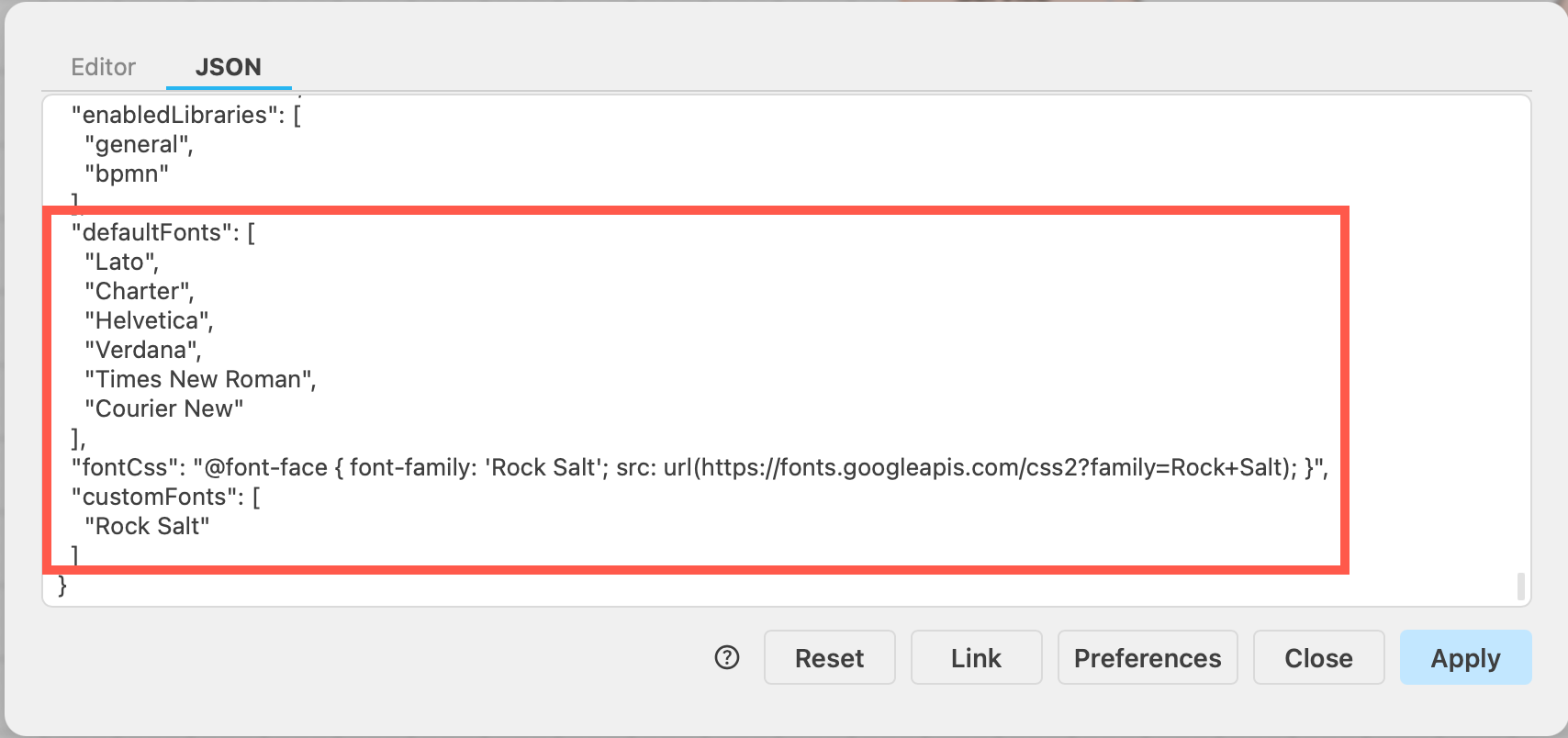
-
defaultFonts: An array of font family names (strings) or custom font objects{"fontFamily": name, "fontUrl": url}for the format panel font drop-down list. See the examples below. -
customFonts: An array of font family names or custom font objects{"fontFamily": name, "fontUrl": url}to be added beforedefaultFonts(9.2.4 and later). For example:["Helvetica", {"fontFamily": "Rock Salt", "fontUrl": "https://fonts.googleapis.com/css?family=Rock+Salt"} ].
Note: Fonts without afontUrlmust be installed on the server and all client devices, or be added using thefontCssoption (6.5.4 and later). -
enableLocalFonts: Set totrueto scan and list locally installed fonts in the font picker. When enabled and nodefaultFontsorcustomFontsare configured, the default font list is replaced with detected system fonts. The system font input in the Custom font dialog also shows autocomplete suggestions. Desktop only. -
fontCss: A string containing CSS@font-facerules for web fonts used in diagrams. For example, to use a font file attached to a Confluence page:{"fontCss": "@font-face { font-family: 'Marvel'; src: url(/confluence/download/attachments/720900/Marvel-Regular.ttf?api=v2) format('truetype')}"}.
These fonts are used for displaying diagrams in the editor and creating images in Google Chrome, Firefox, and Microsoft Edge. All other browsers require the font to be installed on the server side.
Confluence Server and Data Center: To create images in the browser, the font must be on the same domain and include a CORS header, or it will be proxied via the Confluence server.
Confluence Cloud: The font URL must be publicly accessible and allow access to the draw.io origin via a CORS header:"fontCss": "@font-face { font-family: 'Waltograph'; src: url(https://fontlibrary.org/assets/fonts/waltograph/23a40698cd1bb84f930b7a0884c134a6/ab260a56f2b852b78f81eac337e0a2fc/WaltographRegular.otf) format('opentype')}"and"customFonts": ["Waltograph"]
Note: All fonts are downloaded to the client when an image is created and the diagram is saved, so keep the number of custom fonts to a minimum. The external image service does not currently support custom fonts. -
embedSvgFonts: Set tofalseto keep external font references (@import/@font-facewith URLs) instead of embedding fonts as data URIs in exported and saved SVG files, e.g..drawio.svg. The default istrue, so SVG files display custom fonts in contexts where external resources are blocked, such as image tags. This is also the initial state of the Embed Fonts checkbox in the SVG export dialog.
Colours
-
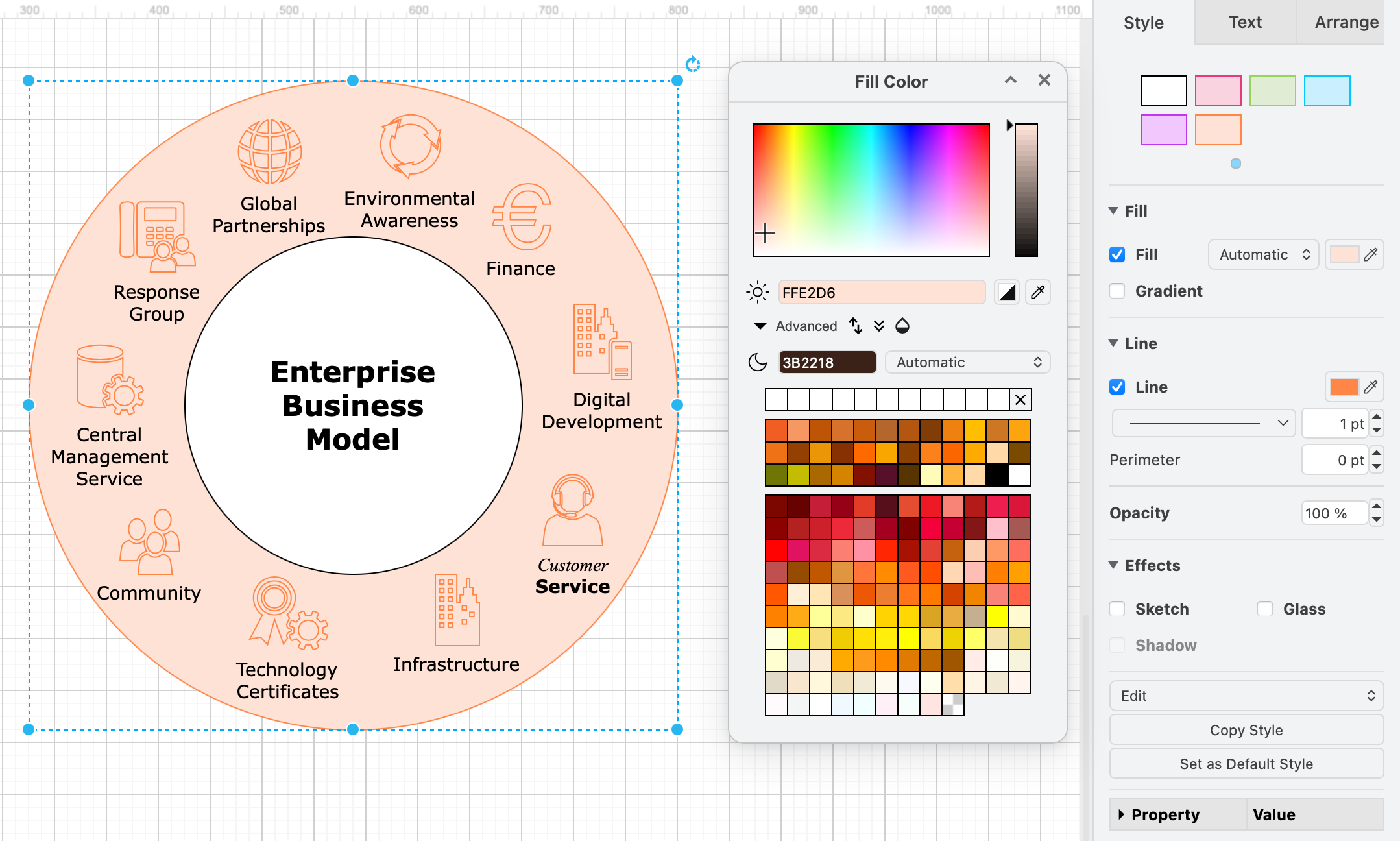
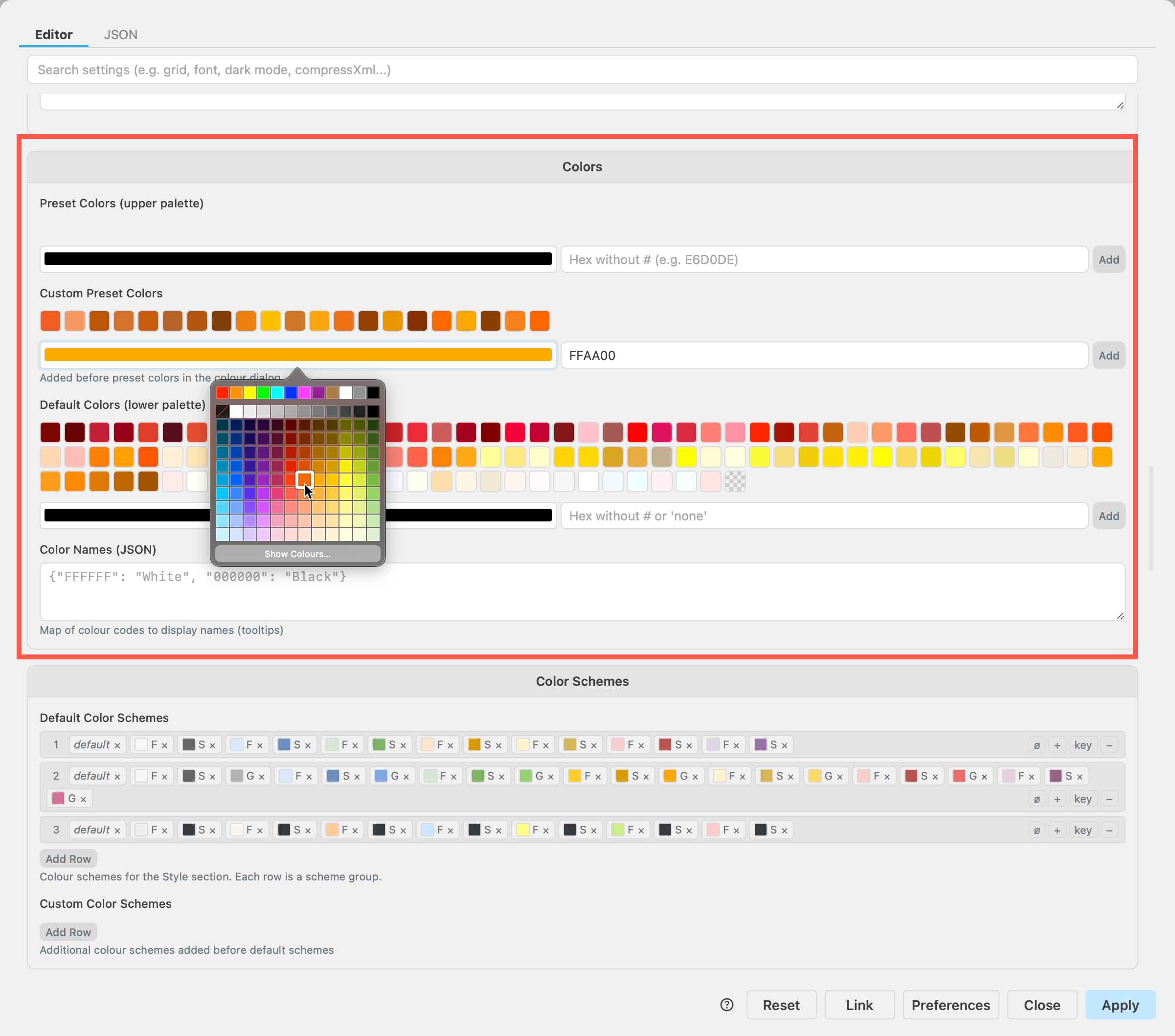
presetColors: Colour codes for the upper palette in the colour dialog. Use codes without a leading#,nullfor a blank entry, or alight-darkcolour function with a leading#. -
customPresetColors: Colour codes to be added beforepresetColors(9.2.5 and later). Uses the same format aspresetColors.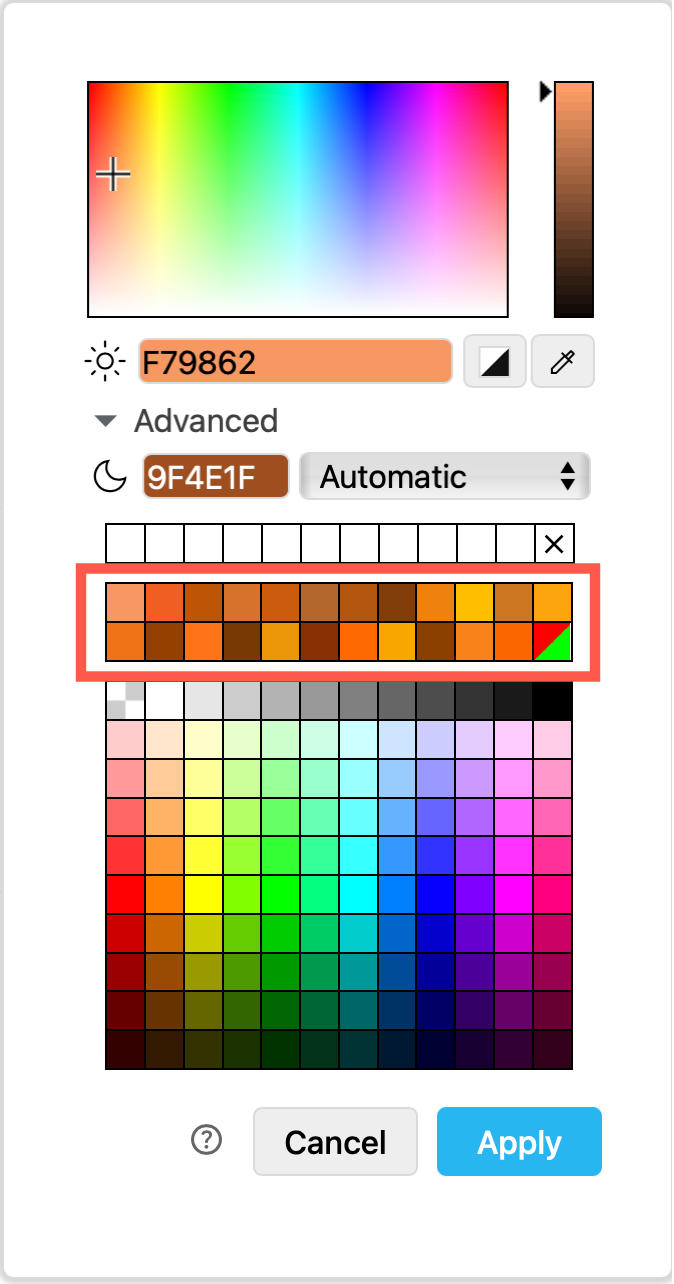
-
defaultColors: Colour codes for the lower palette in the colour dialog. Uses the same format aspresetColors.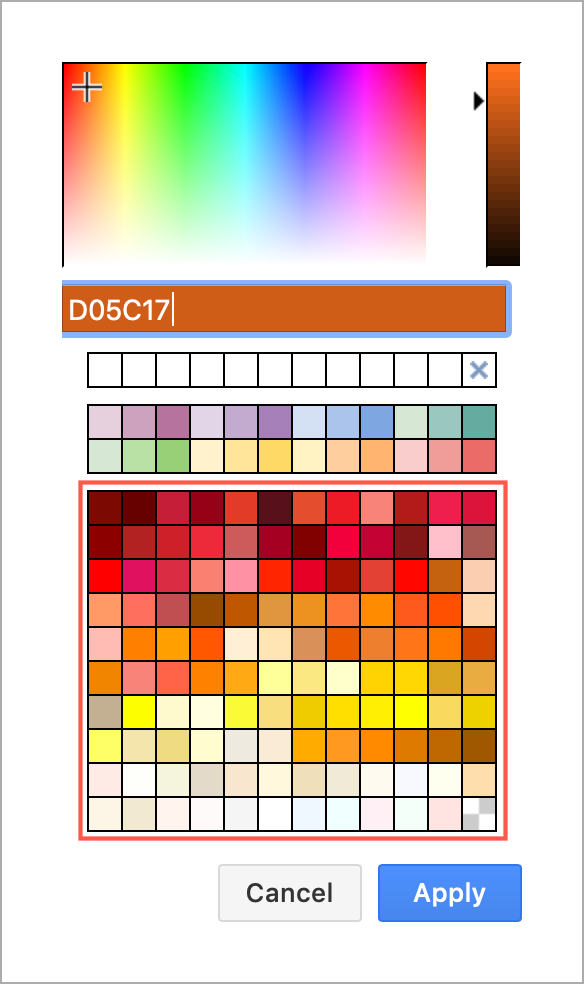
-
colorNames: A map of colour codes to display names, used as tooltips. Use uppercase codes without a leading#, orlight-darkcolour functions with a leading#. For example:{"FFFFFF": "White", "000000": "Black"}. -
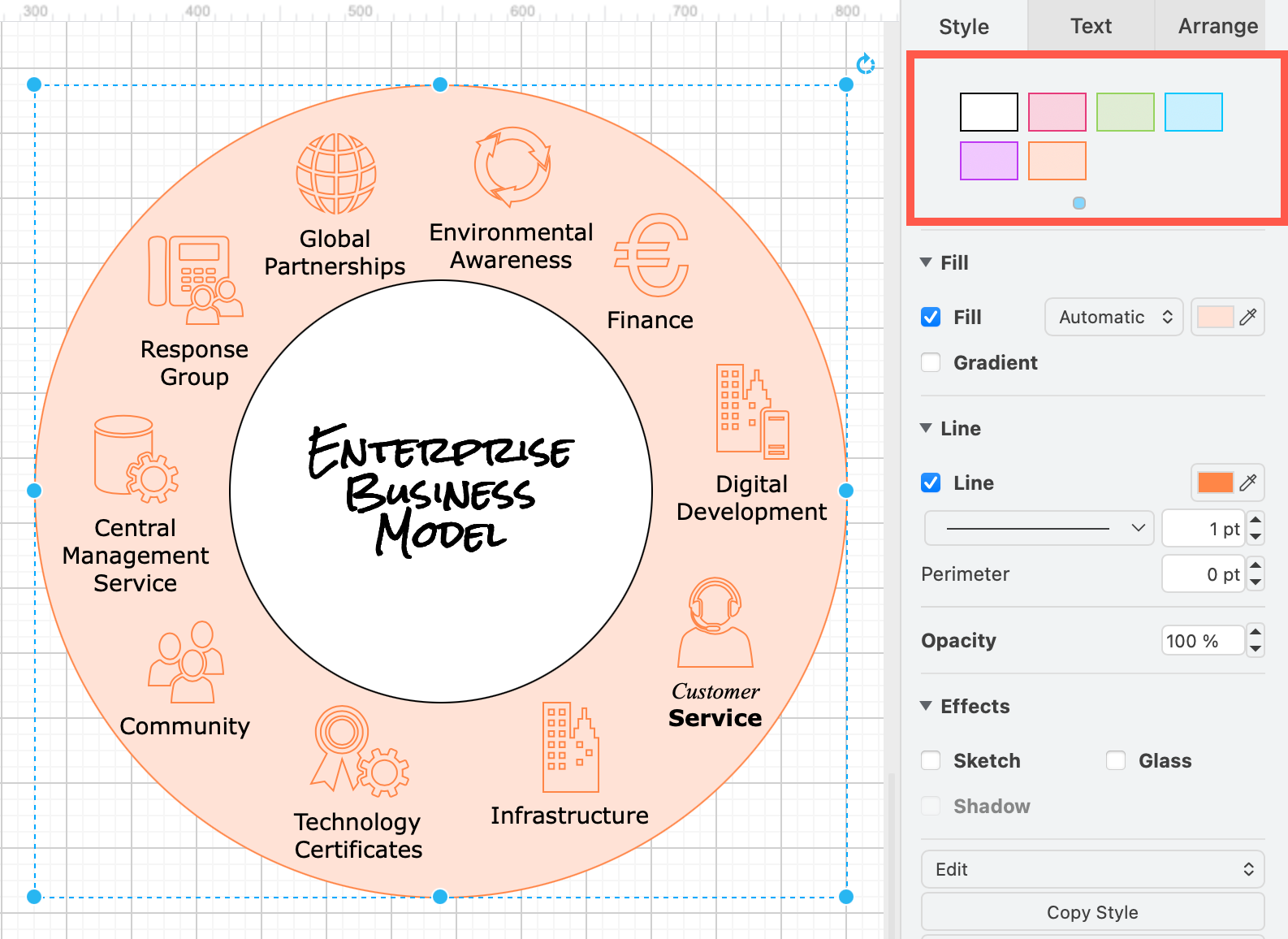
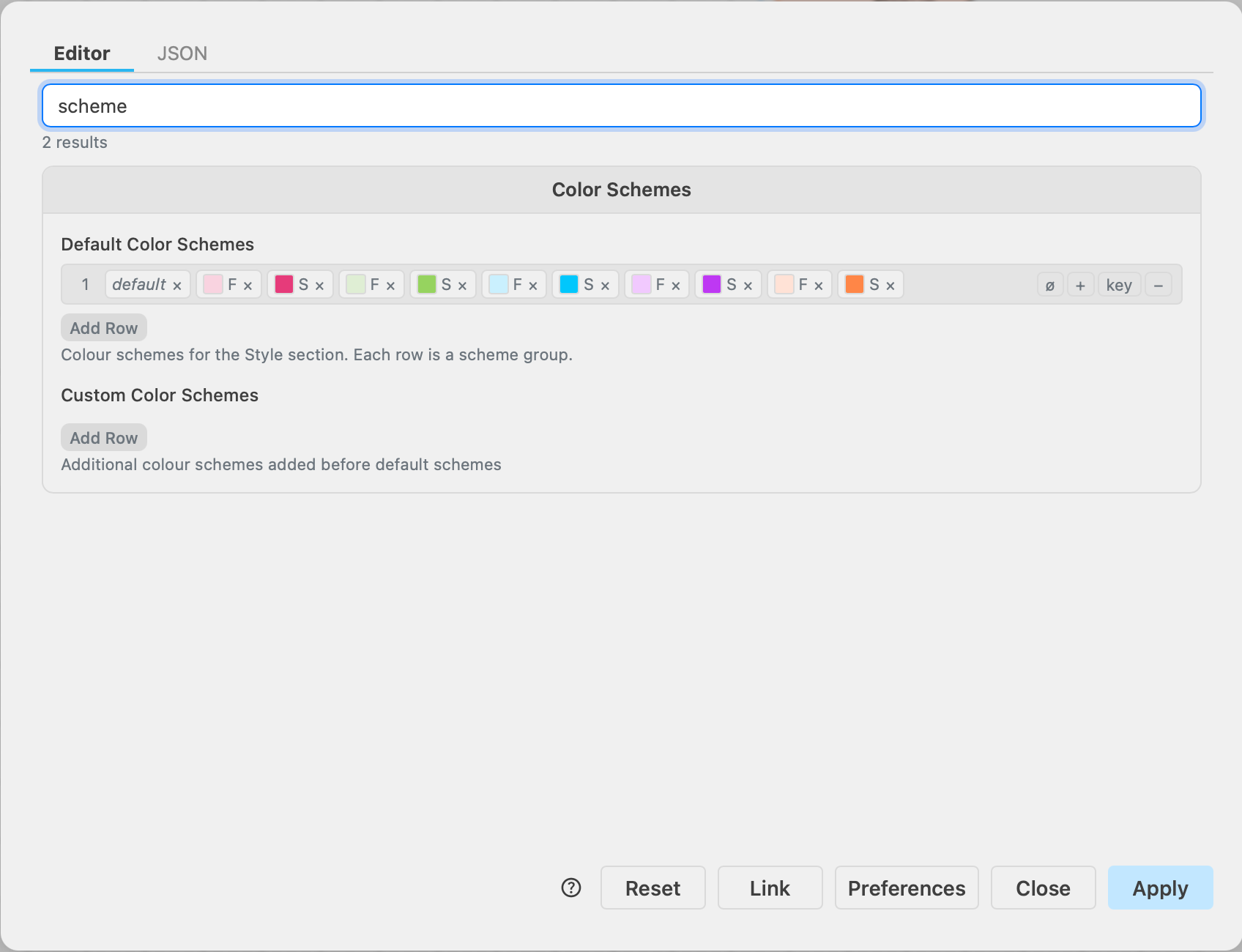
defaultColorSchemes: Available colour schemes in the style section at the top of the format panel. Use a leading#for colour codes, orlight-darkcolour functions with a leading#. Supported keys arefill,stroke,gradient, andfont(fontis ignored for connectors). An optionaltitlecan be added for a tooltip. An optionalbordercan define the CSS border width and type, for example"2px solid"or"3px dashed"(you must include the border type). -
customColorSchemes: Colour schemes to be added beforedefaultColorSchemes(9.2.4 and later).
The example below replaces the default colour schemes.
Default styles
-
defaultTextStyle: Default style for text elements in the sidebar, toolbar, menus, and shape picker. The default value istext;html=1;whiteSpace=wrap;strokeColor=none;fillColor=none;align=center;verticalAlign=middle;rounded=0;. -
defaultVertexStyle: Defines the initial default style for vertices (shapes). These values are copied to every new vertex, overriding all inherited styles. Use a minimal set of key/value pairs to avoid unintended overrides. To find the correct keys and values, apply a style in the editor and inspect it via Edit Style (Ctrl+E) (6.5.2 and later). -
defaultEdgeStyle: Defines the initial default style for edges (connectors). Uses the same format and behaviour asdefaultVertexStyle.
For example, to set a defaultfontFamilyofCourier Newon all vertices and edges:{"defaultVertexStyle": {"fontFamily": "Courier New"}, "defaultEdgeStyle": {"fontFamily": "Courier New"}}. -
styles: An array of objects defining the colours for the Style tab of the format panel when the selection is empty. Each object can contain:commonStyle: Applied to both vertices and edges (fontColor,fillColor,strokeColor,gradientColor).vertexStyle: Applied to vertices only.edgeStyle: Applied to edges only.graph: ContainsbackgroundandgridColor.
An empty object applies the default colours. For example:
[ {},
  {
    "commonStyle": {
      "fontColor": "#5C5C5C",
      "strokeColor": "#006658",
      "fillColor": "#21C0A5"
    }
  },
  {
    "commonStyle": {
      "fontColor": "#095C86",
      "strokeColor": "#AF45ED",
      "fillColor": "#F694C1"
    },
    "edgeStyle": {
      "strokeColor": "#60E696"
    }
  },
  {
    "commonStyle": {
      "fontColor": "#E4FDE1",
      "strokeColor": "#028090",
      "fillColor": "#F45B69"
    },
    "graph": {
      "background": "#114B5F",
      "gridColor": "#0B3240"
    }
  }
]
mermaid: A JSON object with the default Mermaid configuration applied when inserting or editing Mermaid diagrams to enforce a consistent look across all Mermaid diagrams. For example:{"theme": "neutral", "themeVariables": {"primaryColor": "#dae8fc"}}. The security-related keyssecurityLevel,startOnLoadandmaxTextSizeare always enforced and cannot be overridden.
Libraries
-
defaultLibraries: A semicolon-separated string of library keys (unique names) to display initially in the left panel, for example"general;uml;company-graphics". Possible keys include custom entry IDs from thelibrariesoption, or keys for thelibsURL parameter (6.5.2 and later). The default value is"general;uml;er;bpmn;flowchart;basic;arrows2". -
enabledLibraries: An array of library key strings that will be available in the More Shapes dialog. Set tonullto show all libraries, or use an empty array to hide all libraries. For example:["general", "uml"](9.2.5 and later). -
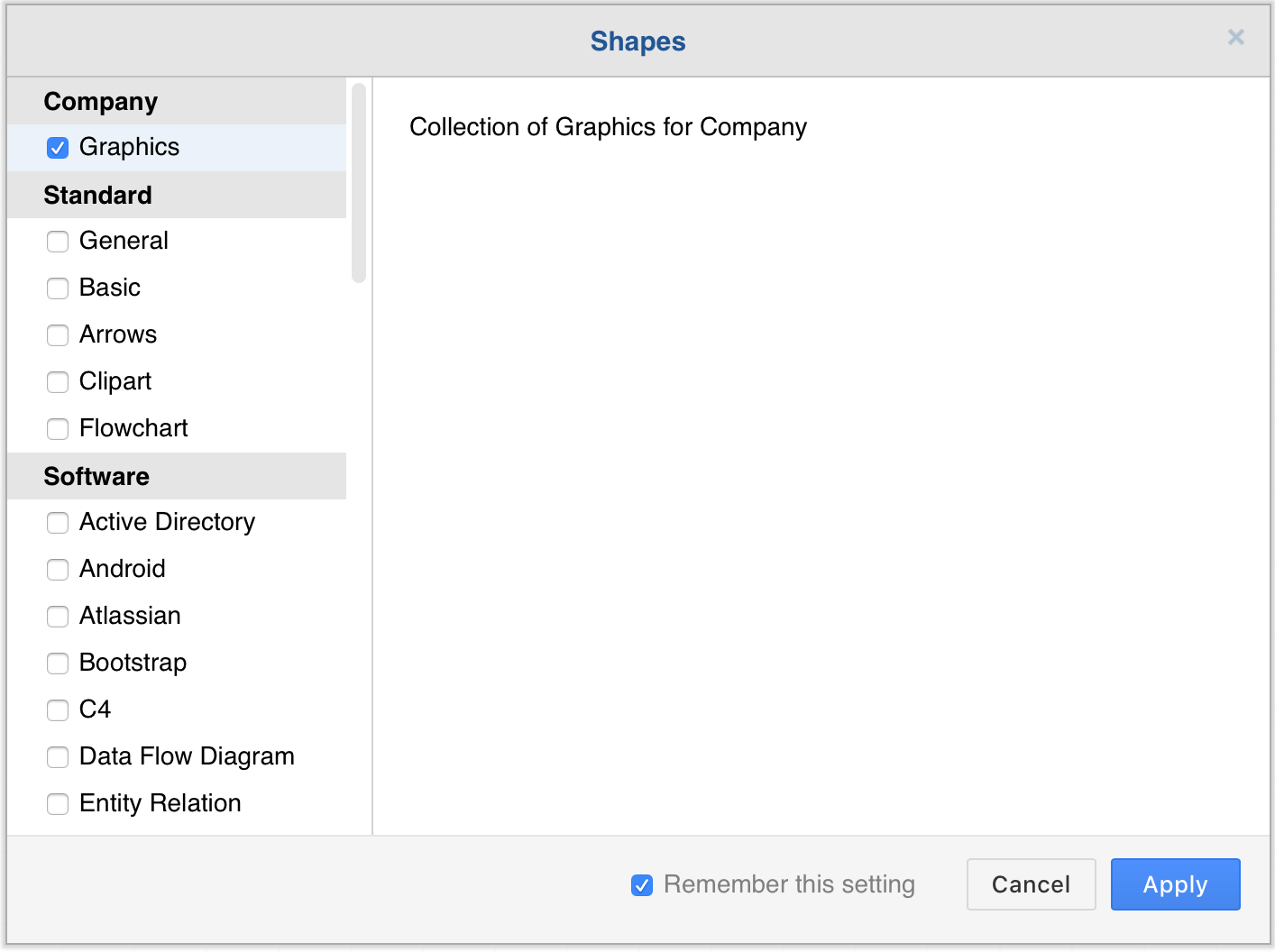
libraries: An array of objects defining additional libraries and sections for the left panel and the More Shapes dialog, in the format[section1, ..., sectionN]where:- Each
sectionhas the form{title: resource, entries: [entry1, ..., entryN]}. - Each
entryhas the form{id: string, preview: string, title: resource, desc: resource, libs: [lib1, ..., libN]}. - Each
libhas the form{title: resource, url: string OR data: string, tags: string}. sectionsare used for the groups in the More Shapes dialog.entriesare the items within each section. Each entry may have one or more libraries associated with it. Theidmust be unique,previewis the URL of a preview image, anddescis used before or instead of the preview as a description (pre-formatted text supporting linefeeds).- In
libs,resourceis a language resource defined as{main: string, xy: string}wherexyis a country code (e.g.es,fr,de) andmainis the fallback when no string is defined for the current country code. - In
libs,tagsis an optional string with a space-separated list of searchable tags. libsmay reference an external resource viaurlor define entries directly viadata, which contains the array from<mxlibrary>...</mxlibrary>in library files. By default, all entries withdataand the first 20 entries withurlare prefetched and added to the search index. To prefetch additional entries withurl, add"prefetch": trueto the respectivelib(9.2.5 and later).
For example:
- Each
[ {
 "title": {
   "main": "Company"
 },
 "entries": [ {
     "id": "company-graphics",
     "title": {
       "main": "Graphics",
       "de": "Grafiken"
     },
     "desc": {
       "main": "Collection of Graphics for Company",
       "de": "Sammlung von Grafiken für Firma"
     },
     "libs": [ {
         "title": {
           "main": "Graphics for Company",
           "de": "Grafiken für Firma"
         },
         "data": [ {
             "xml": "jZLBbsMgDIafhmuUgKr1mqZbL5u0VyCJF5BMHIHbpG9fEti6Tqq0A5L5/NuYH4Rq3HLyejIf1AMK9SpU44k4RW5pAFHI0vZCHYWUZVxCvj3JVlu2nLSHkf9TIFPBReMZEkkg8BUz6HUwsMpLoQ50ZrQjNDSO0HGGhl0c/FjFUKMdxhh38XzwEaBuAT8pWLb0kLiAZ9tpfP8jaImZ3C9BnVsyTZEGo6d1MLcMq2nFDC3SQKHovZ4tySj5sogNIfltflXVu0Ot8j1jT1ieerWhbNQJyAH7a5TMtmeTFDtZZIcM2MHkupey2CeqQyLDT/Xd/Bhk/7+393fecg/f4AY=",
             "w": 52.2,
             "h": 70.8,
             "aspect": "fixed"
           } ]
       } ]
   } ]
} ]
This configuration produces the following More Shapes dialog when combined with enabledLibraries: []:
-
defaultCustomLibraries: An array of IDs to load custom libraries.- In Atlassian Confluence, define the IDs as
A1...An, for example{"defaultCustomLibraries": ["A1"]}. To find the ID for a custom library, hover over the entry in the Select Library dialog or the library title in the left panel and wait for the tooltip, e.g. my library (A1), whereA1is the ID. If no tooltip appears, open the library in a diagram, save the diagram, then check the<mxAtlasLibraries>section in the diagram file attached to the page (6.5.2 and later). - Alternatively, use a URL-encoded URI as the ID to load a library from a URL, for example
{"defaultCustomLibraries": ["U%2Fconfluence%2Fdownload%2Fattachments%2F720900%2FScratchpad.xml%3Fapi%3Dv2"]}.
Note: To encode a URL, enter the URL into the URL encode tool and select URL Encode. - To load libraries from the
librariessection above, use thedefaultLibrariessetting instead.
- In Atlassian Confluence, define the IDs as
-
defaultLanguages: An array of language codes whose language bundles are installed for offline use when the editor starts, for example{"defaultLanguages": ["de", "fr"]}. Each code must match a language from the language menu. The bundles are downloaded through the service worker and appear as installed in the offline languages dialog (Language > Manage...); users can remove them there, but they are installed again on the next start while the configuration is active. This setting has no effect where no service worker is active, for example in the draw.io Desktop app, which ships all languages. -
enableCustomLibraries: Specifies whether the open and new library functions are enabled (trueorfalse, the default istrue). -
inlineExtIcons: Specifies whether icons inserted from the extended icon search are embedded in the file as data URIs instead of referencing the icon server (trueorfalse, the default isfalse). Embedding keeps diagrams self-contained for restricted environments at the cost of larger files. -
appendCustomLibraries: Specifies whether custom libraries should appear after built-in libraries (trueorfalse, the default isfalse) (22.1.7 and later). -
expandLibraries: Specifies whether libraries are expanded by default (trueorfalse, the default istrue) (22.1.6 and later). -
templateFile: The URL of the source file for the Templates dialog. Multiple<template>and<clibs>tags are allowed. Example -
customTemplates: An array of templates that are added to the sections of the Templates dialog, in addition to the templates from thetemplateFile. Each entry supports the same attributes as a<template>tag in the template library file format. Setsectionto one of the built-in section names listed underenabledTemplateSectionsbelow, e.g.basic, to add the template to that section, or to any other name to add a new section. Thepreviewattribute is required for templates that are not stored below thetemplates/path of the draw.io server. For example:[{"section": "basic", "url": "https://example.com/template.xml", "title": "My Template", "preview": "https://example.com/template.png", "libs": "general;flowchart", "tags": "term1;term2"}] -
enabledTemplateSections: An array of section names that will be visible in the Templates dialog. Set tonullto show all sections, or use an empty array to hide all sections. The built-in section names arebasic,business,charts,cloud,engineering,flowcharts,layout,maps,network,other,software,tables,uml,vennandwireframes. For a customtemplateFile, the names of thesectionattributes are matched instead. The Blank Diagram entry is always available. For example:["business", "charts"]
CSS and appearance
-
css: A string containing CSS rules to customise the draw.io user interface. For example, to change the menu bar background colour:{"css": ".geMenubarContainer { background-color: #c0c0c0 !important; } .geMenubar { background-color: #c0c0c0 !important; }"}(6.5.2 and later). -
darkColor: The background colour for dark mode. The default is#2A2A2A. -
darkColorVar: The name of the CSS variable used for the dark colour. The default is--ge-dark-color. -
defaultAdaptiveColors: The default mode for adaptive colours. Acceptsauto,simple, ornone. The default issimplein the desktop app andautoin all other editions (26.0.0 and later). -
enableCssDarkMode: Specifies whether CSS should be used for dark mode. The default istrue. Deprecated in 26.0.0. UsedefaultAdaptiveColorsinstead. If set totrueanddefaultAdaptiveColorsis not specified,defaultAdaptiveColorsis set tosimple. -
enableLightDarkColors: Specifies whether thelight-darkCSS colour function should be used. The default istrueif the browser supports it.
Sidebar
-
thumbWidth/thumbHeight: The width and height (in pixels) for entries in the left panel (6.5.4 and later). -
sidebarWidth: The initial width of the sidebar in pixels. -
sidebarTitles: Specifies whether titles in the sidebar are visible. The default isfalse. -
sidebarTitleSize: The font size (in points) for titles in the sidebar. The default is8.
Grid, page, and zoom
-
defaultGridSize: The default grid size for new diagrams. The default is10(22.1.5 and later). -
gridSteps: The number of minor grid steps (14.3.2 and later). -
defaultGridEnabled: Specifies whether the grid is initially enabled (trueorfalse). -
defaultGridColor: The default grid colour in light mode. Change the grid colour in the editor to override this default. The default is#e6e6e6(31.1.8 and later). -
defaultDarkGridColor: The default grid colour in dark mode. Change the grid colour in the editor to override this default. The default is#424242(31.1.8 and later). -
enableSizeGuides: Specifies whether the width and height of a shape are snapped to the width and height of the other shapes while resizing. The matching sizes are marked with a guide on the resized shape and on the shape that defines the size, in the same way as the position guides work while moving shapes. The default istrue. HoldAltwhile resizing to temporarily disable snapping, or turn off View > Guides to disable both the position and the size guides. -
defaultPageVisible: Specifies whether the page is initially visible (trueorfalse). -
defaultPageBackgroundColor: The default page background colour in light mode, used when a diagram has no background colour of its own. The default is#ffffff(31.1.8 and later). -
defaultDarkPageBackgroundColor: The default page background colour in dark mode, used when a diagram has no background colour of its own. The default is the value ofdarkColor. Note that whendefaultAdaptiveColorsis set tonone, diagrams are always rendered with the light mode colours (31.1.8 and later). -
pageFormat: The default page format, for example{"width": 1169, "height": 1654}for DIN A3, using inches multiplied by 10 for width and height (15.0.0 and later). -
zoomFactor: The zoom factor for mouse wheel and trackpad zoom. The value must be greater than1. The default is1.2(14.7.0 and later). -
zoomWheel: Specifies whether the mouse wheel is used for zoom without any modifiers (trueorfalse). The default isfalse(15.0.6 and later).
Editor behaviour
-
simpleLabels: Set totrueto disable word wrap and complex formatting for labels by default, avoidingforeignObjectelements in SVG output (14.5.9 and later). -
optimizeHtmlLabels: Set totrueto remove unnecessary<span>elements from HTML labels when editing stops. Adjacent spans with compatible styles are merged and redundant wrapper spans are unwrapped, producing cleaner markup. The default isfalse. -
mathOutputSize: Set tofalseto revert to the previous behaviour of measuring math labels from the formula source (LaTeX or AsciiMath) instead of the rendered MathJax output. With the default oftrue, label autosize, view bounds, exports and the initial fit-to-window all use the rendered equation size, which avoids the extra whitespace and oversized exports that result when the formula text is wider than the typeset equation. While MathJax is loading the canvas is hidden to avoid briefly showing the formula source, and the diagram is re-fitted once typesetting completes (29.8.0 and later). -
stopEditingOnEnter: Set totrueto make theEnterkey stop label editing, withShift+Enterinserting a line break. The default isfalse, whereEnterinserts a line break andEscapeor clicking outside the label stops editing (30.3.13 and later). -
pasteAtMousePointer: Set totrueto paste content at the mouse pointer location instead of the centre of the viewport (28.2.6 and later). -
insertAnimations: Set tofalseto disable the pop animation that plays when inserting shapes from the sidebar via single click. The default istrue. -
fitDiagramOnLoad: Set totrueto fit the diagram to the window on load when it is only partially visible (29.3.9 and later). -
fitDiagramOnPage: Set totrueto fit the diagram to the page on load when it is only partially visible (29.6.2 and later). -
selectParentLayer: Set totrueto select the parent layer of the current selection (22.1.4 and later). The default isfalse. -
intersectionSelect: Set totrueto use intersection-based rubberband selection instead of containment-based selection. When enabled, cells that partially overlap the selection rectangle are selected, rather than requiring cells to be fully enclosed. The default isfalse. Regardless of this setting, holdingAltwhile dragging a selection rectangle temporarily enables intersection selection. -
swimlaneSelectionEnabled: Set tofalseto stop a click in the empty body (client area) of a swimlane from selecting the swimlane, so that clicking the background of a lane behaves like clicking any other empty canvas area. The default istrue(30.2.6 and later). -
shapePicker: An object to configure the shape picker popup (the popup that appears when interacting with direction arrows on shapes, double-clicking the canvas background, or using the toolbar dropdown). It supports the following property:shapes: An array of objects defining the shapes and connectors shown in the picker. Each object can contain:style(string, required): The mxGraph style string for the shape or connector.width(number, optional): The width of the shape. The default is120. Ignored for edges.height(number, optional): The height of the shape. The default is60. Ignored for edges.value(string or object, optional): The label text or a user object. The default is''. When a string is provided, it is used as the cell label. When an object is provided, it creates a user object (XML node) with each key/value pair as an attribute. If the object does not include alabelkey, an empty label is added automatically. This allows setting metadata such astooltip,link,placeholders, and custom attributes on shape picker entries.edge(boolean, optional): Iftrue, creates a connector instead of a shape.y(number, optional): For connectors, the midpoint y offset.keepStyle(boolean, optional): Iftrue, the style of the incoming source shape is not applied to this entry. By default, when the shape picker opens from a selected shape, its style is copied onto all picker entries. Entries withkeepStyleset totruekeep their configured style instead.
Vertex entries (without
edge: true) form the main shape list. When hovering over a direction arrow, only the first 4 vertex entries are shown. Connector entries are appended to the full picker and only shown when the picker includes connectors.When a source shape exists (e.g. clicking a direction arrow on a selected shape), the cloned source shape replaces the first vertex entry. When no source shape exists (e.g. double-clicking the canvas), the first configured vertex entry is used as-is.
If this option is not set, the built-in default shapes are used. For example:
{"shapePicker": {"shapes": [
  {"style": "whiteSpace=wrap;html=1;", "width": 120, "height": 60},
  {"style": "ellipse;whiteSpace=wrap;html=1;", "width": 80, "height": 80,
    "value": {"label": "Status", "tooltip": "Current status", "placeholders": "1"}},
  {"style": "rhombus;whiteSpace=wrap;html=1;", "width": 80, "height": 80},
  {"style": "rounded=1;whiteSpace=wrap;html=1;",
    "value": {"label": "Task", "link": "https://example.com", "priority": "high"}},
  {"style": "shape=hexagon;perimeter=hexagonPerimeter2;whiteSpace=wrap;html=1;fixedSize=1;", "width": 120, "height": 80},
  {"style": "edgeStyle=none;orthogonalLoop=1;jettySize=auto;html=1;", "edge": true},
  {"style": "edgeStyle=segmentEdgeStyle;endArrow=classic;html=1;curved=0;rounded=0;endSize=8;startSize=8;", "edge": true, "y": 40}
]}}
-
updateDefaultStyle: Specifies whether the default styles should be updated when styles are changed. The default isfalse. -
enableInlineToolbar: Specifies whether the inline toolbar is enabled. The default istrue. -
enableWindowDocking: Specifies whether window docking is enabled. The default istrue. -
showLinkIcons: Specifies whether link icons are shown. The default isfalse. -
showTooltipIcons: Specifies whether tooltip icons are shown. The default isfalse. -
tooltipFontSize: The font size in pixels for cell tooltips. The default is11. -
tooltipMaxWidth: The maximum width in pixels for cell tooltips. The default is360. Set to0to remove the limit. -
showConnectHandle: Specifies whether the connect handle is shown on selected vertices. The default isfalse. -
defaultConnectionArrowsEnabled: Specifies whether the directional connection arrows are shown when hovering over a shape. When enabled, hovering over a shape shows blue arrows that let you quickly draw a new connector or clone and connect a shape. The default istrue. When set via configuration, this overrides values persisted in the diagram. -
defaultConnectable: Specifies whether the connection handler is enabled, allowing users to create new connectors by dragging from connection points on shapes. The default istrue. When set via configuration, this overrides values persisted in the diagram. -
copyOnConnect: Specifies whether a copy of the source shape is added and connected when dropping a connector on an empty area of the drawing canvas. The default istruein the Sketch editor theme andfalseotherwise. HoldingCtrl(Cmdon macOS) while dropping the connecor to avoid creating a copy when this option is set to true. Replaces the former Extras > Copy on Connect menu item (30.3.13 and later). -
defaultFoldingEnabled: Specifies whether folding (collapsing/expanding containers) is enabled. The default istrue. When set via configuration, this overrides values persisted in the diagram. -
defaultTransparentGroups: Whether new groups are created withtransparentBounds=1in their style, so that the group bounds are automatically derived from the children (the Automatic option in the Arrange panel of the Format panel). Only affects groups created after the setting is enabled. The default isfalse. -
foldingIconSize: The size in pixels of the collapse/expand icons on container shapes. The default is9. Increase this value to make the icons easier to see and click on large diagrams or when zoomed out. -
enableNativeClipboard: Specifies whether the native clipboard should be used. The default istrueif the editor is not inside an iframe. -
noAutoFocus: Iftrue, suppresses auto-focusing the editor window on load. Useful in embed mode to prevent the editor from stealing focus from the host application. The default isfalse. -
keyboardShortcuts: An array of custom keyboard shortcuts that bind keys to editor actions, overriding the default bindings. Each entry has the form{"keyCode": "K", "control": true, "shift": false, "alt": false, "action": "..."}—keyCodeis a single character or a JavaScript key code (for example46for Delete or113for F2),controlmatches Ctrl (Cmd on macOS), andactionis the name of an editor action (the same names as used inhideMenuItems, for exampleundo,zoomIn,insertRectangleoreditStyle). Setactiontonullto remove an existing binding for the given key combination. Actions are resolved when the key is pressed, so actions added by plugins can also be bound. The shortcut shown in the menus is updated for bound actions where possible. For example, the following moves the tags dialog fromCtrl+KtoCtrl+Shift+Tand disables the single-key rectangle insertion onD:[{"keyCode": "K", "control": true, "action": null}, {"keyCode": "T", "control": true, "shift": true, "action": "tags"}, {"keyCode": "D", "action": null}]. The default isnull. -
passThroughKeys: An array of keyboard chords that the embedding host should handle itself instead of draw.io (embed mode). Each entry has the form{"key": "p", "ctrl": true, "shift": false, "alt": false, "command": "..."}—keyis matched case-insensitively againstKeyboardEvent.key,ctrlmatches Ctrl or Cmd, andcommandis an opaque string the host understands. On a match, draw.io intercepts the keydown in the capture phase, suppresses its own handling, and posts{"event": "shortcut", "command": ...}back to the host (parent or opener window), so an embedding app can reclaim shortcuts (for exampleCtrl+Pfor VS Code Quick Open) even across a cross-origin iframe. The default isnull. -
suppressNewWindows: Iftrue, the host blocks opening new windows or tabs (for example a VS Code webview). draw.io then avoidswindow.open: link clicks are reported to the host via theopenLinkevent instead of being opened locally, and the "open in new window/tab" options in the Save, Export, and HTML dialogs are hidden (popupsAllowedis forced off). Because printing also needs a popup the host blocks, a host using this flag should also hide the print action (for example viahideMenuItems). Can also be set with thesuppressNewWindows=1URL parameter. The default isfalse.
Language and translation
-
browserTranslate: Mirrors diagram text into a hidden HTML container so that browser translation features (e.g. Chrome Translate) can detect and translate text inside SVG elements. The default istrue. Equivalent to thebrowser-translateURL parameter. -
resources: An object that overrides existing or adds new language resources for the text in the user interface, without having to modify the built-in language files. Keys are resource names (the keys in thedia*.txtlanguage files, for examplesaveAsorcancel). Keys that do not exist in the language files are added, and are then available to plugins viamxResources.get. Each value is either a string, which is used for all languages, or an object of the form{"main": string, "xy": string}wherexyis a language code (for examplees,fr,de) andmainis the fallback when no string is defined for the current language (the same format as theresourcevalues inlibraries). Configured values take precedence over the built-in language files and are kept when the language is changed. For example:{"saveAs": {"main": "Save a Copy", "de": "Kopie speichern"}, "myKey": "My Text"}. The default isnull.
Menus
-
hideMenuItems: An array of menu item and submenu names to hide from the editor menus. For example:["exportAs", "importFrom", "print", "plugins", "exit"]. -
hideMenus: An array of top-level menu names to remove from the menu bar. For example:["language", "help"]. The default top-level menus are["file", "edit", "view", "arrange", "extras", "help"].
Diagram content and XML
-
emptyDiagramXml: The XML for blank diagrams (6.5.4 and later). -
emptyLibraryXml: The XML for blank libraries (6.5.4 and later). -
defaultFileType: Sets the default file type in the Create New Diagram and Save As dialogs. Accepted values are"drawio","png","svg", and"html". The default is"drawio"(XML). -
defaultEdgeLength: The default length for new connectors (7.2.4 and later). -
compressXml: Specifies whether the XML output should be compressed. The default isfalse. -
compact: Iftrue, strips extra metadata (such as edit links and diagram names) from file data output. Useful in embed mode where the host application manages file storage. The default isfalse. -
globalVars: A JSON object of key/value pairs defining global variables for system-wide placeholders. Keep the number of global variables small.
Images and SVG
-
maxImageBytes: The maximum size for images in bytes. The default is1000000. -
maxImageSize: The maximum width or height of an image (the lower value is used). The default is520. -
replaceSvgDataUris: Specifies whether data URIs should be replaced with SVG sub-trees in SVG export. The default istrue. -
foreignObjectImages: Specifies whetherforeignObjectalternate content should be replaced with an image of the HTML text. The default istrue. -
embedSvgFonts: Specifies whether fonts should be embedded as data URIs in exported SVG files. If disabled, external font references are added instead. Default istrue. -
removeImageMetadata: Specifies whether metadata should be removed from images. The default istrue. -
includeDiagram: The default for including diagram data in export dialogs (15.0.4 and later).
Export and sharing
-
enableExportUrl: Specifies whether the export URL should be enabled. The default istrue. -
restrictExport: Disables exporting diagrams to other formats. This does not prevent users from obtaining text or image formats of the diagram, but makes it more difficult. The default isfalse. -
expandPatternsForPrint: Set totrueto expand fill patterns (hatch, dots, cross-hatch, dashed, zigzag-line) to inline vector geometry in print and PDF output, preventing Chrome from rasterizing them. The default istrue.
Autosave and storage
-
autosaveDelay: The delay (in milliseconds) between the last change and the autosave of the file (10.4.7 and later). -
settingsName: A custom name for storing user settings (typically used in embed mode). Settings are stored in local storage as.{name}-config. -
showSplashOnStart: Set totrueto show the splash screen with the storage location selection on startup. The default isfalse. Replaces the former Extras > Show Start Screen menu item and the checkbox in the configuration dialog (30.3.13 and later).
Real-time collaboration
-
shareCursorPosition: The default value for sharing cursor positions in real-time collaboration. The default istrue. -
showRemoteCursors: The default value for showing remote cursors in real-time collaboration. The default istrue.
Miscellaneous
-
oneDriveInlinePicker: Specifies whether the inline picker for OneDrive should be used. The default istrueif theinlinePickerURL parameter is not set. -
lockdown: Disables data transmission apart from directly between your browser and your selected data storage location. The default isfalse. -
version: The current version of the configuration (any string, e.g."1.0"). If this value differs from the last used version, the current client-side settings (.drawio-config) are reset. The default isnull. Change this to force the stored settings to be reset and apply the current configuration (7.2.8 and later). -
override: Ignores the current client-side settings if set totrue(9.2.5 and later).
AI diagram generation support and customisation
You can configure custom LLM backends, generation actions, and other options for AI-powered diagram generation through various configuration parameters.
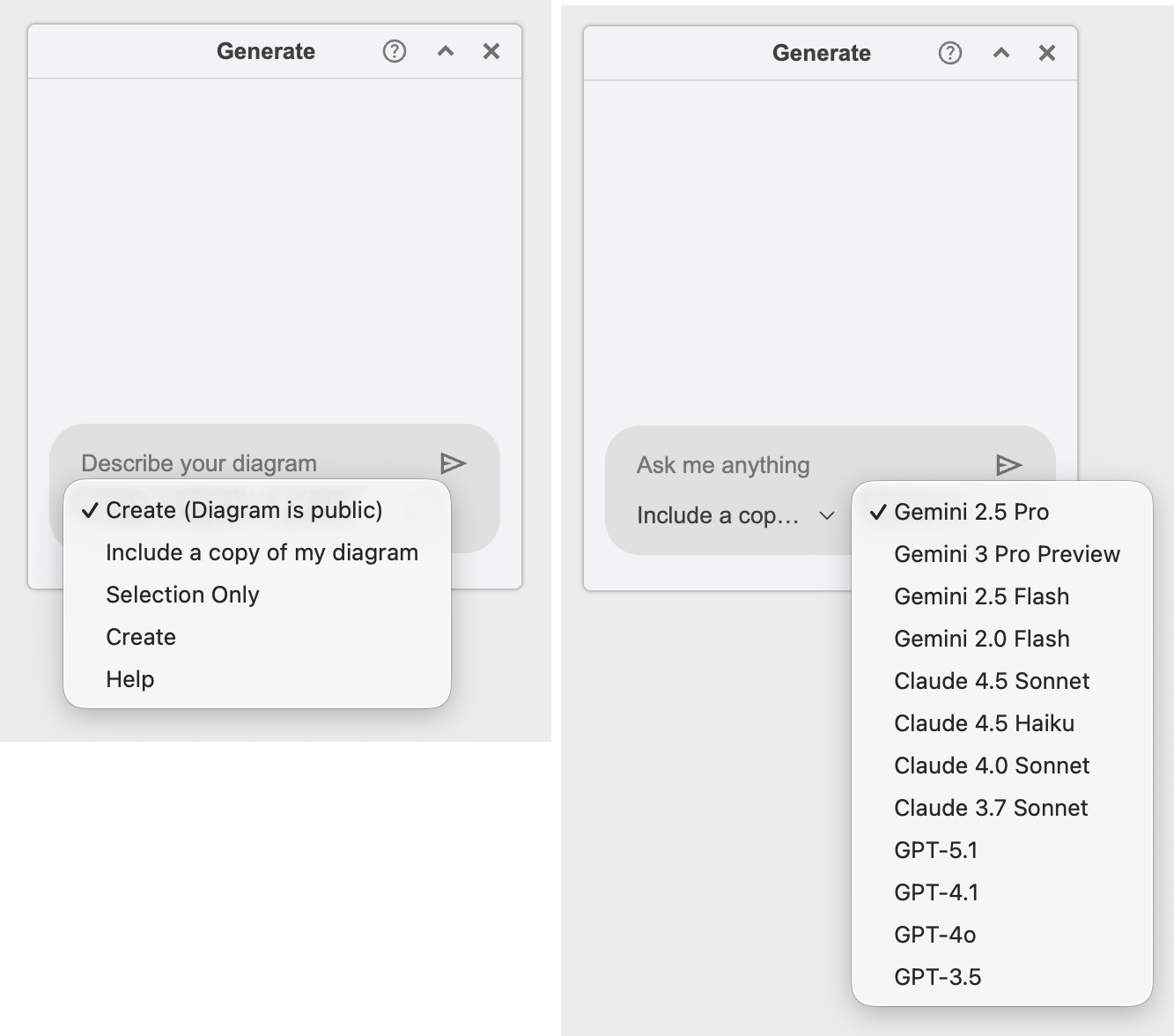
See all custom LLM and AI diagram generation options
Diagram generation is enabled by default only in the online draw.io editor at app.diagrams.net.
Atlassian administrators can enable it in the draw.io app configuration in Confluence with "enableAi": true.
Additional options for the desktop app
desktopAutoSync: Automatically synchronise diagrams when the local file is changed externally and autosave is enabled. The default istrue.
Additional options for Confluence Server and Data Center
-
inplaceEdits: Disables the ability to launch the diagram editor from the viewer if set tofalse. The default istrue(8.3.13 and later). -
forceSimpleViewer: Forces the simple diagram viewer for every diagram if set totrue. The default isfalse(8.4.0 and later). -
debug: Set totrueto enable debug output. -
defaultMacroParameters: A JSON object defining overrides for default macro parameters (9.2.5 and later):border(boolean): Shows a border around the viewer. The default istrue.width(integer): The default width of the viewer. The default is blank.lightbox(boolean): Enables the lightbox (large viewer). The default istrue.simpleViewer(boolean): Shows the simple viewer. The default isfalse.toolbarStyle(string): Controls toolbar display. The default is"top". Accepted values:"top": Shows the toolbar above the viewer on mouse hover."inline": Shows the toolbar inside the viewer on mouse hover."hidden": Hides the toolbar.
links(string): Controls link behaviour. The default is"auto". Accepted values:"auto": Opens local links in the current window and external links in a new window."blank": Opens all links in a new window."self": Opens all links in the current window.
Note: Diagram editor plugins are not available on Confluence Server or Data Center.
Additional options for Confluence Cloud
ui: A string specifying the theme for the user interface. Choose one of the following:kennedy,atlas(default),dark, ormin.
More configuration options for draw.io in Confluence Cloud
Example
The following is an example JSON configuration with default values (variables that are omitted use these defaults):
{ "defaultFonts": ["Helvetica", "Verdana", "Times New Roman", "Garamond", "Comic Sans MS", "Courier New", "Georgia", "Lucida Console", "Tahoma"],
  "presetColors": ["E6D0DE", "CDA2BE", "B5739D", "E1D5E7", "C3ABD0", "A680B8", "D4E1F5", "A9C4EB", "7EA6E0", "D5E8D4", "9AC7BF", "67AB9F", "D5E8D4", "B9E0A5", "97D077", "FFF2CC", "FFE599", "FFD966", "FFF4C3", "FFCE9F", "FFB570", "F8CECC", "F19C99", "EA6B66"],
  "defaultColorSchemes": [
  [ null, { "fill": "#f5f5f5", "stroke": "#666666" },
     {	"fill": "#dae8fc", "stroke": "#6c8ebf" },
     {	"fill": "#d5e8d4", "stroke": "#82b366" },
     {	"fill": "#ffe6cc", "stroke": "#d79b00" },
     {	"fill": "#fff2cc", "stroke": "#d6b656" },
     { "fill": "#f8cecc", "stroke": "#b85450" },
     {	"fill": "#e1d5e7", "stroke": "#9673a6" }],
	[ null, { "fill": "#f5f5f5", "stroke": "#666666", "gradient": "#b3b3b3" },
     {	"fill": "#dae8fc", "stroke": "#6c8ebf",	"gradient": "#7ea6e0" },
     {	"fill": "#d5e8d4", "stroke": "#82b366",	"gradient": "#97d077" },
     {	"fill": "#ffcd28", "stroke": "#d79b00",	"gradient": "#ffa500" },
     {	"fill": "#fff2cc", "stroke": "#d6b656",	"gradient": "#ffd966" },
     {	"fill": "#f8cecc", "stroke": "#b85450",	"gradient": "#ea6b66" },
     {	"fill": "#e6d0de", "stroke": "#996185",	"gradient": "#d5739d" }],
	[ null, { "fill": "#eeeeee", "stroke": "#36393d" },
     {	"fill": "#f9f7ed", "stroke": "#36393d" },
     {	"fill": "#ffcc99", "stroke": "#36393d" },
     {	"fill": "#cce5ff", "stroke": "#36393d" },
     {	"fill": "#ffff88", "stroke": "#36393d" },
     {	"fill": "#cdeb8b", "stroke": "#36393d" },
     {	"fill": "#ffcccc", "stroke": "#36393d" }]
	],
  "defaultColors": ["none", "FFFFFF", "E6E6E6", "CCCCCC", "B3B3B3", "999999", "808080", "666666", "4D4D4D", "333333", "1A1A1A", "000000", "FFCCCC", "FFE6CC", "FFFFCC", "E6FFCC", "CCFFCC", "CCFFE6", "CCFFFF", "CCE5FF", "CCCCFF", "E5CCFF", "FFCCFF", "FFCCE6", "FF9999", "FFCC99", "FFFF99", "CCFF99", "99FF99", "99FFCC", "99FFFF", "99CCFF", "9999FF", "CC99FF", "FF99FF", "FF99CC", "FF6666", "FFB366", "FFFF66", "B3FF66", "66FF66", "66FFB3", "66FFFF", "66B2FF", "6666FF", "B266FF", "FF66FF", "FF66B3", "FF3333", "FF9933", "FFFF33", "99FF33", "33FF33", "33FF99", "33FFFF", "3399FF", "3333FF", "9933FF", "FF33FF", "FF3399", "FF0000", "FF8000", "FFFF00", "80FF00", "00FF00", "00FF80", "00FFFF", "007FFF", "0000FF", "7F00FF", "FF00FF", "FF0080", "CC0000", "CC6600", "CCCC00", "66CC00", "00CC00", "00CC66", "00CCCC", "0066CC", "0000CC", "6600CC", "CC00CC", "CC0066", "990000", "994C00", "999900", "4D9900", "009900", "00994D", "009999", "004C99", "000099", "4C0099", "990099", "99004D", "660000", "663300", "666600", "336600", "006600", "006633", "006666", "003366", "000066", "330066", "660066", "660033", "330000", "331A00", "333300", "1A3300", "003300", "00331A", "003333", "001933", "000033", "190033", "330033", "33001A"],
	"defaultVertexStyle": {},
	"defaultEdgeStyle": {
		"edgeStyle": "orthogonalEdgeStyle",
		"rounded": "0",
		"jettySize": "auto",
		"orthogonalLoop": "1" },
	"defaultLibraries": "general;images;uml;er;bpmn;flowchart;basic;arrows2",
	"defaultCustomLibraries": [],
	"defaultMacroParameters": {
		"border": false,
		"toolbarStyle": "inline" },
	"css": "",
	"fontCss": "",
	"thumbWidth": 46,
	"thumbHeight": 46,
	"emptyDiagramXml": "<mxGraphModel><root><mxCell id='0'/><mxCell id='1' parent='0'/></root></mxGraphModel>",
	"emptyLibraryXml": "<mxlibrary>[]</mxlibrary>",
	"defaultEdgeLength": 80 }
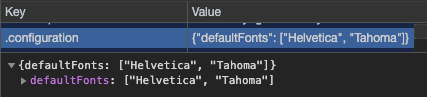
The configuration of the online version is stored in your browser in local storage under the key .configuration.
The current settings of the editor (such as recent colours, currently open libraries, etc.) persist in your browser in local storage under the key .drawio-config:
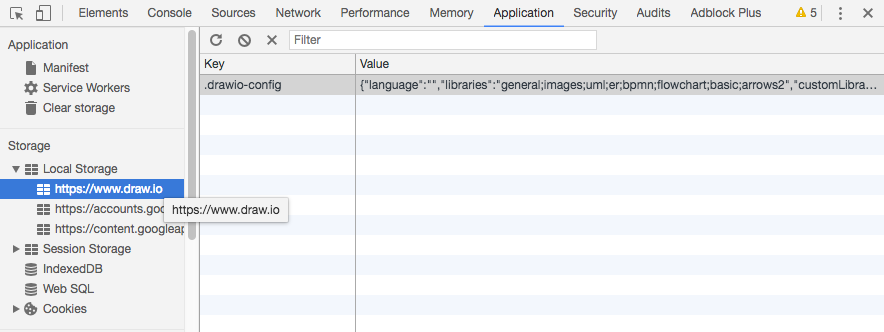
You can add defaultEdgeLength and autosaveDelay directly to .drawio-config to override the default values for the web app in your browser.
Deleting the current settings or configuration
Open the Configuration dialog via Extras > Configuration and click Reset to revert to the default configuration options.
Alternatively, delete the draw.io editor configuration stored in your browser:
- Open the browser developer tools (e.g. More Tools > Developer Tools in Google Chrome).
- Go to the Application tab and select Storage > Local Storage > your_domain_name.
- Right-click
.drawio-configin the key-value table and delete it.
Fixing errors in your configuration
If the configuration has an invalid format, a configuration error is shown in the browser console when the diagram editor opens. Replace double-escaped quotes (\") with single-escaped quotes ("), to ensure the configuration is valid JSON. You can verify it with a JSON validator such as JSONLint.
Configuring the online app
You can create a link to configure the online version of draw.io by clicking Link in the Configuration dialog: click on Help > Configuration.