Customise and configure the draw.io editor to diagram faster
The draw.io editor has a mountain of configuration options that can make your diagramming faster. Set custom colour palettes, styles, fonts, shape libraries, templates, and even editor themes, enable or disable certain features, set defaults for connectors, and more via the extensive draw.io configuration options.
As draw.io is available as an online editor, as apps in content platforms, as an offline Desktop app, and embedded in various integrations, not all configuration options are available across all platforms and integrations. For example, draw.io for Confluence has many additional features and options that can only be configured inside Atlassian's app administration settings, that are not available in the online editor.
Tip: draw.io configuration options are written using a JSON string. To ensure the configuration is valid JSON use a validator such as JSONLint. and make sure you replace double-escaped quotes (\") with single-escaped quotes (").
Open the draw.io configuration
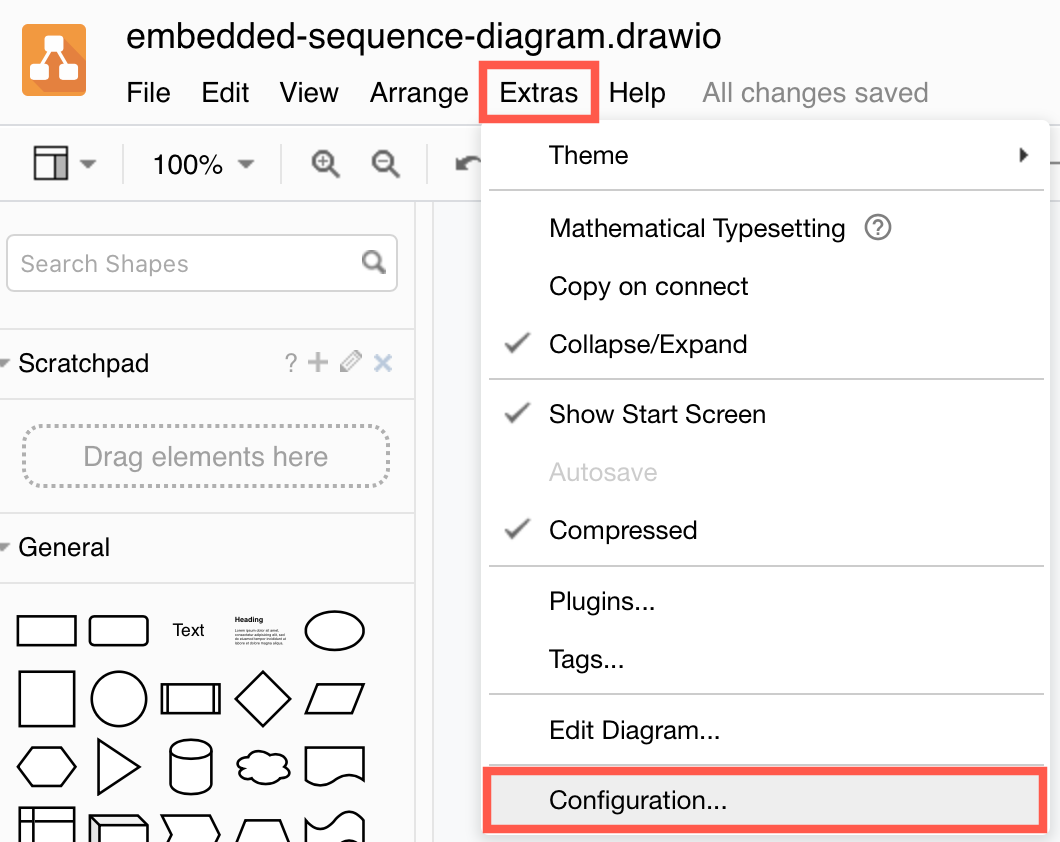
Select Extras > Configuration from the draw.io menu (Classic, Atlas editor theme), or Settings > Configuration from the draw.io menu(Simple, Minimal, Sketch themes).
Configure default styles
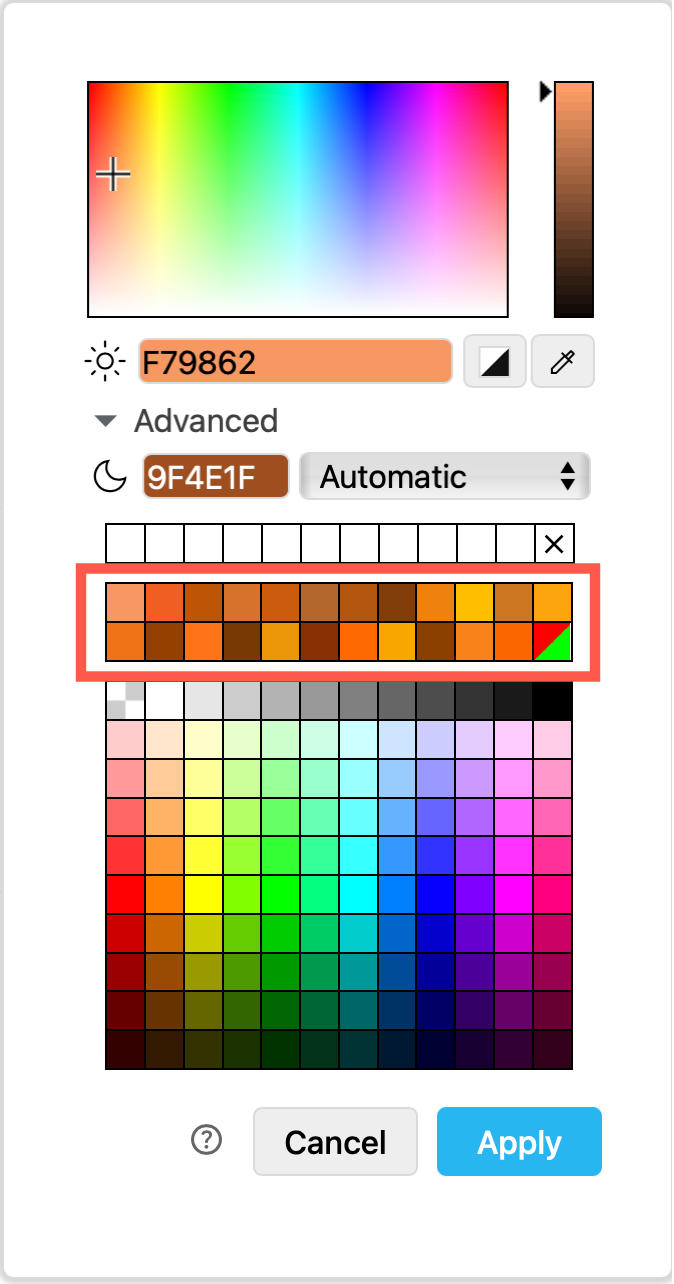
Restyling shapes and connectors after you have added them to the diagram takes a lot of time. If you always use the same colours (such as when you must follow a corporate style), set them up in the draw.io configuration as custom presets or colours that are used by default.
Set up a custom palette (presetColors, customPresetColors, defaultColors) and colour schemes (customColorSchemes, defaultColorSchemes) with default and preset colours to make colouring your diagram faster.
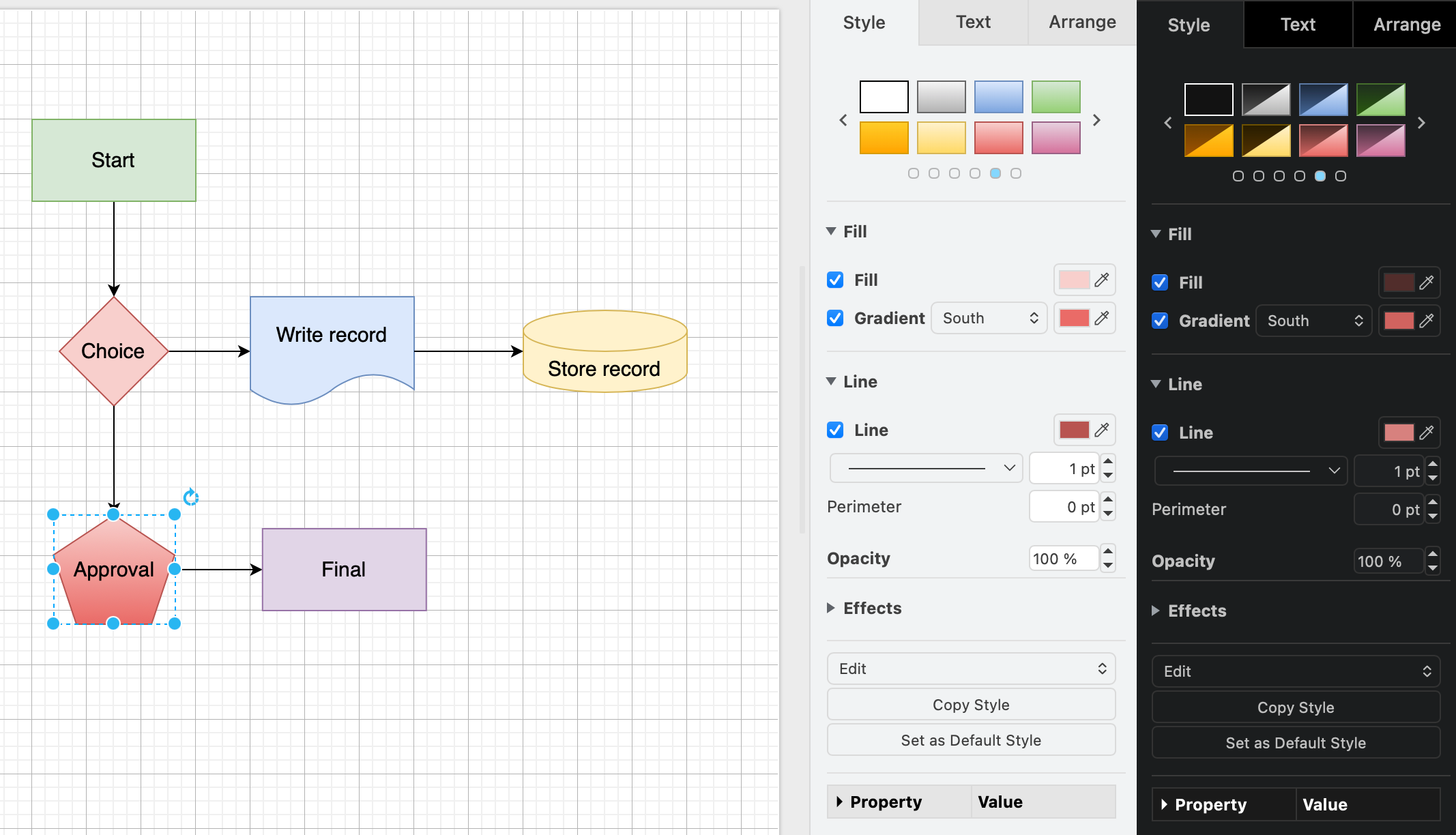
Specify how adaptive colours (defaultAdaptiveColors, enableLightDarkColors) automatically switch when you use dark or light mode in your browser.
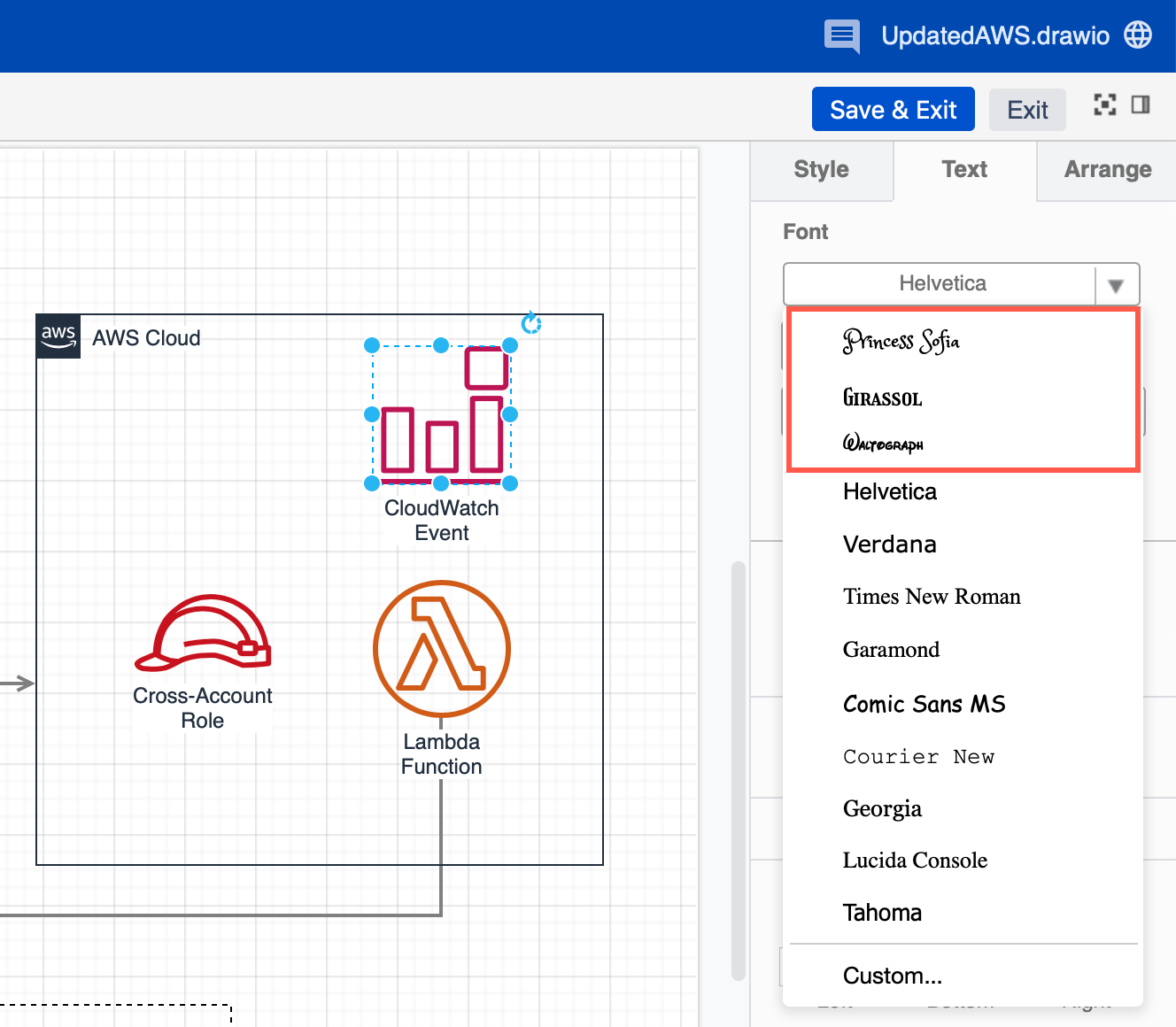
Set custom and default fonts and styles for text labels (customFonts, defaultFonts) if your company has a style guide that requires you to use specific licensed or web fonts.
You can also set default styles, lengths and label styles for connectors (styles, defaultVertexStyles, defaultEdgeStyles).
See the full range of configuration options available in draw.io - there are many more than are listed above.
Add custom libraries and templates
You can make your own custom shapes in draw.io, draw freehand shapes, and edit connection points on existing shapes, and then these in custom libraries.
In the draw.io configuration, you can set these custom libraries or any of the built-in draw.io shape libraries to load by default (defaultLibraries, enabledLibraries, libraries, defaultCustomLibraries).
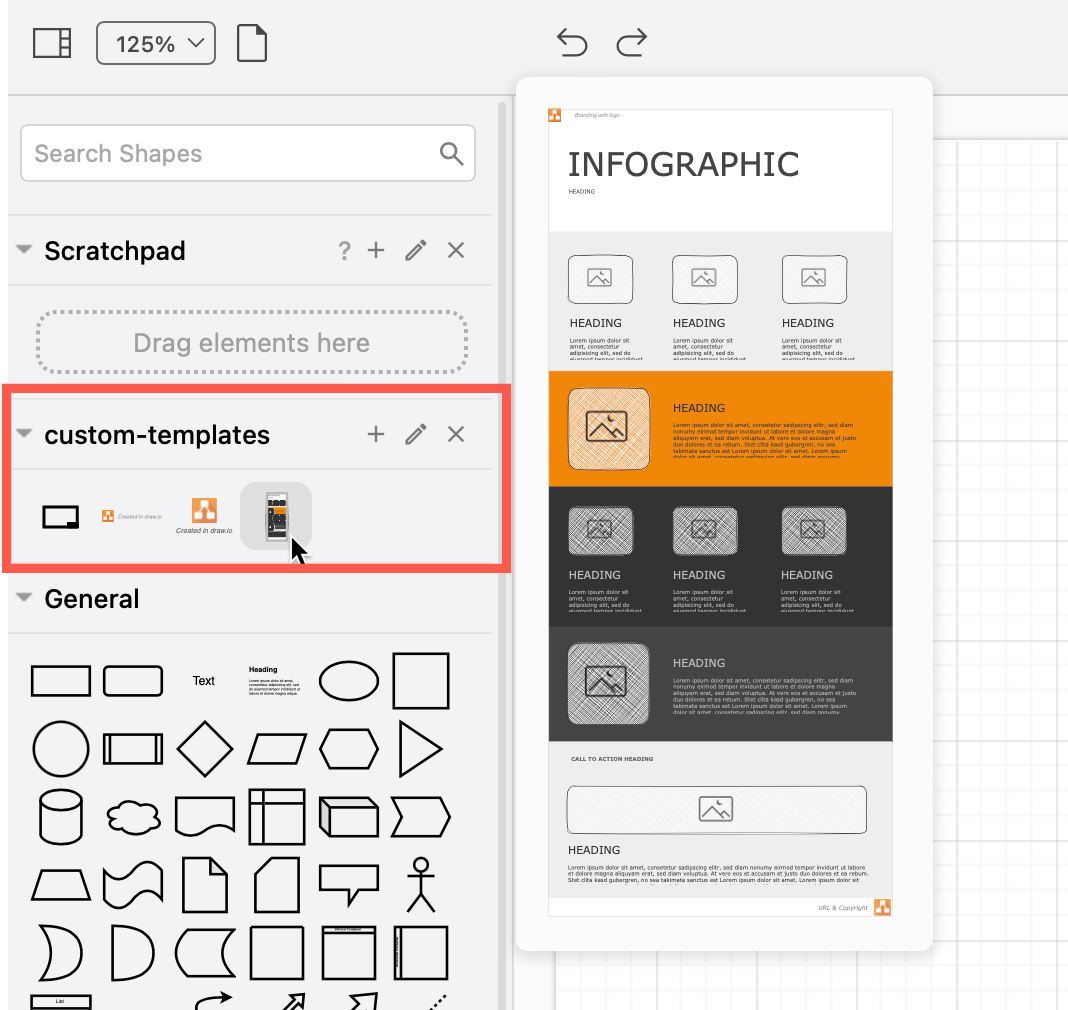
If you want to disable custom libraries completely, or set newly enabled libraries to appear already expanded, you can do that too. (enableCustomLibraries, expandLibraries)
To setup a custom template library (templateFile), you need to create an XML file containing a list of all custom and default templates and custom shape libraries that the templates open by default. This is used to list the template categories and their diagrams in the template library dialog.
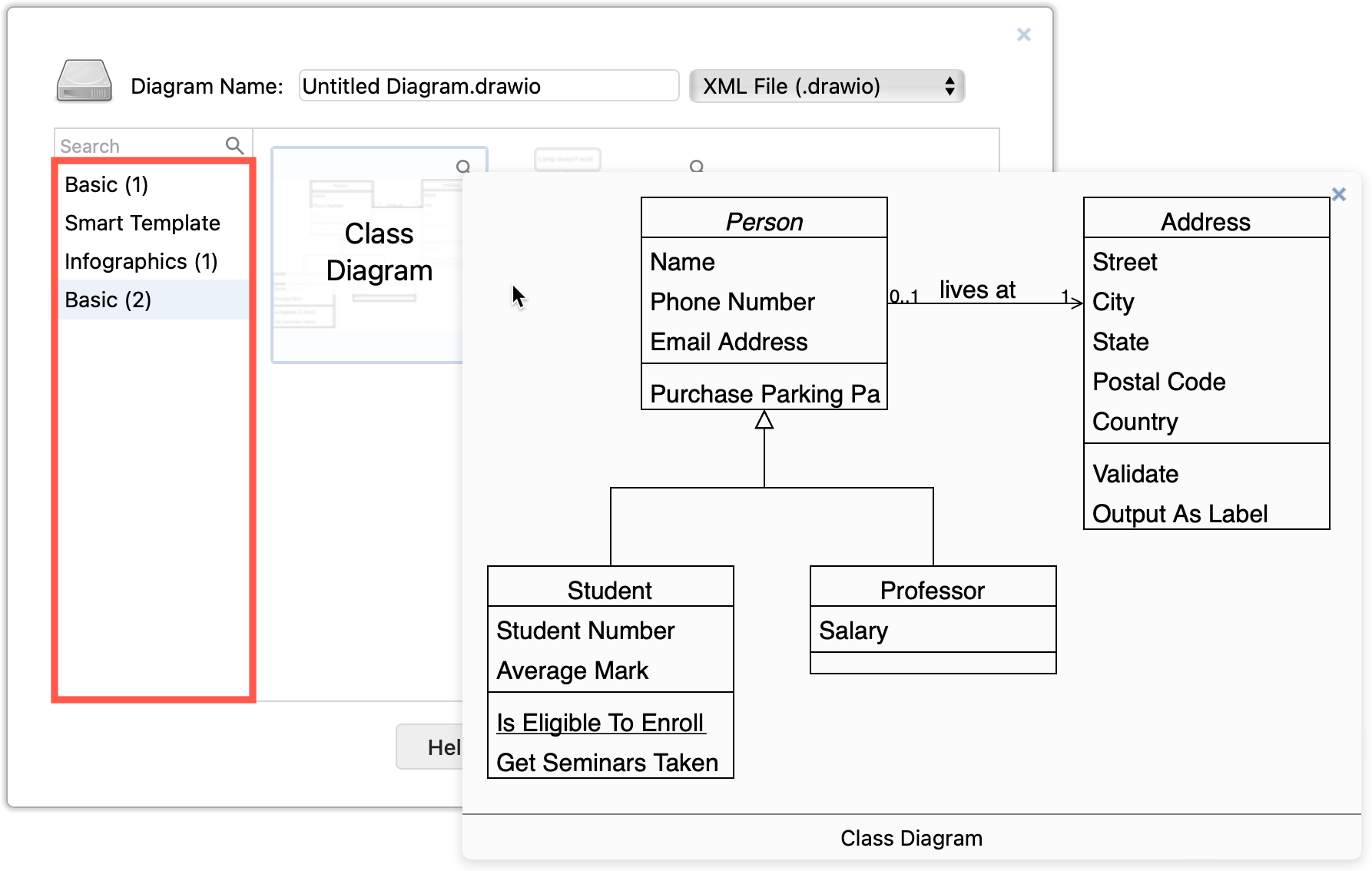
Customise draw.io editor features
There are many more features in draw.io that can be tweaked to help you reach the final diagram faster, including:
- how the sidebars appear around the canvas
- how the mouse is used to zoom in/out and paste shapes
- custom grid sizes for the drawing canvas
- custom page formats
- ...
To get past that blank page and started diagramming faster, the draw.io diagram generation features enable you to draw a diagram from a simple text description. These diagram generation settings are also configurable.
Diagram generation features are enabled by default in the online draw.io editor and use a variety of online AI models. You can generate a diagram via Arrange > Insert > Generate in the menu, in the template library, in the shape search field and via the sparkle tool.
-
In draw.io for Confluence, these features are disabled by default. As an administrator, set
"enableAi": truein the draw.io app configuration in your instance's administration settings to allow your users to generate diagrams. -
Diagram generation is not available in the offline draw.io Desktop app.
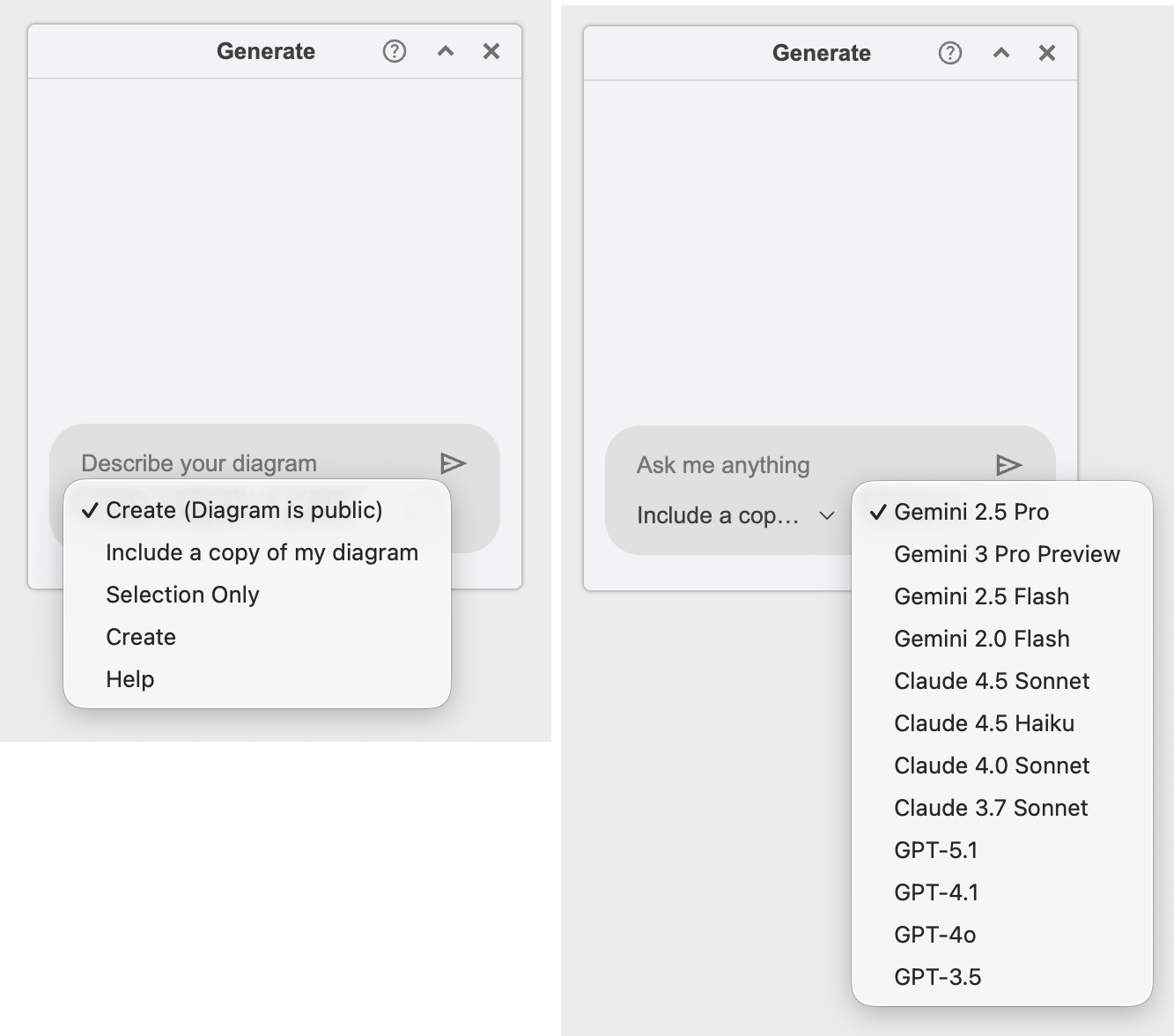
Via the draw.io configuration, you can customise which LLM models to use, the actions available via the search omnibox, the default instructional prompts for each action, and more.
For example, the Generate dialog below lets you select various diagram generation actions and specific models, all customised via the draw.io configuration.
Take some to set up your configuration well and you can seriously optimise your diagramming workflow to start and finish your diagrams faster.