When does it make sense to generate a diagram?
In draw.io, you can generate a diagram from a text description. It's quick, easy and requires almost no fiddly positioning of shapes and connectors.
It's easy to get hyped up about quickly generating visual documentation, but when should you generate a technical diagram? What types of diagrams can't be generated?

First, let's see how smart templates work in draw.io.
Generate a diagram with a smart template
- Select Arrange > Insert > Generate.
- Alternatively, start a new diagram and click on Generate in the template library.
- If you are using draw.io with the Simple, Minimal or Sketch editor themes, select
+in the toolbar then Generate - Start typing a description in the search field.
- Write a simple and accurate text description of your diagram, then click Generate
- Click on the diagram preview to expand it.
- If you like what you see, click Insert.
- If not, click Generate again to generate a different diagram for the same query, or edit your query and regenerate the preview.
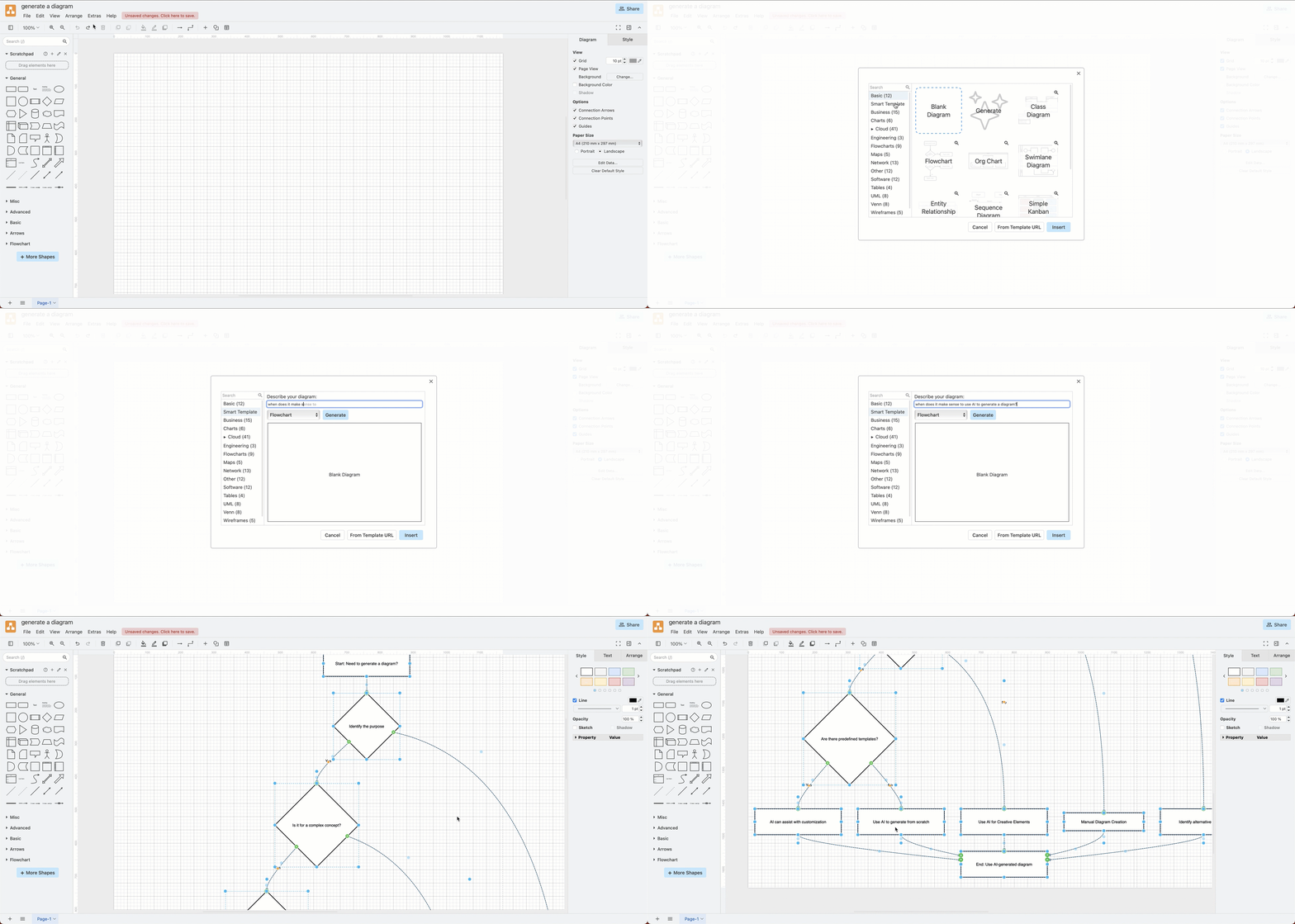
Now, you can edit, add to and style your generated diagram freely using the draw.io shape libraries and format panel.
Learn more about generating diagrams in draw.io and how to write a good query.
When to draw a diagram manually
It's probably easier to explain when not to generate a diagram using an AI tool.
Using notation standards
Diagram generators output mostly simple shapes - rectangles, lifelines, circles, connectors and so on. If you need BPMN process flows, C4 models, AWS or GCP network diagrams, and so on, enable the appropriate shape libraries in draw.io, and draw your diagram manually so it follows that technical standard.
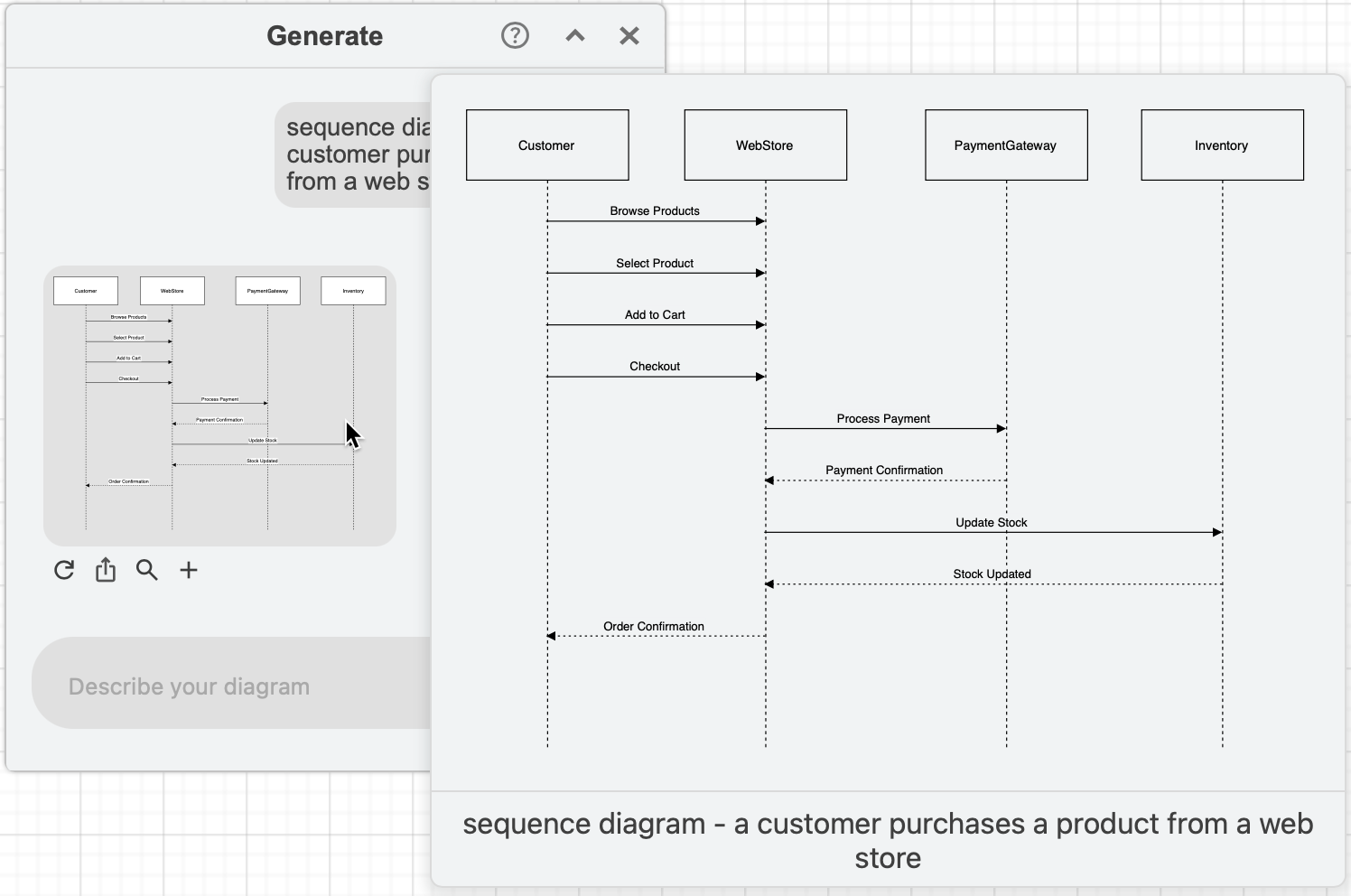
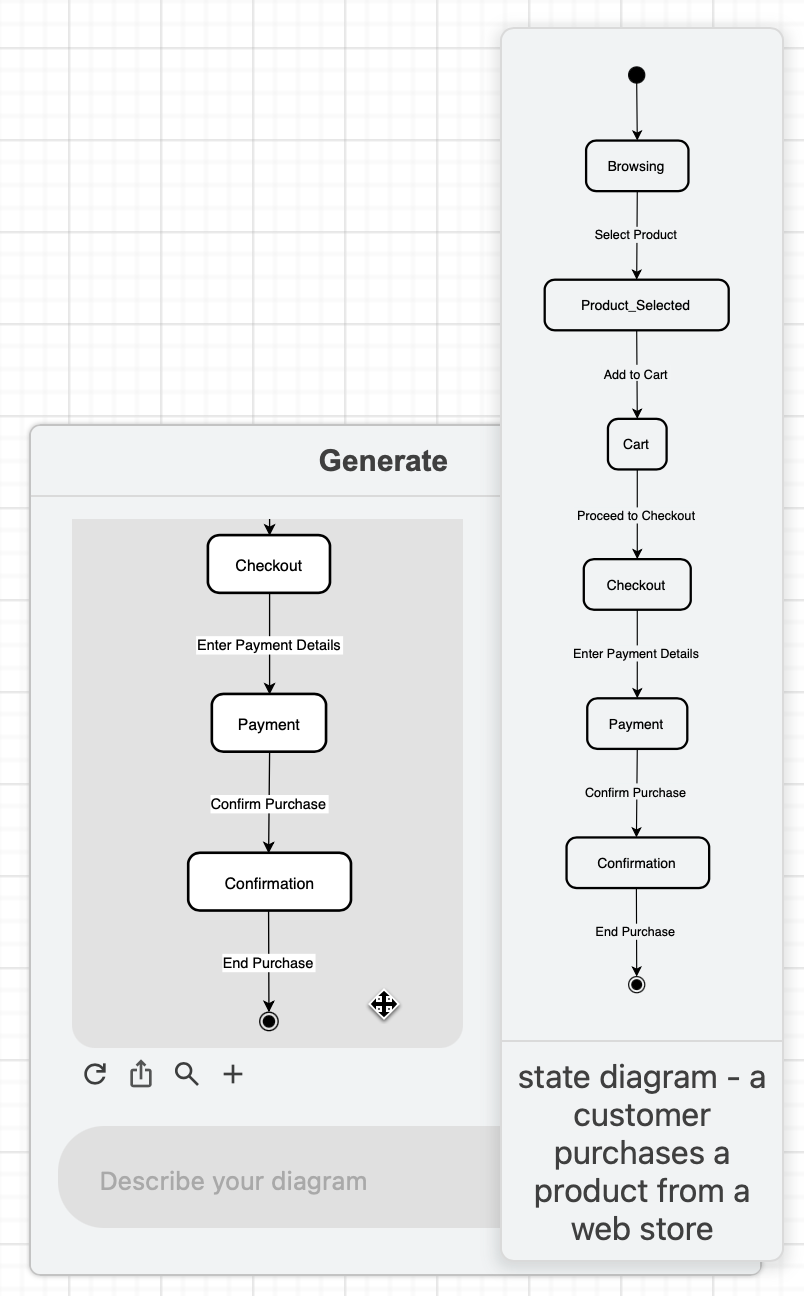
Note: UML sequence and state diagrams may be an exception here - there are enough examples in most generator's training set that they can produce reasonable generic diagrams.
Existing systems or processes
Diagram generation in draw.io can only work from your short text description - it does not know any information about your existing infrastructure or processes. Therefore, it can't draw accurate technical diagrams to document existing code, systems, workflows or networks, or interfaces to other systems and external processes.
Unsupported diagram types
There are many types of technical and business oriented diagrams that are not supported by generators - fishbone cause/effect diagrams, rack diagrams, interface mockups, Kanban boards, infographics and other marketing diagrams (5C, SWOT, PEST), timelines and roadmaps, and many more technical diagram use cases that you can use draw.io for.
Tip: Most of the diagram types supported by Mermaid syntax are supported by diagram generators. If you have a preferred diagram generator outside of draw.io, ask it to export Mermaid code - you can then insert the Mermaid code into draw.io and then edit and style your generated diagram afterwards.
When to generate a diagram
Generated diagrams can be useful to brainstorm generic components of a system, or outline a common workflow, or draw a mindmap of a concept, perhaps to plan for an event or structure a document or presentation.
For example, you could ask it to generate a flowchart of a "browser-based file storage system using a serverless AWS pattern".
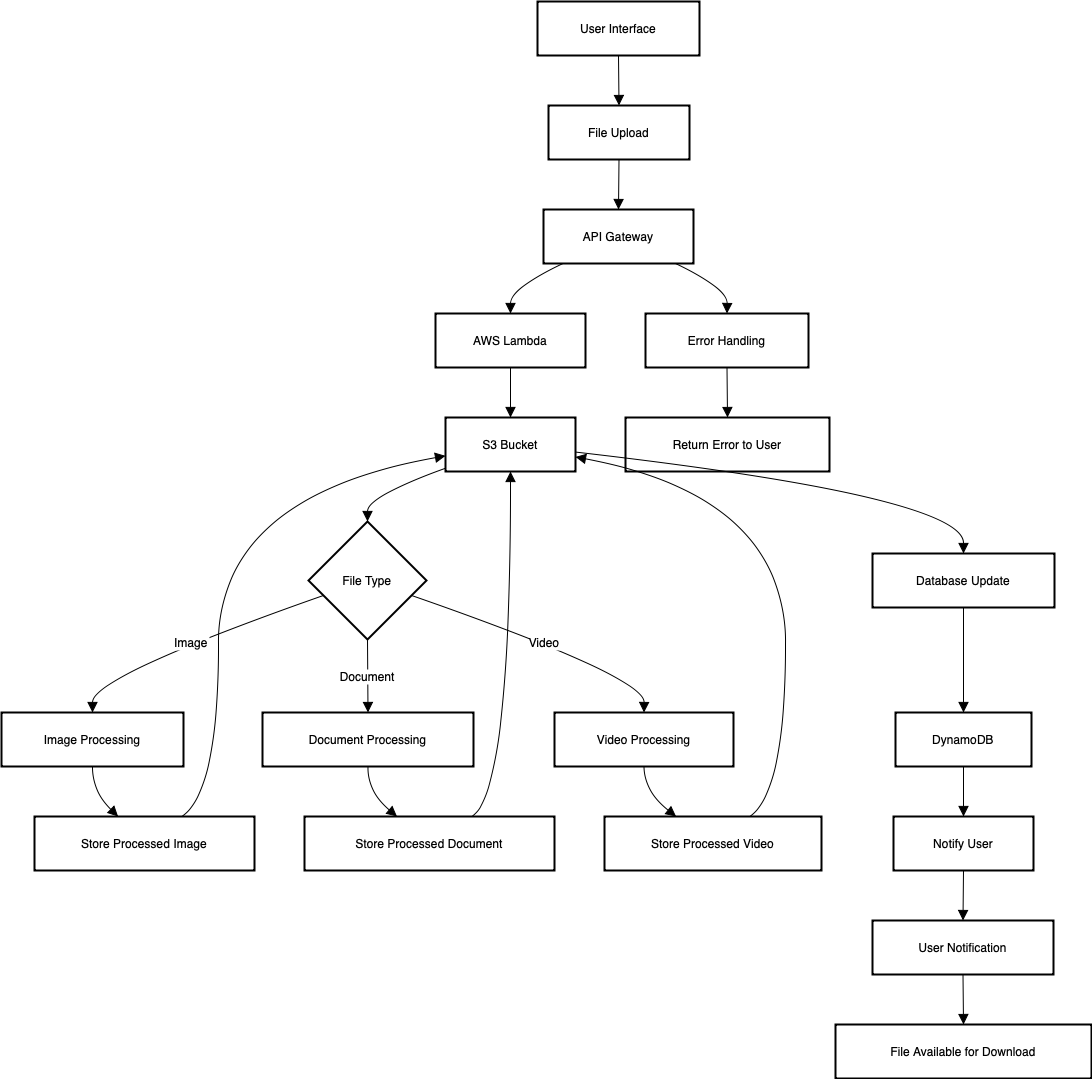
It won't be correct, or have precise details of the system, but it gives you a general starting point that you can then use to draw your actual system.
Limitations of generated diagrams
Illogical AI hallucinations
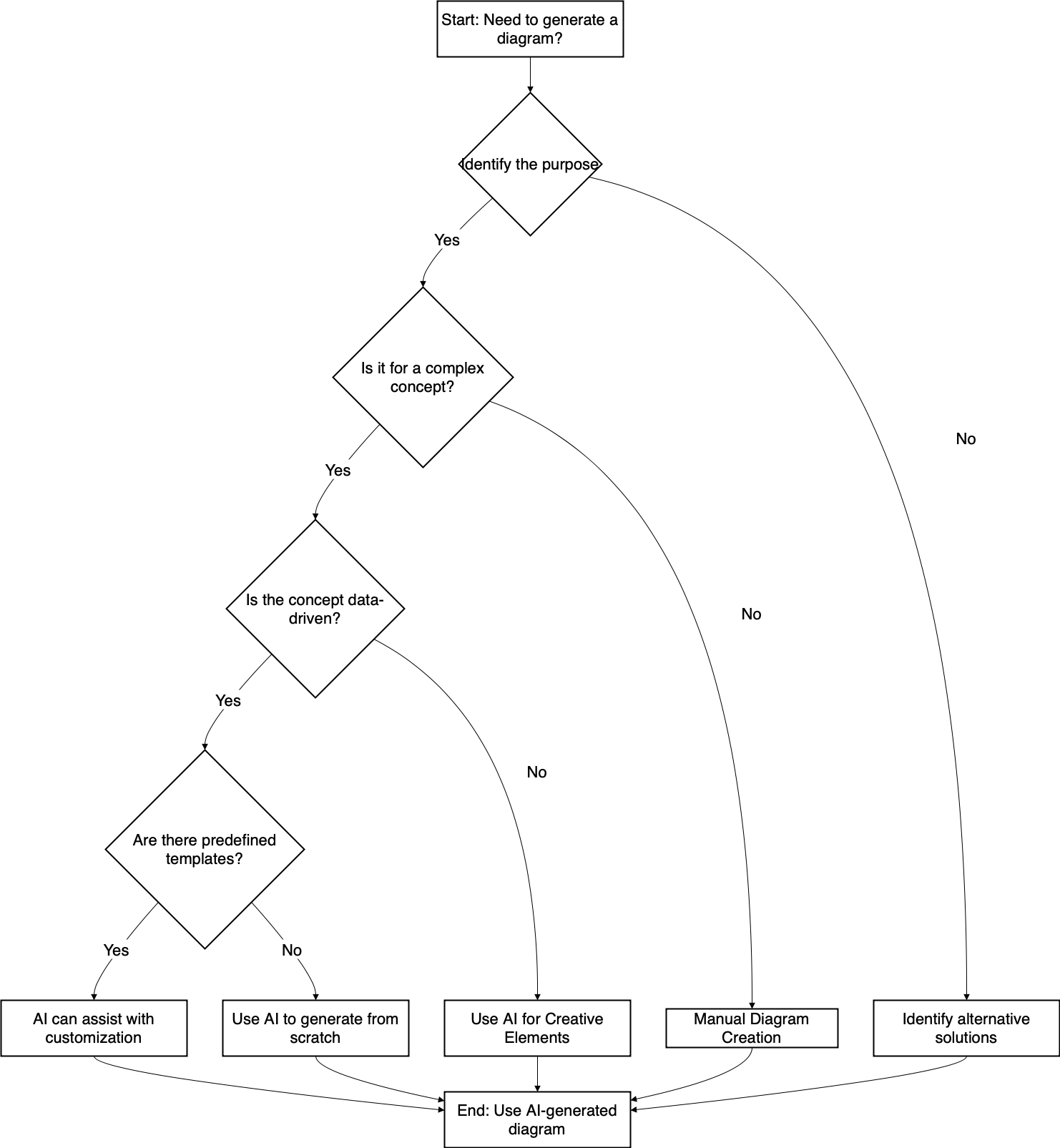
Keep in mind that diagram generators do not sanity check anything in your diagram - there may be completely illogical elements. For example, when asked to generate a flowchart or decision tree for the query "When does it make sense to use AI to generate a diagram", there are a few problematic sections.
- Immediately after the decision to use Manual Diagram Creation, it instructs you to Use AI-generated diagram.
- The Start task or decision in the flow is also unclear - Need to generate a diagram?.
No knowledge of existing systems
The biggest limitation for technical diagrams for documentation purposes is that diagram generators do not know about your existing system and processes, and therefore any diagram you try to generate will not be accurate.
Can't use corporate style
Generators also won't use your corporate style, specific layouts preferred by your team, or a diagramming standard that needs specific shapes, labels and connectors.
Can't edit existing diagram data
Most generators, including the draw.io smart templates feature, don't have any memory of previous attempts, so they can't refine an already generated diagram. Regenerating starts over from scratch every time.
Generating multiple iterations and hoping for a usable diagram that you can then clean up may be slower than manually drawing your diagram from scratch.
Related
Learn more about generating diagrams in draw.io, how to enable generated diagrams in the Atlassian draw.io apps, and see examples of generated diagrams.
New to diagramming or to draw.io? The getting started guide and simple flowchart tutorial will get you up and running.
For more technical diagram examples and use cases, check the diagram gallery, or the template library in draw.io. There are many more templates and examples in the drawio-diagrams repository on GitHub.