Search for shapes, in-diagram text, help and more
The search field in draw.io does more than search for shapes. You can now open various dialogs and tools from the menu via the search field, generate a diagram, apply styles to text, and more. This omnibox search field can speed up your diagramming workflow.
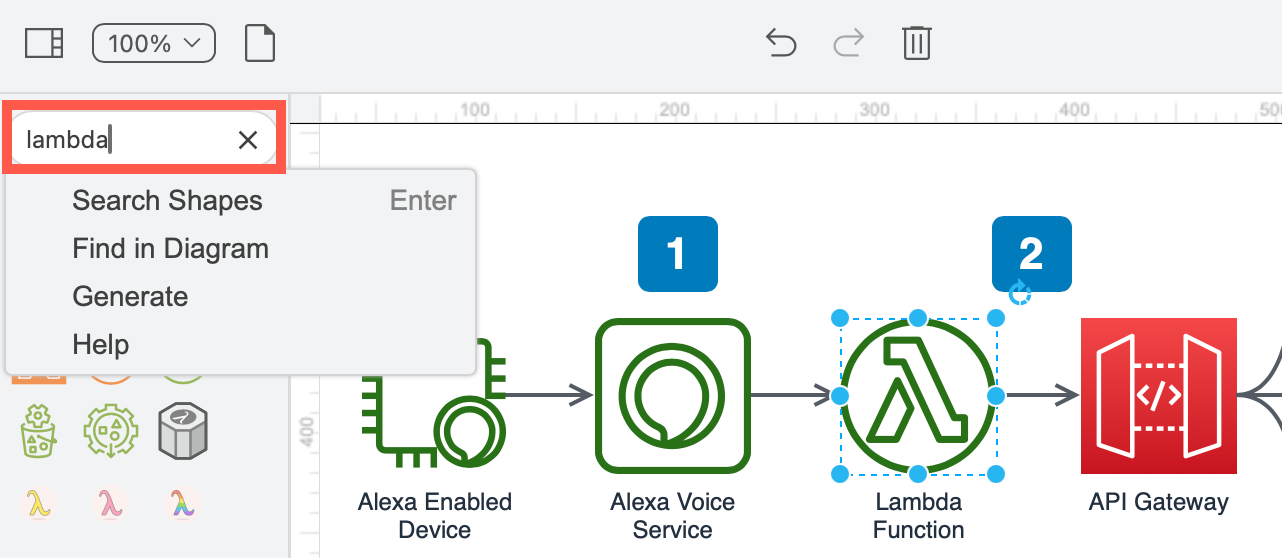
Note: As this feature is being constantly extended, useful tools will be added to the search omnibox over time. If you have a suggestion, please raise a feature request on the draw.io GitHub repository.
Search for shapes
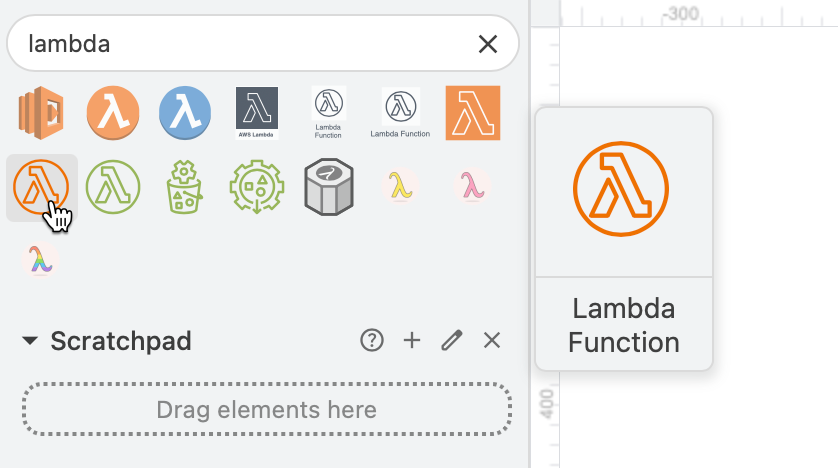
The default search using the search omnibox is to find matching shapes in all the built-in shape libraries.
- Click in the search field.
- Type the name of the shape or icon you are looking for and press Enter.
- Shapes that match your search term will appear below the search field. Click on More to see additional shapes.
Find text in your diagram
You can also search for text that appears in shape and connector labels, tags, tooltips and custom shape properties.
Note: This in-diagram search is not case sensitive.
In the example below, one shape has the lambda tag, another has a tooltip lambda, a third has a custom type shape property with the same text, and the fourth has lambda its shape label.
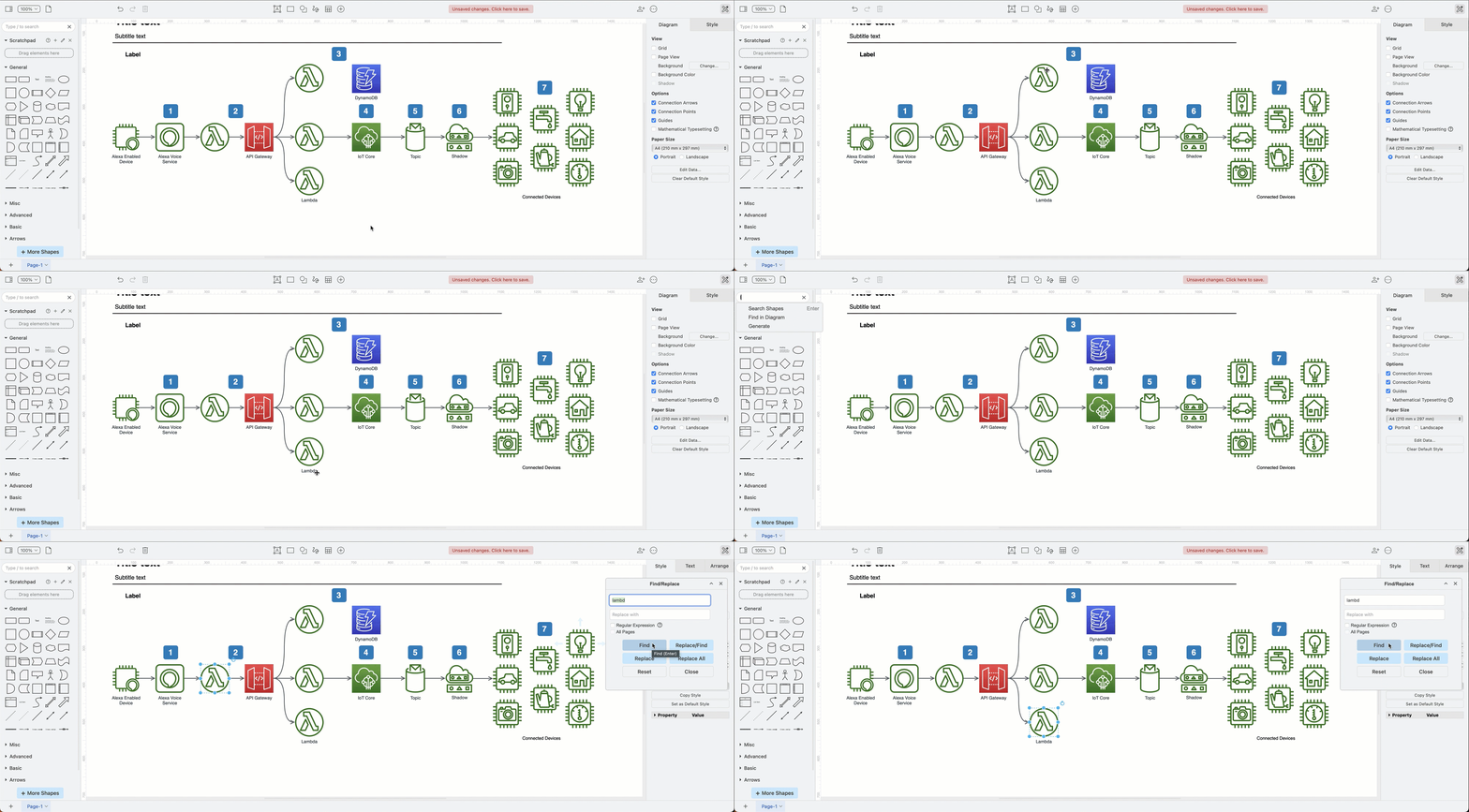
- Type the text you wish to find in your diagram.
- Select Find in Diagram to open the Find/Replace dialog.
- Click Find to step through all shapes and connectors that contain the text you searched for.
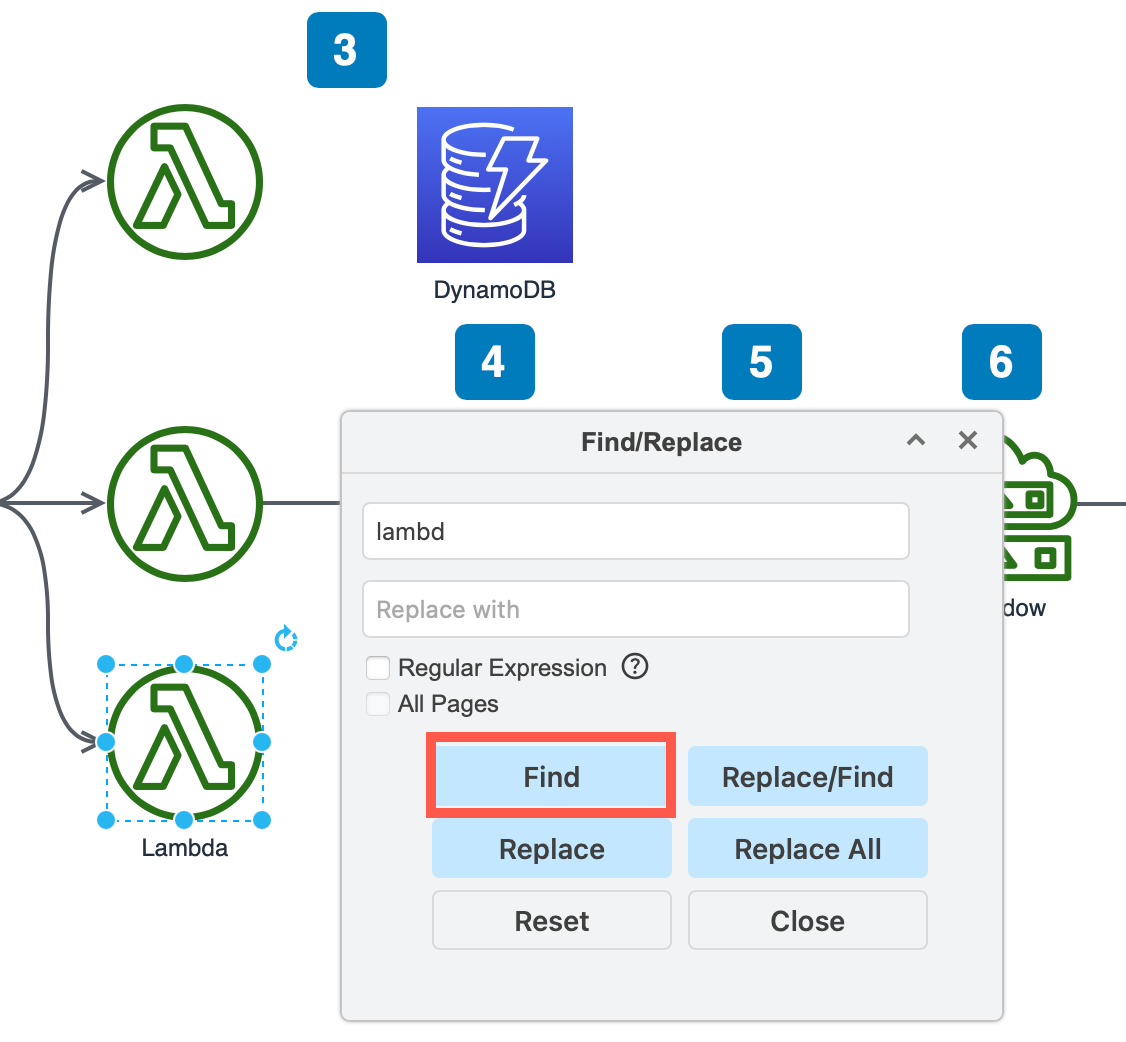
Tip: Enable the options to search with a Regular Expression, or to find matching text on All Pages within a multi-page diagram.
Generate a diagram
Type a description of a diagram in the search field and select Generate.
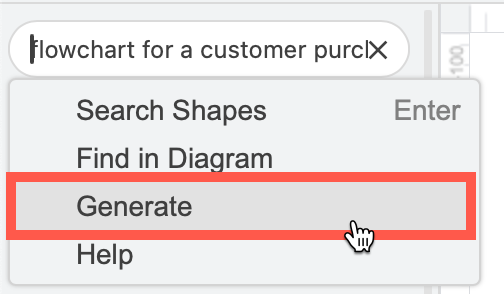
This will open the generate dialog and generate a diagram to match your text. Click on the diagram to see a larger preview and click Insert to add it to the drawing canvas.
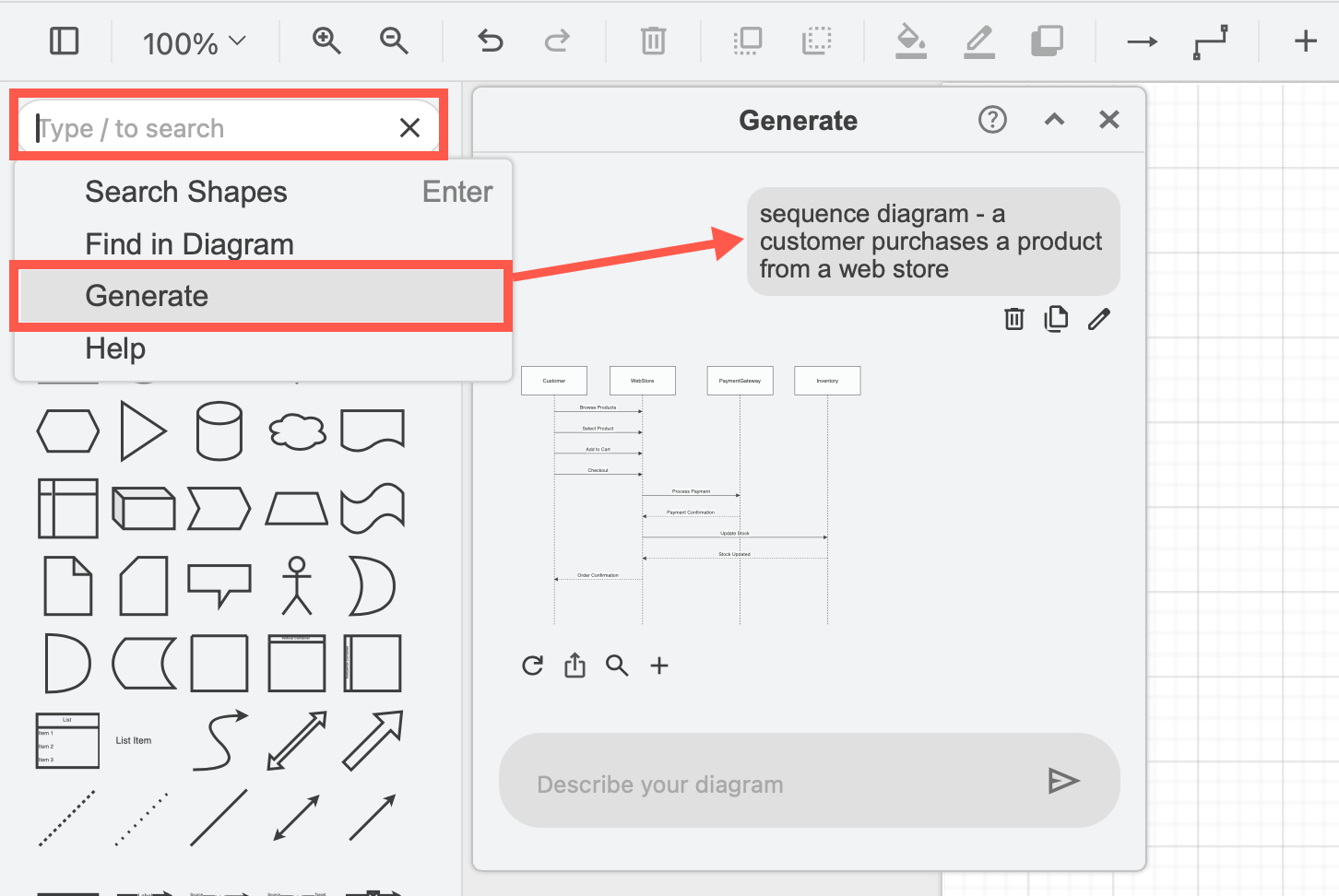
Learn more about generating diagrams
Access draw.io features quickly
Some menu options are also available in the search omnibox. For example:
-
Searching for
importshows two options you can select from: open the Import dialog or open the dialog to import an Image file.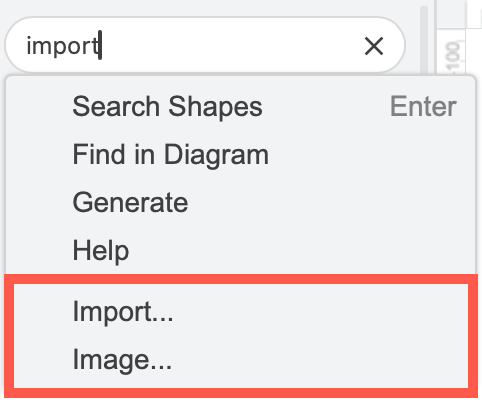
-
Select one or more shapes or connectors in your diagram, then type
BoldorItalicin the search field. Select Bold or Italic from the omnibox list to apply that style to those selected diagram elements. -
Search for
clearwhen you have selected a connector to see the Clear Waypoints option.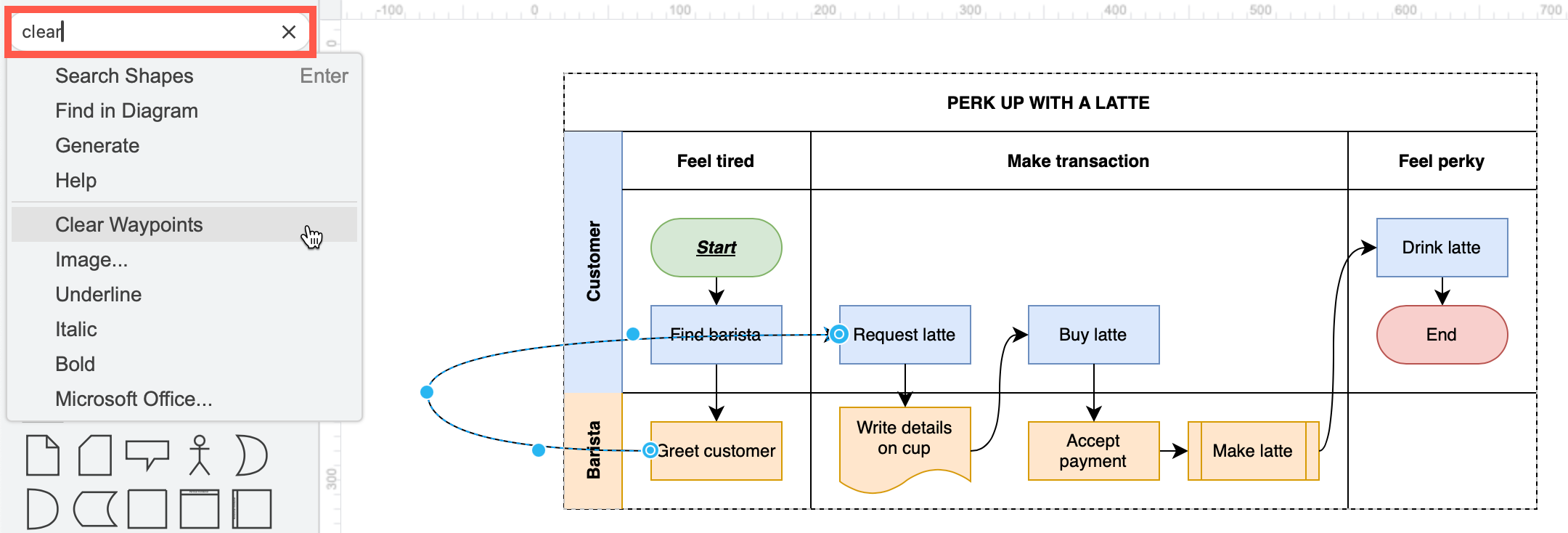
-
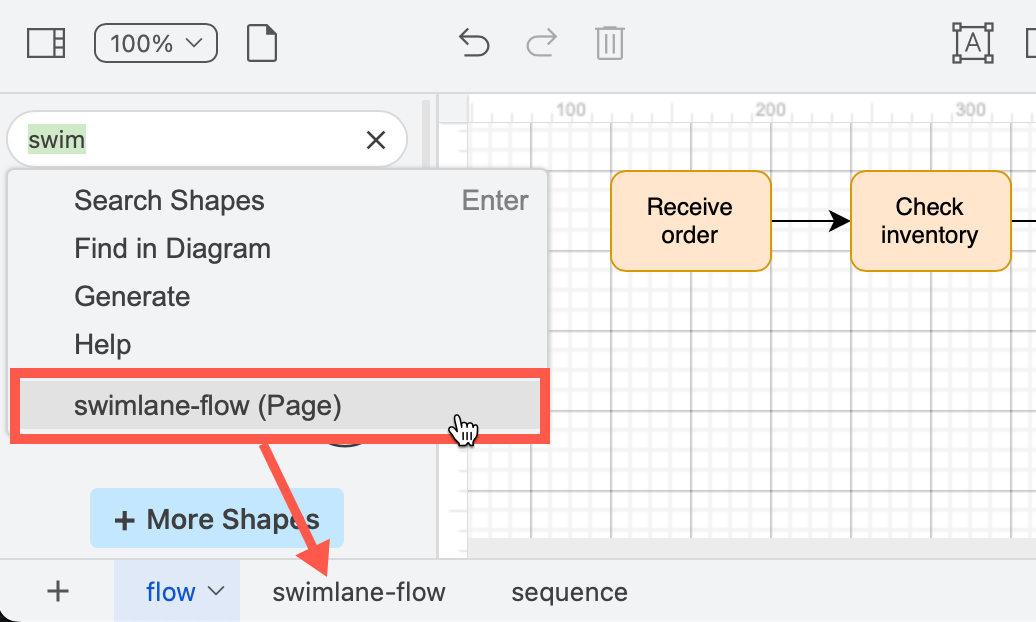
Search for the name of a diagram page that is not the one you are currently editing. Click on the name to open that diagram page in the editor. This is useful for diagram that contain a large number of diagram pages.
This list remembers and shows you the last five search actions you selected - an ideal way to 'bookmark' the tools and menu options that you use often.
Note: Not all tools are available in the new search field at the moment. Raise a feature request to suggest the features you'd like us to add to the search omnibox over on the draw.io repository.