Insert and edit a Mermaid diagram
Mermaid is a syntax similar to Markdown where you can use text to describe and automatically generate diagrams. With Mermaid's Markdown-inspired syntax, you can generate flow charts, UML diagrams, pie charts, Gantt charts, and more from a text description.
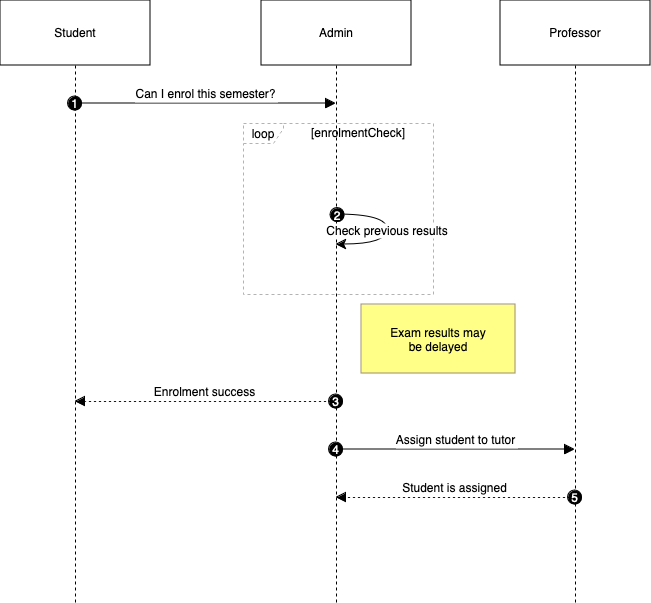
Many developers prefer to describe their data structures and processes using text, avoiding the need to context switch. Additionally, most AI generation tools can also output Mermaid source text. When you insert the Mermaid source into the draw.io editor and generate the diagram, you can then use draw.io's tools and styles to improve how it appears.
Insert a Mermaid diagram
- Click Arrange > Insert > Mermaid. Alternatively, click the
+icon in the toolbar, then select Mermaid.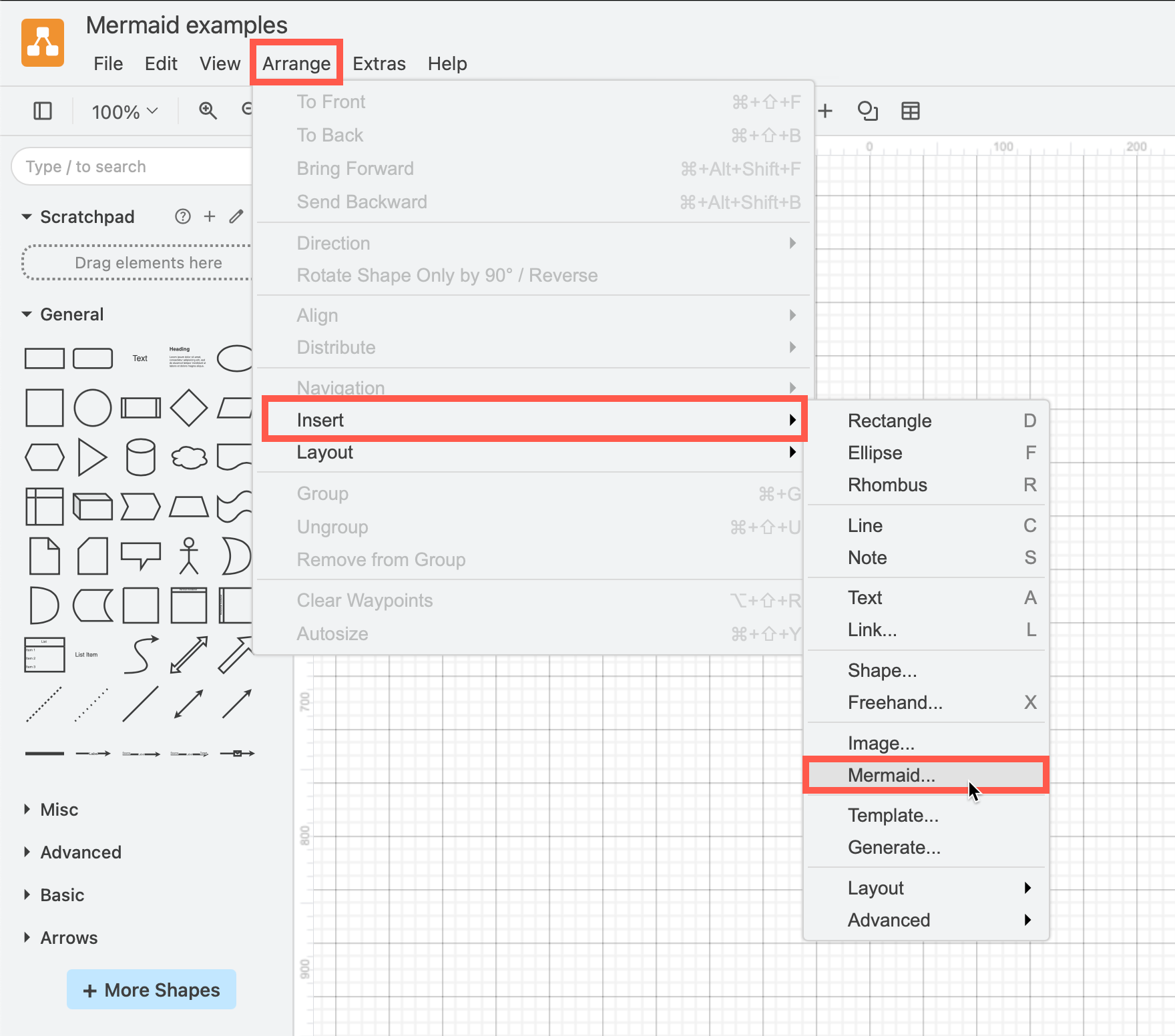
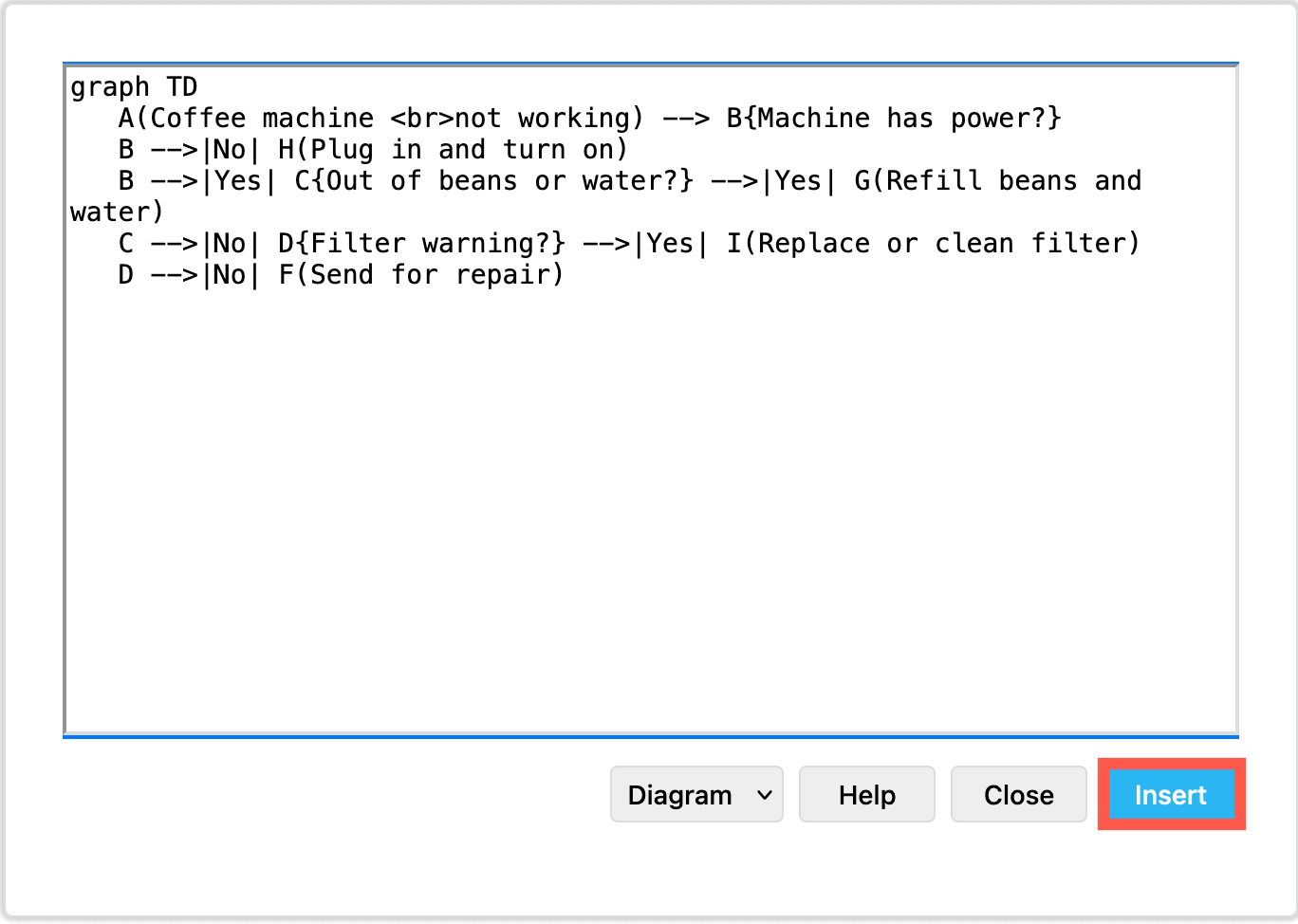
- Paste your text into the text box, then click Insert.
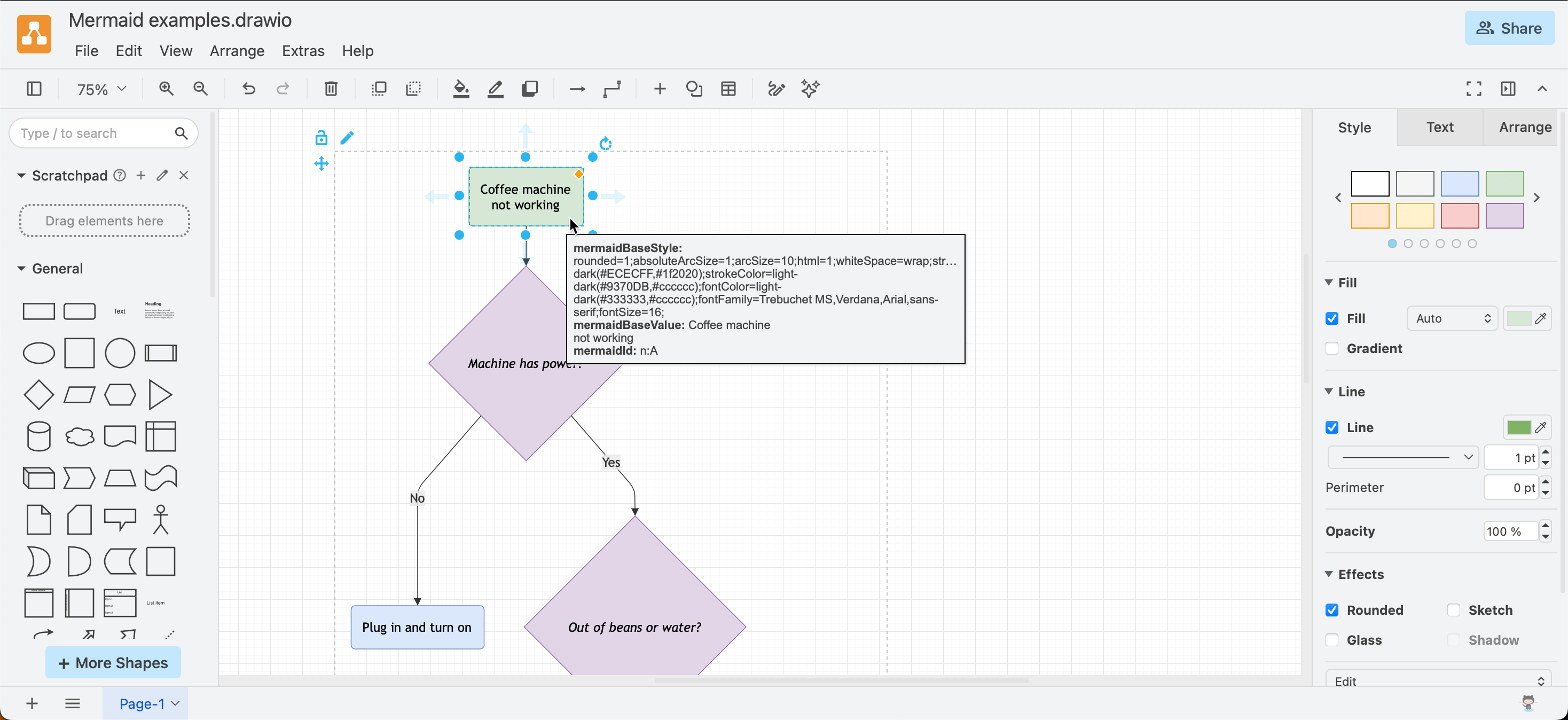
The Mermaid diagram will be automatically created and formatted from your text, the shapes converted to native draw.io shapes, then automatically laid out and inserted into a Mermaid container group on the drawing canvas. Hover over a shape to see the Mermaid source.
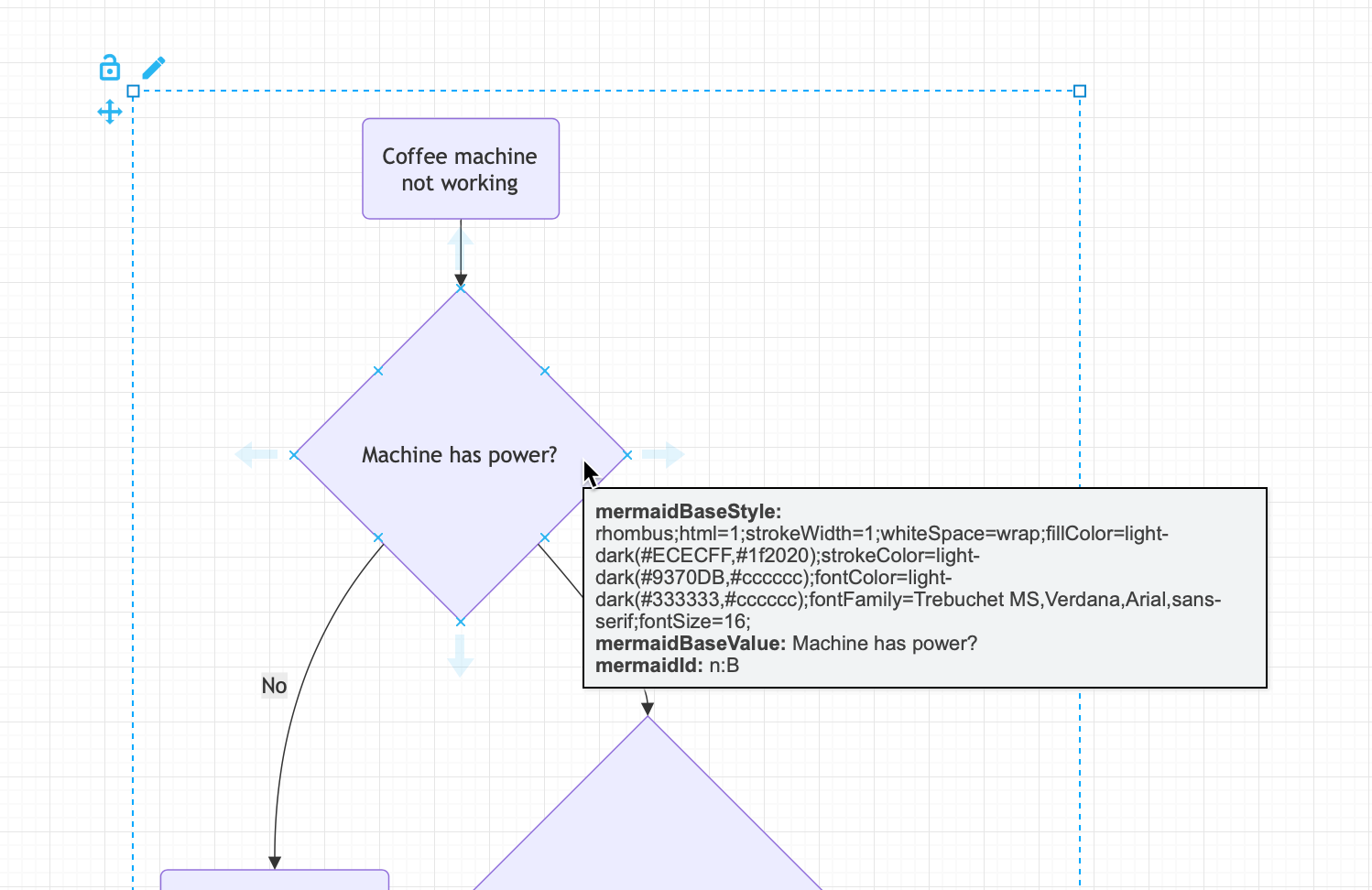
Now, you can style the shapes, connectors and text via the format panel. These styles and labels override any Mermaid style information, and will persist over edits to the Mermaid source.
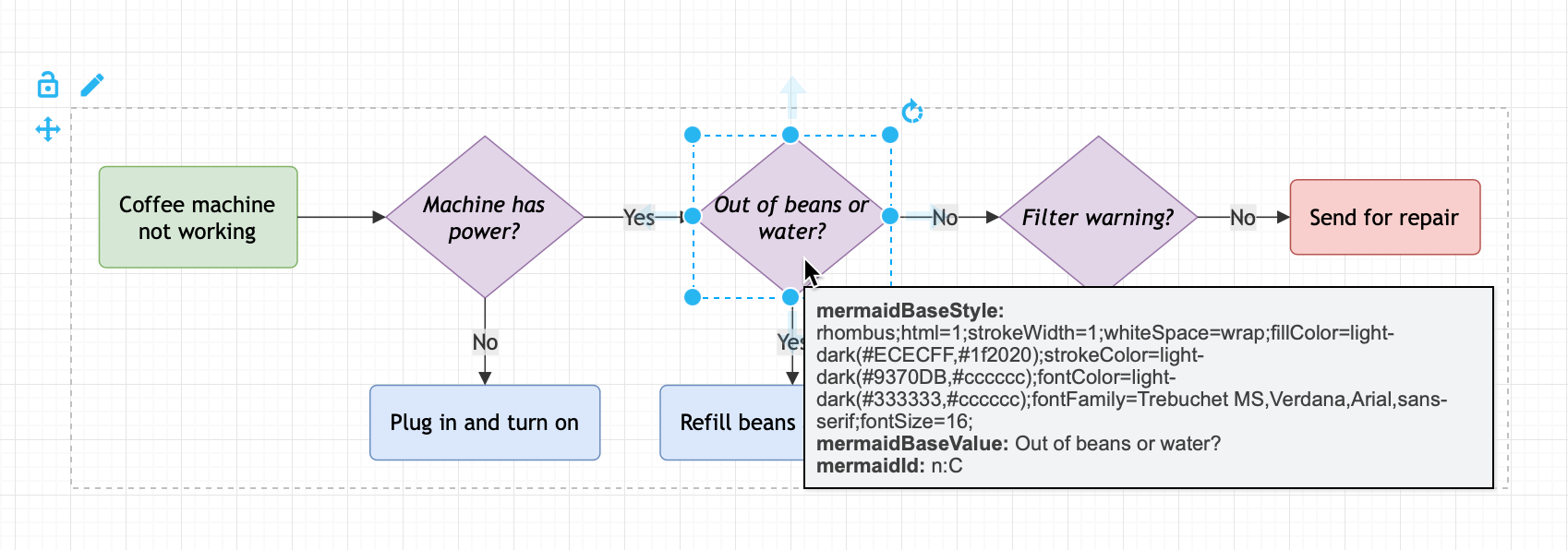
You can also resize and reposition shapes and repath connectors within the Mermaid container group. These changes will be overridden if you edit the source and regenerate the Mermaid diagram.
Mermaid options
The drop-down list at the bottom of the Mermaid dialog offers two options.
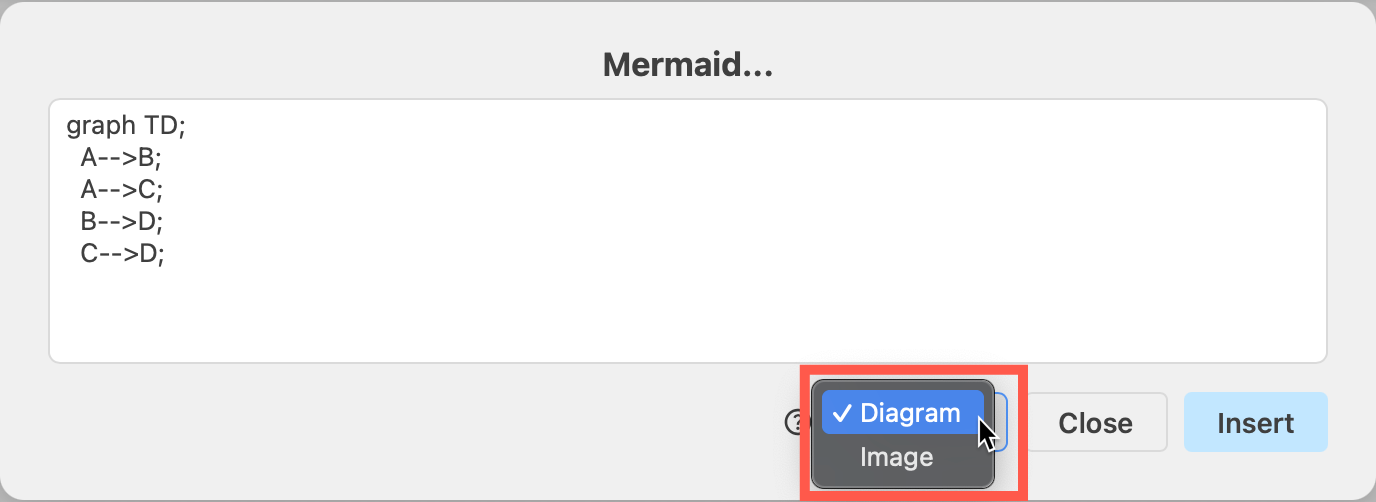
- The default Diagram converts the Mermaid source into draw.io shapes and connectors and places it as a Mermaid container group, described below.
- Select Image to generate the Mermaid diagram as a single non-editable SVG image.
Note: You can't change a Mermaid Diagram to an Image and vice versa after it has been inserted onto the drawing canvas. To do this, copy the Mermaid source and insert a new Mermaid diagram with the correct option.
See how to configure additional options in the Mermaid source or set a different layout engine (ELK).
Edit the Mermaid code in draw.io
The Mermaid source is stored in the Mermaid container group, so you can re-edit and regenerate the Mermaid diagram.
- Select the Mermaid container shape, then click the edit pen icon in the top right, or press
Enterto reopen the Mermaid dialog.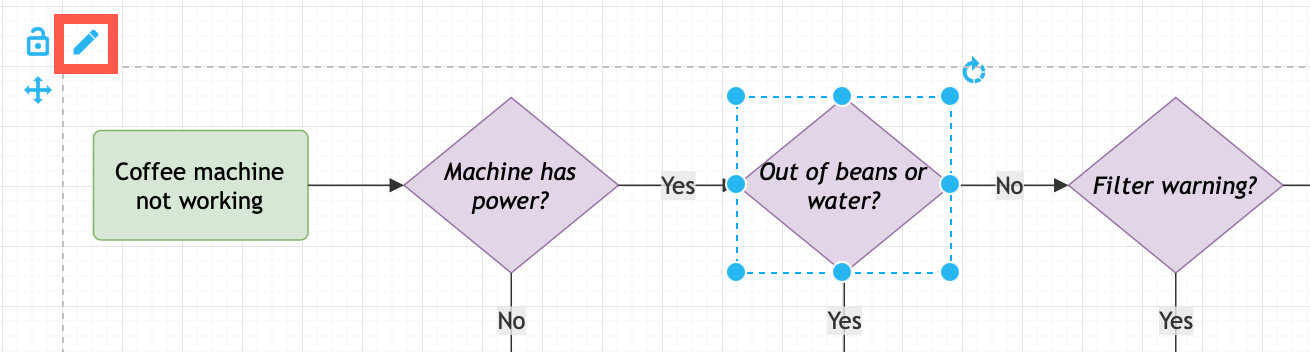
- Edit the Mermaid code, then click Apply to update the diagram on the drawing canvas.
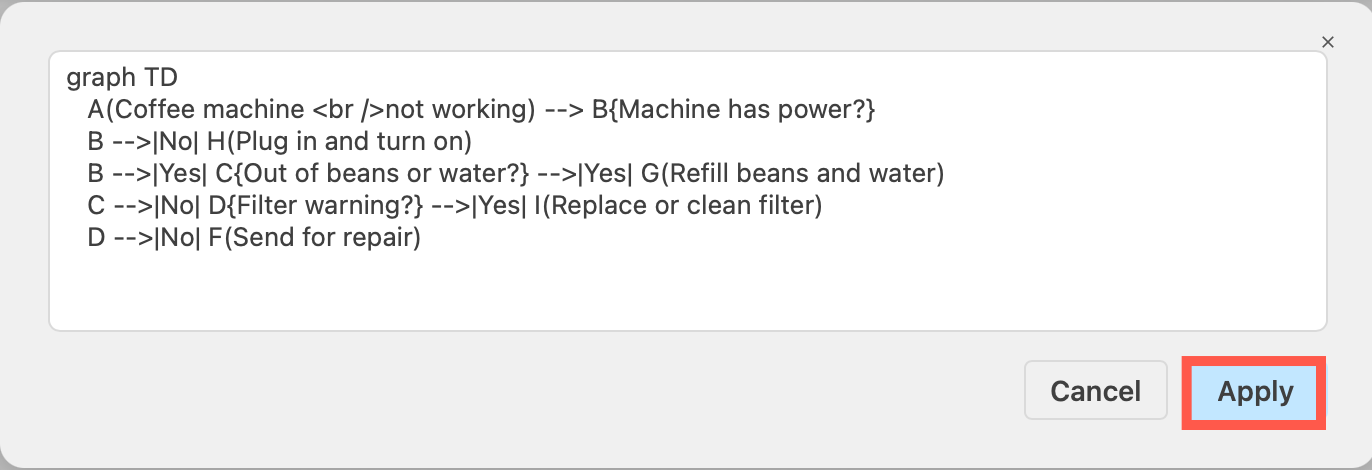
This re-generates and lays the diagram out again, then re-applies your styles and labels on top. Layout and geometry changes are discarded.
Kept — re-applied to each regenerated shape and connector, if it exists in the new source
- Style changes: fill and line colour and style, font colour and formatting, rounded corners, opacity, and so on. Both changes and removals override the Mermaid source.
- Labels: changes to shape and connector labels override the Mermaid source.
Discarded
- Geometry (position and size): the diagram is laid out again, so shapes repositioned or resized are reset.
- Connector paths and connection points: — these are recomputed by the layout.
- Additional shapes: and any edits to an element that no longer exists in the edited Mermaid source.
The Mermaid container group
To enable you to re-edit the Mermaid source, the generated Mermaid diagram is placed inside a special container group.
Apply styles: You can select the shapes, connectors and text inside this Mermaid container group and change their styles as you would other diagram elements.
Change layout: Select and drag to reposition the shapes or repath connectors inside the Mermaid container group. The group will be resized automatically to fit your new layout. The Mermaid container group will be automatically resized to fit your new layout.
Like grouped shapes, there is no fill or border. When you select a shape or connector inside the Mermaid container group three icons will appear in the top left.
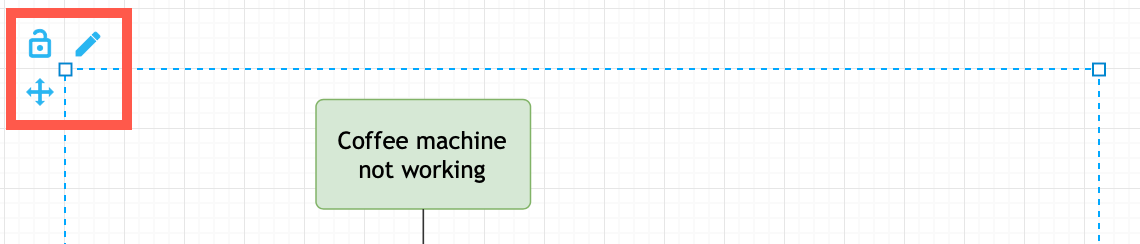
- Click the Move arrows and drag to move the Mermaid container group as a whole.
- Click the pen Edit icon to re-edit the text source and regenerate the Mermaid diagram.
- Click the Lock/Unlock icon to 'lock' or 'unlock' the Mermaid container group. When locked, clicking on a shape or connector inside the group will reopen the Mermaid dialog rather than select that shape or connector.
Convert a Mermaid container group to a draw.io diagram
- Right-click on the Mermaid container group and select Ungroup from the context menu.
This deletes the Mermaid source that is stored in the shape data of the Mermaid container group, but it may leave any Mermaid style or shape data that was applied to individual shapes and connectors.
Note: You will not be able to redit the (now deleted) Mermaid diagram source, but you can undo this change with Ctrl+Z/Cmd+Z or via the toolbar to recover the Mermaid source.
Legacy Mermaid diagrams in draw.io
Older draw.io diagram files that stored Mermaid output as a static image on double-click will be re-rendered as an SVG image using the updated layout engine and a neutral theme with spacing settings to maintain their original appearance. They won't be converted to a Mermaid container group.
Manually convert to a Mermaid container group: Copy the Mermaid source and re-insert it as a new Memaid diagram with the default Diagram selected.
Related
- See more examples of how Mermaid syntax is used to generate a variety of diagrams.
- Create a mindmap quickly easily from text using Mermaid.
- See the range of elements you can insert into your diagram via the Arrange > Insert menu.