How to use Dropbox with draw.io diagrams
Dropbox is a popular cloud platform for storing and sharing files. As Dropbox supports version histories, draw.io will automatically create a new version of your diagram file every time your diagram autosaves.
Note: Dropbox limits third-party apps like draw.io to only storing files below the app folder, which are not shareable (see below), which may limit collaboration. However, this platform is still useful when you need to diagram across multiple computers and use a single versioned diagram storage location.
Start diagramming in Dropbox now
- Go to our online editor and select Dropbox as your storage location.
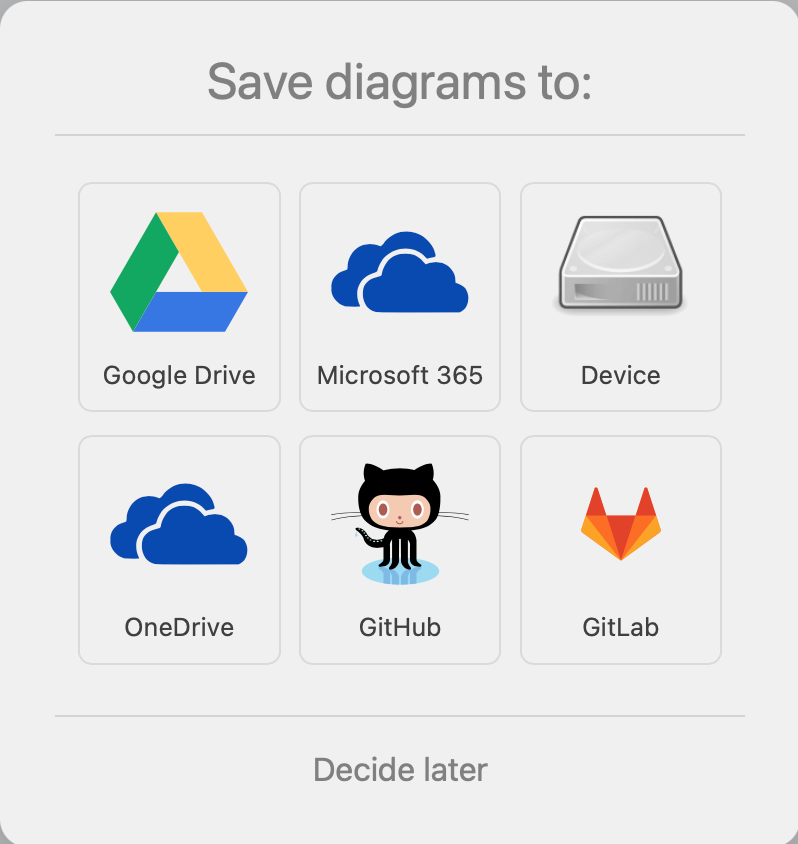
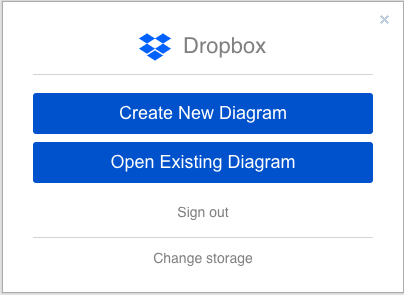
- Click Create New Diagram to start a new diagram and store it in your Dropbox account.
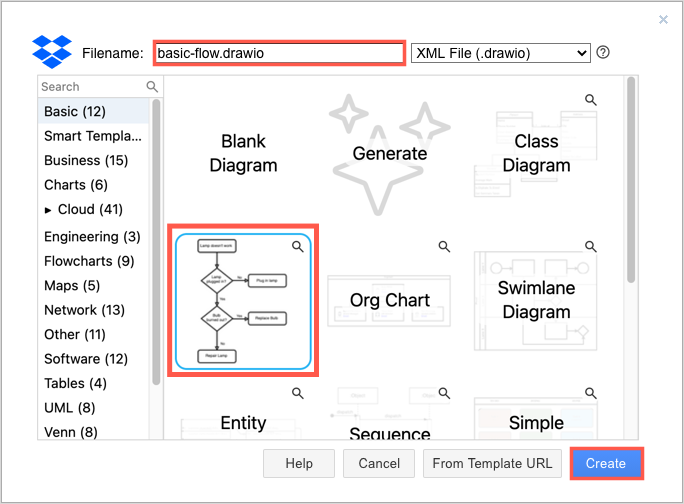
- Edit the diagram name, select a template if you want, then click Create.
- If you aren't logged into Dropbox, or if you haven't previously authorised draw.io to use Dropbox, follow the prompts to log in and grant permission.
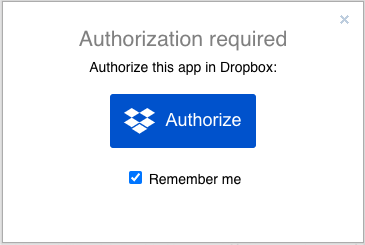
Authorise draw.io to use Dropbox
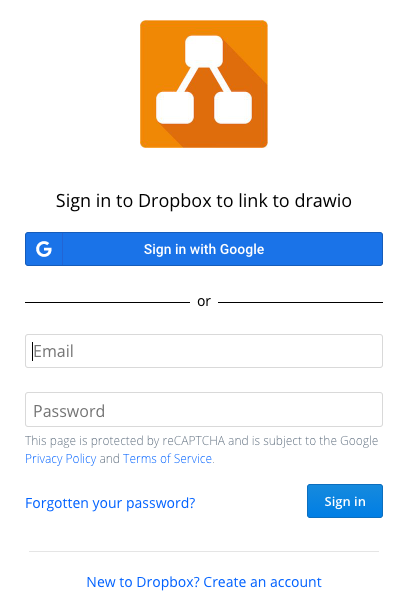
- Sign into your Dropbox account.
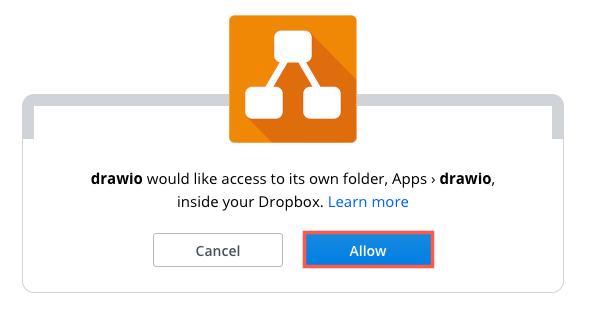
- Click Allow to create a folder for your diagrams under the app folder in your Dropbox, and allow draw.io to access and edit the diagram files stored in it.
Open a diagram from Dropbox
Make sure you have logged into your Dropbox account and authorised the draw.io editor to store and edit diagrams stored there.
- Go to our online editor and click Open Existing Diagram. If you are already in the diagram editor and using Dropbox to store your diagrams, select File > Open from the menu.
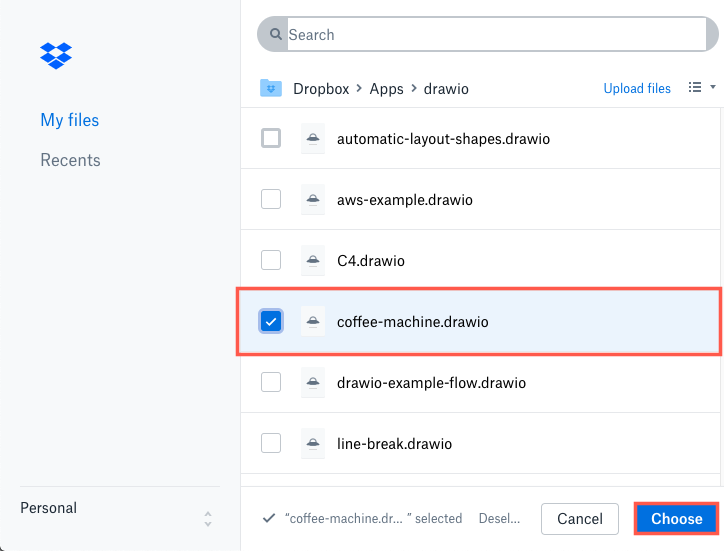
- Navigate to the diagram file in your Dropbox folders, select it, then click Choose to open it in the draw.io editor.
Note: If you have stored a diagram file outside of the app>drawio folder, draw.io will copy it on an automatic save. This is because Dropbox only allows draw.io to store data in this specific folder.
You don't need to manually save your diagram after you make changes to it - draw.io will save a new version of your diagram regularly while you are editing.
Use the diagram revision history
Dropbox and several other cloud platform providers support file version history. When draw.io auto-saves, a new version of your diagram is created.
- Open the diagram file that is stored in Dropbox in the draw.io editor.
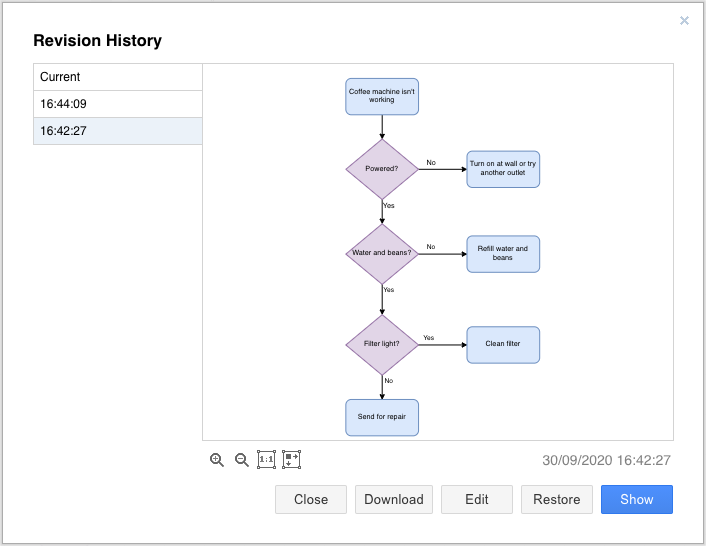
- Select File > Revision History from the menu.
- Preview the different versions of your diagram by clicking on the tabs on the left.
- Click Restore to restore an older version of your diagram.
Disconnect draw.io from Dropbox
If you no longer want to store or access your diagrams in Dropbox, you can revoke the authorisation.
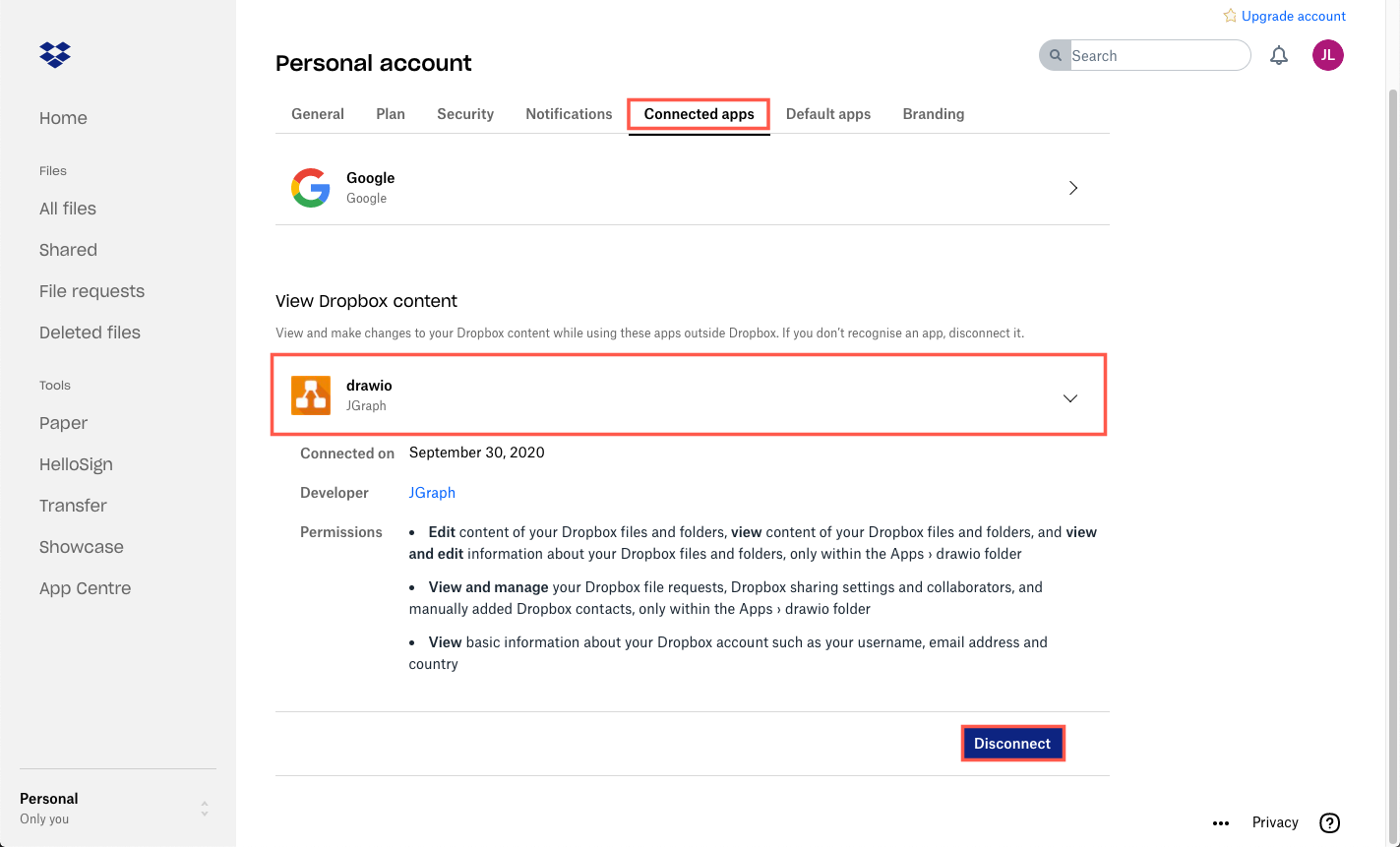
- In Dropbox, click on your profile, then on Settings.
- Click on the Connected apps tab, expand the draw.io entry, then click Disconnect. This does not delete your diagram files, it only revokes the permissions to use Dropbox with draw.io.
No sharing of diagrams
Dropbox limits apps to storing files below the app folder. The subfolders below the app folder are not shareable. Due to this limitation, sharing a diagram file via Dropbox is not currently possible.
Even if you move the draw.io app folder to a different shareable folder within Dropbox and open a diagram file, Dropbox will automatically move the diagram back into a subfolder under the app folder when you save the diagram.
This is a limitation of the Dropbox app folder architecture: they only allow apps to write to a specific folder and that folder cannot be shared.
At this time, only Google Drive implements file sharing in a reasonable way.