Use draw.io to store files in Microsoft OneDrive
Microsoft OneDrive is a popular cloud storage platform that supports additional draw.io features, including real-time collaboration with shared cursors and diagram file versioning.
Authorise access to files in Microsoft OneDrive
When you first choose OneDrive as the storage location for your diagrams, you must authorise draw.io to allow it to access files there. Follow the steps below.
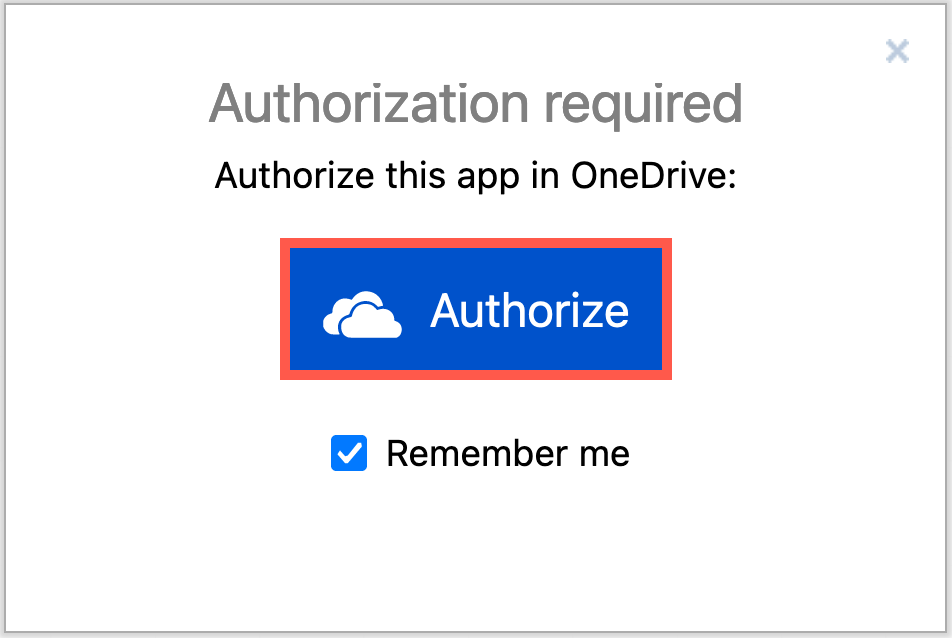
- Click Authorize to start the OneDrive authorisation process.
- If you haven't previously signed into OneDrive in this browser, sign into your account with your email address.
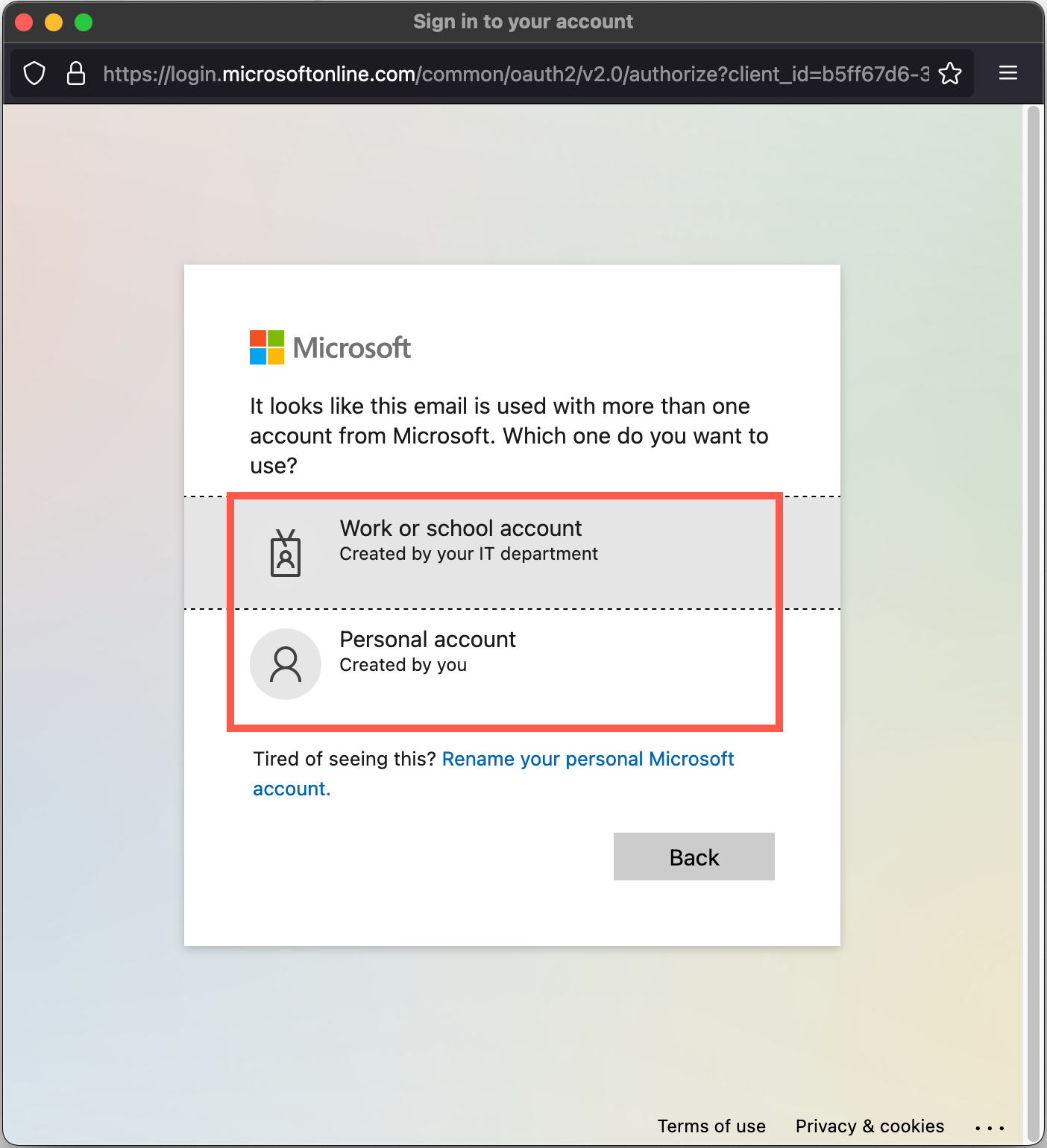
- If prompted, choose the type of account you are signing into (Work or school, or Personal).
- Enter your password and an authorisation code if prompted.
- Tip: Stay signed in so you won't have to log in again after a short time - click Yes.
- If prompted, choose the type of account you are signing into (Work or school, or Personal).
- To store your diagram files in the main (root) folder of your OneDrive account, click Yes. Otherwise, select No, pick folder.
- Navigate to the folder you want to use and click Save.
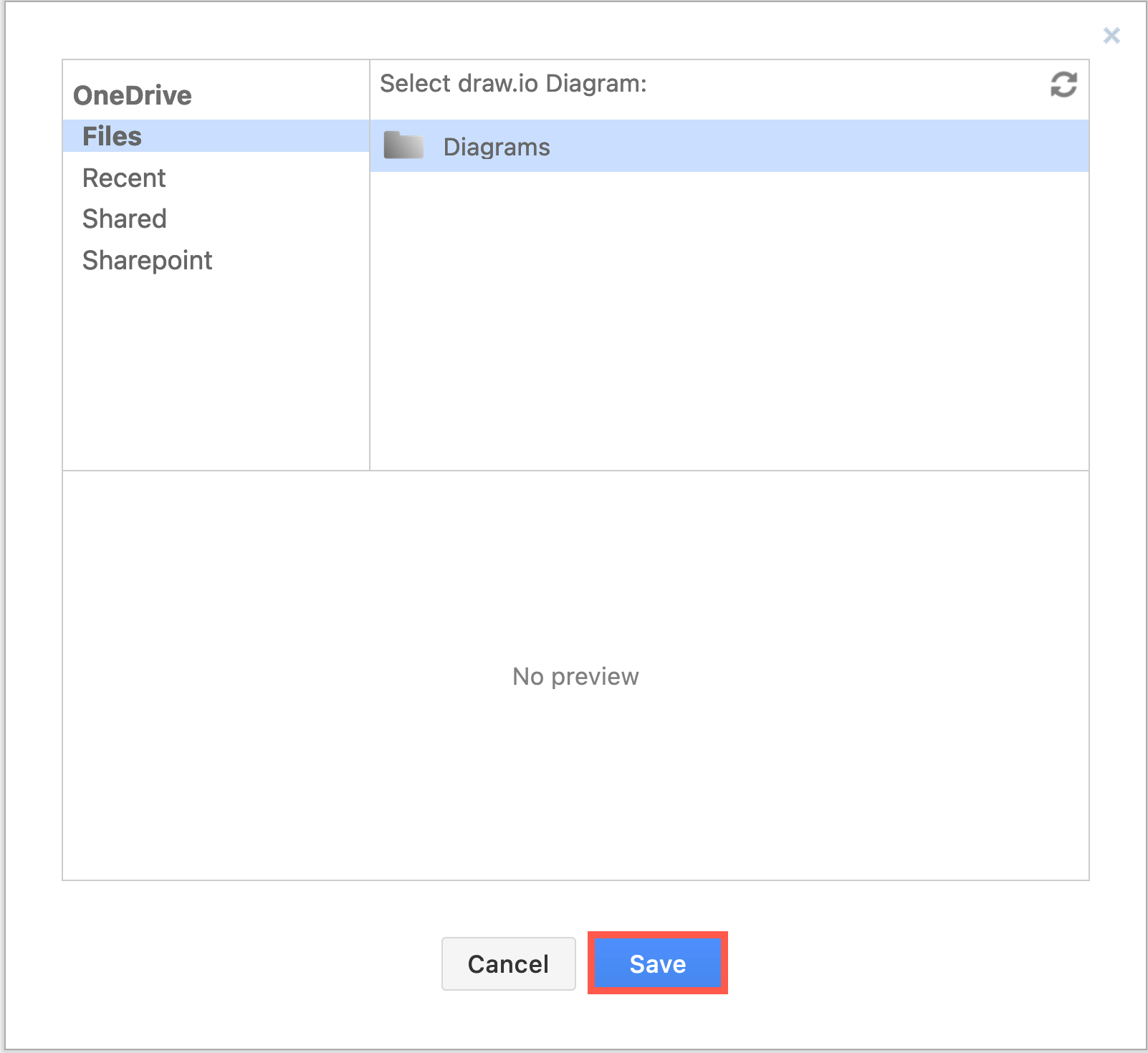
Now, your diagram files will be saved to the location you chose in your OneDrive account.
As draw.io remembers your selected location, to save a file elsewhere, choose Save as from the File menu in the editor and select a different location.
Microsoft OneDrive permissions
OneDrive provides one single level of access, which is to grant permission to draw.io to access all files in your OneDrive account.
Unfortunately, OneDrive does not provide the granular permissions that would let you share your diagrams with other users. Dropbox has the same problem. At this time, only Google Drive implements file sharing in a reasonable way.
To work around this limitation in One Drive, download the desktop version of draw.io and work on the synchronised local copy of your OneDrive files.
Revoke access to Microsoft OneDrive
Microsoft allows you to revoke an app's permission to access OneDrive. This works differently in personal and business accounts.
Personal OneDrive accounts
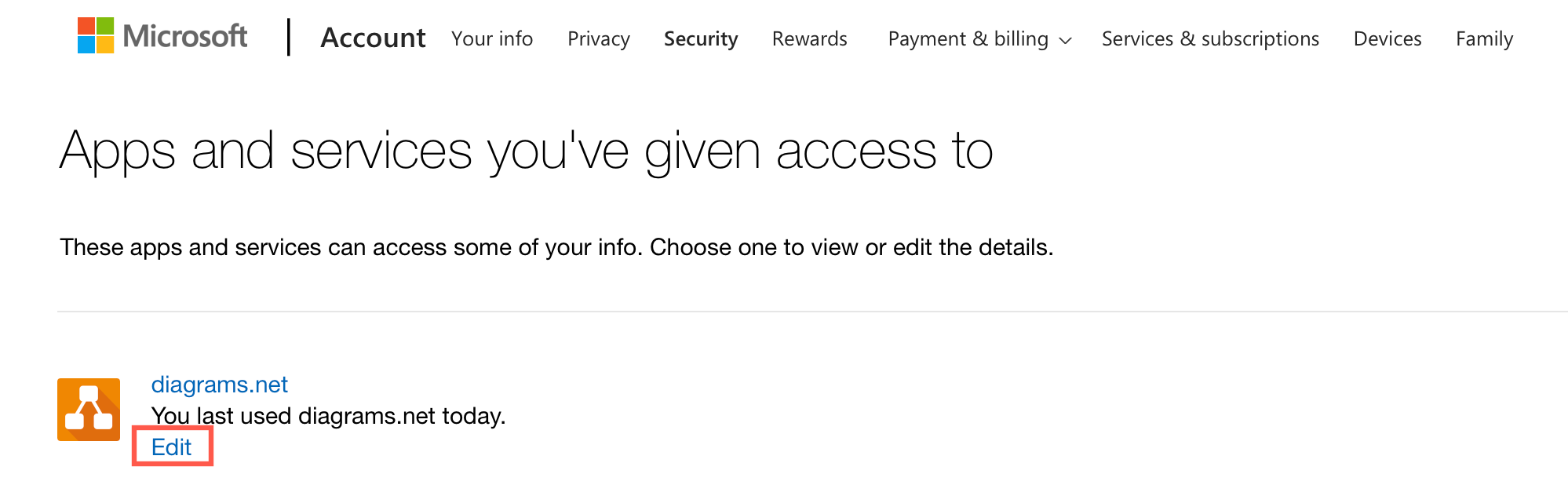
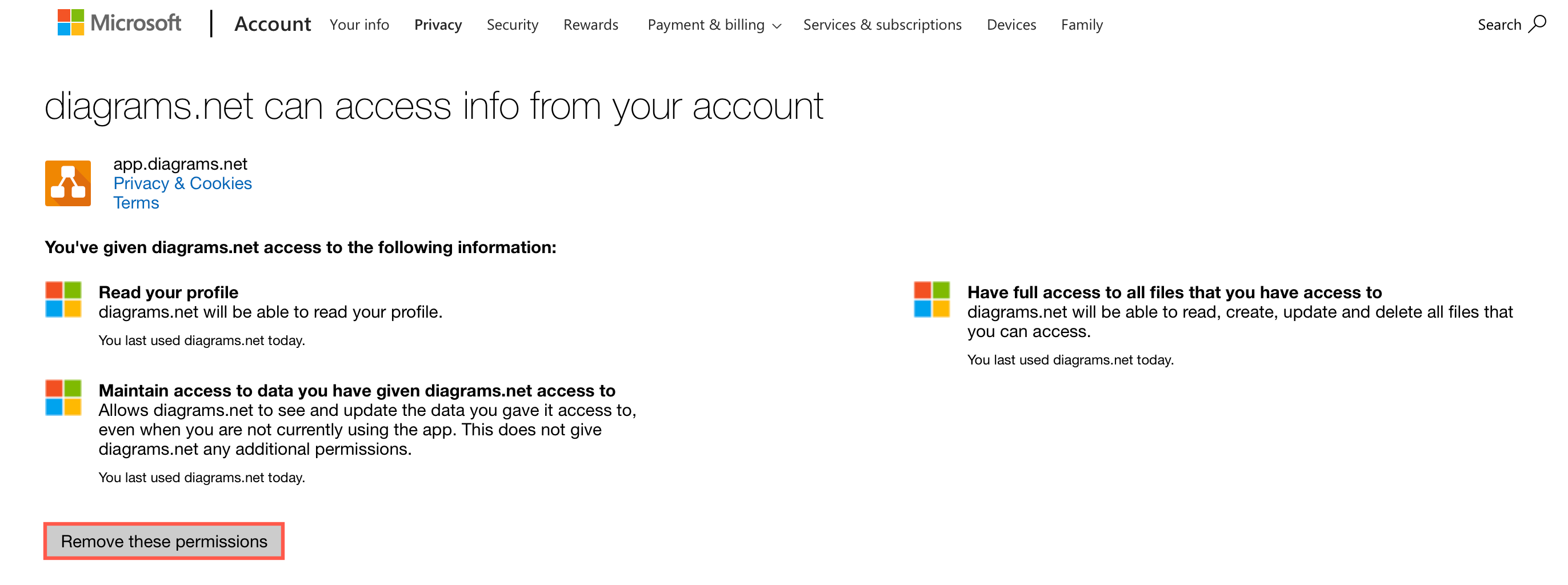
- Go to https://account.live.com/consent/Manage. This page lists the apps and services you've given access to.
- Click Edit under the draw.io app.
- To revoke access permissions, click Remove these permissions.
Business OneDrive Accounts
- Go to your OneDrive Account Settings: click on My Account > App Permissions > Revoke Permission.
- Revoke the access permissions from this page.