Clear draw.io cache to update
Updates, bug fixes and new features are added to draw.io, both in our online editor and for various platforms regularly. It is likely that your browser will use a cached older version of the application by default. To use the newest build, you need to clear any features or diagram editor components in your browser that have been cached.
If you are experiencing odd behaviour in the diagram editor, or with your embedded images or imported fonts, try clearing the cache as an initial troubleshooting step. This makes sure that all diagram editor features and components are up to date.
Check which version of draw.io you are using
- Click Help and note the number at the bottom of the menu.
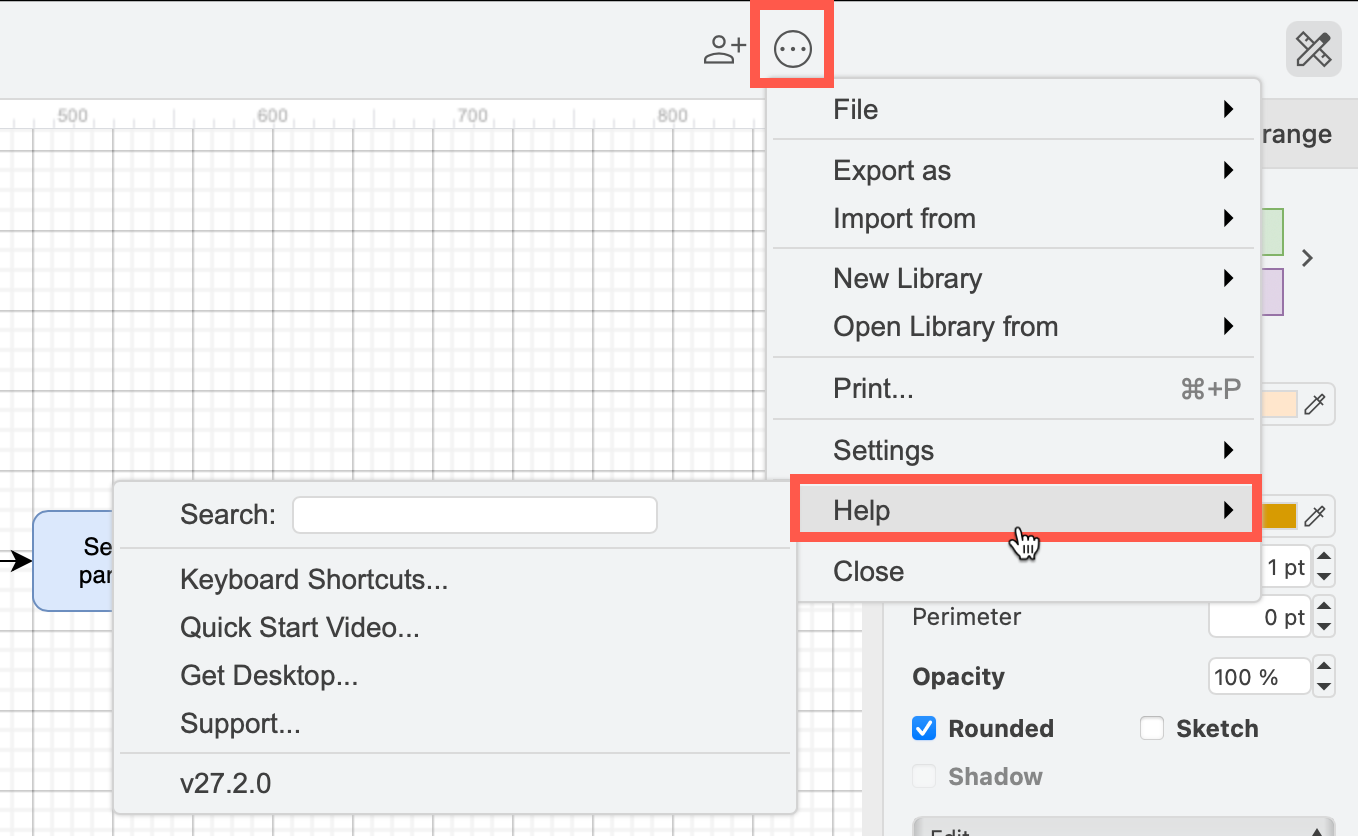
- You can compare this number to the most recent VERSION number in our
drawiorepository on GitHub.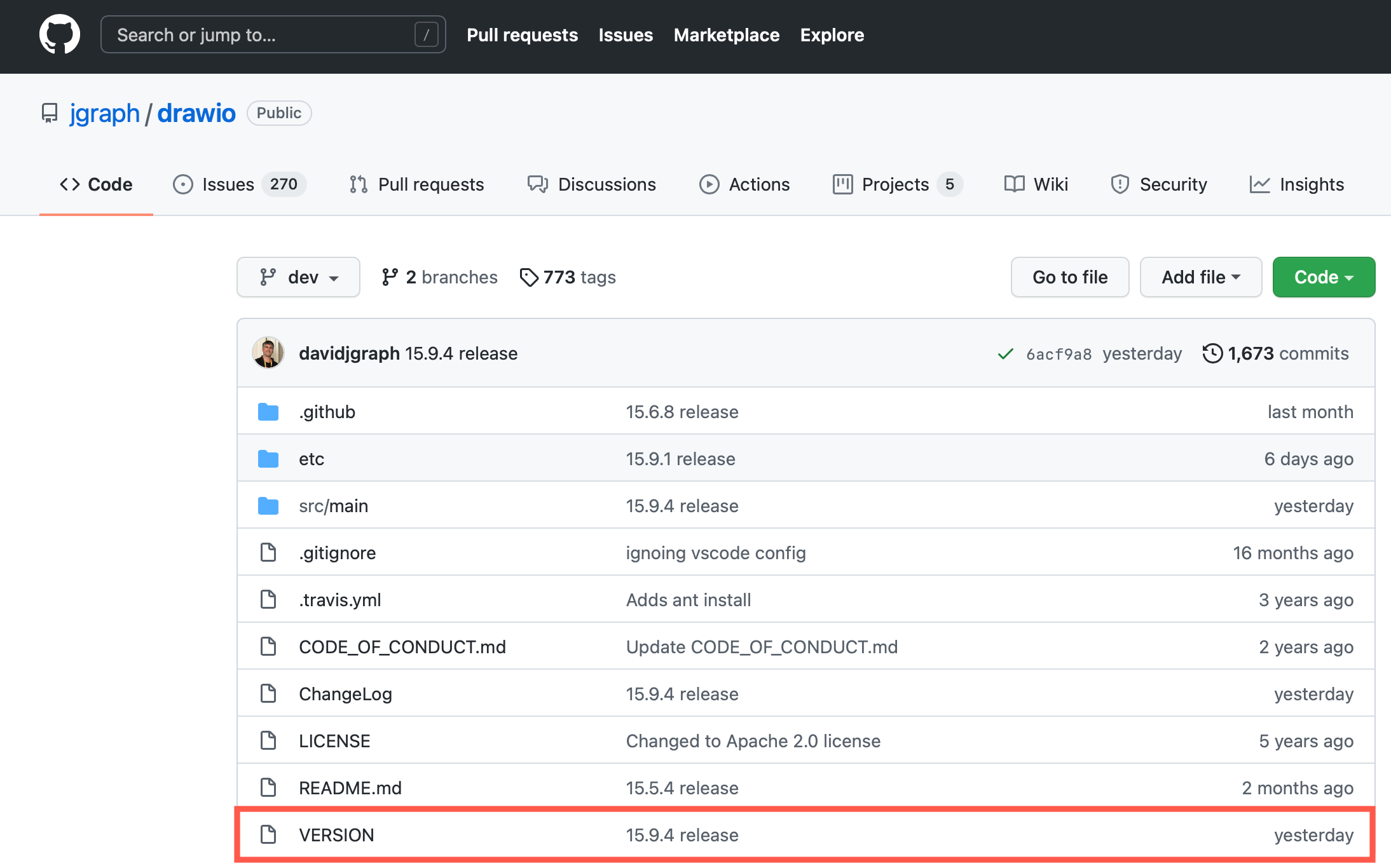
draw.io version in Confluence Cloud or Jira Cloud
Follow these instructions to find your draw.io app version and SEN in Confluence or Jira Cloud
Clear the draw.io cache
- Visit clear.diagrams.net to clear the cache of the online editor at app.diagrams.net.
- If you don't have app.diagrams.net open in another tab, click on Start App.
- If you do have a diagram open in app.diagrams.net in another browser tab, save your diagram first to not lose any data, then refresh that tab.
Once the diagram editor has been refreshed, you will see the most recent release.
Update draw.io in Confluence Cloud and Jira Cloud
draw.io checks for a new release each time you open a Confluence page or Jira issue with a draw.io diagram. Your browser downloads the new release in the background and uses it the next time you load the page.
- If you are editing a diagram, save it and close the draw.io editor.
- Open a Confluence page or a Jira issue that contains a draw.io diagram.
- Wait a minute, then refresh the page in your browser.
The page will now use the most recent release of draw.io.
Delete the draw.io data in Google Chrome
If you still see an older version, delete the data that Google Chrome stores for draw.io in Confluence and Jira.
Note: This deletes everything that draw.io saved in your browser for Confluence or Jira:
- custom shape libraries that you saved to your browser
- the Scratchpad
- your personal default styles and other draw.io settings
- the cached progress of an interrupted PageID import
You can't get this data back. Before you delete it, export your custom shape libraries and the Scratchpad to your device, and finish an interrupted PageID import.
- Select Settings > Privacy and security > Site settings in Chrome.
- Click on View permissions and data stored across sites.
- Type
atlassian.netinto Filter sites on page. - Click on the arrow next to atlassian.net to show its entries.
- Click on the delete icon next to
ac.draw.iofor Confluence oraj.draw.iofor Jira. These entries are marked Partitioned. Don't delete atlassian.net itself, as this signs you out of Confluence and Jira. - Click on Delete to confirm.
- Refresh the Confluence page or Jira issue.
draw.io will be loaded again, and you will see the most recent release.
In other browsers, see the help of your browser for how to delete the data of a site.
Update draw.io Desktop
To update draw.io Desktop, in the menu, select Help > Check for Updates and follow the prompts.
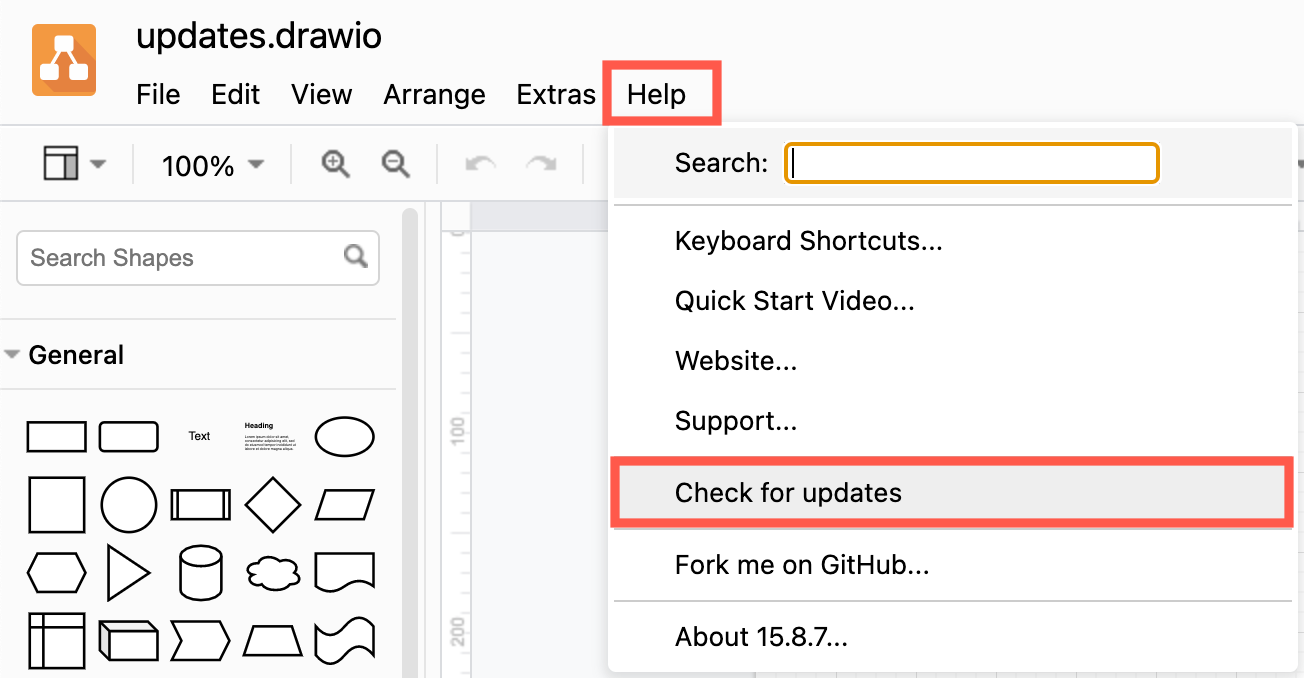
Alternatively, visit download and install the latest version of our desktop app.
Learn more about using the standalone desktop version of draw.io
Related
View the draw.io release notes on GitHub to see a list of the updates and bugfixes that have gone into each release.