Add numbers to shapes automatically with the number plugin
Important: The Enumerate shape property allows you to add a numbered label to selected shapes and connectors. It can not be applied by default to any new shape added to the drawing canvas.
The Enumerate shape property gives you control over what parts of your diagram are numbered, and can be customised to work on shapes and connectors inside container shapes or table cells, unlike the number plugin described below.
Learn how to use the Enumerate shape property
Use the number plugin instead
This plugin should be used as-is, as an unsupported example for developers.
Add automatic numbering to the shapes in your diagram with the number plugin. It will number each shape as they are added to your diagram.
You can change the order by bring shapes to forwards or backwards in the Arrange tab of the format pannel - the numbering is based on their z-order (depth) in the diagram.
Note: This does not work on container shapes and table shapes because they are compound shapes - the number plugin will number each part. Use the Enumerate shape property instead.
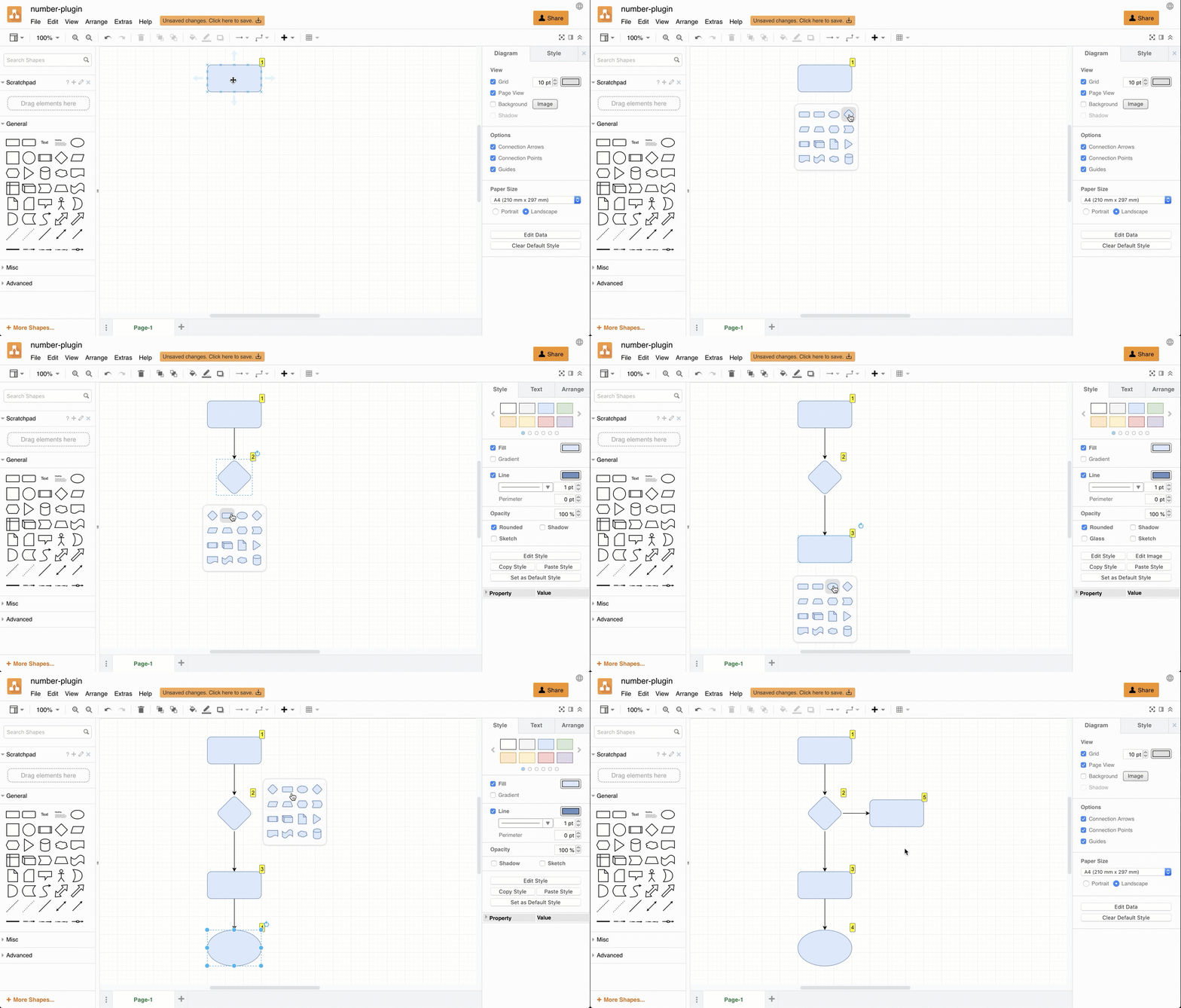
Open this diagram in the viewer
More information about draw.io plugins
Load the number plugin
To create a new diagram in our online editor with the plugin already loaded, go to https://app.diagrams.net/?splash=0&p=number
Show or hide the numbering in your diagram
Click View > Number to show or hide the numbering in your diagram.
Share a diagram using the properties plugin
By default, diagrams published to URLs do not load plugins.
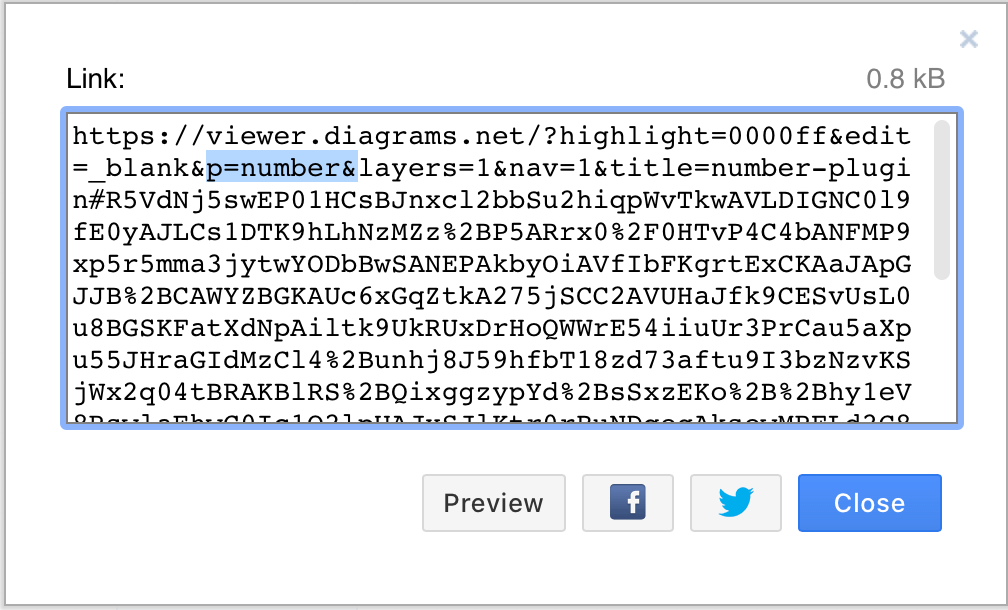
To allow someone to see your diagram with its numbers on shapes, when you publish a diagram to a URL (File > Publish Link), add the &p=number URL parameter to the link before you share it (as highlighted in blue in the screenshot below).
Permanently load the plugin
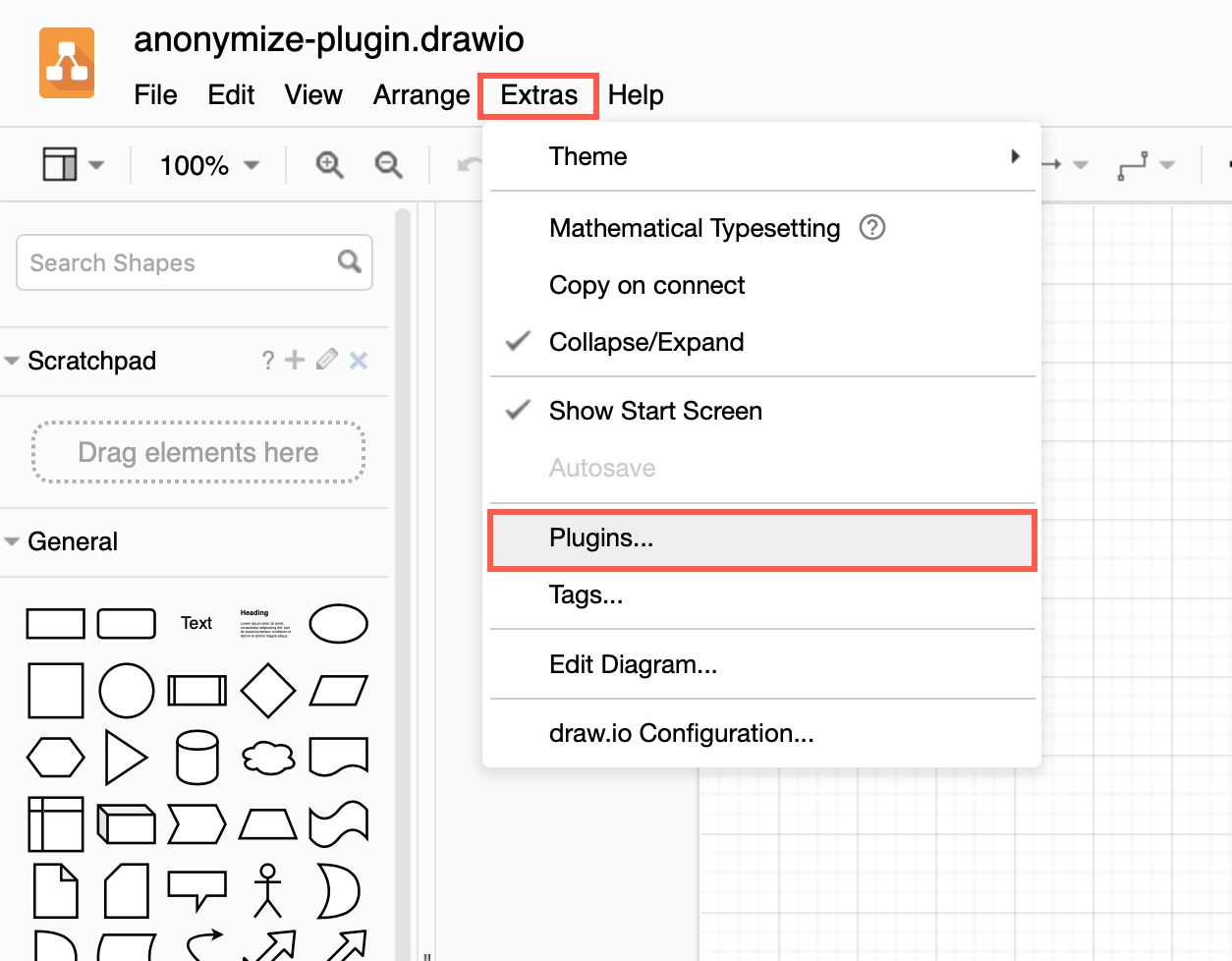
You can add the plugin to the plugins list via Extras > Plugins in Classic or Atlas editor themes, or Settings > Plugins in other editor themes, to load it each time you create or edit a diagram. Reload the browser tab after you have added or deleted a plugin.
Plugins not supported in draw.io Desktop or integrations
Plugins work with the web version of draw.io (app.diagrams.net) or our Docker image if you want to run your own server. They do not work with draw.io for Confluence/Jira or with draw.io Desktop.