Shortcuts for table shapes
Resize rows and columns
Hold down Shift as you drag a cell border to move the border of that row or column. Without Shift, moving the border will add space to the column and extend the table.
Hold down Ctrl or Cmd as you drag a cell border to add the same amount of space to rows or all columns to the same size and extend the table.
Hold down Shift+Ctrl or Shift+Cmd to distribute all rows or columns in the table to be of equal size. This does not extend the size of the table.
Note: When resizing container table rows and columns, the shapes inside the cell are not moved or resized to fit. You may need to move and resize these shapes separately.
Move a row or column
Select then drag a row or a column to a new position inside the table.
Duplicate a row (add a new row)
Select a row or cell and press Enter to quickly duplicate the row directly beneath the current row. This will duplicate all of the shapes inside a container table, as well as any connectors that do not cross the row boundary.
Note: This can cause row-crossing connectors to 'jump' over the newly added row, as below. You will need to fix these manually.
Select a row or column, and hold down Ctrl or Cmd as you drag a copy to another position in the table or in another table shape.
Duplicate the entire table
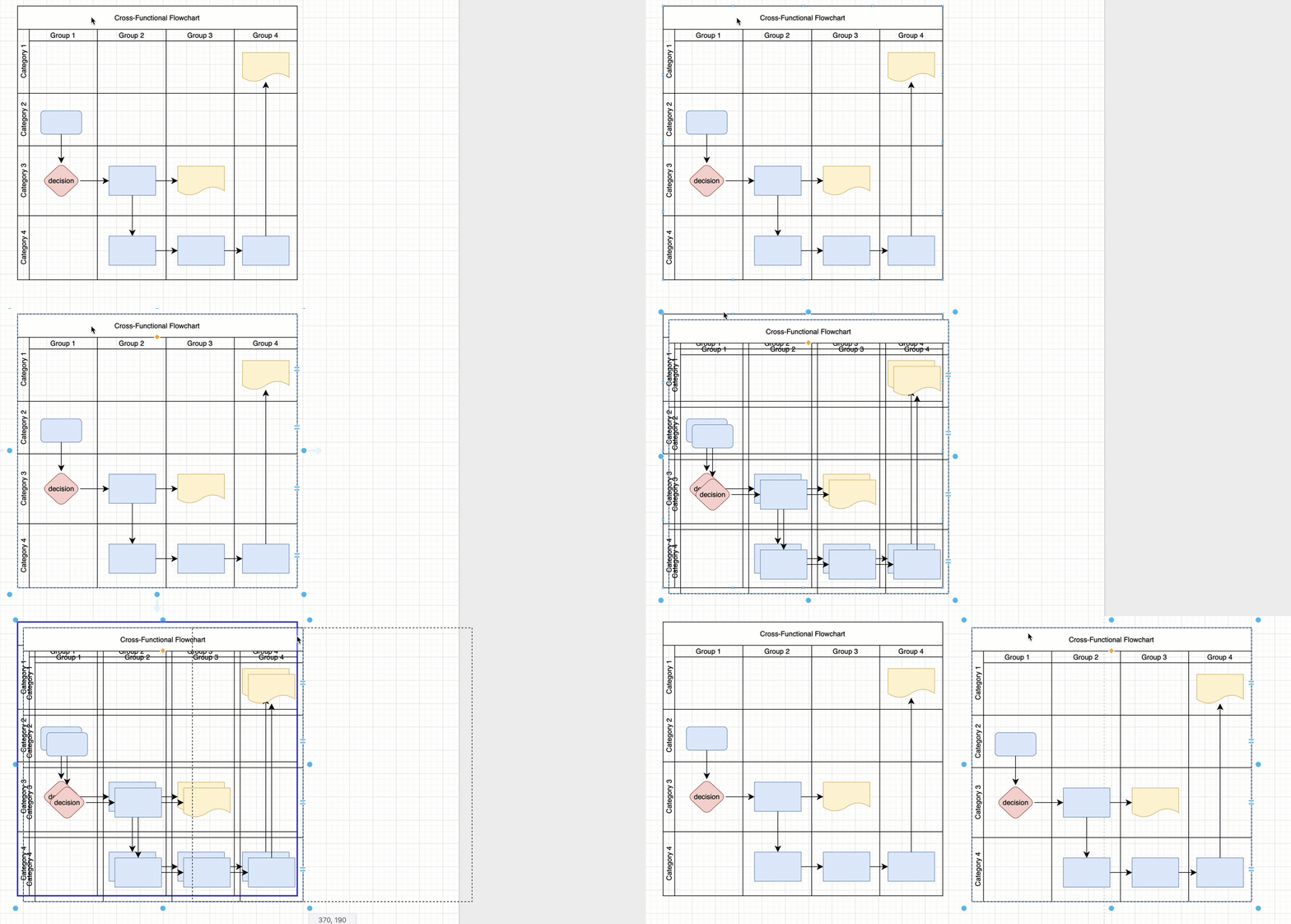
Select the table, hold down Ctrl and press Enter to duplicate the entire table. This will duplicate all contained shapes and connectors if it is a container table.
Delete a row or column
Select a row or column and press Delete on the keyboard to delete it.
Overlay shapes on tables
As table shapes can be containers, you can overlap a shape on a cell without adding it to the cell by holding down Alt on Windows or Option key on MacOS as you drag and drop the shape.
Related
- See how to work with table shapes in draw.io.
- Merge and unmerge adjacent table cells, including container table cells.