Create an interactive diagram with layers and custom links
Complex diagrams can be made a lot easier to read and understand when you split them up into logical smaller diagrams on multiple pages, or by using a number of layers, as in this tutorial.
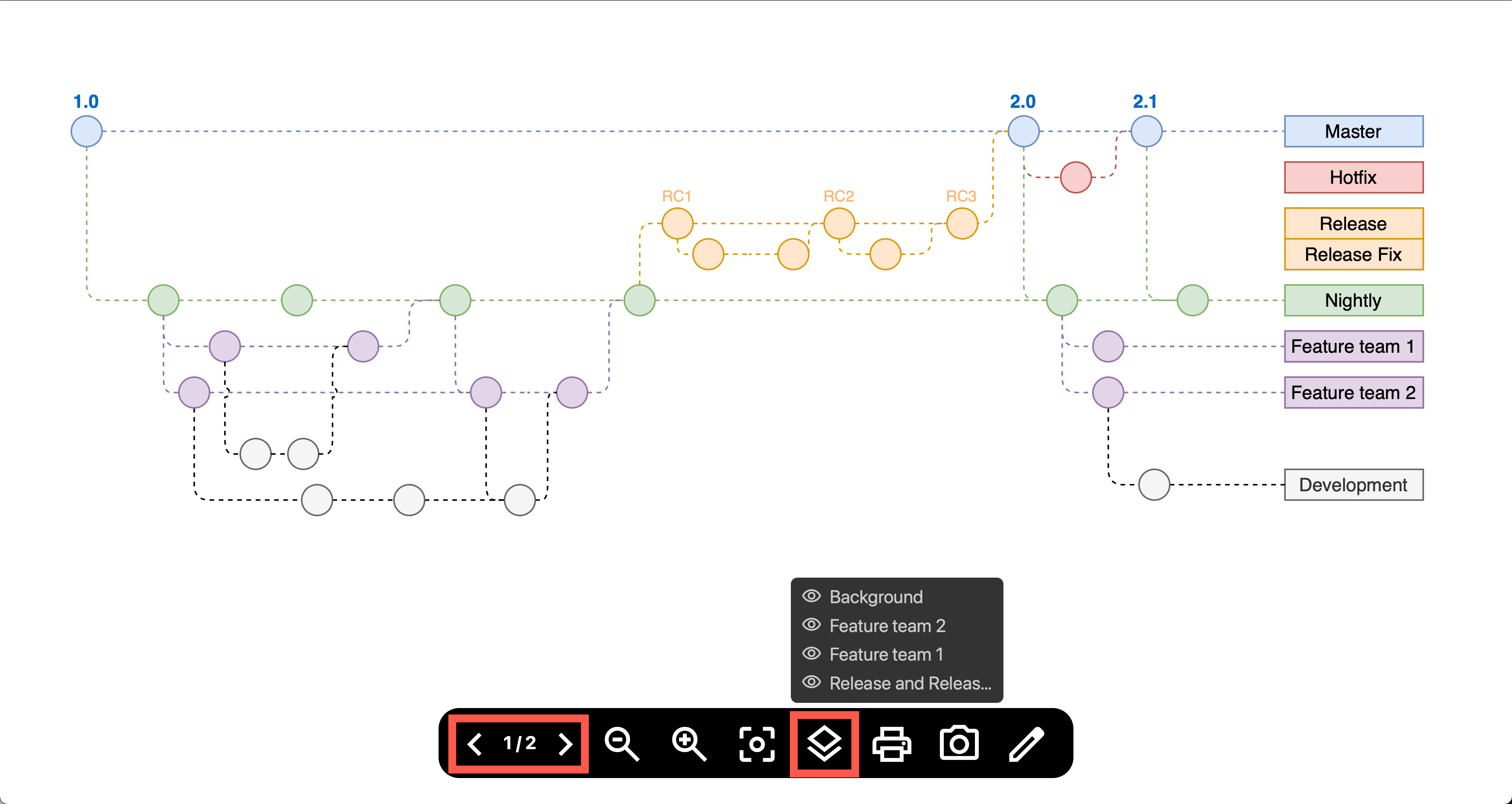
To learn more about any complex diagram, you can toggle the display of layers on and off, and step to another diagram page using the toolbar at the bottom of the diagram viewer. If you are in the draw.io editor, you can do the same via the layers dialog and page tabs at the bottom of the drawing canvas.
To take this one step further, you can make your diagram itself interactive by adding custom links to the shapes and text within the diagram. The linked shapes in the diagram will act as intuitive toggle switches and links to other diagram pages - you don't have to use the toolbar or layers dialog to interact with your diagram.
Diagrams that can benefit from adding interactive layers within the diagram itself include network or infrastructure diagrams, floor plans and gitflow diagrams.
Learn more about using layers in draw.io
Use custom links to add interactivity
Custom links are small pieces of JSON code containing the shape or layer IDs of the diagram elements you want to make interactive.
You can open a web URL or custom link, toggle elements on or off, show, hide, or highlight diagram elements, select elements, scroll to a specific element in the diagram, or set a viewbox with a custom link.
For example, the following JSON action in a custom link toggles the display of a layer - it hides it if it is visible, or displays it if it is hidden.
data:action/json,{"actions":[{"toggle":{"cells":["YwLYfkWT0Qeqm7Gh2uLp-177"]}}]}
An example interactive gitflow diagram
In the example below, interactive layer toggle switches will be added to the gitflow diagram to let you click on the following labels and display or hide their branches that will be placed on different layers.
- Release and Release Fix
- Feature team 1 and their development branches
- Feature team 2 and their development branches
The Master, Nightly, and Hotfix branches, and the Development label are always displayed, and therefore placed on the background layer.
Open the interactive gitflow example in our online diagram viewer
Set up shapes to use as toggle switches
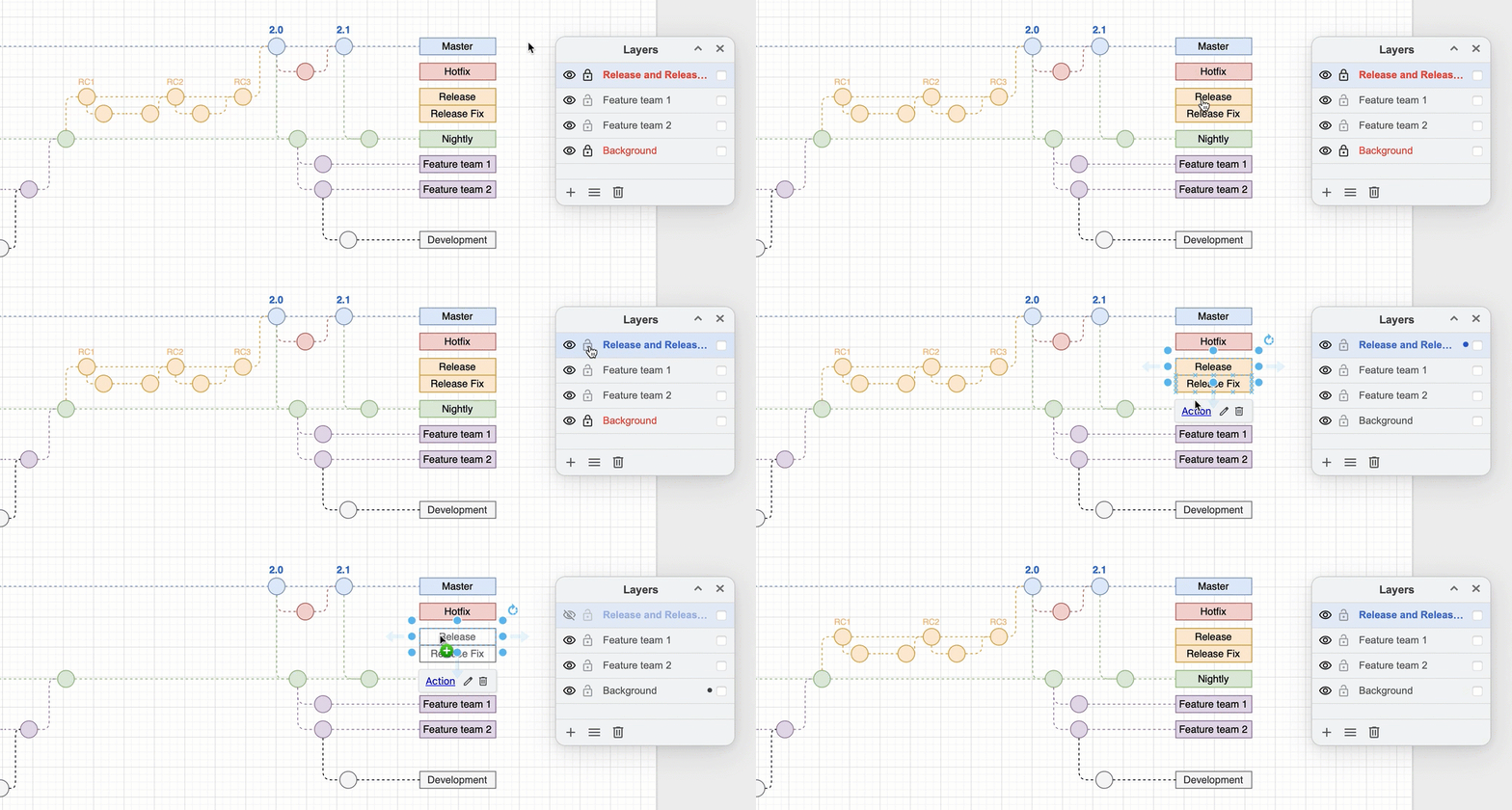
When you click on a shape that is used as a toggle and it exists on the layer or in the group that you want to hide, you won't be able to click on it again. You need to add another shape on a different layer to be able to toggle the first layer and shape back on.
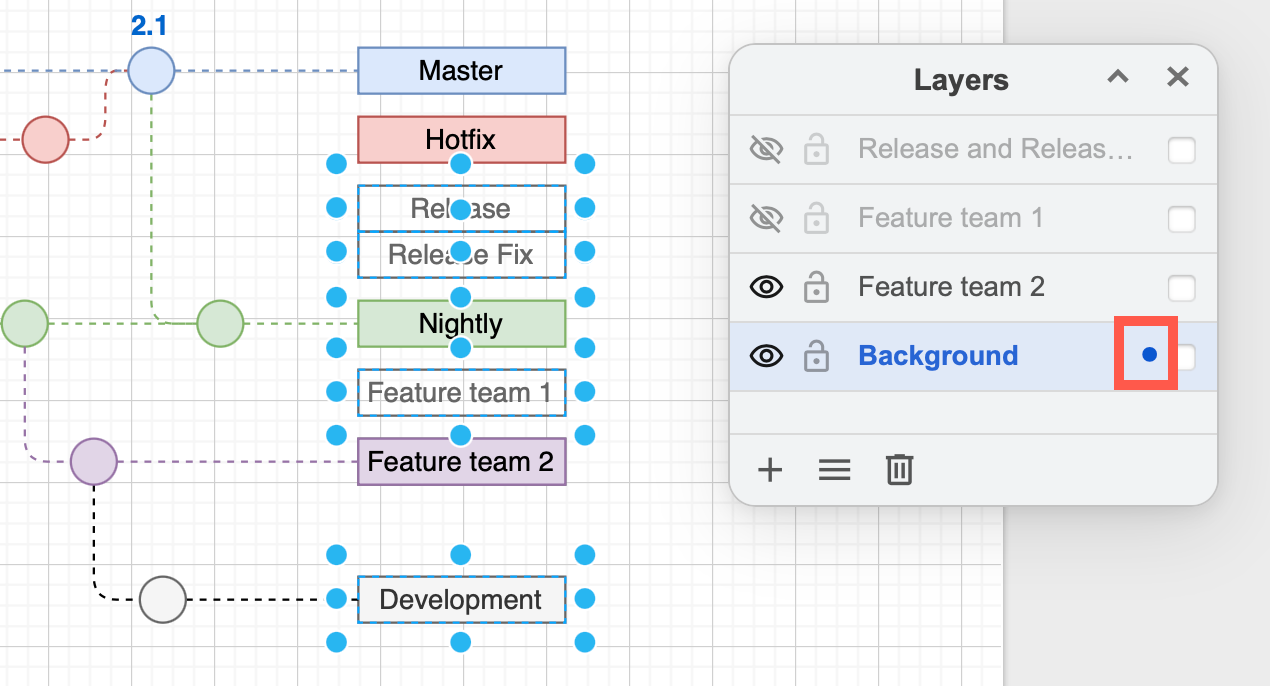
- Make a copy of the shapes you want to use as toggles, and paste them onto the Background layer.
- Position them directly under the original shapes on the other layers so that when you click, these diagram elements don't appear to move position.
Copy the layer ID
- Select View > Layers or press
Ctrl+Shift+L/Cmd+Shift+Lto display the Layers dialog if you don't see it. - Select a layer, then in the Layers dialog menu (three horizontal bars), select Current Layer > Edit Data.
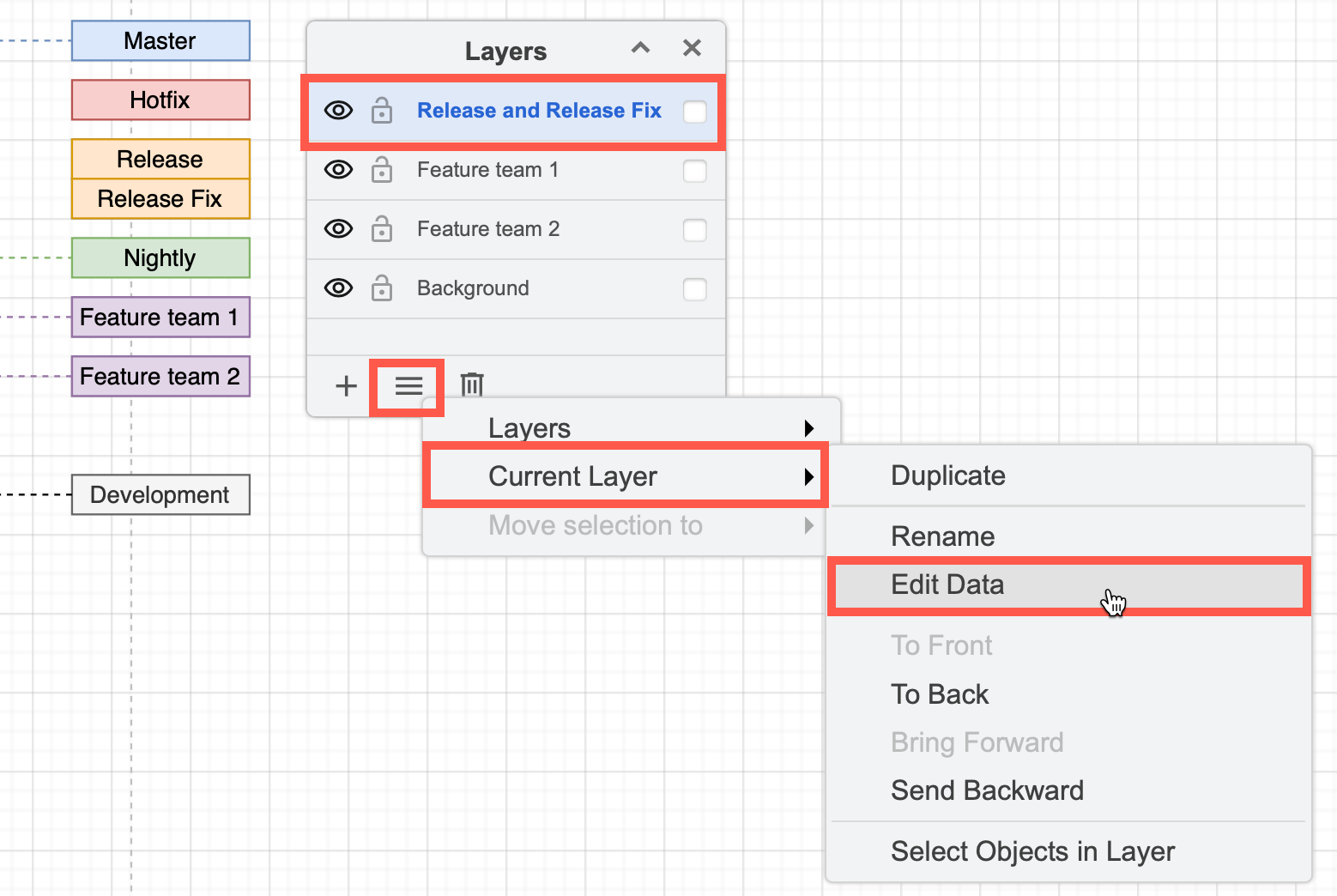
- Copy the layer ID - the long string of numbers and letters.
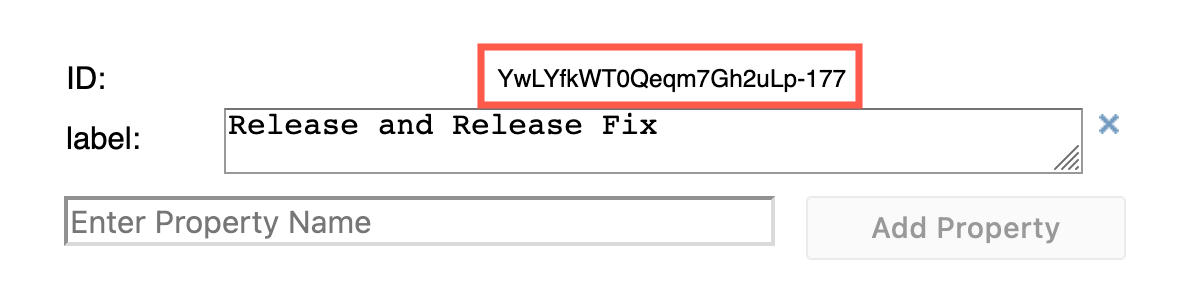
Tip: If you want to toggle a single shape instead of an entire layer, press Ctrl+M or Cmd+M to edit the shape's metadata, then copy its ID (a short number).
Build the custom link
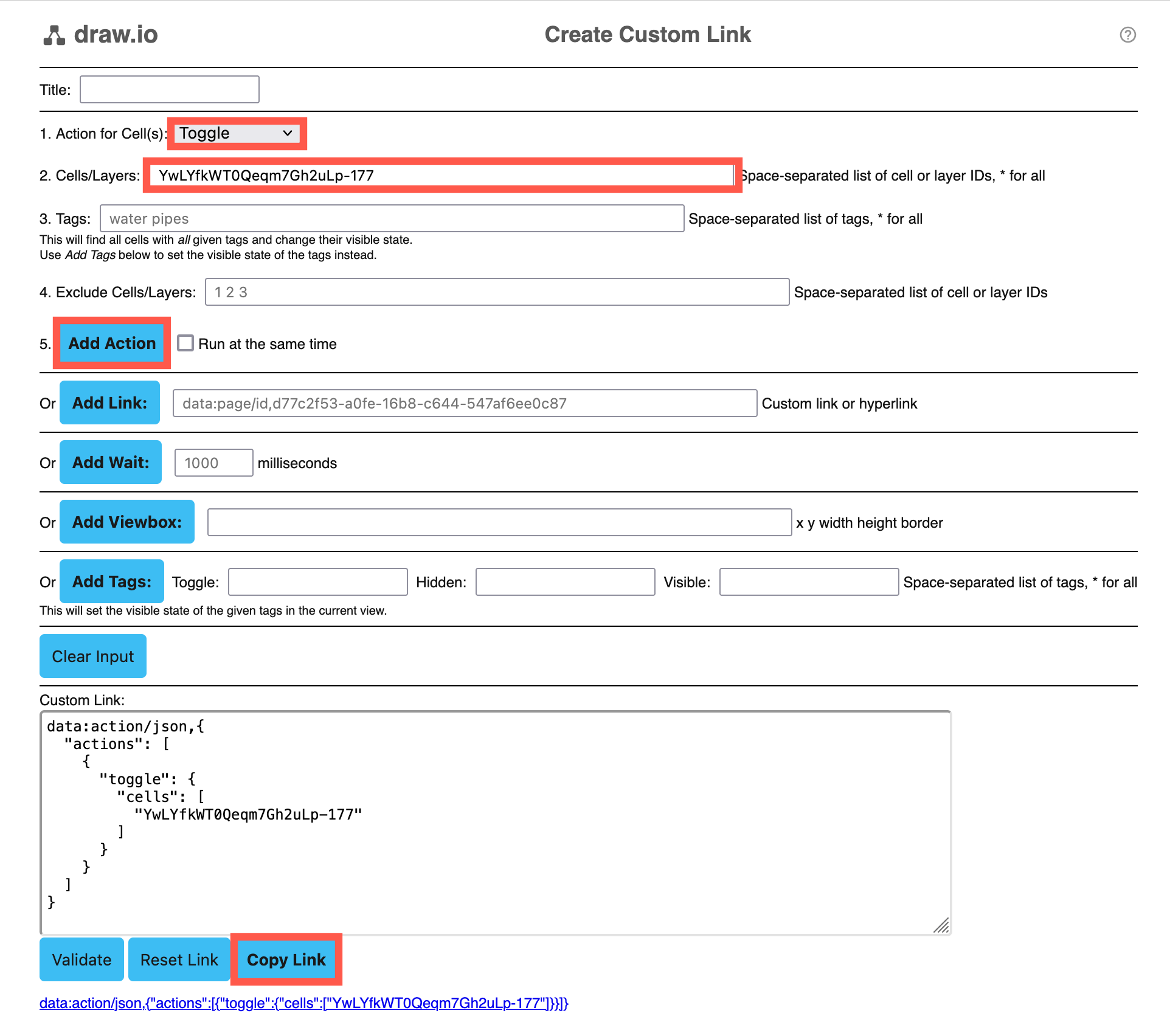
- Go to the draw.io utility tools page.
- Paste the layer ID into the Cells/Layers text field. You can toggle more than one layer or shape in a custom link - add all of their shape/layer IDs separated by a space.
- Click on 5. Add Action to generate the Custom Link in the larger text field below.
- Click on Copy Link to copy the Custom Link.
Add the custom link to the shape
- Back in the draw.io editor, right-click on the shape in your diagram, then select Edit Link, or select the shape and use the keyboard shortcut
Alt+Shift+L.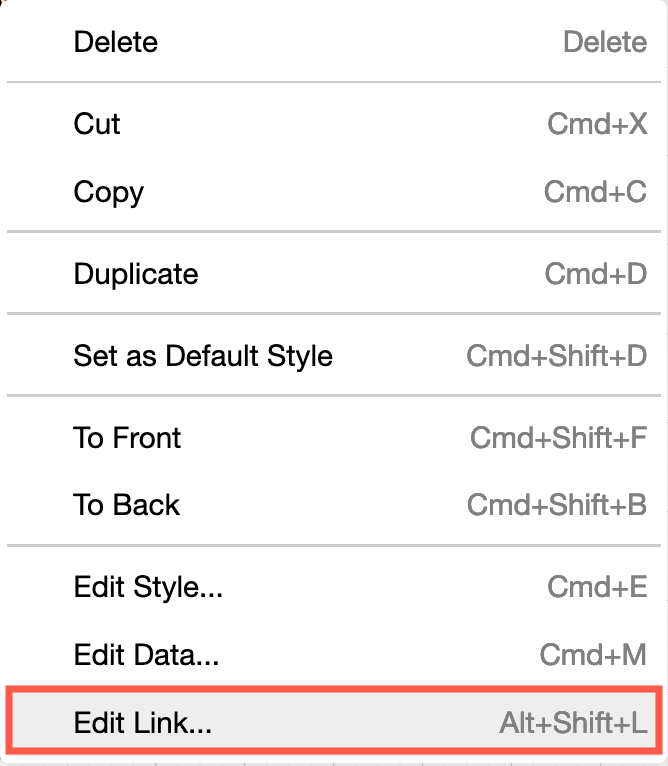
- Enter the custom link in the first text field, then click Apply.
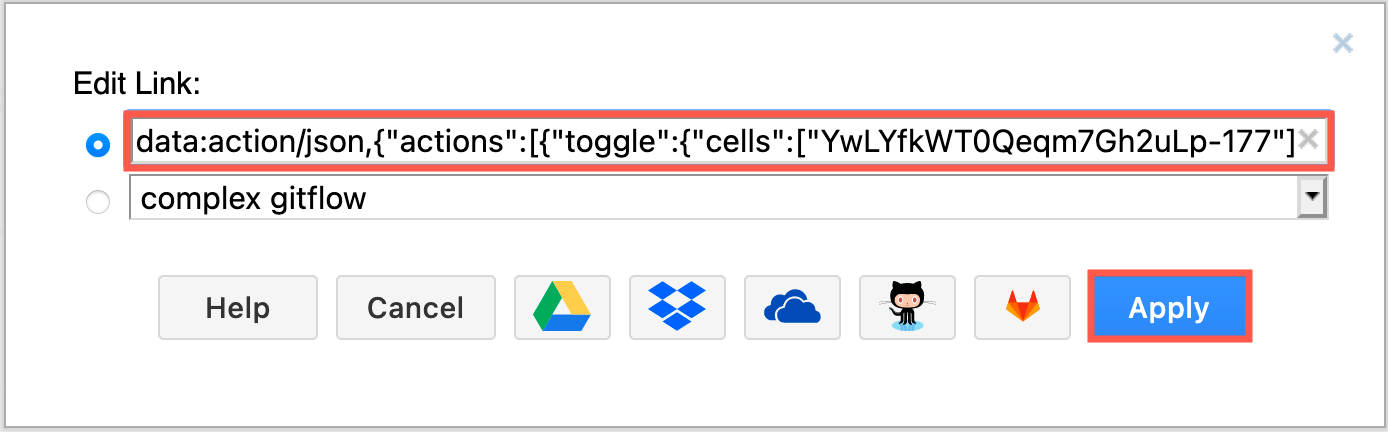
- Make sure you add the same link to the matching shape on the Background layer so you can toggle the layer and its shapes back on again.
Interact with your diagram
When you view the diagram in the editor, you can interact with your diagram in three ways:
- Click on the checkbox in the the Layers dialog.
- If the layer you toggle is locked, click directly on the shape in the same way as if you are interacting with the diagram in the viewer.
- If the layer is unlocked, the custom link is shown in a tooltip with the label
Actionwhen you select the shape. Click on this link to display or hide your layers and shapes.