How to install and insert a diagram in Confluence Cloud
With the draw.io app for Confluence Cloud, you can add diagrams to Confluence Cloud pages and collaboratively edit them. You can reuse one diagram on multiple pages, embed diagrams from cloud storage platforms, and cut down on the time spent maintaining multiple copies of the same diagram.
If you have previously had diagrams in your Confluence Cloud instance, mass-importer tools make it easy to convert all of them in one step from Gliffy and from Lucidchart into draw.io diagrams. You won't lose any data either, the conversion does not modify the original diagram files.
The draw.io app for Confluence Cloud is a great choice for security and privacy, as your diagram data is never stored outside your instance, and your usage of the draw.io diagramming app is never tracked.
Once you purchase draw.io for Confluence Cloud, you can also install and use draw.io for Jira Cloud at no additional cost.
Install diagrams in Confluence Cloud
- As an administrator in your Confluence instance, click Settings > Find new apps.

- Locate and install the draw.io for Confluence Cloud app.
- If a trial does not automatically start, click Settings > Manage apps, expand the draw.io app and click "Start trial".
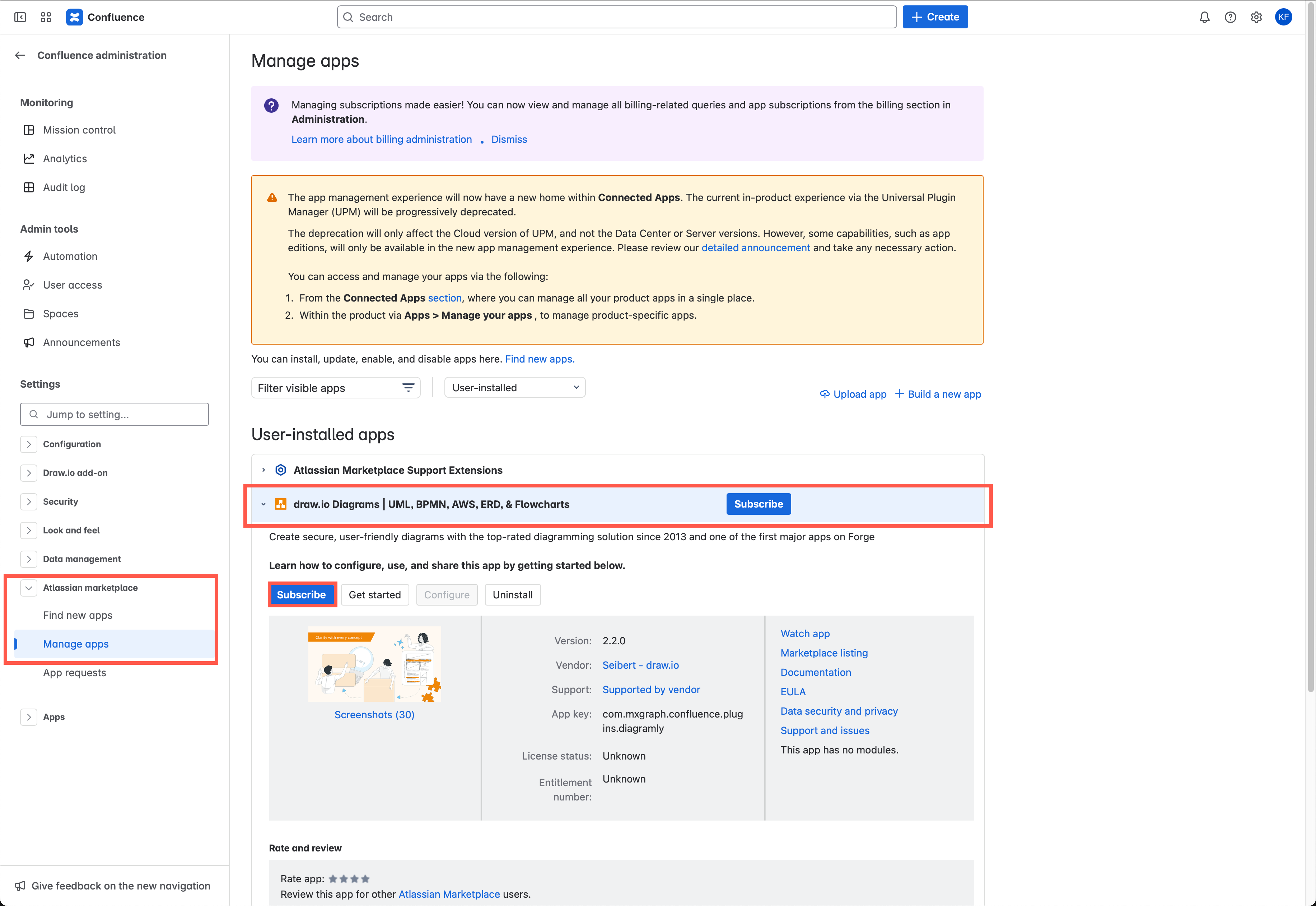
Your trial license will automatically convert into monthly billing once the trial period has ended.
Add a whiteboard macro to a Confluence Cloud page
To quickly collaborate with your remote team on an online whiteboard, you can use draw.io in your Confluence instance. The board macro has a clutter-free interface, but still has the full diagramming tools you need to draw all types of technical diagrams.
- Edit a page, type
/draw, and select the draw.io Board macro to create an insert a new diagram using the simple whiteboard-like Sketch editor theme. - Save the diagram and publish the page so all of your team member can see and edit it. It's best to set these pages and draw.io Board diagrams up as part of your meeting preparation.
Insert diagrams in Confluence Cloud
Now that you have installed the draw.io app for Confluence Cloud, you can create a diagram and insert it into a page.
- Edit a page, and type
/draw. Select the draw.io Diagram macro to create and insert a new diagram.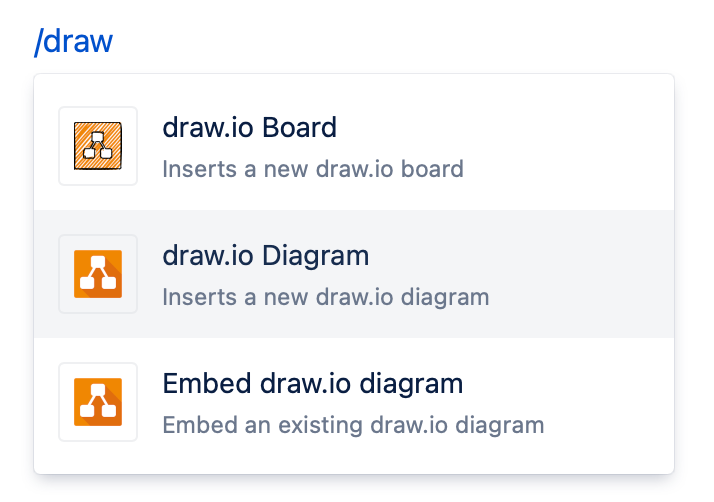
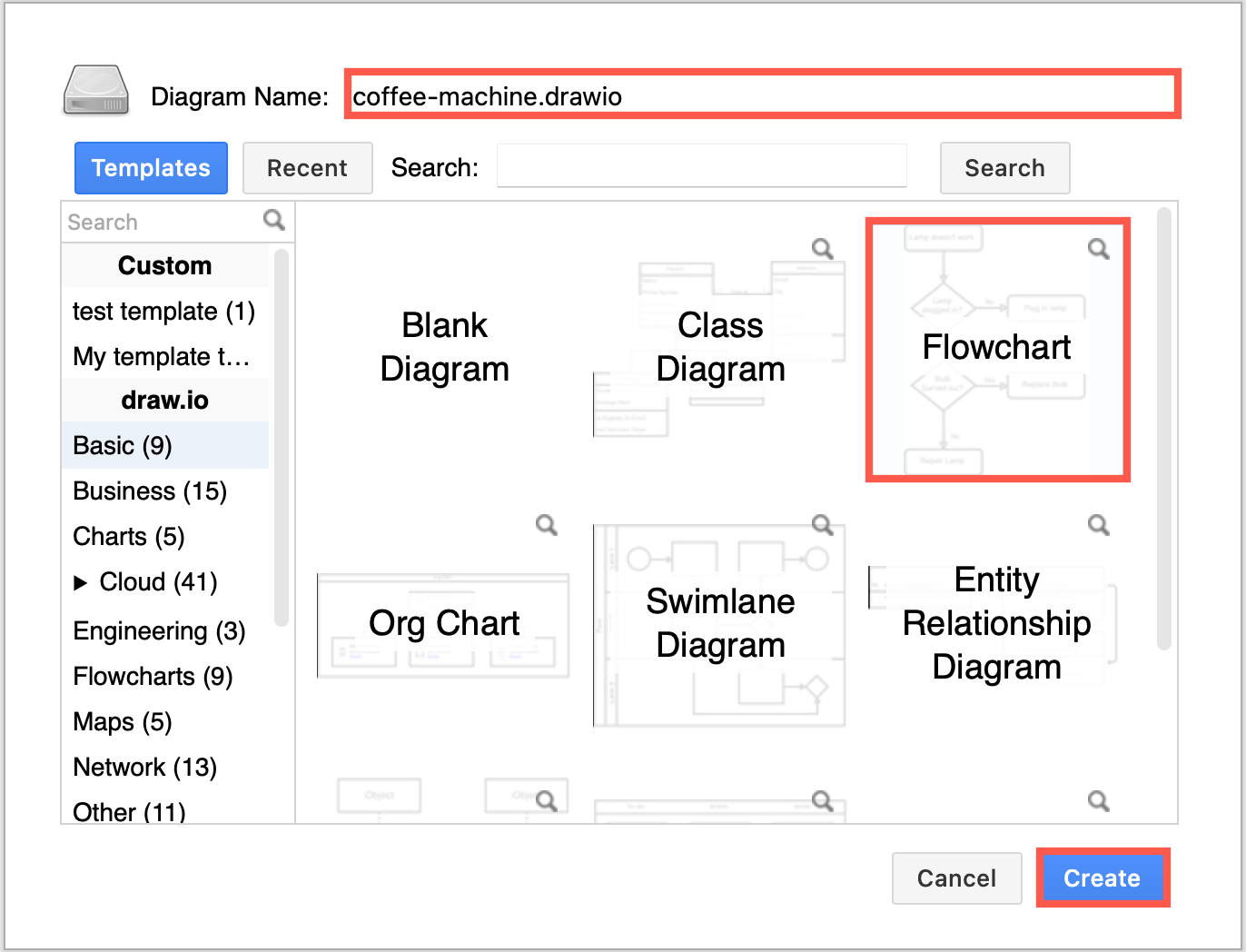
- Select one of the template diagrams, enter a name for your diagram file at the top of the dialog, then click Create. To see a larger preview of the template diagram, click on the magnifying glass in the top right.
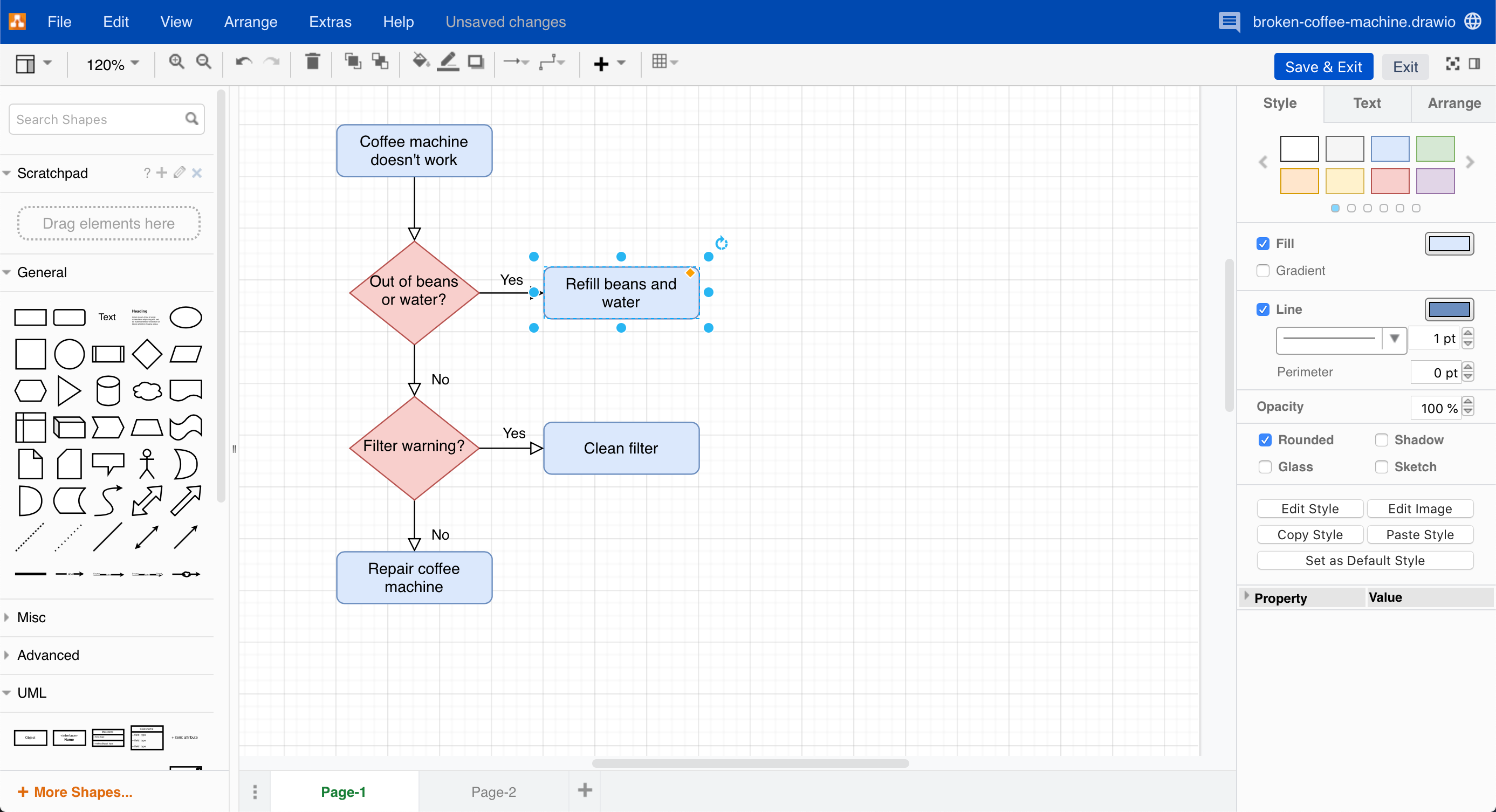
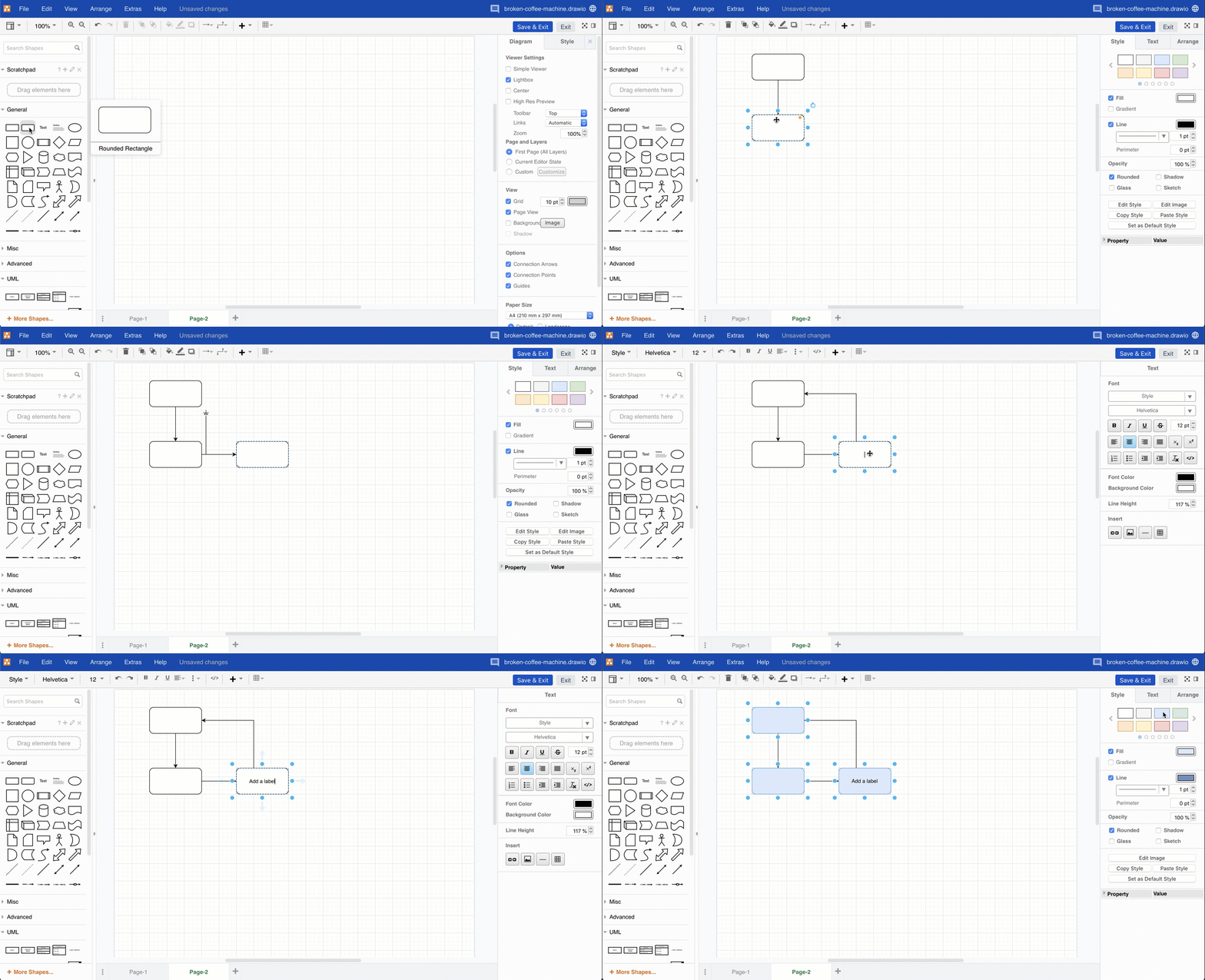
- The draw.io diagram editor will open, where you can create, edit and style your diagram.
- Use the shape libraries on the left to add shapes to the drawing canvas in the middle.
- Drag connectors between shapes.
- Double click on a shape or connector then enter text to add a label.
- Select shapes and connectors and style them with the format panel on the right. You'll see different options for styling text, styling shapes and styling connectors based on what you have selected.
Edit your diagram
Add shapes
Click or drag and drop shapes from the shape libraries onto the drawing canvas, hover over a shape and click on the direction arrows or use the double click shortcut to quickly add shapes.
Connect shapes
Hover over a shape, then drag a connector from one of the blue direction arrows or the green fixed connection points and drop it onto another shape to connect the two.
Reroute connector paths: Drag a connector into a new position on the drawing canvas - new connector waypoints are added automatically to adjust its path.
Use different shapes
Click on More Shapes at the bottom of the shape panel to see all the shape libraries. If your organisation has added custom shape libraries to your instance, they will be able to be enabled or disabled here.
Click on the checkboxes next to the shape library names to enable or disable them in the shapes panel.
Tip: Many shape libraries contain 'folders' - their shapes are organised into collapsible categories. Click on the titles of these shape folders in the shapes panel to expand or collapse that category of shapes.
Add multiple pages
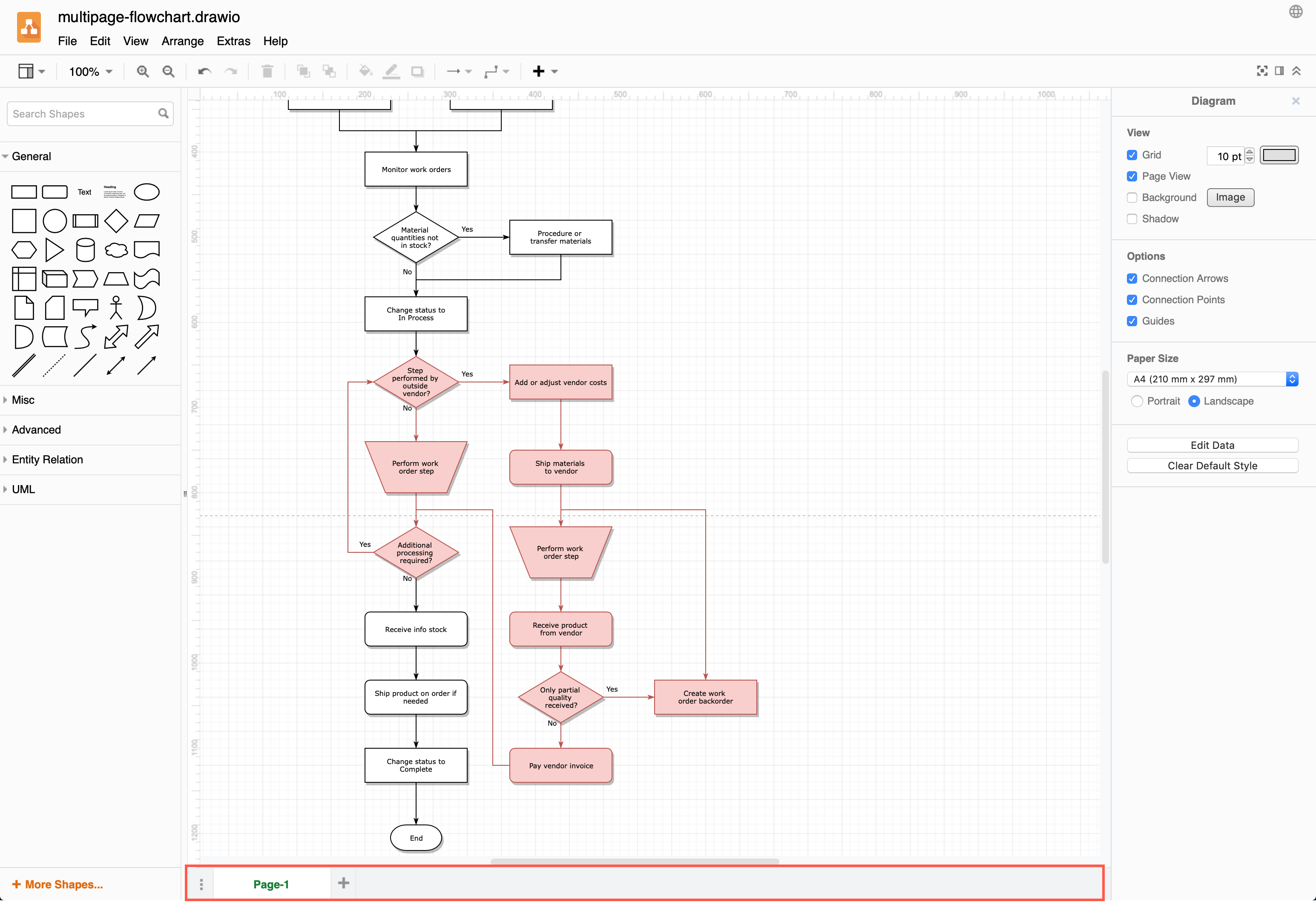
Click on the + at the bottom of the drawing canvas to add another page and organise complex ideas and flows. You can add links to shapes and text to let viewers jump through diagram pages easily.
Use keyboard shortcuts
Quickly add, clone, connect and style shapes and tables using the keyboard shortcuts. These shortcuts are the same in all draw.io apps and integrations.
Embed an existing diagram in another Confluence page
- Edit the page where you want to reuse a diagram, and type
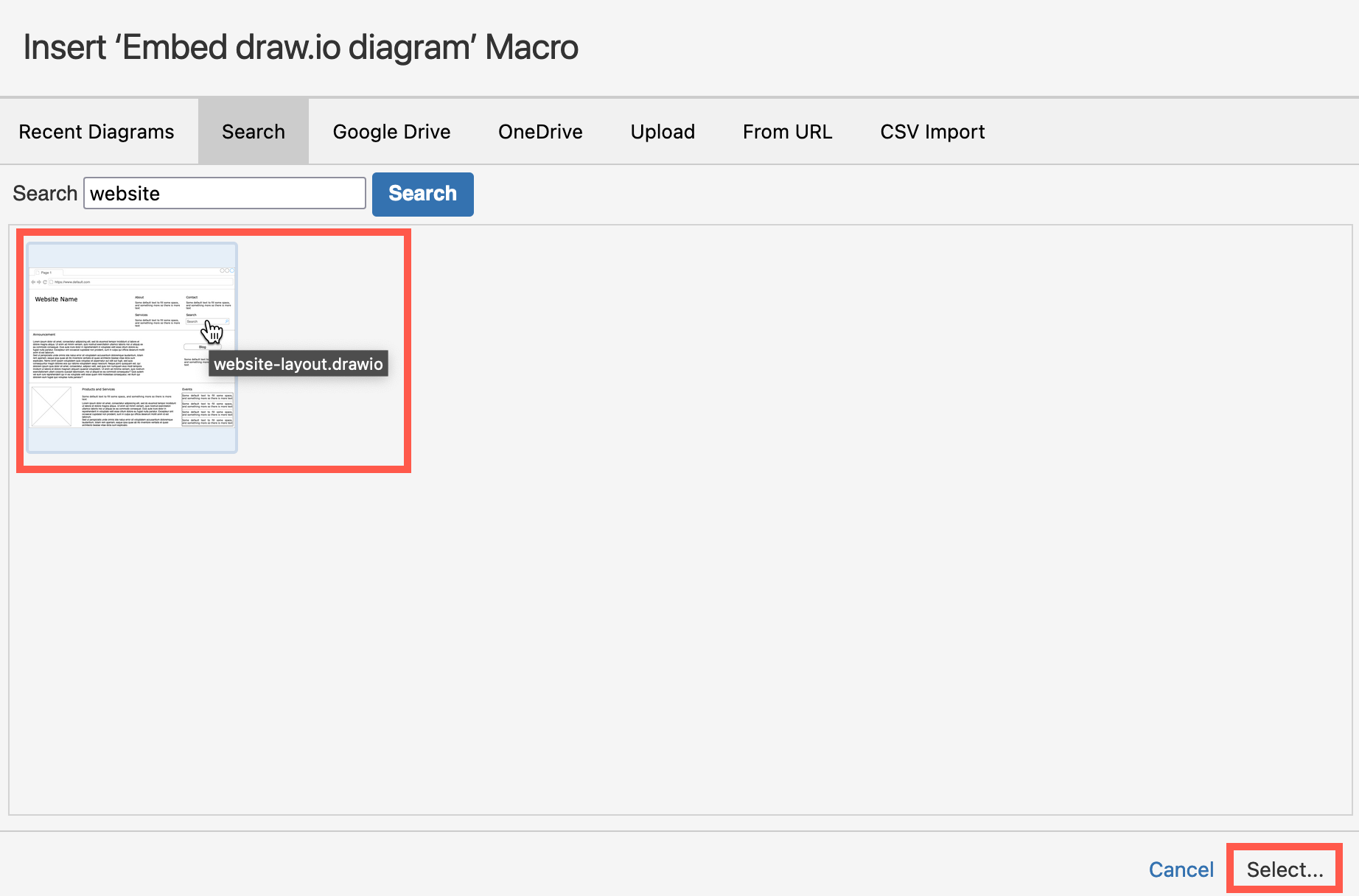
/draw. Select the Embed draw.io diagram macro. - Search for the diagram name using the Search field, select the diagram, then click Select.
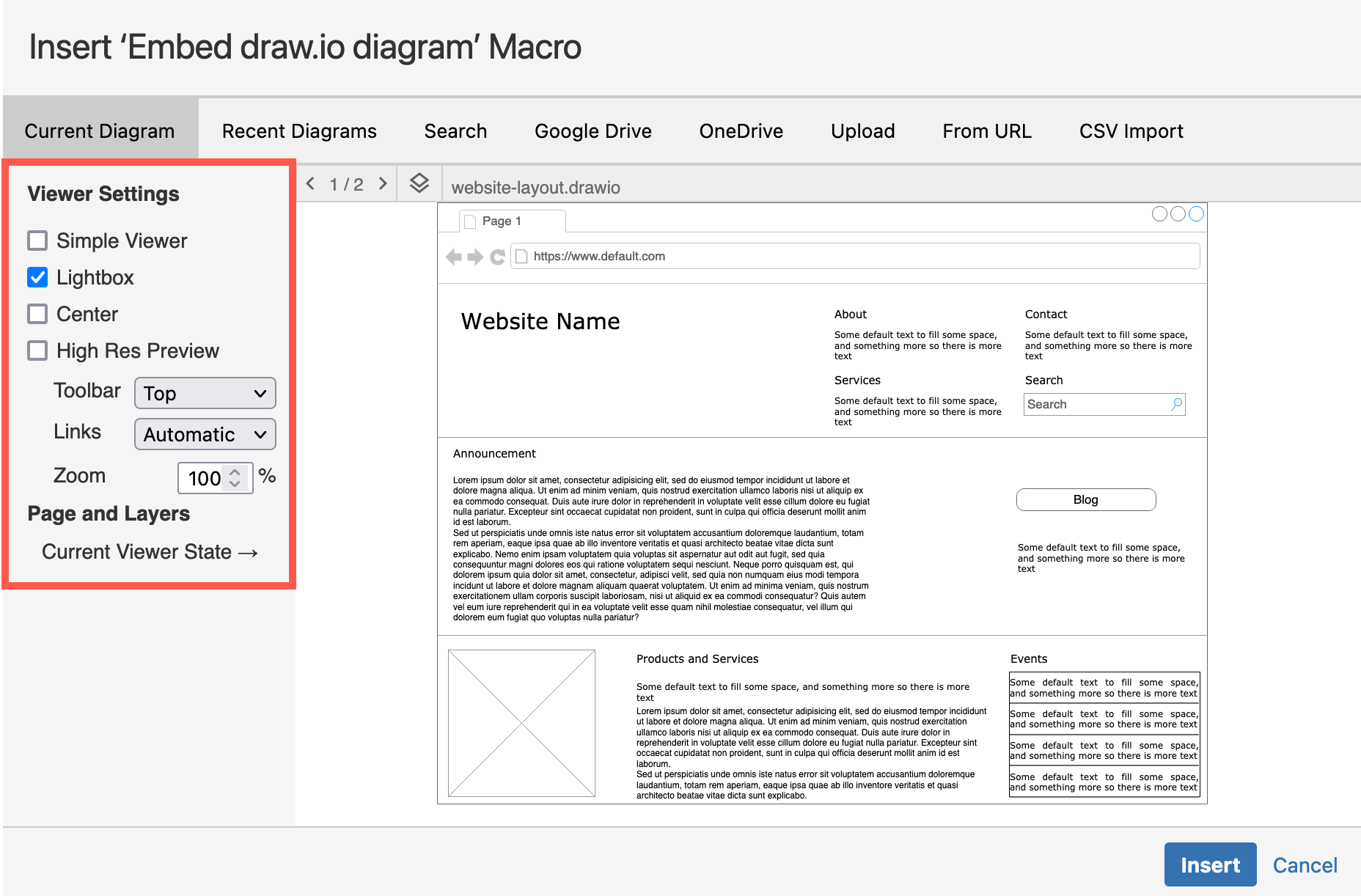
- Check that the preview shows the correct diagram, choose the Viewer Settings on the left, select the page and layers you wish to display using the toolbar above the preview, then click Insert.
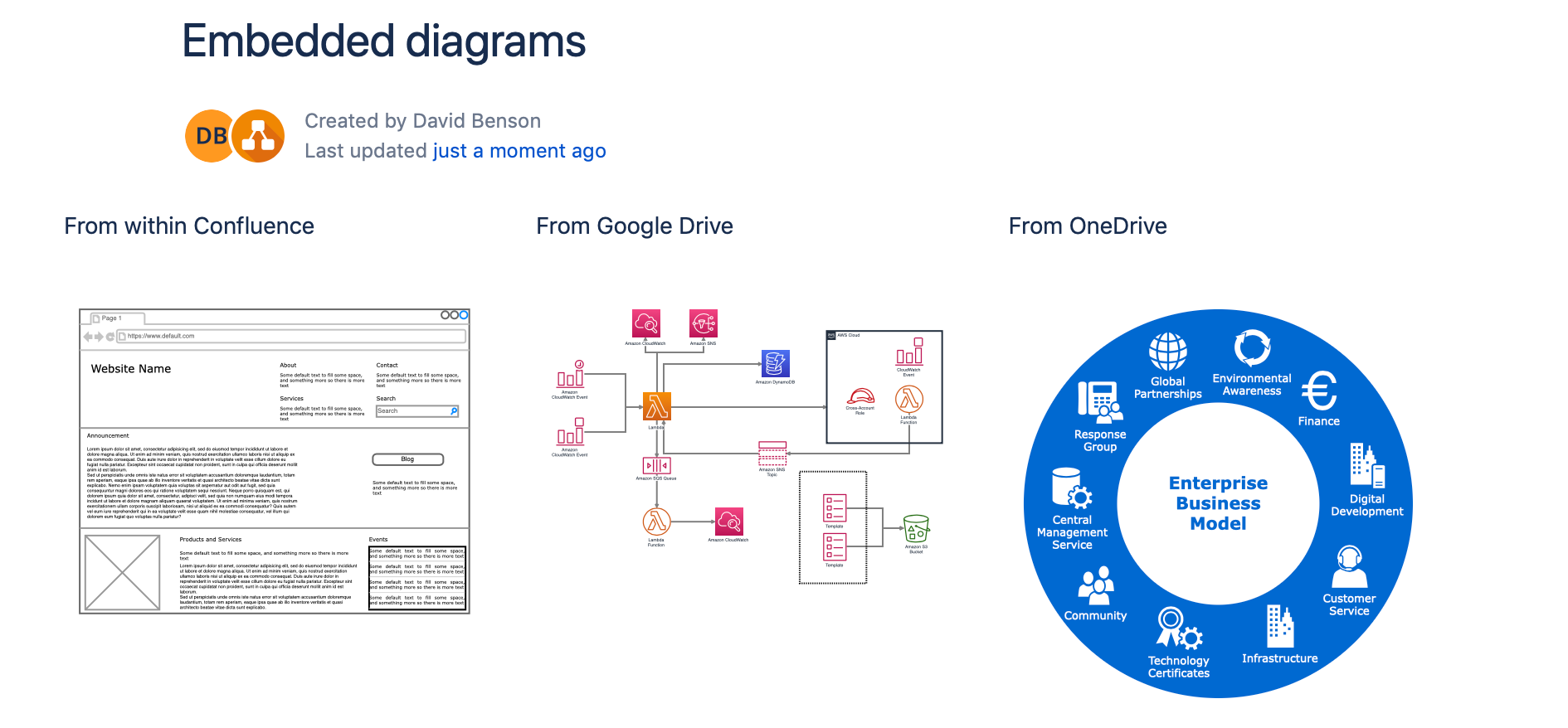
You can also use this method to embed a diagram stored in Google Drive or in One Drive.
Related
- Learn how to use draw.io diagrams in Confluence Cloud, including how to customise it to suit your corporate style and team needs.
- Mass-import all Gliffy diagrams or all Lucidchart diagrams into draw.io in one step.
- See how Gliffy uses third-party trackers in Confluence Cloud.