Draw interface mockups and store them in Jira issues
Quick mockups of user interfaces are invaluable for software developers and designers, both for websites and software or mobile applications. Designers and software engineers can draw a mockup together collaboratively using the mockups shape library in one of the draw.io apps or integrations or our free online editor.
One of the more common development tracking tools used by software engineers is Atlassian's Jira. draw.io is available for Jira Cloud on the Atlassian Marketplace, and you can attach diagram files directly to Jira issues, or embed a diagram from Confluence or another cloud storage platform.
Use draw.io within Jira
Mockups stored as draw.io diagrams directly in the Jira issues that track UI implementations will avoid any problems with broken links to cloud storage platforms when files are inevitably moved or renamed.
Also, when collaborating with team members, this ensures you don't encounter problems with space permissions, and you don't need access rights or licenses to any external design software.
Attach a diagram file to a Jira issue
- Click on the Actions menu in the top right and select Add draw.io diagram to open the draw.io editor.

- Create a new blank diagram, or start from a template.
- When you've finished your diagram, click Save and enter a filename for the attachment. The diagram will be added as a file attached to the issue.
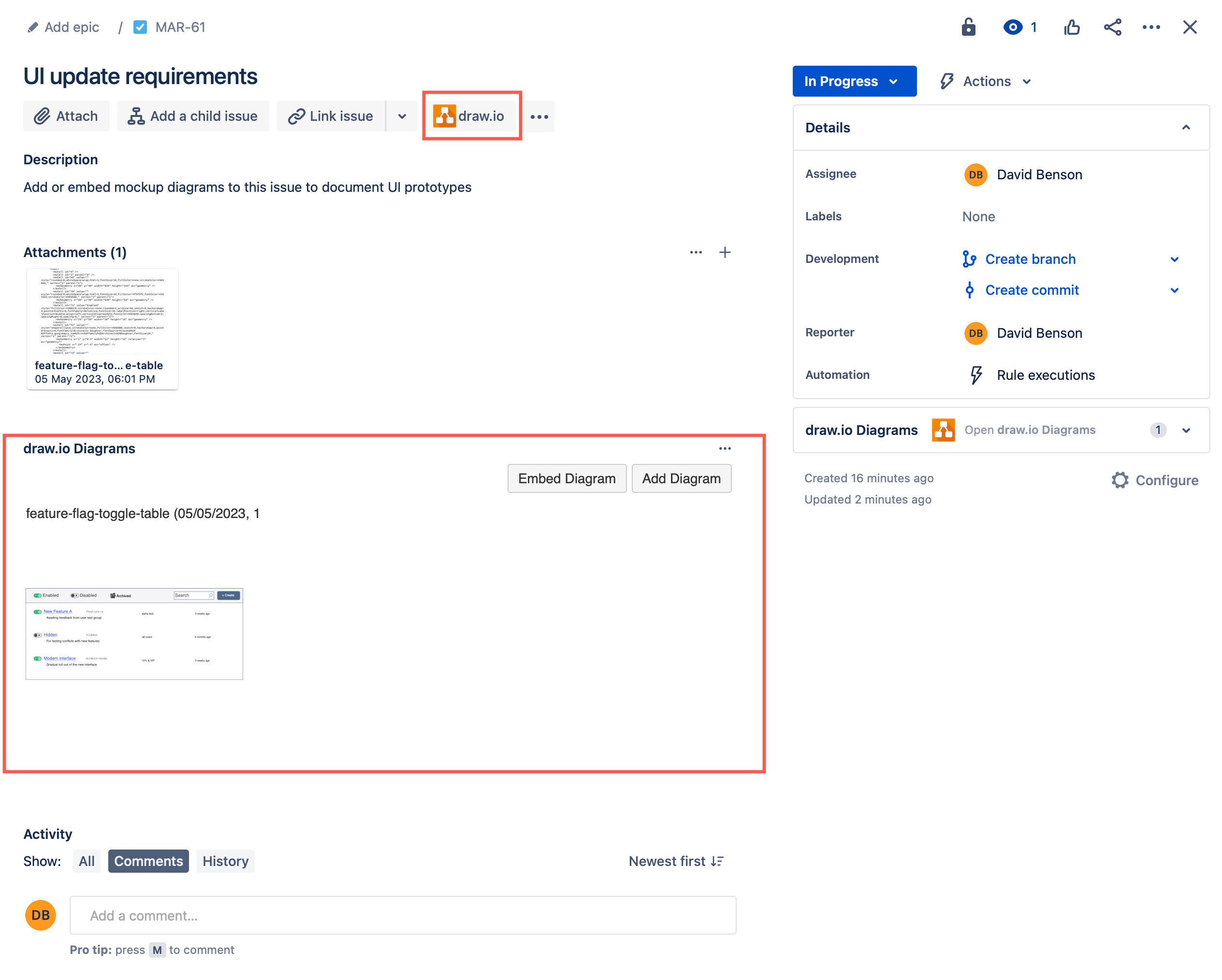
- Click on the draw.io button above the issue description to show/hide the draw.io Diagrams section and see the thumbnails of the attached diagrams.
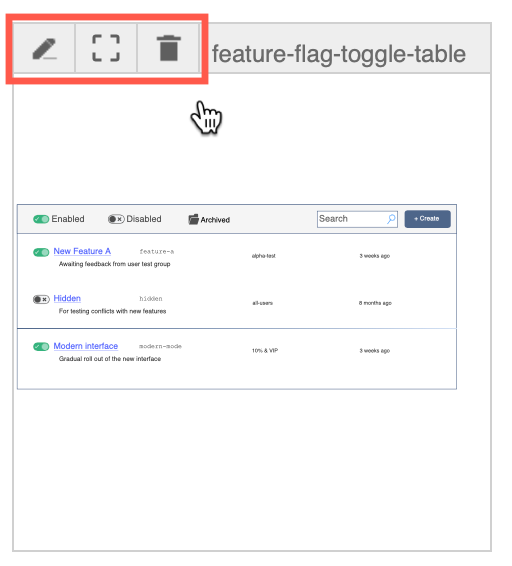
Edit, view & delete attached diagrams
Hover over a diagram in this section of the issue to do the following.
- Edit an attached diagram: Click on the pencil icon.
- View an attached diagram: Click on the Fullscreen icon to open it in the diagram viewer.
- Delete an attached diagram: Click on the Delete icon to delete the diagram.
Draw a mockup in draw.io
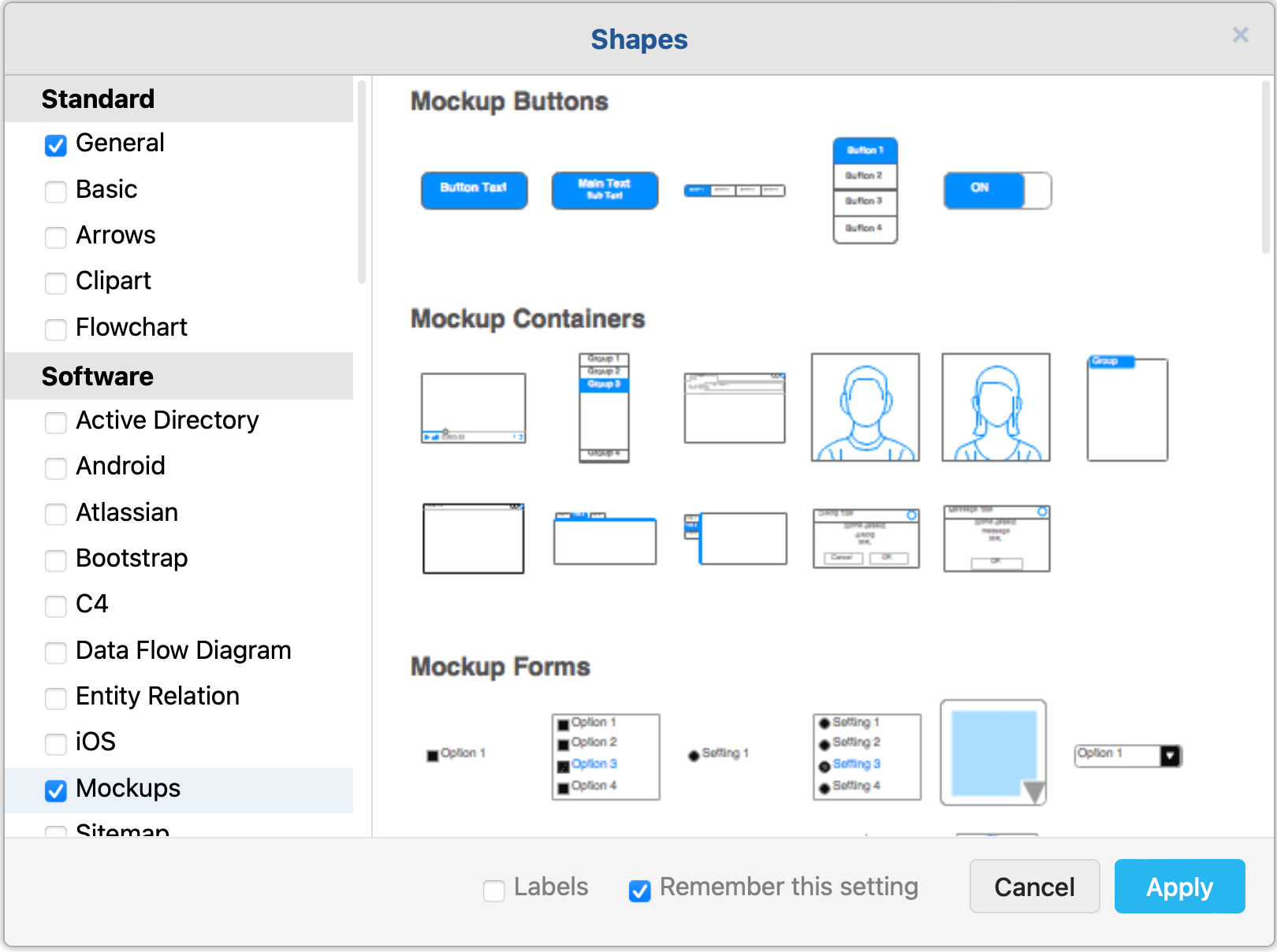
Add a new draw.io diagram to the Jira issue, and in the diagram editor, click on More Shapes at the bottom of the left panel to see all the shape libraries.
Enable mockup and user interface shape libraries
When drawing mockups of interfaces, there are several libraries in the Software section with UI components for various platforms: Android, Atlassian, Bootstrap, iOS, and Mockups. In the Other section of the shape library collection, Material Design, Web Icons and Signs may also contain useful shapes for designing interfaces.
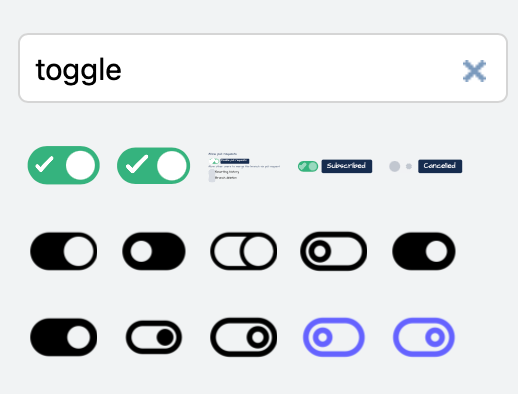
For even more user interface mockup shapes, enter the type of UI component that you want to use the Search Shapes field at the top of the left panel and press Enter.
For example, when you search for toggle, you will see many different styles of toggle switches in the shape search results.
Tip: Some companies provide their own custom shape libraries for designing interfaces. Learn how you can open and use a custom shape library - there are many freely available custom shape libraries for software development on Github.
Add shapes to the drawing canvas
Now you can drag and drop shapes from the shape libraries in the left panel onto the drawing canvas. Once you've added a shape, you can resize and rotate it, just like you would any other type of diagram in draw.io. Hover over any shape in the shape library to see a larger preview.
If you are new to diagramming or to draw.io, follow this getting started tutorial to learn how to work with shapes.
Move shapes forwards/backwards
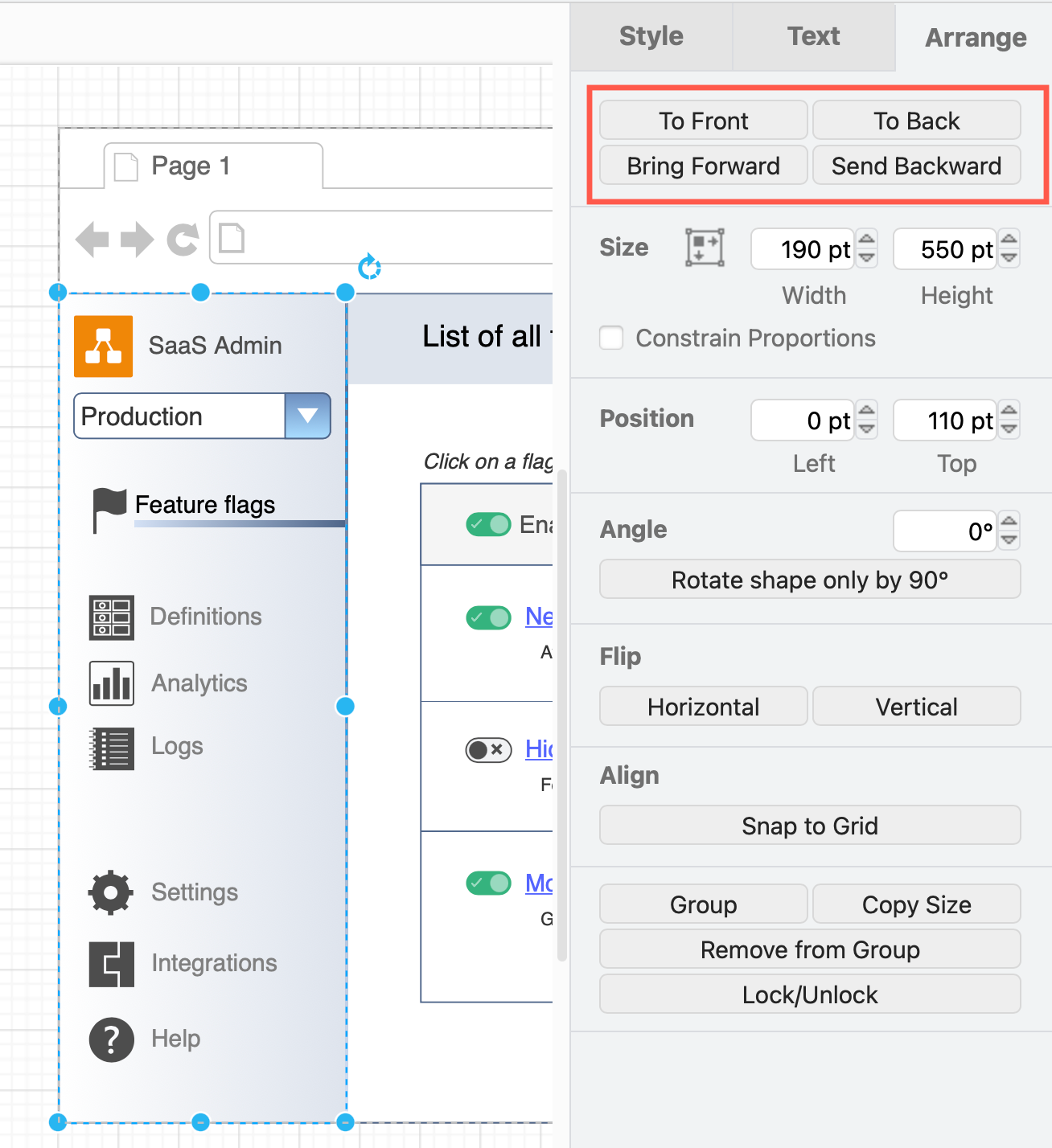
Mockups in particular will have shapes places over or behind other shapes. Use the z-order forward/backward buttons on the Arrange tab in the format panel to move shapes in front of or behind other shapes.
Group related interface elements
Group shapes to keep elements of the interface together in your mockup so you can move them easily around the drawing canvas. Drag a selection box around the interface elements, right-click on one and select Group.
Use groups or container shapes to keep your mockup neat and easy to work with.
Overlap shapes on groups
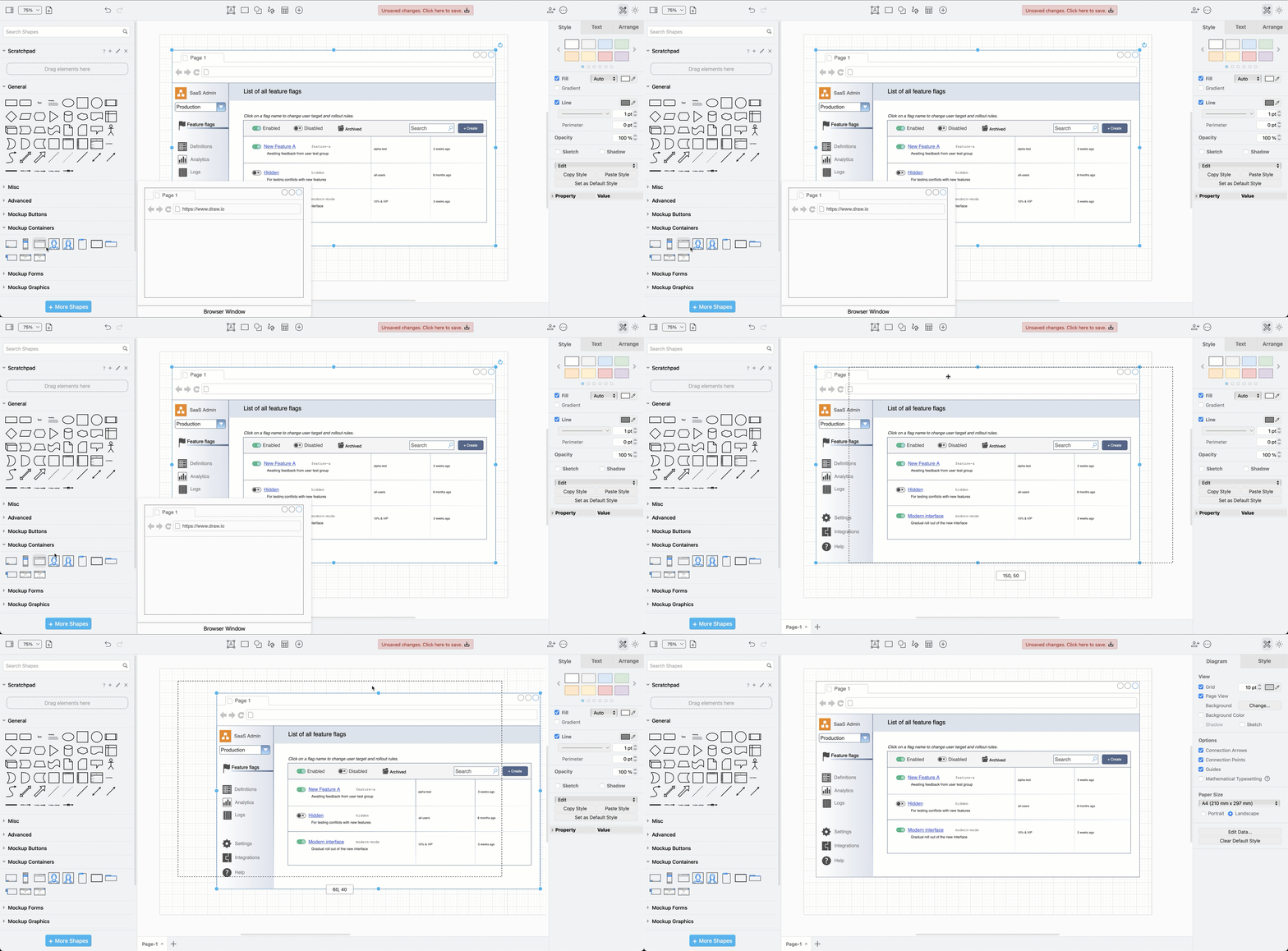
Hold down Alt as you drag and drop a shape on a container shape to overlap the two shapes instead of adding the shape into the group.
Style shapes and connectors
Select a shape and use the Style tab of the format panel to add colours, change line thickness and more. The style options that you see will depend on what you have selected - not all styles are available for all types of shapes and connectors. When you select a group of shapes, only the style options that apply to all shapes/connectors in that group will be visible.
The Style tab in the format panel is used to change shape styles and connector styles. Use the Text tab to change the text label styles.
Add dividers to your mockup
Use very slim rectangles as dividers on the mockup if you want to use a gradient fill to indicate interface panels.
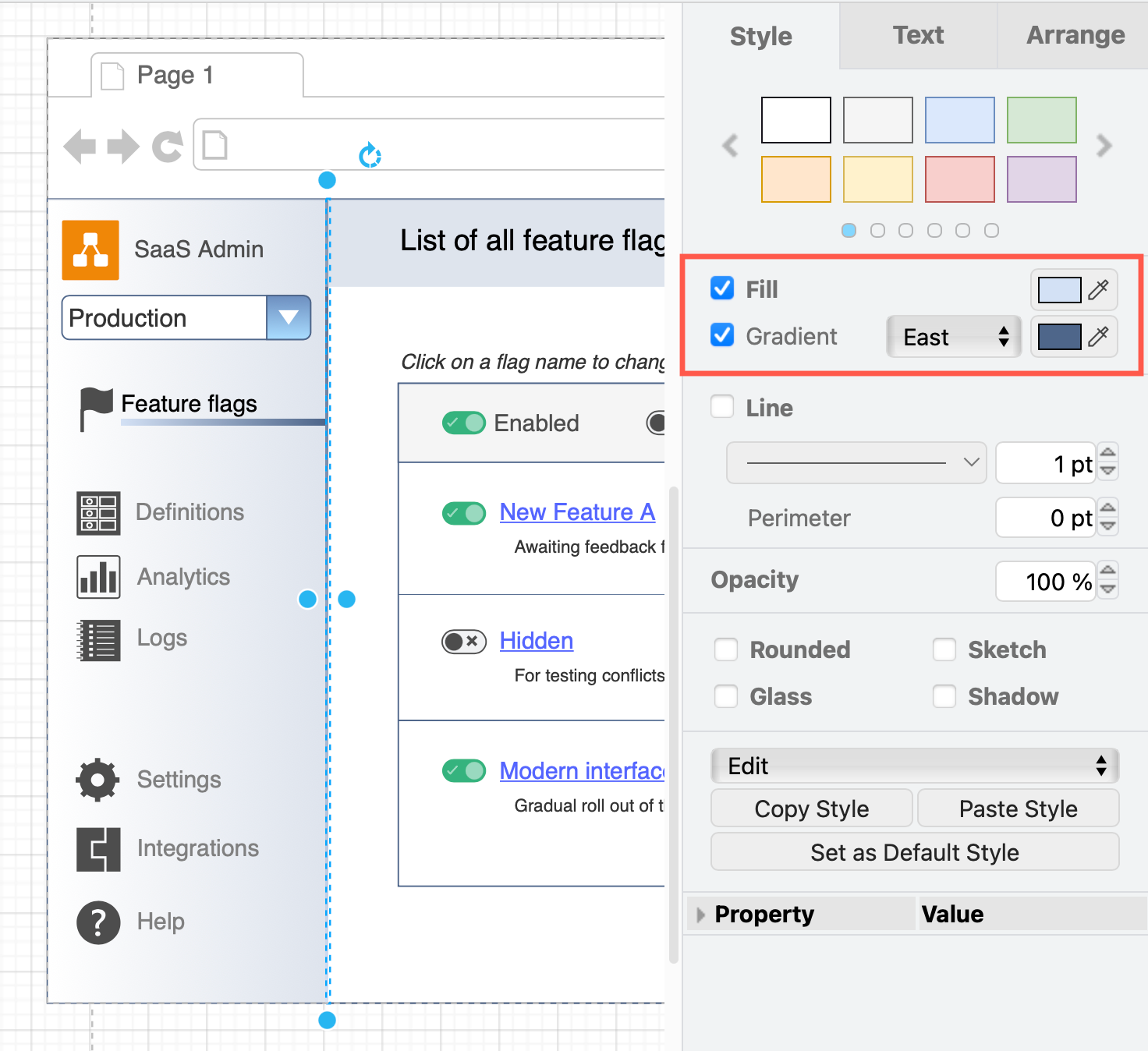
Alternatively, use plain connectors without any arrows at either end as separators within the page. Hold down Alt as you drop the end of a connector to stop it attaching to a shape.
Tip: Hold Shift as you drop the end to turn it into a fixed connector on the target shape under your cursor.
Example mockups
Click on a mockup below to open it in the diagram viewer
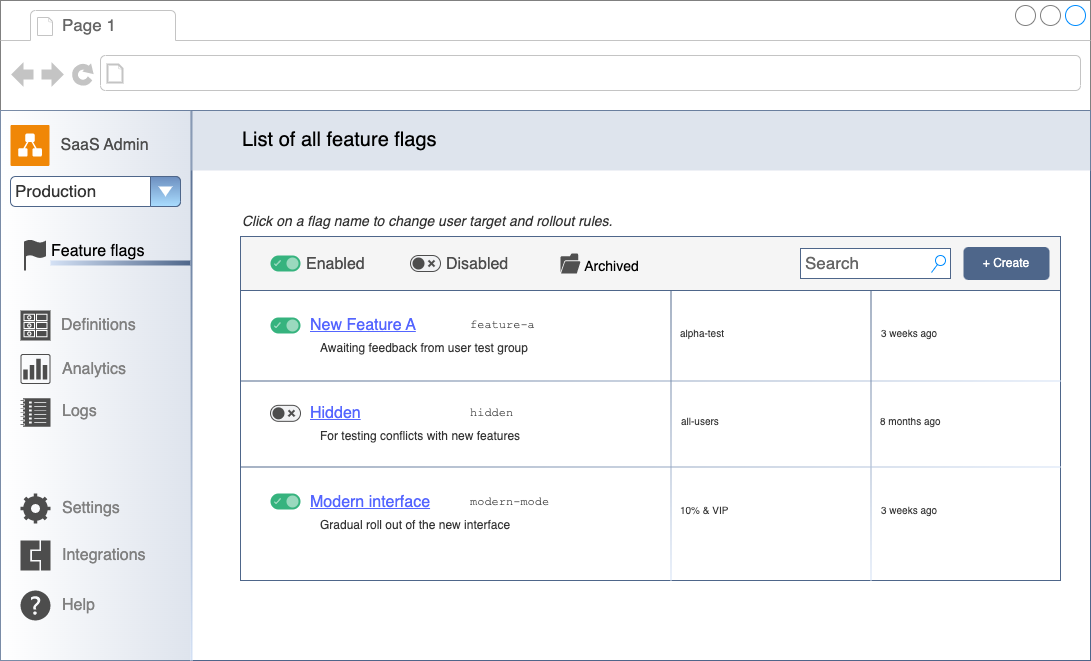
This example of a web interface for toggling software functionality in a web service was created with shapes from the Mockups shape library as well as rectangles, text and connectors from the General shape library, in addition to some icons found via the shape search.
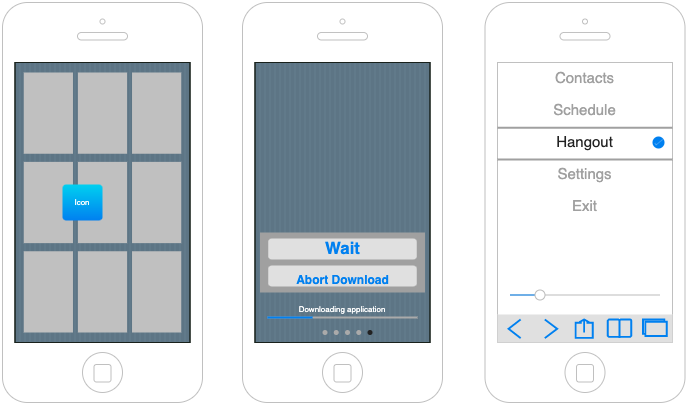
This example of a mockup showing multiple screens of an iOS application is available from our example diagram repository on GitHub. It uses shapes from the iOS shape library.
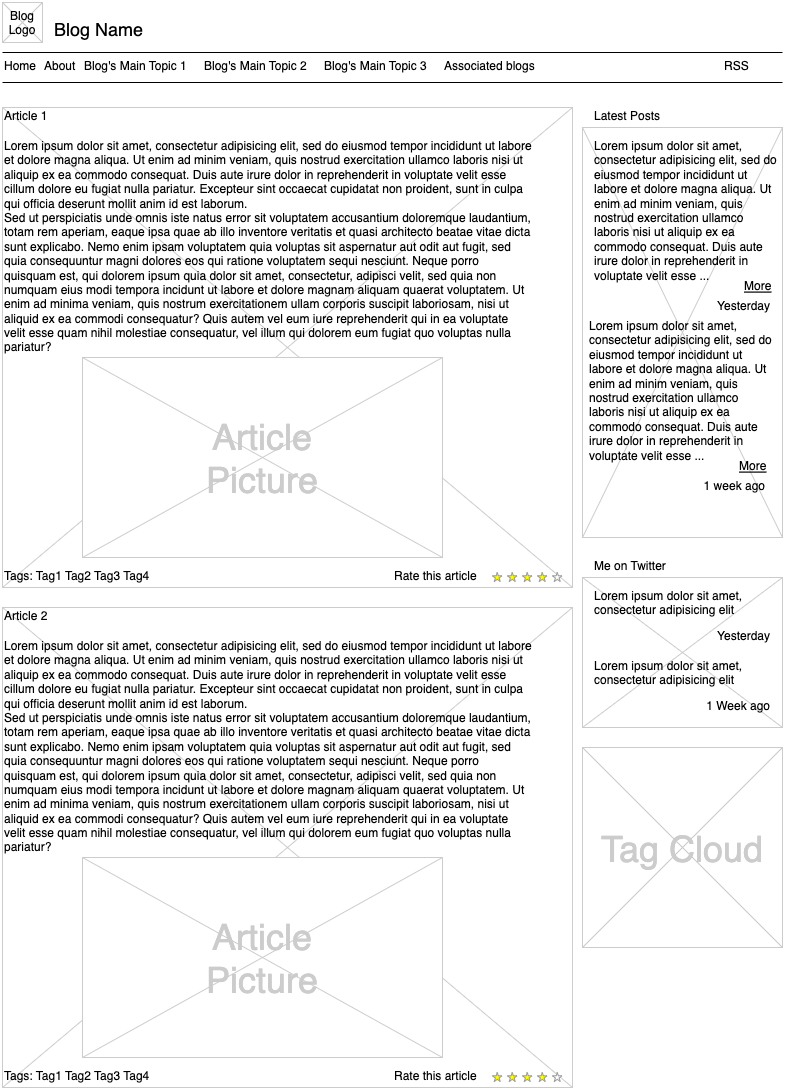
Wireframe diagrams are commonly used to show relative sizes of regions on a web page or app, and can be easily created with draw.io - many are available as templates in the template library and in our example diagrams repository on GitHub.
Embed a mockup stored in Confluence Cloud
If you draw your mockup diagrams in draw.io in Confluence Cloud, instead of duplicating the mockup diagram file into a Jira issue, embed it directly from where it is stored in your Confluence Cloud instance.
As the diagram file is stored on Confluence and only embedded in the Jira issue, the issue will reflect any changes you make to the original mockup in your Confluence instance - you won't need to update the diagram in multiple places.
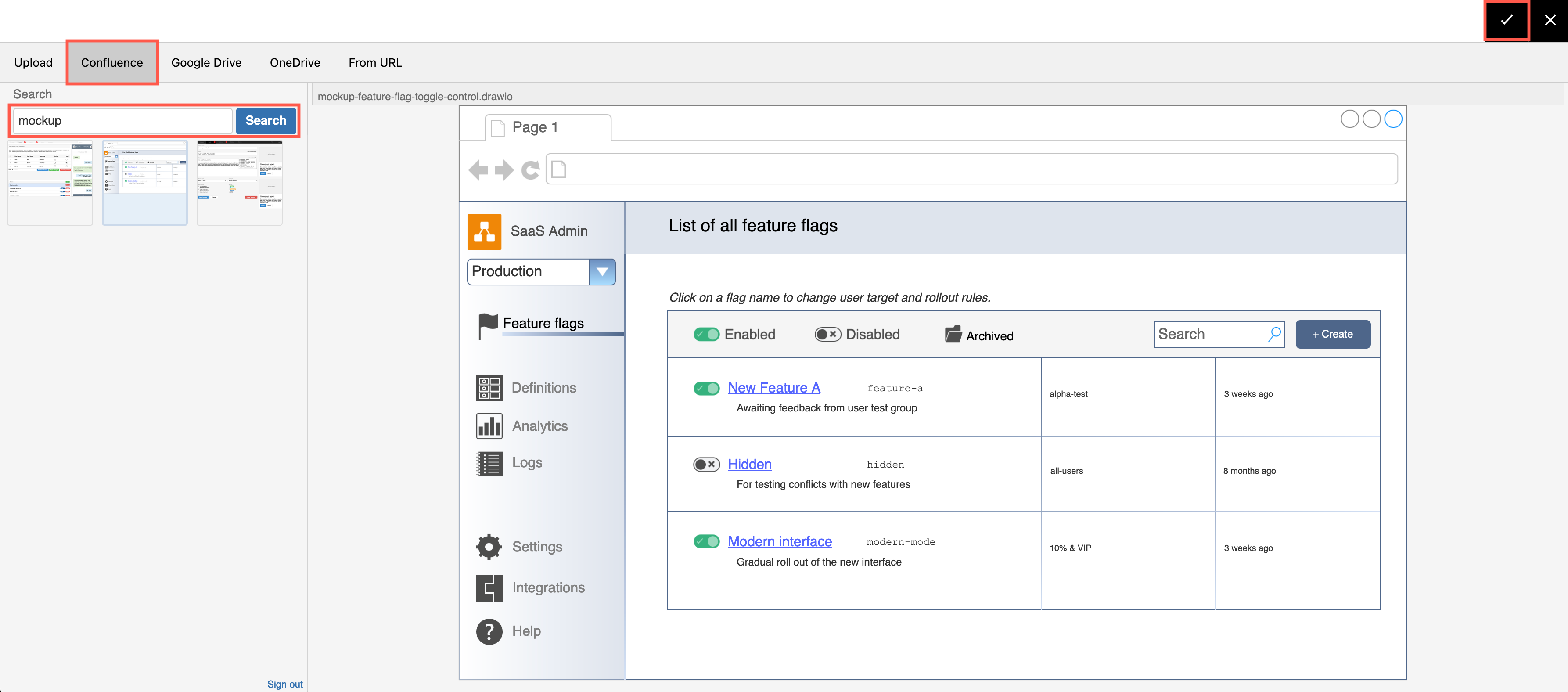
- In the draw.io Diagram section of your Jira issue, select Embed diagram.
- Select the Confluence tab and authorise access to your Confluence instance if necessary.
- Search for the name of your diagram file in Confluence, select one of the results and check the preview. Click the tick in the top right to embed it in your Jira issue.
Learn more about using draw.io in Confluence Cloud
Collaborate on many other platforms with draw.io
If you use cloud storage for your files, you can embed draw.io mockups and diagrams in Jira Cloud issues from Google Drive and from Microsoft OneDrive.
If your developers use GitHub or GitLab for storing project documentation, use the unofficial extension for draw.io to edit diagram files directly from within VSCode or the VSCode web editor.
Our PowerUp for Trello is useful if you are using Atlassian's lighter-weight planning and tracking system.
And if you use our Notion Chrome extension, you can create and store mockups and diagrams directly in your Notion pages, if your designers and developers are collaborating on that platform.