Add labels to any type of diagram
With draw.io, you aren't just limited to business-oriented technical diagrams like flowcharts, org charts, network or UML diagrams. You can use braces, brackets, connectors and partial rectangles to add neat labels to any type of diagram.
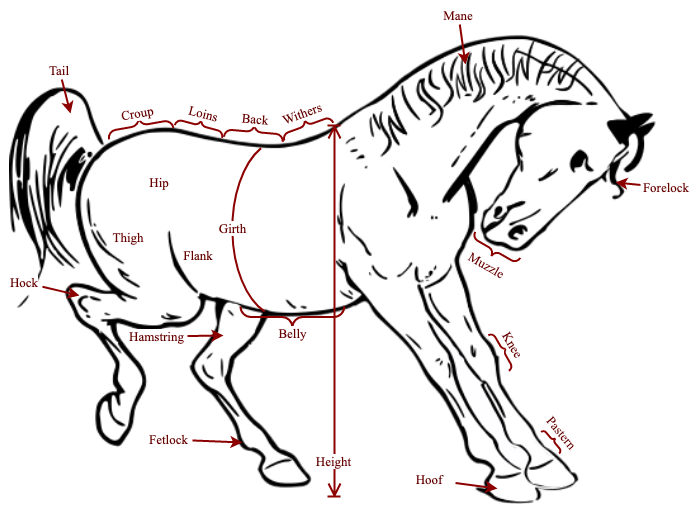
In this example diagram, the horse is an image on a background layer that has been locked to prevent changes. All the labels are on a second layer above he background layer. The different types of labels we used in this diagram are described below.
Tips for adding labels
Use connectors and text shapes
Normal straight connectors with arrow heads are connected to text shapes to point to specific parts.
Search for shapes
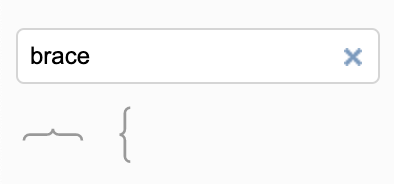
Use the Search Shapes text box to find a shape by its keyword. For example, searching for brace will return the vertical and horizontal Curly Brace shapes. Alternatively, the Curly Bracket shapes are in the Misc shape library.
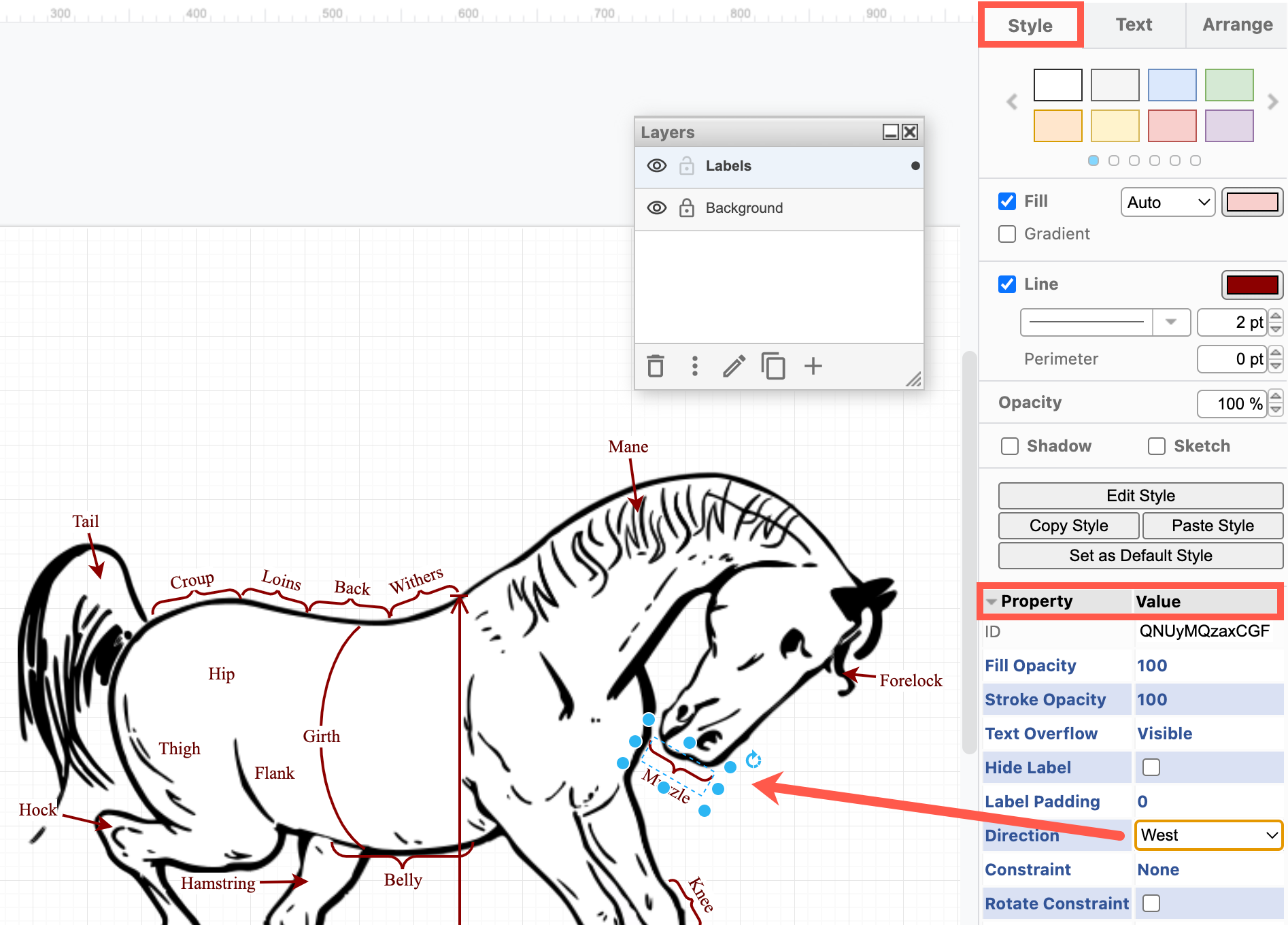
Change the direction of a bracket shape
Select a bracket shape on the drawing canvas, and expand the Properties section in the Style tab of the format panel. Change the Direction from East to West.
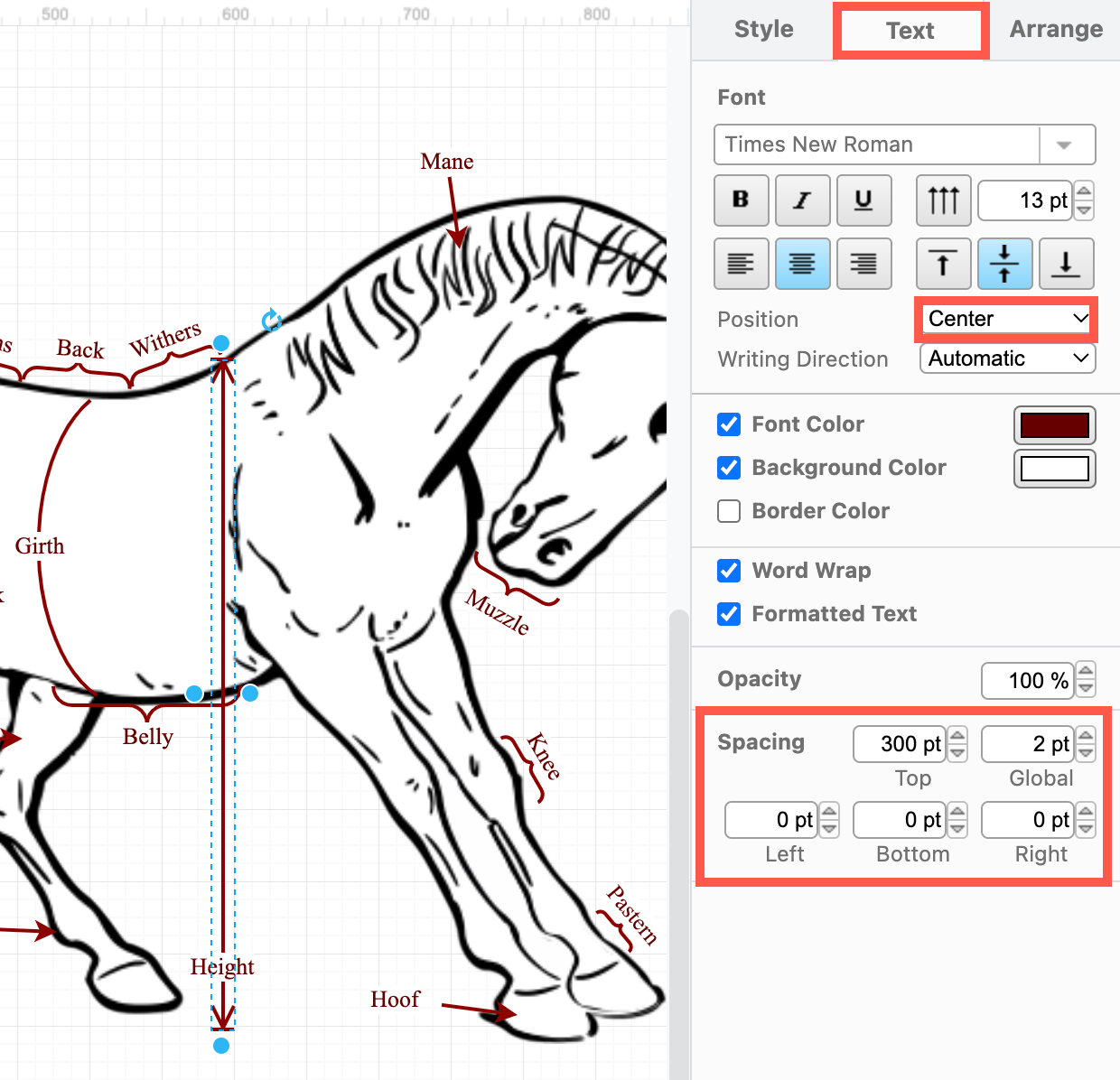
Change the text position
Select a shape and type to add a label. In the Text tab of the format panel, select a different Position from the drop down list. Offset the label's position relative to the shape perimeter by changing the Spacing values at the bottom of the Text tab of the format panel.
Rotate and resize the shapes
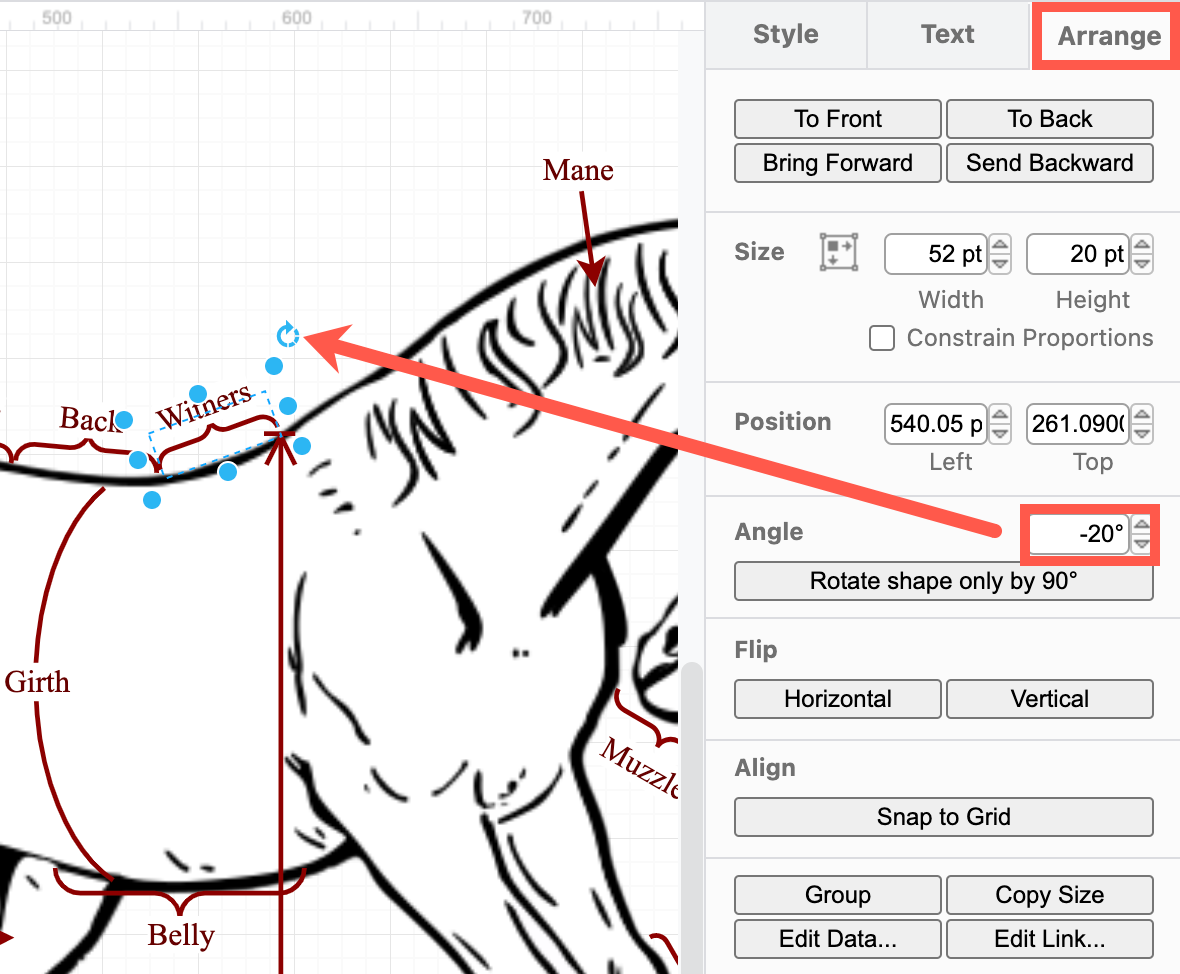
Select a shape and drag the rotate handle in the top right, or change the Angle in the Arrange tab of the format panel. Drag the blue round handles positioned around the shape to resize it.
Make a curved label
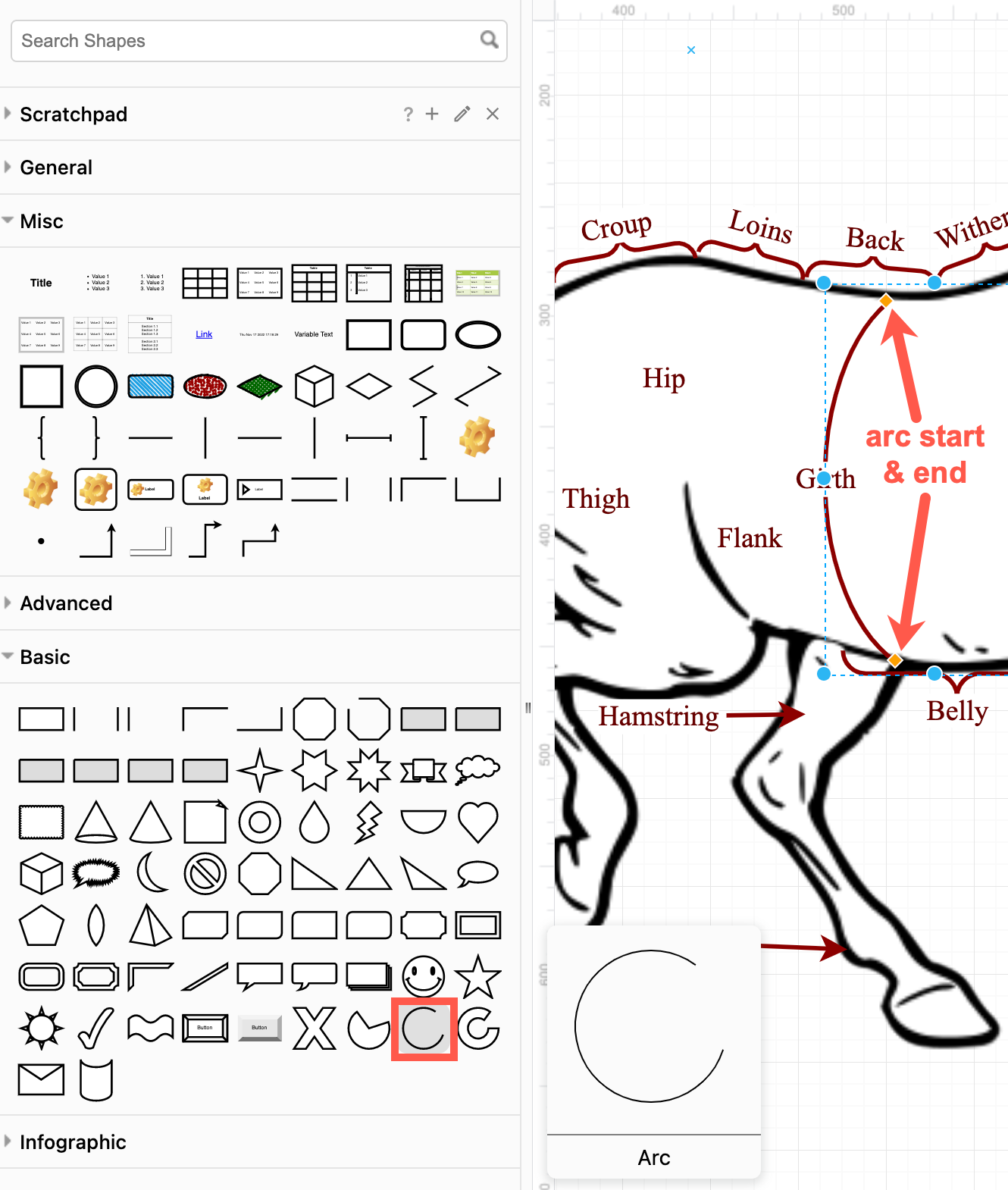
Use the Arc shape in the Basic shape library. Grab the orange diamond start and end of the arc to change how far around the circle it curves.
Show distance
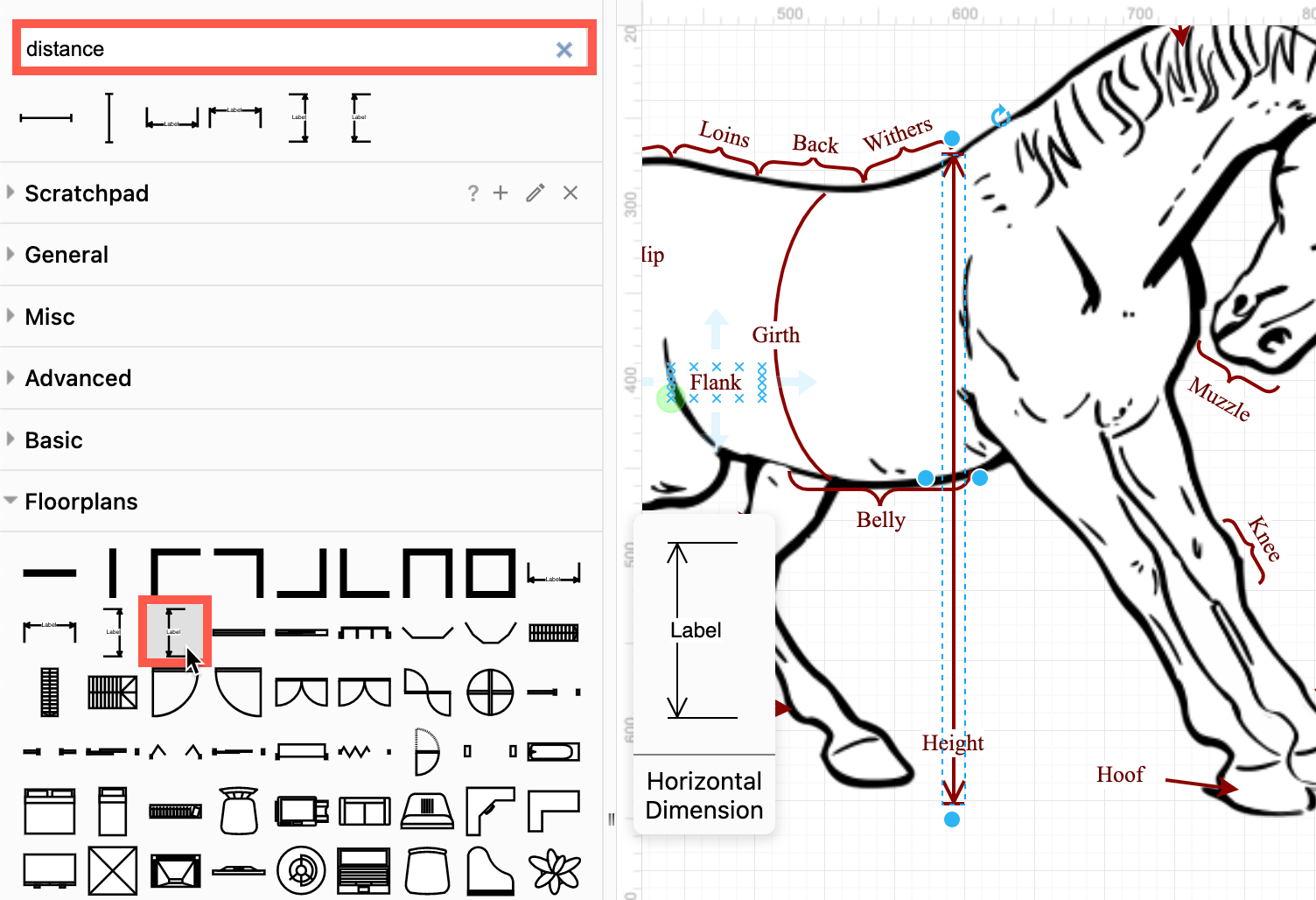
Search for distance or use the Dimension shapes in the Floorplans shape library to indicate distances.
View the labelled diagram of a horse in draw.io
Brackets and right-angled callouts
Partial rectangle shapes are in the Misc shape library (a sub-library of the General shape library), or the Basic shape library.
-
Resize the partial rectangle shape that is missing one side to make square brackets or to show distance/time. Alternatively, use the Annotation shape in the Flowchart shape library.
-
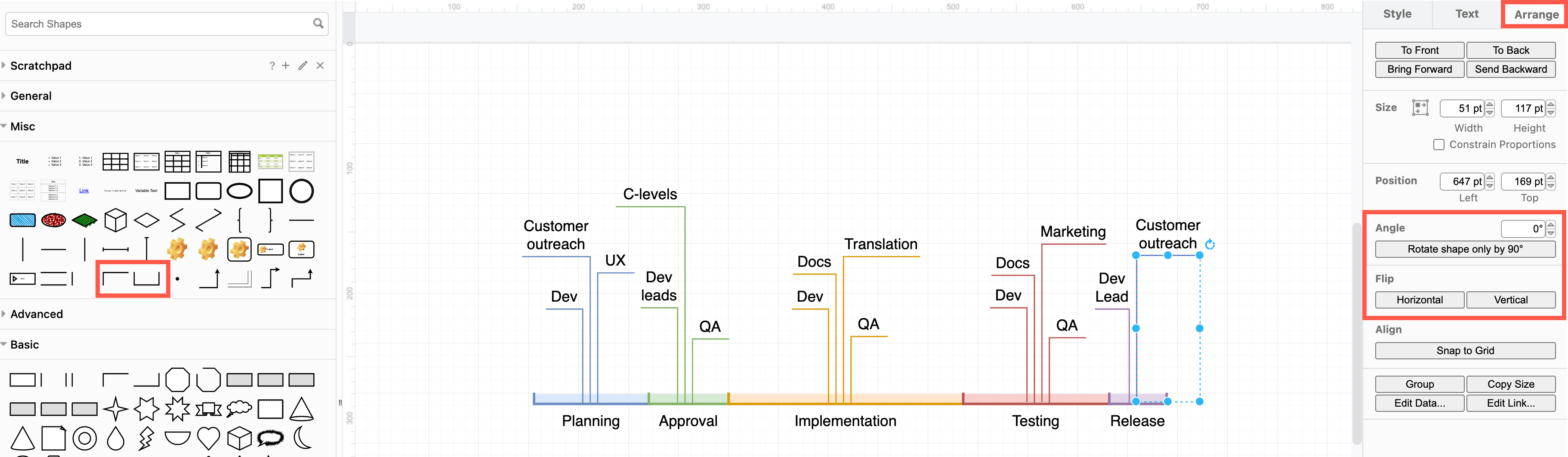
Resize the two-sided partial rectangle shape to make neat right-angled call-outs. Rotate the shape by 90 degrees, or flip it horizontally on the Arrange tab of the format panel.
View this project timeline in our diagram viewer
More examples of labelled diagrams
The following examples were drawn quickly in draw.io and labelled using the shapes explained above. You'll see these types of diagrams commonly in textbooks in schools, universities and research institutions.
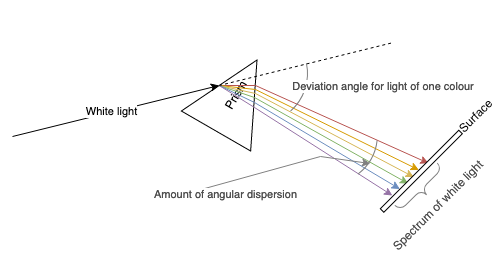
Open this prism figure in our diagram viewer
The lens in the second example is constructed with two arc shapes, positioned so they look like they join, then grouped so they can be moved together. The center line is drawn using Waypoint shapes for the focal lengths and plain straight connectors.
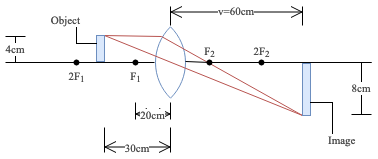
Open this focal length figure in our diagram viewer
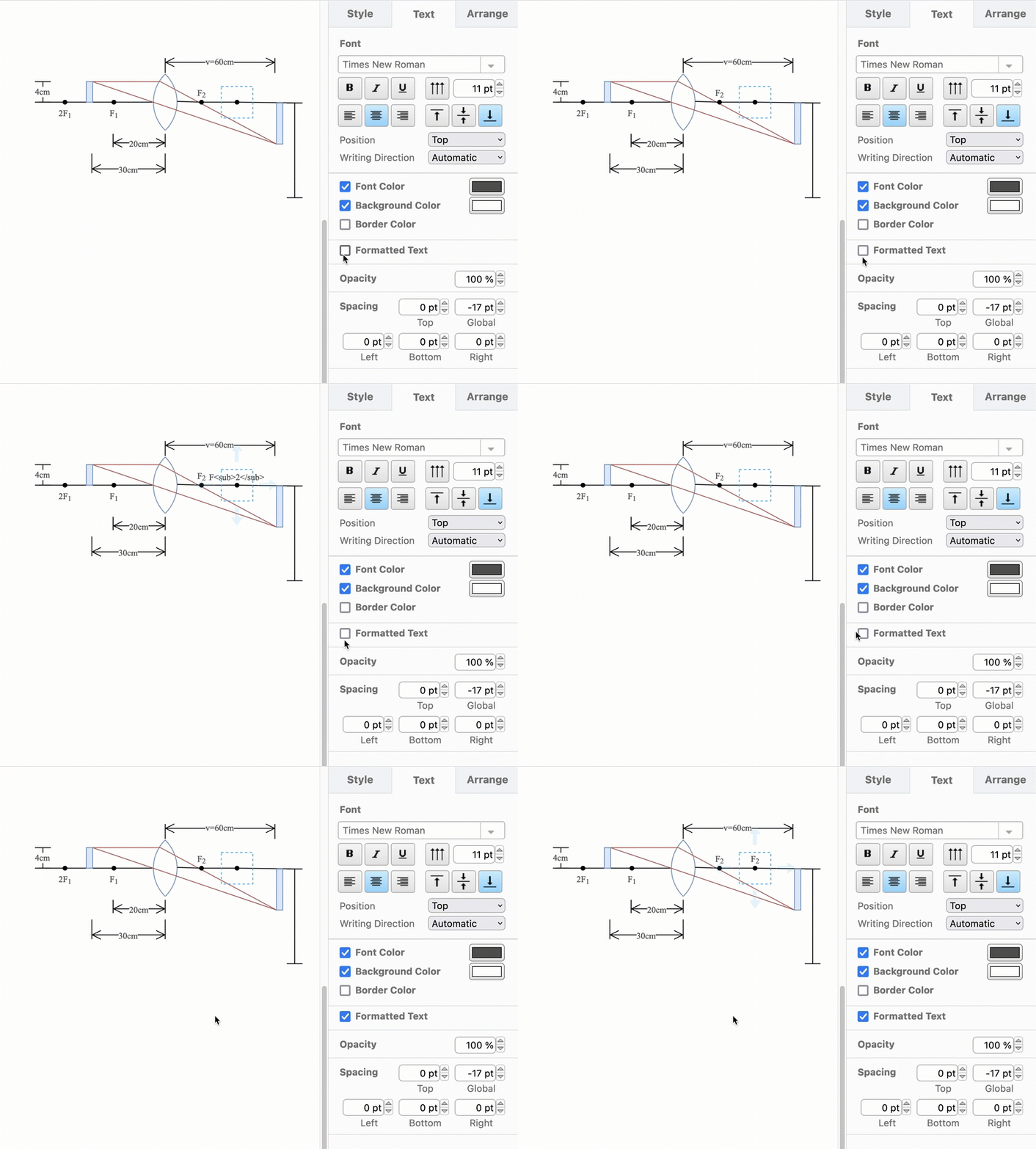
Tip: To copy labels with formatting such as those that contain superscript or subscript text, enable the Formatted Text checkbox in the Text tab of the format panel before you paste the label text. If you don't, you will paste the HTML code as the label text.
More examples: Our large gallery of template and example diagrams contain many more labelled diagrams, organised by diagram type.