App version and SEN (Cloud)
As an administrator, you can check which version of the draw.io app is currently installed in your instance, and retrieve your Support Entitlement Number (SEN) for draw.io for Confluence Cloud and draw.io for Jira Cloud.
draw.io for Confluence Cloud
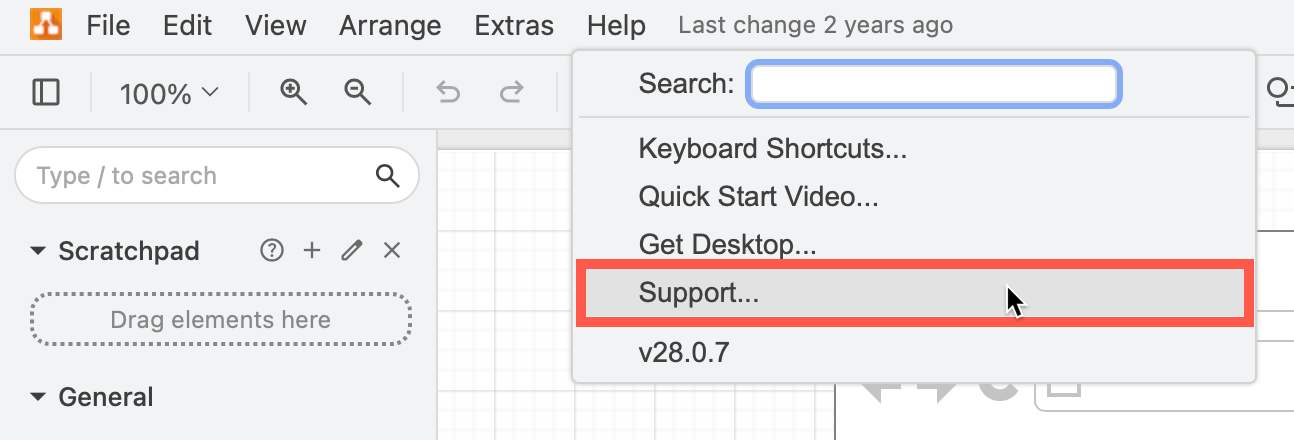
- While editing a draw.io diagram in your Confluence Cloud instance, select Help > Support from the menu.
- The version number and your Support Entitlement Number (SEN) are listed at the top of the draw.io Support page.
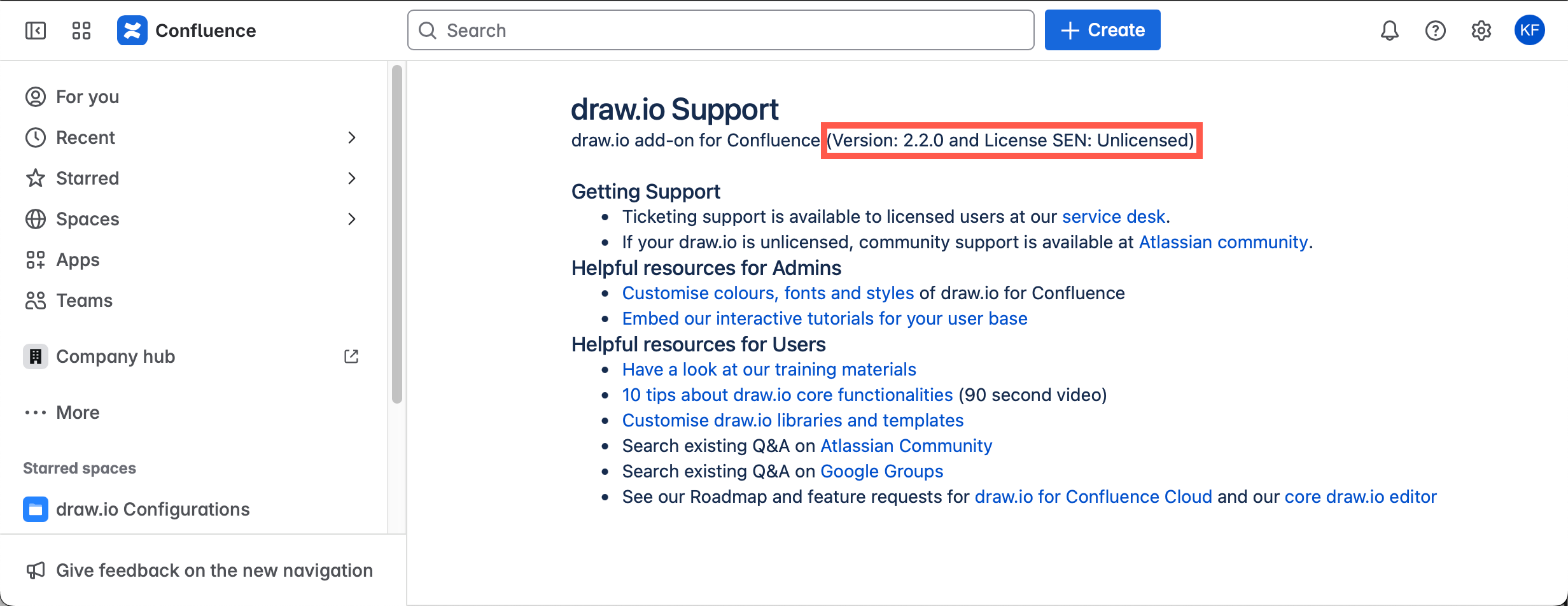
Note: You will not see a SEN if you have not licensed the draw.io app for Confluence or currently have an active trial, you will not have a SEN.
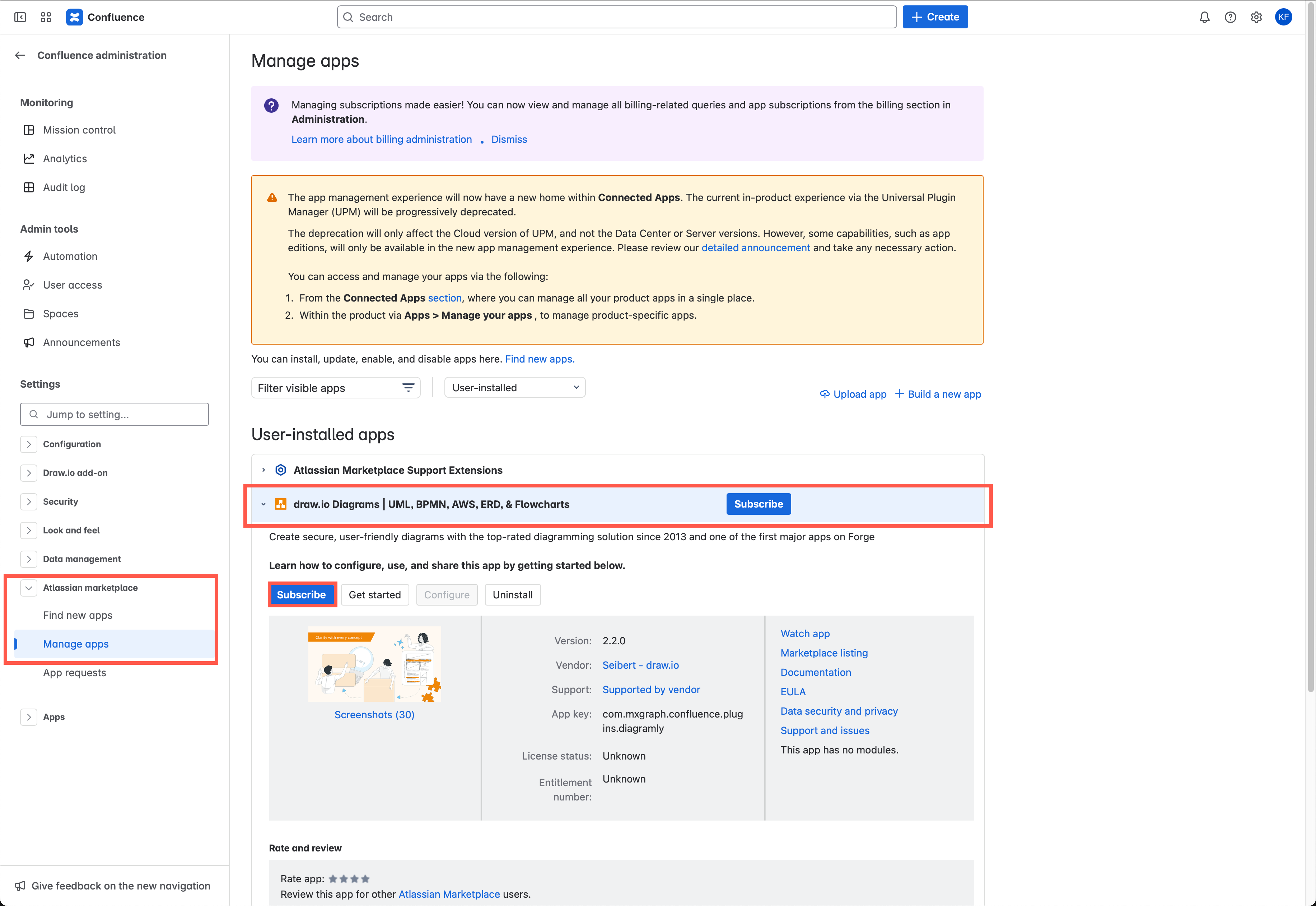
- In this case, as an administrator, go to the Confluence Settings, and select Manage apps from the left-hand navigation.
- Expand the draw.io app information, click on the Subscribe button and wait until your trial license is installed. Your SEN will then show on the draw.io Support page.
draw.io for Jira Cloud
- In your Jira Cloud instance, click on Jira Settings in the left menu panel (the gear icon).
- Select Apps from the Settings menu.
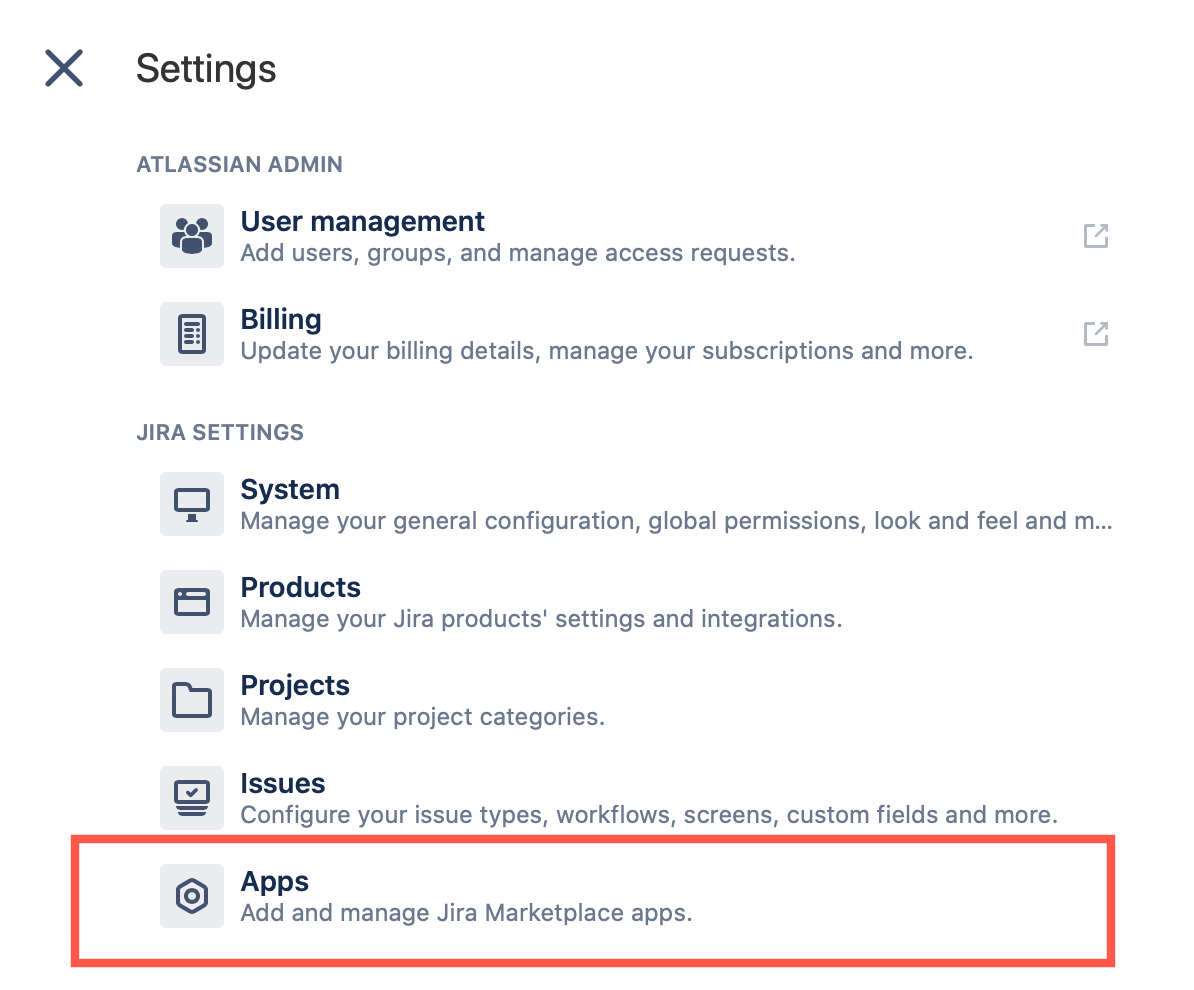
- Click on Manage Apps under the Atlassian Marketplace section, then expand the draw.io section. If you have many apps in your instance you may need to use a filter to find draw.io in the list.
The Version number of the draw.io app installed in your Jira Cloud instance is in the middle panel at the top.
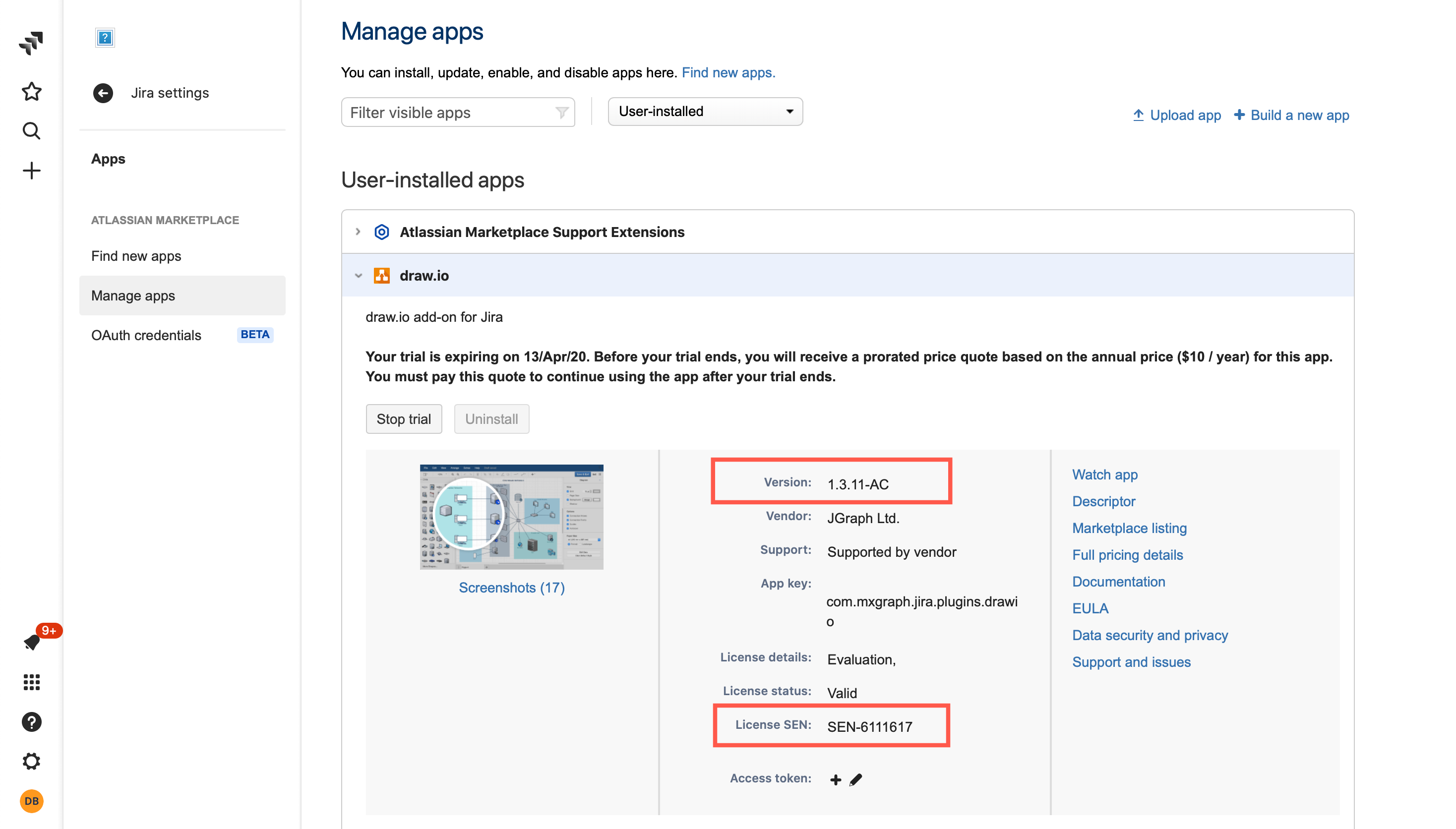
If you have licensed draw.io, you'll see your Support Entitlement Number (SEN).
If you don't see a SEN code, then the draw.io app is currently unlicensed. Click on the Free trial button and wait until your trial license is installed. The License SEN will be added License details.
Related
- Learn more about customising the draw.io in Confluence in Confluence.
- Compare the different draw.io app editions and the zero egress app.