draw.io for Confluence Cloud
draw.io is a fully featured diagramming tool, with large shape libraries and templates for a wide range of diagrams.
Administrators: Go to the section at the end of this page for links to documentation for migrating instances, mass importing Gliffy diagrams, customising the draw.io editor and more.
Overview for new draw.io users
The draw.io diagram editor is has the same layouts and functionality as the web application. To see how to diagram with the draw.io editor, please visit the main getting started guide.
There are two different draw.io macros that use two different editor themes. Both let you create simple to complex diagrams with the same diagram editor functionality, tools and libraries. Pick whichever you prefer to use.
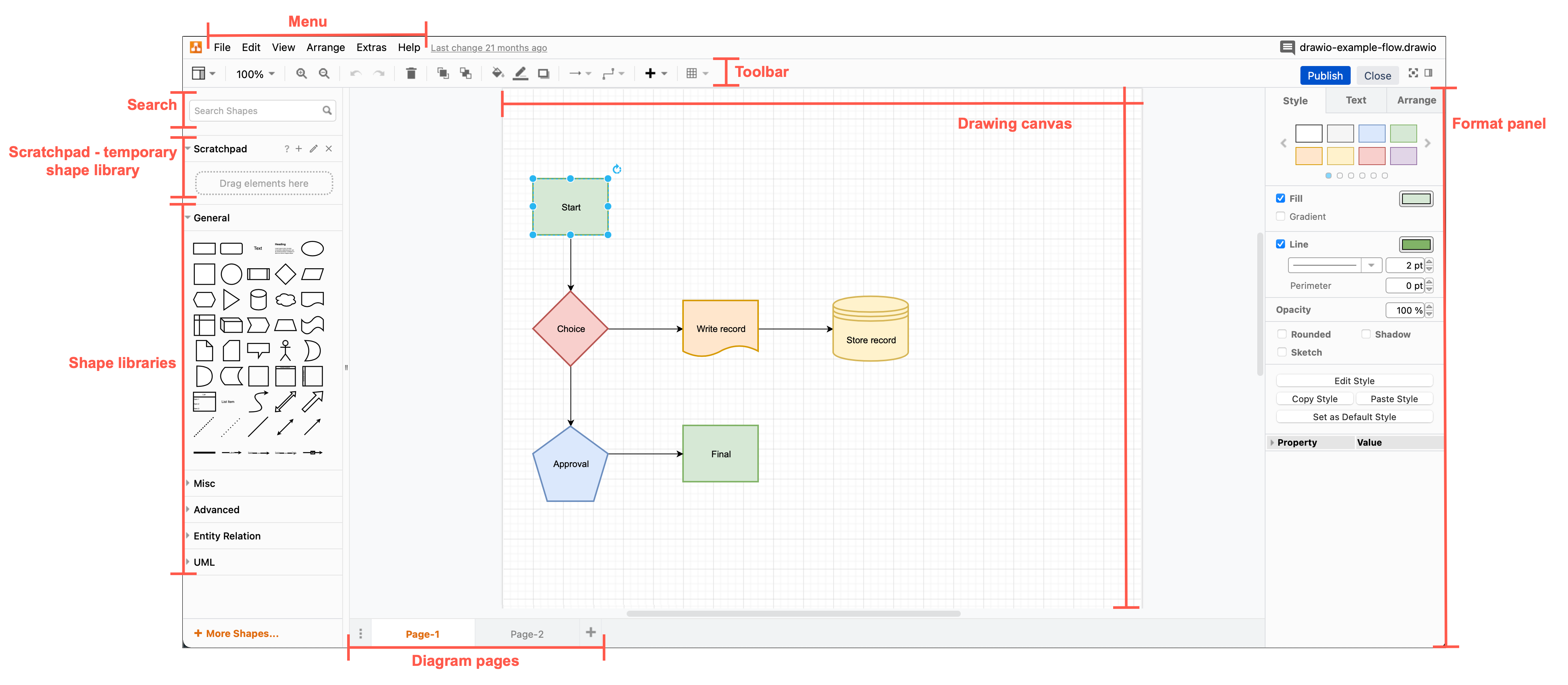
- The Diagram macro uses the Atlas editor theme that shows the draw.io menu, shape and format panels.
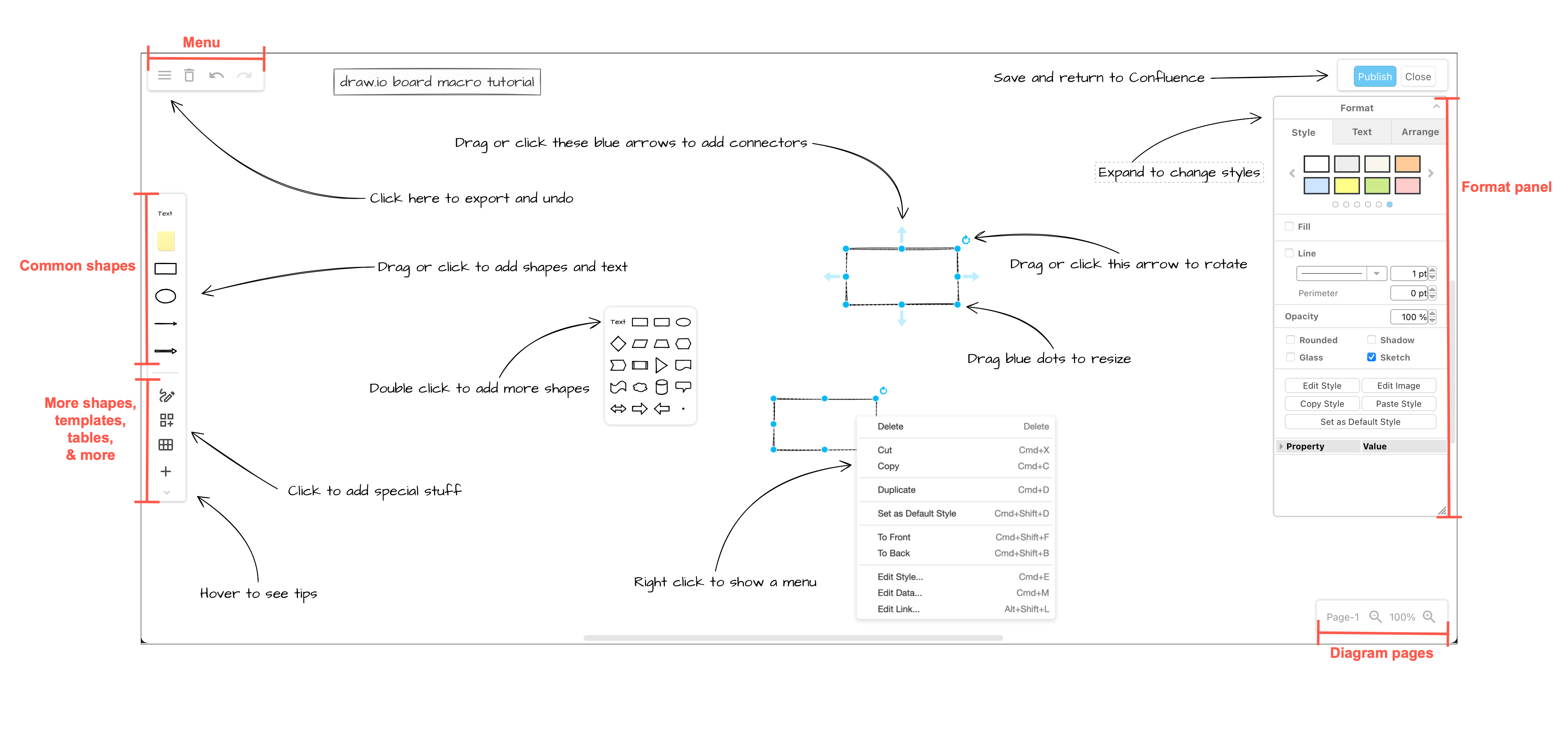
- The Board macro uses the Sketch editor theme as a distraction-free online whiteboard.
Resize the draw.io viewer on both macros to make your diagram appear larger or smaller on the Confluence page.
Tip: Multiple users can collaboratively edit draw.io diagrams in Confluence and see each others' mouse cursors and changes in real time.
Add a draw.io Board macro
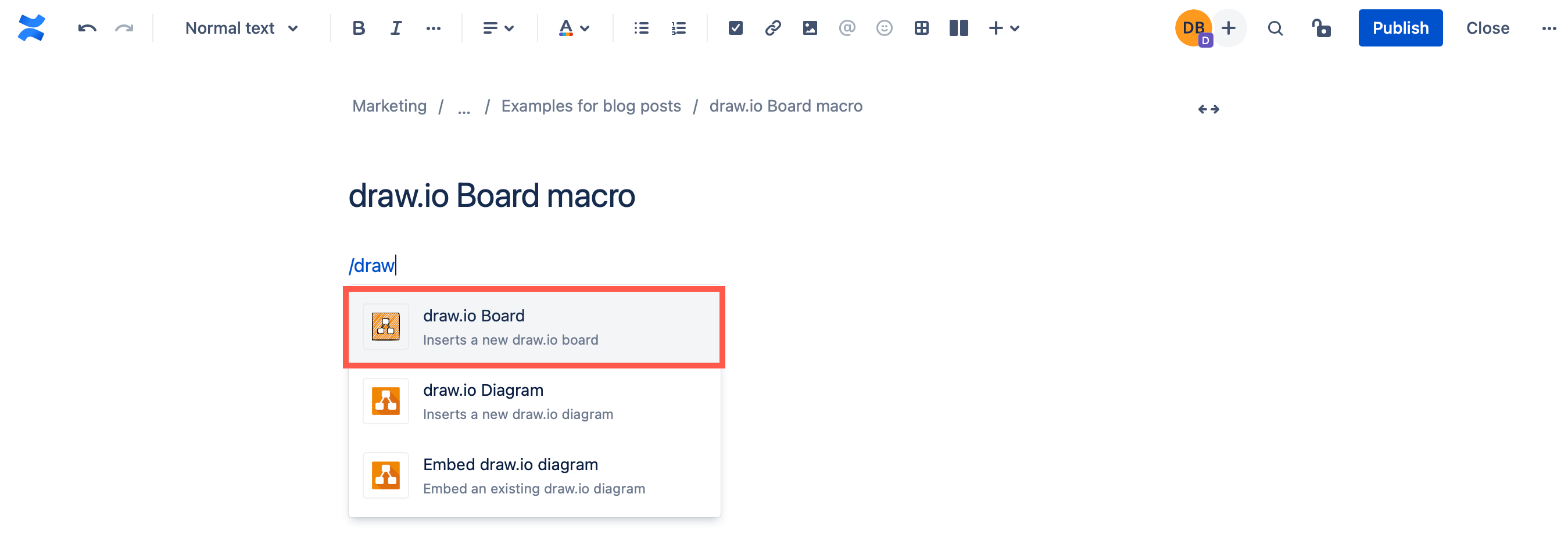
Edit a Confluence page, type /draw.io and select the draw.io Board macro to add a simple online whiteboard to a page.
This is the layout and tools in the draw.io Board editor.
See how to use draw.io as a feature-full but distraction free online whiteboard in Confluence.
Add the draw.io Diagram macro
- Type
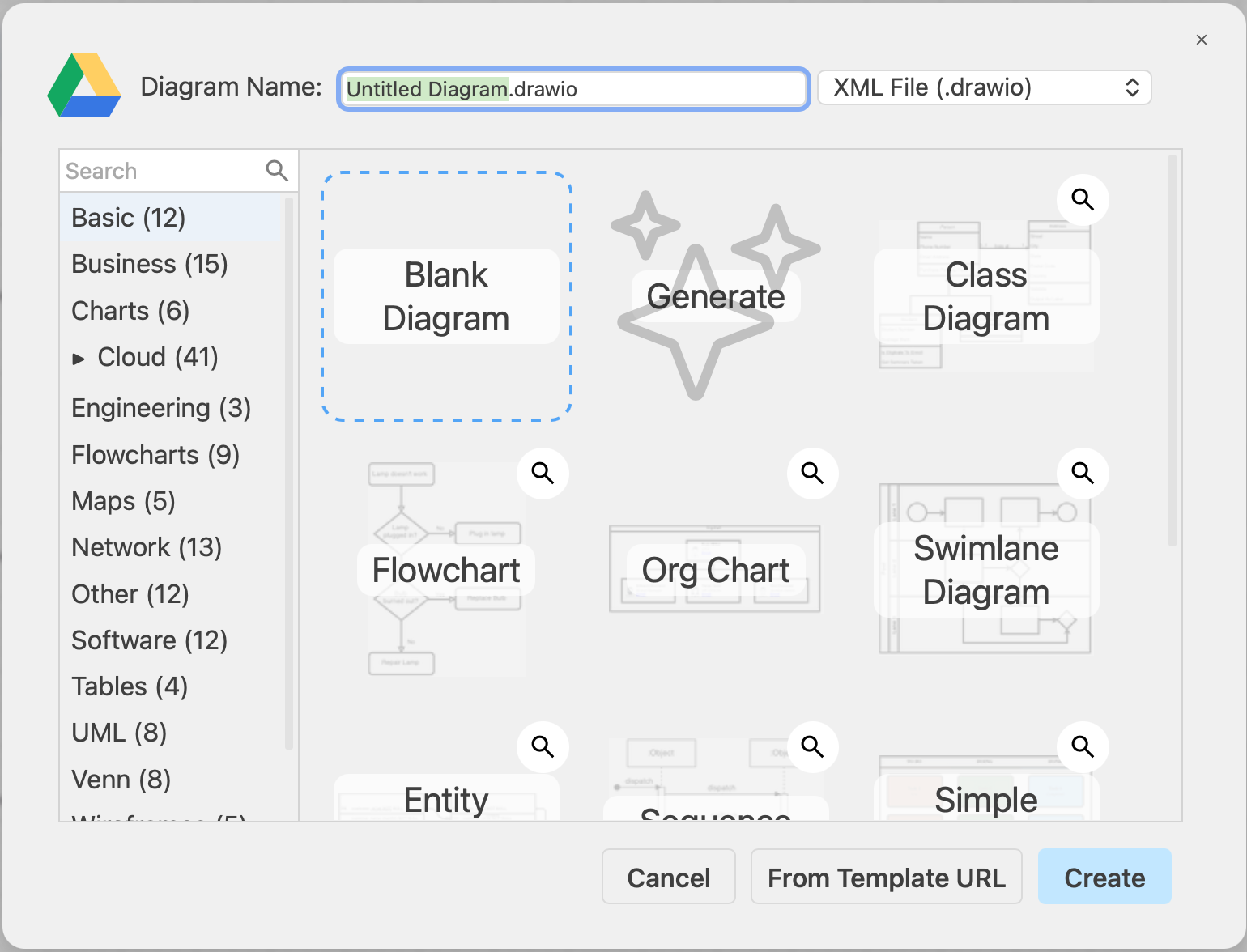
/draw.ioand select the draw.io Diagram macro to use the more complex draw.io Diagram editor layout with immediate access to more tools. - Select the Blank Diagram template, enter a filename for your diagram, and click Create.
This is the layout and tools you will see in the draw.io Diagram editor.
Draw a diagram
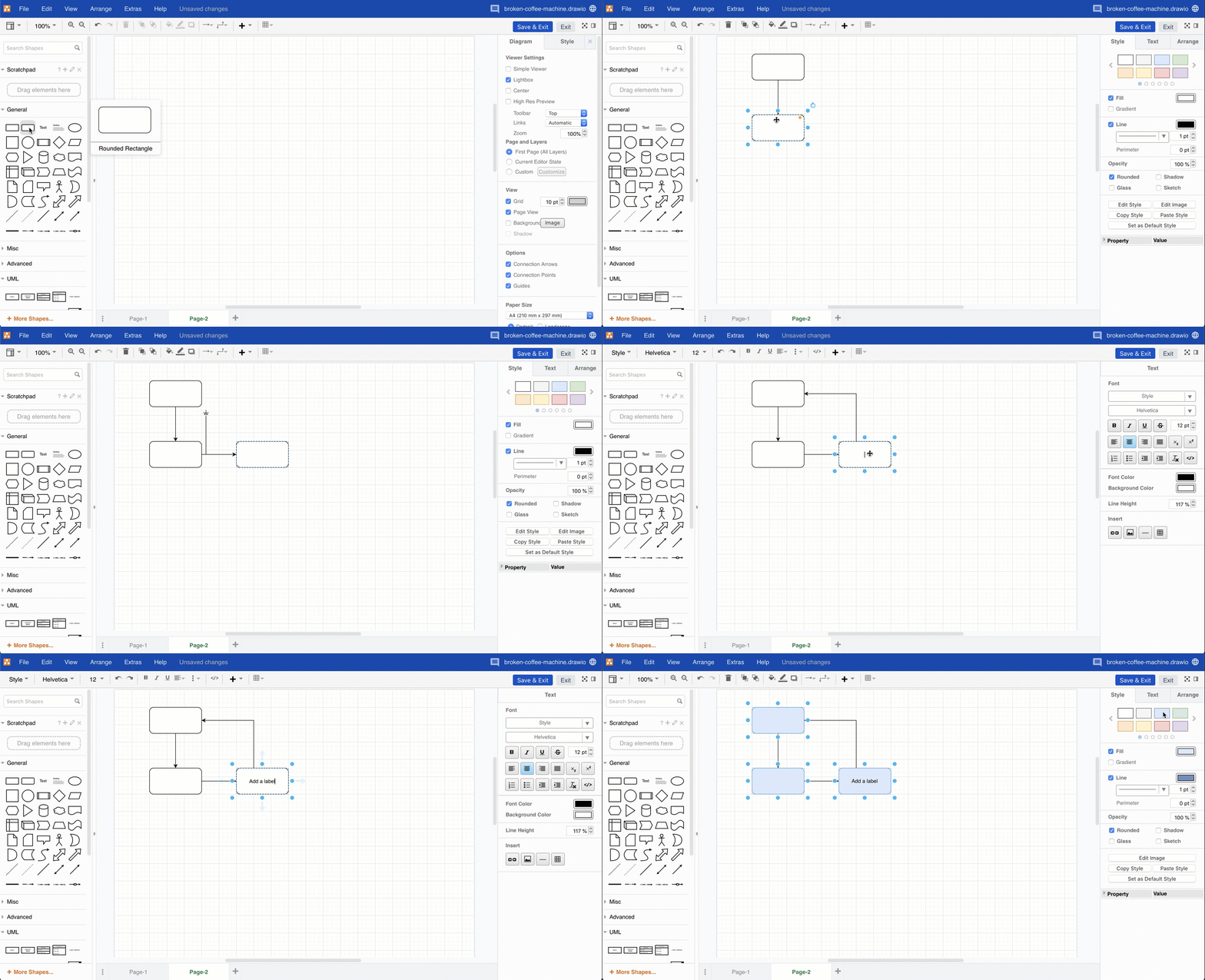
Step through this tutorial to draw a basic flowchart and get used to the draw.io editor. Our free online version of draw.io at app.diagrams.net has the same layout and tools as draw.io in Confluence and Jira as both are developed by us here at drawio Ltd.
- add shapes using the shape libraries on the left
- draw connectors between shapes to link the elements of your diagram together
- add labels to the shapes and connectors
- style your diagram using the tools in the format panel on the right
To see the wide range of diagrams you can create with draw.io, visit the example diagrams section in this documentation.
Publish the diagram to the Confluence page
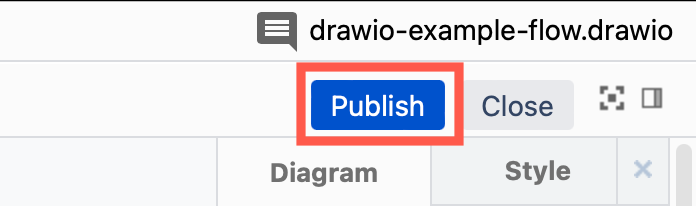
Click on the Publish button in the top right corner of the draw.io Board or Diagram editor to save your diagram and return to the Confluence page.
View a draw.io diagram
Hover over a draw.io diagram in a Confluence page, and you'll see a toolbar. Use this to step through diagram pages or view/hide layers, if the diagram has them.
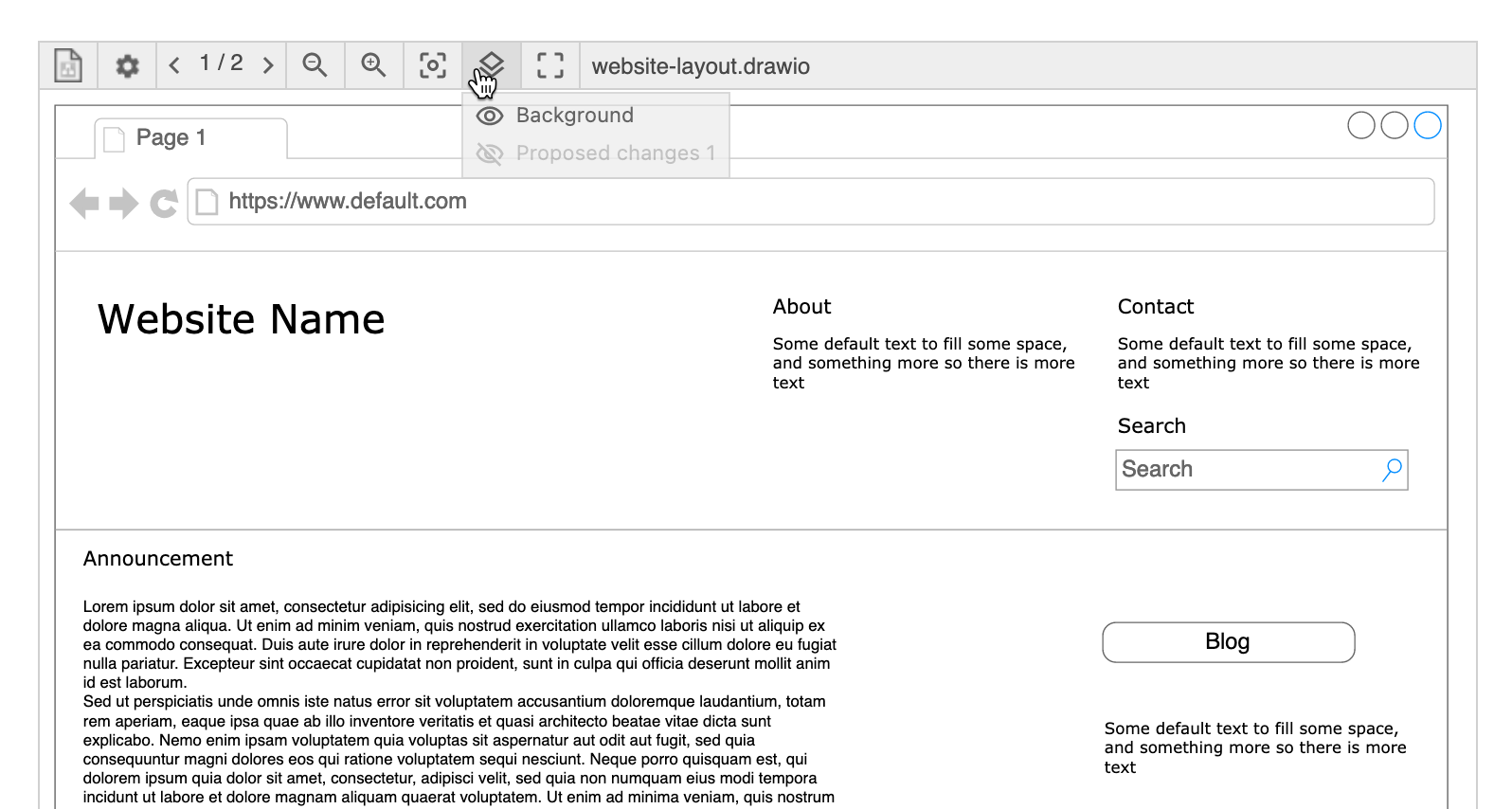
You can change how the draw.io diagram appears on the Confluence page or disable the lightbox viewer.
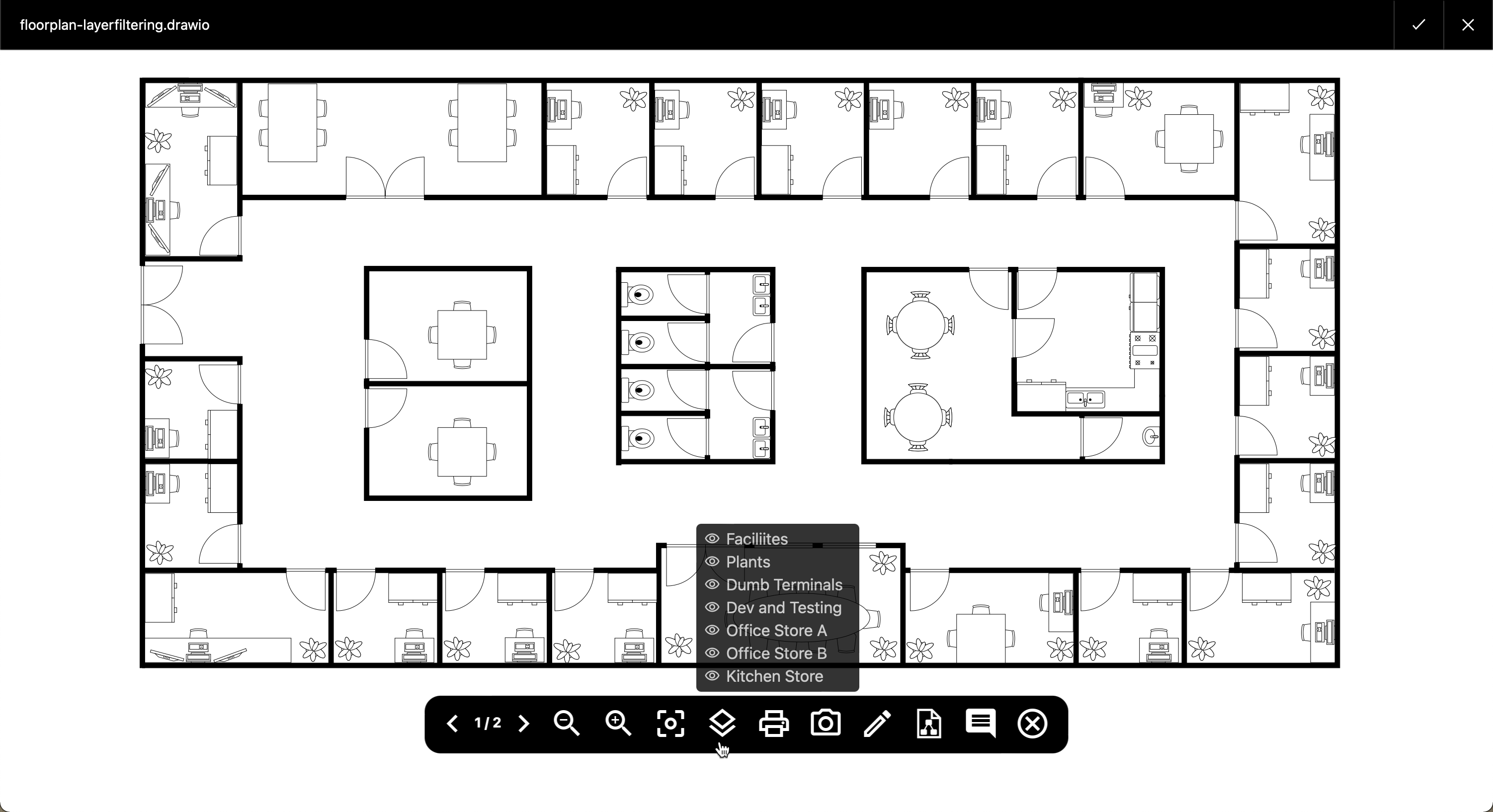
- Click on the diagram in the Confluence page to open it in the lightbox viewer.
- Hover over the diagram to see the viewer toolbar where you can zoom in/out, print or export the diagram, step through diagram pages, and display/hide layers and tagged shapes.
- Click on the pencil in the toolbar to open the diagram in the draw.io editor.
- Or click on the cross or the tick in the top right to close the lightbox and return to the Confluence page.
See all draw.io diagrams in Confluence
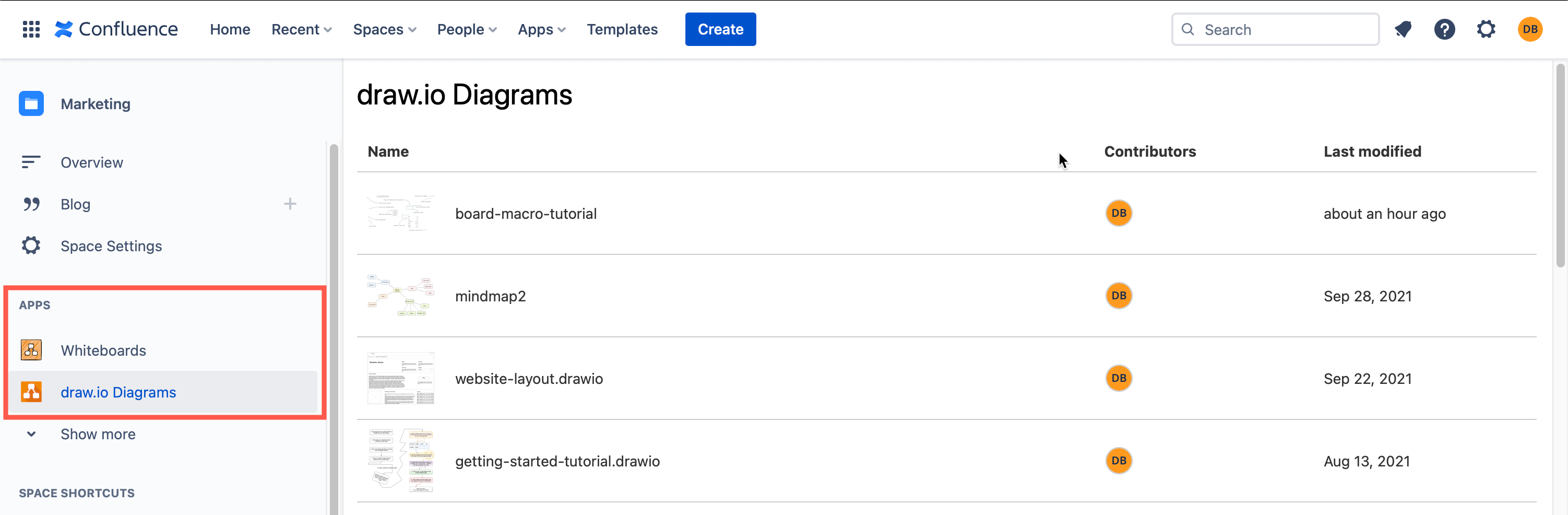
In the left navigation section, click on the draw.io Diagrams or Whiteboards section to see all of the draw.io diagrams or draw.io boards that are in the Confluence Cloud instance.
Work with draw.io diagrams
Confluence users can do more with draw.io diagrams when they are stored in Confluence pages.
- Embed a diagram from one page in another page, edit embedded diagrams, or embed diagram files that have been stored in Google Drive and OneDrive.
- Embed a diagram from Confluence into Jira.
- Search for a diagram in your Confluence instance
- Move a diagram to another page, or copy a diagram to another draw.io macro.
- Work with comments on diagrams.
- Restore an older version of a diagram
Administrators
Please see the relevant sections of this documentation for licensing and troubleshooting information, including the space permissions required for the drawio-config space.
If you are considering draw.io for your company, compare app editions, review the Forge Zero Egress and Atlassian Cloud Fortified information and see how draw.io for Confluence Cloud is secure by design.
- Access the app management pages in Confluence and Jira Cloud
- Find the draw.io app version and SEN
- View Macro Usage to see how many draw.io diagrams are in a Confluence instance
Migrate draw.io and Confluence
Administrators need to follow additional migration steps to ensure that draw.io diagrams with links and diagrams that are embedded from one page on another are correctly linked in their new instance.
Switch from Gliffy to draw.io
Migrating from Gliffy to draw.io is simply with the mass import in draw.io in Cloud and a smilar mass import in draw.io in Server/DC.
- Compare draw.io and Gliffy to see which feature set your users require.
- See how searching for diagrams with a Confluence instance works with draw.io vs Gliffy diagrams.
Customise the draw.io editor
If your company hasa cohesive style guide for diagrams, uses custom fonts, or needs to use custom shapes or template diagrams, administrators can set these up to be the default in draw.io for all users in a Confluence instance.
- Editor configuration reference - for all customisation options in all versions of the draw.io editor.
- Set custom colours.
- Set custom fonts.
- Set custom styles.
- Set up custom shape libraries.
- Set up custom templates.
- Enable diagram generation in Confluence Cloud.
In Server/Data Center, you can use a self-hosted Javascript viewer to export a diagram to HTML. Also, setting up custom templates in Server/Data Center is different to Cloud.