Rotate shapes or groups of shapes
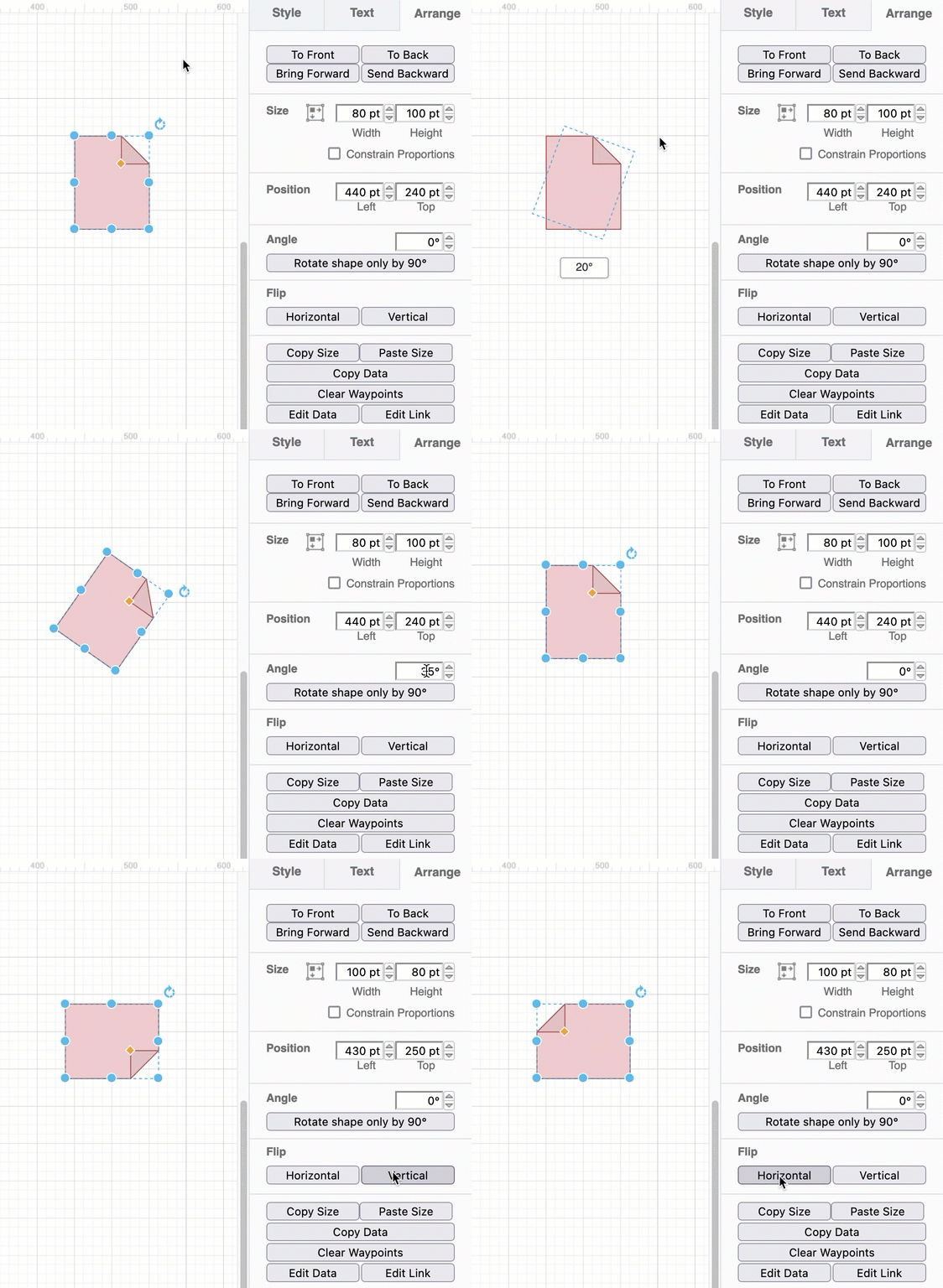
New shapes are always placed upright on the drawing canvas when you add them from the shape library. You can rotate shapes and text shapes to any position.
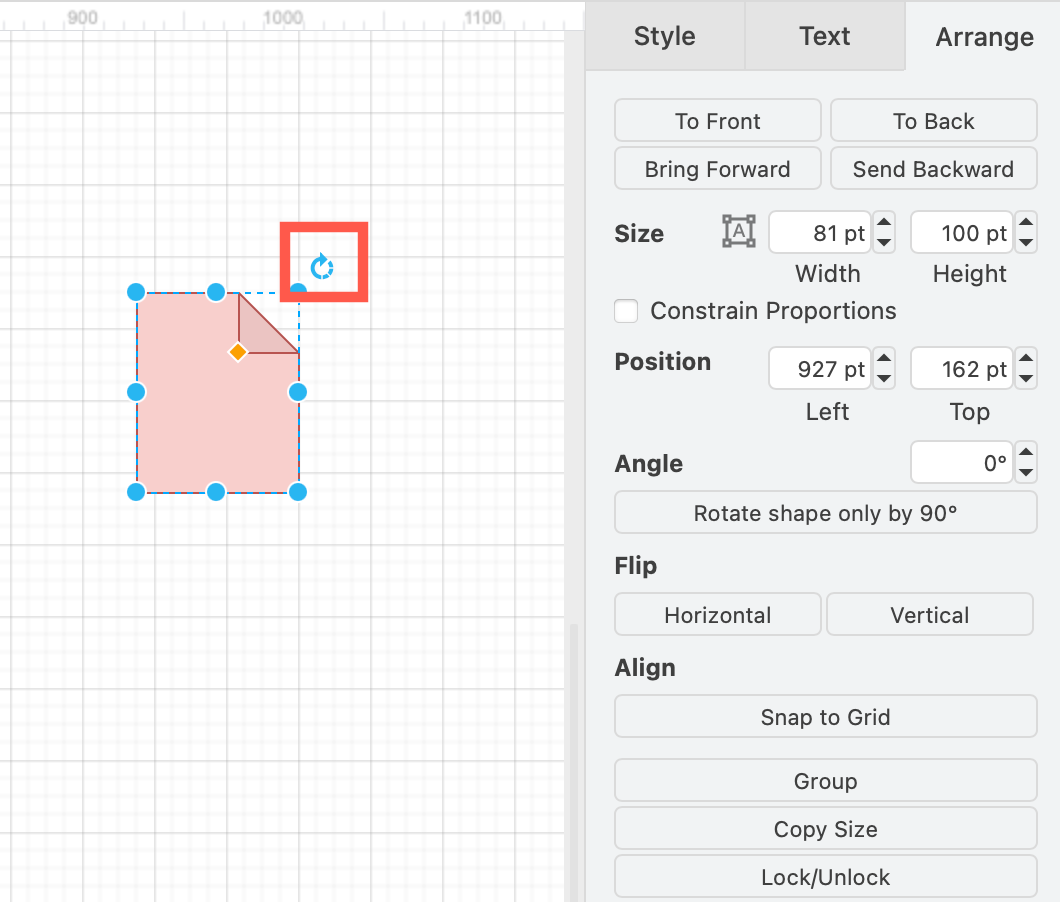
- Select the shape.
- Click and drag the rotate symbol at the top right of the shape - the circular arrow - into a new position and then release. This rotates the shape around its central point.
Rotate groups of shapes
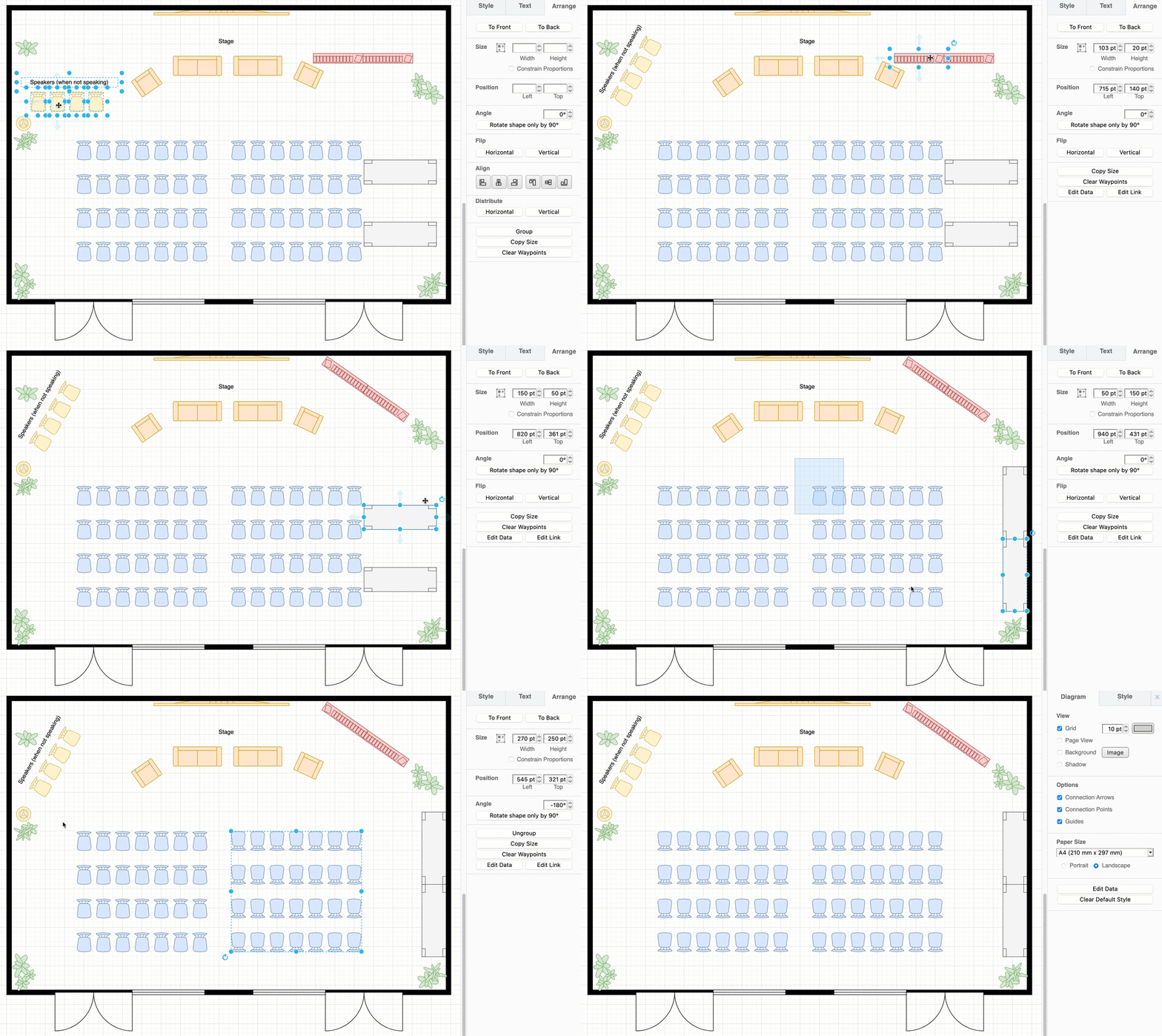
- Select multiple shapes by holding down
Shiftthen clicking on each shape you want to rotate. - Click on Group on the Arrange tab in the format panel, or right click and select Group from the context menu, or press
Ctrl+Gto form a group. A selection box will surround your selected shapes and the rotate grab handle will appear.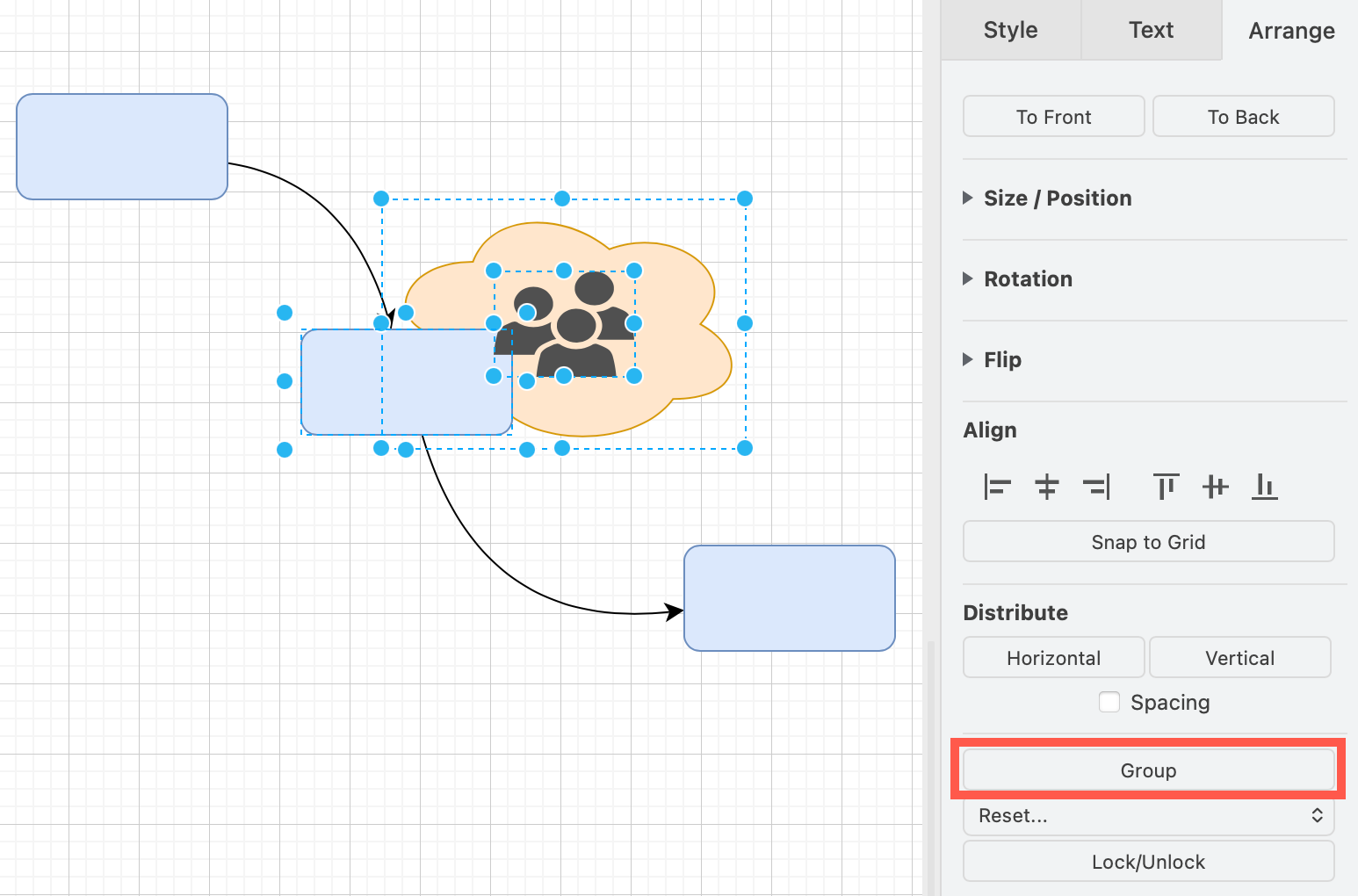
- Rotate your group as you would a single shape - click on the rotate symbol and drag the group to a new angle.
Rotate by an exact angle
Alternatively, you can enter an exact angle, rotate the shape by 90 degrees on the Arrange tab in the format panel.
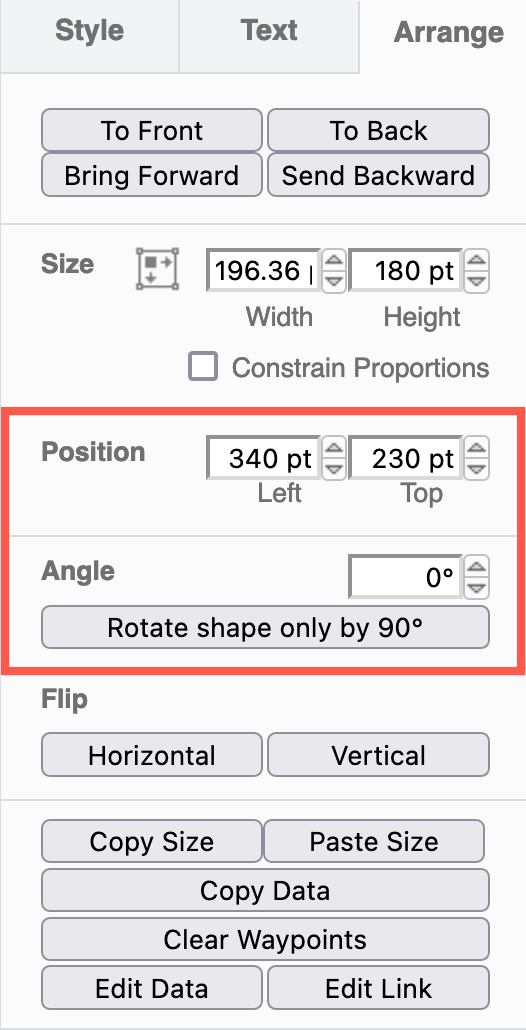
Flip a shape horizontally or vertically
Non-symmetrical shapes can also be flipped horizontally or vertically via the Arrange tab.