Add text and labels
Labels on shapes and connectors make it easier to understand a diagram quickly. For some diagrams, such as entity relation or UML diagrams, these labels are essential.
Add a label
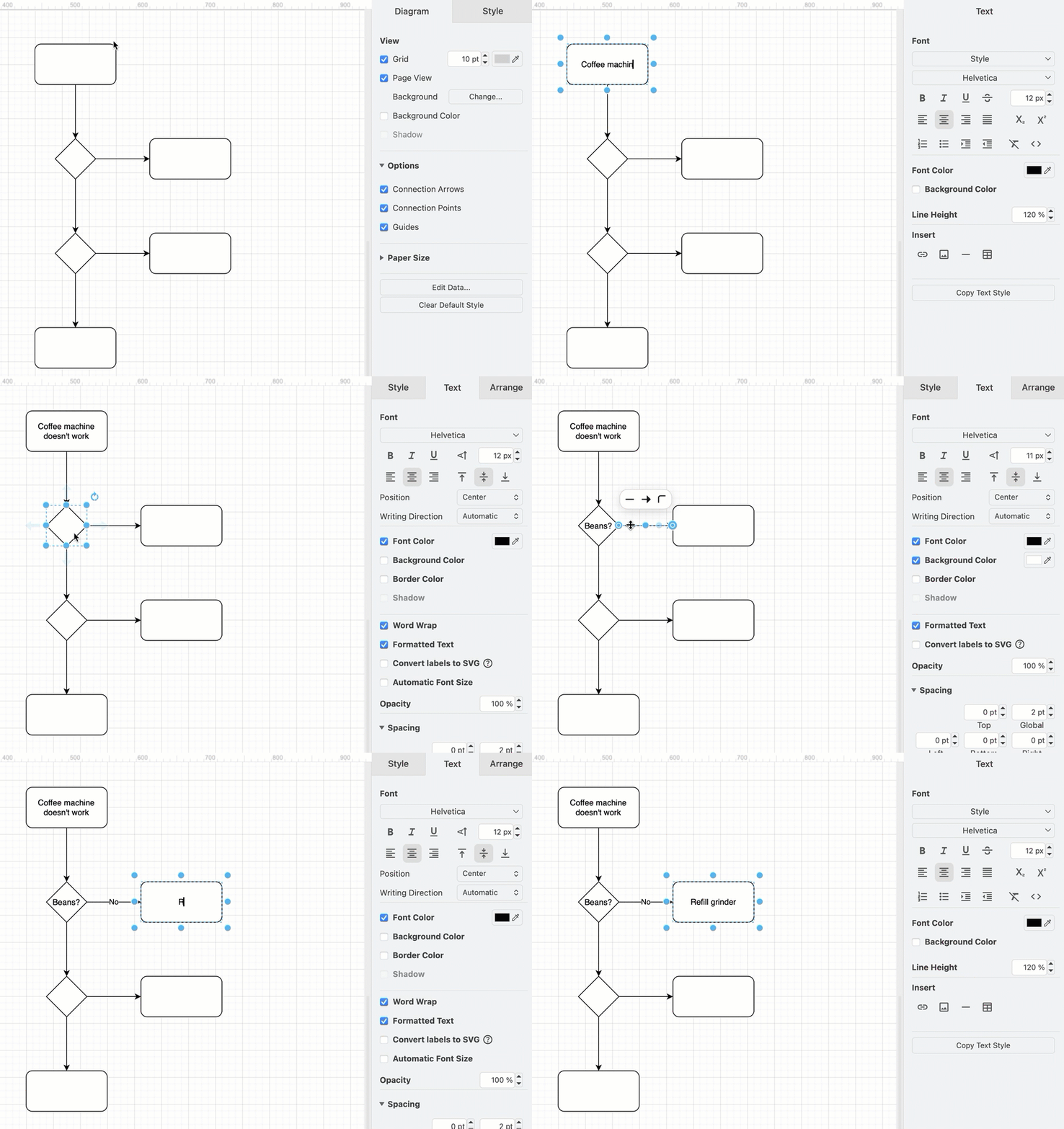
- Double click on a shape. Start typing to replace the label with your own text. Alternatively, single click on a shape and start typing to add or edit the label.
- Press
Enterto save the label text.
Tip: Press Shift+Enter or Alt+Enter to add a line break in a label.
Add connector labels
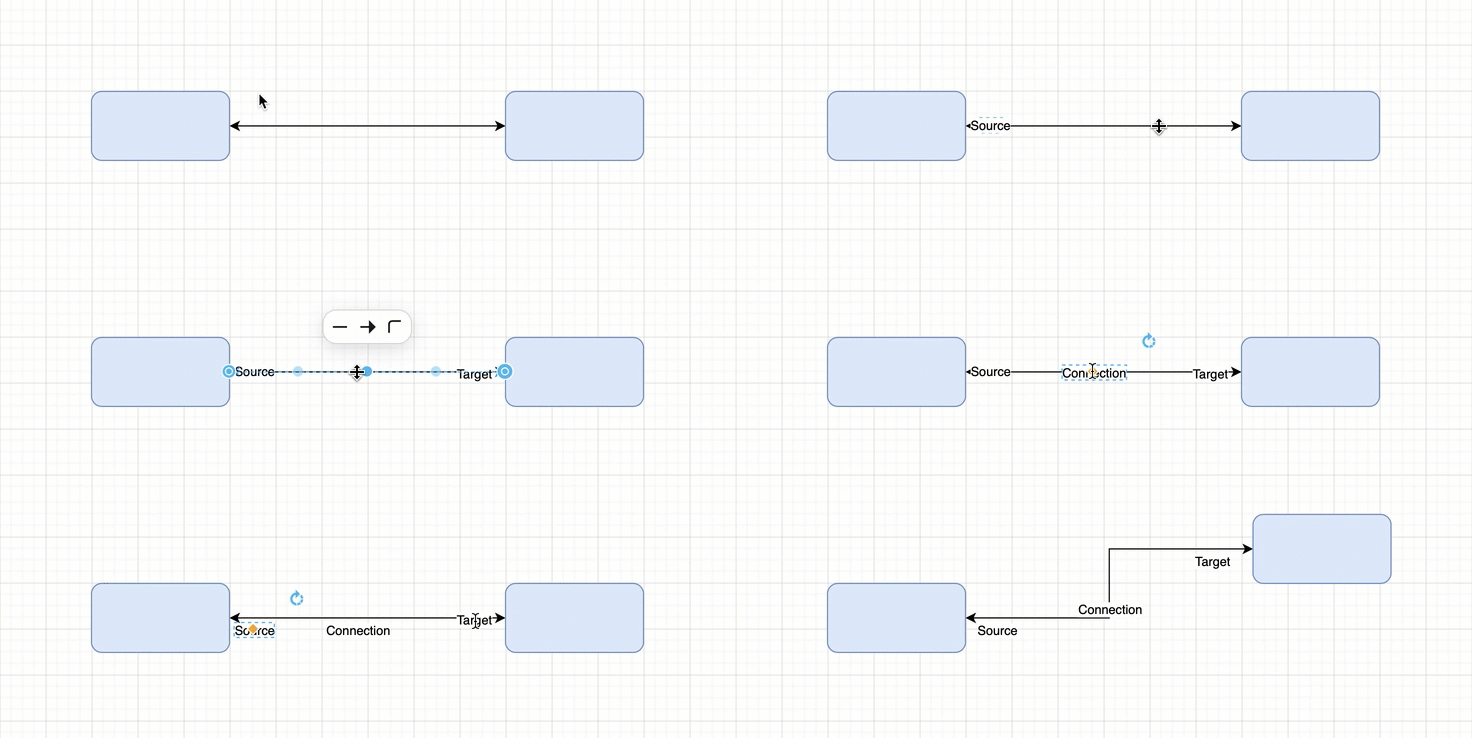
You can add three labels to a connector - one at the source end, one at the target end, and one in the middle.
- Double click on the connector at the position you want to add a text label.
- To reposition the connector label text, click on the label text, then drag the small yellow diamond to a new position.
If you reroute the connector, you may need to update any labels you had manually positioned, but usually the label will move intelligently with the connector.
Edit labels
Select a shape or connector with a label or a text shape and start typing to replace the existing text with whatever you type.
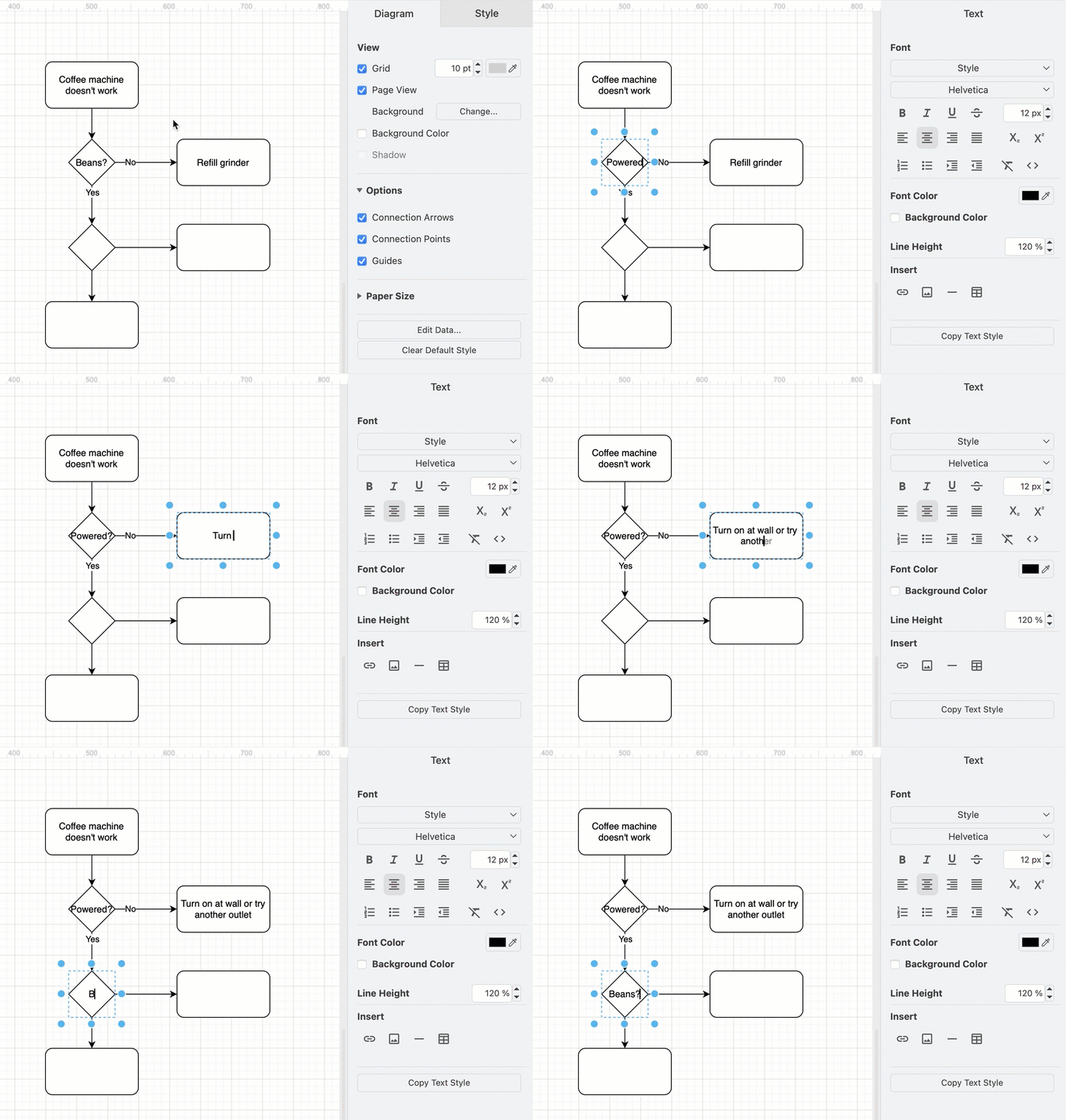
When you highlight some or all the text within the label, rather than just selecting the shape or connector, additional text style options will be available in the Text tab of the format panel
Select only part of the text
You can use multiple text styles within the one text shape or label or table cell.
- Double click on the shape or connector to highlight the text.
- Use the arrow keys or click within the label again to move the cursor to the start of the text you want to format.
- Hold down
Shiftand use the arrow keys or click-and-drag to select the text within the label. When you change the text style, it will only apply to the selected text.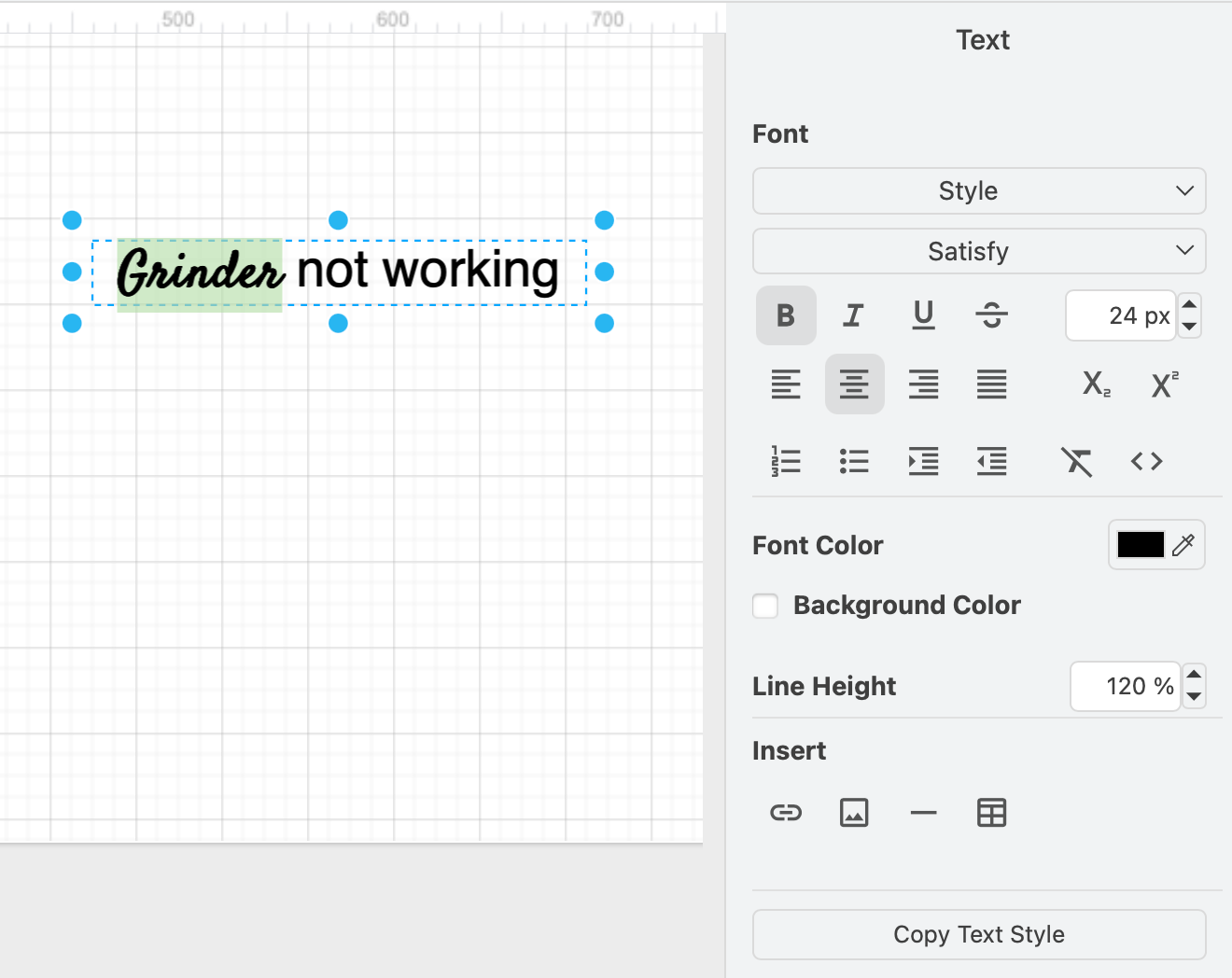
Edit container shape labels
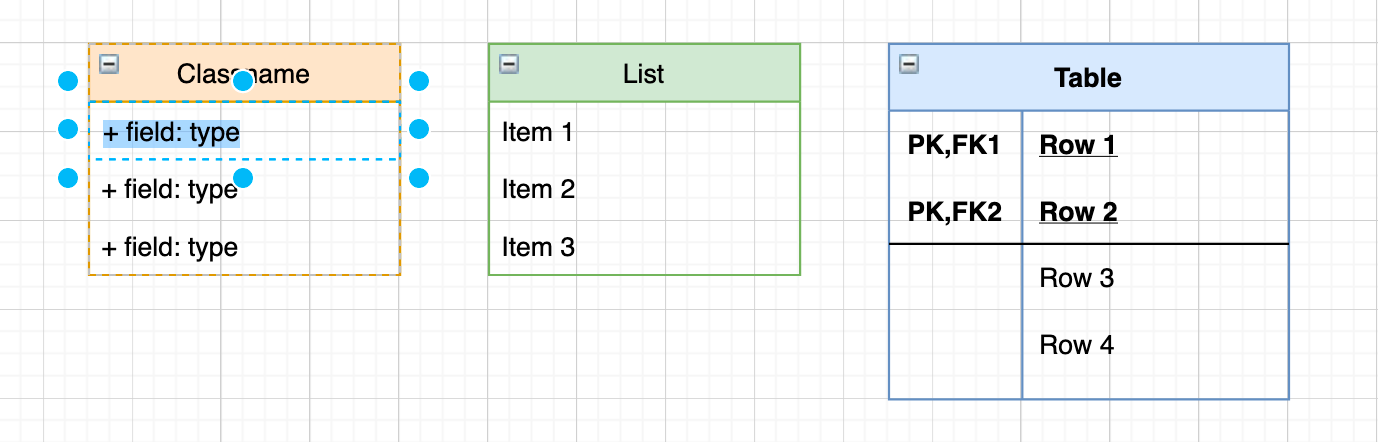
Tables, entity relations, lists and other complex compound shapes can contain multiple labels. Double click on any of these labels to edit them.
Add text-only shapes
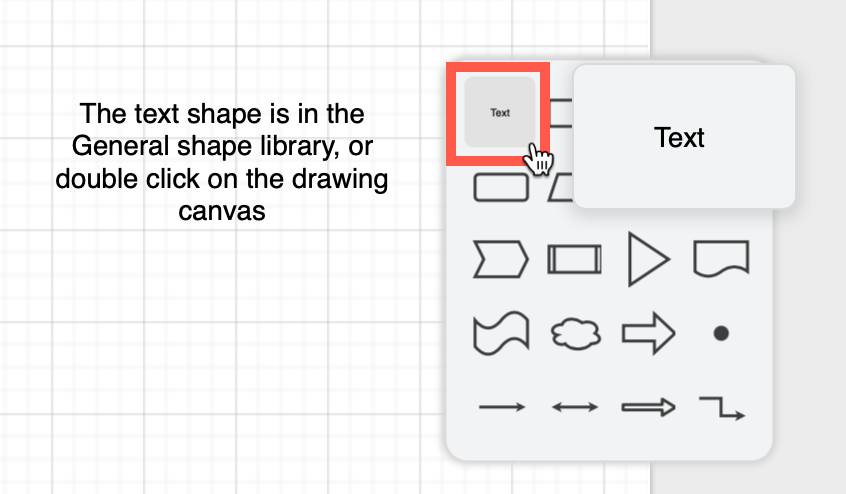
Double-click on a blank area in the drawing canvas and select the text-only shape from the quick selection box. This is a simple rectangle without an outline or fill that changes size to match the text you enter.
Text with a heading
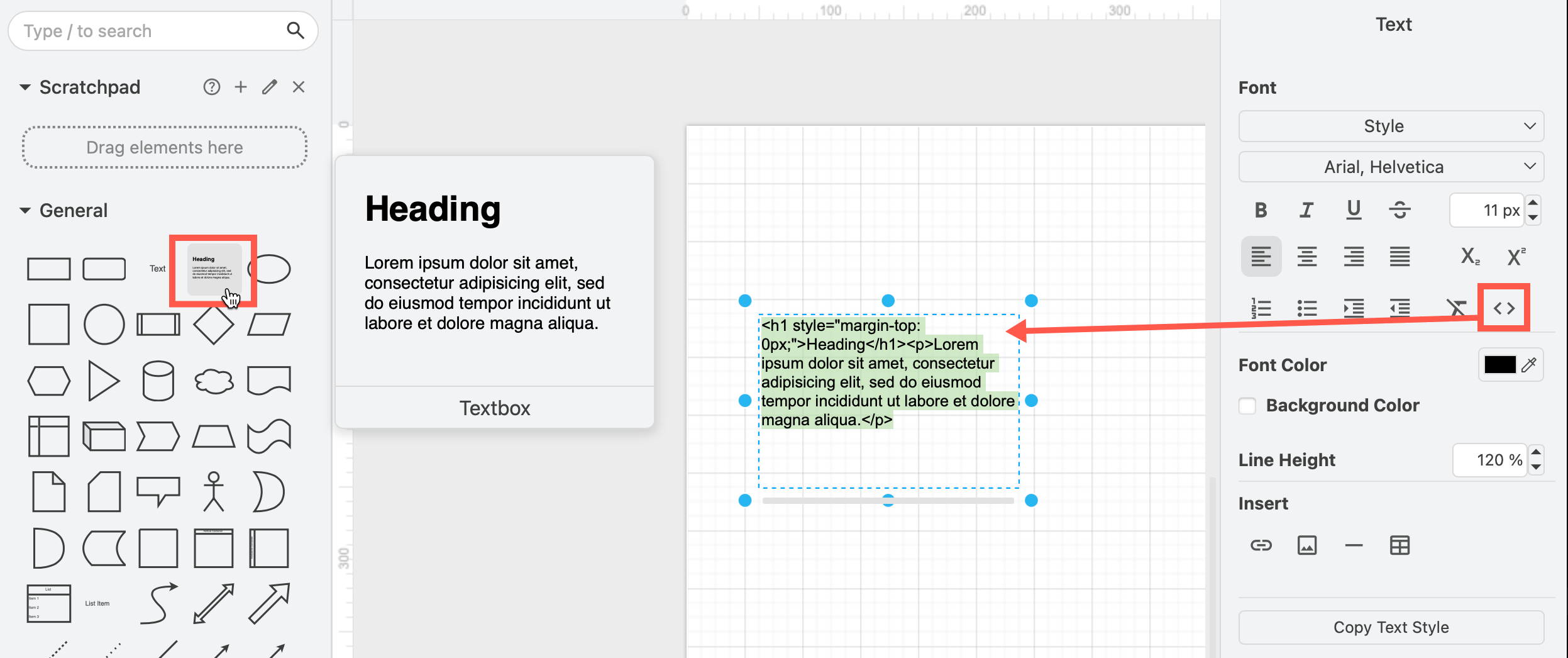
Use the Textbox shape in the General shape library. This is formatted with HTML - if you find the heading disappears, edit the HTML of the textbox.
List shapes and entity shapes
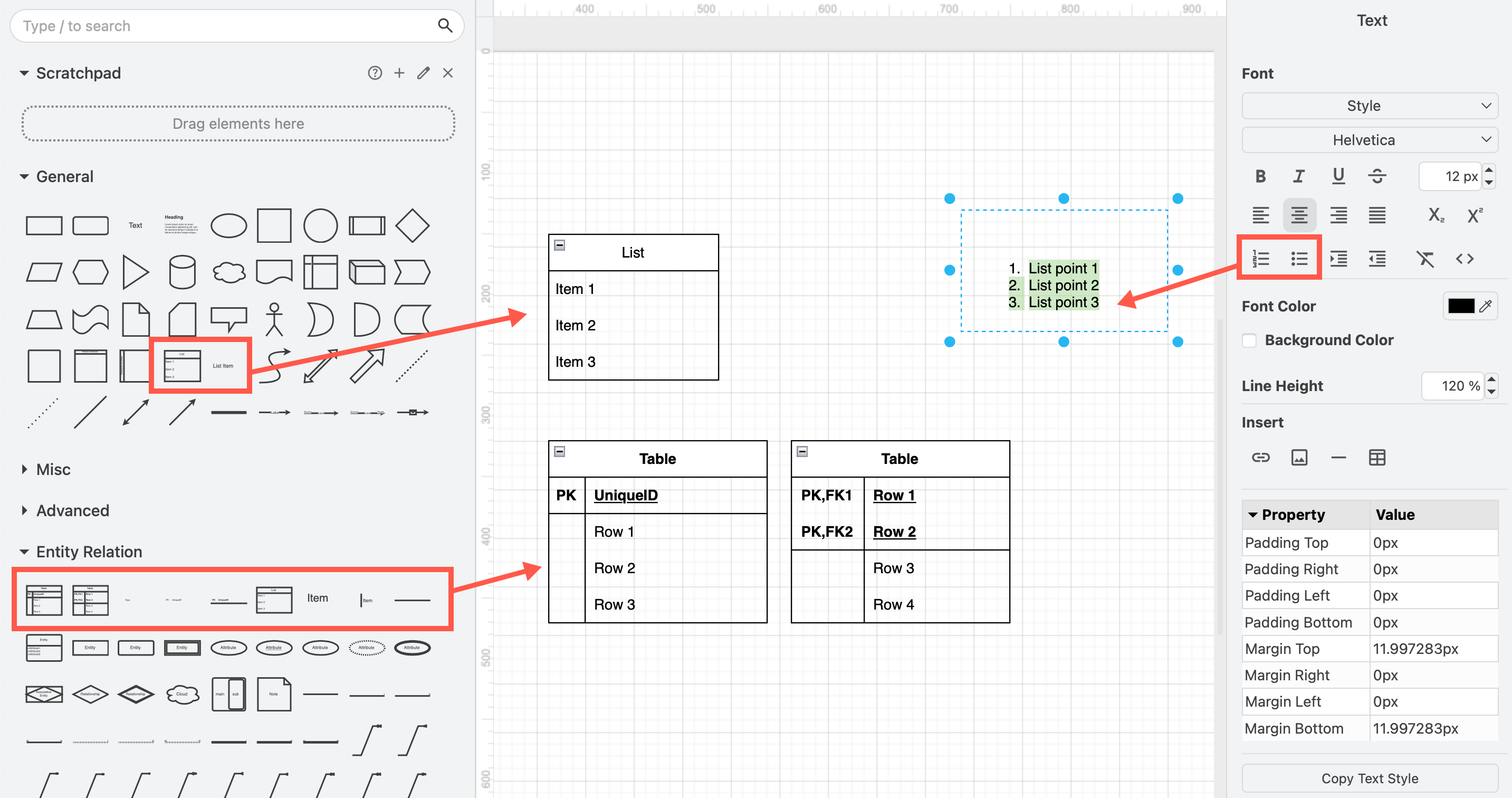
Use the Entity shapes from the Entity Relation shape library, or List shapes from the General shape library for neatly formatted lists.
Turn a label into a list: Select just the text you want to turn into a list within the label or text box and click on Numbered List or Bulleted List.
Add a table
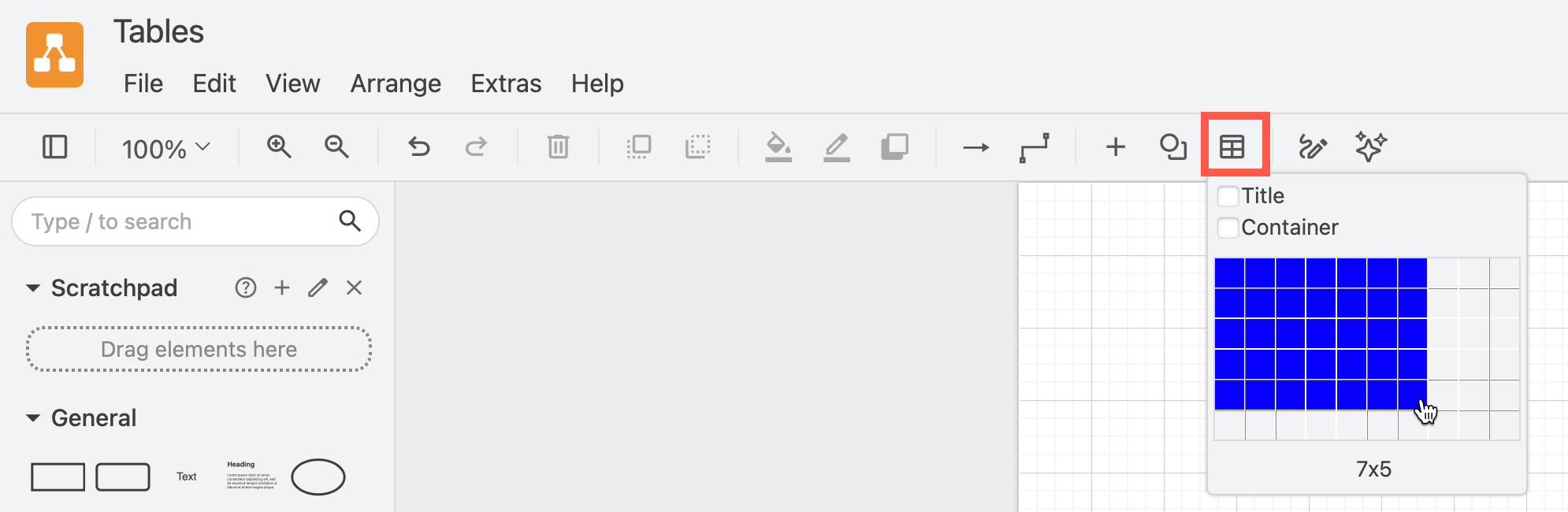
Drag to select the size of table you need in the table tool via the toolbar. Make sure that the Container option on the table tool is not enabled - otherwise each cell will want to include shapes and not text.