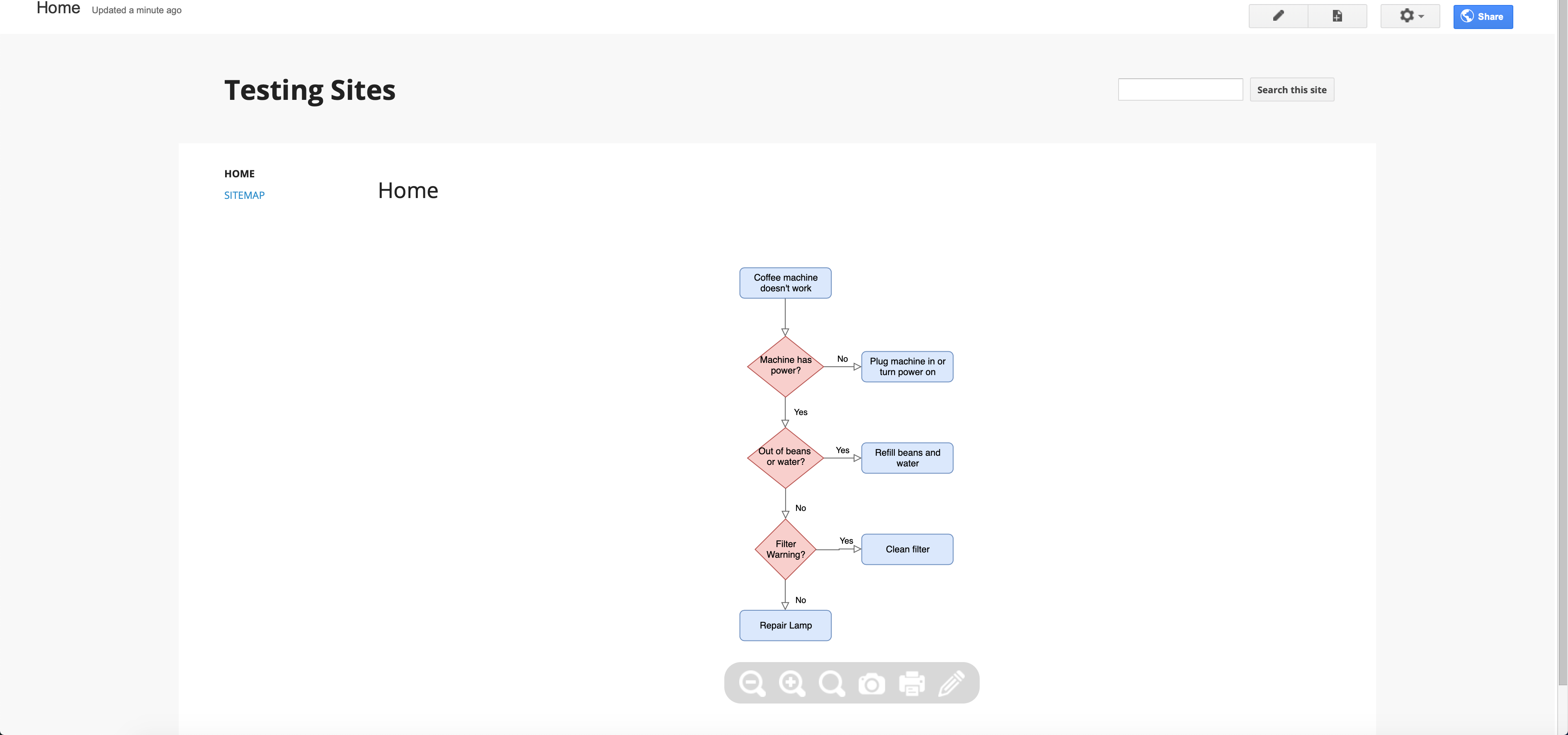
Embed a diagram on Google Sites
It's easy to embed diagrams into both the new and the classic version of Google Sites.
Embed a diagram in the new Google Sites
The current version of Google Sites allows you to edit the HTML of your web pages. That makes it easy to embed a diagram as HTML.
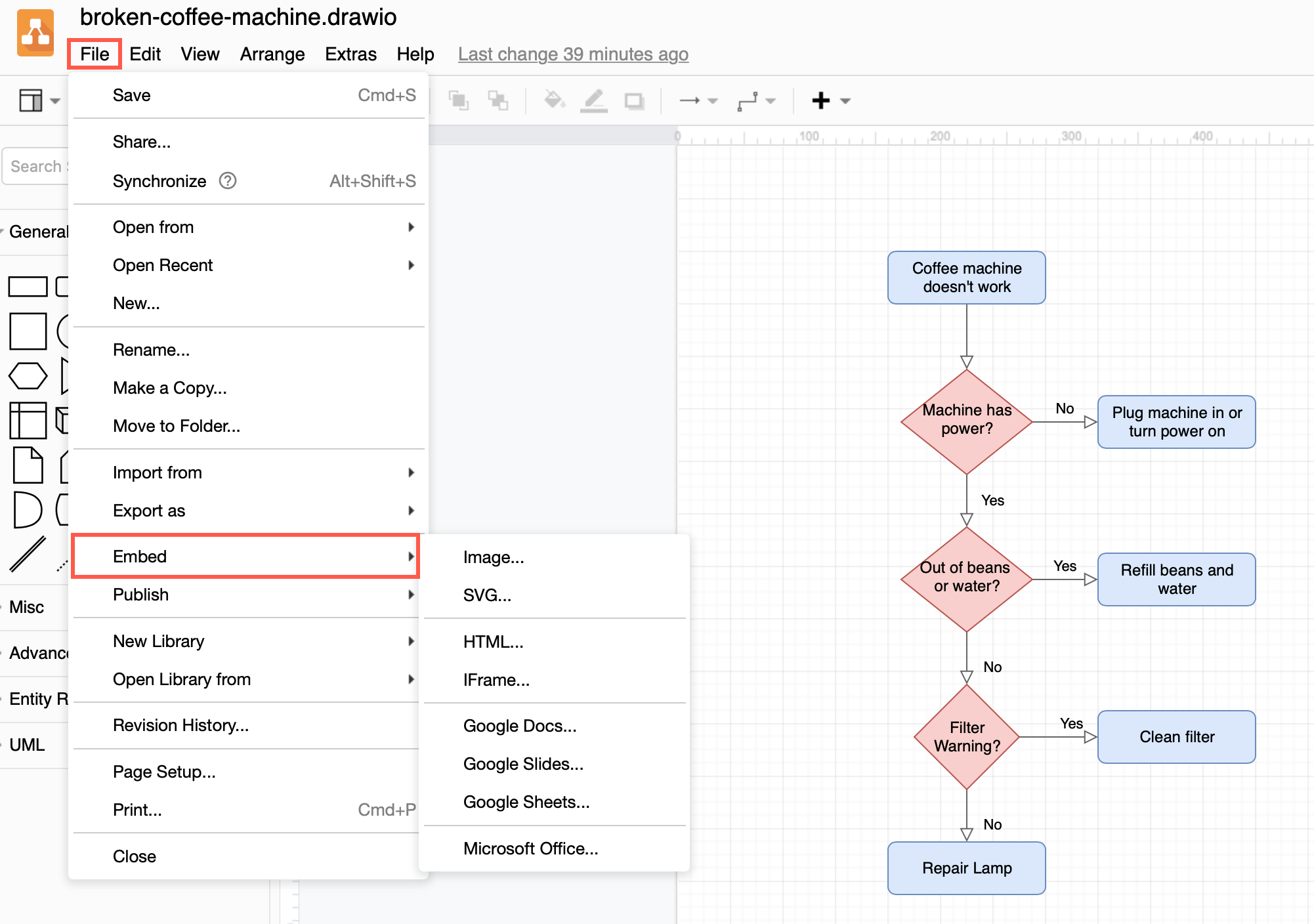
- In the draw.io editor, select File > Embed > HTML to open the HTML options dialog.
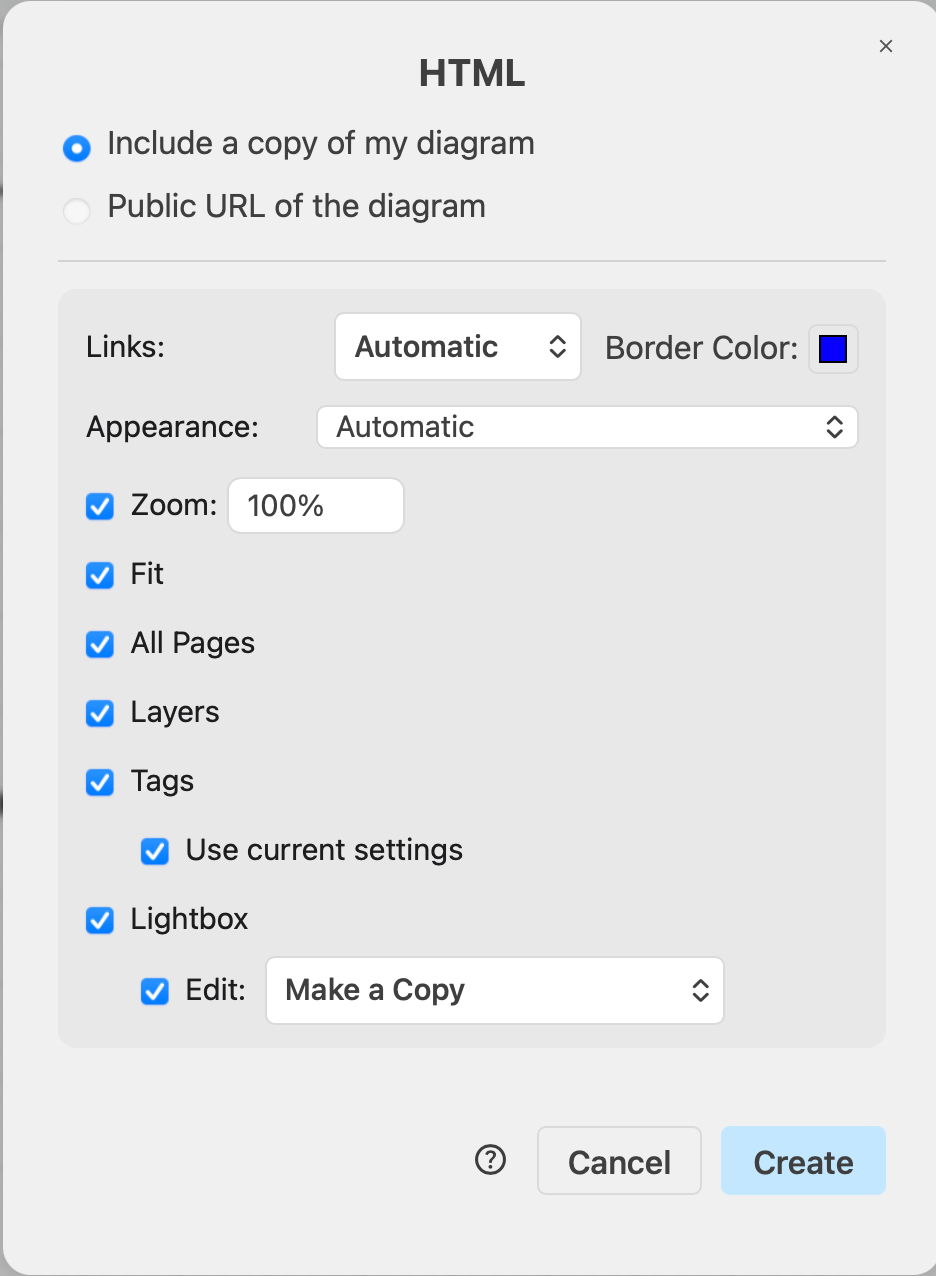
- Select the options you want to use, then click Create.
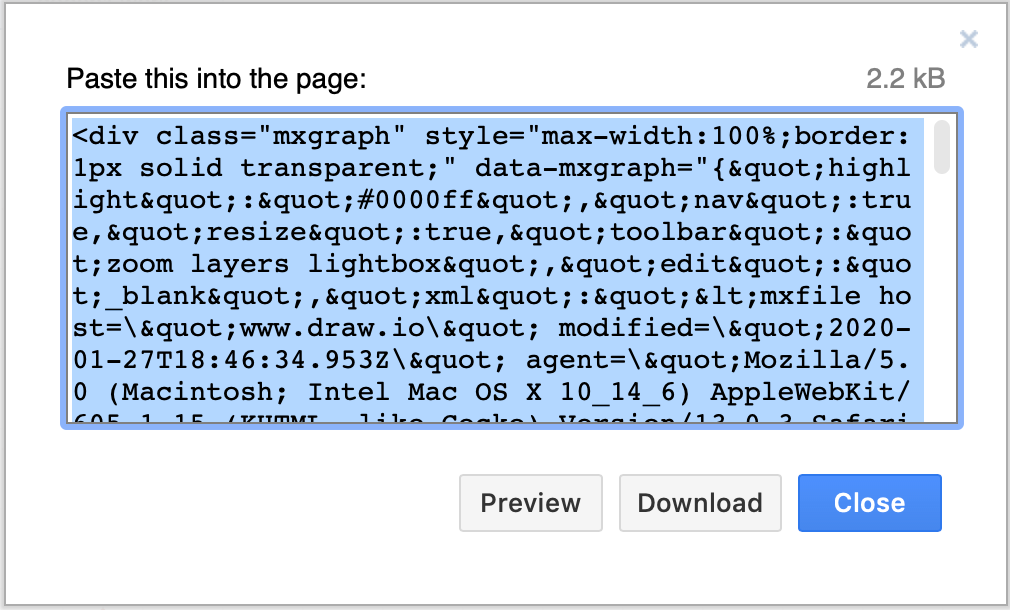
- Copy the HTML code that is generated.
- Edit your Google Sites web page, then click on the
<embed />tool on the right hand side.
- In the Embed from web dialog, click on the Embed code tab, then paste in the generated HTML. Click Next.
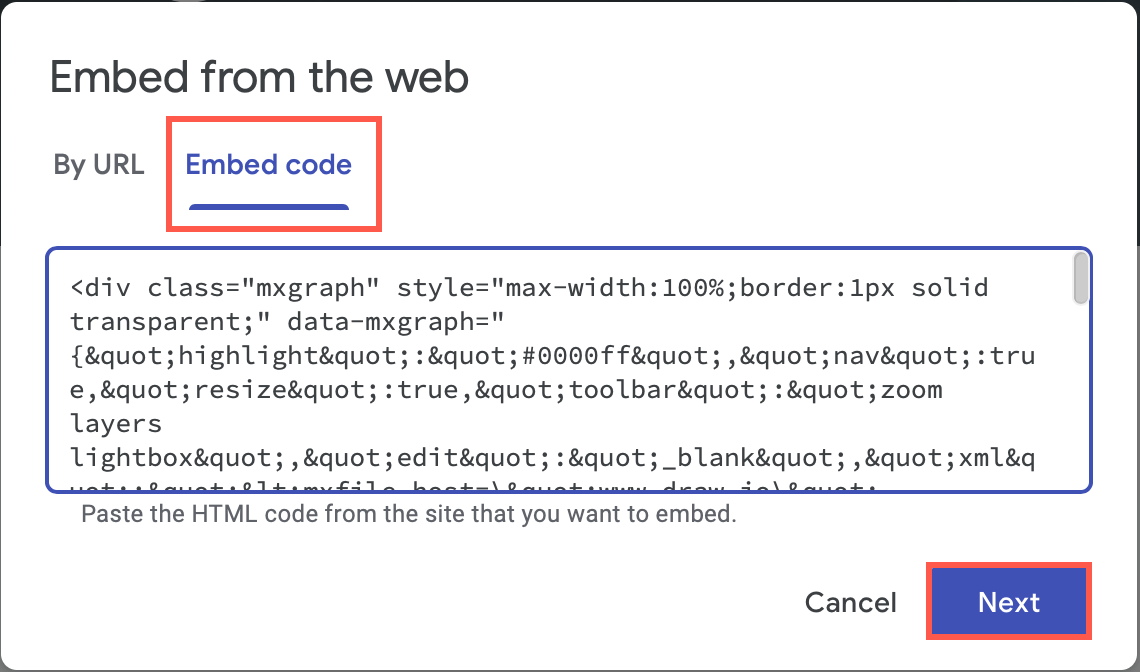
- You'll see a preview of your diagram. Click Insert to add the diagram to your web page.
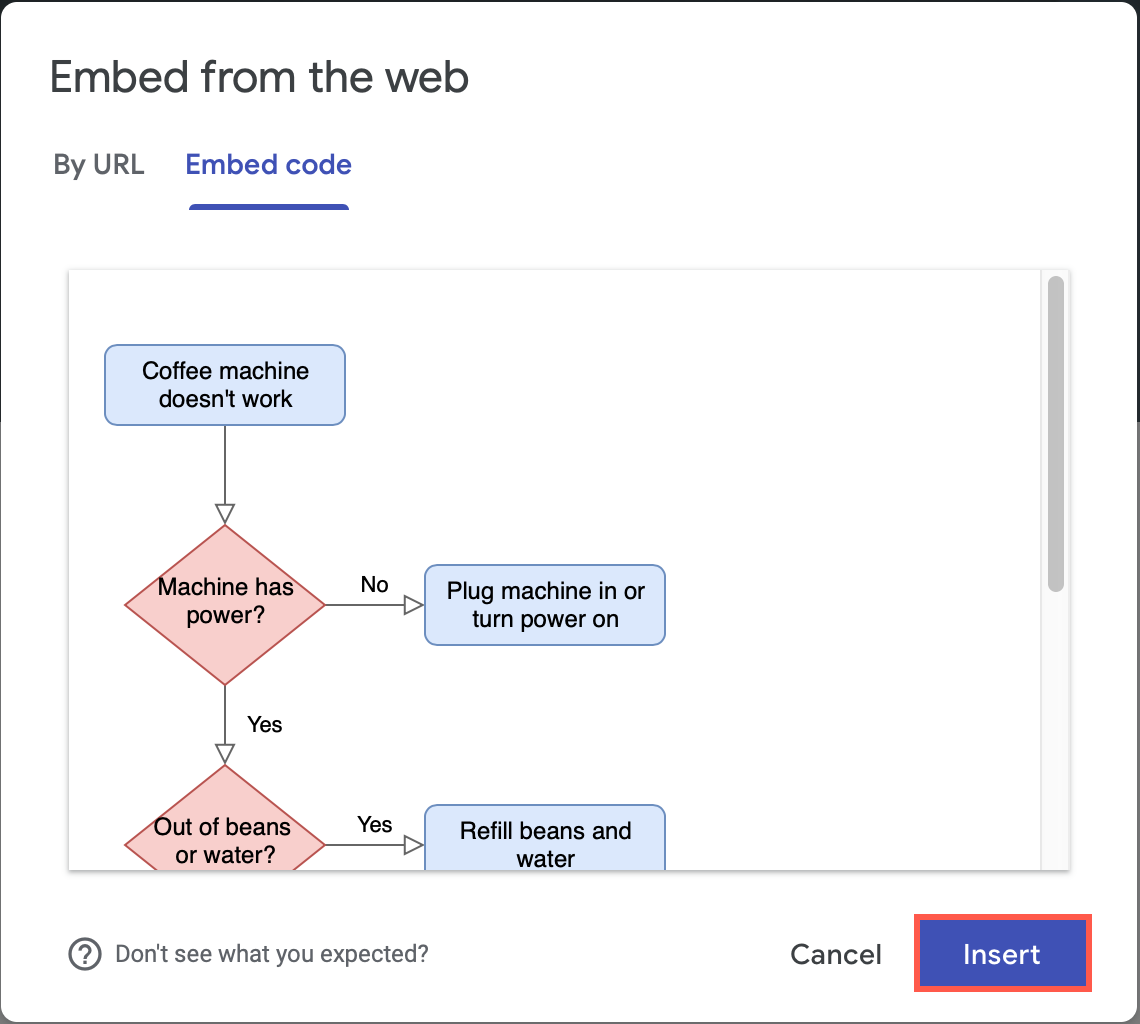
- You can resize your diagram in the Google Sites editor just like a normal image - grab and drag the square handles around the edge of your selected diagram. When you are finished formatting and adding content to your page, click Publish.
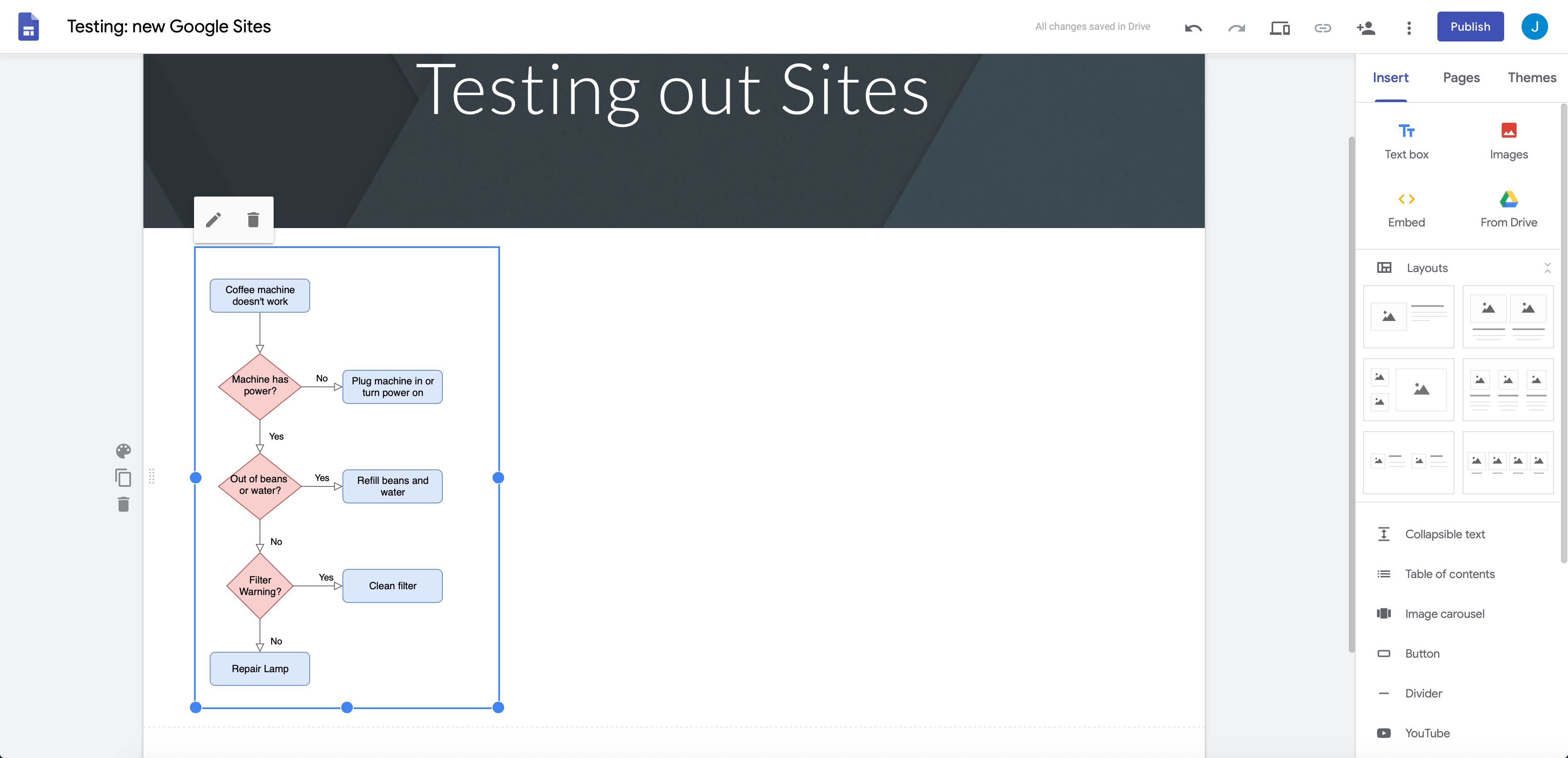
Advanced: There are more embed configuration options when embedding HTML than are available in the dialog. Refer to the list of all embed HTML options in the Reference section of this documentation.
Embed a diagram in the classic Google sites
If you are using the classic version of Google sites, you will need to embed an IFrame.
- Click File > Embed > IFrame to open the IFrame options dialog.
- Set the options you want to use within the IFrame and click Create.
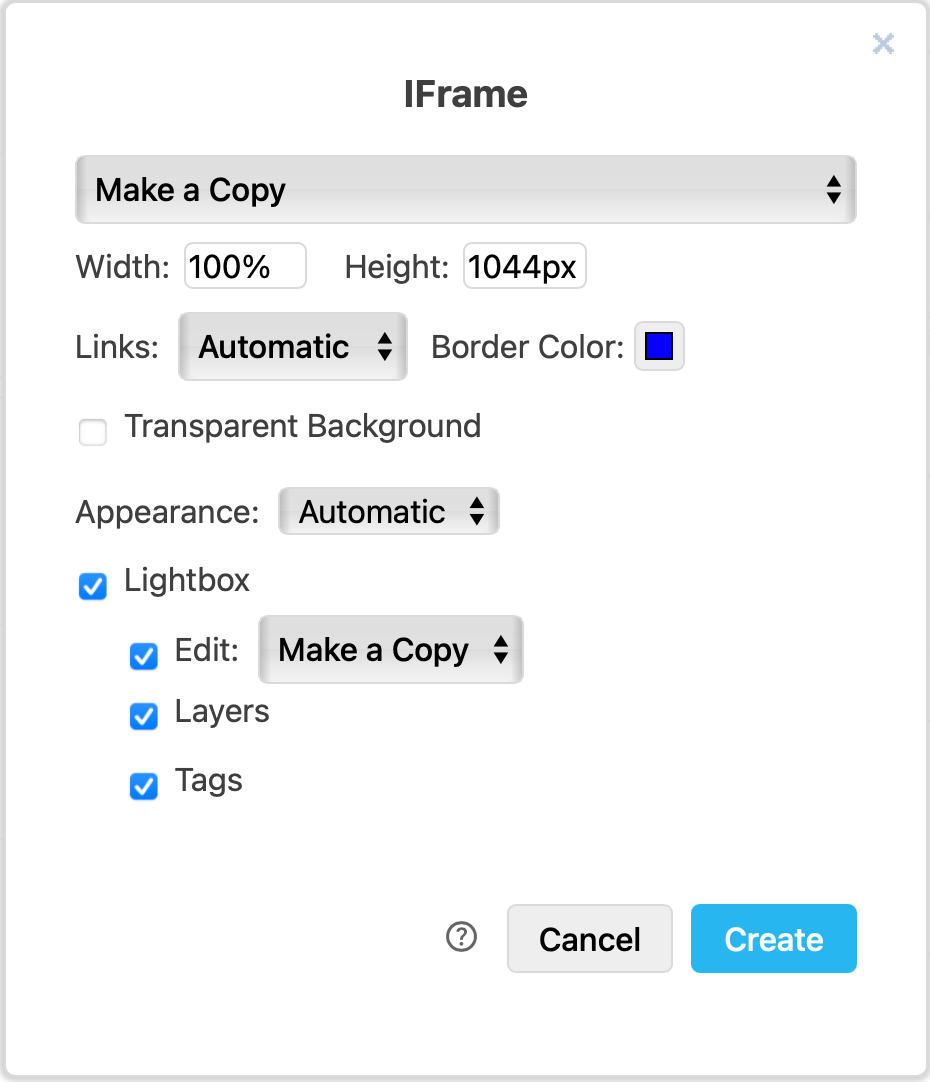
- Copy the HTML code that contains the IFrame.
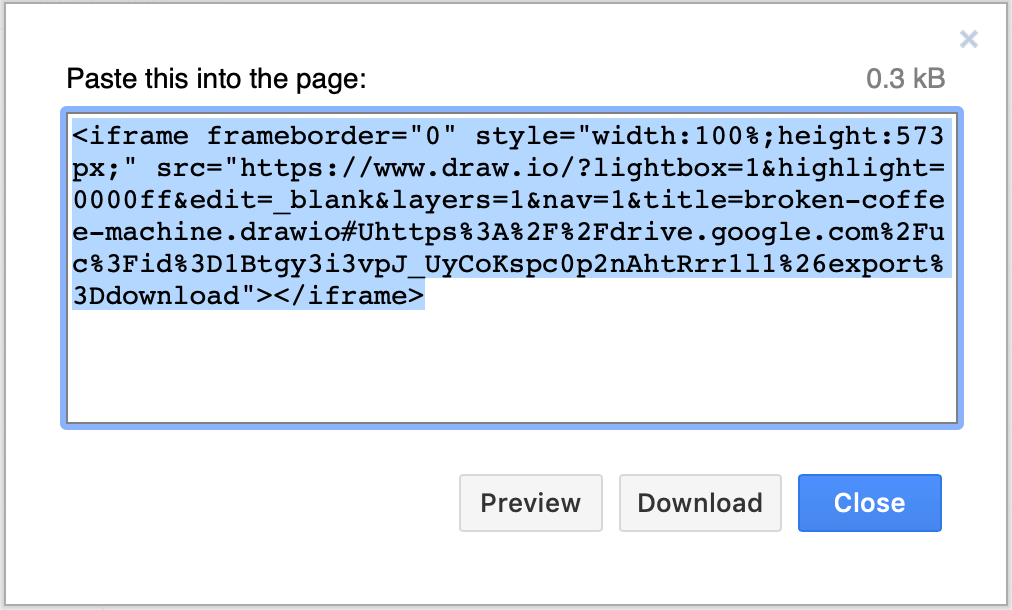
- Edit a web page in your classic Google Site. Click on the
<HTML>tool in the toolbar above the editor.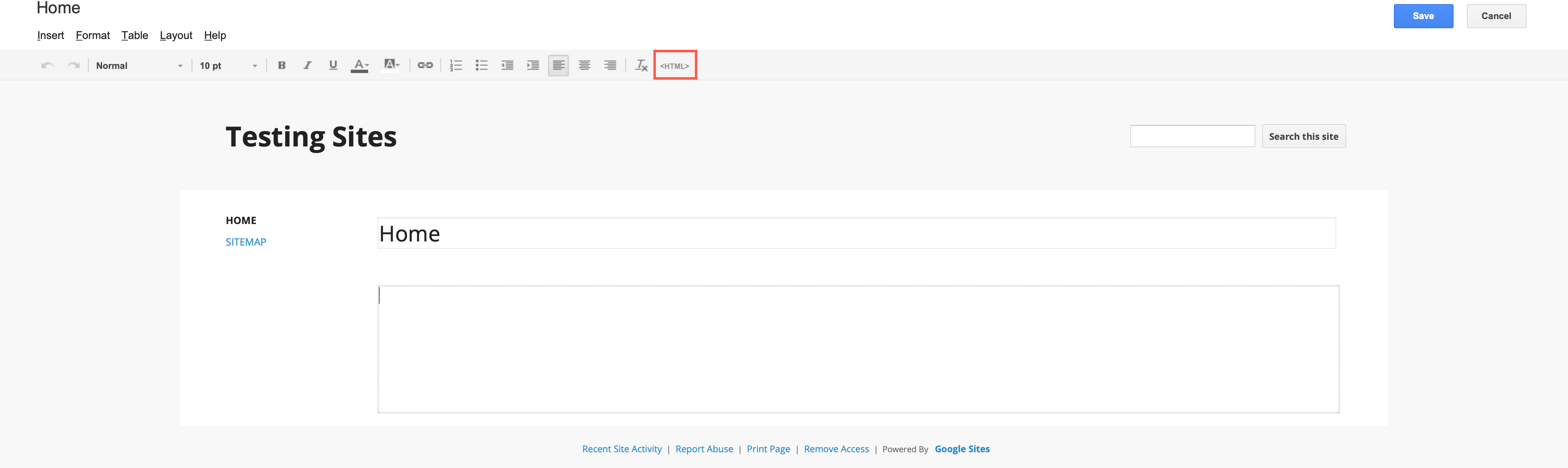
- Paste the HTML code that contains the IFrame into the HTML tab of the Google Sites, Edit HTML dialog and click Update.
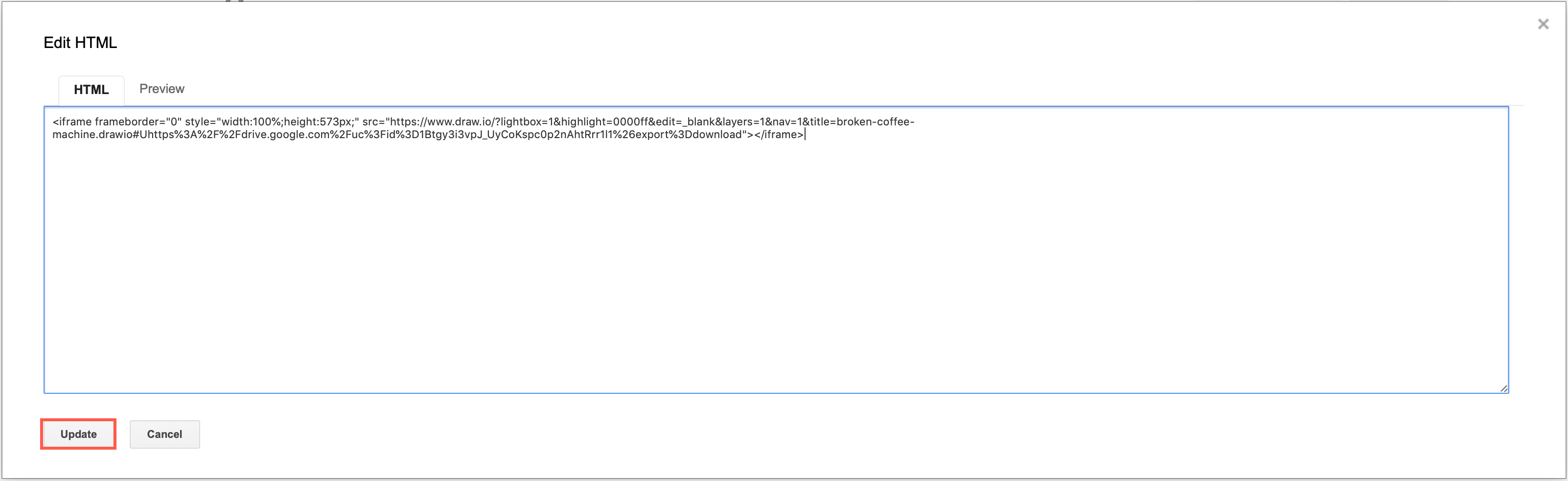
- The classic Google Sites editor will show you that a Google Gadget containing an IFrame has been added to the page. Unfortunately, you won't be able to see a preview of the diagram until you save the page. Click Save in the top right above the editor to publish your page.
- Now, your diagram will be displayed in your classic Google Site using the diagram lightbox (if you used the default options when generating the IFrame HTML code).