Share diagrams via Google public links
You can share and collaborate on diagrams with anyone, either inside or outside of your company, when they are stored as public files in your Google Drive account.
There are two options for sharing diagrams as a link:
- File > Export as > URL encodes the entire diagram in a URL. This works for smaller diagrams, and is not limited to those saved on Google Drive.
- File > Publish > Link creates a shorter link to the diagram on your Google Drive account if this is where you have stored the diagram, and falls back to the longer exported URL as above if that fails.
Publish your diagram as a link
- While you are editing your diagram in draw.io, click File > Publish > Link.
- Click the Check link to make sure your diagram file is public, then click OK. If it's not public, follow the steps below to change the file sharing settings, then return here.
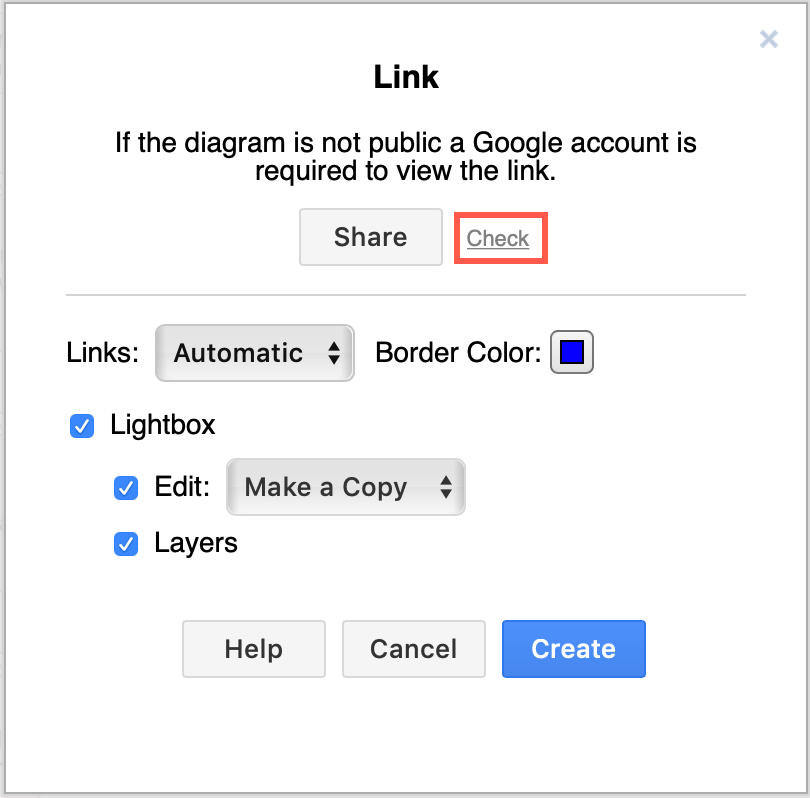
- Select the options you want to use, then click Create.
- Links: Open in the current browser window or in a new window. You can change the border colour of links if you want too.
- Lightbox: This changes how your diagram is displayed. If you deselect this checkbox, when someone clicks on the link you share with them, your diagram will immediately open in the editor.
- Edit: Either allow someone to edit your original diagram, or create their own copy of the diagram (default).
- Layers: Allow viewers to turn layers on and off in the lightbox.
- Press
Ctrl+Cto copy the link that is generated. You can share this via a Facebook post or tweet on Twitter by clicking on the icons at the bottom of the dialog. Click Close to return to your diagram.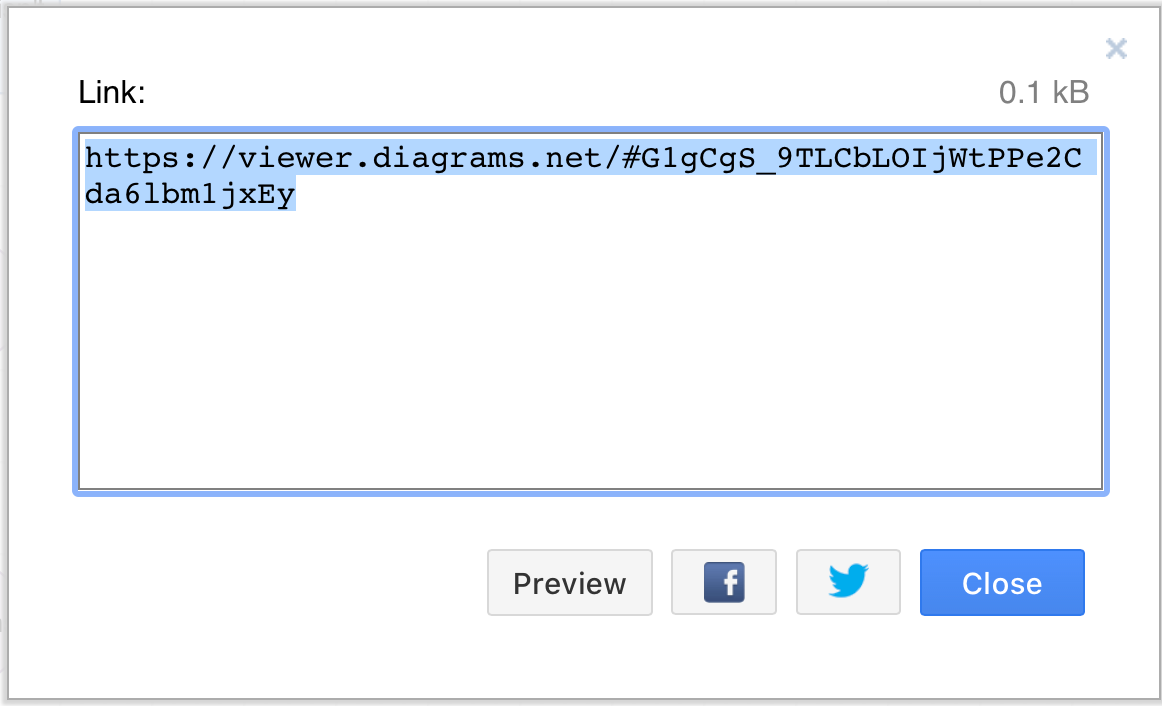
Change the file sharing settings of your diagram to public
If you are using Google Drive within your business, you'll have a few additional sharing settings. You will still need to share the diagram as a public file in order to publish it as a short link.
- In Google Drive, right click on the diagram you want to share, then select Share from the context menu.
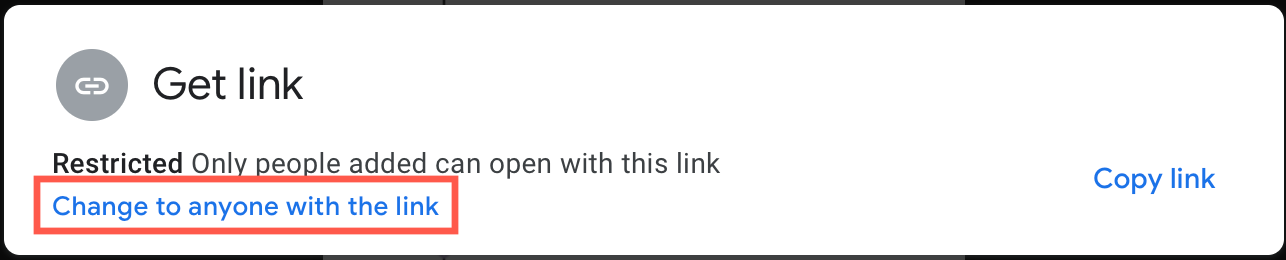
- In the Google Drive Get Link dialog, click on Change to anyone with the link.
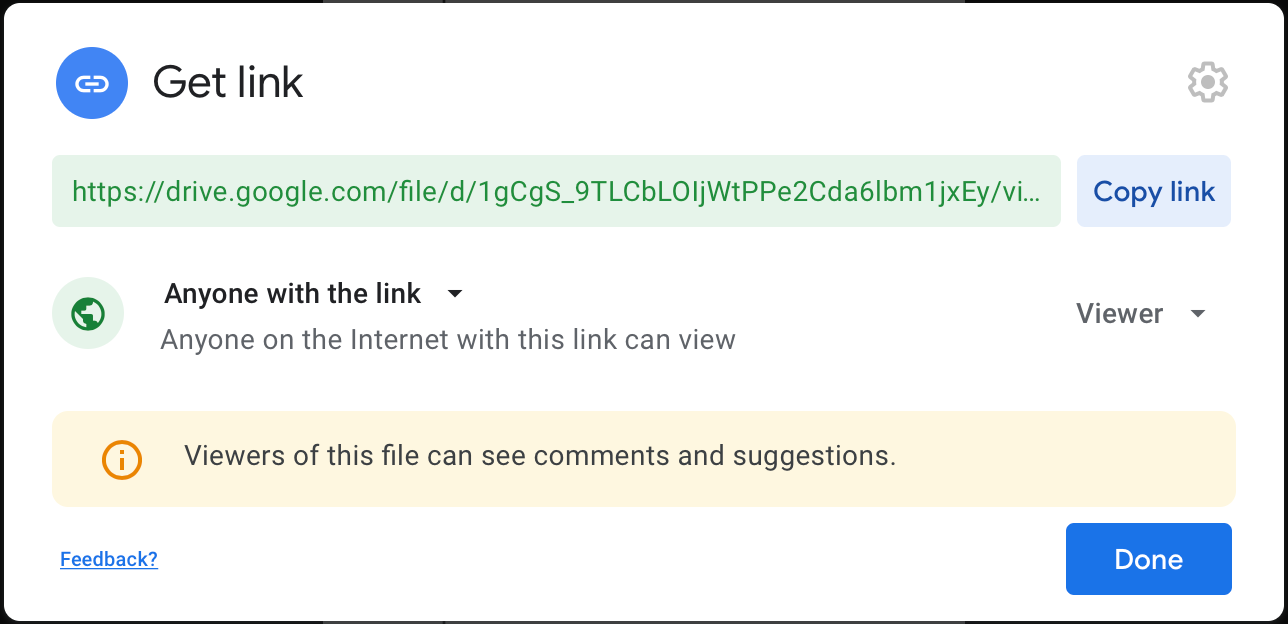
- The dialog will update and show you that Anyone with the link will be able to view the file. Click Done.
Permissions
If the diagram file on Google Drive is public, the linked diagram will not require anyone to login to see it. However, if the diagram file is not public, you must login and authorise full read-access to all files in your Google Drive before your browser can load the diagram.