Use draw.io with Google Drive
Google Drive is a popular cloud platform for storing and sharing files. It's ideal for collaborative diagramming and draw.io add-ons are available for the Google Workplace apps - Google Docs, Google Slides and Google Sheets.
Start diagramming in Google Drive now
You can store and collaborate on diagrams using your company's shared drives in G Suite, previously known as Google Team Drives, in the same way as you can use your personal Google Drive with draw.io.
Authorise draw.io to use Google Drive
After you have selected Google Drive as your storage location for diagram files, you may be prompted to authorise draw.io to allow access to the files stored there.
- Click Authorise, then log into your Google Drive account.
- Choose the Google account you want to save your diagram to, and log in if Google prompts you to.
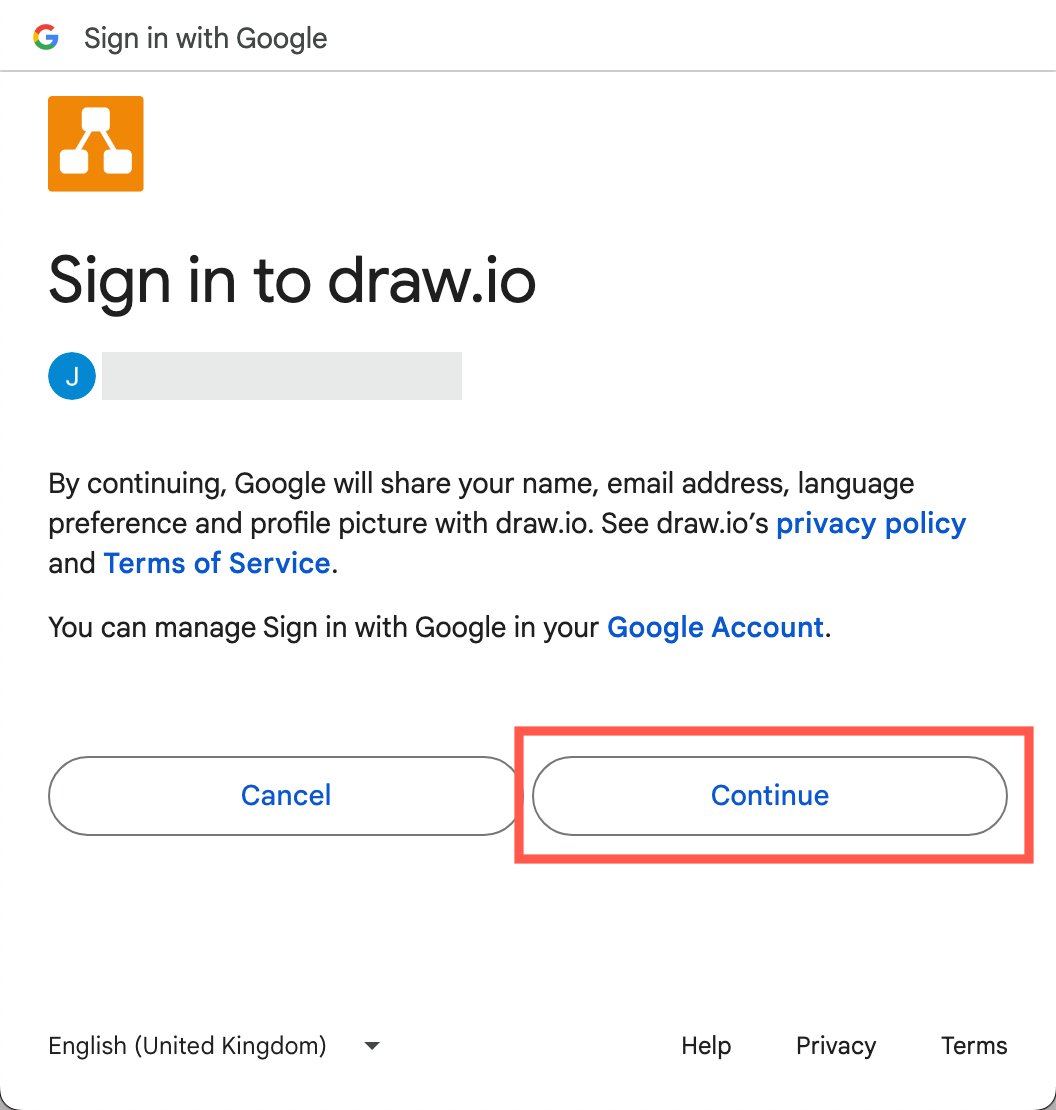
Note: You are not signing in to draw.io - you are signing into your Google Drive account via draw.io. - Click Select all to allow draw.io to save and read diagram files from your Google Drive account.
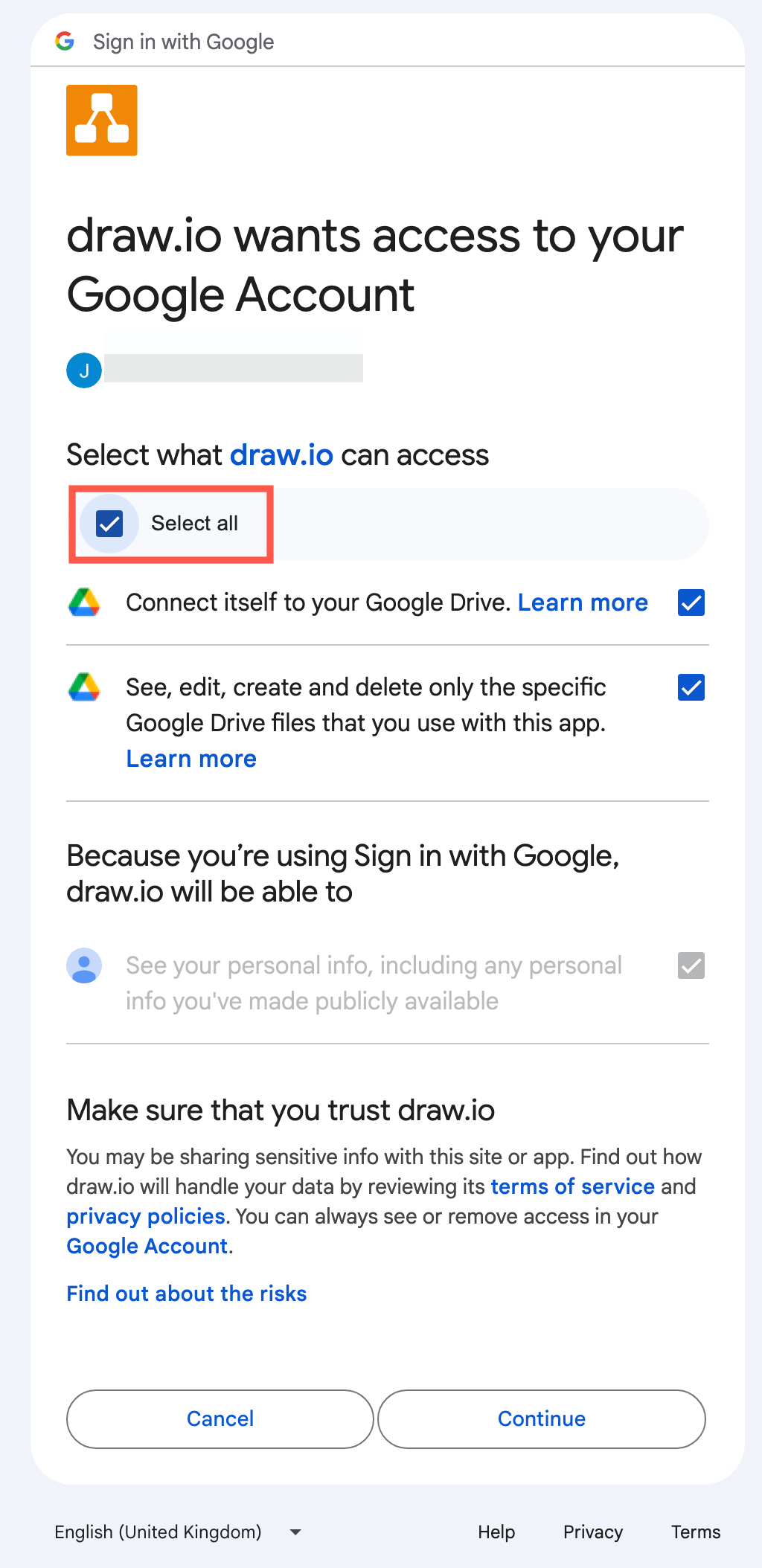
Learn about the permissions draw.io needs for Google Drive and Google Workplace
Note: If you sign out of your Google Drive account, you will be prompted to sign back in when your diagram is saved, but you won't need to authorise draw.io again. If you are having trouble, follow these steps to fix connection issues with draw.io in Google Drive.
Create or open a diagram from Google Drive
- Once you are logged into Google Drive, and you have authorised draw.io to use your account, go to app.diagrams.net/?mode=google to start diagramming.
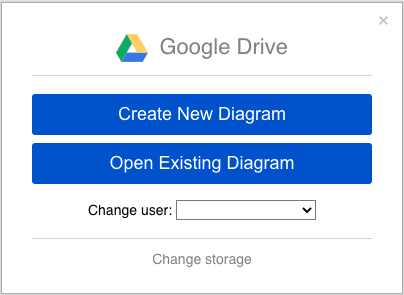
- Click Create New Diagram to start a new diagram, or Open Existing Diagram to browse to a diagram file stored in your Google Drive account and open it.
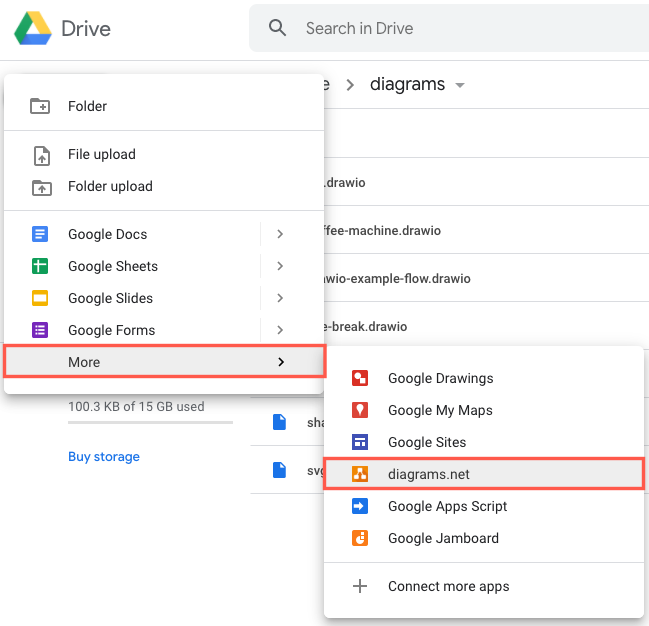
You can create new diagrams directly from your within your Google Drive account, from any folder, without opening draw.io first.
- In Google Drive, navigate to the folder in which you want to store your diagram, then click New or right-click anywhere on your file list.
- Select More > draw.io to create a new diagram.
- Edit the Diagram Name, select a template from the template library, or use the Blank Diagram, then click Create to open it in the draw.io editor.
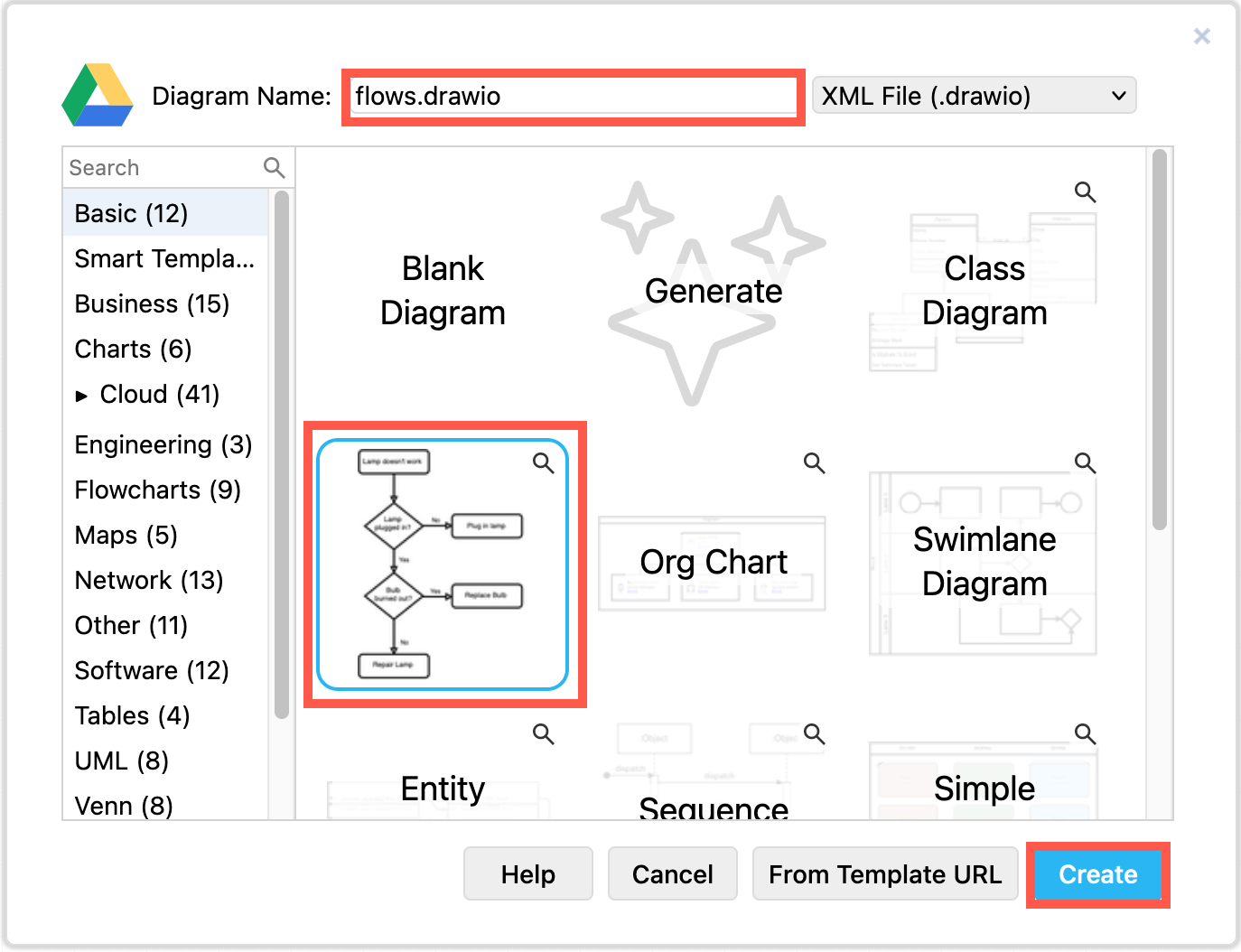
Open a diagram from Google Drive: Double click on a file to open an existing diagram file in the draw.io editor.
Import a diagram into Google Drive: Create a new diagram from where you want to store your file, then drag and drop the diagram file into the draw.io editor. Alternatively, click File > Import from and select the file. Once you save, the file will be available in Google Drive.
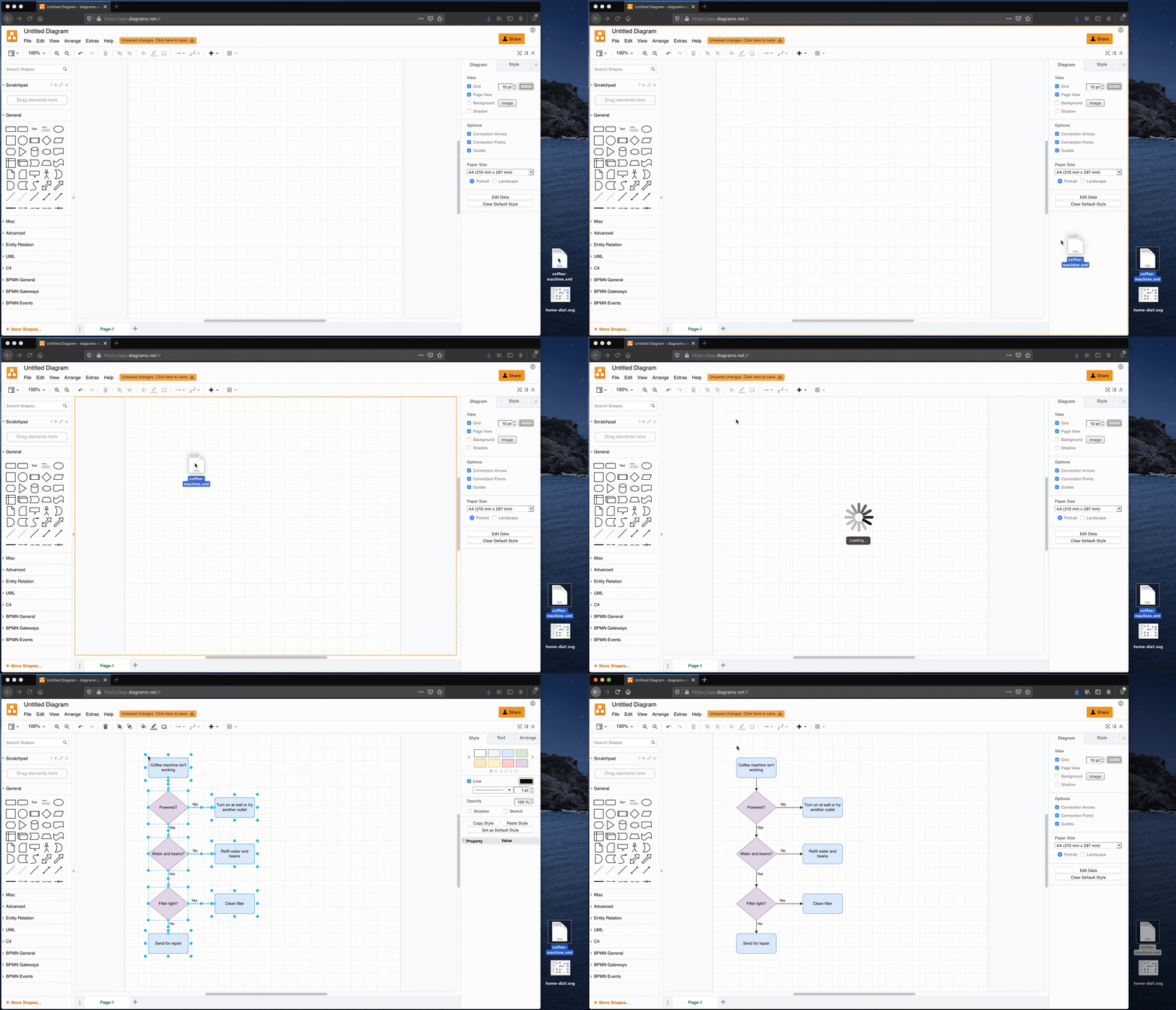
Note: draw.io diagrams should always have a .xml or .drawio file extension.
Using Google Drive from within the draw.io editor
Return to Google Drive: Hover over the draw.io logo in the top left of the editor, and you'll see it change to the Google Drive logo. Click on the logo to save your diagram and return to Google Drive.
You can rename, copy and move your diagram files that are stored in Google Drive using the the File menu in the draw.io editor.
Rename a diagram file
- Select File > Rename from the menu.
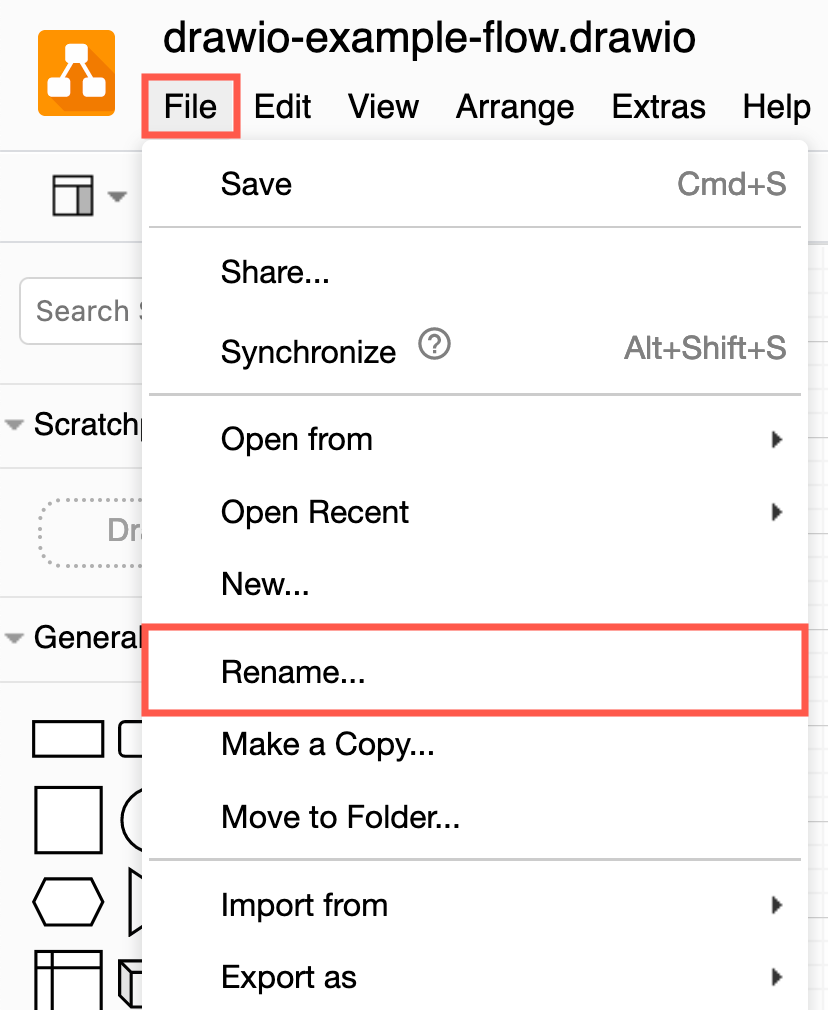
- Edit the filename then click Rename.
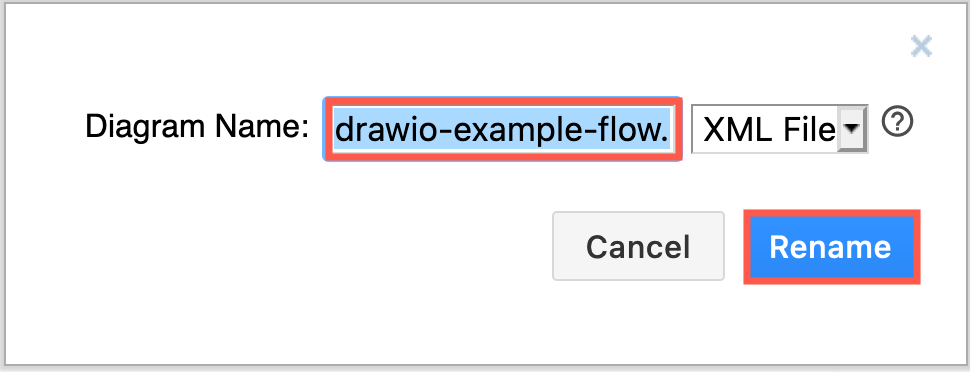
Duplicate a diagram file
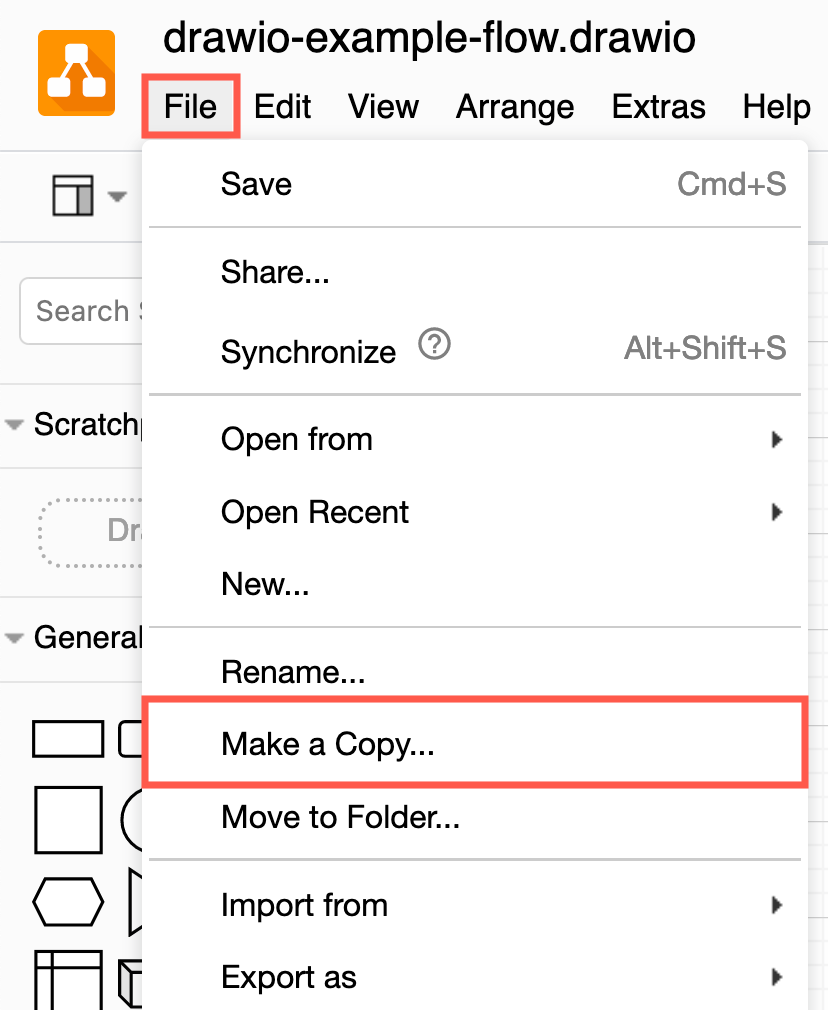
- Select File > Make a Copy from the menu.
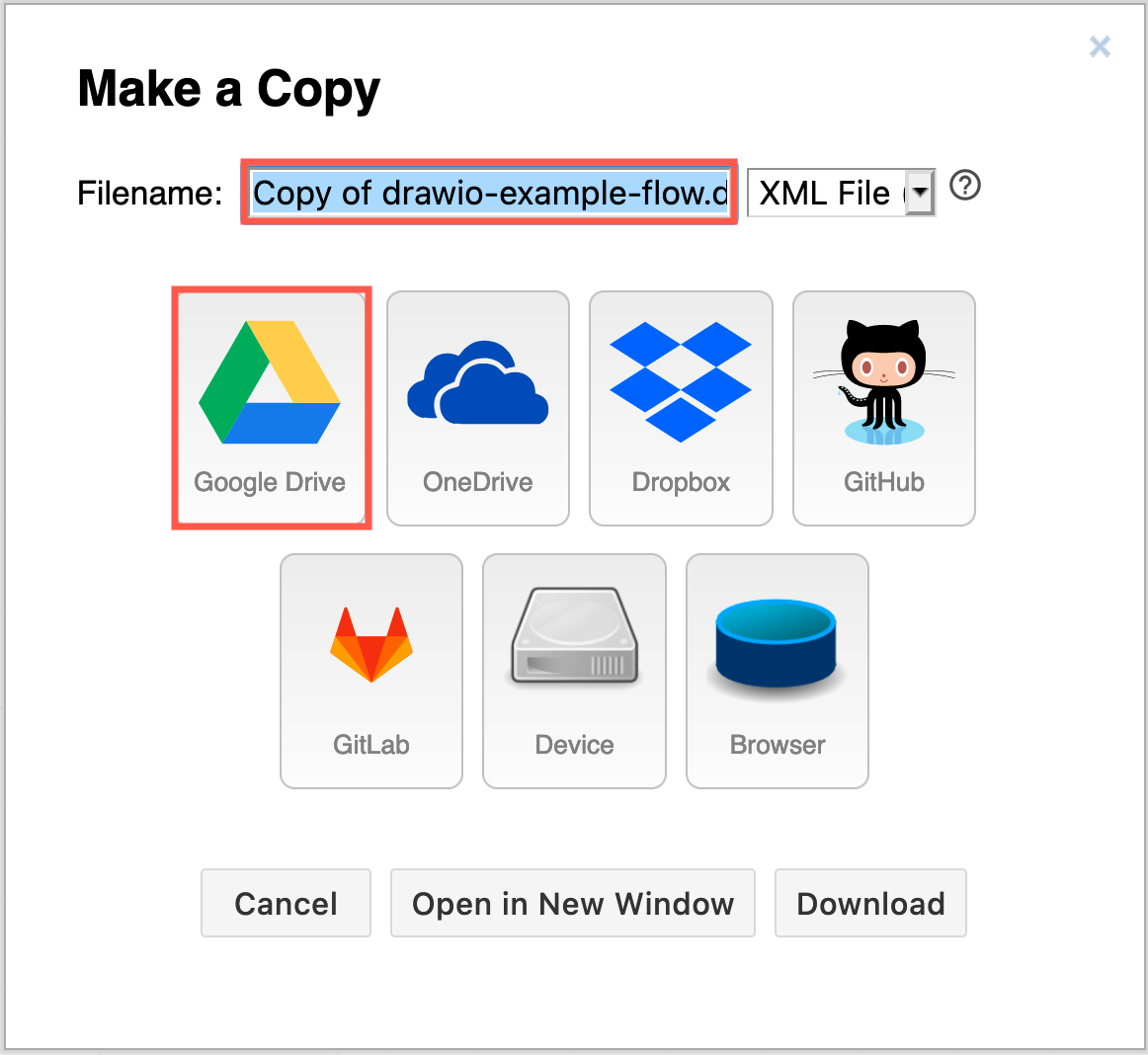
- Edit the Filename, then click on Google Drive. This will make a copy of your diagram in the same folder as the original diagram file.
Move a diagram file to another folder
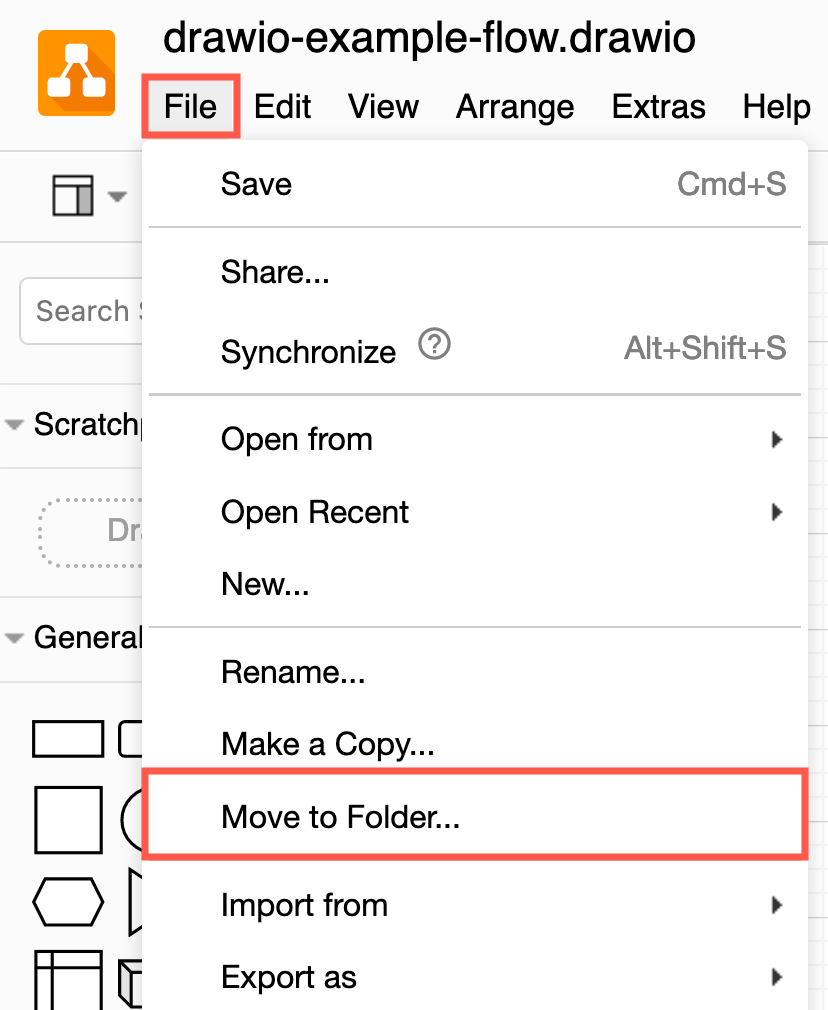
- Select File > Move to Folder from the menu.
- If you want to move your diagram file to the root folder in your Google Drive account, click Yes. Otherwise, click No, pick folder.

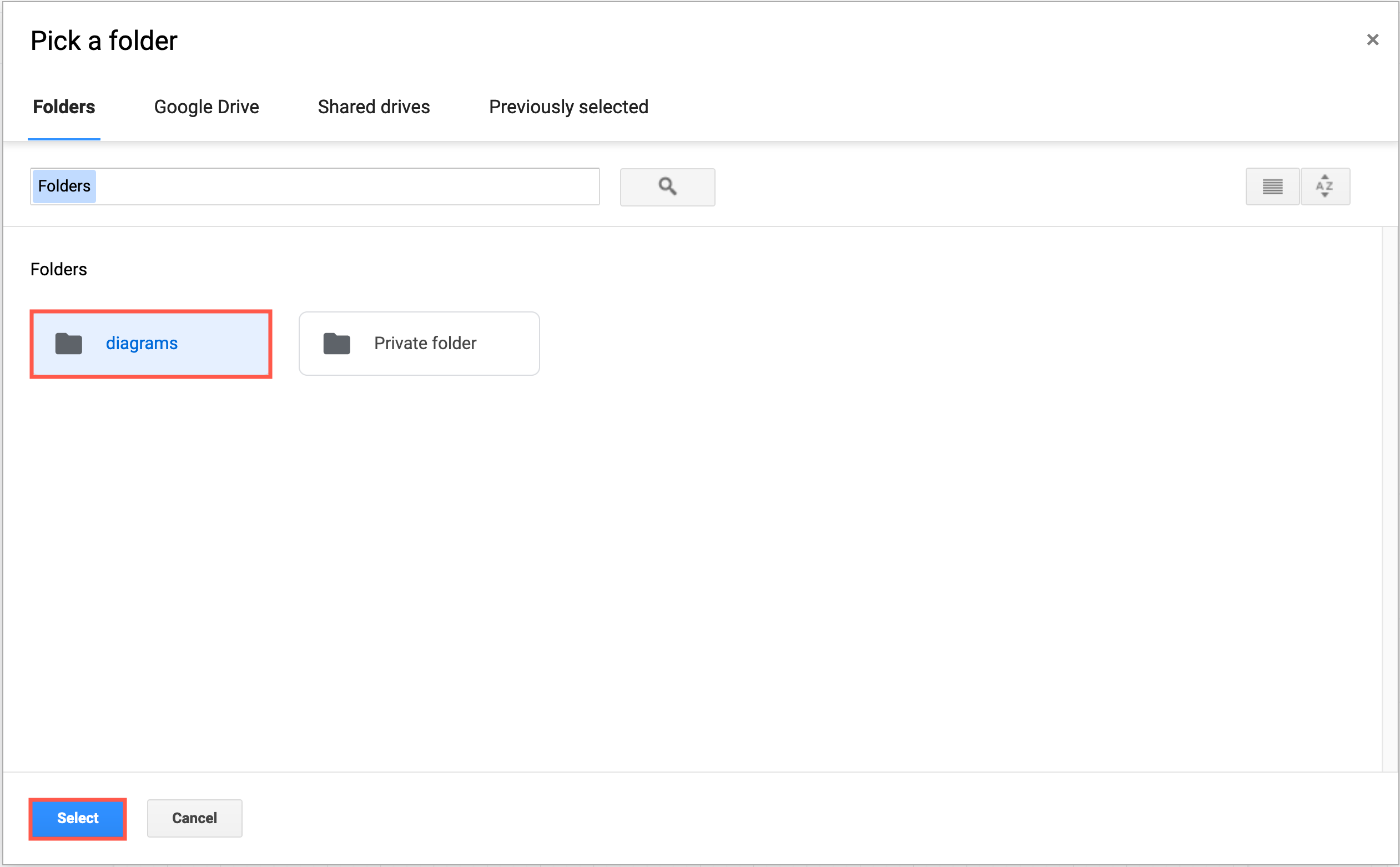
- Navigate to and select the target folder in your Google Drive, then click Select to move your diagram file in Google Drive.
Do more with diagrams in Google Drive
- Share diagrams: To allow non-Google users to see your diagram, you can publicly publish it. Alternatively, encode the diagram as a link to share with people online.
- Collaborate: When multiple people edit a shared diagram that is stored on Google Drive, they will see each other's cursors and changes in real time. This is ideal for using draw.io as an online whiteboard in meetings or collaboratively editing technical diagrams remotely.
- Use the revision history: All changes made to your diagrams are automatically saved to your Google Drive, and you can see these changes in the versions of your diagrams - you'll see who made what change and when.
- Comment on diagrams: Work with comments on shared diagram files.
Embed draw.io diagrams in documents and websites
The older draw.io apps for Docs, Slides and Sheets are now deprecated due to Google's new security permissions limitations. Instead, export draw.io diagrams as images to use them in Google Docs, Slides and Sheets.
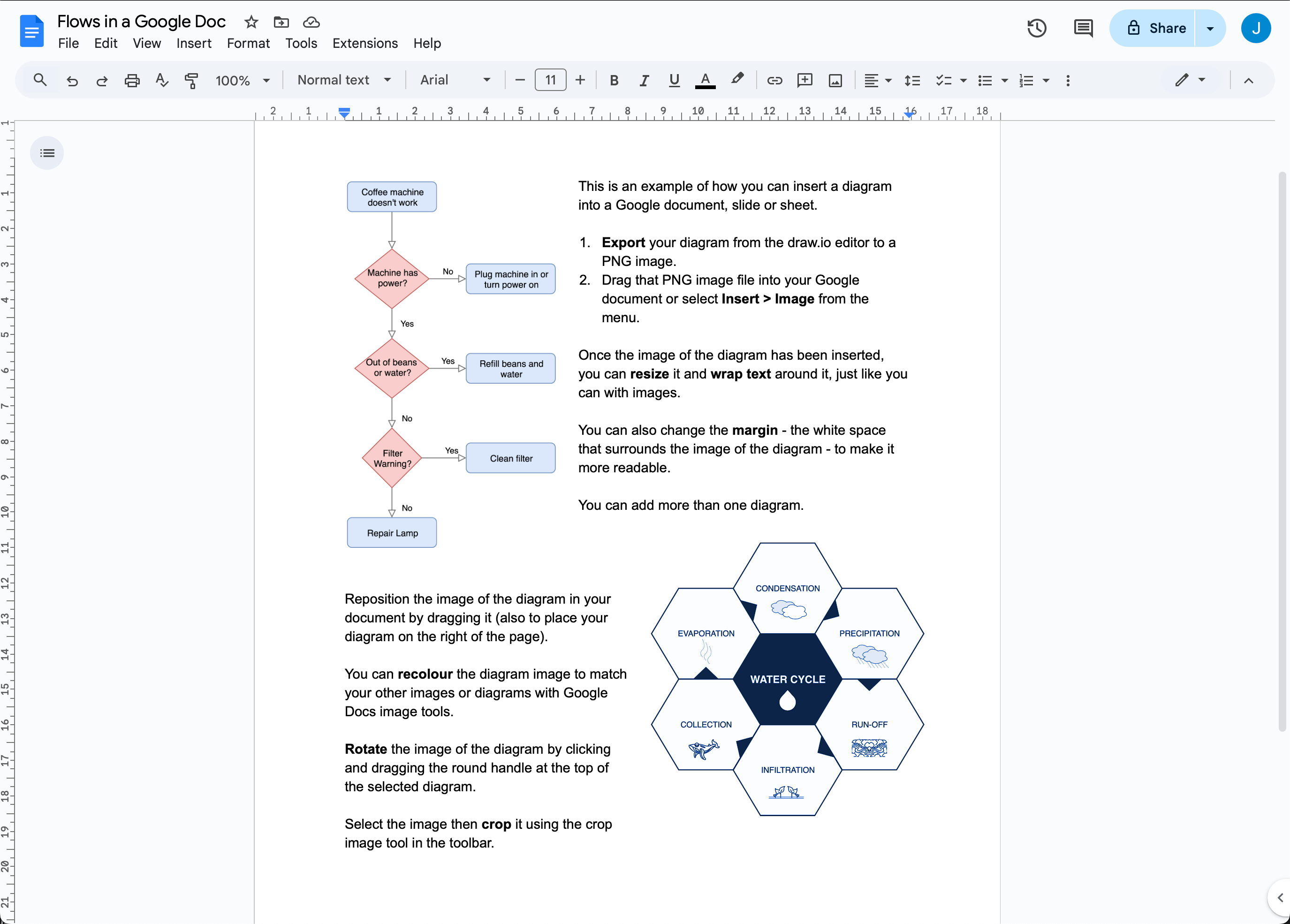
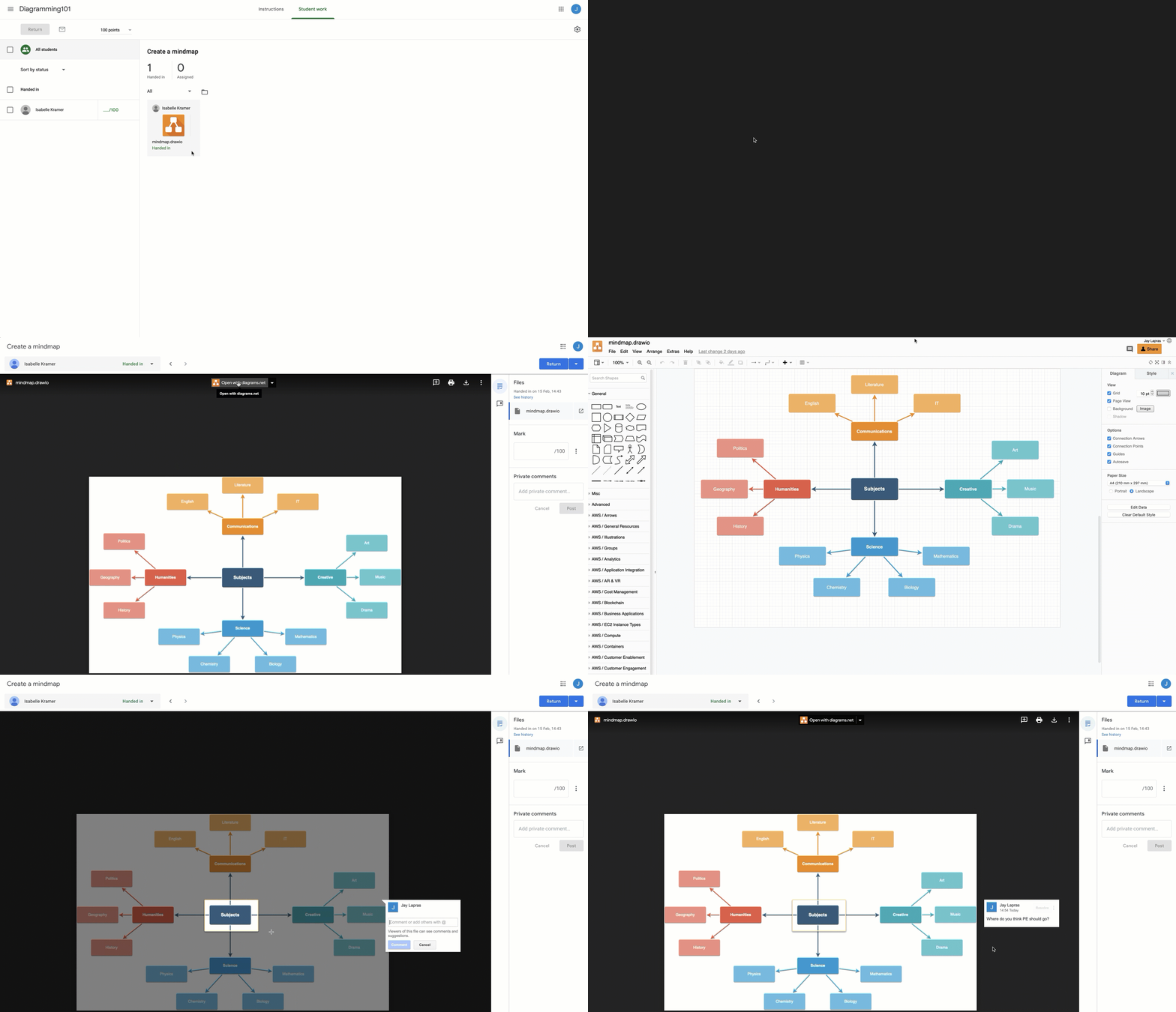
You can also use draw.io diagram in Google Classroom, and embed draw.io diagrams in Google Sites.
Embed files from Google Drive in Confluence and Jira
You can embed diagram files that you have stored in Google Drive into Atlassian Confluence and Jira using the draw.io app.
- Embed from Google Drive to Confluence Cloud
- Embed from Google Drive to Confluence Data Center and Server
- Embed from Google Drive to Jira Cloud
Related
If you have problems saving a file to Google Drive or see a connection error, please refer to these troubleshooting steps - there may be an issue with cookies in your browser, you may have been logged out, or permissions on your Google Drive or Google Workspace account may be incorrect.