Use diagrams in Google Docs, Slides and Sheets
Export your draw.io diagrams to PNG image files and them import them into your Google Docs, Slides and Sheets - drag and drop the image file into your document.
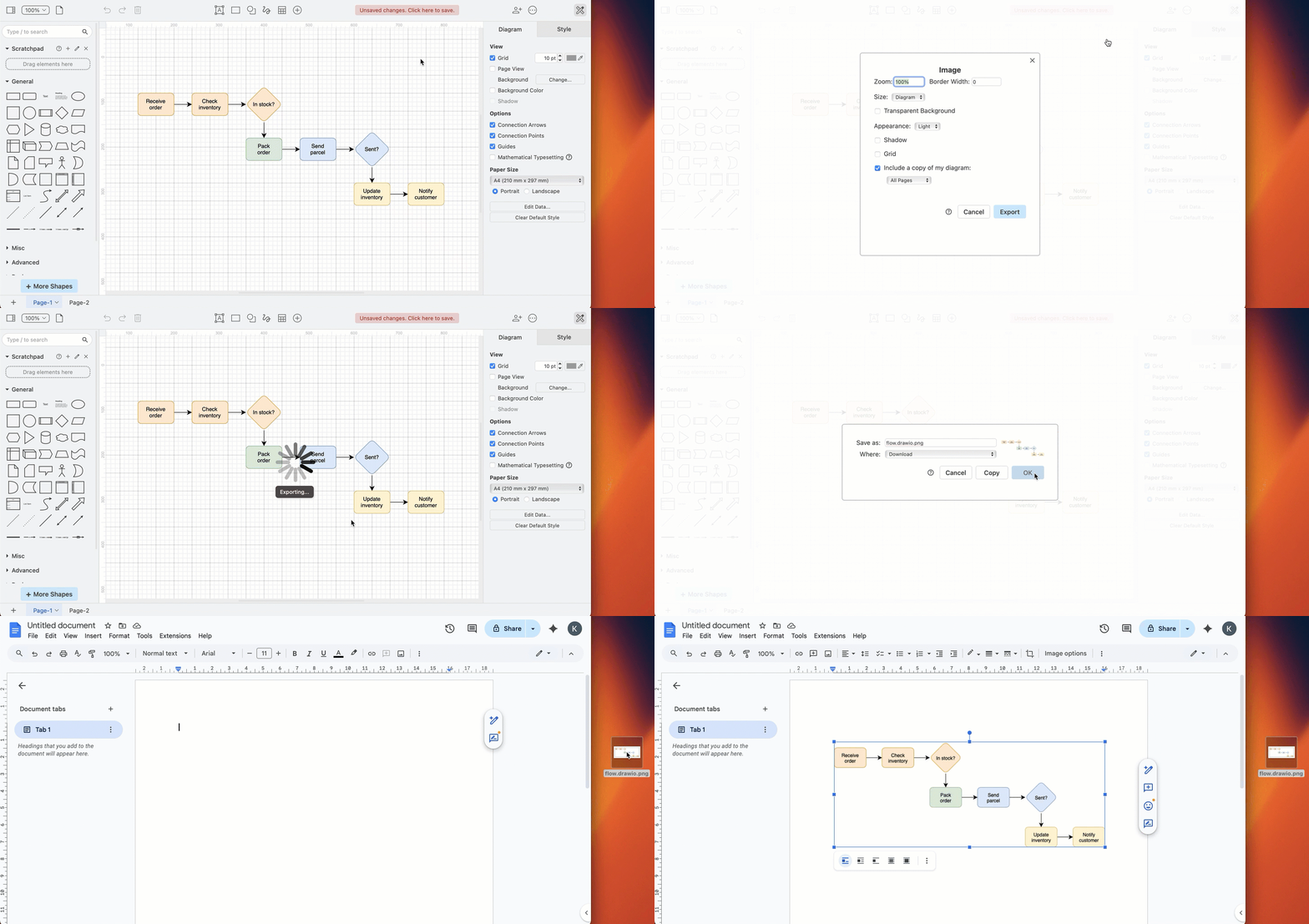
Add a diagram to a Google document
- Open your
.drawiodiagram file in the draw.io editor (either our online editor or draw.io Desktop) - In the draw.io menu, select File > Export As > PNG, then click Export to save your diagram as an image.
- In your Google Document, Slide, or Sheet select Insert Image from the menu, or drag and drop your image into your document.
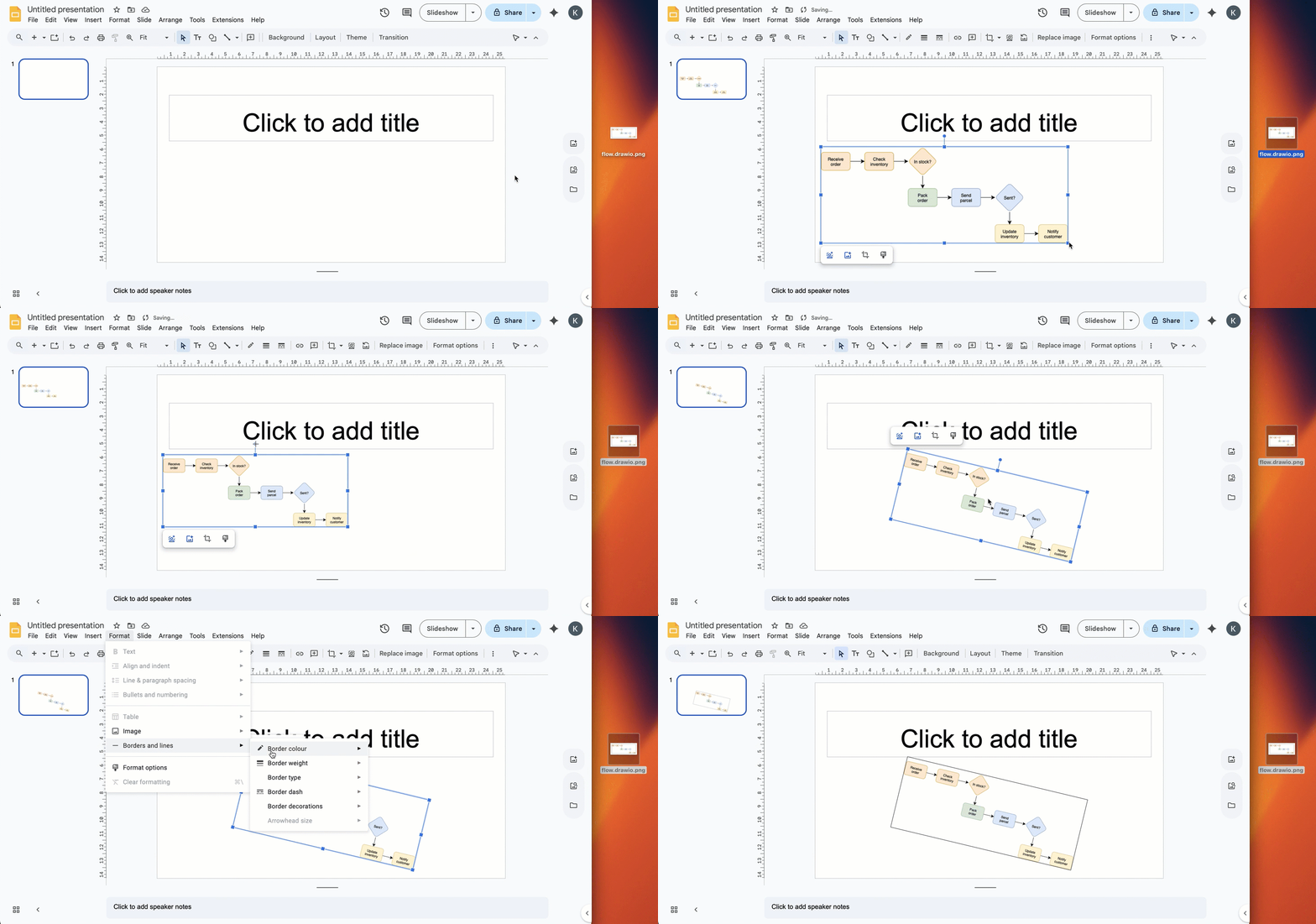
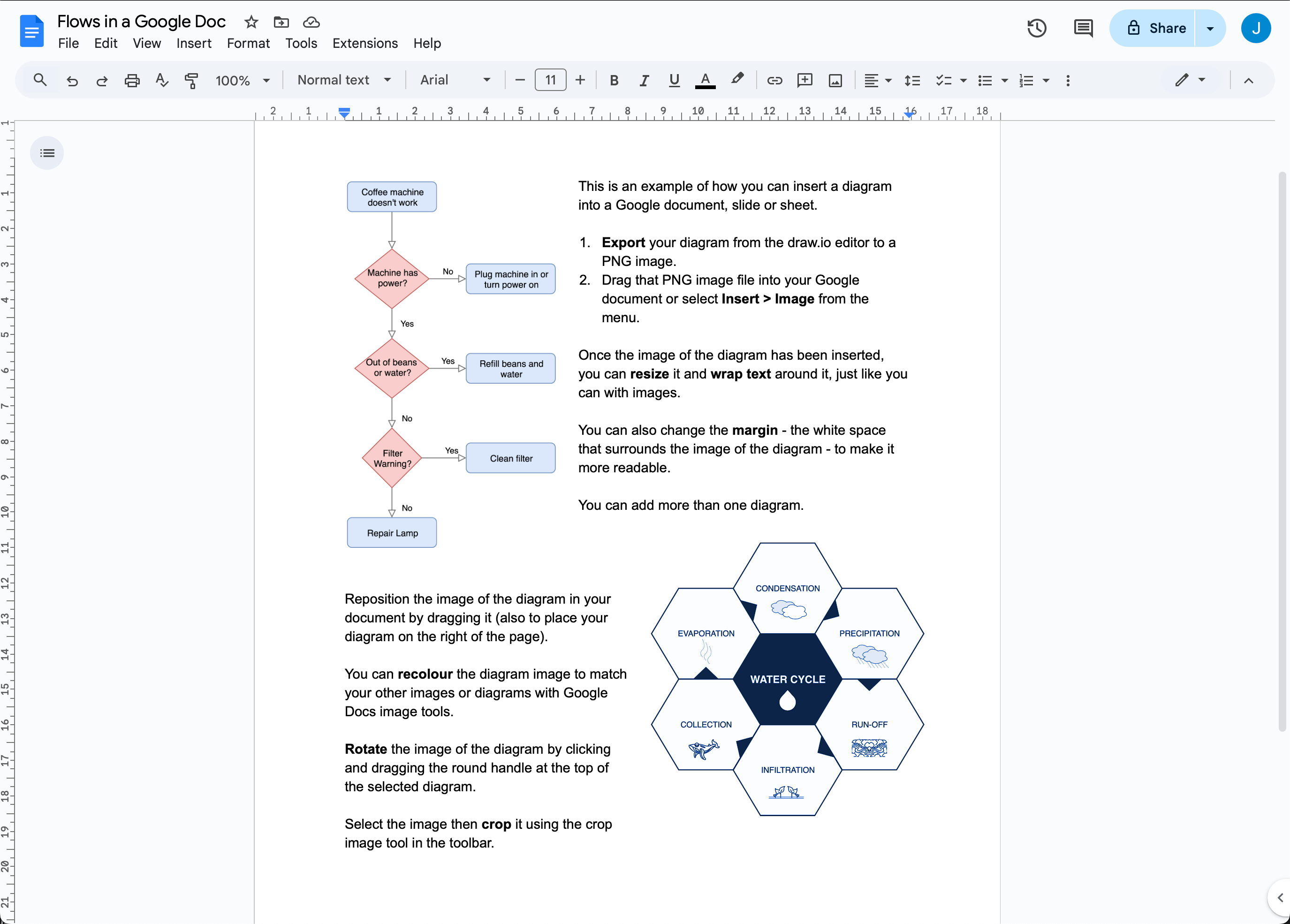
You can work with the image of your diagram in your Google document (Docs, Slides or Sheets) as you would any other image - move, resize, rotate, and style it as needed.
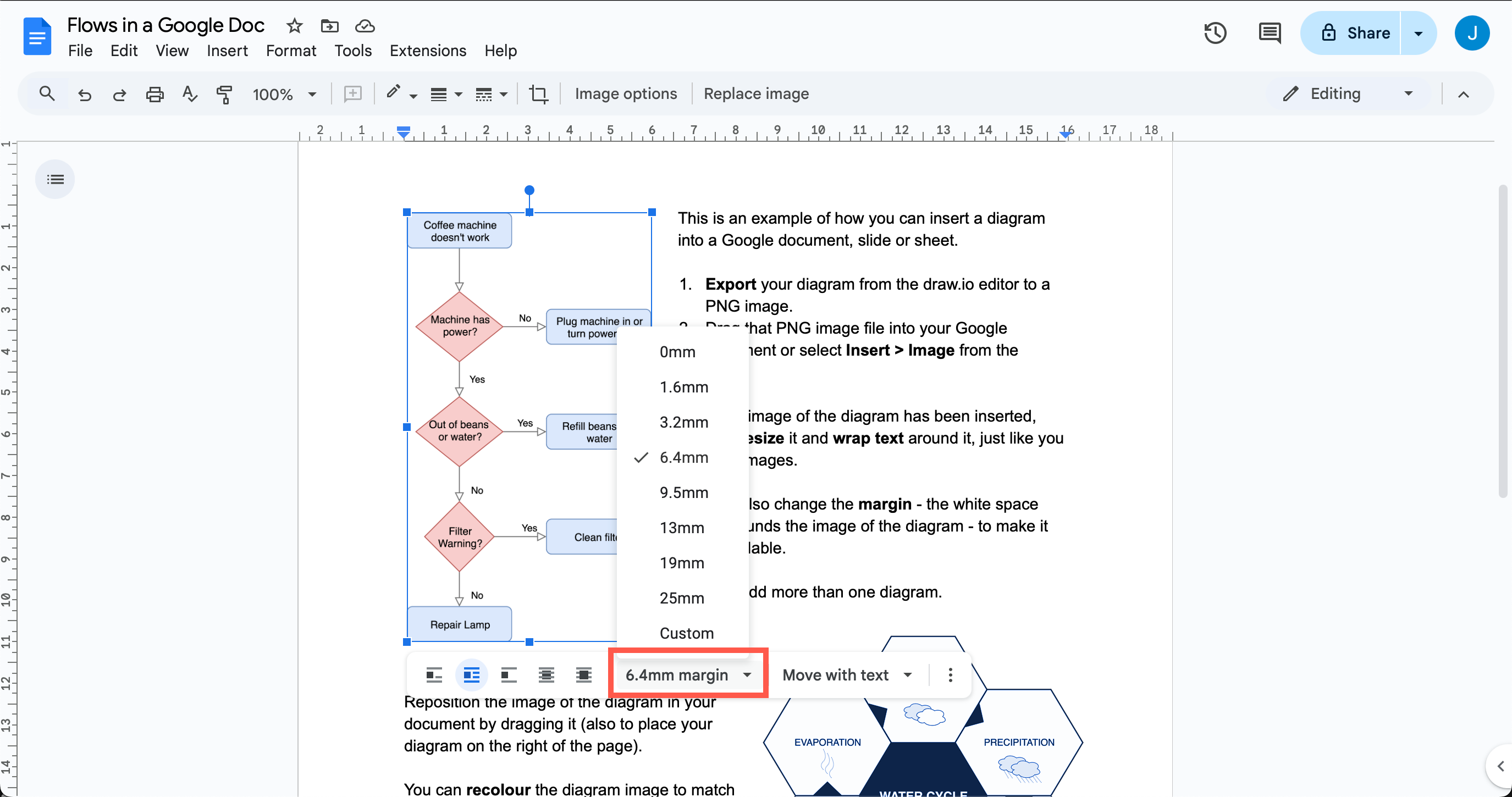
Change the text wrap and whitespace
Select the image of a diagram, then select one of the text-wrap symbols in the toolbar.
Select the image then select a new value from the Margin dropdown.
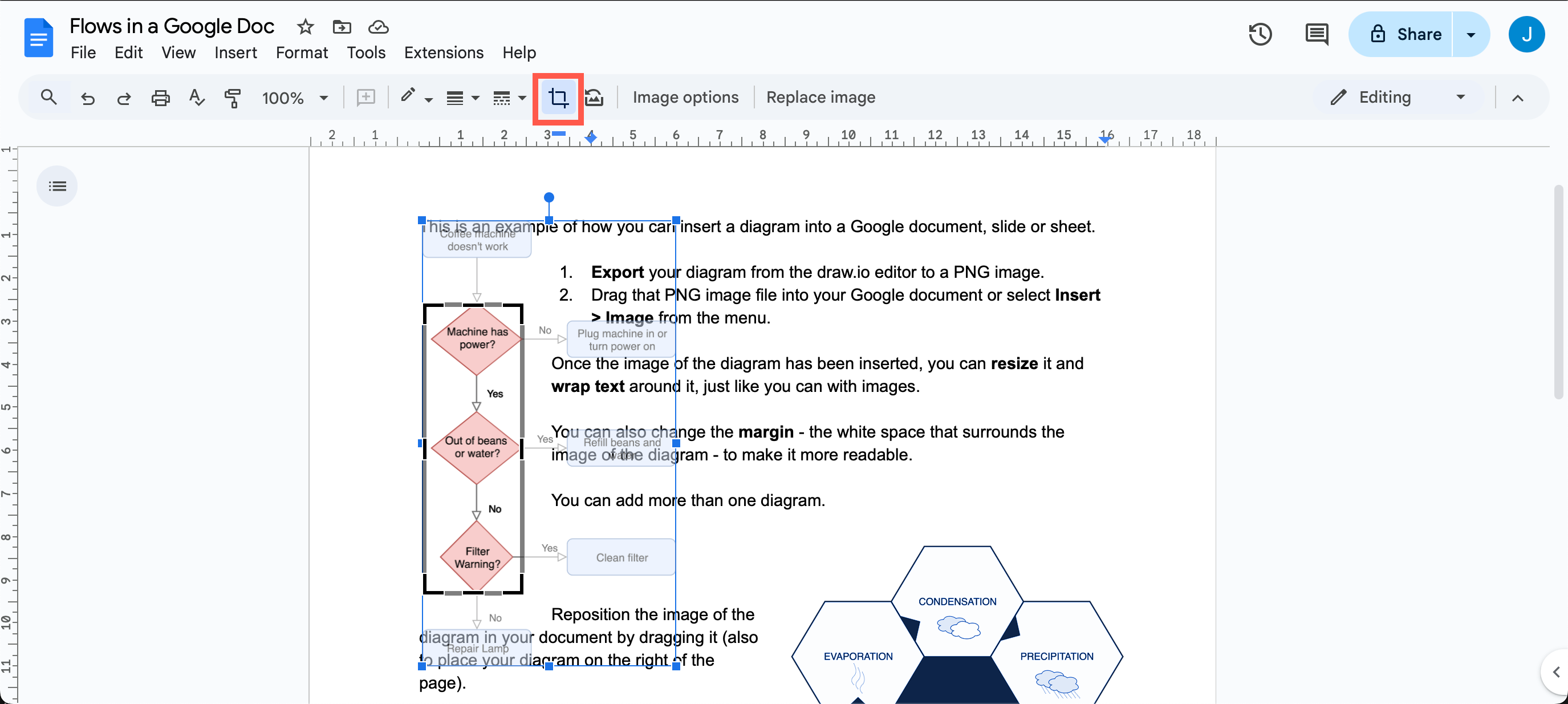
Crop or resize your diagram
Select the image, then drag any of the square handles around the edge of the diagram to resize it.
Select the image of a diagram, click the Crop Image tool in the toolbar, then drag the black borders that appear on your selected diagram to crop it.
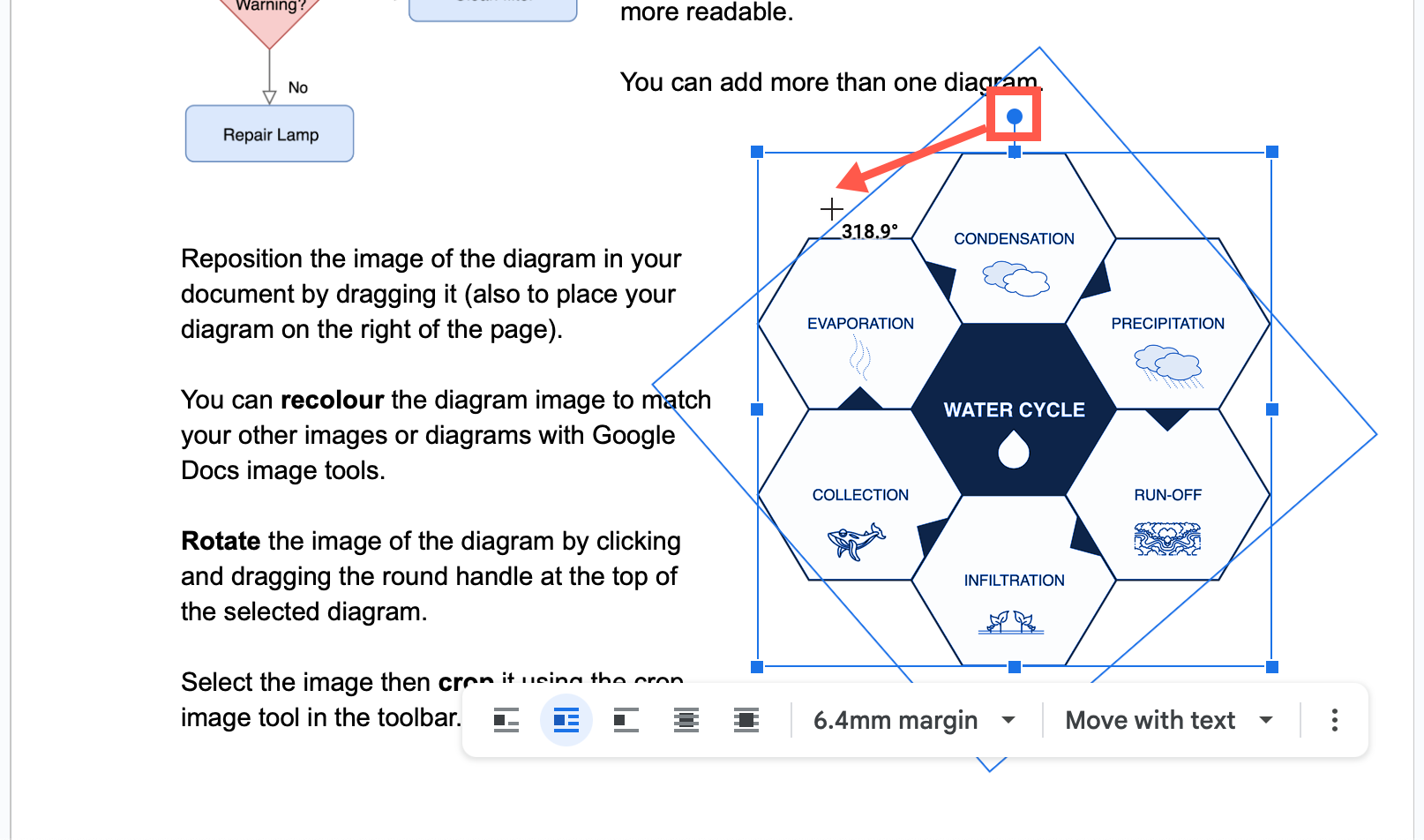
Reposition or rotate your diagram
Drag the image to the right or the left to reposition it within your document.
Select the image of your diagram, then drag the circular handle at the top of the diagram to rotate it.
Recolour the diagram
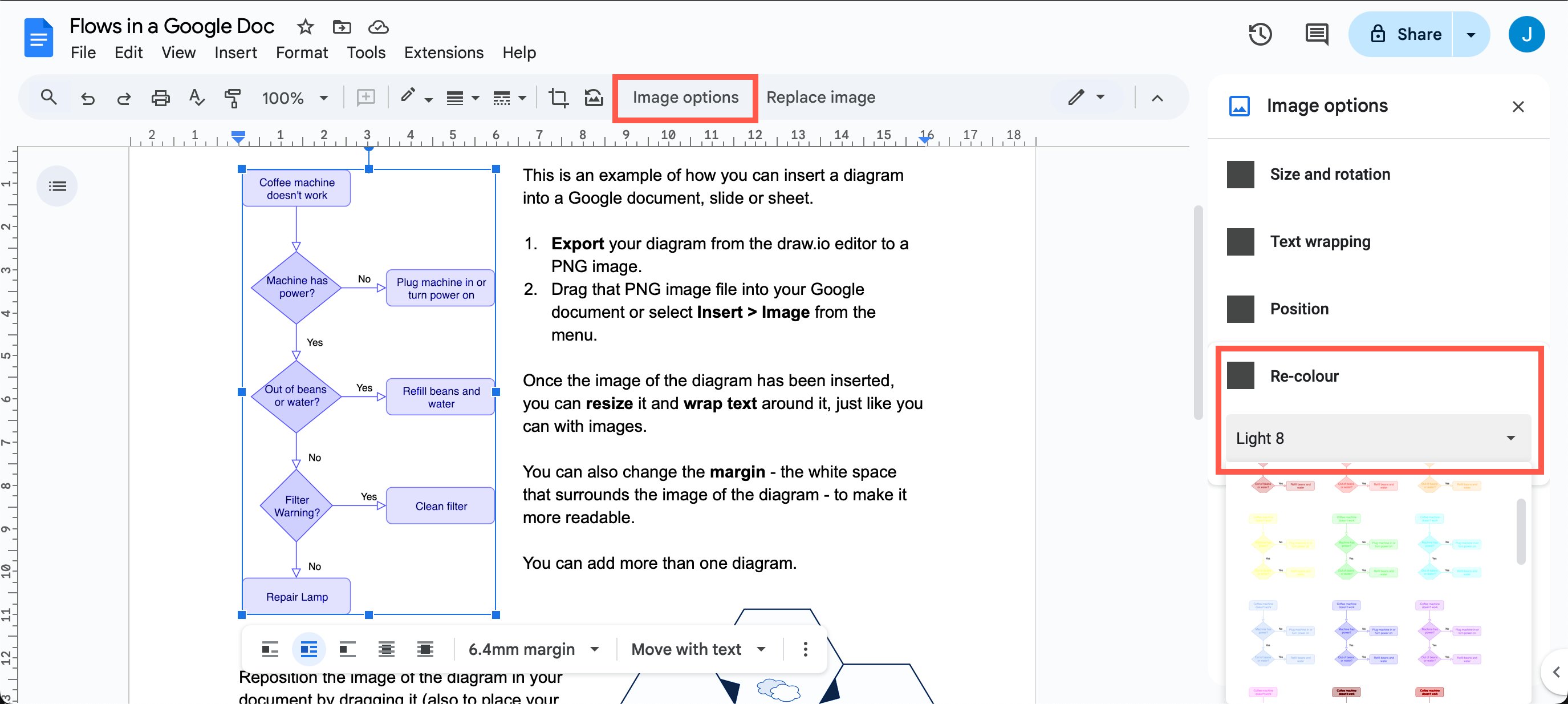
Select the image of your diagram, then click Image options in the toolbar. Click the Re-color dropdown and apply a colour filter.
Update a diagram in a Google document
When you edit a draw.io diagram, you will need to re-export it to a PNG file, and re-import it into your Google document.
Note: Your diagram data is only ever stored in your browser and on your Google Drive account.
Deprecated - draw.io apps for Google
Important: Google has applied new security limitations that limit how apps access files from Google Drive. If you have old, installed versions of these apps, you may be able to continue to embed and work with diagram files in your documents. However, we recommend that you convert all embedded diagrams to images following the instructions above.
New installations of the draw.io apps for Google Docs, Sheets and Slides will not function correctly.
Learn more about the changes to the draw.io Google apps
The now deprecated draw.io add-on for Google Docs (and Slides and Sheets) allowed you to embed draw.io diagrams stored in Google Drive into your documents. When the diagram files were updated on your Google Drive, you could update them inside your document to show those changes.
Legacy: Embed a diagram in a Google doc with deprecated draw.io app
- Click Add-ons > diagrams.net for Docs > New Diagram to create a new diagram and save it to your Google Drive. You may need to grant additional permissions to the editor to use your Google Drive account.
- To embed an existing diagram click Add-ons > diagrams.net for Docs > Insert Diagrams. Select multiple diagrams by holding down
Shiftwhen you click on each diagram file. - Select your diagram file(s) then click Select.
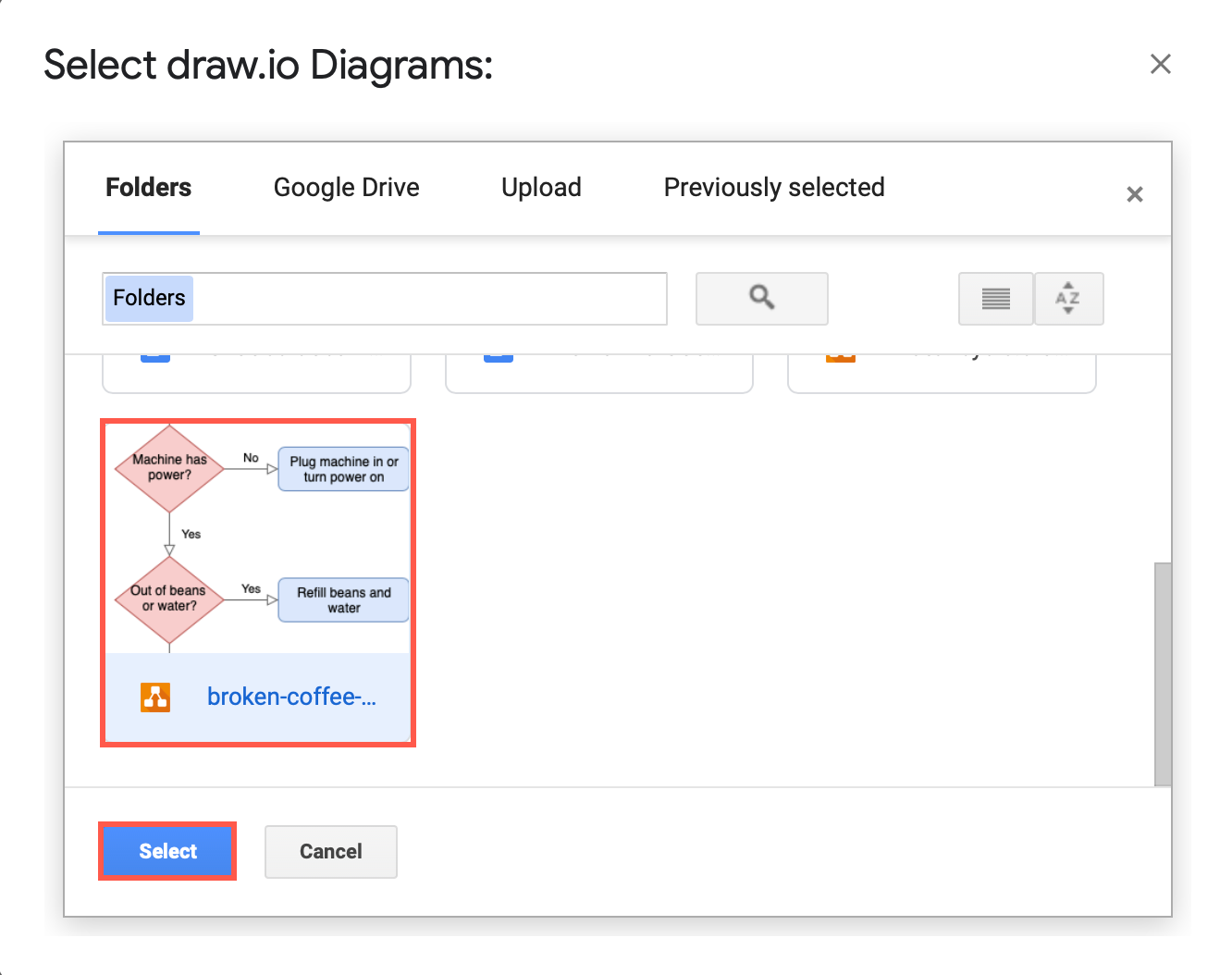
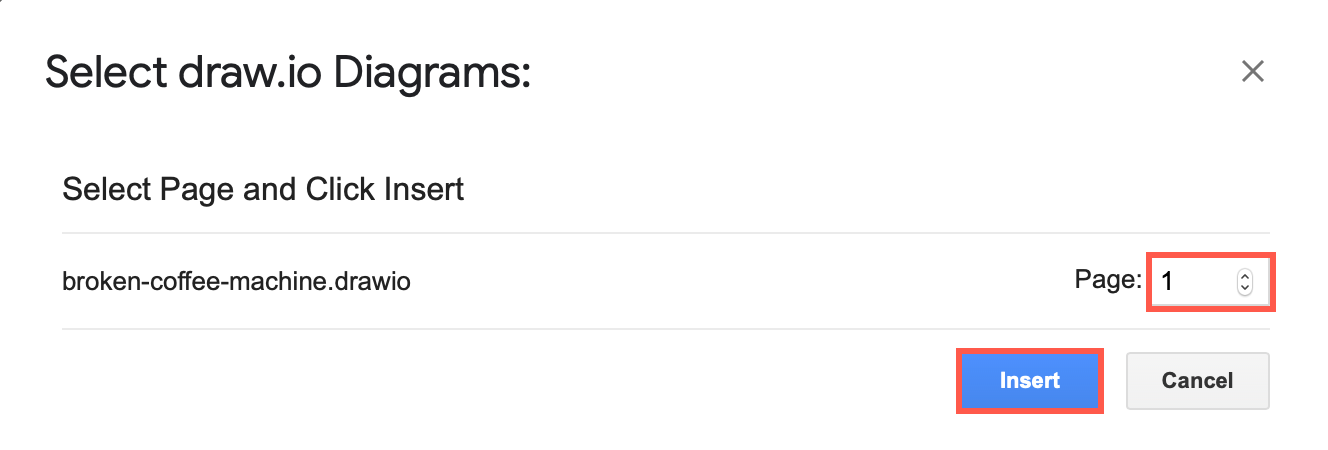
- If your diagrams has multiple pages, select which page you want to display, then click Insert.
Legacy: Update embedded diagrams with the deprecated draw.io app
Your diagrams are displayed as images inside your Google Document which need to be regenerated to see any changes made to the diagram.
- Select the diagram in your Google Document.
- Click Add-ons > diagrams.net for Docs > Update Selected.
If you want to update all of the diagrams, click Add-ons > diagrams.net Diagrams for Docs > Update All.