Troubleshoot problems between draw.io and Google Drive or Google Workspace
If your login attempts fail or Google Drive is not available, you may see an error message along the lines of Log in attempts failed. Please try again later. Follow the troubleshooting steps below.
- Ensure you are not blocking third-party cookies. See how to enable third-party cookies in your browser.
- Ensure you have no browser extensions that may block access to the google.com domain, such as an ad-blocker.
- Delete all cookies that are specific to Google.
If you are having trouble with your personal Google Drive account, follow the steps above to fix connection issues with Google Drive, and make sure you have granted draw.io the permissions needed to work with diagrams in Google Workplace (below).
When you can work with diagrams stored in your personal Google Drive but not in a Google Workplace account, your administrator may not have allowed third-party apps on your company's Google Workplace domain.
Authorise domain-wide third party apps in Google Workplace (G Suite)
- As an administrator, go to admin.google.com, then navigate to Google Apps > Drive > General Settings.
- On the right, enable the check box Allow users to install Google Drive apps then save your changes. It may take a short time for the system to update, after which your users will be able to install the draw.io add-ons in Google Workplace apps themselves.
If you don't want to enable this setting and allow your users to individually install the add-ons, install draw.io domain wide.
Required permissions
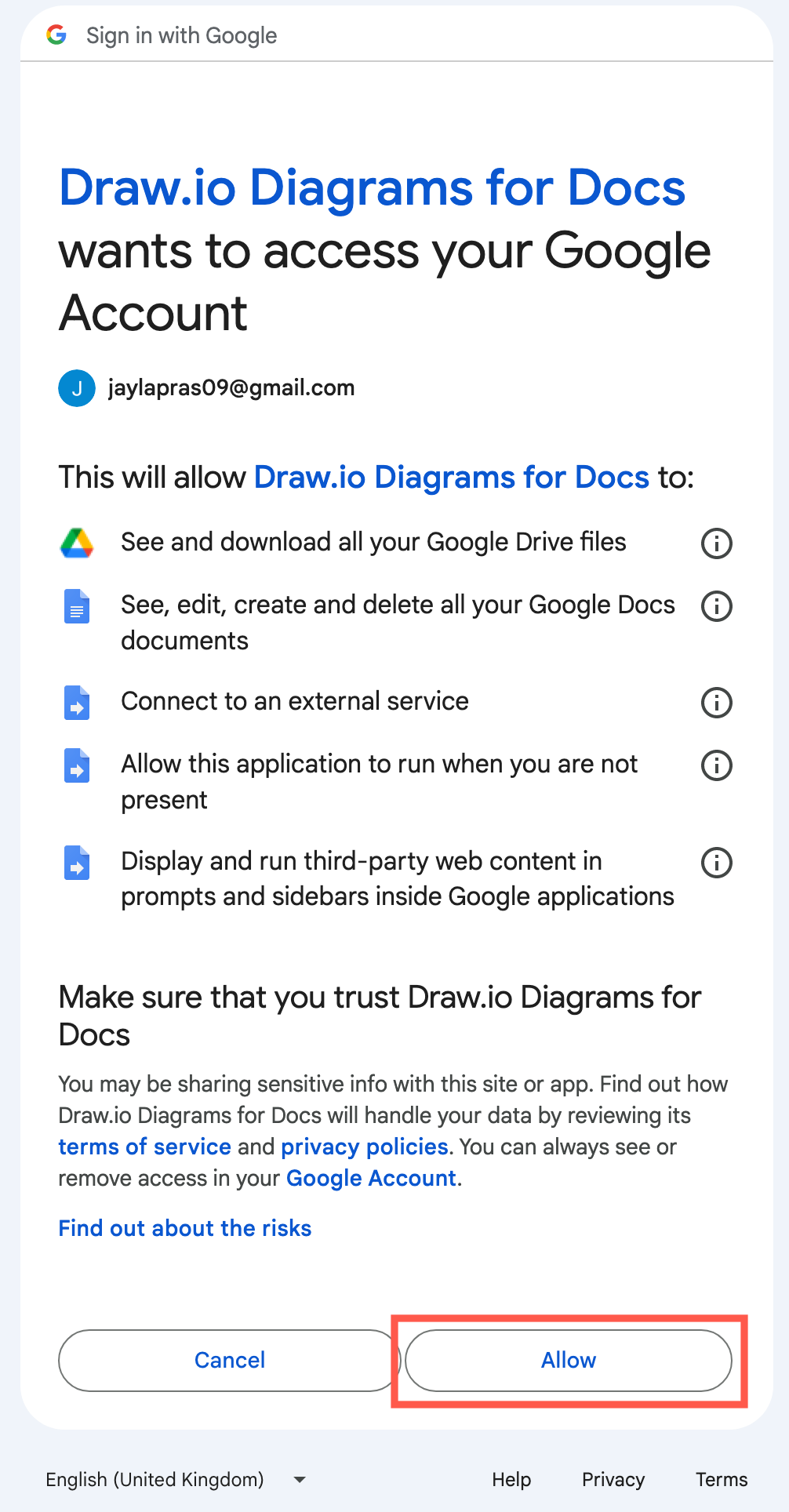
The draw.io requires a variety of permissions in order to work with your diagrams in Google Drive and embed them in Google Docs, Slides or Sheets.
Google Workspace
- See and download all your Google Drive files: So draw.io can access your Google Drive and the diagram files you have stored there.
- See, edit, create and delete all your Google Documents (or Sheets, or Slides): Enables the add-on to embed a diagram into your Google Document (or Sheet or Slides).
- Connect to an external service: Allows the add-on to send the diagram file to our image generation server to produce the image that is then embedded into your Google Document.
- Allow this application to run when you are not present: Acknowledges that the application scripts run on a server and not on your local computer.
- Display and run third-party web content in prompts and sidebars inside Google applications: Allows you to select a diagram file in the sidebar picker.
If you are not comfortable granting these permissions, you can always export your diagram to an image and embed that image into your document manually. Keep in mind that you'll need to do this manually each time you edit your diagram files.
Google Drive
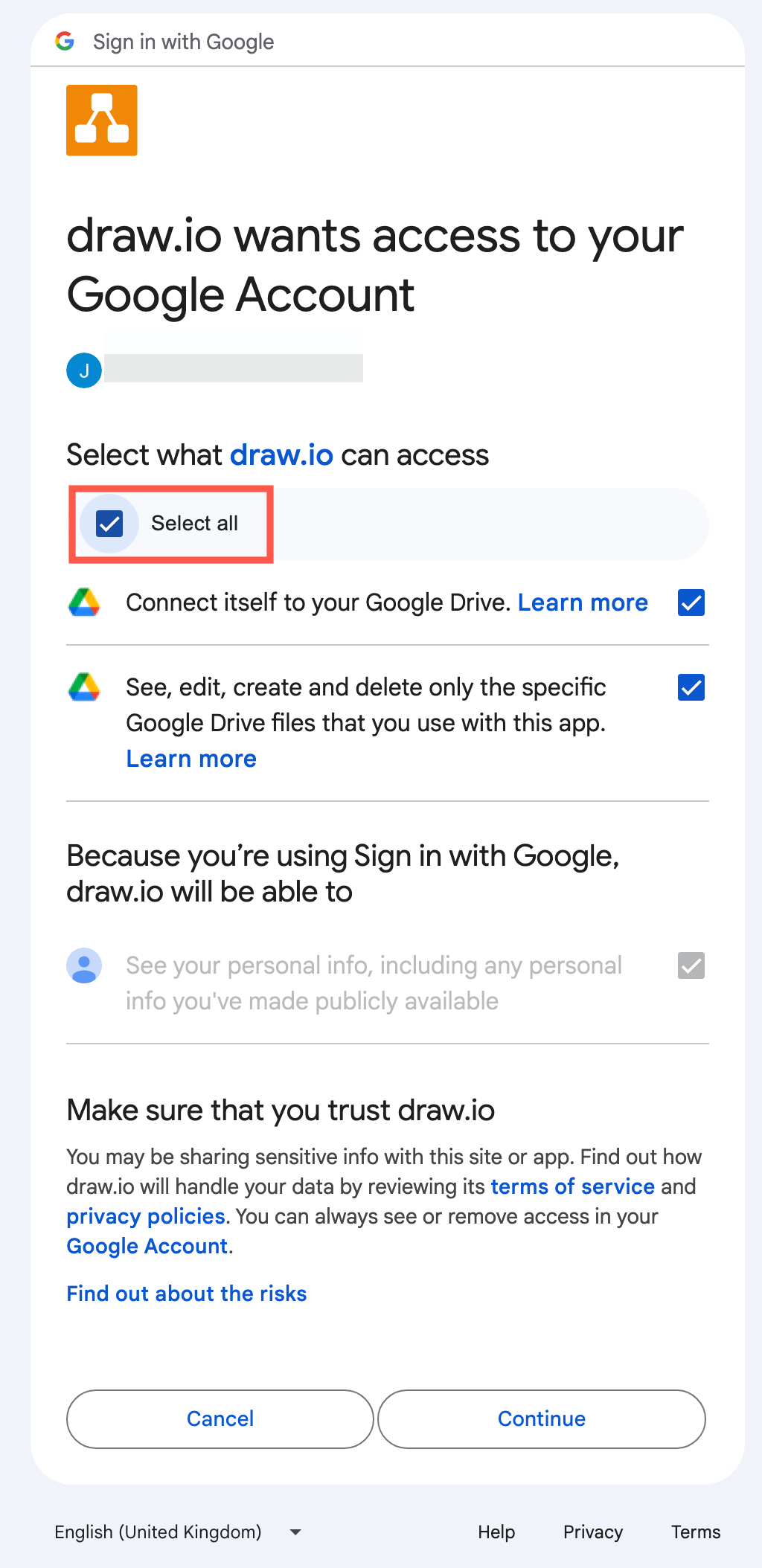
When you embed a diagram, you will need to grant additional permissions to save diagram files to your Google Drive.
- Connect itself to your Google Drive: Allows you to save diagram files to Google Drive.
- See, edit, create and delete only the specific Google Drive files that you use with this app: Allows you to navigate through your Google Drive so you can select, open, edit and save your diagram files.