Add and resolve comments on diagrams in Google Drive
You can add comments to diagrams, reply to and resolve comments on files stored in Google Drive, as well as comments on draw.io diagrams attached to pages in Atlassian Confluence Cloud, Data Center and Server instances.
Work with comments via draw.io
Comments are useful when working on diagrams in teams in Google Drive, or leaving feedback for teachers and students on diagrams in Google Classroom.
View comments
- Open your diagram file from Google Drive in the draw.io editor, then select View > Comments from the menu.
- Click on the circular Refresh icon at the bottom of the Comments dialog.
Add a comment
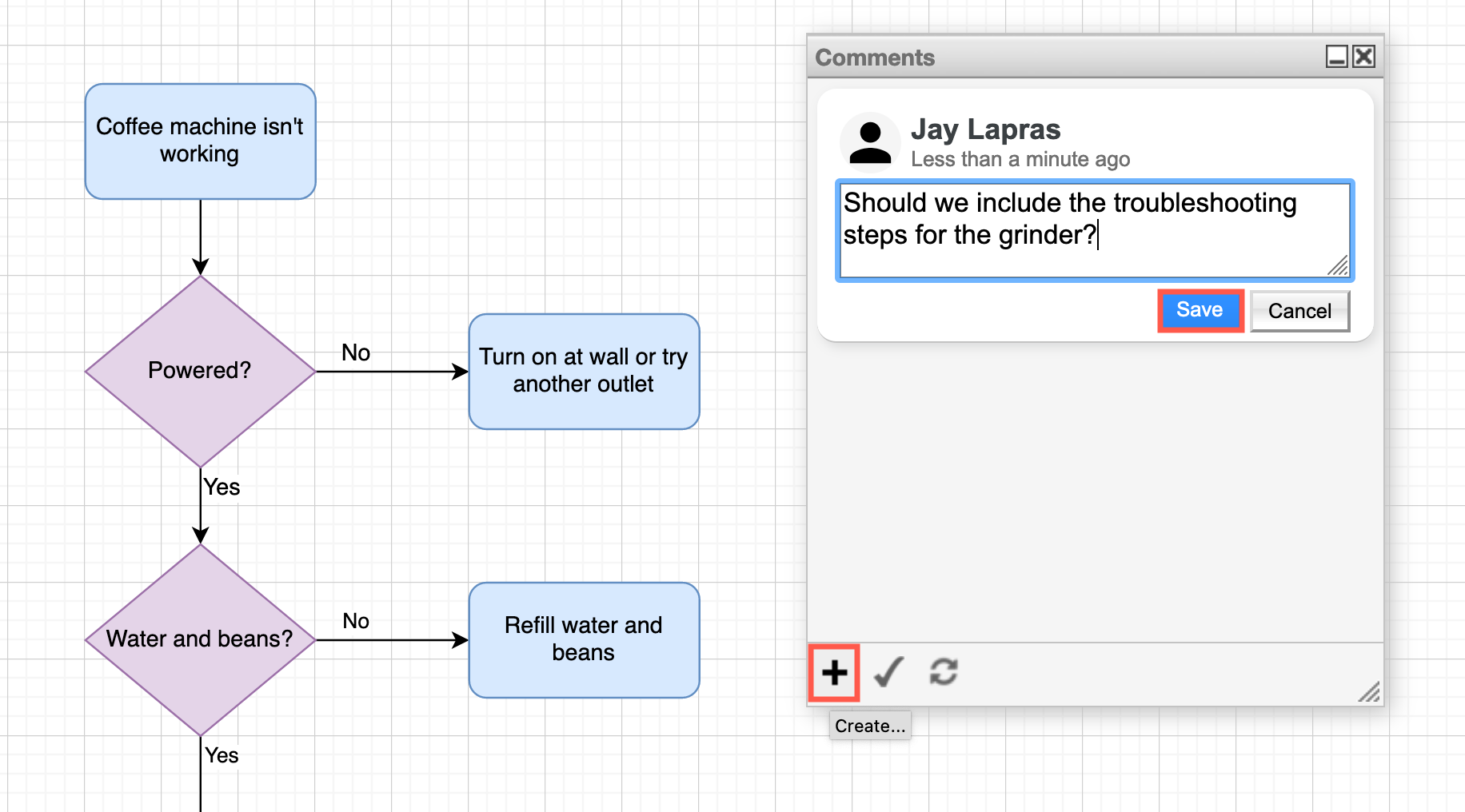
Click on Create (+) at the bottom of the Comments dialog, enter your comment in the text field, then click Save.
To allow others to make comments on your diagrams, you must share your diagram file with at least the Commenter role enabled.
Edit and delete comments
Under each saved comment are some options - you can Edit and Delete your own comments.
Reply to a comment
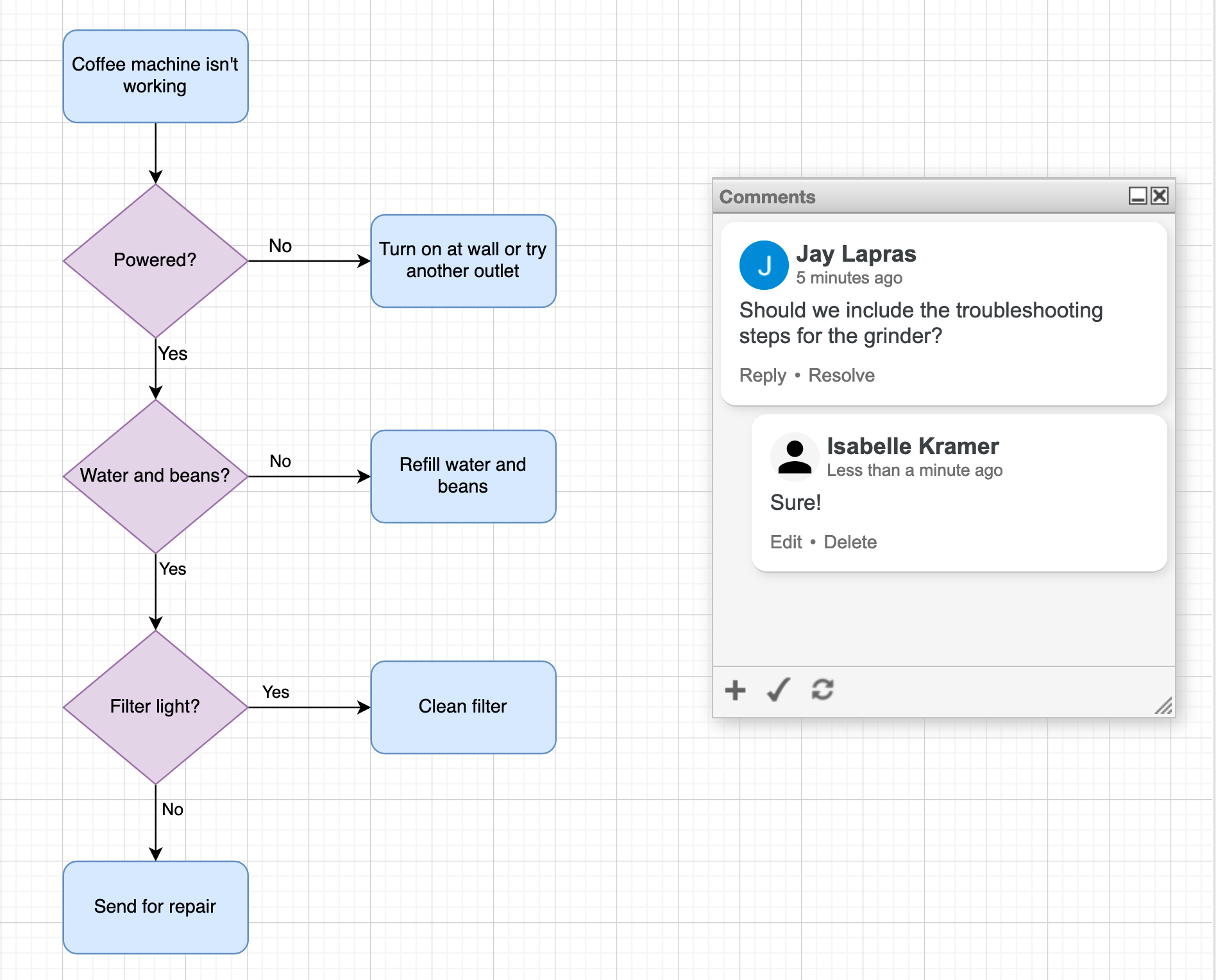
You can reply to other people's comments. Click on Reply, enter your comment and click Save. Replies will be nested.
Resolve comments
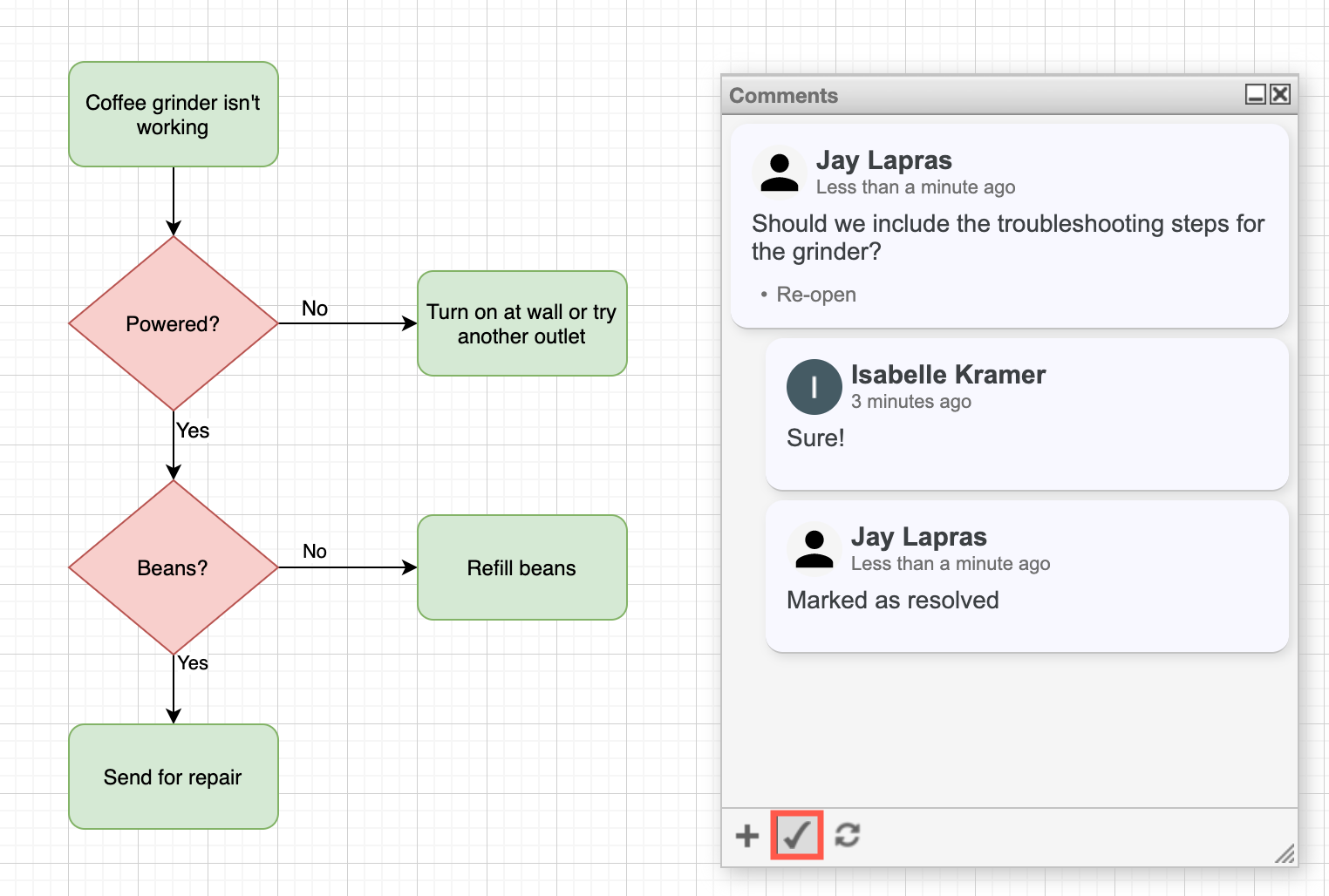
Click on Resolve under the comment (or thread) you want to resolve. It will disappear from the list of open comments. To see all comments, click on the tick button at the bottom of the Comment dialog. Resolved comments are not displayed in the diagram viewer.
Click on Reopen if you want to reopen a comment thread.
Work with comments in the viewer
The draw.io viewer will also show comments by default, but you need to open the diagram in the editor to add, edit, and delete comments and write replies. You can Resolve comments when using the draw.io viewer.
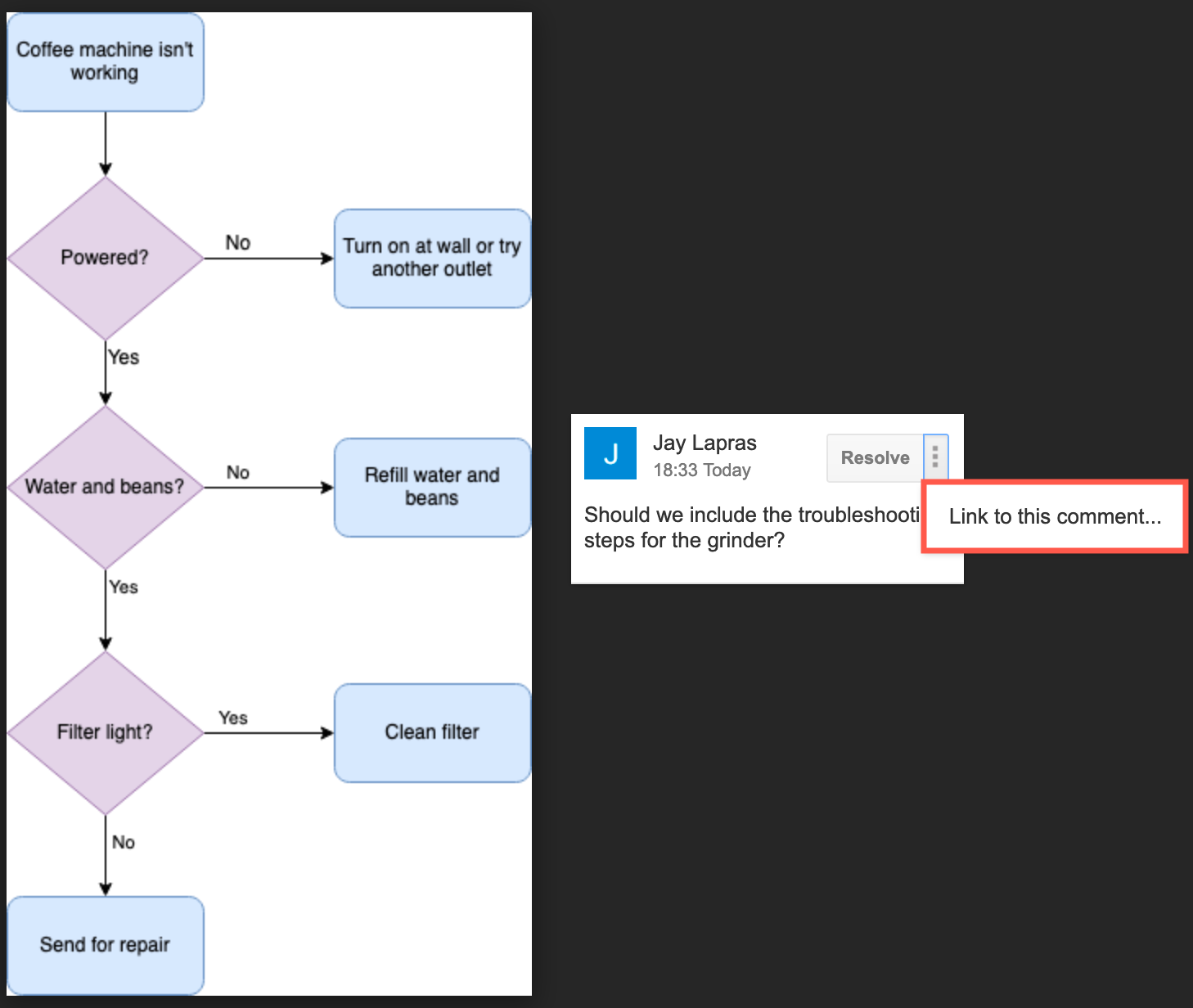
To copy a link to a specific comment, click the vertical dots next to the Resolve button, and select Link to this comment.