Draw your own custom polygons
When you need a shape that is not in the draw.io shape libraries, you can draw it yourself with the freehand drawing tool, group multiple shapes together to form a compound custom shape, or describe a more complex custom shape's geometry in an XML file.
But, there's an easier way.
When you want your custom shape to be cleaner and simpler to work with, use the built-in polygon editor to draw both open and closed polygons and curved shapes.
- Select Arrange > Insert > Polygon from the menu or click + > Polygon in the toolbar to open the polygon editor.
- Click on the grid to add control points to your polygon, change the polygon settings if you need, and click Insert to add it to the drawing canvas.
Why draw a custom polygon?
There are many different use cases where custom polygon shapes will be necessary in technical diagrams.
Irregular shapes
If you need an uncommon or irregular polygon shape, then you will need to draw it yourself. While the most common polygons are acailable in draw.io - rectangles, triangles, hexagons, and so on, if you need to reflect a shape or a boundary area that is asymmetric or complex, you'll need to draw it yourself.
- Related components in network and infrastructure diagrams may not fit neatly into the typical rectangular region shapes. You can draw an appropriate polygon around a logical grouping and turn it into a container to better layout your diagram.
- If you are annotating a map, drawing a floor plan or designing a physical component in draw.io, you will need to represent the real-world geometry and not settle for a poor approximation with a regtangle. In this case, you can trace the actual shape in a custom polygon to accurately model physical boundaries.
- It may be easier to draw molecular geometry in the polygon editor than cobble together geometries from individual lines.
Simplified custom shapes
We've shown how you can create custom shapes from multiple shapes from the library grouped together. However, grouped shapes can be fragile - frustrating to style, resize and move where the shapes inside the group behave unexpectedly.
A custom polygon is more robust - they are fast and easy to draw in the polygon editor, resize and move smoothly, and you can edit its shape whenever you need.
Control over styling
A custom polygon lets you more easily style with colours, fill patterns, labels, and so on to match the rest of your diagram. You can also edit the connector attachment points on your custom polygons to ensure a neat diagram.
Example shapes drawn in the polygon editor
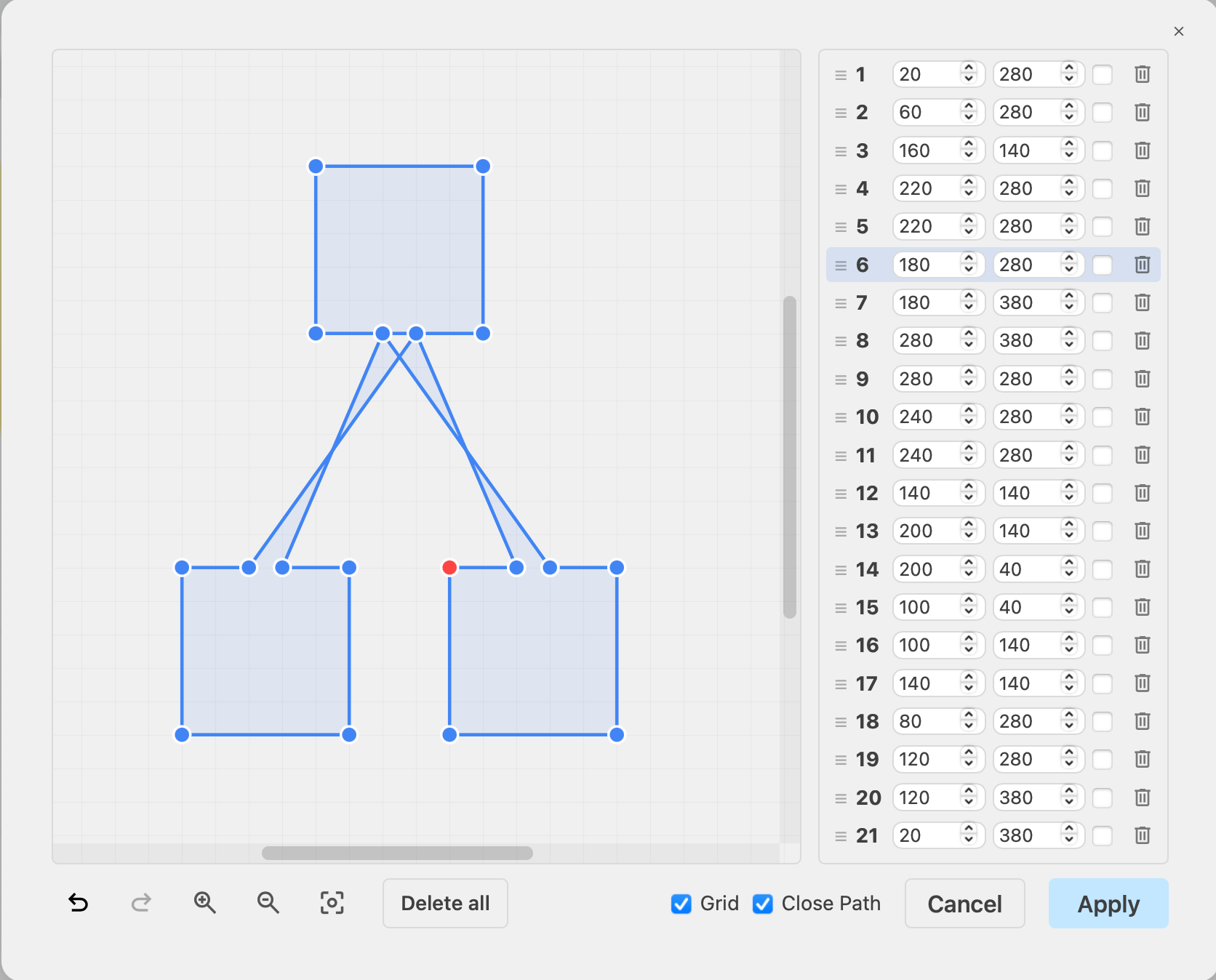
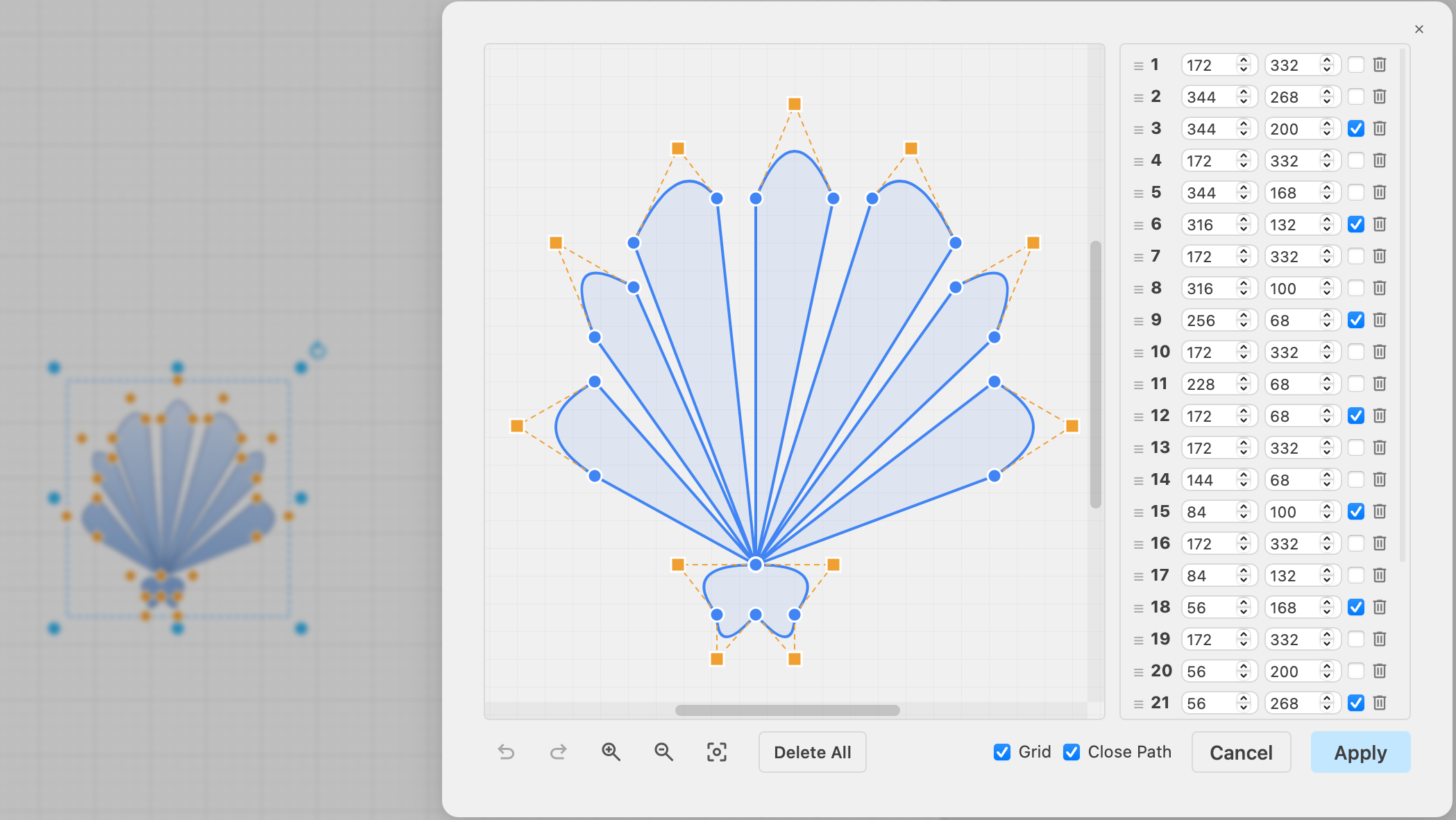
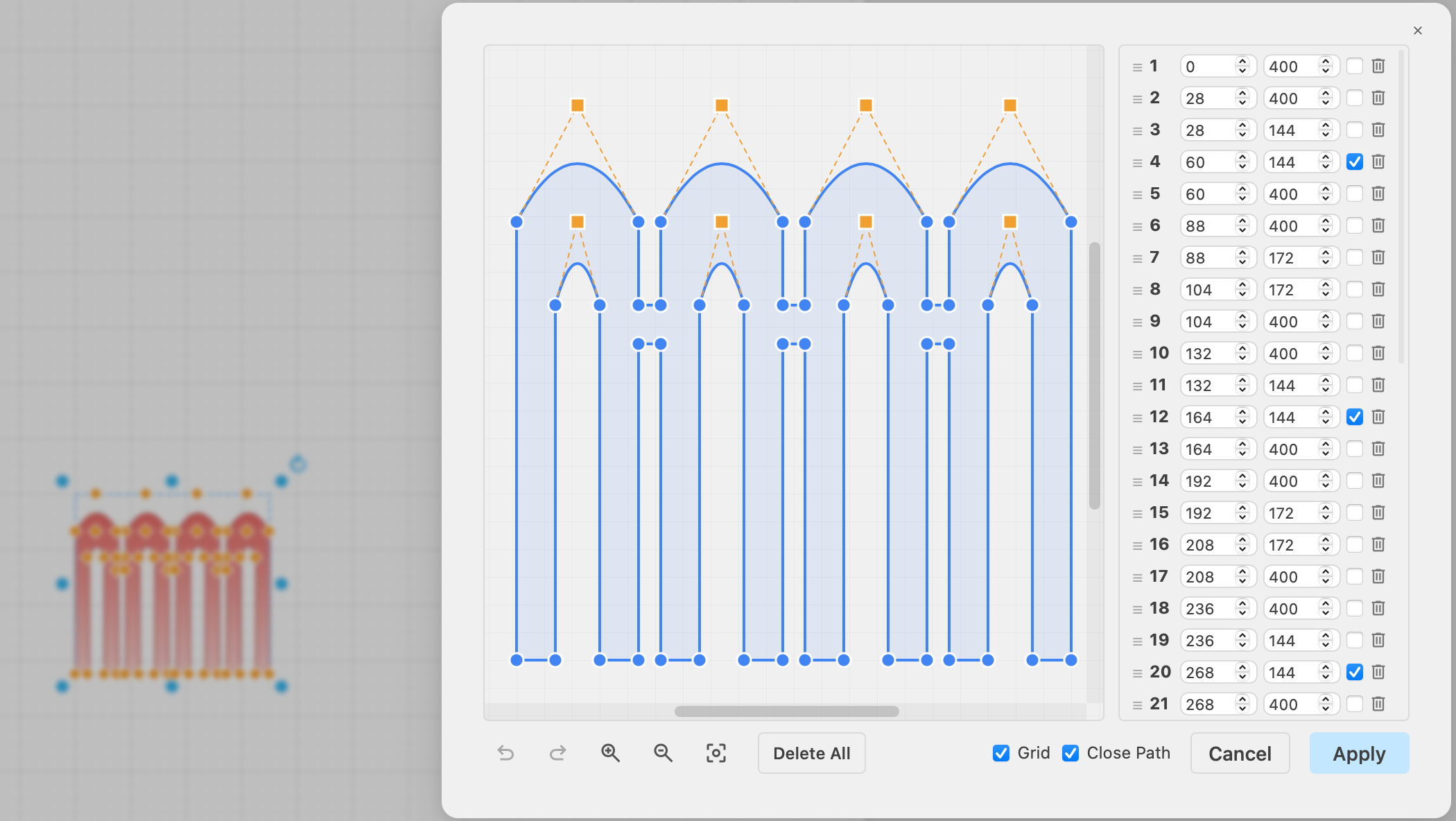
Note that each shape is a single line, shaped with control points. Closed polygons have an extra line connecting the first and the last control points.
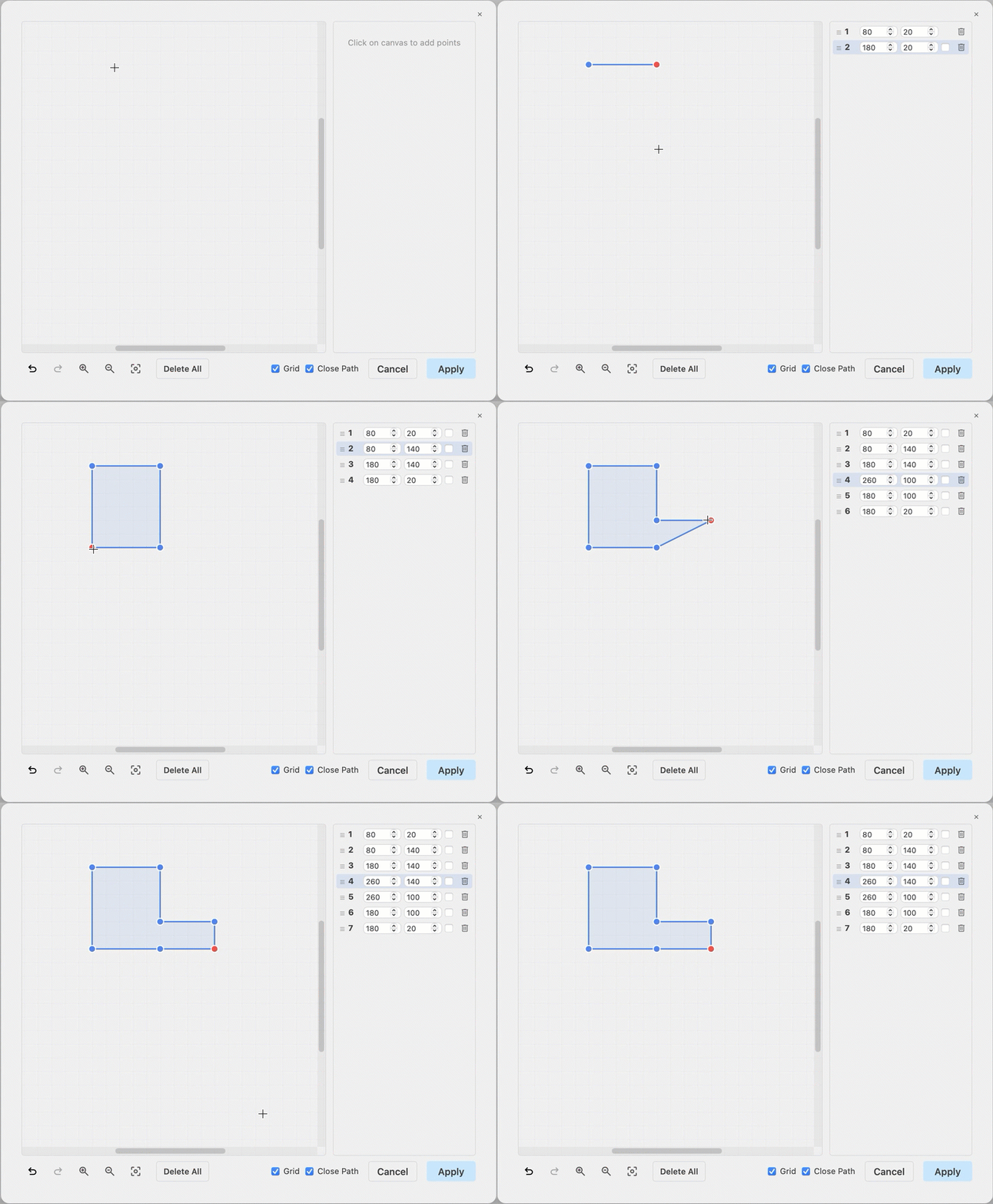
In the animation below, you can see how to draw an L shaped polygon, similar to the shape described in the complex custom shapes tutorial. Note, we can't add the internal line from the complex custom shapes tutorial as polygon shapes can only be a single line.
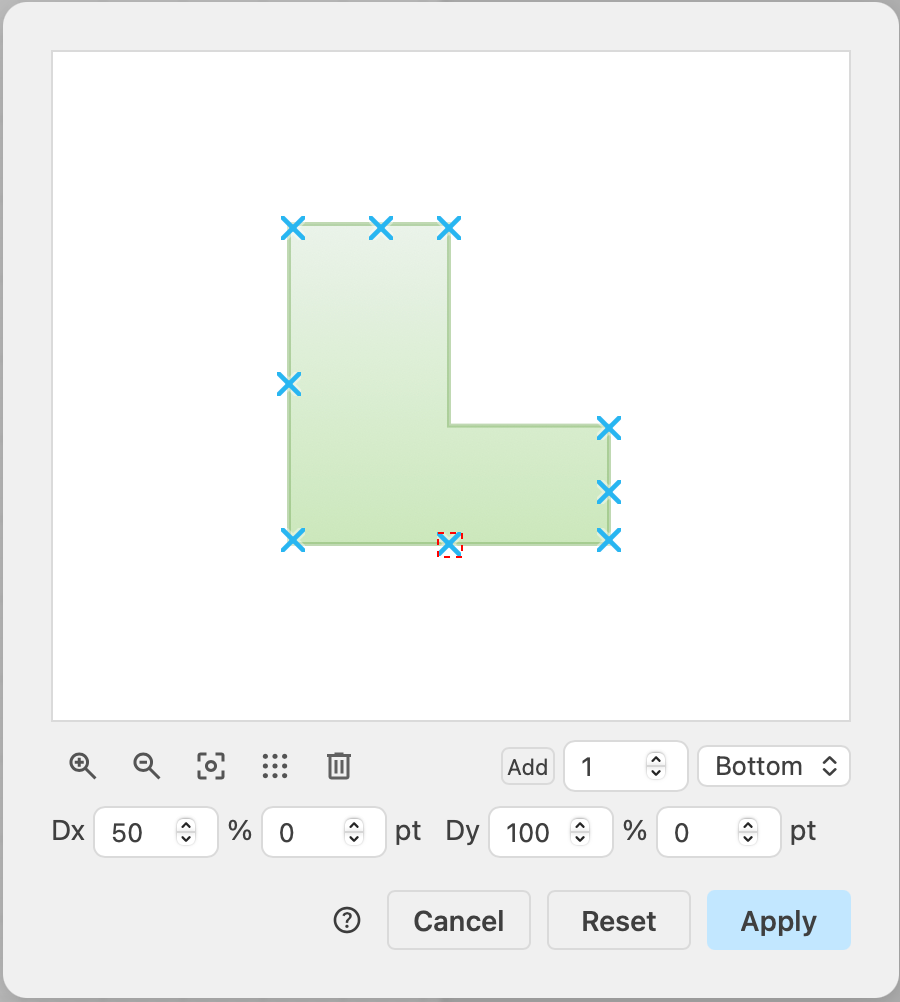
You can add specific connection points to polygons via the connection points editor. Right click on your polygon and select Edit Connection Points, then Add as many connection points as you require and drag to reposition them. Guide lines will appear to help you space and align the connection points.
A shell shape, more stylised than the freehand drawn shape in the infographics tutorial. Note the curved lines between points - these curves have their own control points (orange) that can be dragged to make the curve larger or smaller and change its direction.
A polygon heater for a home-lab diagram, instead of using grouped shapes as was done in the home-lab diagram tutorial. This single line polygon heater shape has two custom fixed connection points so it would work well in a piping diagrams and filled connectors attaching to those points. The polygon also resizes much more smoothly, and can be styled with colours and gradients easier than grouped shapes.
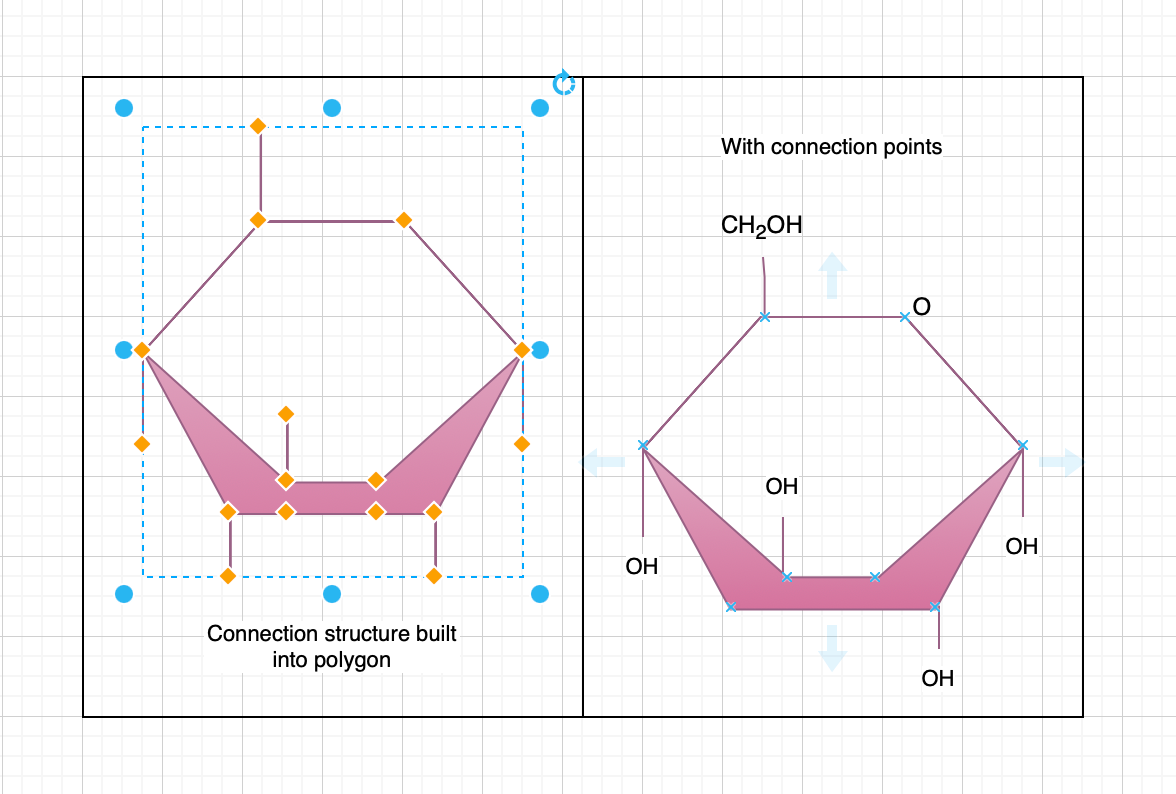
When drawing structural formulae for diagrams in chemical reports, you no longer need to use multiple shapes and connectors to draw the shapes. Instead, a single polygon makes your diagram much neater. For Haworth projections, you can either add extra control points to the polygon (left) for the bonds, or edit the connection points (right) so you can use connectors for the bonds for a neater finish.