Veeam infrastructure diagrams
Veaam is an online service that visualises and monitors your cloud and network architectures, and provides a number of additional availability services, including deployment, backup, replication and restoration. It supports Amazon AWS, Microsoft Azure, and IBM Cloud, as well as a variety of workloads, apps, and platforms commonly used by businesses.
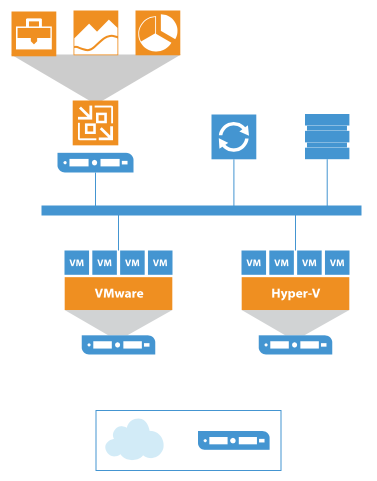
Veeam uses a custom set of shapes to represent the components in your cloud infrastructure, rather than using those specifically recommended by Amazon, IBM or Microsoft. These shapes are included in draw.io, which makes it easy for you to document your architecture independent of which cloud platform you are using.
Enable the Veeam shape library
- Click on More Shapes at the bottom of the left panel.
- Scroll down to find the Veeam library in the Networking section. Click on the checkbox next to it to enable it.
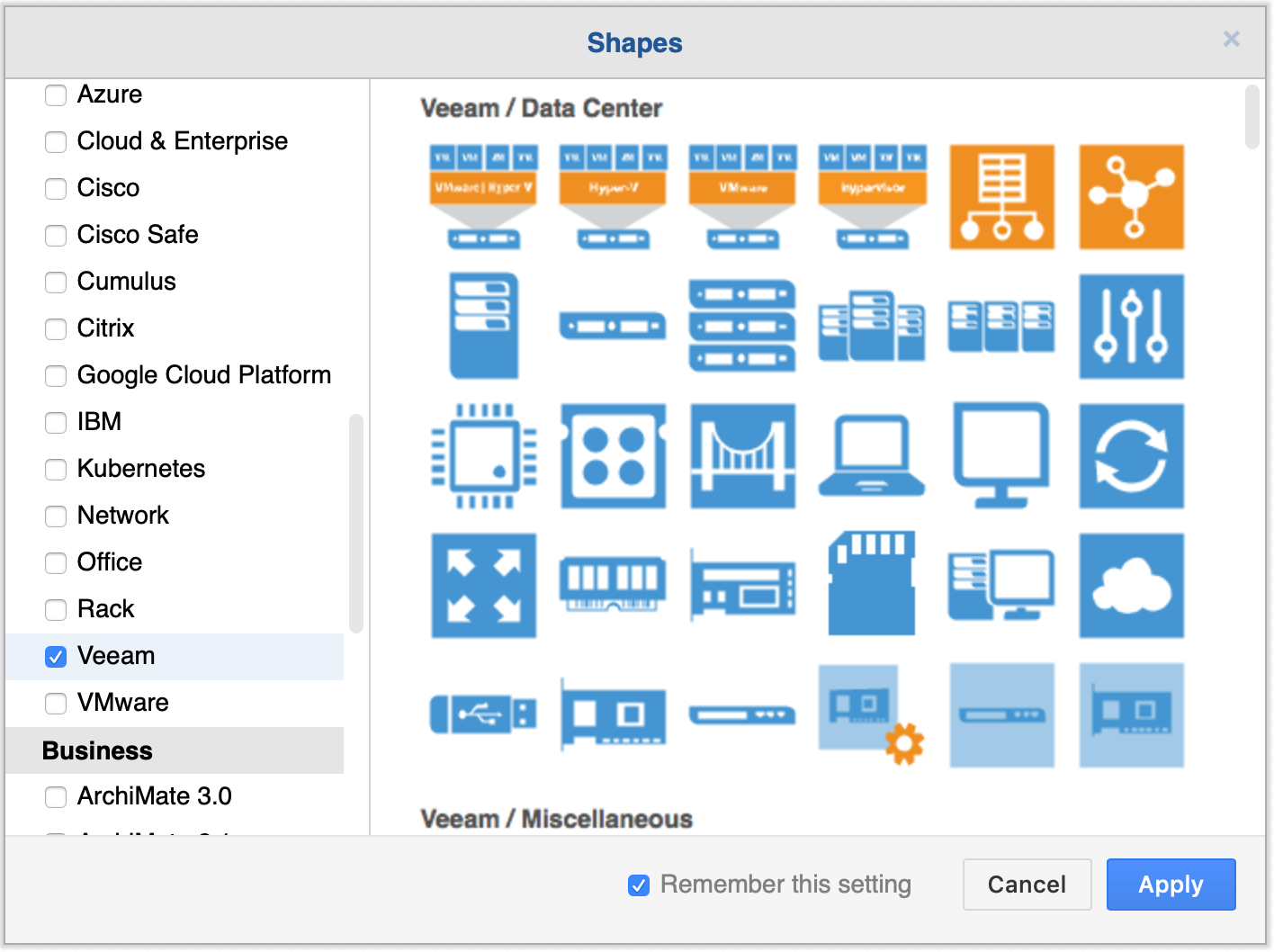
- Click Apply.
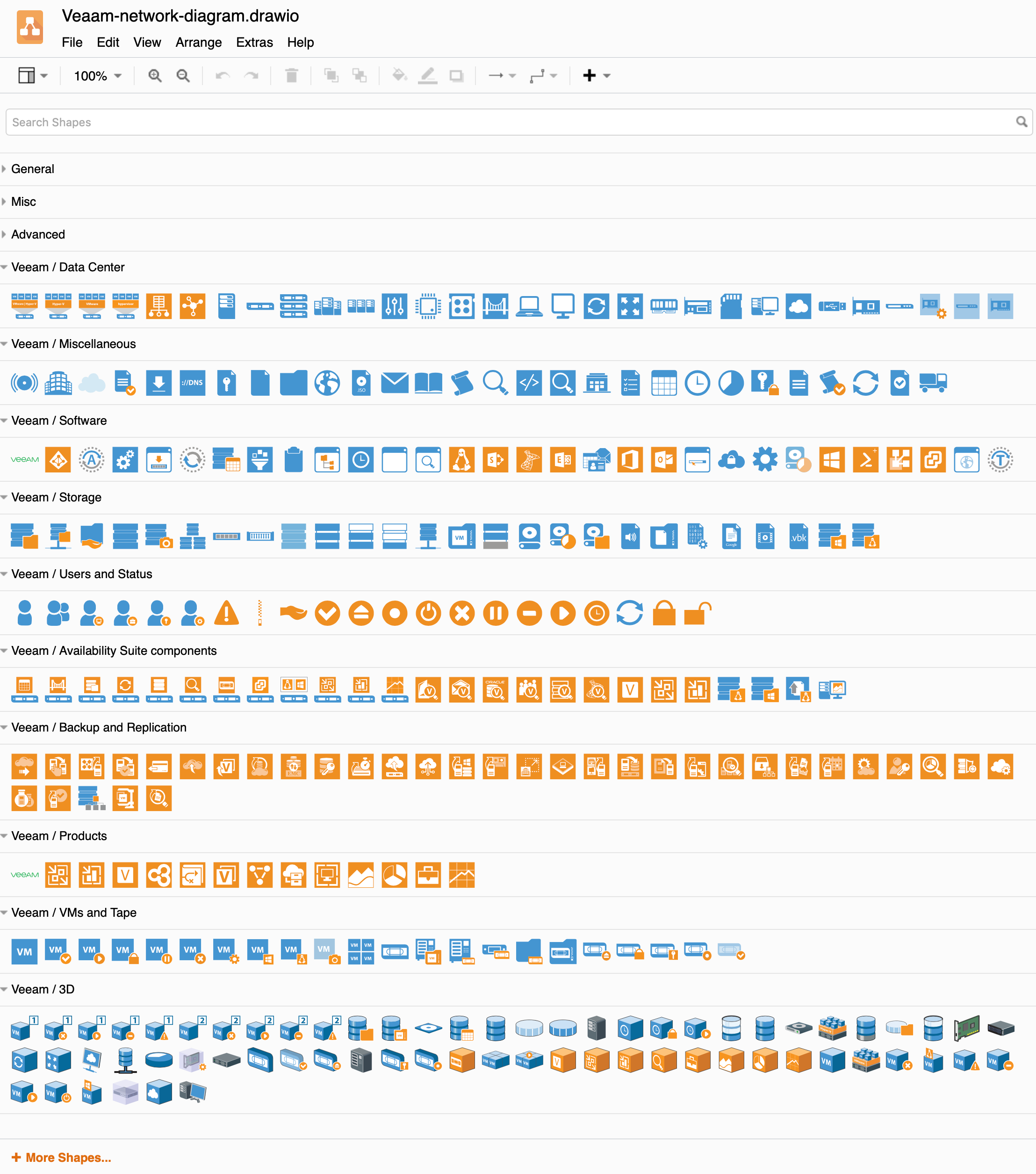
The Veeam shapes are now available in the left panel, organised into many different categories. You can see all of the Veeam shapes currently available in draw.io below.
Use the Veeam shape library
Open the sub-libraries by clicking on their titles. Now, you can use these Veeam shapes to draw your infrastructure.
Add a shape
You can either click on a shape in the Veeam shape library to add it to center of the drawing canvas, or click and drag a shape from the library into position.
Click on a shape to select it, then drag the little square grab handles to resize the shape, or the rounded arrow in one corner to rotate the shape around its center.
To replace a shape, drag a new Veeam shape from the shape library and hover with it over an existing shape until the replace arrow appears, then drop the new shape. It will match the size of the original shape on the drawing canvas.
Add a connector
Hover over a shape and drag a connector out from one of the blue arrows, or from the tiny connection points (crosses).
Drag the connector to another shape and release. The blue outline before you release indicates a floating connector. If you don't want this, drag the end of the connector and release on one of the small connection points (crosses) or when the outline is green - the connector will stay fixed at this position even when you drag the shape around the drawing canvas. Learn more about floating vs fixed connectors.
Click and drag the middle of a connector to change its path - this will automatically add and remove connector waypoints as required.
Create a network diagram using the Veeam stencils
Related
See how to draw network and infrastructure diagrams with the other shape libraries.
Advanced: Use placeholders to automatically update labels and tooltips in zones within your infrastructure.