Install draw.io app for Google Drive via Google Workspace Marketplace
The draw.io app for Google Drive lets you work more easily with diagram files stored in your Google Drive account.
- Log into your Google account.
- Go to the draw.io for Google Drive listing on the Google Workspace Marketplace and click Install.
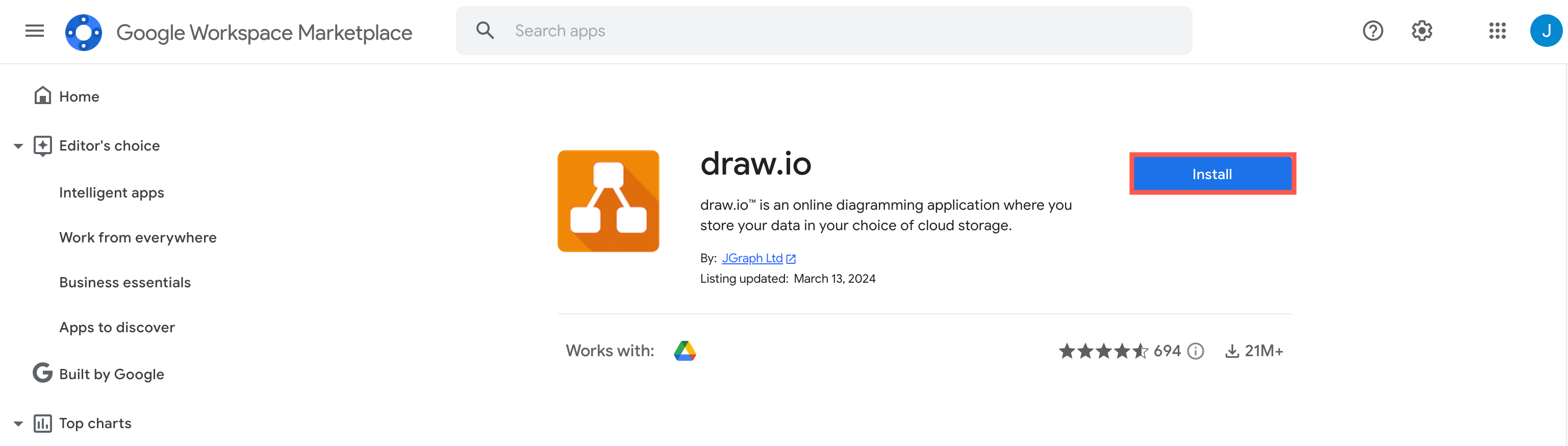
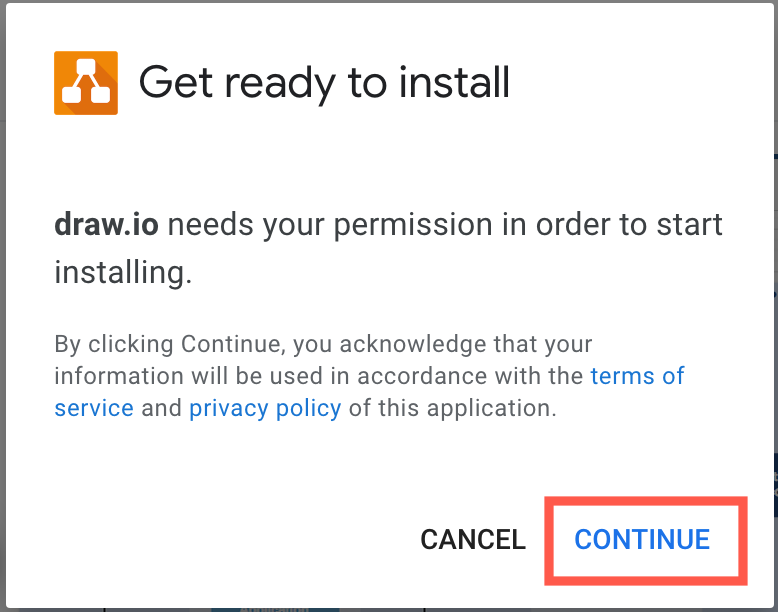
- Click Continue, then choose the account you want to install draw.io into, and sign in or click Continue, if prompted by Google.
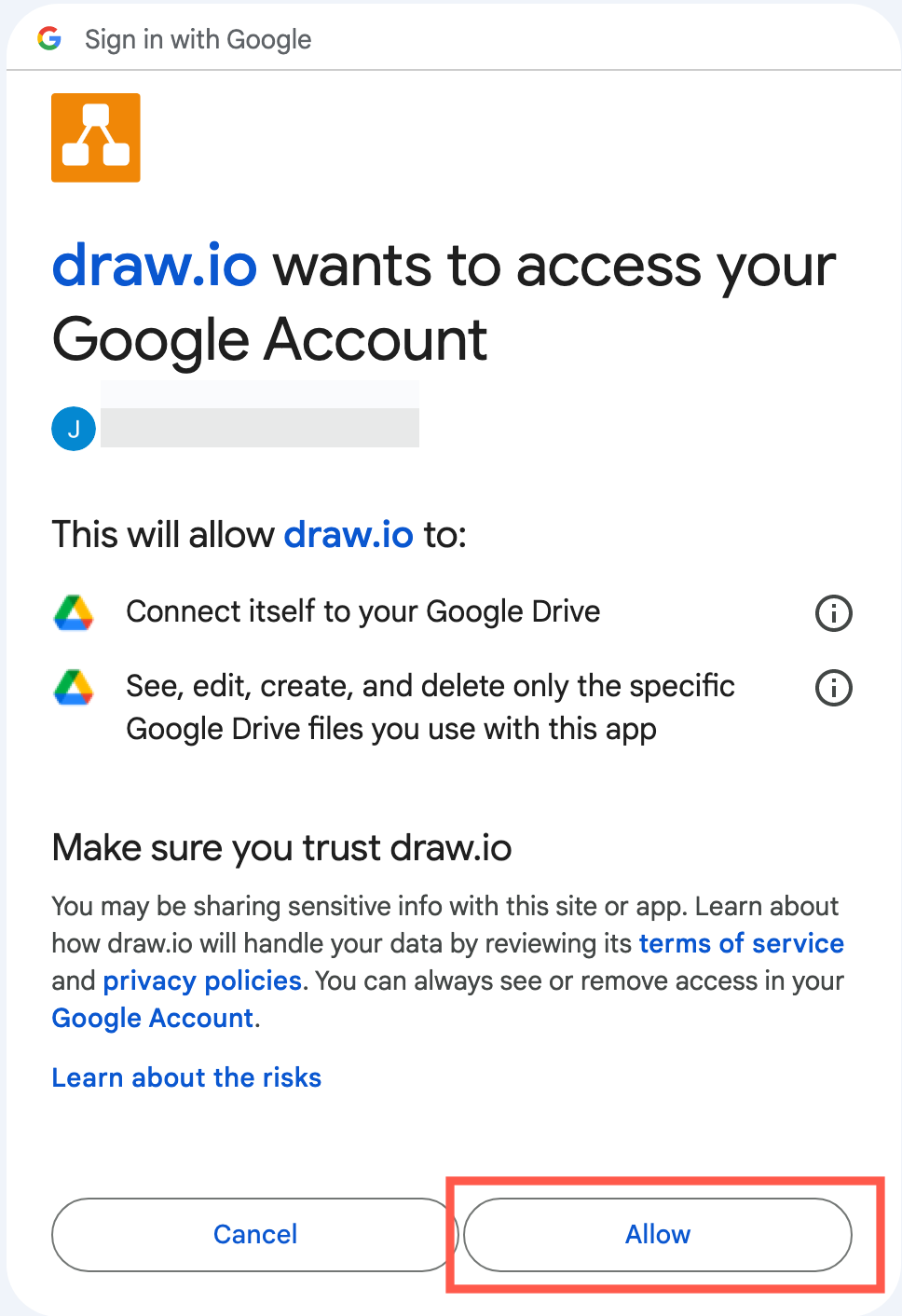
- Click Allow to give permission to the draw.io application to access your diagram files in your Google Drive account.
Google will now install the draw.io for Drive app. - Click Done to close the installer.
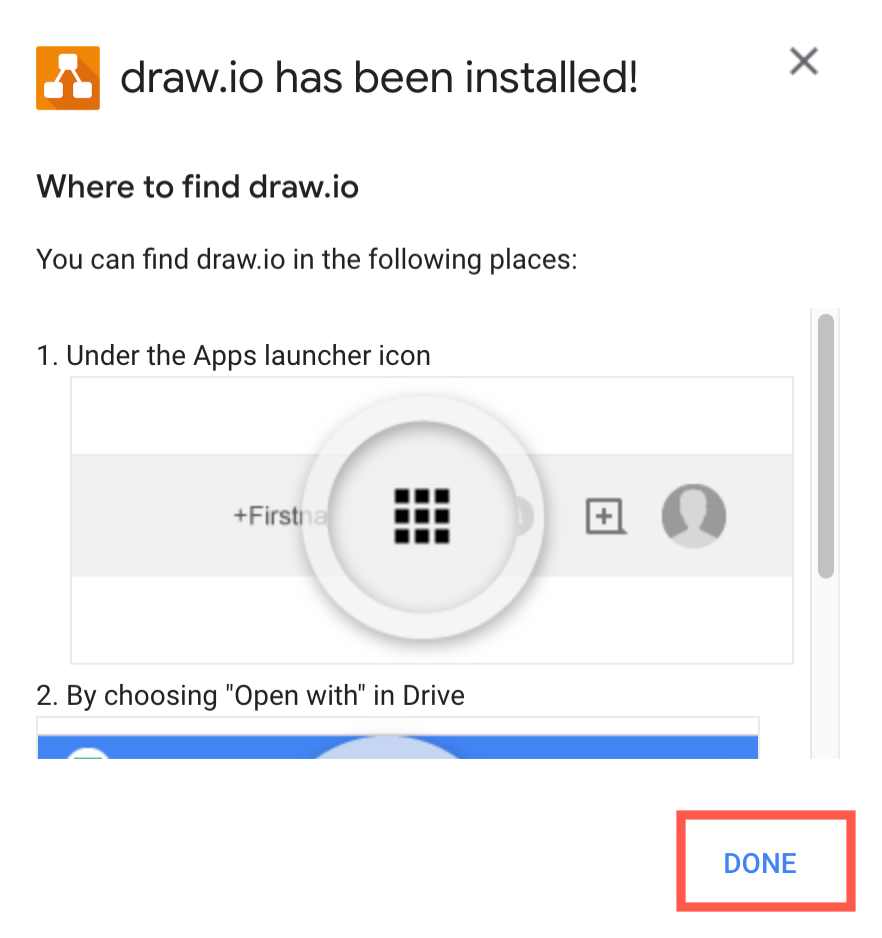
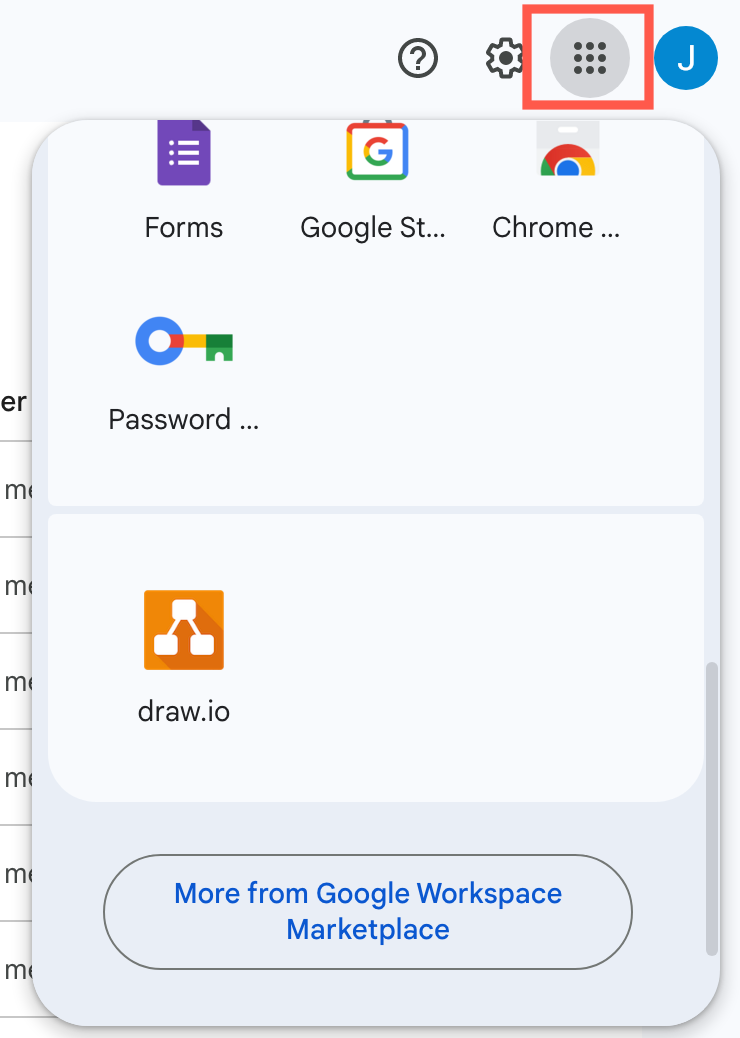
You can now use draw.io from within your Google Drive account - click on the Google Apps grid in the top right, scroll to the bottom to where your marketplace apps are, and click on draw.io to go to the diagram editor.
- To use a draw.io diagram in a Google Doc, Sheet or Slide, install the draw.io add-on for Google Docs, Sheets and Slides. It inserts diagrams from your Google Drive as images. When you change a diagram, update its image from the Diagrams panel.

Install the draw.io app domain wide
As a Google Workspace (G Suite) administrator, you can install and approve the draw.io add-ons for Google Workspace on behalf of all users on a domain.
- Go to https://admin.google.com and log in.
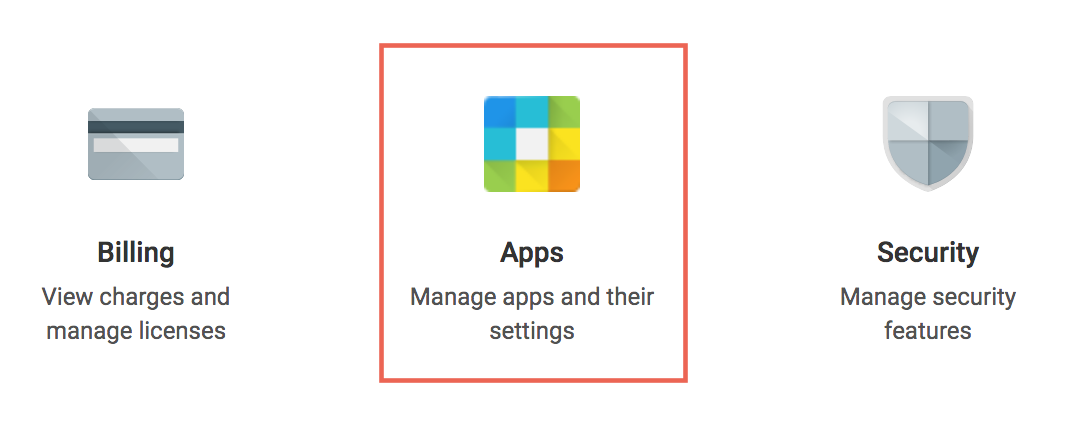
- Select Apps.
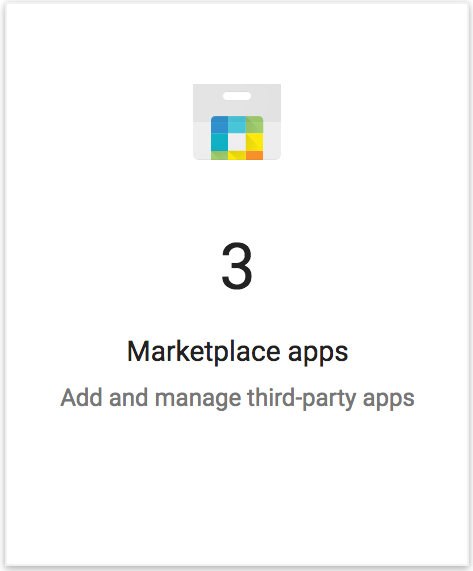
- Select Marketplace apps.
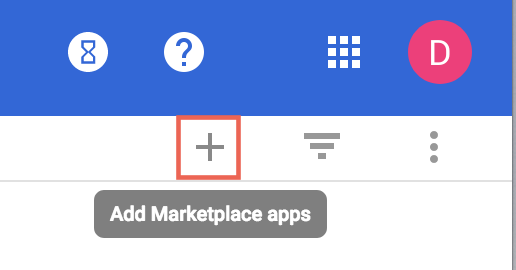
- Click on the plus symbol (+) in the top right of the page.
- Search for
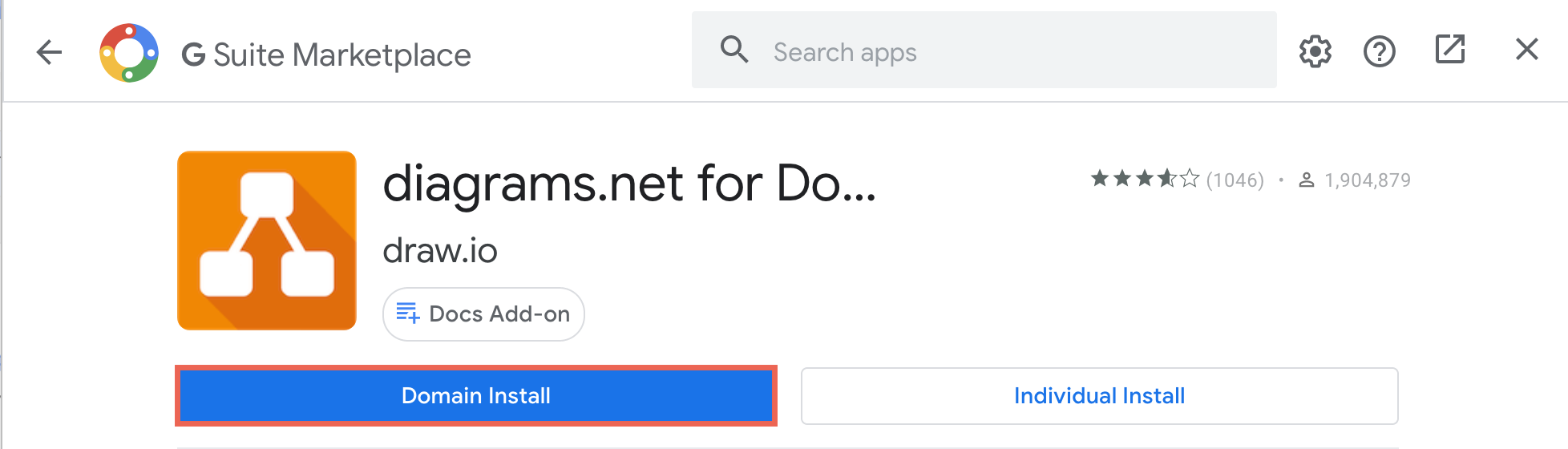
draw.io, then select an add-on: draw.io for Documents, draw.io for Spreadsheets or draw.io for Presentations. - Click Domain install and accept the terms and permissions that are presented.
Deletion policy
The draw.io app for Google Workspace (G Suite) stores all information in Google Drive. No data is deleted or altered if the application is removed.
Re-installing the the draw.io app at any time restores access to all data - no diagram data is ever lost.