Troubleshoot problems between draw.io and Google Drive or Google Workspace
If your login attempts fail or Google Drive is not available, you may see an error message along the lines of Log in attempts failed. Please try again later. Follow the troubleshooting steps below.
- Ensure you are not blocking third-party cookies. See how to enable third-party cookies in your browser.
- Ensure you have no browser extensions that may block access to the google.com domain, such as an ad-blocker.
- Delete all cookies that are specific to Google.
If you are having trouble with your personal Google Drive account, follow the steps above to fix connection issues with Google Drive, and make sure you have granted draw.io the permissions needed to work with diagrams in Google Workspace (below).
When you can work with diagrams stored in your personal Google Drive but not in a Google Workspace account, your administrator may not have allowed third-party apps on your company's Google Workspace domain.
Solve problems with the draw.io add-on for Google Docs, Sheets and Slides
- "Authorization is required to perform that action" or a
PERMISSION_DENIEDerror: This happens when you're signed in to more than one Google account in your browser. Use a browser window where only one Google account is signed in, for example a separate browser profile. - The Google file picker doesn't load: Your browser, or an Incognito window, blocks third-party cookies. You may see "Allow Google access to your necessary cookies" or "Can't access your Google Account". Enable third-party cookies, or use a normal browser window.
- The add-on shows a permission error, such as "You do not have permission to call Ui.showModalDialog": You didn't allow all of its permissions when you installed it. Go to myaccount.google.com/connections, select the add-on, and remove its access. It is listed as draw.io for Documents, draw.io for Spreadsheets or draw.io for Presentations. Then use the add-on again, and allow all the permissions it asks for.
- "draw.io doesn't have access to this file" or No access in the Diagrams panel: The add-on can only read diagram files that you selected in the Google file picker. Click Allow access in the Diagrams panel, then select the file. If the file isn't shown in the file picker, it isn't shared with you: ask its owner to share it.
- "This is a Google Docs Editors file, not a draw.io diagram" or "The diagram could not be rendered": The file you selected isn't a draw.io diagram. Select a
.drawiofile, or a PNG image that contains a diagram. - "Only the first 100 diagram files were checked": The Diagrams panel shows the status of the first 100 diagram files in your file. You can still update every diagram.
- A diagram in Google Docs isn't updated: The add-on only finds diagram images that are In line with the text. Select the image and set it to In line. If it still isn't updated, delete the image and insert the diagram again.
- Edit, New diagram or Edit Selected doesn't open draw.io: Your browser blocked the new tab. Allow pop-ups for the page, then try again. With Edit Selected, you can also click Open draw.io in the add-on dialog.
- You can't install the add-on with your work or school account: Your Google Workspace administrator may only allow approved apps. Ask them to allow draw.io, or to install it for everyone in your organisation.
If your problem isn't listed, email [email protected]. Say whether you use Google Docs, Google Sheets or Google Slides, and describe what you did, what you expected to happen, and what happened instead.
Authorise domain-wide third party apps in Google Workspace (G Suite)
- As an administrator, go to admin.google.com, then navigate to Apps > Google Workspace Marketplace apps > Settings.
- Under Manage access to apps, allow users to install and run apps from the Marketplace, or only allowlisted apps and add the draw.io add-ons to the allowlist. Save your changes. It may take a short time for the system to update, after which your users will be able to install the draw.io add-ons in Google Workspace apps themselves.
If you don't want to enable this setting and allow your users to individually install the add-ons, install draw.io domain wide.
Required permissions
draw.io requires a variety of permissions in order to work with your diagrams in Google Drive and insert them in Google Docs, Sheets or Slides.
draw.io add-on for Google Docs, Sheets and Slides
- See, edit, create, and delete only the specific Google Drive files you use with this app: Lets the add-on read the diagram files you select or upload in the Google file picker. It can't see any other files in your Google Drive.
- View and manage documents that this application has been installed in: In Google Docs, lets the add-on insert and update diagram images in the document you have open.
- View and manage spreadsheets that this application has been installed in: In Google Sheets, lets the add-on insert and update diagram images in the spreadsheet you have open.
- View and manage the Google Slides presentations that this application is installed in: In Google Slides, lets the add-on insert and update diagram images in the presentation you have open.
- Display and run third-party web content in prompts and sidebars inside Google applications: Lets the add-on show the Diagrams panel and its dialogs, such as the Google file picker and page selection.
- Connect to an external service: Lets the add-on read the selected diagram files from Google Drive, and send them to the draw.io export service to render them as images.
In each Google app, the add-on asks for four of these permissions, and needs all four to work. See how the add-on handles your data in the privacy policy for draw.io for Google Docs, Sheets and Slides.
If you are not comfortable granting these permissions, you can export your diagram to an image and insert it without the add-on. Keep in mind that you'll need to do this each time you edit your diagram files.
Google Drive
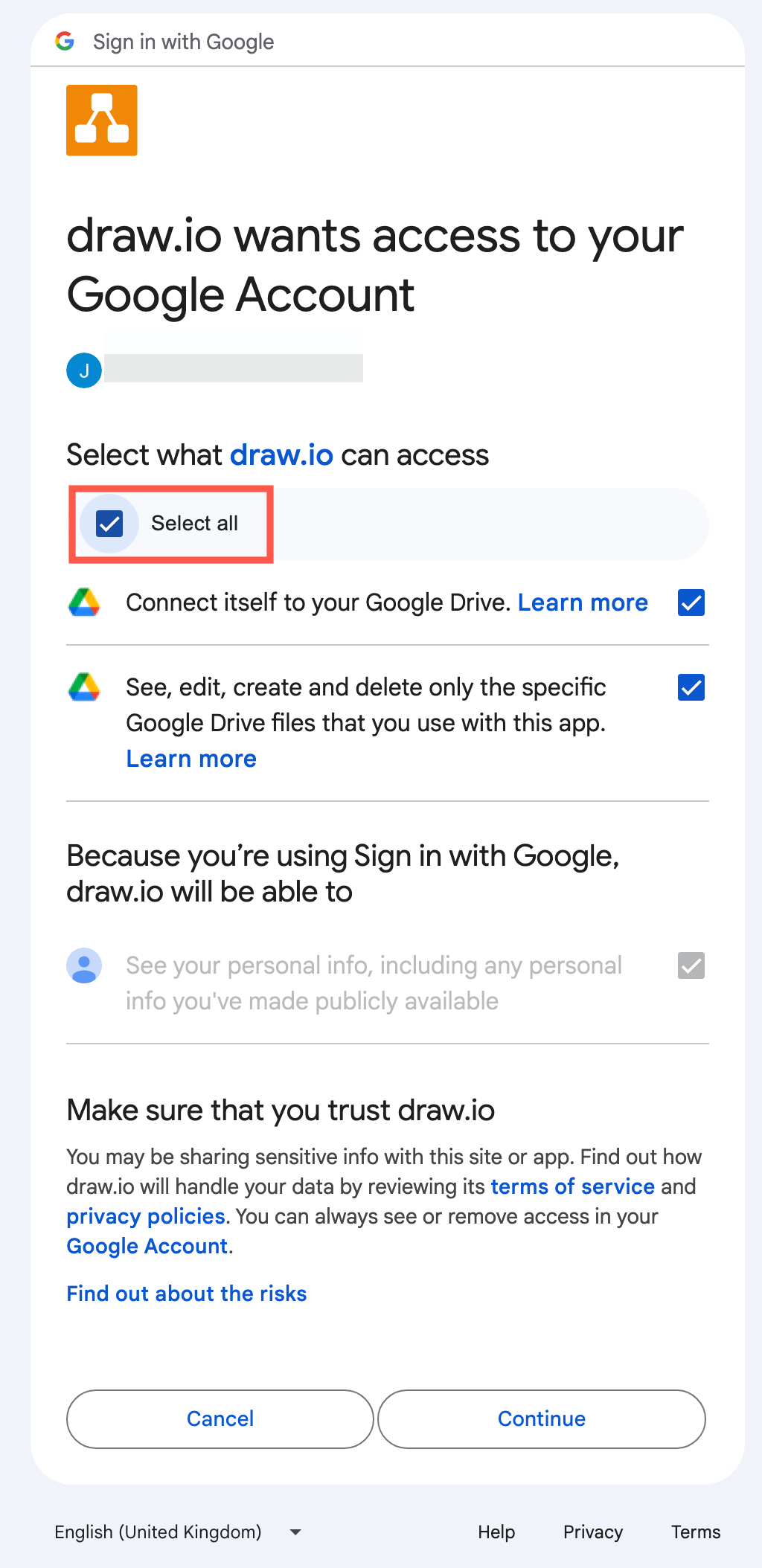
When you open or create a diagram in the draw.io editor, for example with Edit Selected or New Diagram in the add-on, the editor asks for its own permissions to open and save diagram files in your Google Drive.
- Connect itself to your Google Drive: Allows you to save diagram files to Google Drive.
- See, edit, create and delete only the specific Google Drive files that you use with this app: Allows you to navigate through your Google Drive so you can select, open, edit and save your diagram files.