Insert and update diagrams in Google Docs, Sheets and Slides
The draw.io add-ons for Google Docs, Google Sheets and Google Slides insert draw.io diagrams from your Google Drive into your files as images. When you change a diagram, the add-on shows which images are out of date and updates them.
These add-ons are free. They can only read the diagram files you select, and they don't store your diagrams or your files. See the privacy policy for draw.io for Google Docs, Sheets and Slides.
Install the draw.io add-on
- Open the draw.io add-on for the Google app you use on the Google Workspace Marketplace: draw.io for Documents for Google Docs, draw.io for Spreadsheets for Google Sheets, or draw.io for Presentations for Google Slides.
- Click Install, then choose your Google account.
- Allow all the permissions draw.io asks for. If Google shows a checkbox next to each permission, select them all.
The add-on will be installed, and the Diagrams panel will open. The add-on menu will be added to the Extensions menu of that Google app, under the add-on's name: Extensions > draw.io for Documents in Google Docs, Extensions > draw.io for Spreadsheets in Google Sheets, and Extensions > draw.io for Presentations in Google Slides.
Install the add-on separately for each Google app you want to use it in. You can also install it from inside the Google app: select Extensions > Add-ons > Get add-ons, then search for draw.io.
Note: Google Workspace administrators can install the draw.io add-ons for everyone in their organisation.
Open the Diagrams panel
The Diagrams panel lists the draw.io diagrams in your file, shows which ones have changed, and updates them.
- Select Diagrams Panel from the add-on menu, for example Extensions > draw.io for Documents > Diagrams Panel in Google Docs.
The Diagrams panel will open on the right. It lists each diagram with its status. In Google Slides and Google Sheets, it also shows the slide or sheet the diagram is on.
The statuses are:
- Up to date: The image shows the latest version of the diagram.
- Changed: The diagram was changed in draw.io after the image was inserted or updated.
- No access: draw.io doesn't have your permission to read the diagram file yet. Click Allow access.
- Error: draw.io can't read the diagram file. The reason is shown below its name.
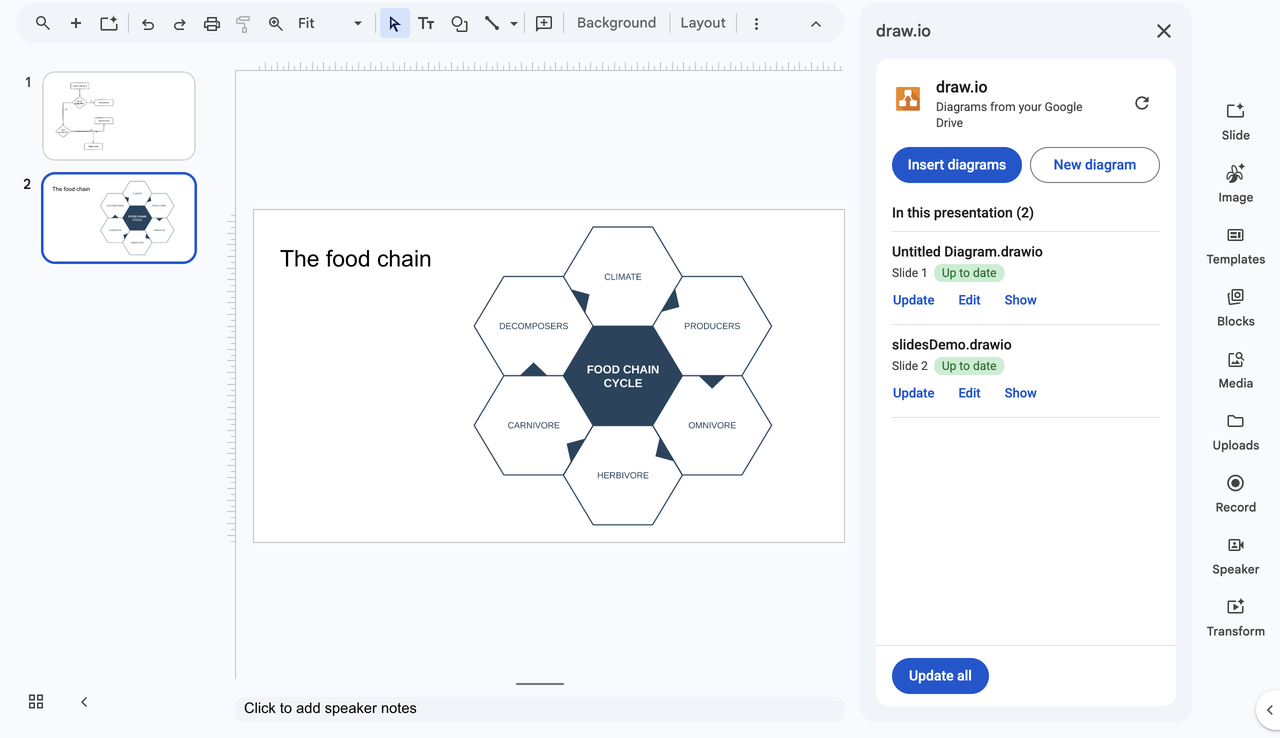
Click Show next to a diagram to select it in your file. In Google Sheets, click Go to to go to the cell the diagram is in.
Note: Diagrams inserted with an older version of the add-on will show no status until you update them once.
Insert a diagram
- Open a document in Google Docs, a spreadsheet in Google Sheets, or a presentation in Google Slides.
- Place the cursor where you want the diagram. In Google Sheets, select a cell. In Google Slides, go to the target slide.
- Click Insert diagrams in the Diagrams panel, or select Insert Diagrams from the add-on menu.
- Select one or more diagram files in the Google file picker, then click Select. You can select up to 25 files. To use a diagram file from your computer, upload it on the Upload tab.
- If a diagram file has more than one page, choose the diagram page to insert, then click Insert.
Border width: Enter a value in Border width in the Diagrams panel to add space around the diagrams you insert from the panel. The border is kept when you update the diagram.
The diagrams will be inserted as images: in Google Docs at the cursor, in Google Sheets at the selected cell, and in Google Slides on the current slide. Large diagrams will be scaled down to fit.
Replace a diagram: In Google Docs and Google Slides, select a draw.io diagram image before you insert. The first diagram you insert will replace it, in the same location.
Notes:
- In Google Slides, the diagram is placed next to the elements you selected if there is room, or in the middle of the slide. The selected elements aren't changed. In Google Docs, if you selected text, the diagram is inserted after the paragraph where your selection ends.
- The file picker shows draw.io diagram files, such as
.drawiofiles, and PNG and SVG images that contain a diagram (.drawio.pngand.drawio.svg). To find a file that isn't listed, open the All files tab. Google Docs, Sheets and Slides files can't be inserted.
Update diagrams
- Open the Diagrams panel.
- Click Update next to a diagram. To update only the diagrams that have changed, click Update 2 changed at the bottom of the panel. The number shows how many have changed. To update every diagram in the document, click Update All.
Each image will be replaced with the current version of its diagram, in the same place.
Update from the add-on menu: In Google Docs and Google Slides, select Update Selected to update the selected diagram images, or Update All to update every diagram in the document or presentation. In Google Sheets, select Update Current Sheet or Update All Sheets.
Note: The new image retains the width you had set. In Google Slides, it retains the size and position of the old image.
Allow draw.io to read a diagram
draw.io can only read the diagram files that you selected with the add-on. When someone else inserted a diagram, or if the diagram image was inserted using an older version of the draw.io add-on, the Diagrams panel will report No access.
- Click Allow access next to the diagram. To allow access to all diagrams in the document, click Allow access (2) at the bottom of the panel. The number shows how many diagrams draw.io can't currently read without being granted access.
- Select the diagram files in the Google file picker, then click Select.
The diagrams will show their status, and you can update them.
Notes:
- When you update diagrams from the add-on menu, draw.io asks for these files too. Click Choose Files to select them, or Skip to leave those diagrams as they are.
- If a diagram file isn't shown in the file picker, it isn't shared with you. Ask its owner to share it with you.
Edit a diagram
- Click Edit next to the diagram in the Diagrams panel. In Google Docs and Google Slides, you can also select the diagram image, then select Edit Selected from the add-on menu.
- Edit the diagram in the draw.io tab that opens, then save it.
- Return to your file. The diagram will show as Changed in the Diagrams panel.
- Click Update next to the diagram.
The image will show your changes.
Note: If your browser blocks the new browser tab, allow pop-ups, then try again. With Edit Selected, you can also click Open draw.io in the add-on dialog.
Create a diagram
- Click New diagram in the Diagrams panel, or select New Diagram from the add-on menu.
- Create your diagram in the draw.io tab that opens, and save it to your Google Drive.
- Return to your file, then click Insert diagrams in the Diagrams panel to insert it.
Insert a diagram without the add-on
Export your diagram as a PNG image, then insert it like any other image. Choose this when you can't install the add-on. You will need to export and insert the diagram again each time you change it.
- Open your
.drawiodiagram file in the draw.io editor, either the online editor or draw.io Desktop. - Select File > Export As > PNG, then click Export to save your diagram as an image.
- In Google Docs, Sheets or Slides, select Insert > Image, or drag and drop the image file into your file.
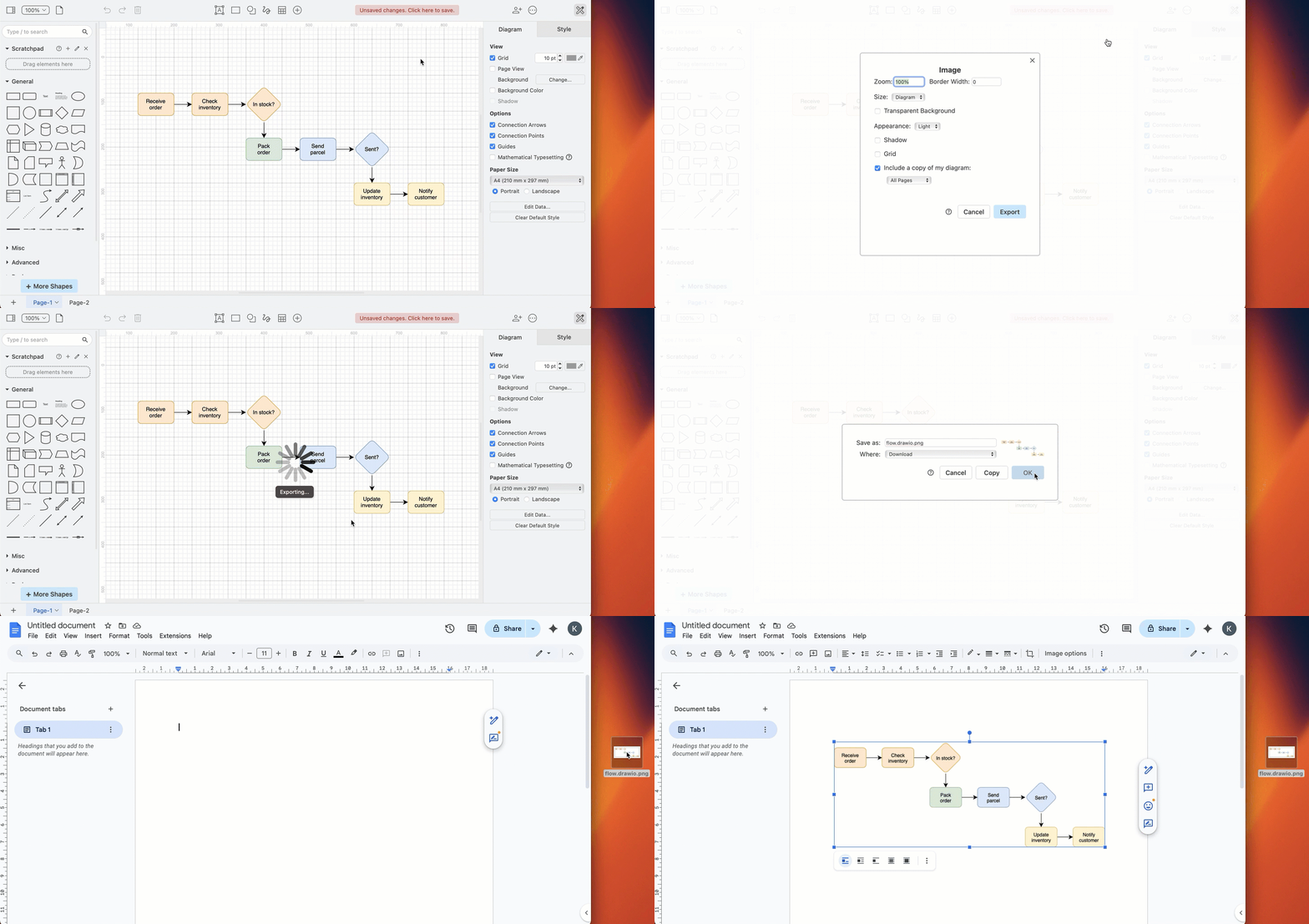
The diagram will be inserted as an image.
Note: Embedded diagram data in the exported PNG image will be automatically stripped from the image when you insert it into Google Docs/Slides/Sheets.
Format diagram images in Google Docs
Work with the image of your diagram as you would any other image: move, resize, rotate and style it.
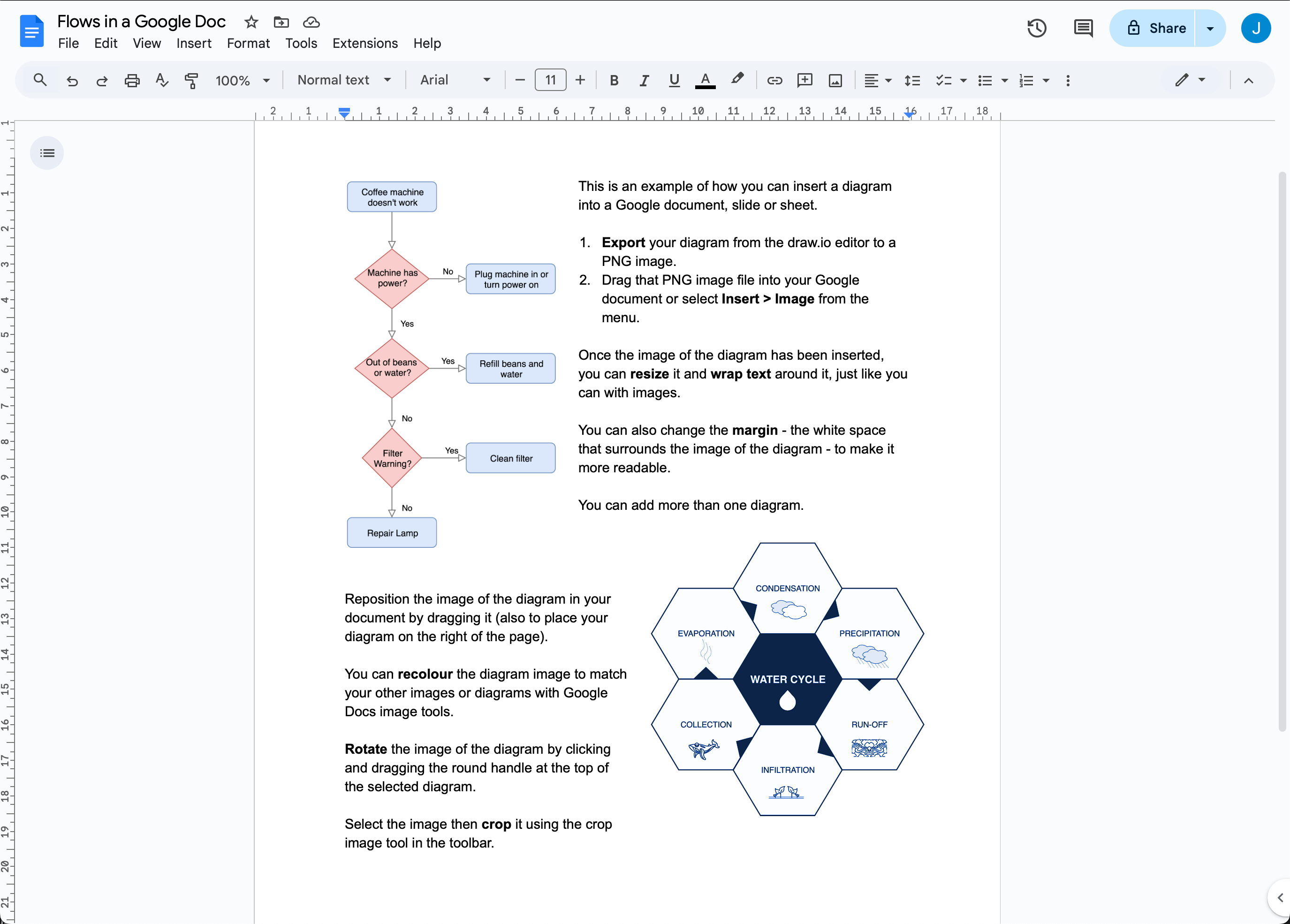
Note: When the add-on updates a diagram in Google Docs, it replaces the image. The new image keeps the width and alt text of the old one, but not other changes, such as crop, rotation or recolouring. The add-on only finds diagram images that are In line with the text. It can't update images set to Wrap text, Break text, Behind text or In front of text.
Change the text wrap and whitespace
Select the image of a diagram, then select one of the text-wrap symbols in the toolbar.
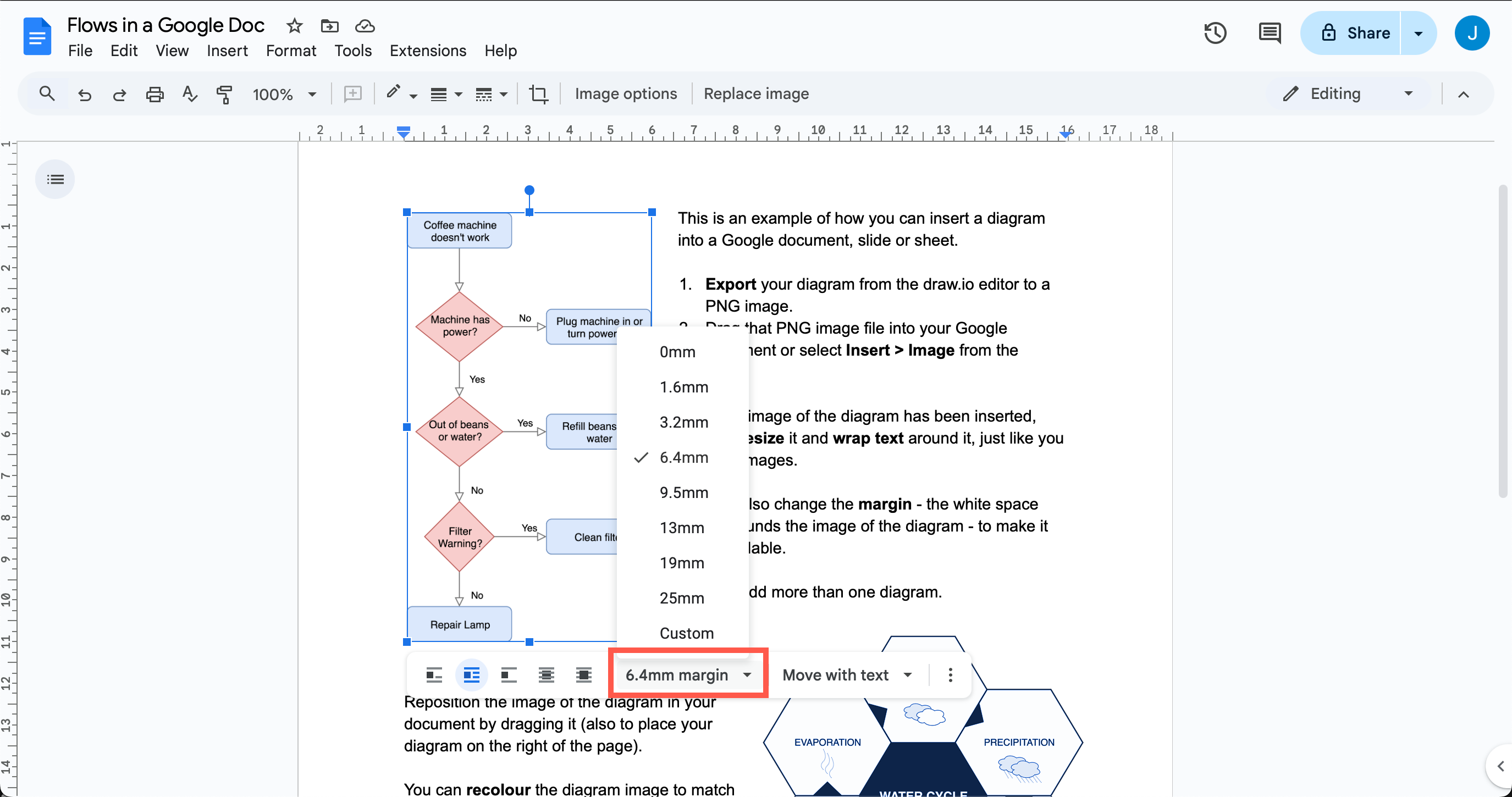
Select the image then select a new value from the Margin dropdown.
Crop or resize your diagram
Select the image, then drag any of the square handles around the edge of the diagram to resize it.
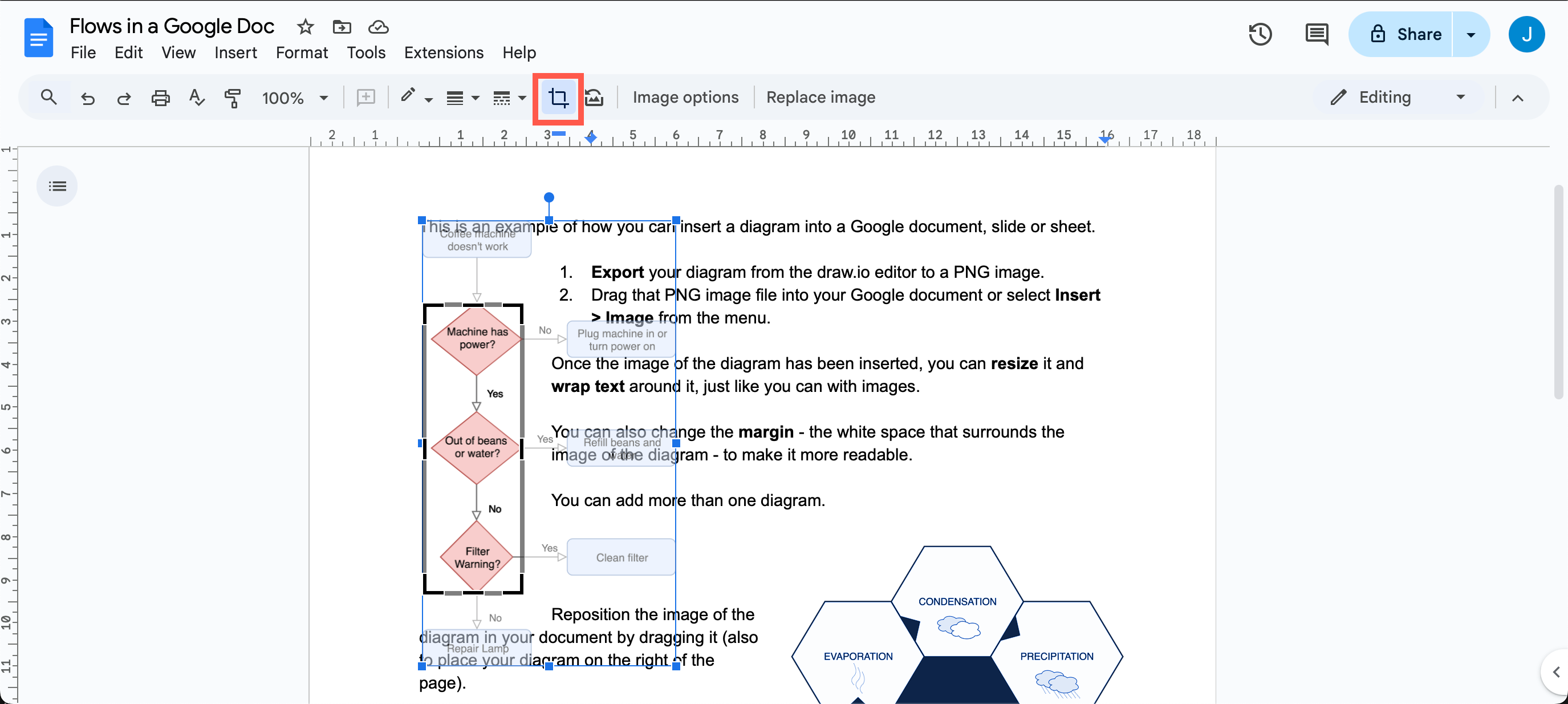
Select the image of a diagram, click the Crop Image tool in the toolbar, then drag the black borders that appear on your selected diagram to crop it.
Reposition or rotate your diagram
Drag the image to the right or the left to reposition it within your document.
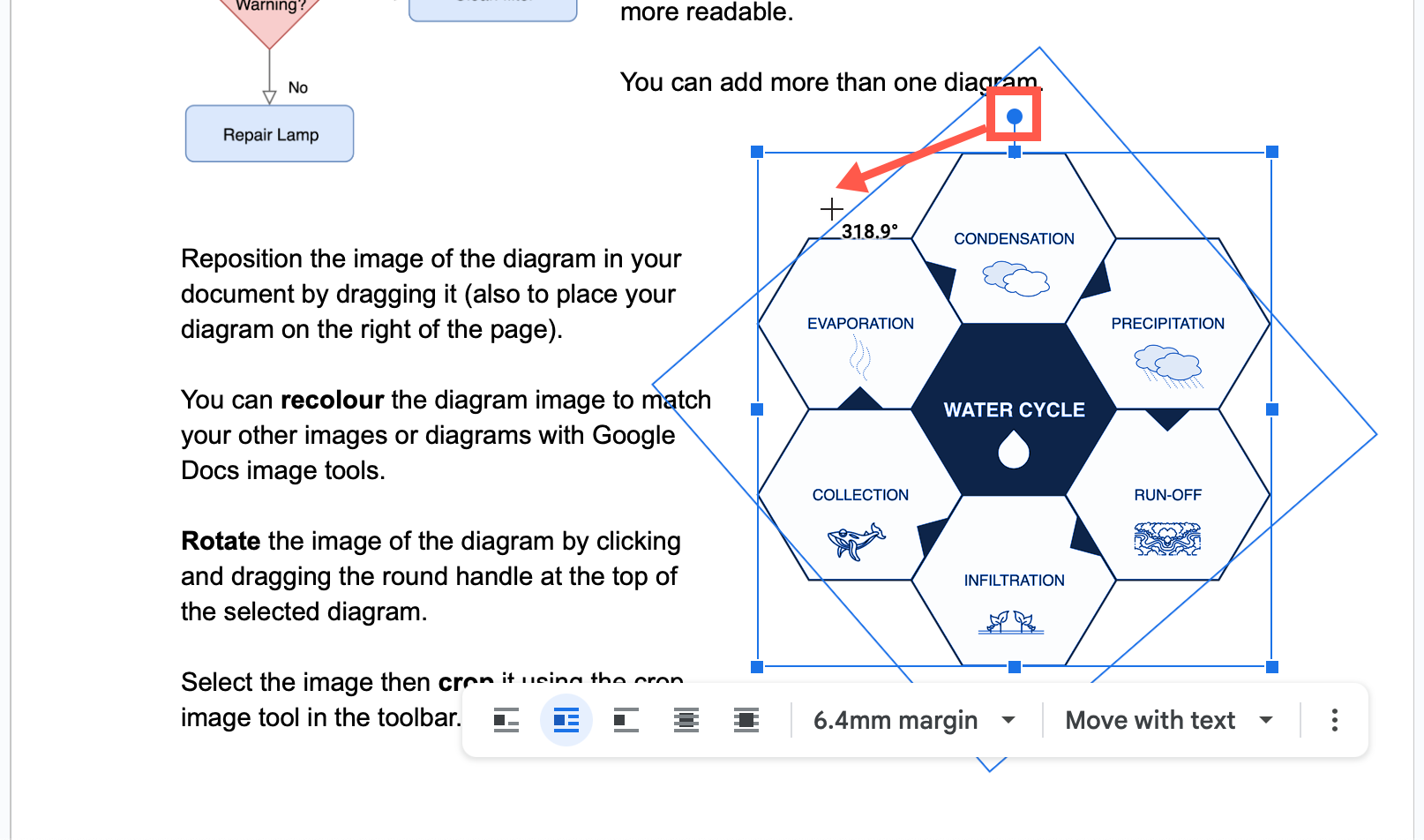
Select the image of your diagram, then drag the circular handle at the top of the diagram to rotate it.
Recolour the diagram
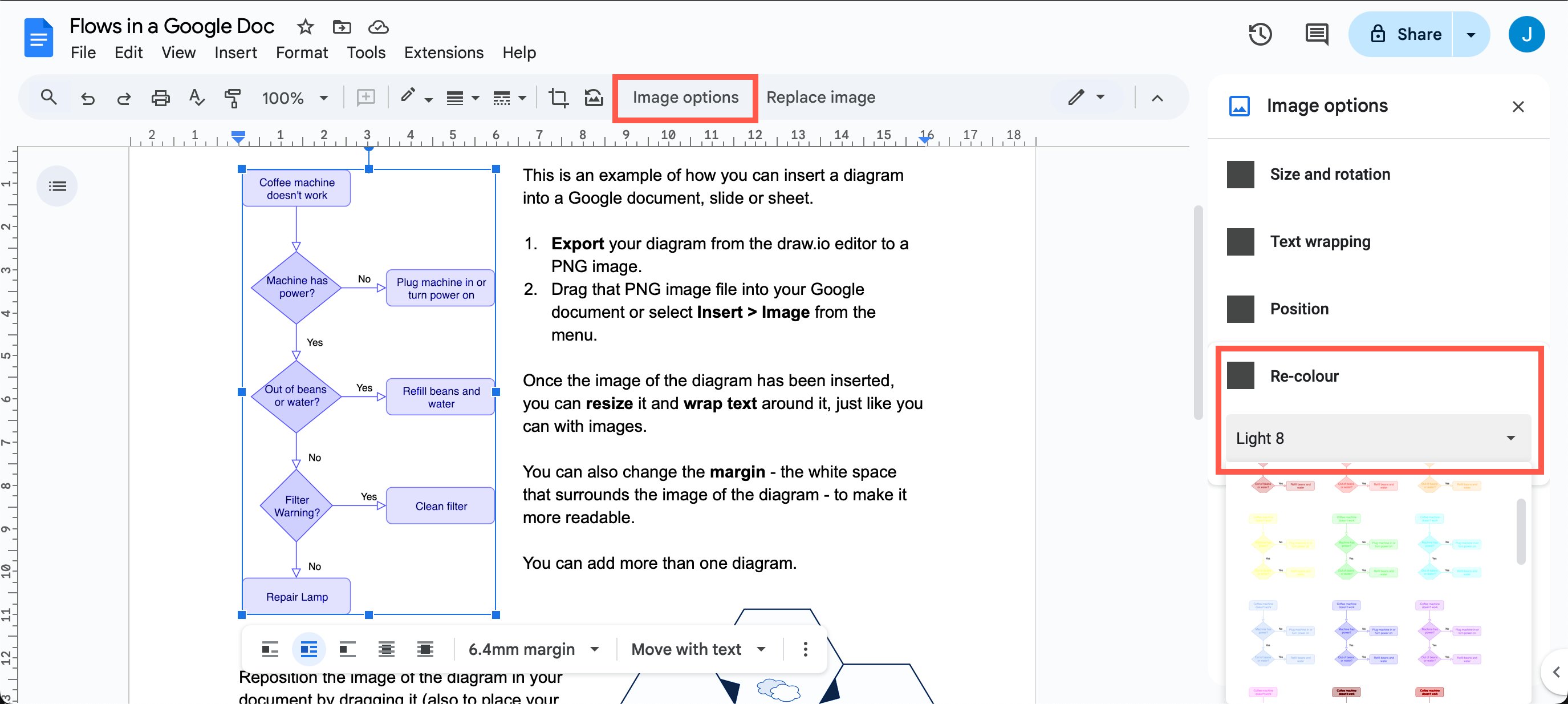
Select the image of your diagram, then click Image options in the toolbar. Click the Re-color dropdown and apply a colour filter.