Publish a diagram as a link
As different browsers have varying URL size limitations, very large diagrams may not be able to be loaded from a overly long URL. To get around this, use Google Drive to store your diagram - when you publish a diagram publicly from Google Drive, the URL will be shorter and neater.
There are two options for sharing diagrams as a link:
- File > Export as > URL encodes the entire diagram in a URL. This works for smaller diagrams, and is not limited to those saved on Google Drive.
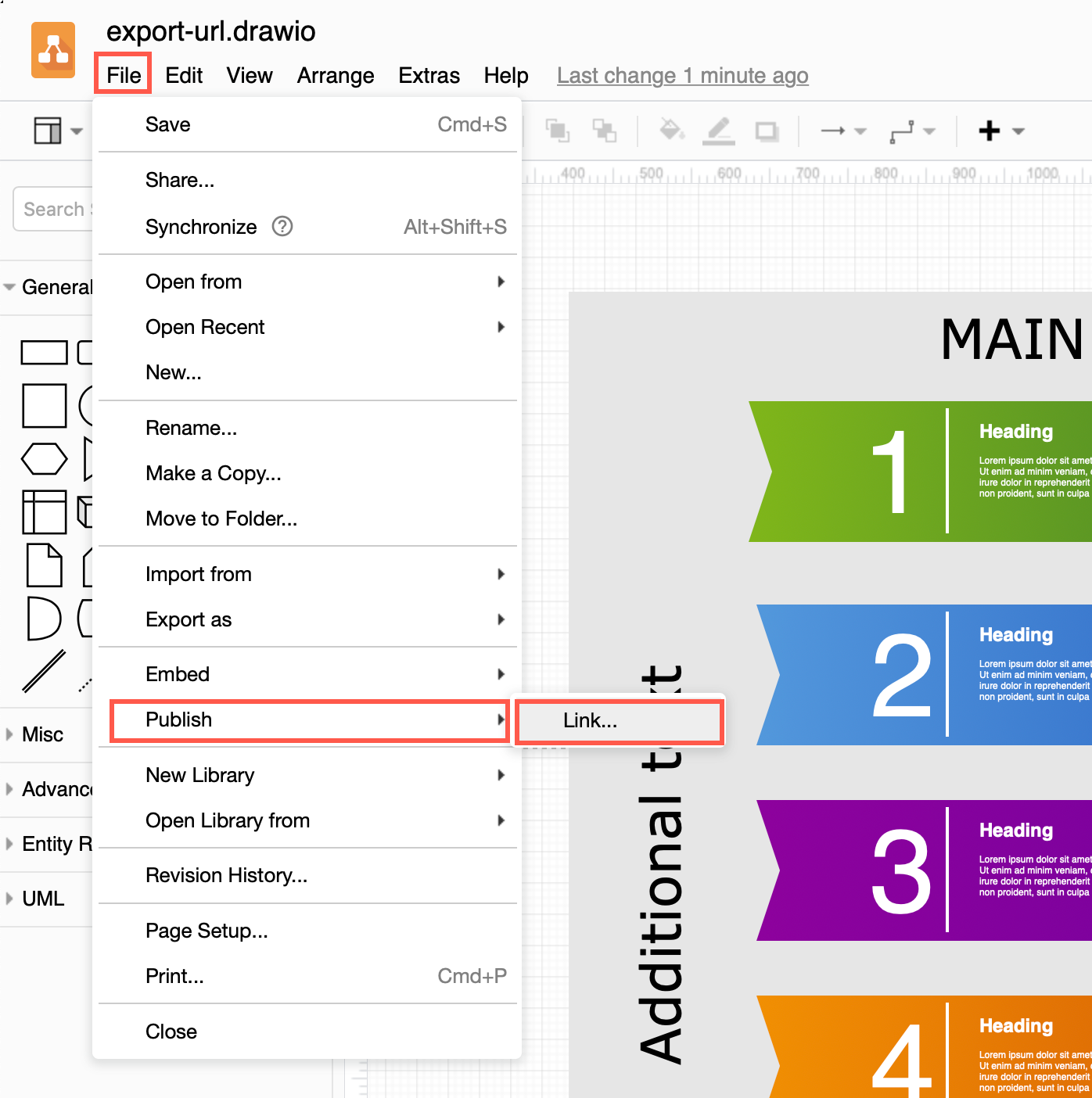
- File > Publish > Link creates a shorter link to the diagram on your Google Drive account if this is where you have stored the diagram, and falls back to the longer exported URL as above if that fails.
When someone clicks on the published URL tha contains the diagram data, they will see a static copy of your diagram, at the time you published it, in the draw.io viewer.
- Select File > Publish > Link.
- Select the link options you want to use, then click Create.
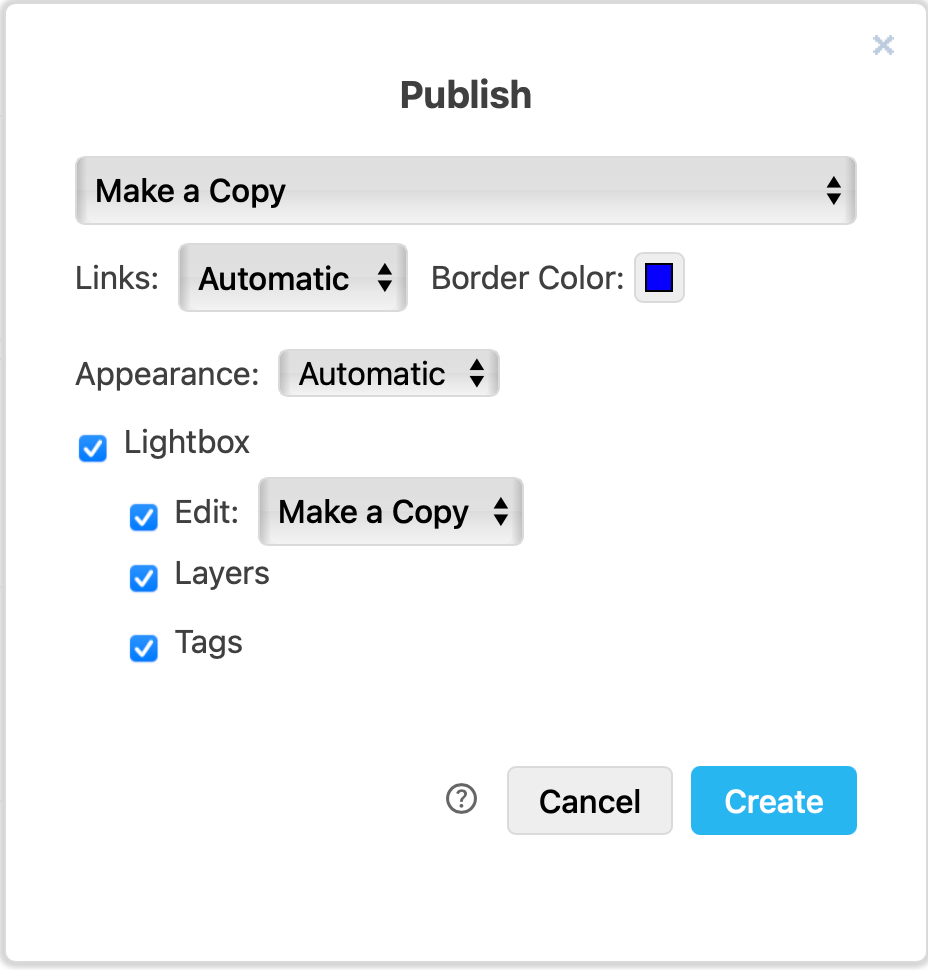
- By default, when you open the link it will create a copy of the diagram in the users' browser. If you have saved your diagram on a cloud platform, you can change this to Authorisation required, or to share the Public URL of the diagram.
- By default Links will open following the viewer's browser preferences. Select a different behaviour if you want links to always open in a new tab or a new browser window. If you want, set a different link Border Color.
- If you want to force your diagram to appear in dark or light mode on a dark background, select it from the Appearance drop down list.
- To open your diagram directly in the draw.io editor, deselect the Lightbox checkbox.
- By default, viewers can edit a copy of the diagram from the draw.io lightbox - change the behaviour or deselect the Edit checkbox.
- Deselect the Layers and/or Tags checkboxes if you don't want viewers to interact with the layers in your diagram.
- Copy the link that is generated (press
Ctrl+Con Windows orCmd+Con macOS). Click Close to return to your diagram.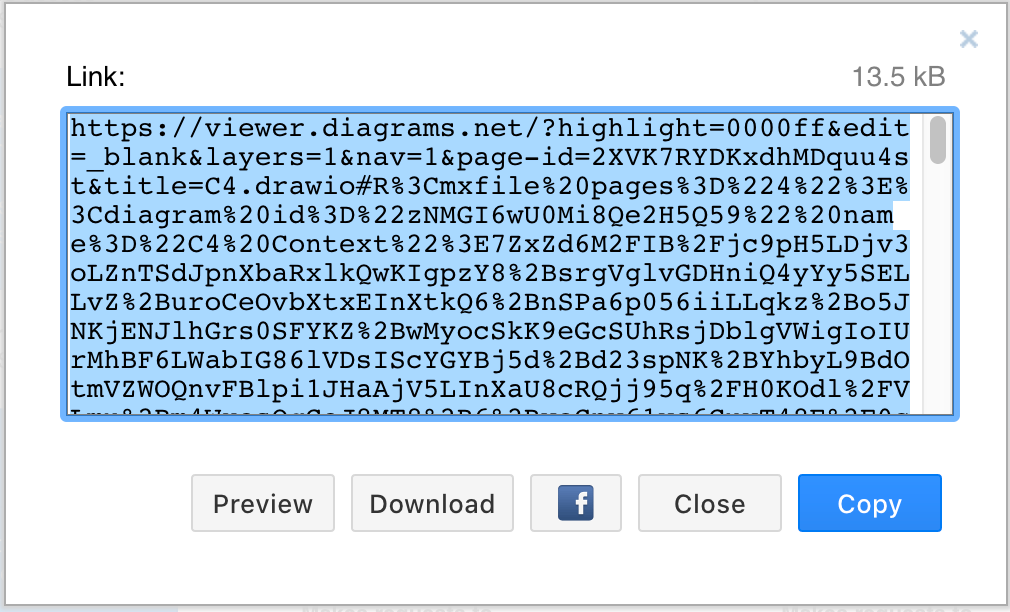
Note: The diagram data is embedded in the URL you just created - your diagram is not hosted anywhere. This link is therefore always valid, and you can't revoke access to your diagram.
Share diagrams stored on Google Drive as a links
- Click File > Publish > Link.
- Click Check to see that you have set the diagram to be shared publicly on Google Drive before you try to publish it as a link. If it is not public, go to your Google Drive
- Click Done to return to the Publish Link dialog.
- You can now change the viewing options to set a different link colour, open your diagram in the editor instead of the lightbox, or change what is displayed when a viewer follows the link to your diagram. These options are similar to when you export the diagram as a URL.
Tip: If you aren't sure you have set the sharing permissions correctly, click on the Check link next to the Share button. - Finally, click Create. A dialog with the link will be displayed.
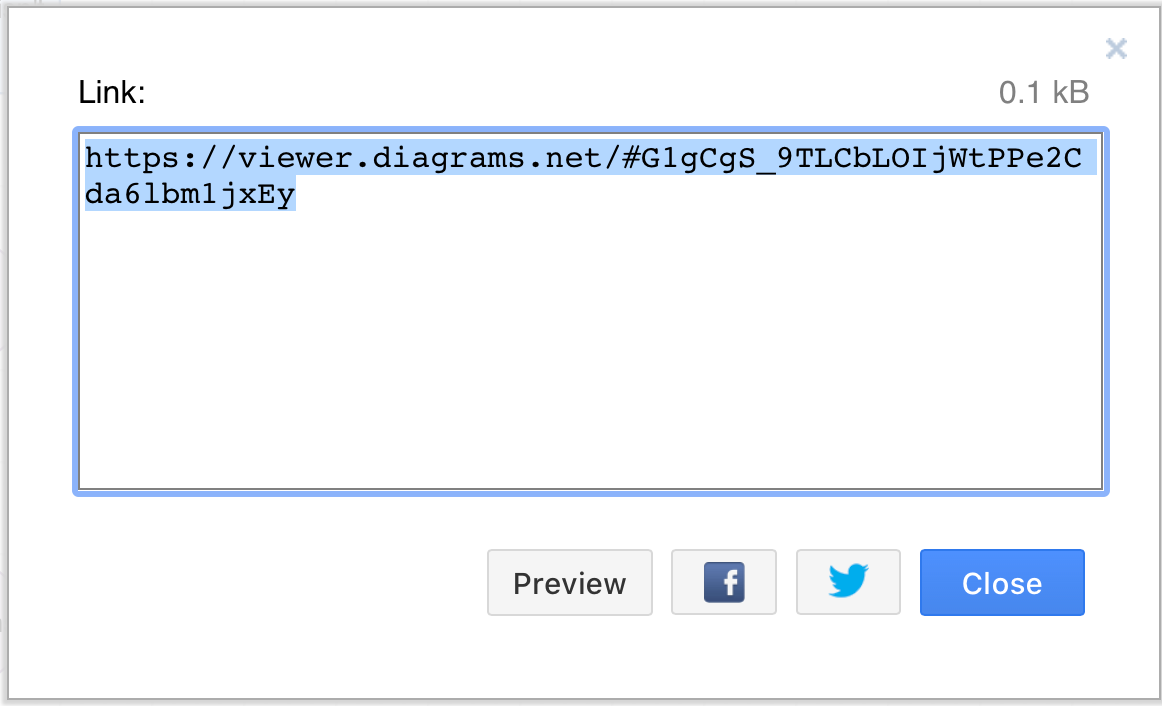
You can copy this into a chat message or email, or share it easily on Facebook or Twitter (this creates a new post in a new browser tab).