Create a new diagram
draw.io is a free online diagramming tool that supports a wide range of diagrams with its extensive shape libraries. Create flow charts, UML diagrams, org charts, mind maps, mockups, floor plans, infographics and more.
- Go to the online draw.io editor and the editor will open letting you immediately start diagramming.
- Select File > Save as then choose a storage location for your diagram file.
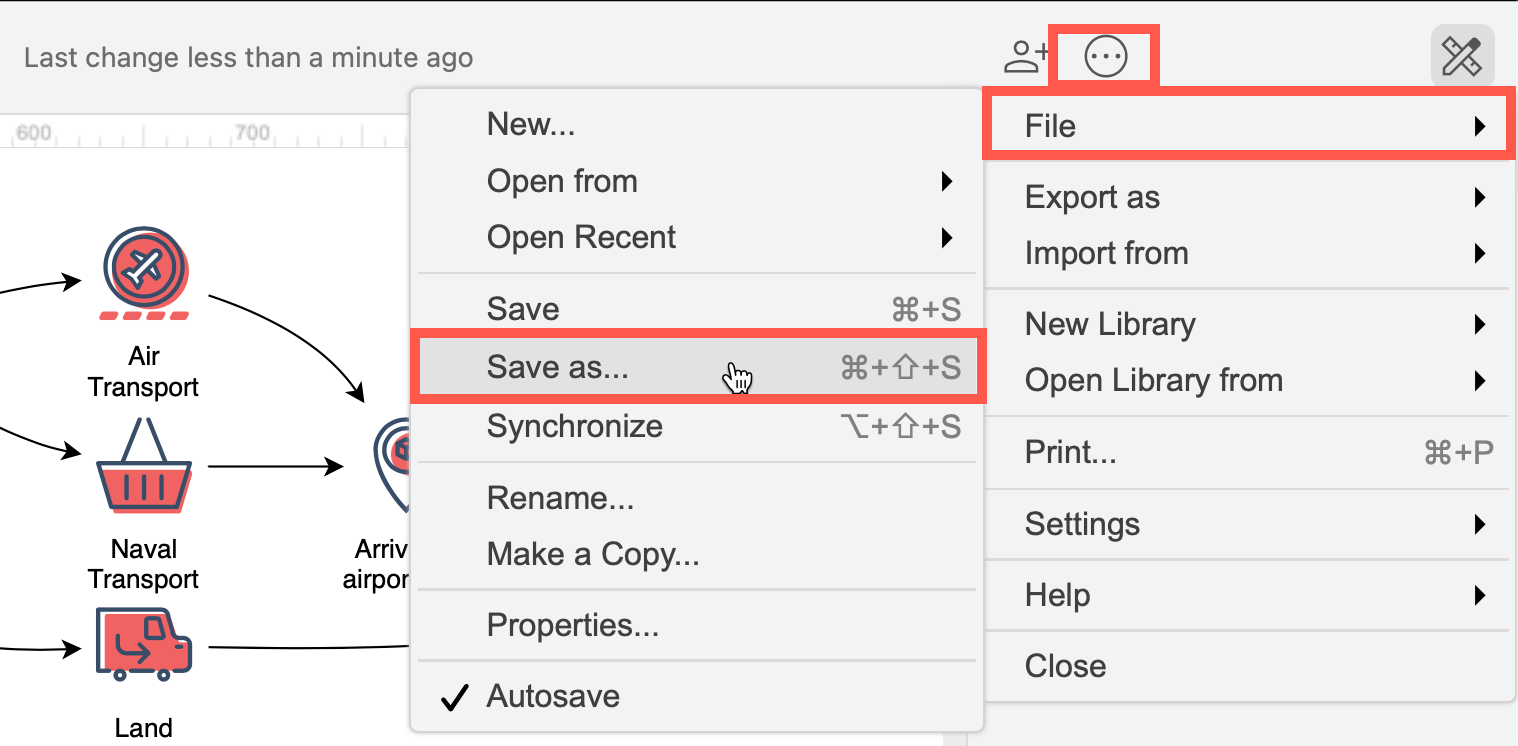
- Select the location or online platform where you want to save your diagrams.
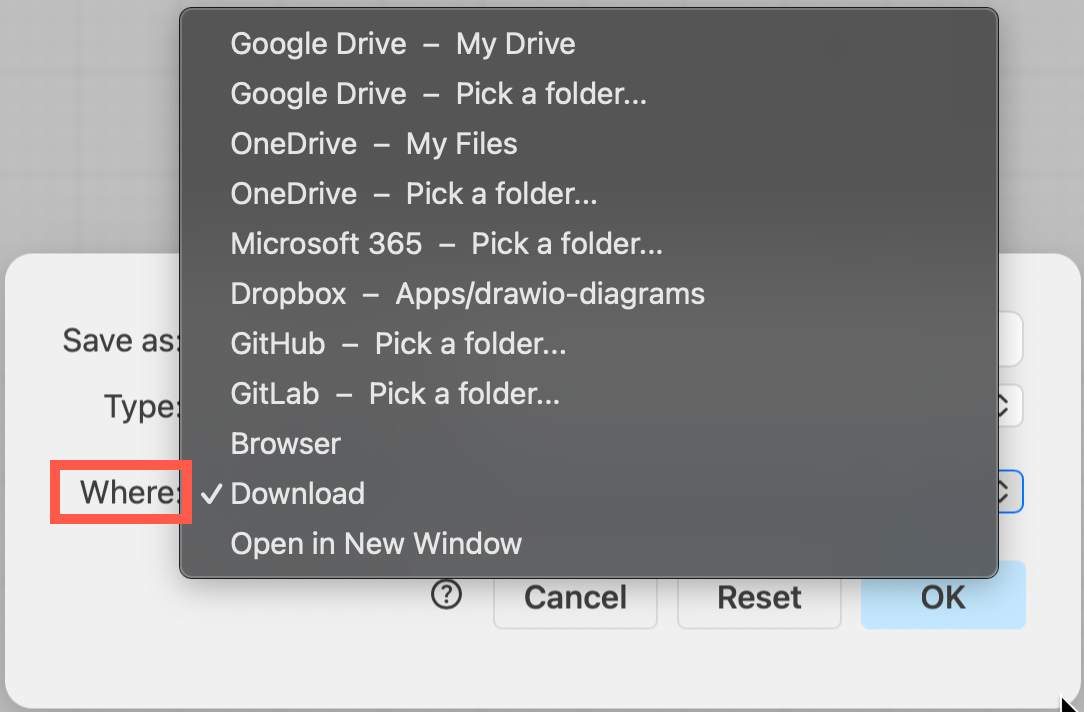
If you select a cloud storage location, you may be prompted to authorise the editor and grant it permission to read and edit files stored on that platform.
Now you can add a template diagram (Arrange > Insert > Template or + > Template), generate a diagram, or drag and drop an existing diagram file onto the editor to import the diagram.
Note: Different storage locations support additional featurs such as versioning or real-time collaboration. Compare file storage locations to see which will work best for you.
Start a new diagram from within draw.io
You can start a new diagram via the menu if you are already working in the draw.io editor, and it will open in another browser tab.
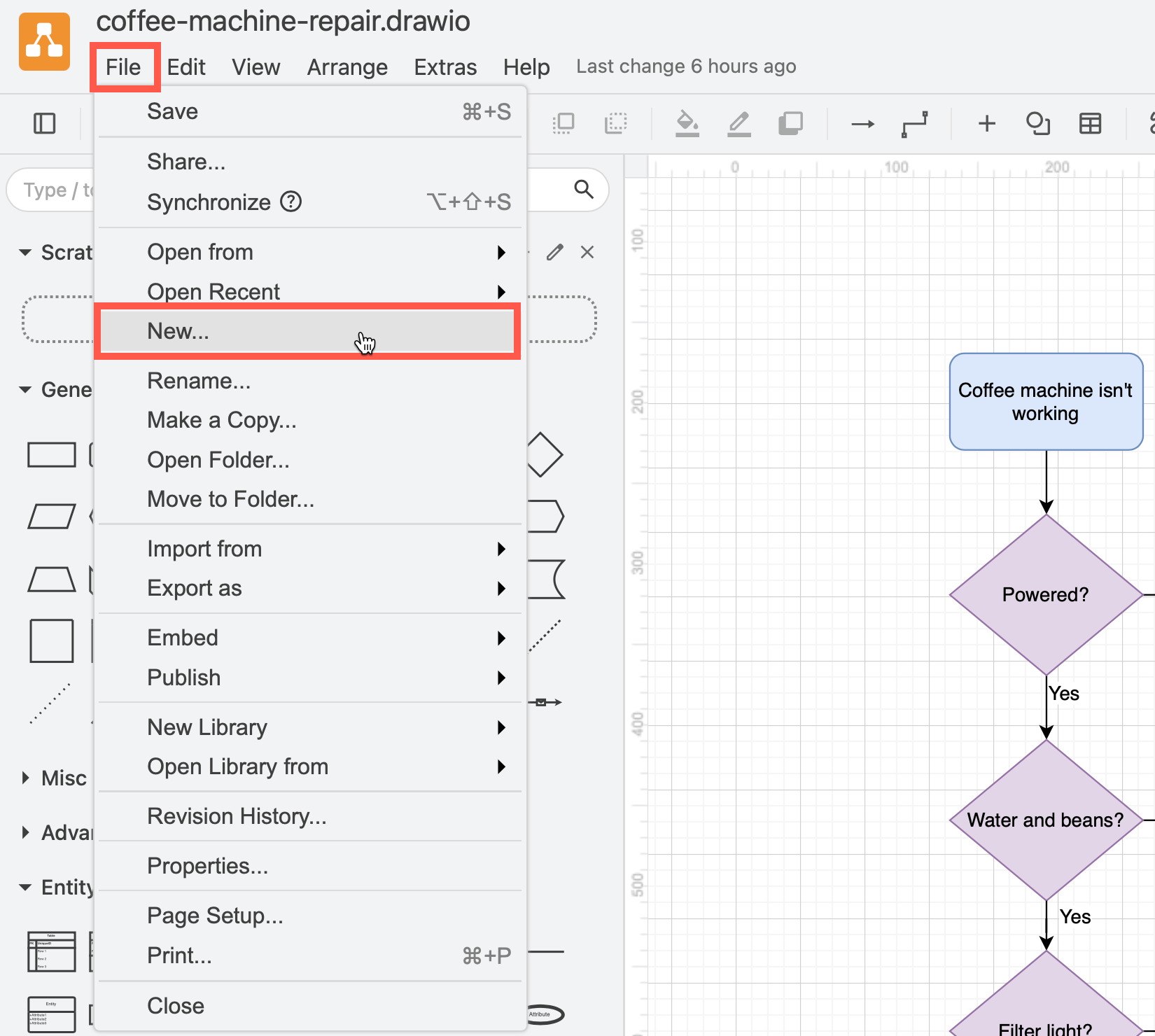
- Select File > New from the menu.
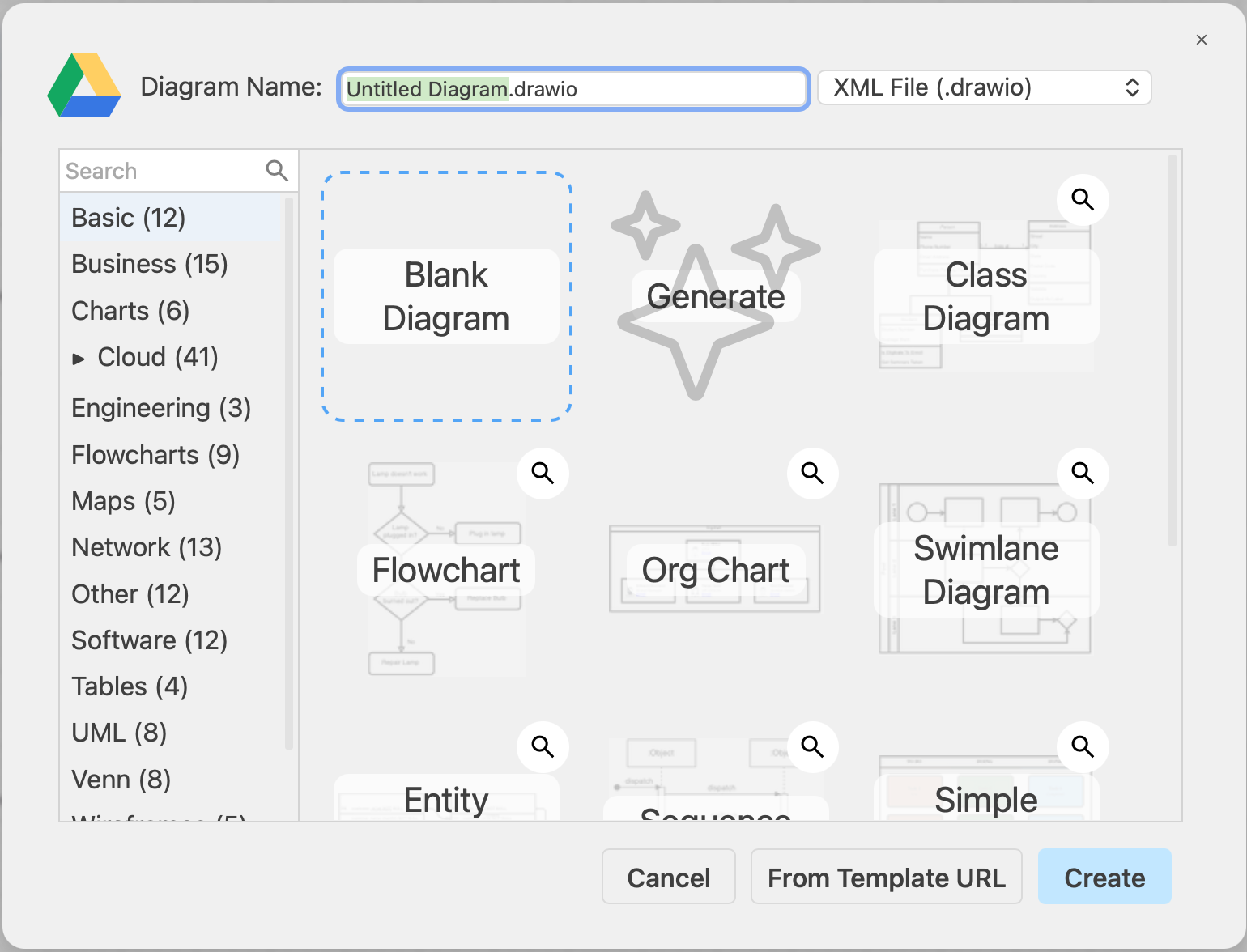
- Select Blank from the template library if you want to start with a blank canvas. Alternatively, select a template, or generate a diagram and click Create to open it in a new browser tab.
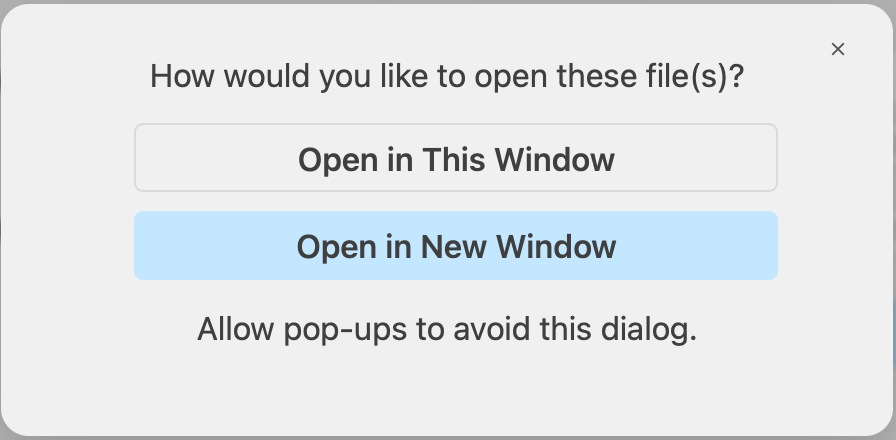
- You may be prompted to choose a storage location. If asked, select either to open the new diagram in the current browser tab (window) or open it in a new browser tab.
Tip: If you are new to draw.io, step through the tutorial to build a basic flow chart.