Generate diagrams in draw.io
- Open the Generate dialog.
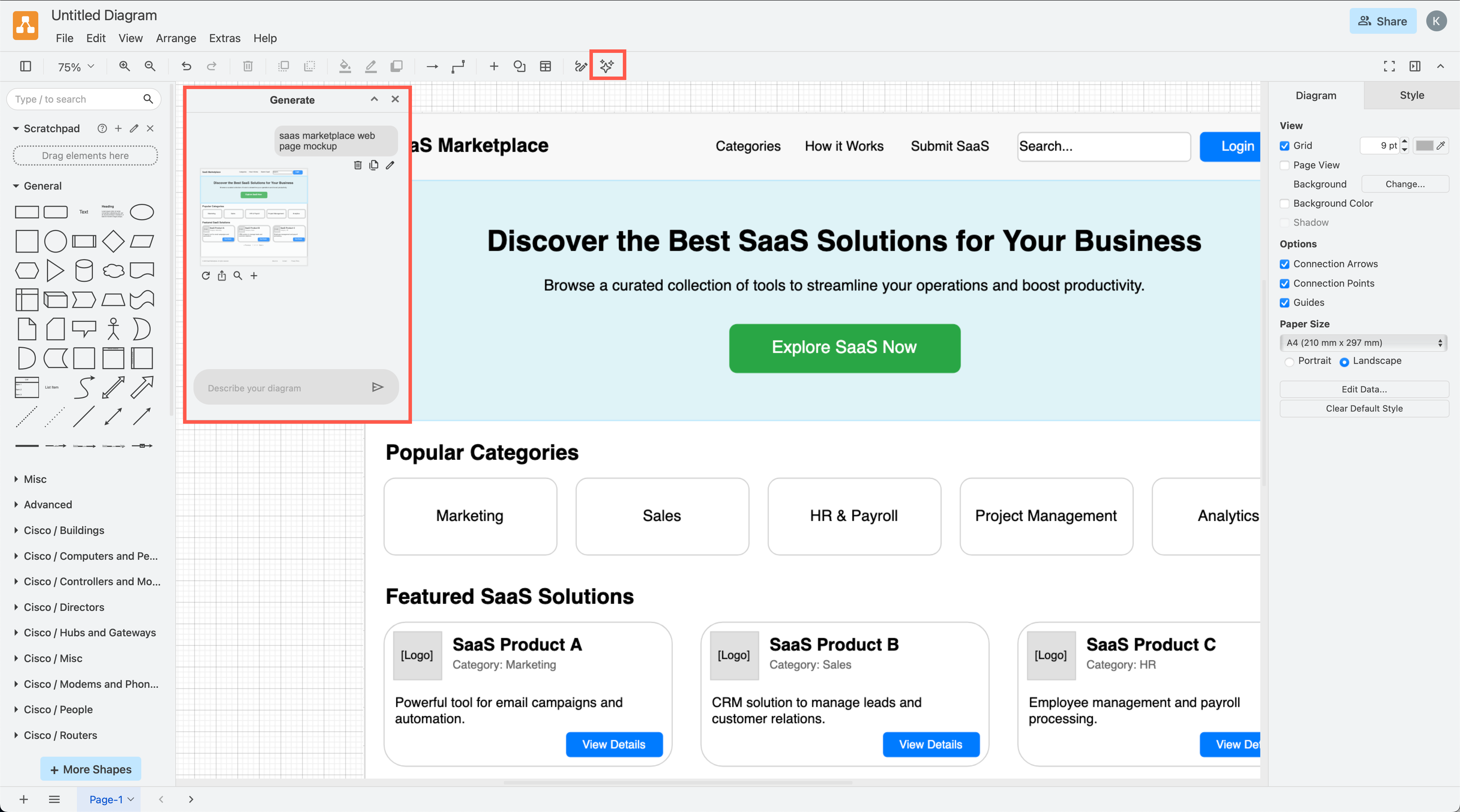
- Click on the Generate tool (sparkle button) in the Classic or Atlas toolbar.
- Alternatively, select + > Generate from the toolbar or Arrange > Insert > Generate from the menu.
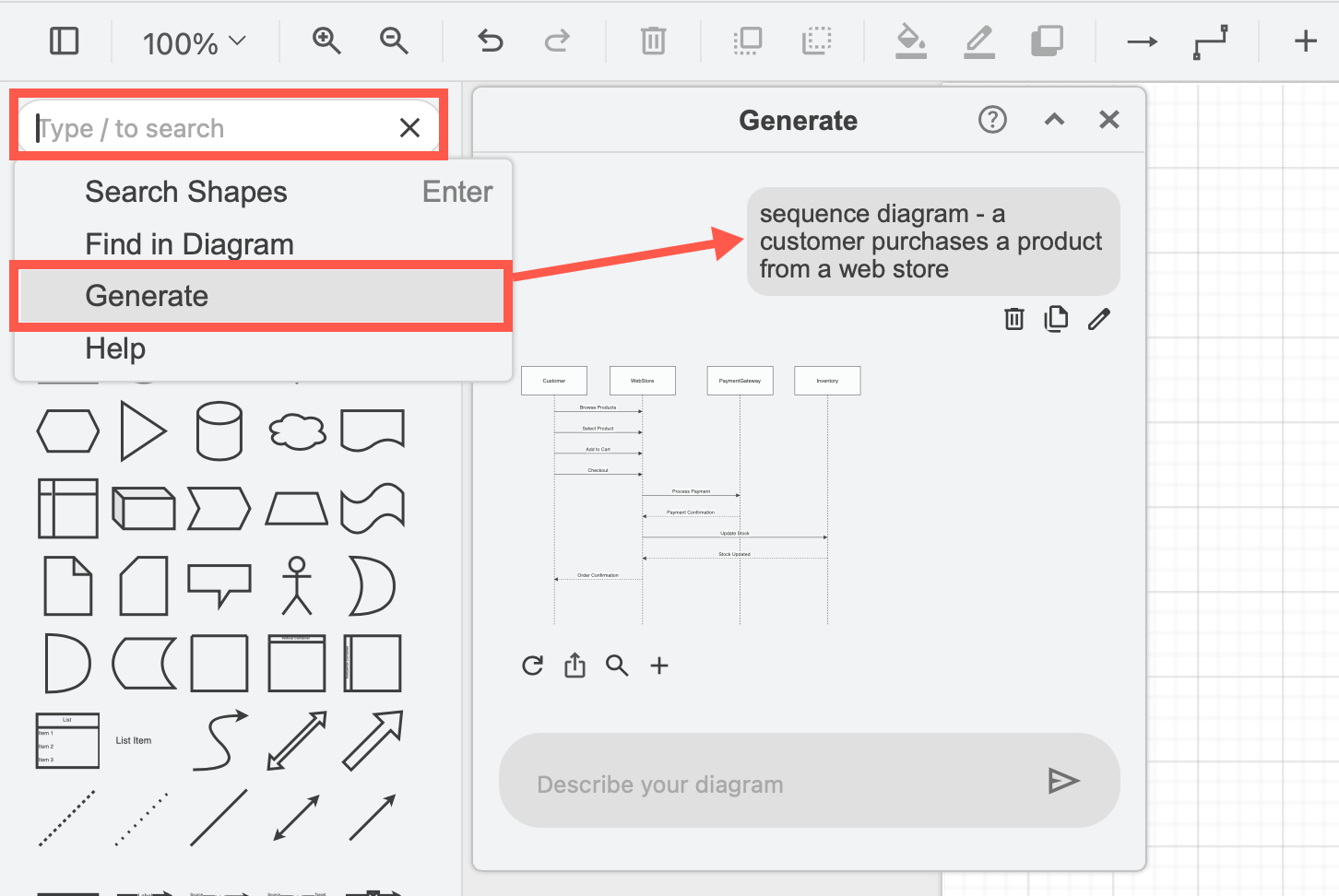
- Or, type your search query in the shapes panel and select Generate from the search tools list.
- Write a query describing your diagram and generate a diagram based on your description, and press
Enterto generate a diagram.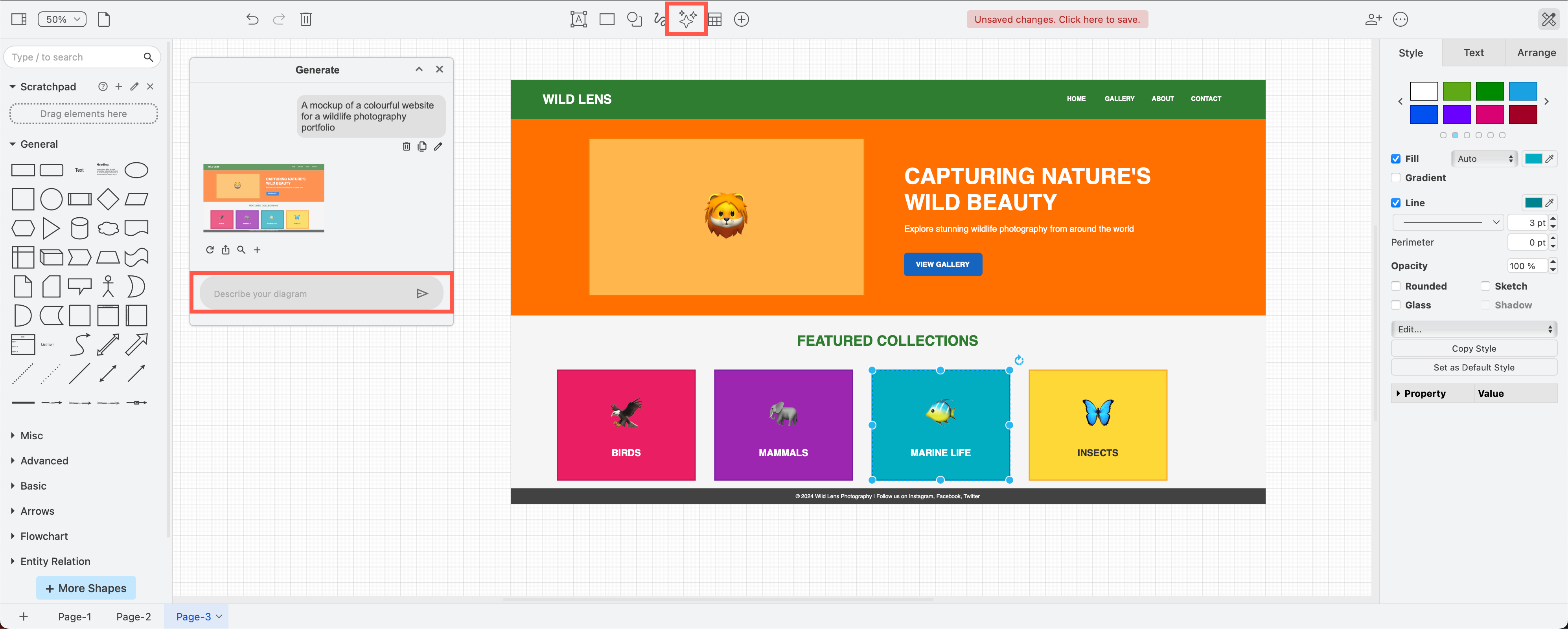
The Generate tool uses multiple AI generators to support a wide range of diagrams, including interface mock-ups, infrastructure diagrams, Mermaid diagrams and more.
This tool is available in all the draw.io editor themes including in the Atlassian draw.io apps and our online editor.
You can also generate a diagram in the template library dialog, but you can't edit these queries as easily, or pass the generation tool any parts of your diagram on the drawing canvas, unlike if you use the Generate dialog.
Generate a diagram
Make sure you write the type of diagram you want at the start of the query - this is what decides which AI generator is chosen, as each generator is good at only a small subset of diagrams.
- Open the Generate dialog - click on the sparkle button in the toolbar if you are using the Classic editor theme. In the other themes, click + > Generate in the toolbar, or select Arrange > Insert > Generate.

- Describe the diagram you want to generate, then press
Enteror click on Send.
- Your query will be sent to the AI tools to analyse and generate a preview of a diagram - this may take a little time. If the result doesn't match your query, you will need to refine it. Click the Edit pencil to copy any query into the text box where you can edit and resend to regenerate a different version of the diagram - keep in mind that AI tools may not return sensible results.
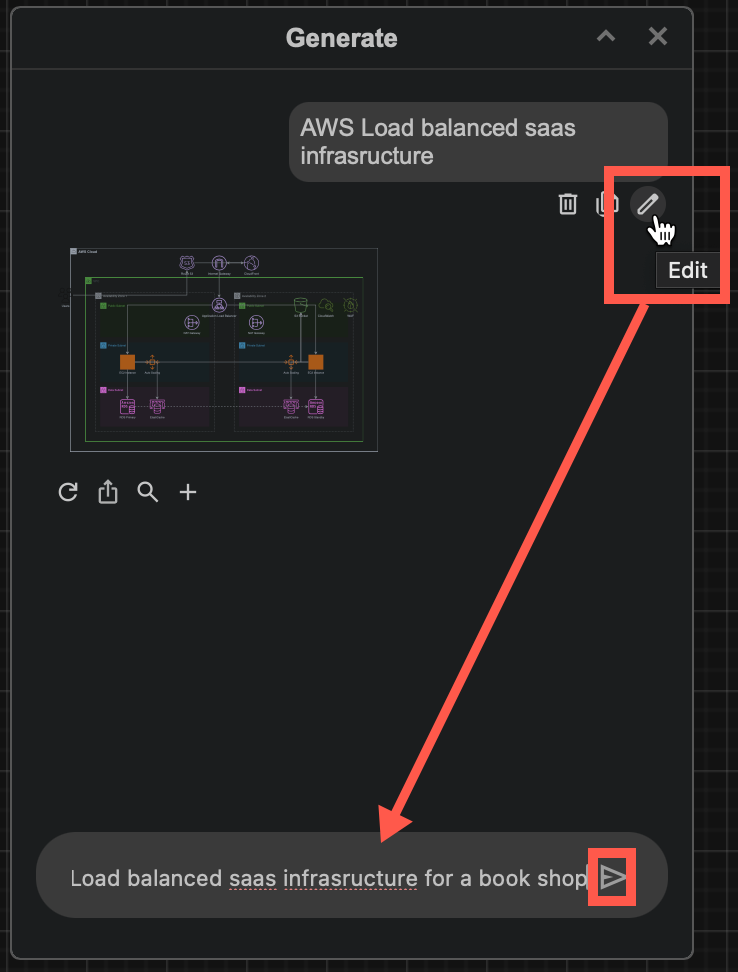
- Click + to add the diagram to the drawing canvas.
- Online draw.io editor only: To open the diagram in a new browser tab and new diagram instead of inserting it on the current diagram page click on Open in New Window.
Once the diagram has appeared on the drawing canvas, you can edit the diagram shapes, connectors, text and styles as any other draw.io diagram.
Tips:
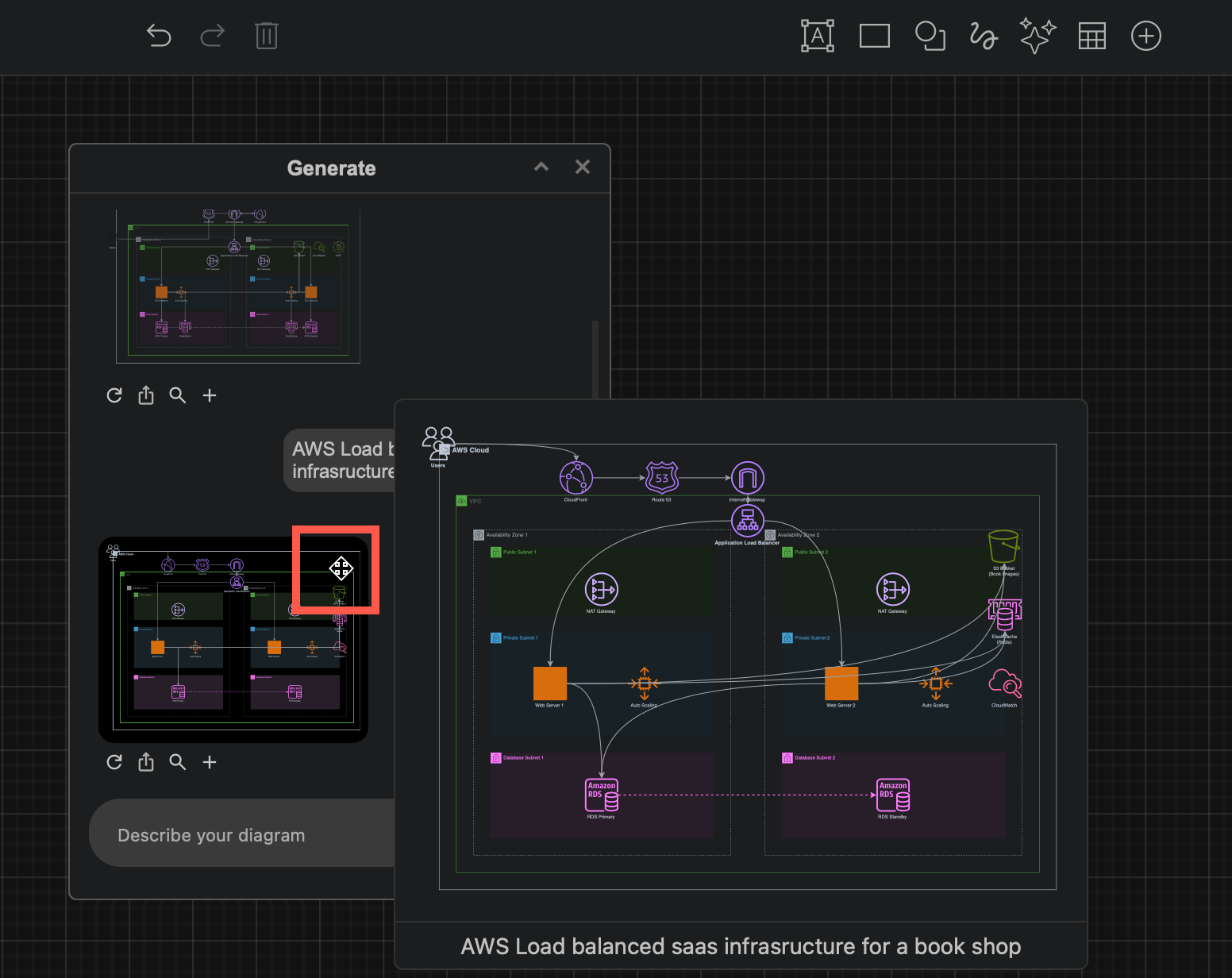
- Hover over the diagram in the Generate dialog to see a larger preview.
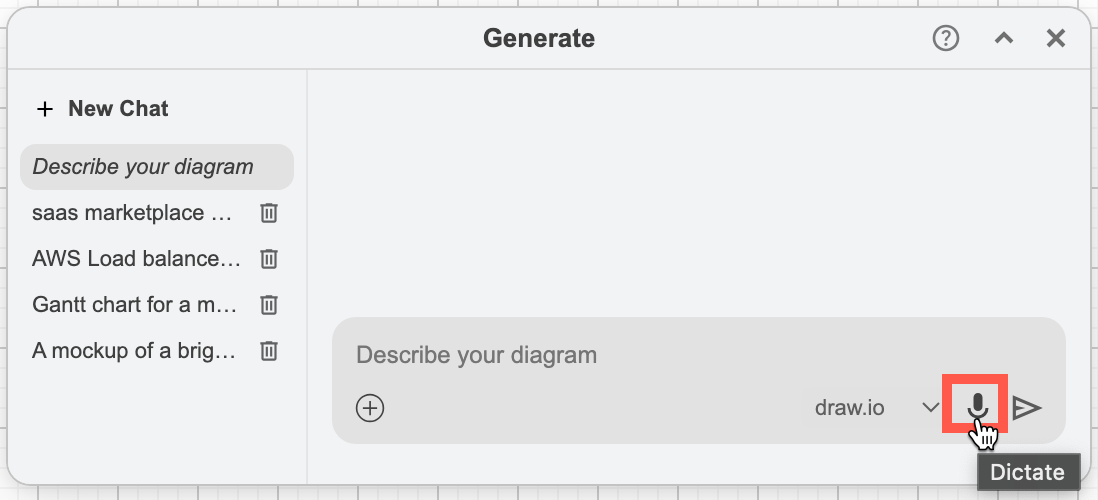
- Click on the microphone to dictate your query instead of typing it.
Keep your queries short
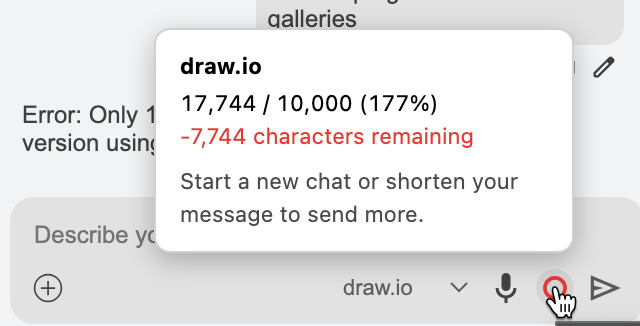
The small character counter encourages you to write short to-the-point queries. If you reach the limit, you'll see an error when you send the next query. Editing a diagram and adding for information to a query to generate new versions is ineffecient and expensive with LLM tokens.
Learn more about writing good queries for AI diagram generation
Start a new chat for a new diagram
Start a new chat to generate a new diagram - click + Chat in the left of the Generate dialog.
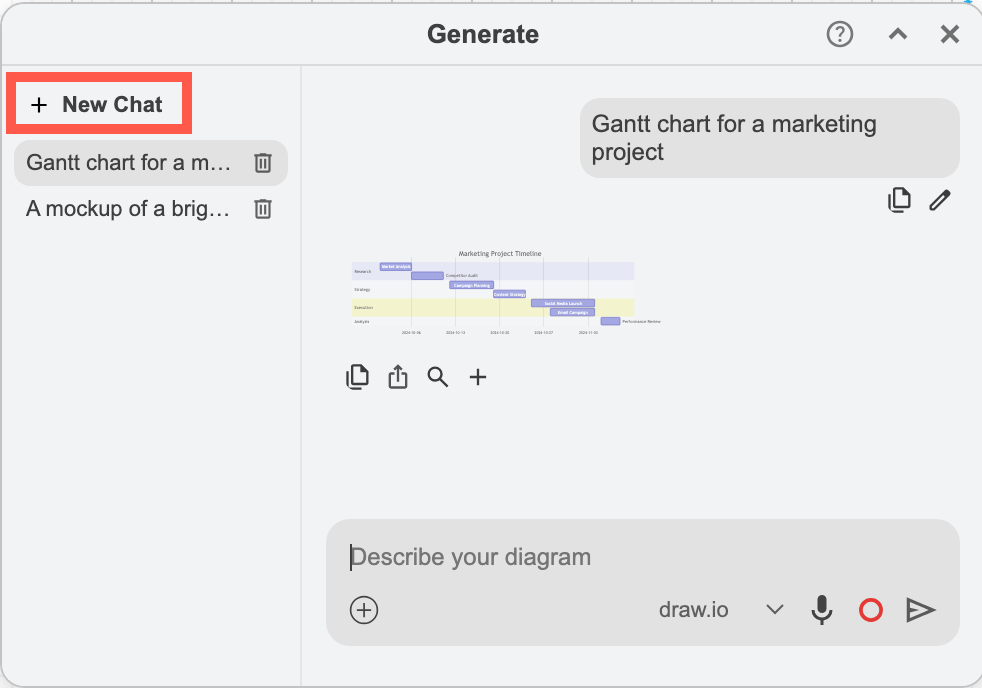
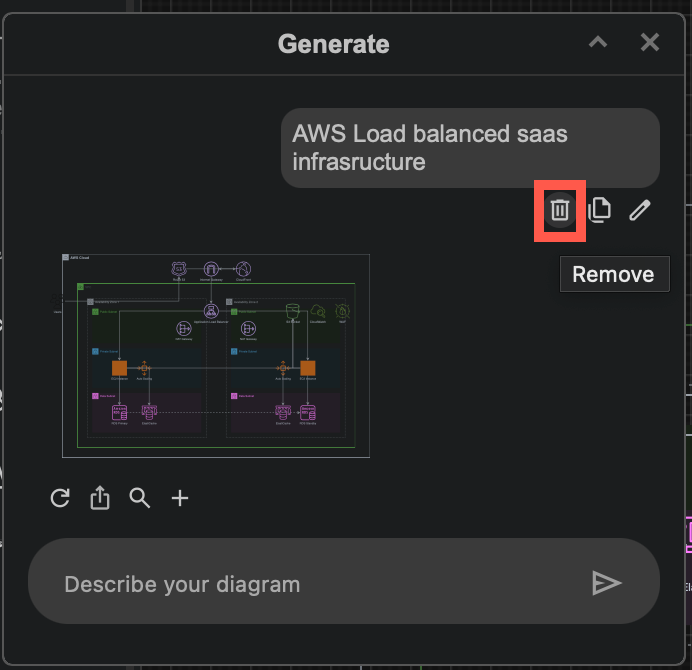
These chats stay unless you delete them - click the trash icon to the right of the Generate diagram chat you want to delete.
Generate via search
Describe your diagram directly in the search field above the Scratchpad and select Generate from the search actions.
The colours in generated diagrams may not be optimised for draw.io's adaptive colours feature that automatically adjusts for dark and light modes. You may need to tweak shape and diagram styles after inserting the generated diagram on the drawing canvas. In the example below, the generated diagram was much easier to see in dark mode.
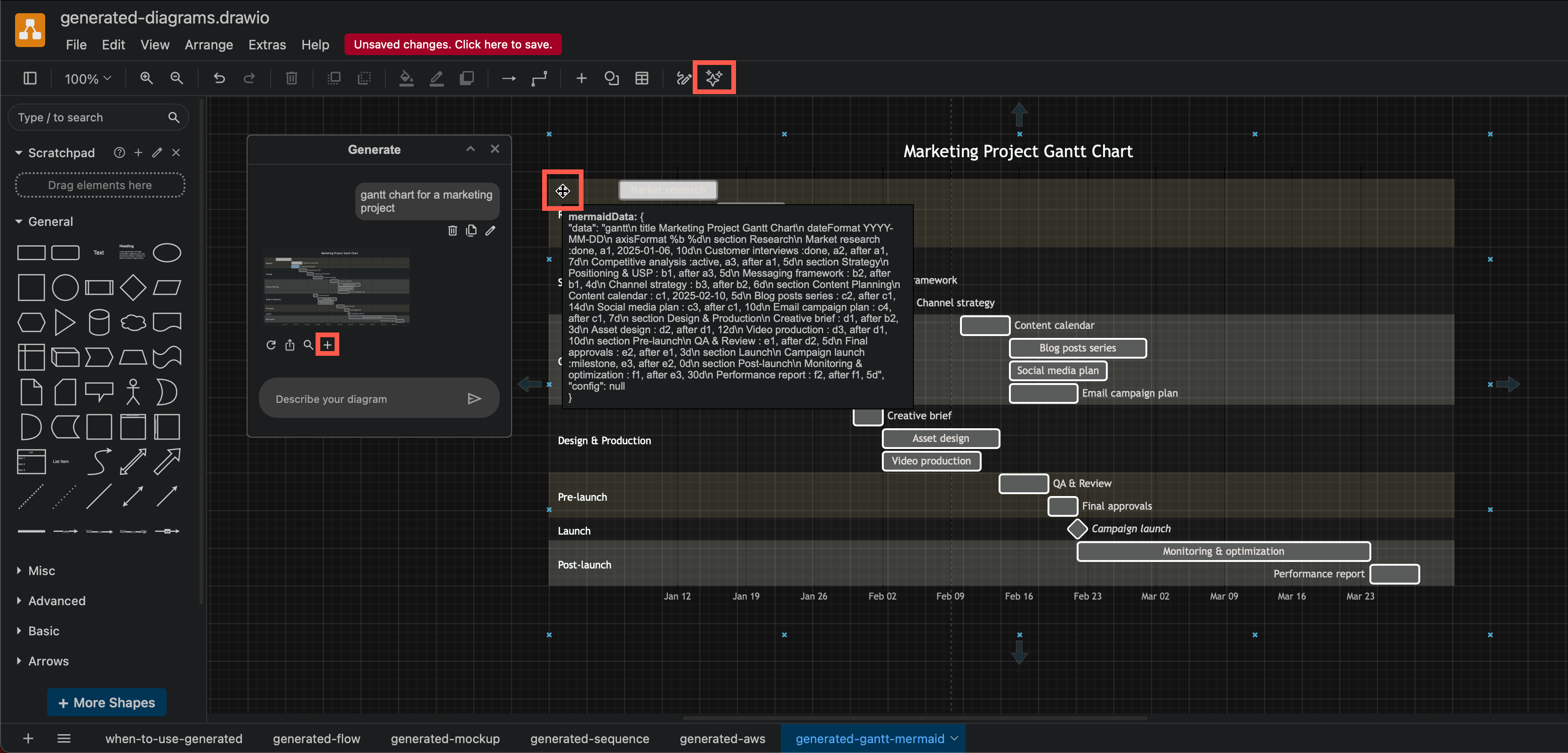
Some diagrams, like the Gantt chart above, will be generated in Mermaid code instead of being converted to native draw.io shapes. Hover over the diagram on the drawing canvas to see this Mermaid code, and double click on it to edit it.
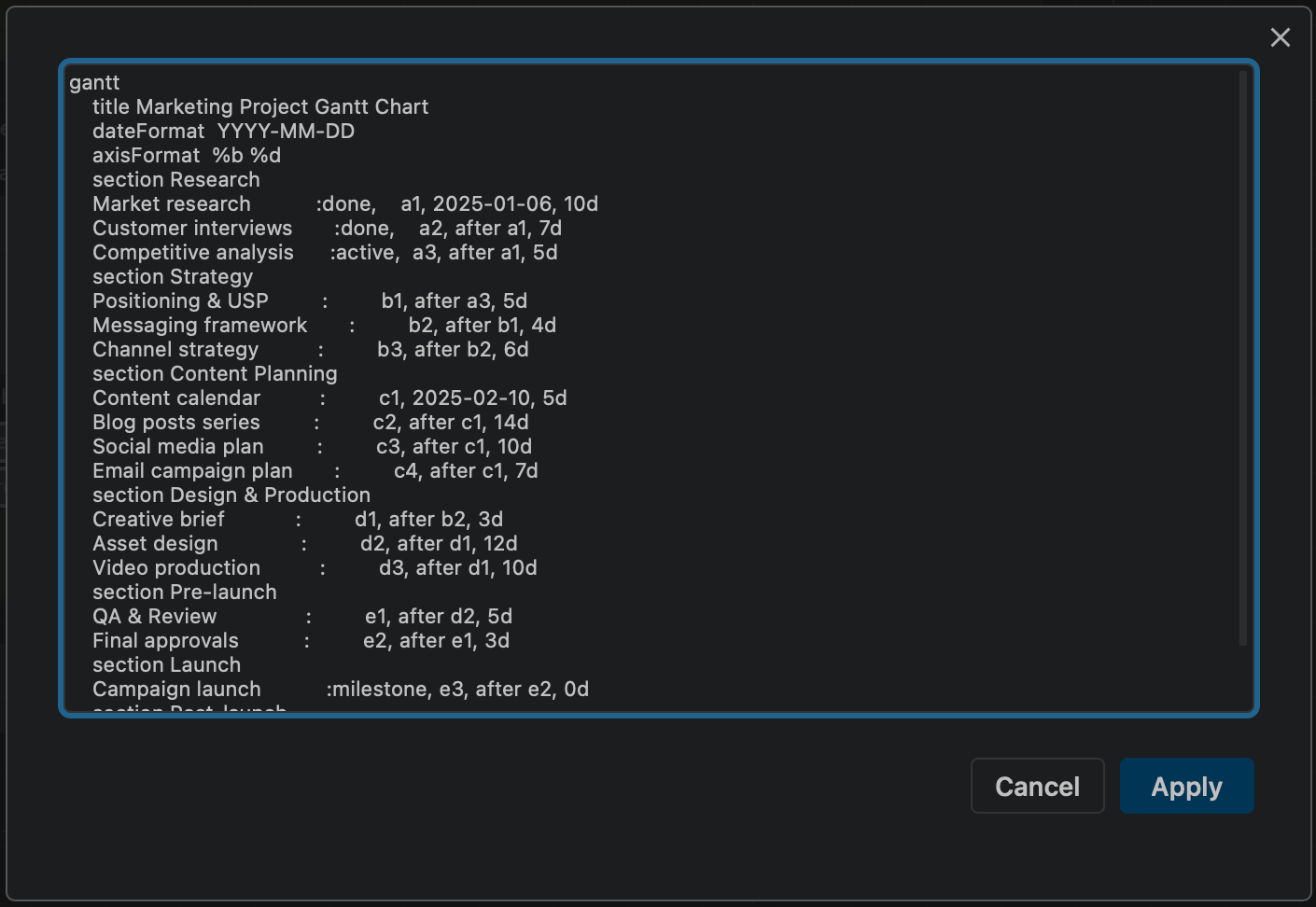
Tip: If you want to ensure the generator uses Mermaid, write that in your query, either before or directly after the diagram type.
Preview the generated diagram
Hover over the diagram in the Generate dialog for a small preview, and to see a larger preview, click on the Preview magnifying glass.
Edit your query
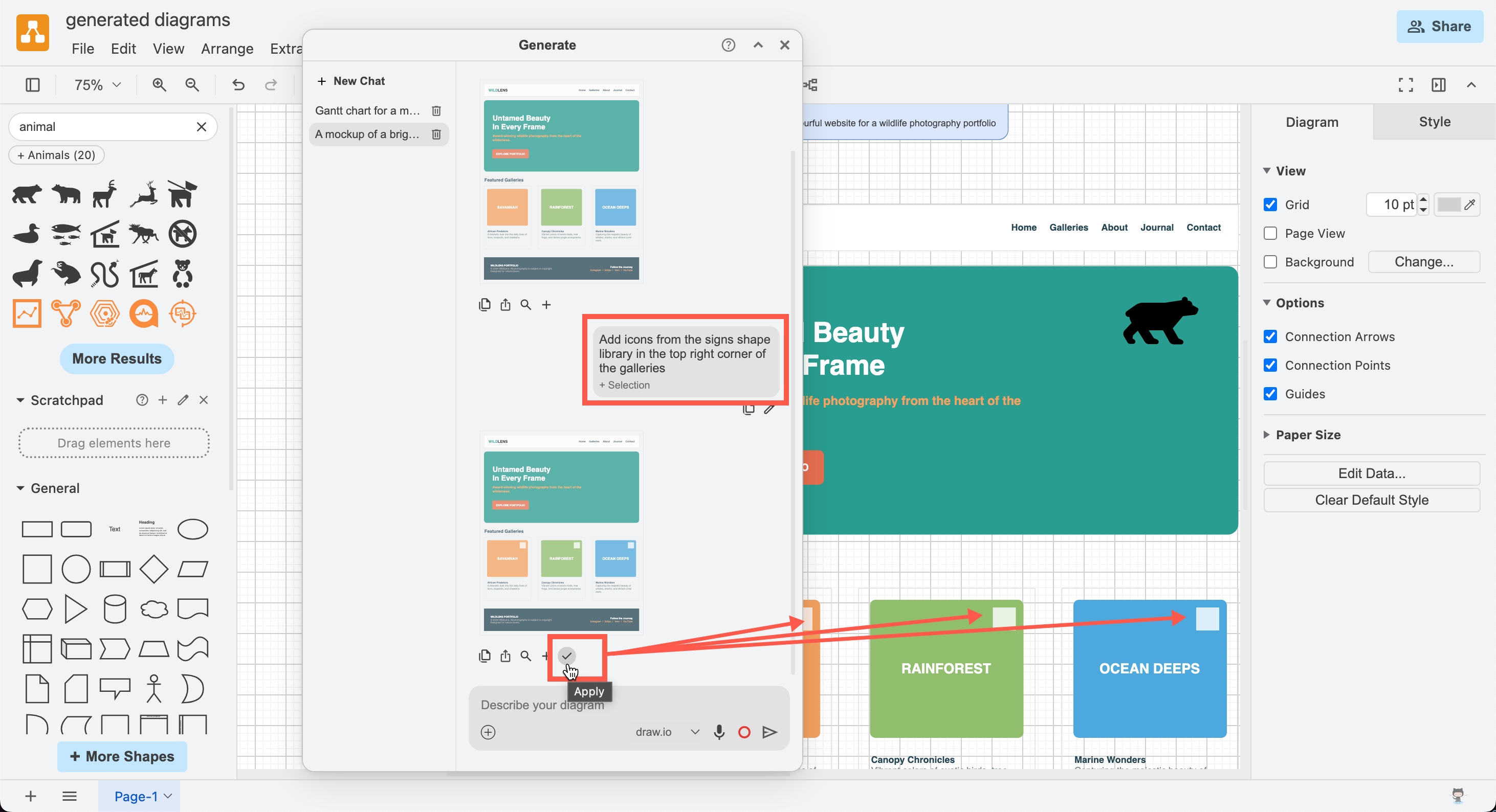
- Click on Edit (pen icon) to paste that query text in the description box.
- Refine the query and click Send to generate an updated diagram.
The edited queries do not overwrite the earlier generated diagrams.
- Click on the tick to Apply the changes to the diagram on the drawing canvas.
- Click on the + to Add the new version to the drawing canvas in addition to any existing shapes and connectors.
Tip: To copy just the text of your query to the clipboard, click the Copy icon.
You can also share your current diagram or selected shapes and connectors from the drawing canvas with the Generate tool, much like you can share files from your desktop with LLM tools.
Click on the + in the lower left of the query text box and add the diagram File, the diagram data for the current diagram Page, or just the Selection of shapes and connectors in the current page.
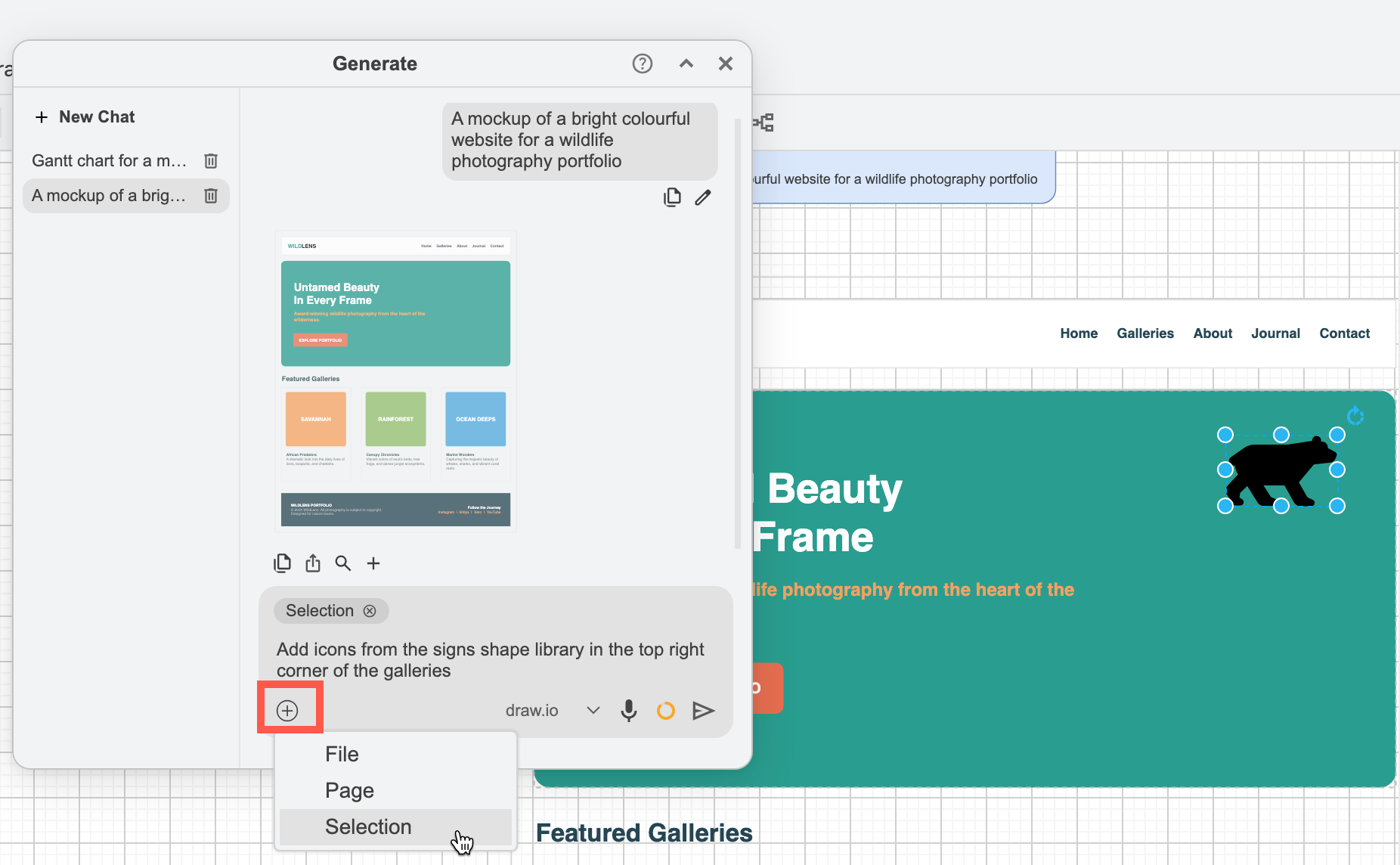
Note: The Generate tool only has access to the diagram data that it has generated in that Chat and anything you have explicitly shared with it via the + option when you send a query. Learn more about AI diagram generation.
Delete a query
- Click Delete (rubbish bin) next to a Chat in the left panel of the Generate dialog to delete a query and all of its diagrams.
- To clear the dialog completely of all generated diagrams, delete all Chats.
Generate a template diagram
- Create a new diagram - go to our online diagram editor - or click on
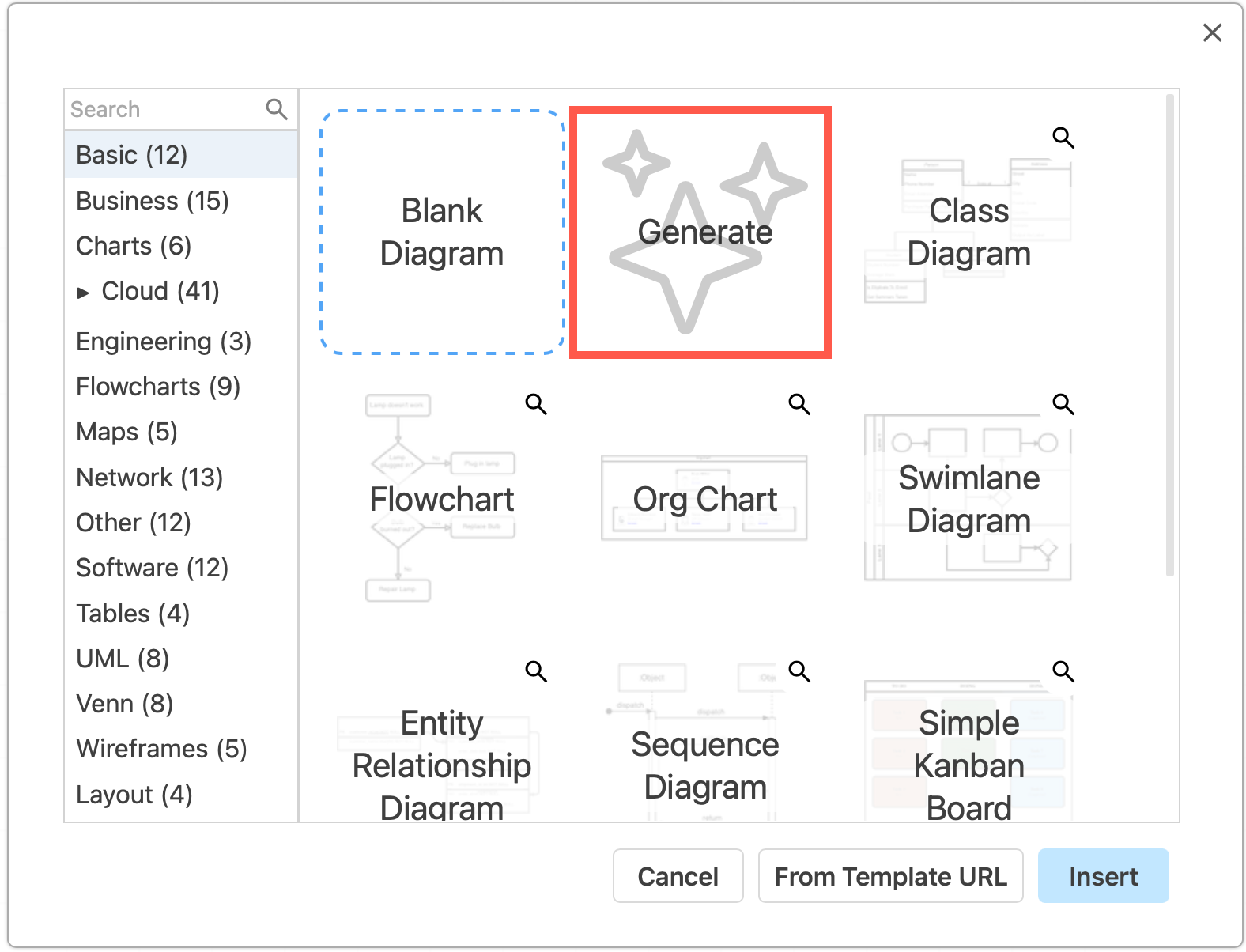
+in the toolbar and select Template to insert a generated diagram, or select Arrange > Insert > Template. - Click on the Generate box in the template library.
- Enter a basic description of your diagram in the text field, and press
Enteror click OK.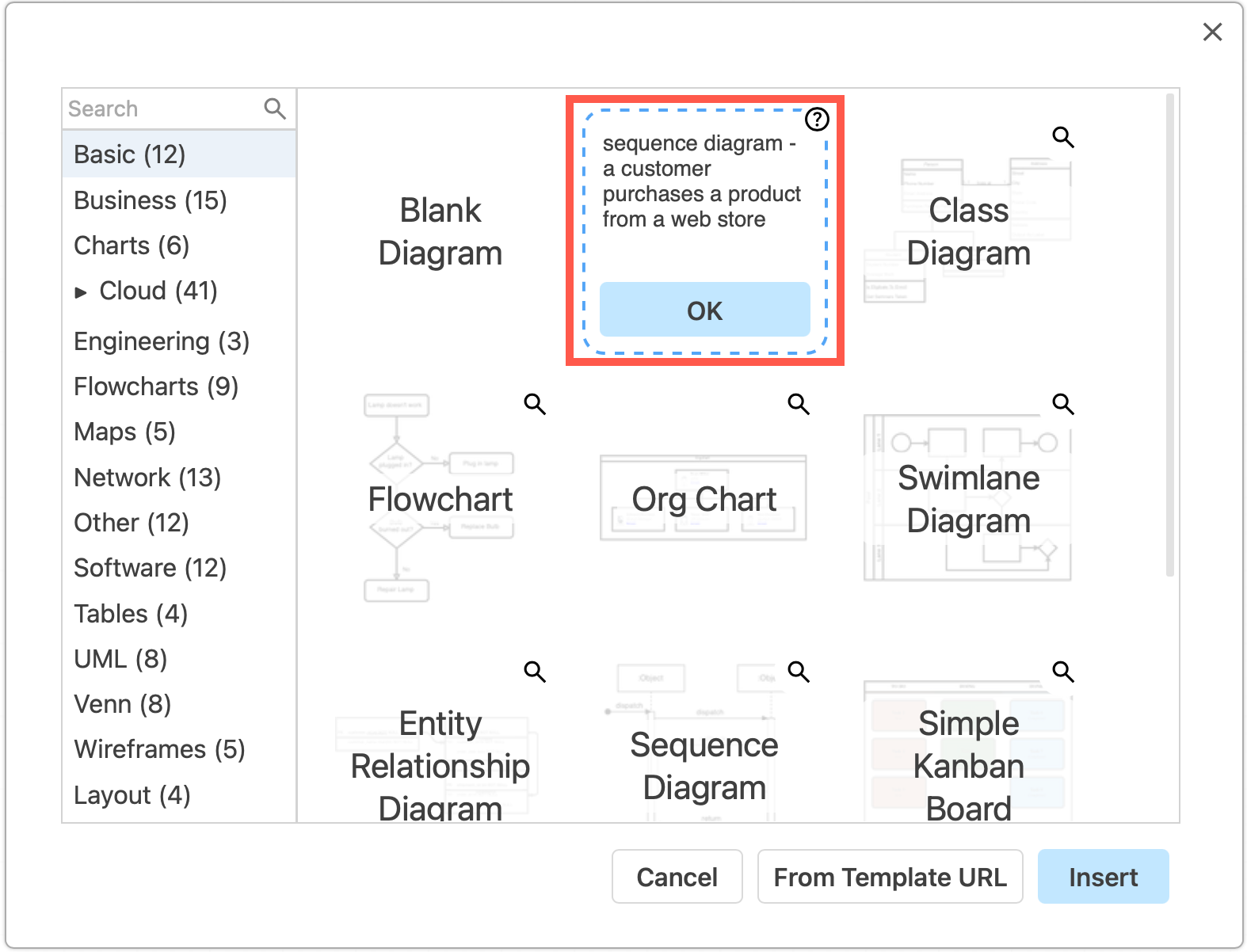
- Click Insert or Create to add it to the drawing canvas.
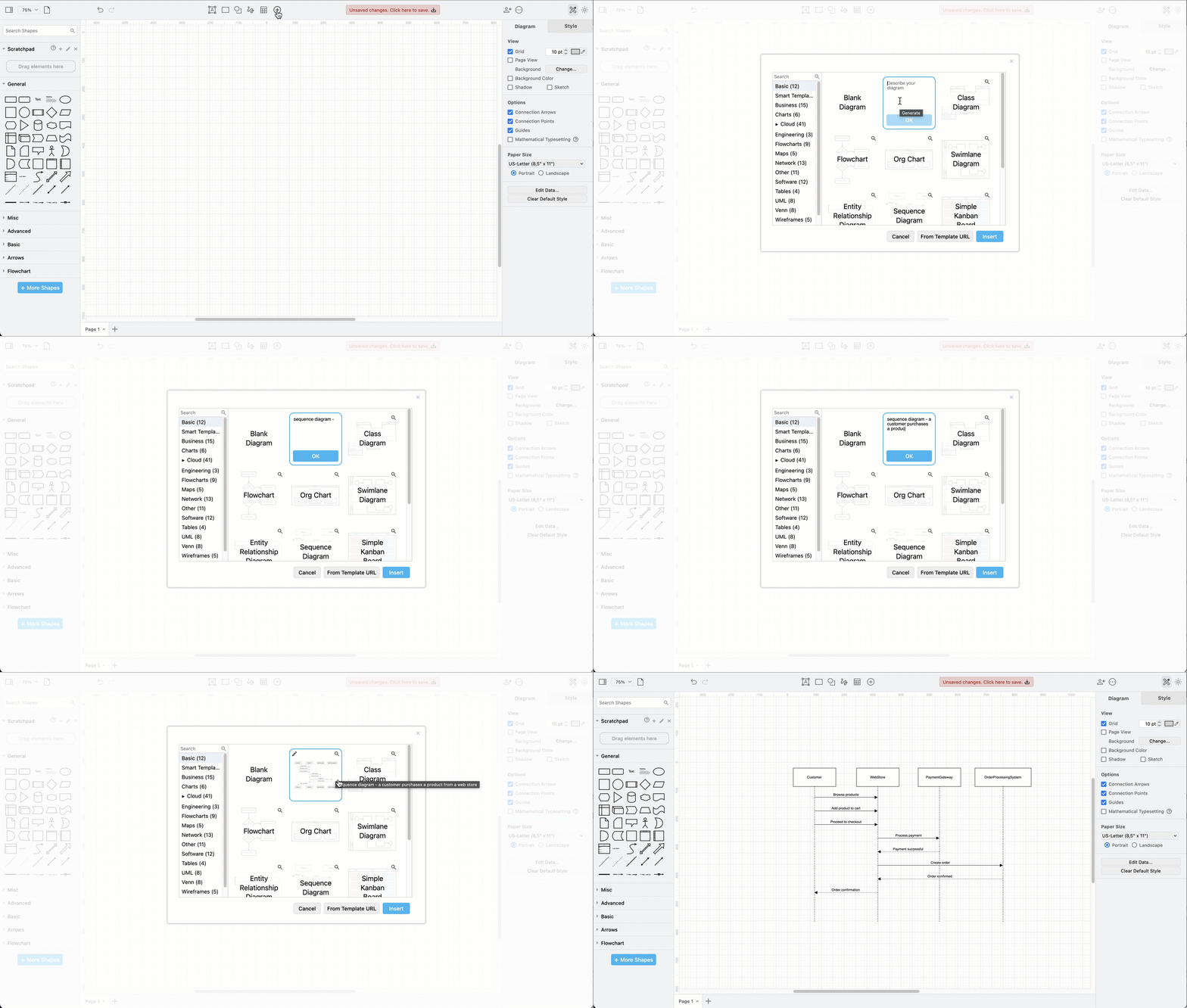
Make sure you write what type of diagram you want to generate at the start of the prompt. In this example, the prompt was:
sequence diagram - a customer purchases a product from a web store
Related
- Disable diagram generation: Use a specific LLM, or disable it completely.
- Learn about when it makes sense to generate diagrams and how to write better queries for more accurate diagram generation.
- To embed diagrams when chatting with any AI model that supports MCP Apps, you can use the draw.io MCP server or add project instructions to your Claude Project.
- Train an LLM with our AI style reference.
- See more examples of smart templates and generated diagrams.
- When you want an LLM to parse or manipulate a diagram file with less overhead than the native ''.drawio'' XML format, export your diagram to the JSON format.