Import a diagram into an existing diagram
You can import a diagram file into an existing diagram.
- Store related diagrams together in one diagram file. For more complex diagrams, multiple pages in the same diagram are useful.
- Use a diagram as a template, such as when extending or modifying the UML diagrams of your existing code base.
Tip: In addition to importing .drawio and .xml diagram files, you can import diagrams in other formats in this way, including Gliffy, Lucidchart and .vsdx diagrams.
Import a diagram
- Select File > Import From in the menu, then select the location where the diagram you want to import is located.
- Select the diagram file in the dialog. It will be automatically added to the top left of the drawing canvas and be selected.
- Drag to reposition the imported diagram on the drawing canvas.
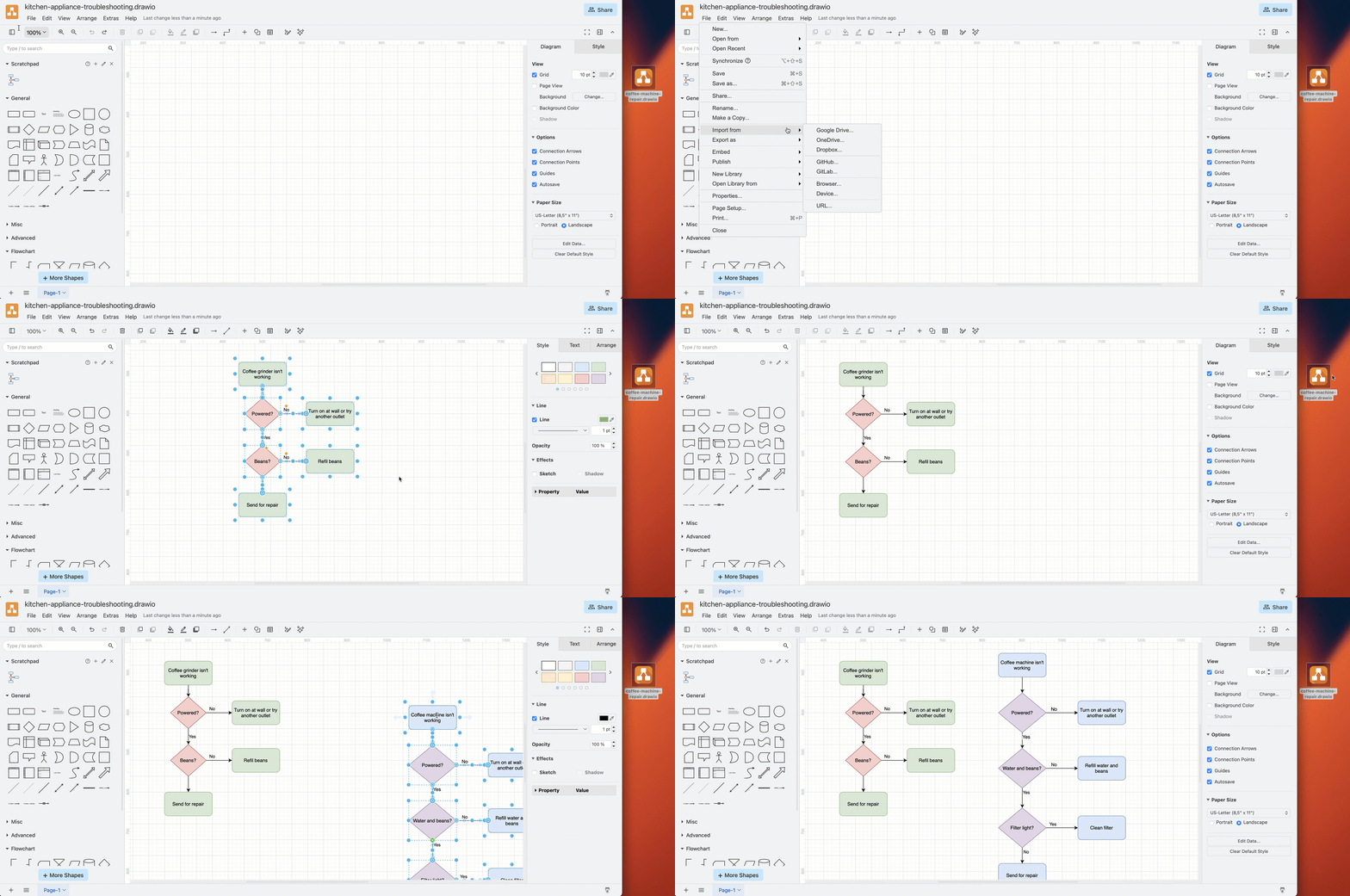
Import a diagram from your local device
This method works when you have added shapes to the drawing canvas.
- Drag the diagram file into the drawing canvas. The diagram you just added will appear and be selected.
- Drag to reposition the imported diagram on the drawing canvas.
If you try to drag and drop a file into a blank diagram, it will open that file instead adding the diagram contents to your current diagram.
Import diagrams from other formats
Compare the different import formats and diagram data sources that draw.io supports.
Diagram formats
- Import diagrams from Gliffy Online.
- Import diagrams from Lucidchart EDU.
- Import older .vsd Visio files in the same way as .vsdx files. See the extra steps for draw.io Desktop and Confluence Data Center.
- Learn about the VSD import differences.
- Import a .vss stencil library as a draw.io shape library.
Text formats
- Insert from specially formatted CSV data.
- Insert entities from SQL code.
- Insert text and generate a basic diagram.
- Insert Mermaid code and generate a diagram.