Using the draw.io editor
A quick introduction to the draw.io editor is available in the Getting Started section.
Tip: Hover your mouse over any button, tool or option in the draw.io editor to see a tooltip.
Editor themes and modes
Editor themes are different layouts of the tools and panels in draw.io. Minimal and the Sketch online whiteboard theme show more of the diagram canvas and fewer distractions, while Classic and Atlas provide easy access to menus and tools.
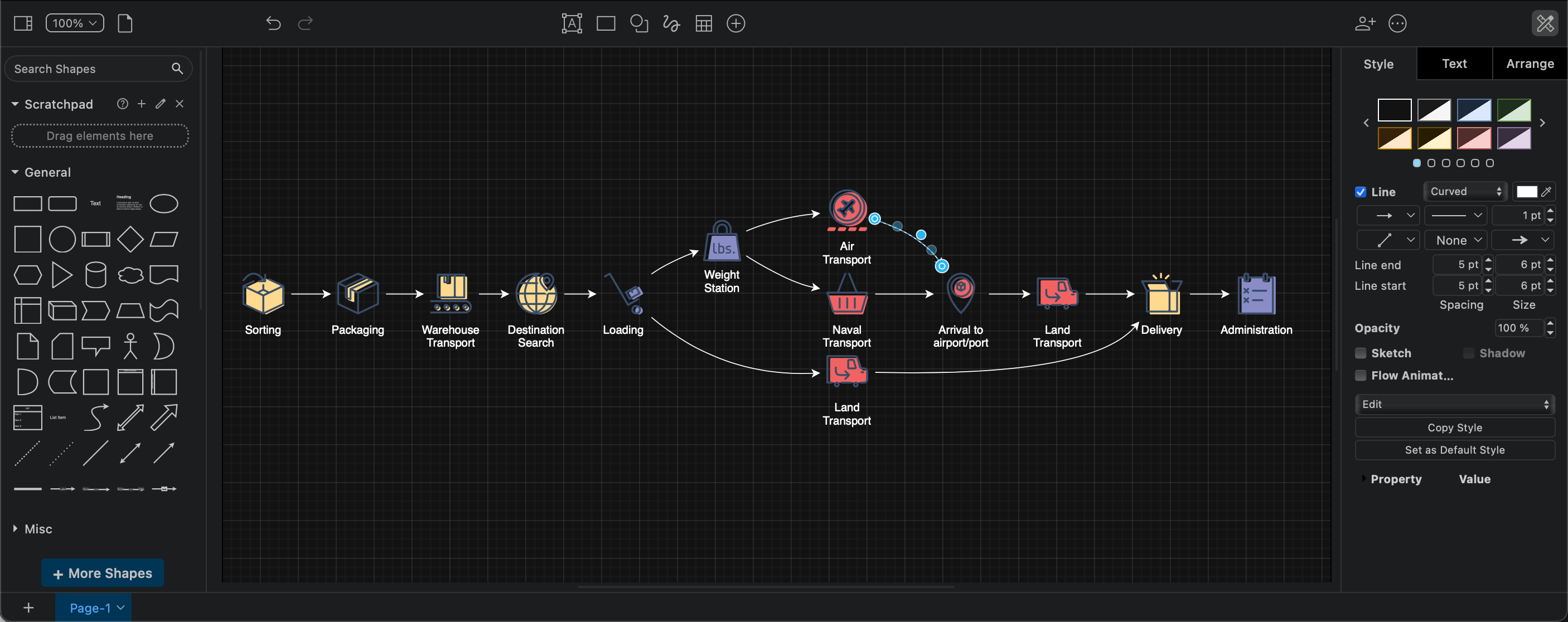
- Diagram in dark mode and configure adaptive colours or disable the adaptive colours entirely.
- Change editor themes for fewer visual distractions from tools you don't want to use.
Drawing canvas
- Pan and scroll the drawing canvas, zoom in and out, or use the outline dialog to navigate large diagrams.
- Change the drawing canvas grid, or the page size, or use a background image as your drawing canvas.
- Disable page view to use an infinite canvas.
- Use the alignment tools, rulers and snap to grid to keep your diagrams neat.
Menus and toolbars
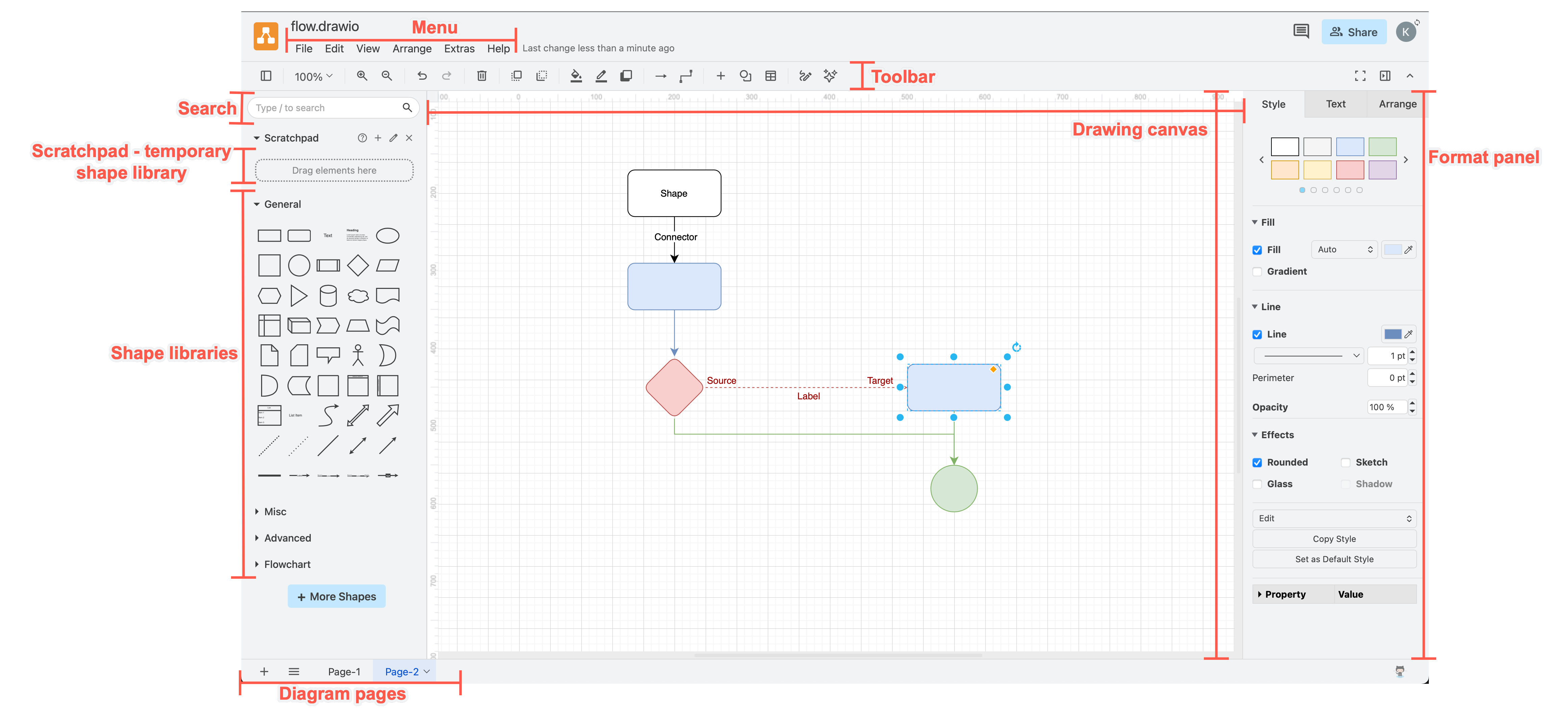
Menus and toolbars are in different locations and may contain different options depending on what editor theme you are using.
Right click on anything on the drawing canvas to open a context menu. On a touch screen, tap on a shape or connector to select it, pause briefly, then tap again to open the context menu.
Two of the more important menus sections are
- Arrange > Insert to add images, templates, freehand and custom shapes, diagrams from text and CSV and more.
- Arrange > Layout to rearrange the shapes on your diagram to fit your selected layout.
Panels and dialogs
Tool panels and dialogs are in different locations depending on what editor theme you are using. All the tools and dialogs are available in all editor themes, but may need to be enabled.
Shapes panel
The shapes panel on the left that contains the enabled shape libraries, scratchpad and the search field by default. You can disable the scratchpad and search via the menus if you don't need them.
- Click on or drag shapes onto the drawing canvas.
- Click on More Shapes to change which shape libraries you are using.
- Drag selected shapes and connectors from the drawing canvas to the scratchpad as a temporary shape library.
- Use the search field to search for shapes, clipart (online), help topics, tools and dialogs, text in your diagram, or describe your diagram and generate it.
Learn more about working with shapes
Format panel
The format panel is on the right in most editor themes.
In the Sketch and Minimal editor themes, this panel may be minimised. You can display or hide this panel completely via the View menu or click on View in the toolbar in the Classic and Simple editor themes.
When nothing is selected in the format panel, you'll see the Diagram and Style tab for global diagram options and styles.
When you select a shape, connector or text, three panels will show different options depending on what you have selected.
- Use the Style tab to colour and style your selection.
- Use the Text tab to change the style of labels and text.
- Use the Arrange tab to move, rotate and resize shapes and move them forward and backward on the drawing canvas.
See the shapes, connectors and text sections in this documentation to see how to work with and style these elements..
More help with draw.io
Many items in the menus and panels have additional help - click on the question mark to open the documentation.
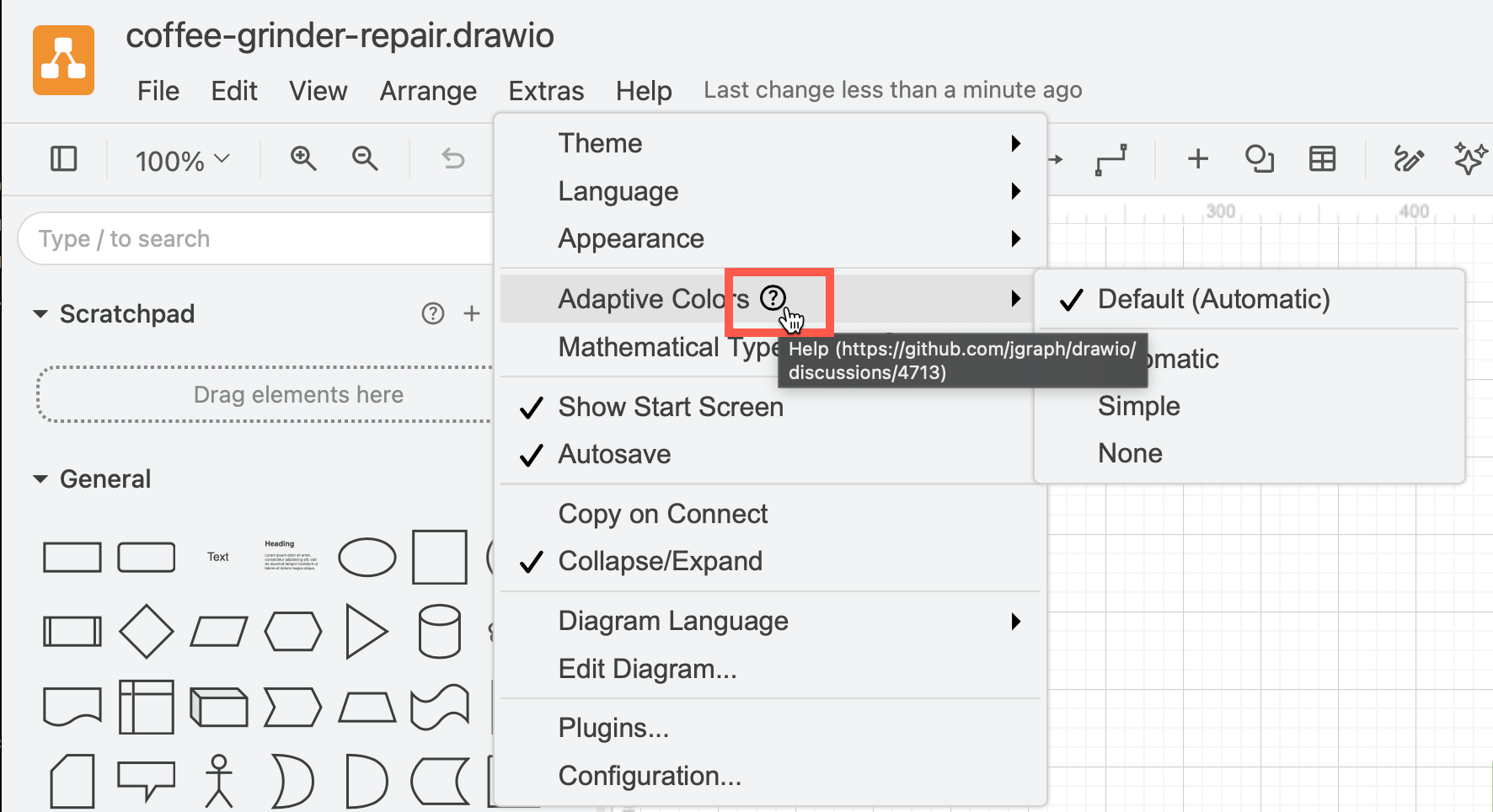
Also look under Help in the draw.io menu for links to tutorials, documentation, a shortcut reference, and the GitHub repository where you can report bugs or request features.