Insert shapes and connectors via the menu
While you would normally double click on the drawing canvas and select a shape, or drag a shape from the shape libraries, you can also add some basic shapes via the Arrange > Insert menu.
See all of the elements you can insert into your diagram
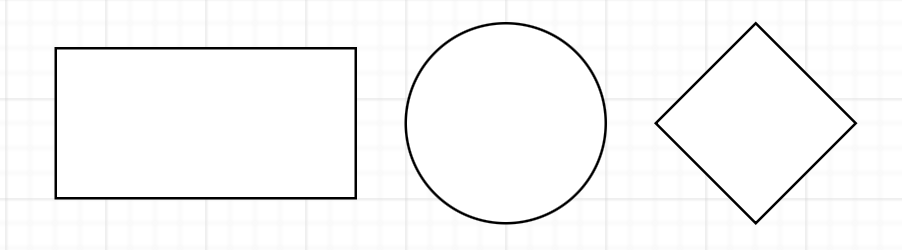
Insert a rectangle, ellipse or rhombus
Select Arrange > Insert then choose one of Rectangle, Ellipse or Rhombus to add that shape to the drawing canvas. Alternatively, click the + icon in the toolbar, then select the shape you want to insert.
Insert a note shape
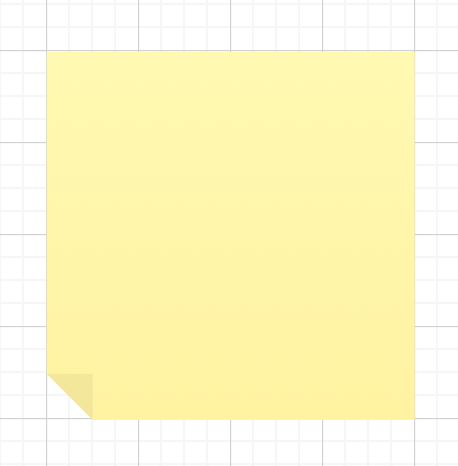
Select Arrange > Insert > Note to insert a yellow sticky note shape on the drawing canvas.
Insert a connector
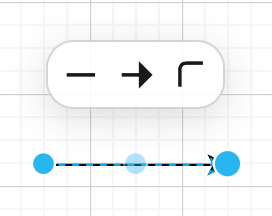
- Select Arrange > Insert > Line to insert a simple connector that has an arrow at one end.
- Drag the ends of the connecor and drop them on a source and a target shape to connect them.
- Change the style using the Style tab of the format panel, or the quick style box that appears above the connector.
Learn more about connecting shapes
Insert a custom shape
- Select Arrange > Insert > Shape
- Describe the geometry and style of the shape in XML by modifying the example in the large text field.
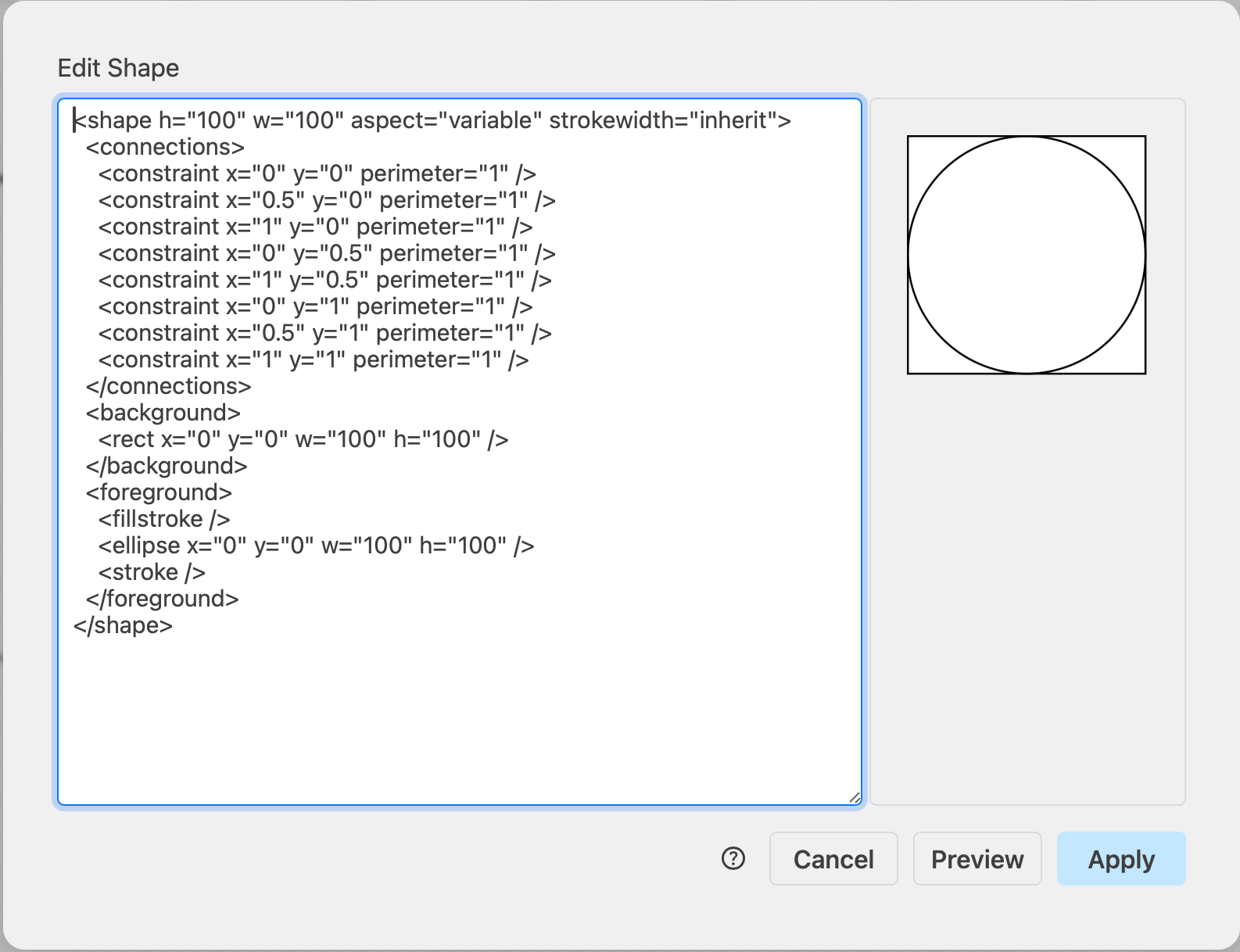
See how to describe the geometry and style of a custom shape