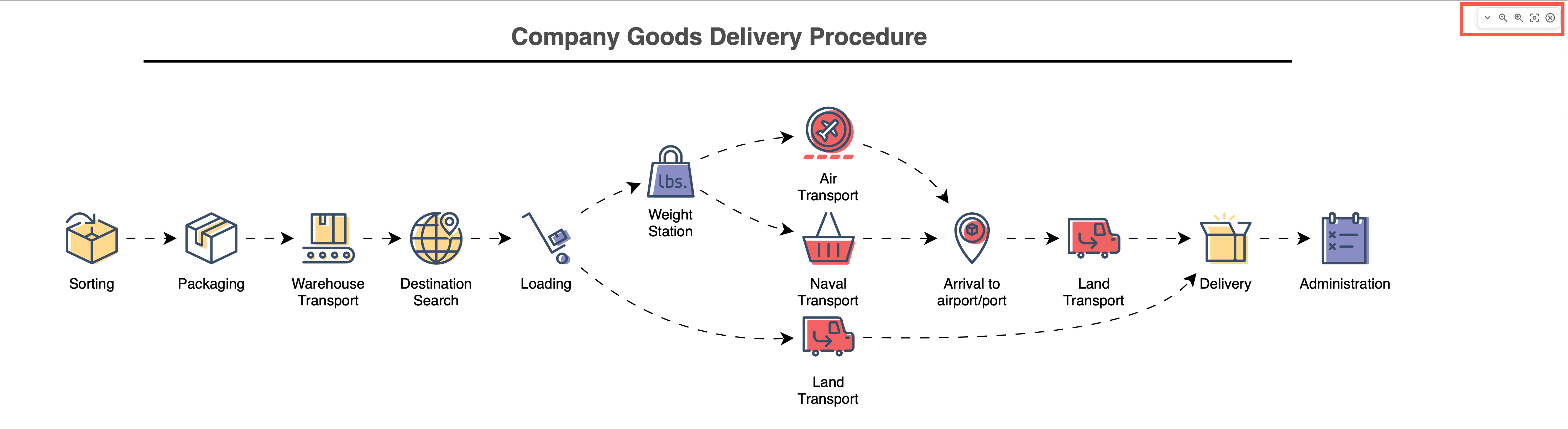
New and updated export formats

You can export your diagram to multiple formats, including various image files (PNG, JPEG, SVG), PDF, XML, HTML and a URL with the diagram data encoded within it.
Export to an animated GIF image
You can now also export your diagram to an Animated GIF. This is ideal for diagrams where you have animated the connectors with flow animations from the source shape to the target shape.
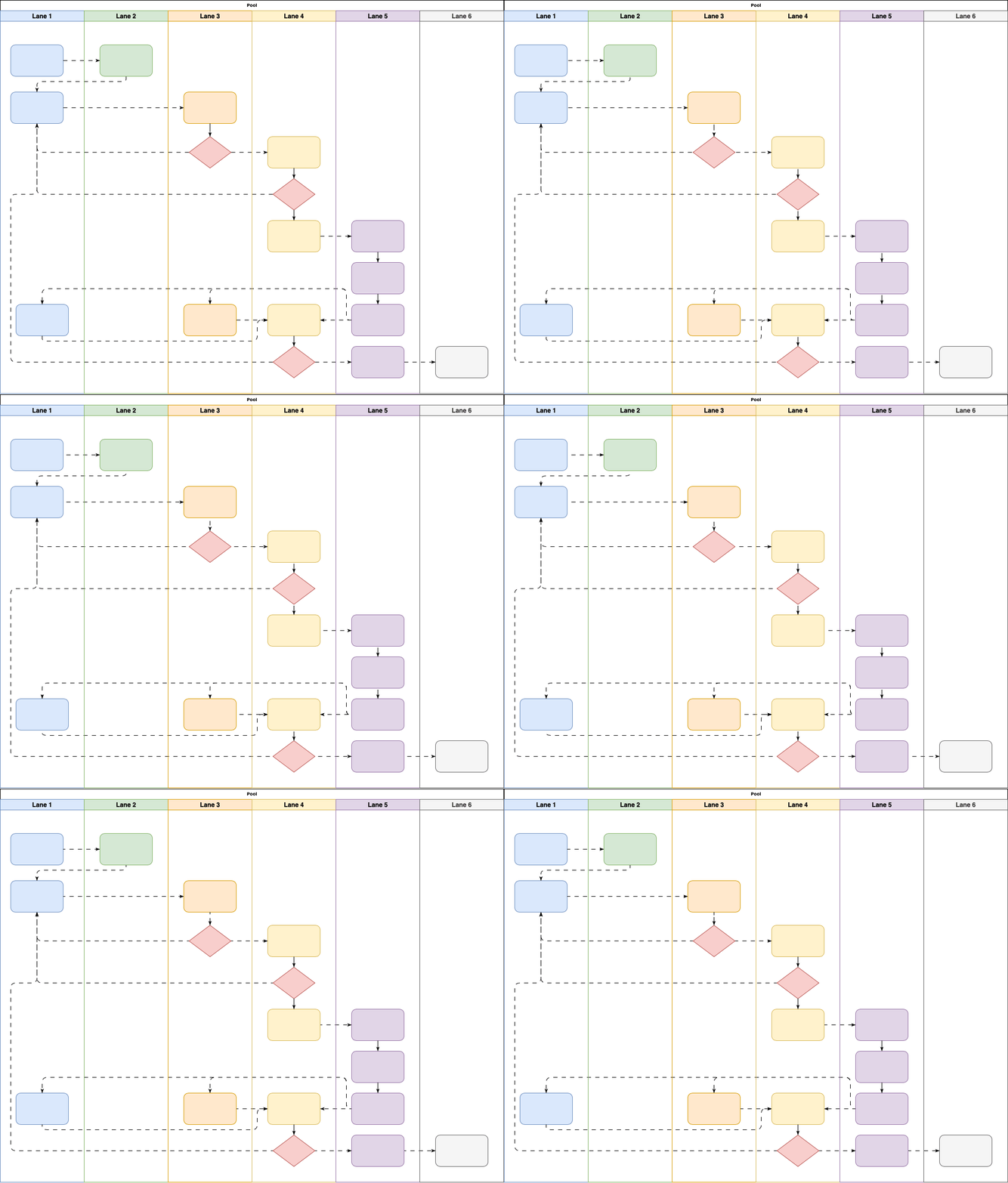
- Select File > Export as > Animated GIF from the draw.io menu.
- Set the animated GIF export options.
- Set the Loops to continue forever or repeat 1, 3, or 5 times. The default is Forever.
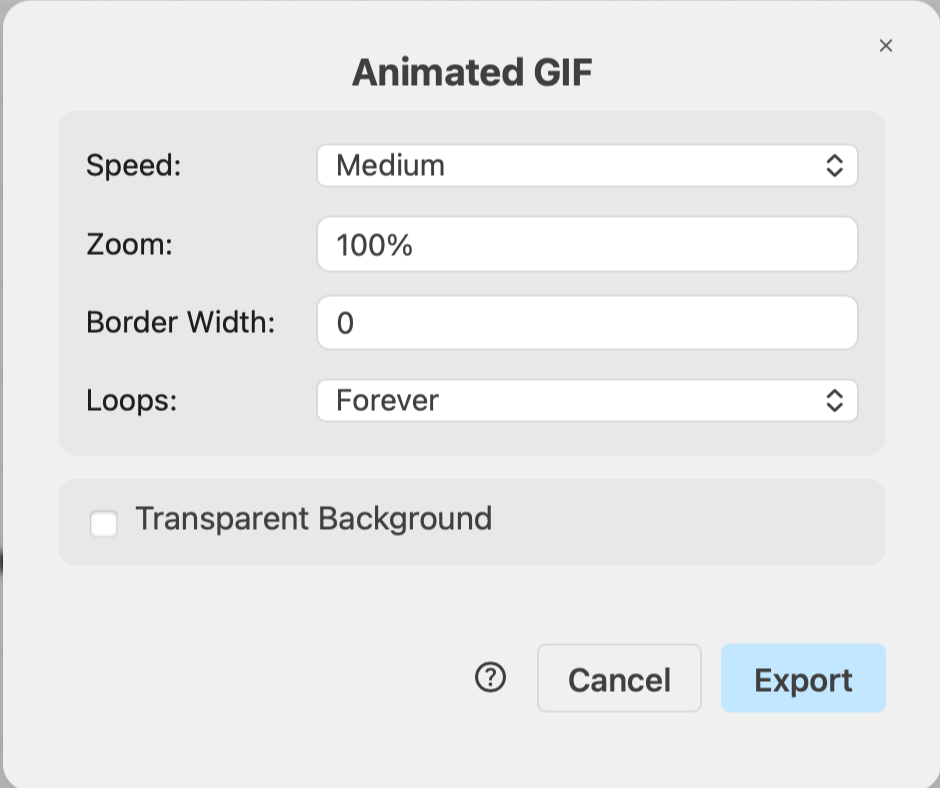
- Set the Loops to continue forever or repeat 1, 3, or 5 times. The default is Forever.
Export to a JSON file
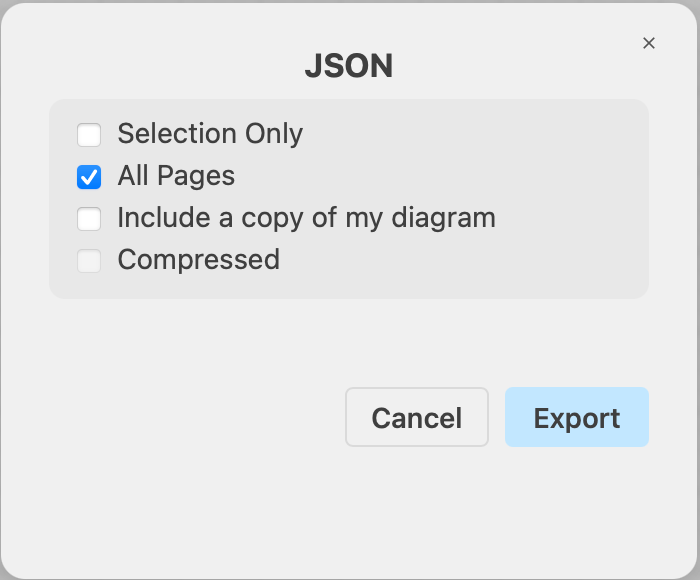
The JSON file format has less processing overhead that the native .drawio XML format when a program, such as an LLM, is required to parse or transform your diagram.
Export your diagram to a JSON file when you need to pass it into a Javascript-heavy pipeline, into an API for a web application, or to an LLM for further manipulation.
Publish to presentation mode
Presentation mode uses a simplified viewer with the toolbar that is normally at the bottom of the Lightbox moved into the top right of the browser tab. This is ideal when you want to present a diagram at a meeting, or use draw.io to create a slide deck.
Select File > Publish > Presentation Mode to open your diagram page in a simplified viewer.
While in presentation mode:
- Hover over the diagram to see tooltips, tags, links and shape metadata if you have added these.
- Click on links - ideal for navigating to another diagram page.
- Change the zoom level and step through diagram pages using the mini-toolbar in the top right.