Better automatic layouts with ELK

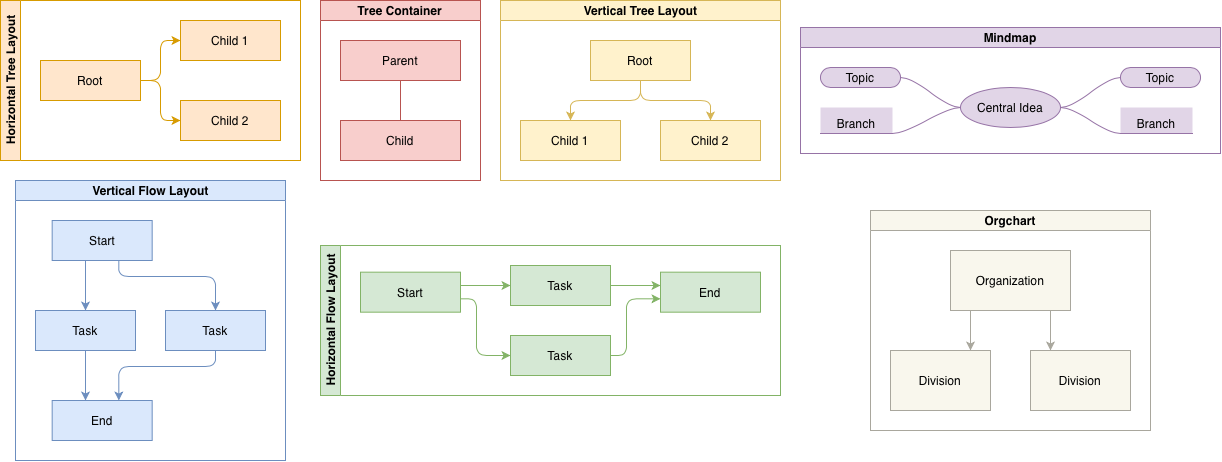
The new version of the automatic layout dialogs in draw.io now use the Eclipse Layout Kernel (ELK) and its layering algorithms to automatically rearrange the shapes in your diagram.
Use these automatic layout presets to build neat flow charts, trees, org charts and other common diagram layouts quickly.
Change layout options
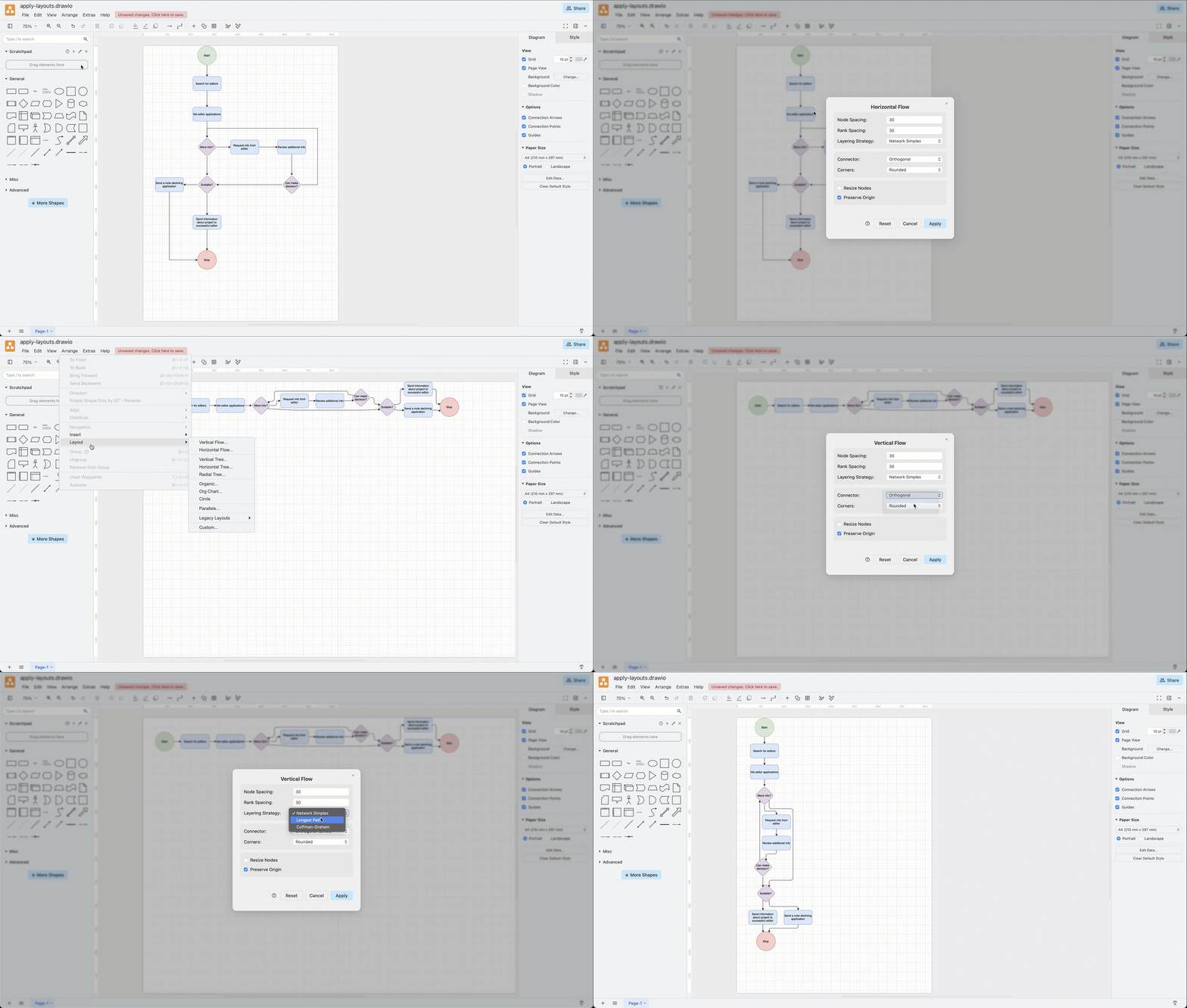
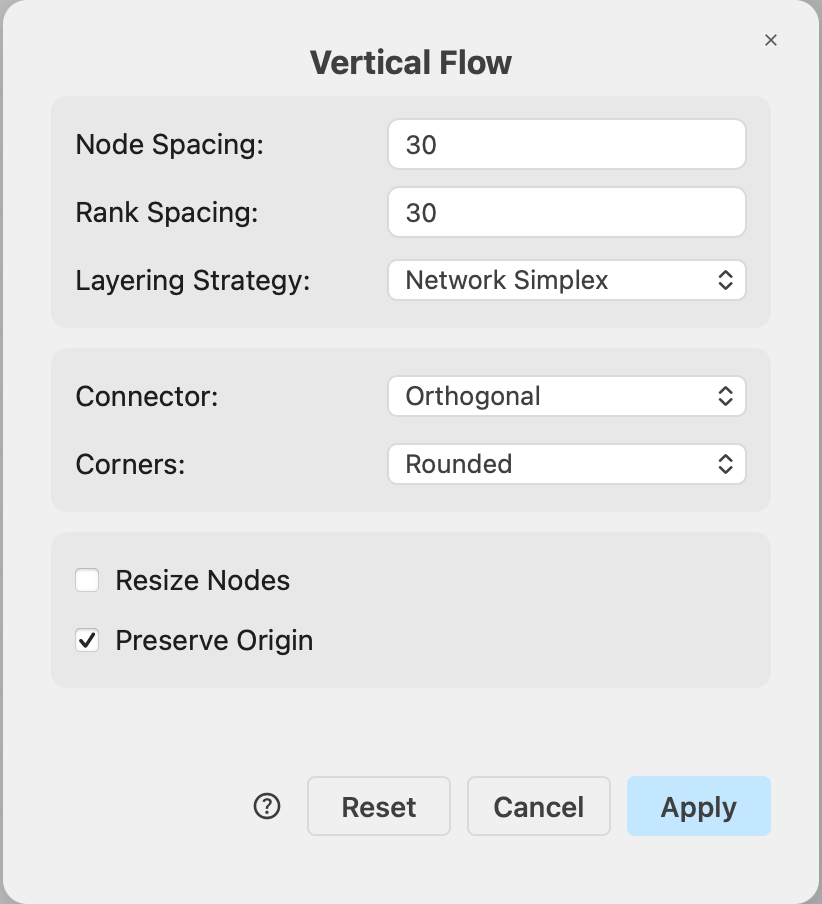
In most of the preset layouts via the Arrange > Layout menu you can customise the spacing, direction and connector behaviour.
- Select Arrange > Layout from the menu, or click + > Layout in the toolbar, then choose the layout preset that suits your diagram best.
- Change the layout options if you need to, then click Apply.
The diagram will be automatically rearranged.

Undo the automatic layout: If you don't like this auto-layout, click Undo in the toolbar or press Ctrl+Z/Cmd+Z to revert to the diagram before it was auto-arranged.
The Flow, Tree, Radial Tree, and Organic layout dialogs store their last-used values in your browser, separately for each layout that you have applied.
Reset defaults: Click Reset in the layout dialog to discard the stored values and reopen the dialog with that preset's defaults.
Use a custom layout
You can further customise the layout algorithm with JSON configuration options via Arrange > Layout > Custom in the draw.io menu, or + > Layout > Custom in the toolbar. Your custom configuration is appended to the JSON definition for that layout preset instead of running the preset immediately on your diagram.
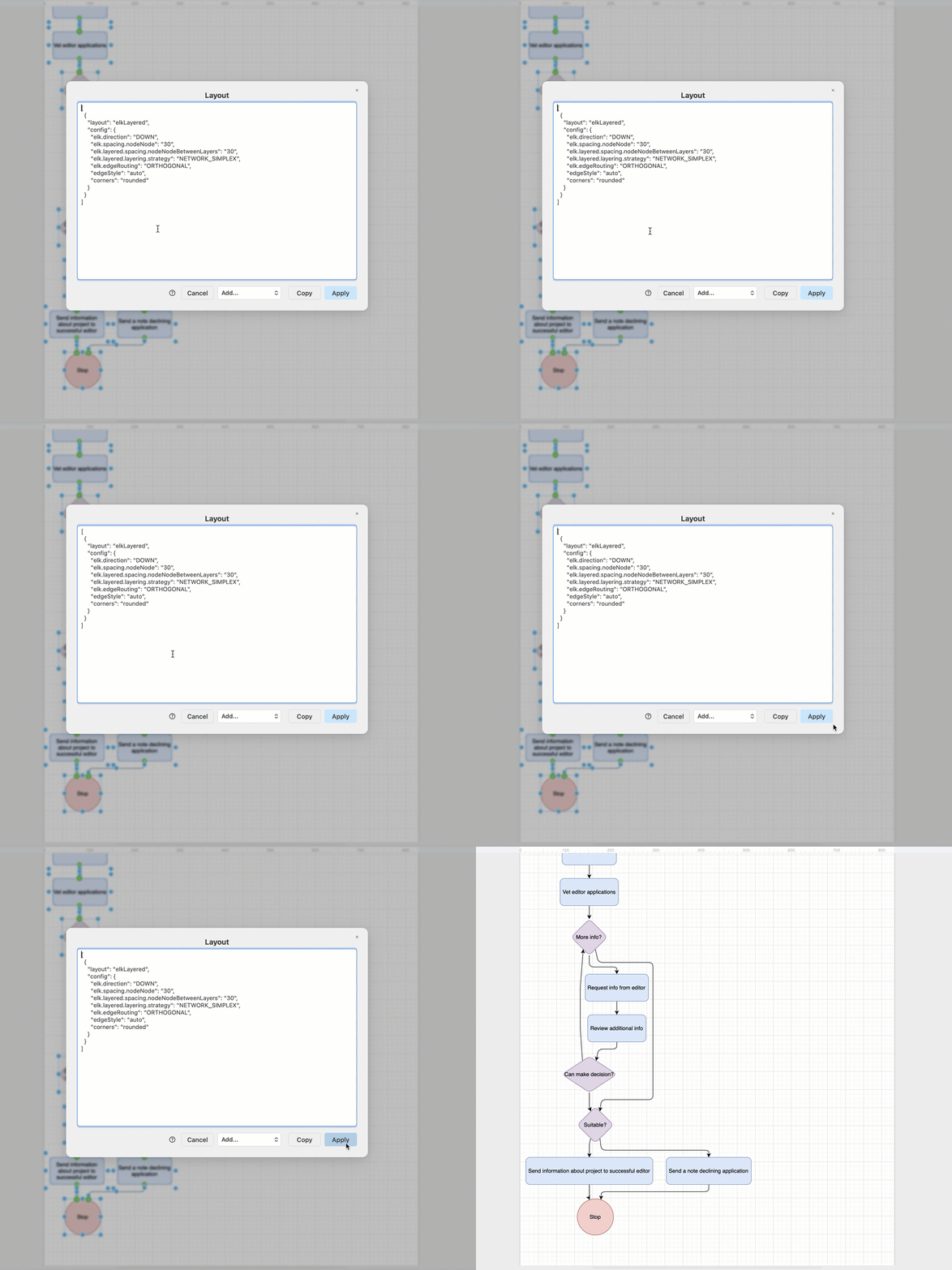
Refer to the JSON layout specification for the full documentation of each layout preset.
Tip: This JSON layout specification can also be used to automatically layout imported diagram data from a CSV file.
Legacy layouts
The legacy layouts are still available via the menu Arrange > Layouts > Legacy Layouts.
You can customise the ELK layout settings by entering a JSON configuration string.
Related
These layout algorithms are also used in arranging the shapes inside the layout shapes from the Advanced shape library and layout containers. When you apply one of the diagram-wide layouts to one of these Advanced layout shapes or layout containers though, their internal elements will not be rearranged.