The draw.io configuration dialog

While you could always configure draw.io via a JSON script, there is now a configuration dilaog where you can set each of the options via checkboxes and list selectors. That makes it easier to configure the draw.io editor if you are not comfortable with JavaScript Object Notation (JSON).
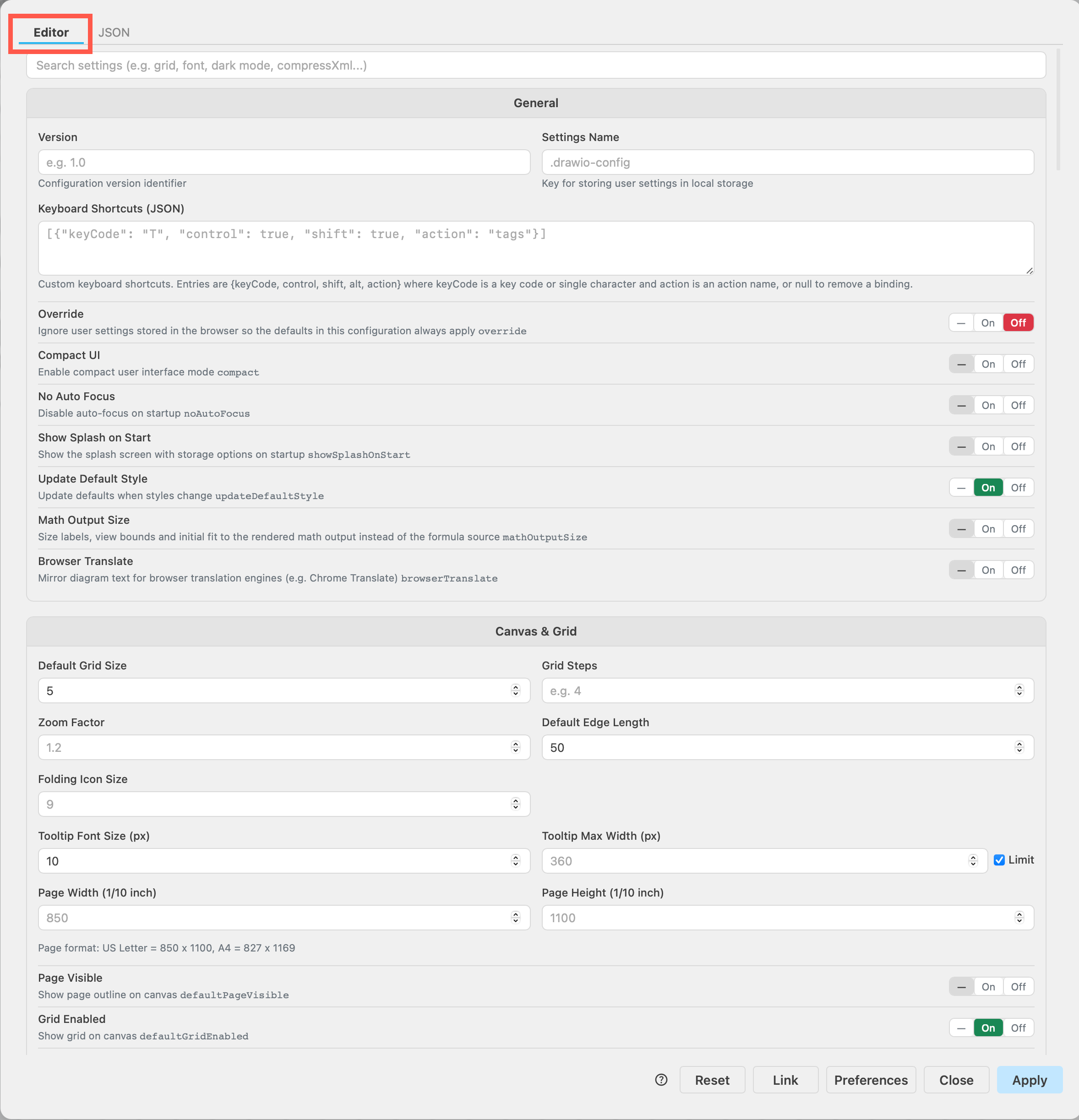
- Select Settings > Configuration from the draw.io menu, or Extras > Configuraion if you are using the Classic or Atlas editor theme.
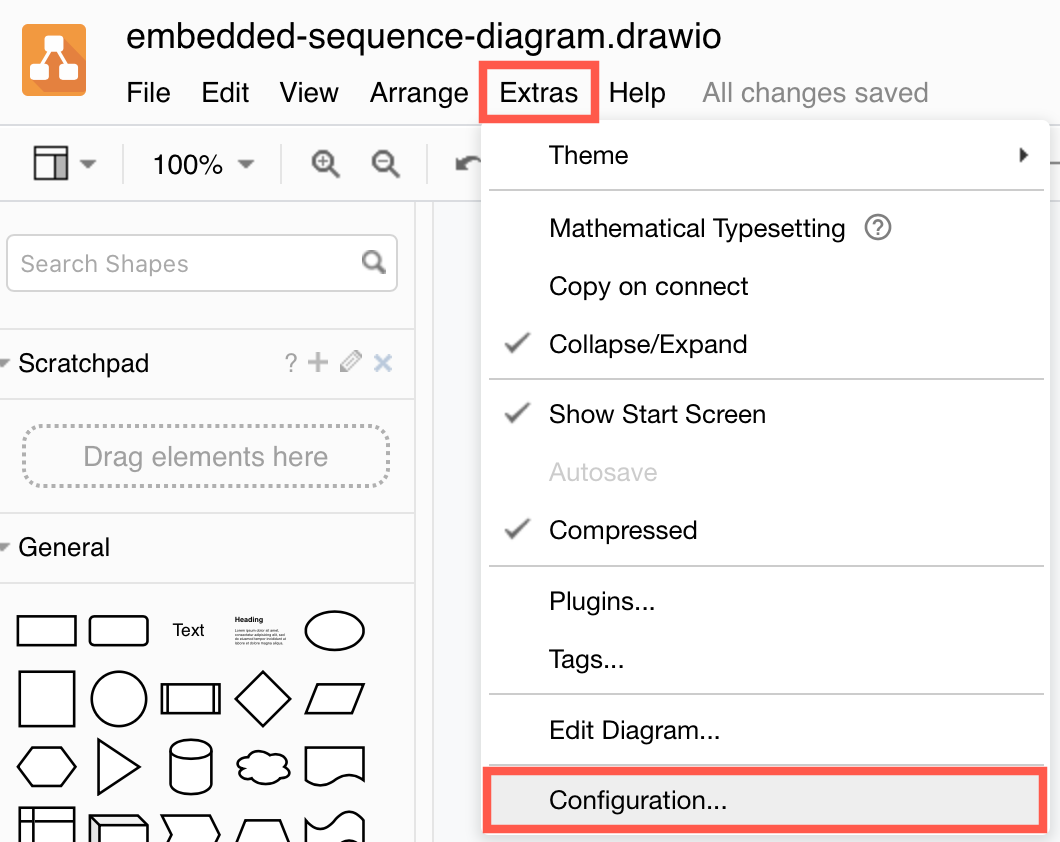
- While on the Editor tab, click on the toggle switches, enter values, select options from the drop down lists, and select custom and new default colours from the palette picker to customise the draw.io editor.
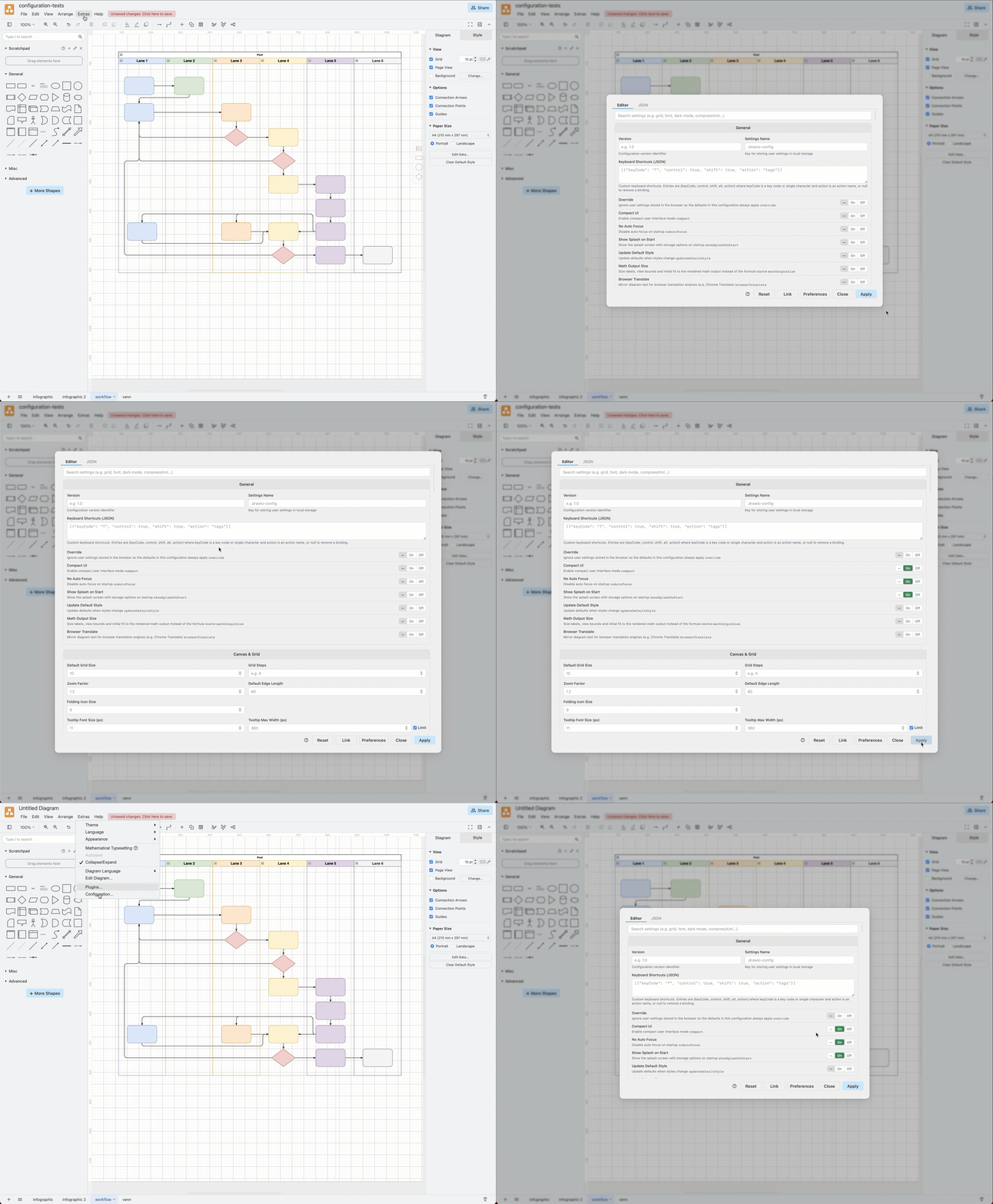
- Click Apply to save, then reload your browser tab (
Ctrl+RorCmd+R) to reload the draw.io editor using the new configuration
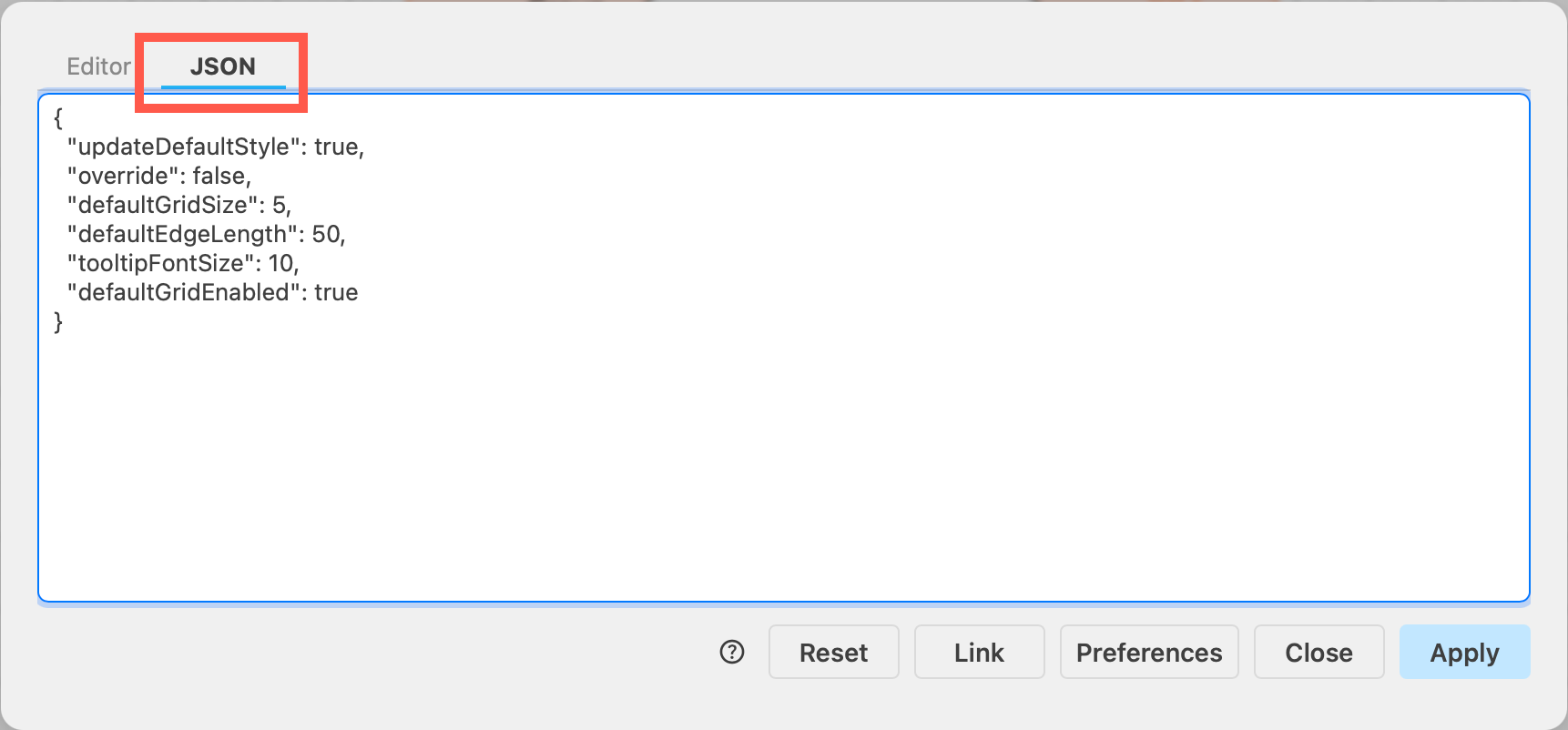
The editor configuration will updae the JSON code whenever you change a configuration setting via the Editor tab.
Make sure you reload the browser tab to reload the new draw.io editor configuration.
Tip: This is a very long dialog with all of the different configuration options, but it is resizeable - grab the bottom right corner to make it larger inside your browser tab.
Configure the draw.io editor
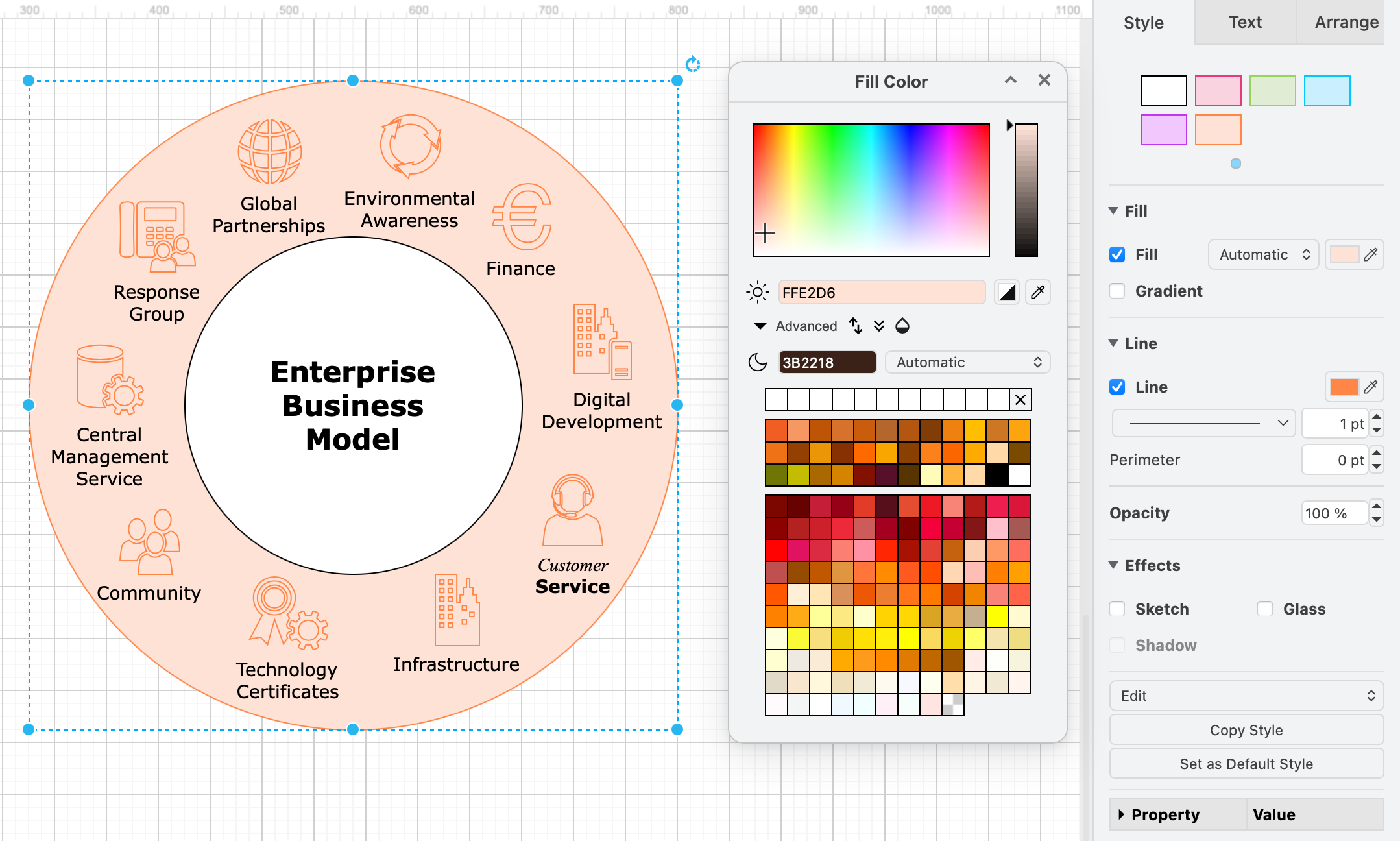
A few custom settings for colours and fonts via the Configuration dialog and the Editor tab are described below.
At any time you can edit or delete the JSON configuration string via the JSON tab of the configuration dialog. See the configuration reference for all JSON configuration options.
Search for configuration options
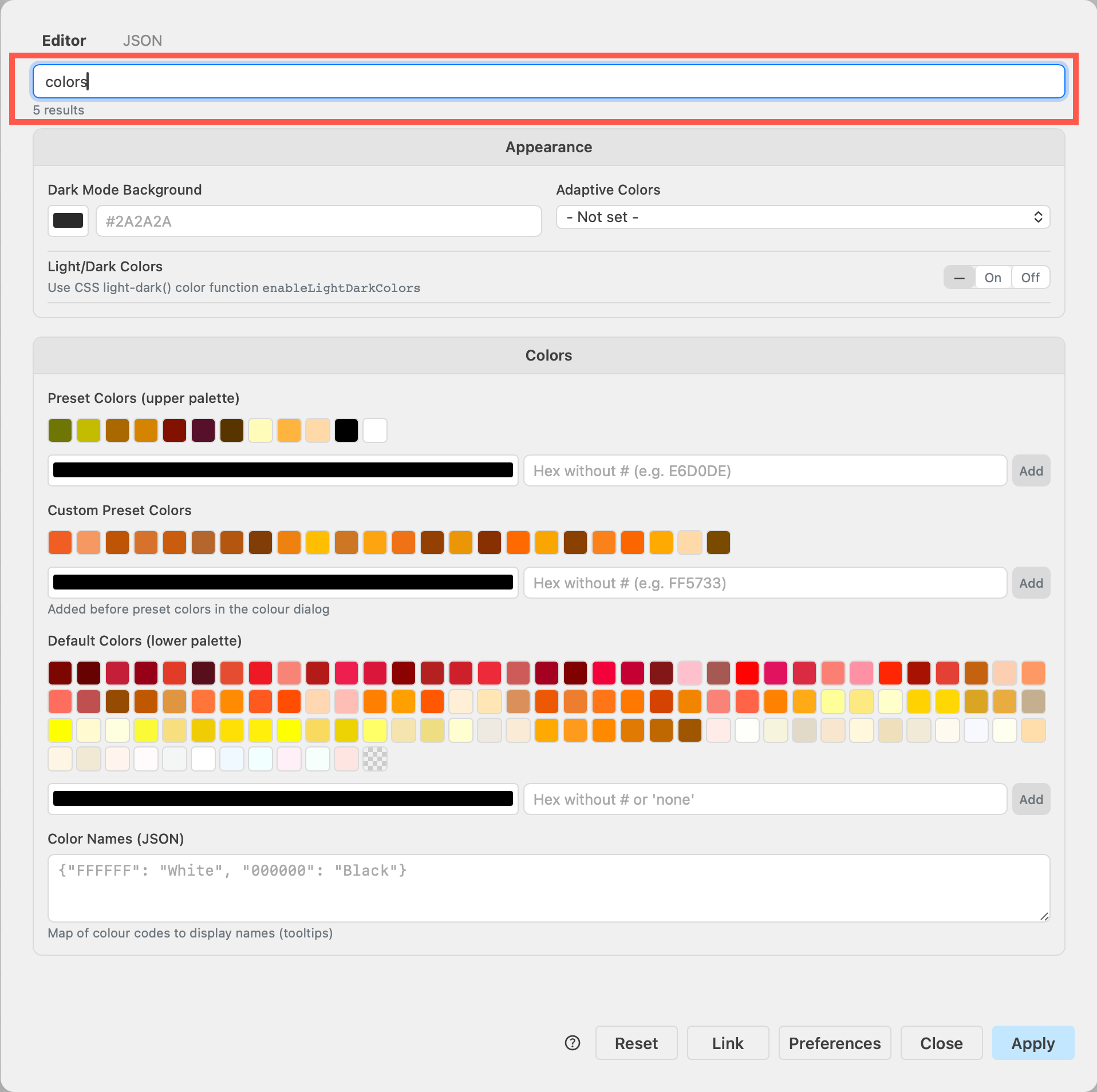
Search for a string and press Enter to find a configuration option quickly. For example, searching for colors:
Set custom colours
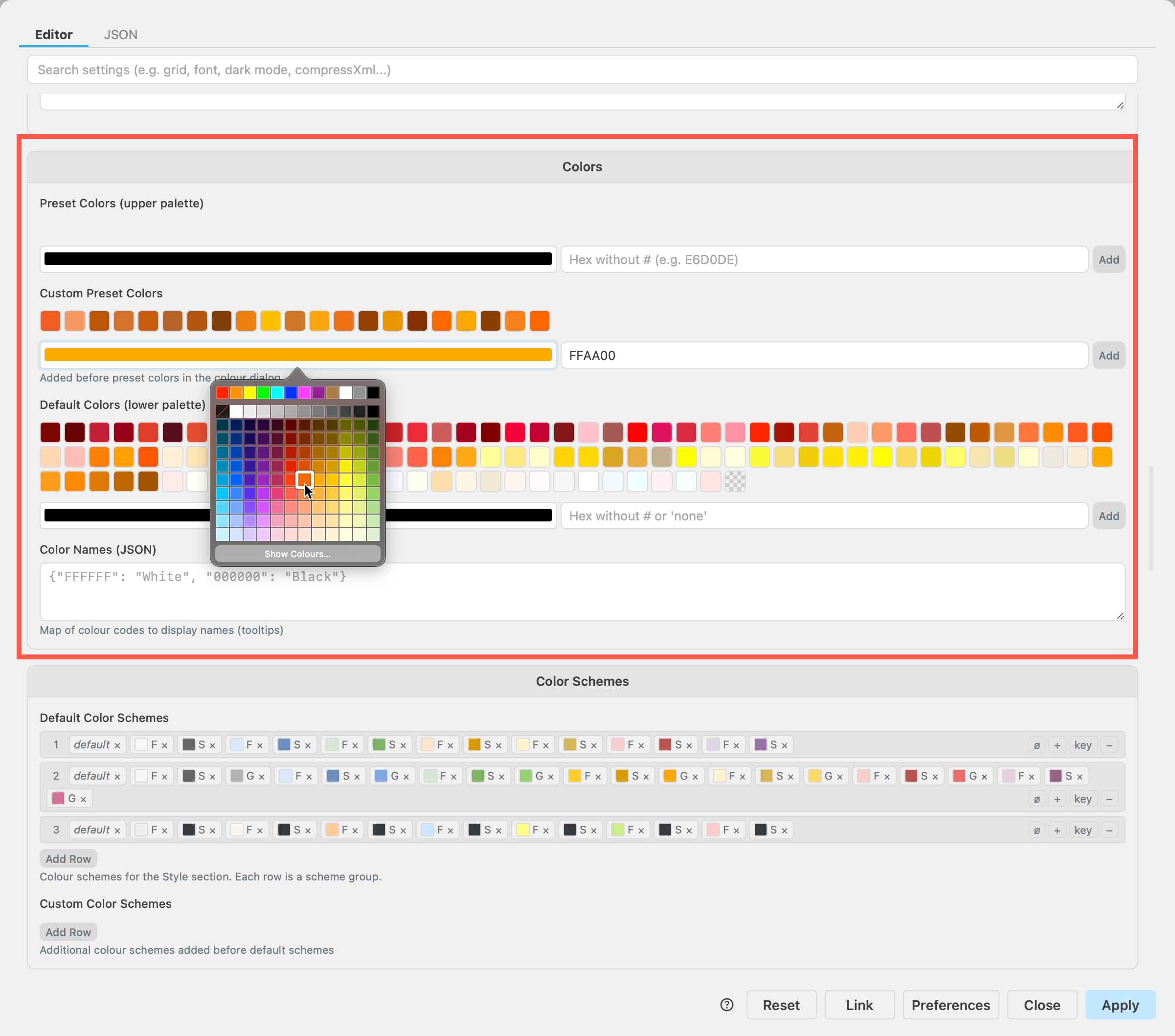
Set custom palette colours and style colours. customPresetColors in the colour picker dialog used for shape fill, line colour and text colour are followed by presetColours in the top palette. In the larger lower palette are the defaultColors.
- Hover over existing colours and you'll see a small x appear in the top right of the colour. Click that to delete a colour from the palette.
- To add a new colour, either paste in a hex code and click Add, or click on the colour box to open a colour picker and click Add.
The default and custom colour schemes below are for the Style palette in Style tab of the format panel. Each style consists of a pair of colours.
- Click on the
+button to add a new pair at the end of the list. - Click on the colour to the left of
Fto change the fill colour, and to the left of the nextSto change the line (Stroke) colour. - Click on the small
xto delete that fill or line colour from the style palette.
Set custom fonts
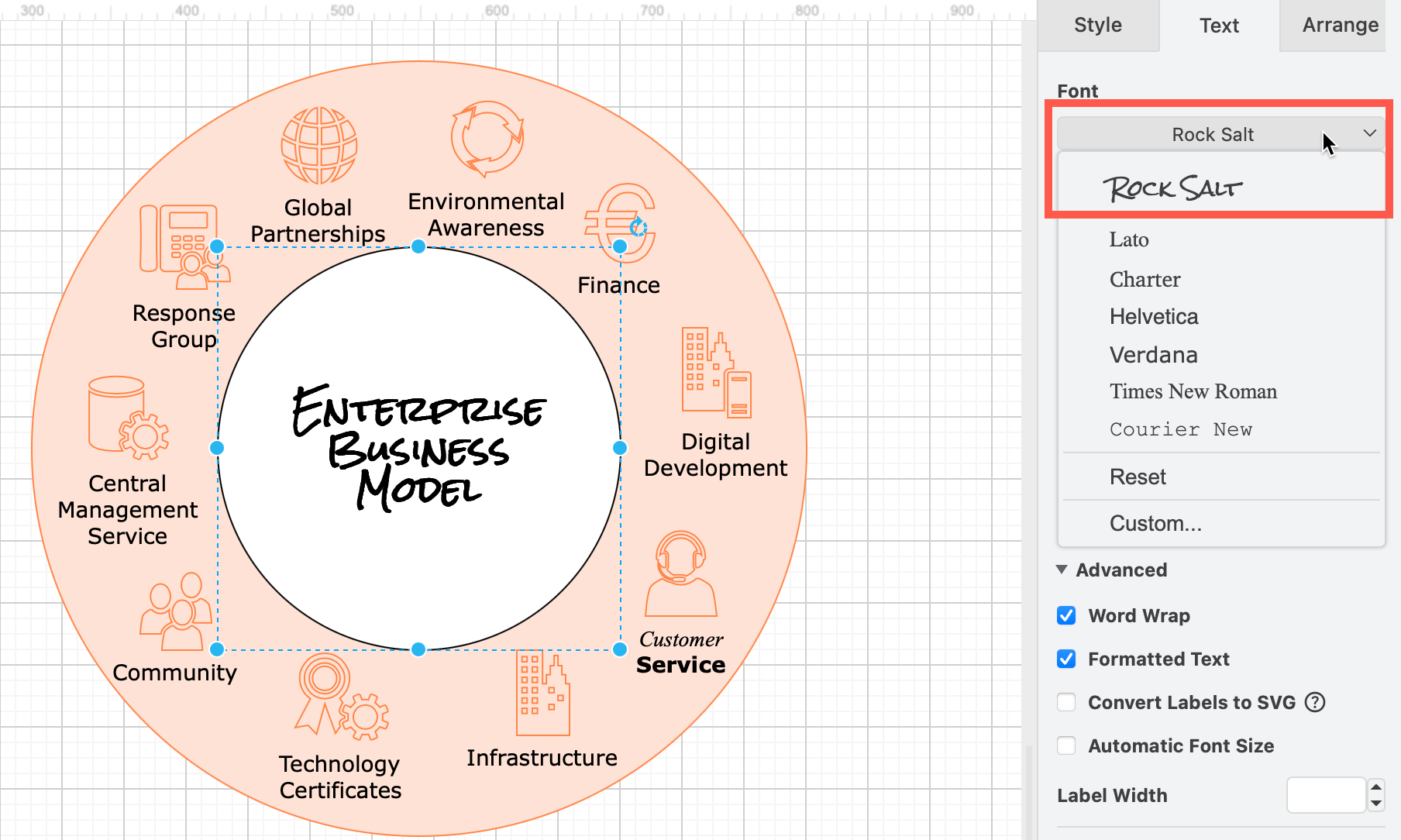
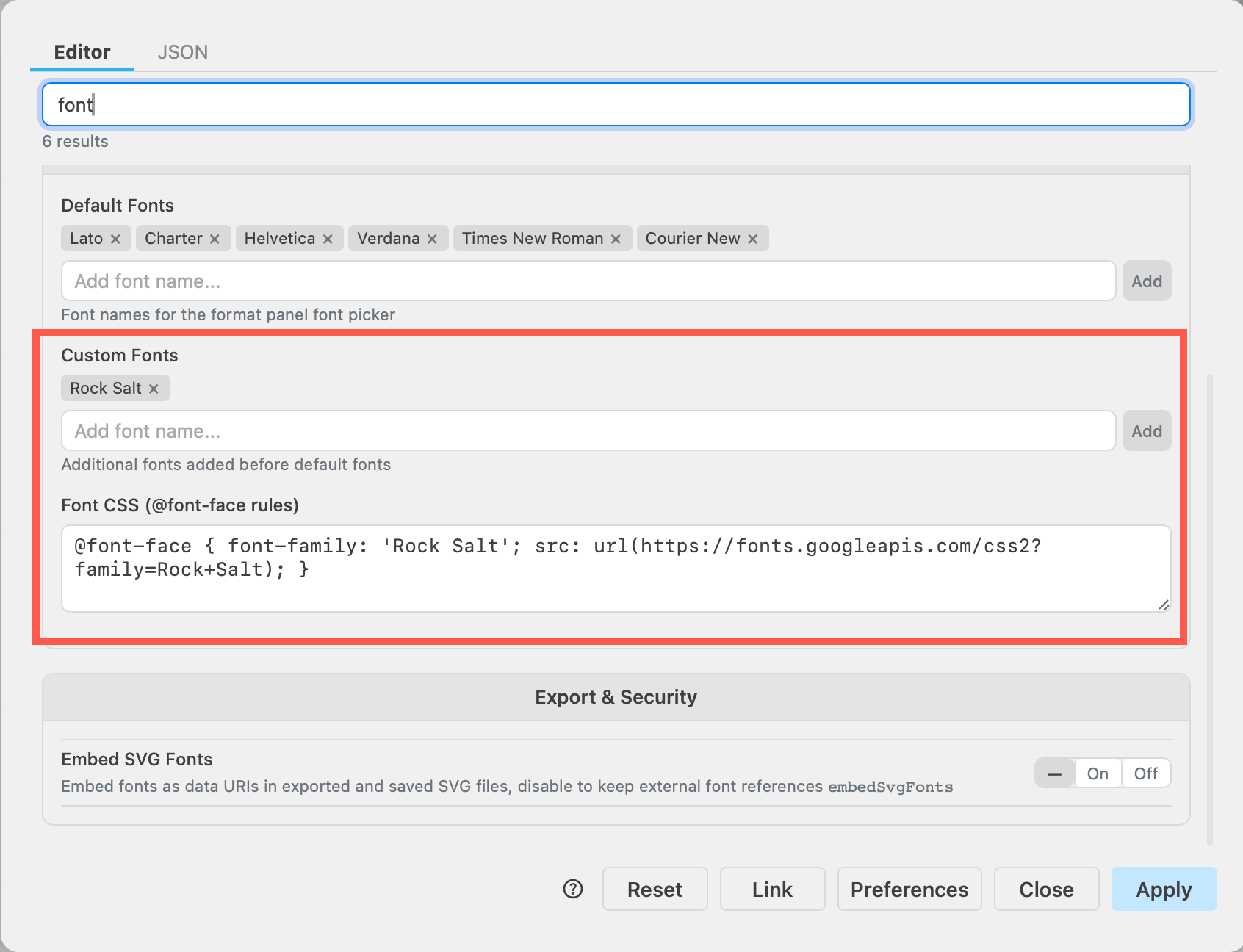
Add font names to the Default Fonts list, pressing enter or clicking Add after each name to change the list of fonts available in the font selection list in the Text tab of the format panel.
Custom Fonts will appear above the default fonts. To use a web font, you'll need to add its Font CSS, including the URL where the font file is hosted.
Find integration specific options
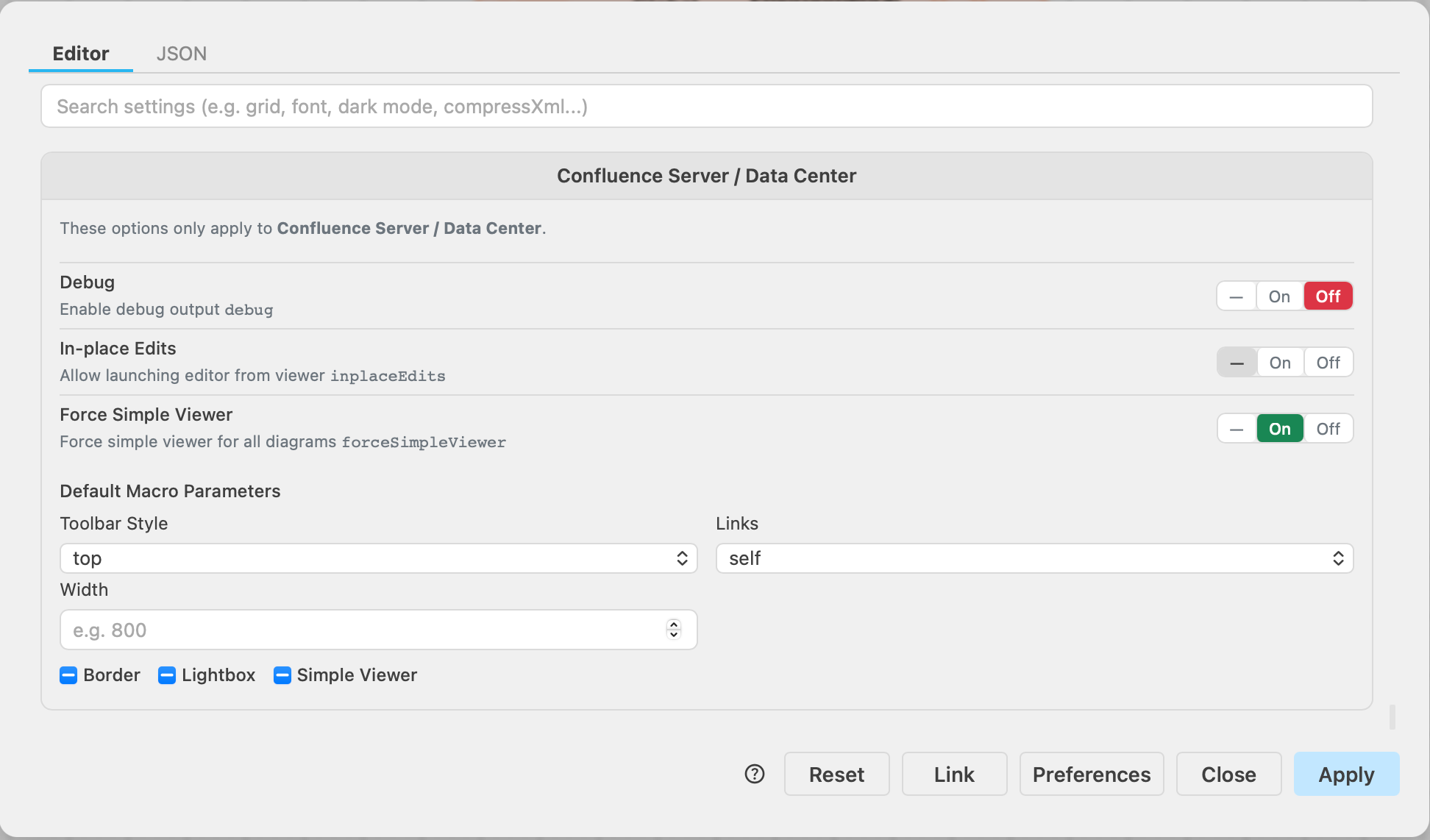
It's also easier to see what configuration options are integration only - for example, the section at the bottom are options for draw.io in Confluence Data Center/Server.
Related
- Learn more about customising the draw.io editor.
- The draw.io apps for Confluence have additional features and configuration options that can be customised by Confluence administrators.