Editable Mermaid diagrams

When you insert Mermaid description of a diagram via Arrange > Insert > Mermaid, it is now rendered with native draw.io shapes inside a Mermaid container group. The Mermaid source is attached to this container group so you can re-edit it and regenerate an updated Mermaid diagram.
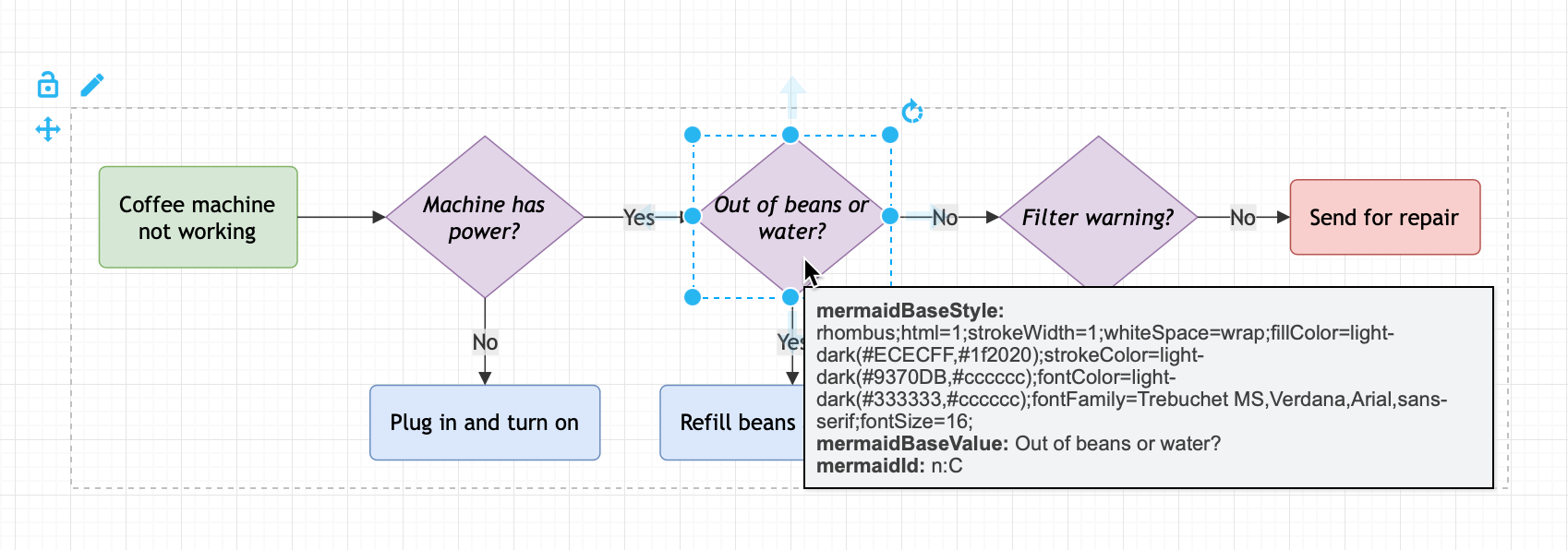
Insert an editable Mermaid diagram
- Click Arrange > Insert > Mermaid. Alternatively, click the
+icon in the toolbar, then select Mermaid.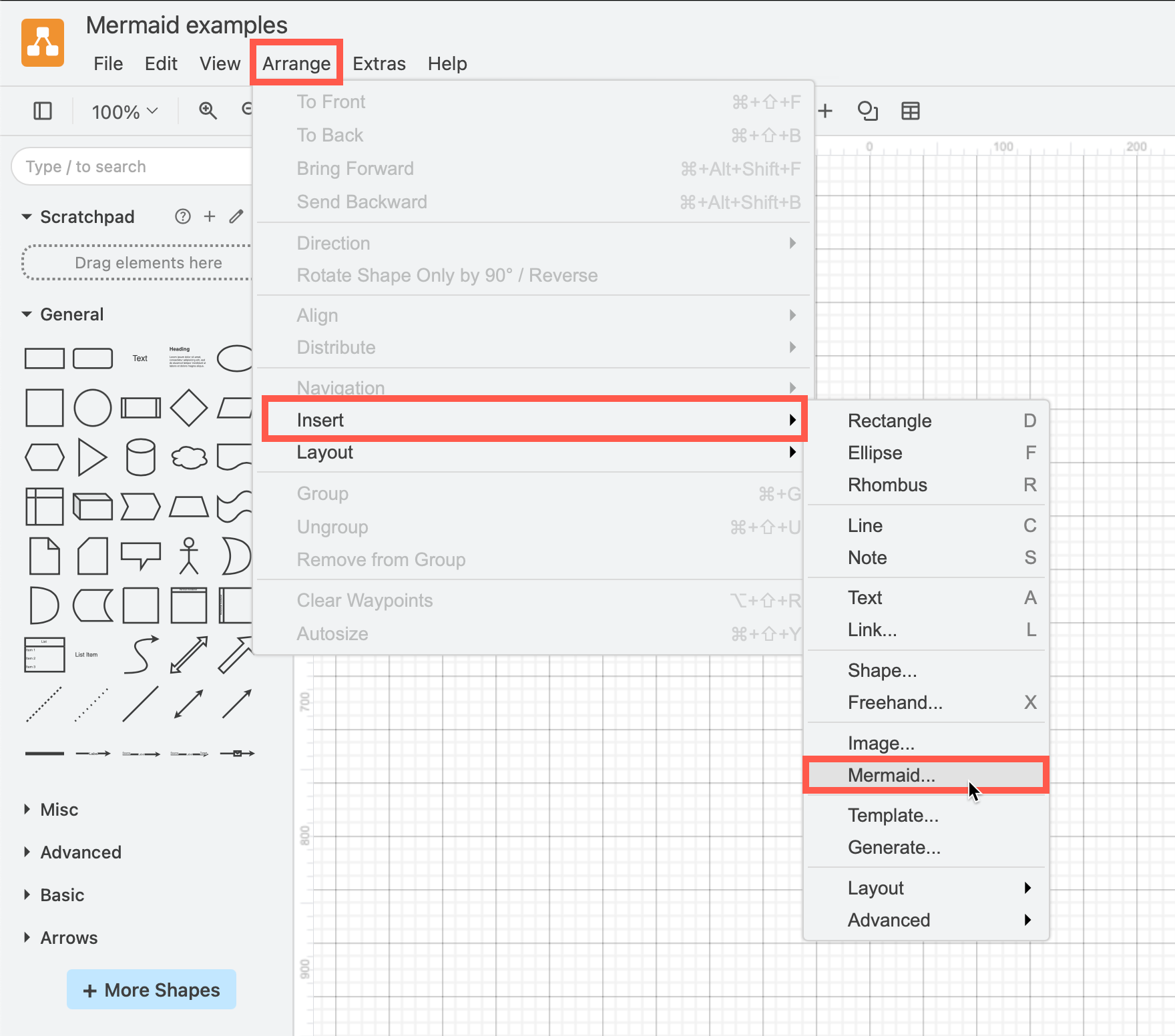
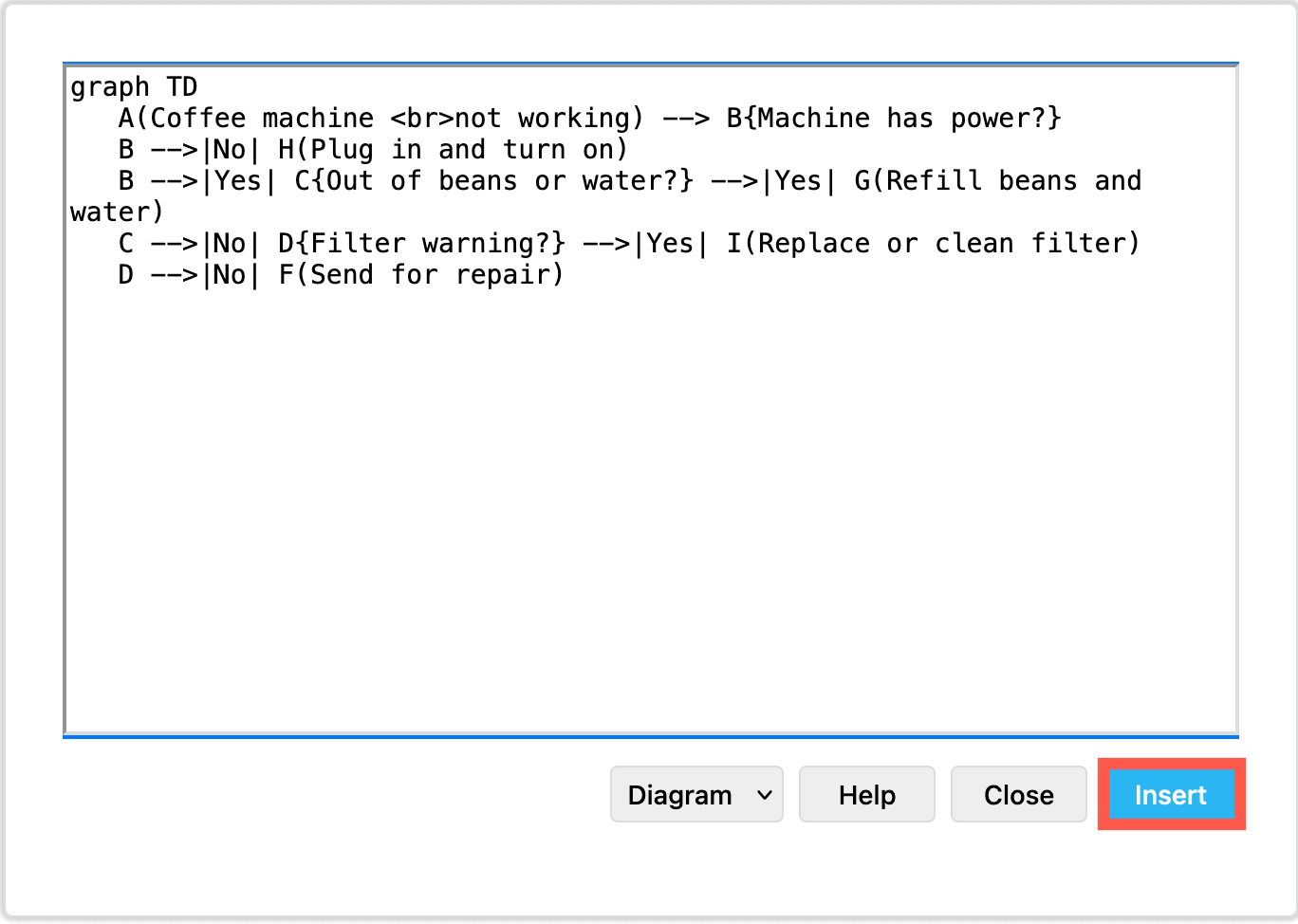
- Paste your text into the text box, then click Insert.
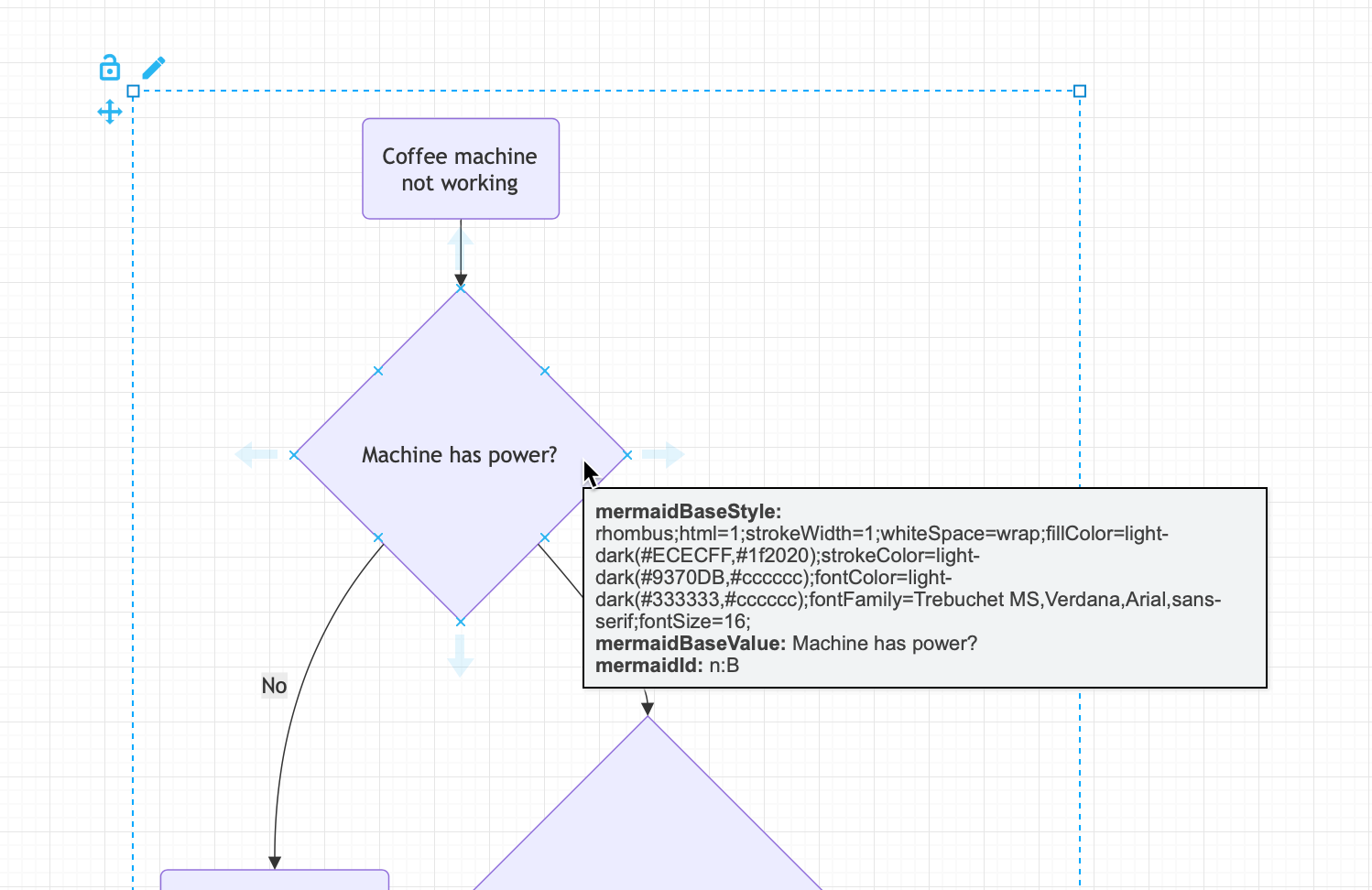
By default using the Diagram option, Mermaid shapes are converted to native draw.io shapes, then automatically laid out in a Mermaid container group. Hover over a shape or connector to see the Mermaid source.
Use the Style tools in the format panel to change fill and line colours and styles, text colours and fonts, and change the labels of the shapes. These edited styles and labels override any Mermaid style information, and will persist over edits to the Mermaid source.
You can also resize and reposition shapes and repath connectors within the Mermaid container group. These changes will be overridden if you edit the source and regenerate the Mermaid diagram.
Edit the Mermaid diagram
Because the Mermaid source is still available, you can edit it and regenerate the diagram.
- Select one of the shapes in the Mermaid container group to see the edit (pen) icon in the top left.
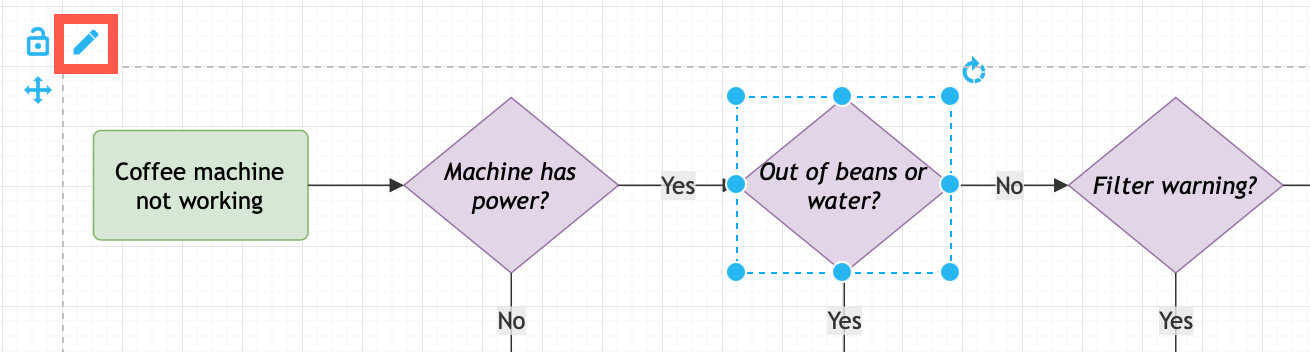
- Click on the edit icon to re-open the Mermaid dialog, make your changes, and click Apply.
Prevent edits: Click on the padlock icon in the top left of the Mermaid container group to lock the Mermaid diagram to prevent style or geometry changes, or alternatively insert the Mermaid diagram as a single uneditable SVG image.
Related
See the Mermaid section in the user manual for more example diagrams using the Mermaid syntax, configuring the layout engine, and for more a detailed example of drawing a mindmap from Mermaid text.