Draw custom polygon shapes

You can use the new polygon shape dialog to draw open or closed polygons quickly and easily by clicking on their perimeter.
To start drawing a new polygon shape, select Arrange > Insert > Polygon from the menu, or + > Polygon from the toolbar.
- Click anywhere on the grid on the left to add a point.
- Click again to add another point and a line will be drawn between them.
- Click a third time to add a third point. This will be connected to both the second and the third point. You need a minimum of three points for a closed polygon.
Continue clicking to add more points. To change the shape of your polygon, you can drag any point to another location in the grid, or click in between two points to add a new point.
No grid: You don't have to work with the grid, if you want to freely position the points in your polygon. Deselect the Grid checkbox.
Open polygon: If you don't want your polygon to be a closed shape, deselect the Close Path checkbox.
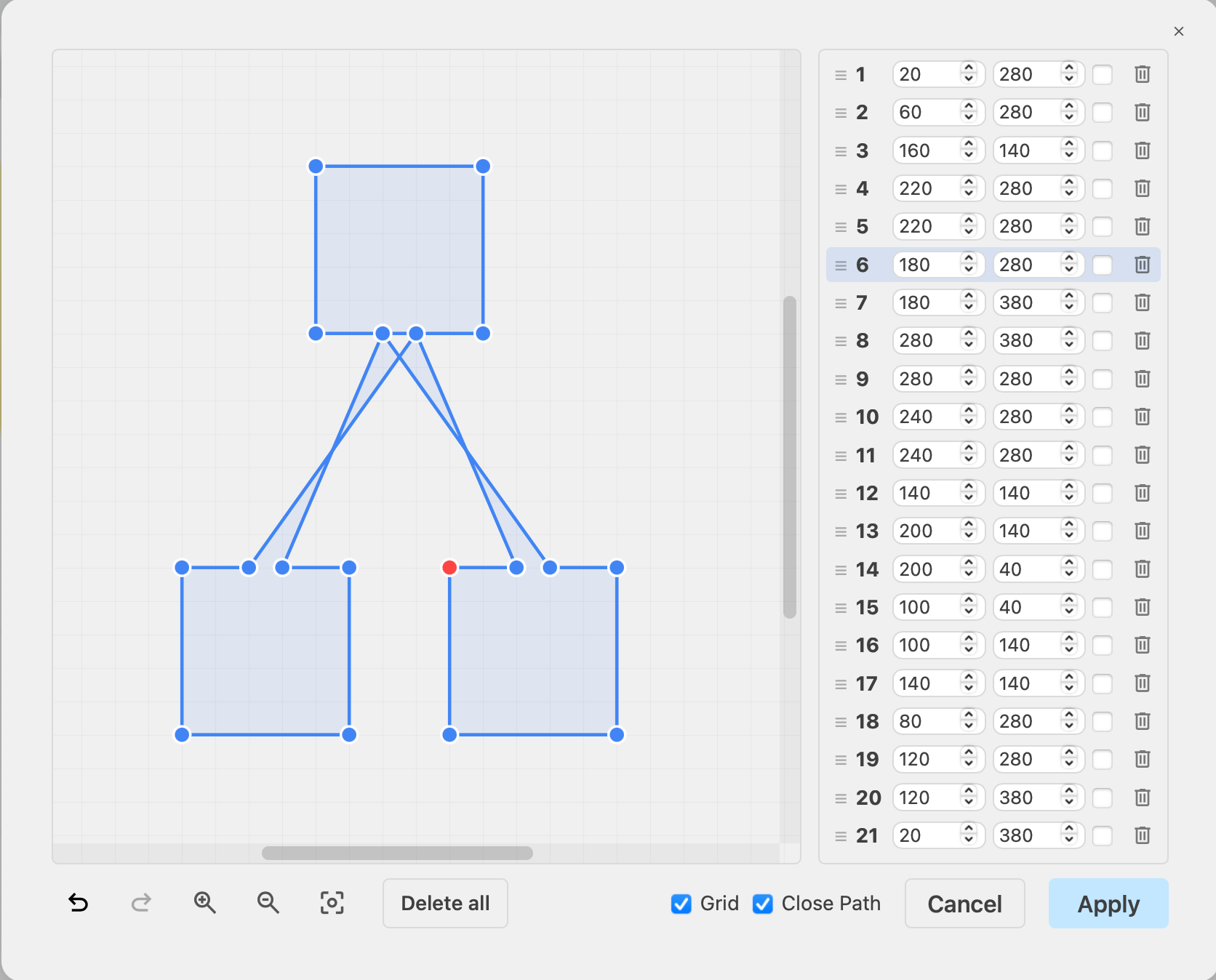
The co-ordinates of each point of the polygon will appear in a list on the right.
- Drag them into a new position in the list using the left horizontal line icon.
- Click on the trash icon to the right of any point to delete it.
- Make the line between two points into an arc by selecting the checkbox next to the co-ordinate. Drag the orange arc points to increase or decrease the curvature.
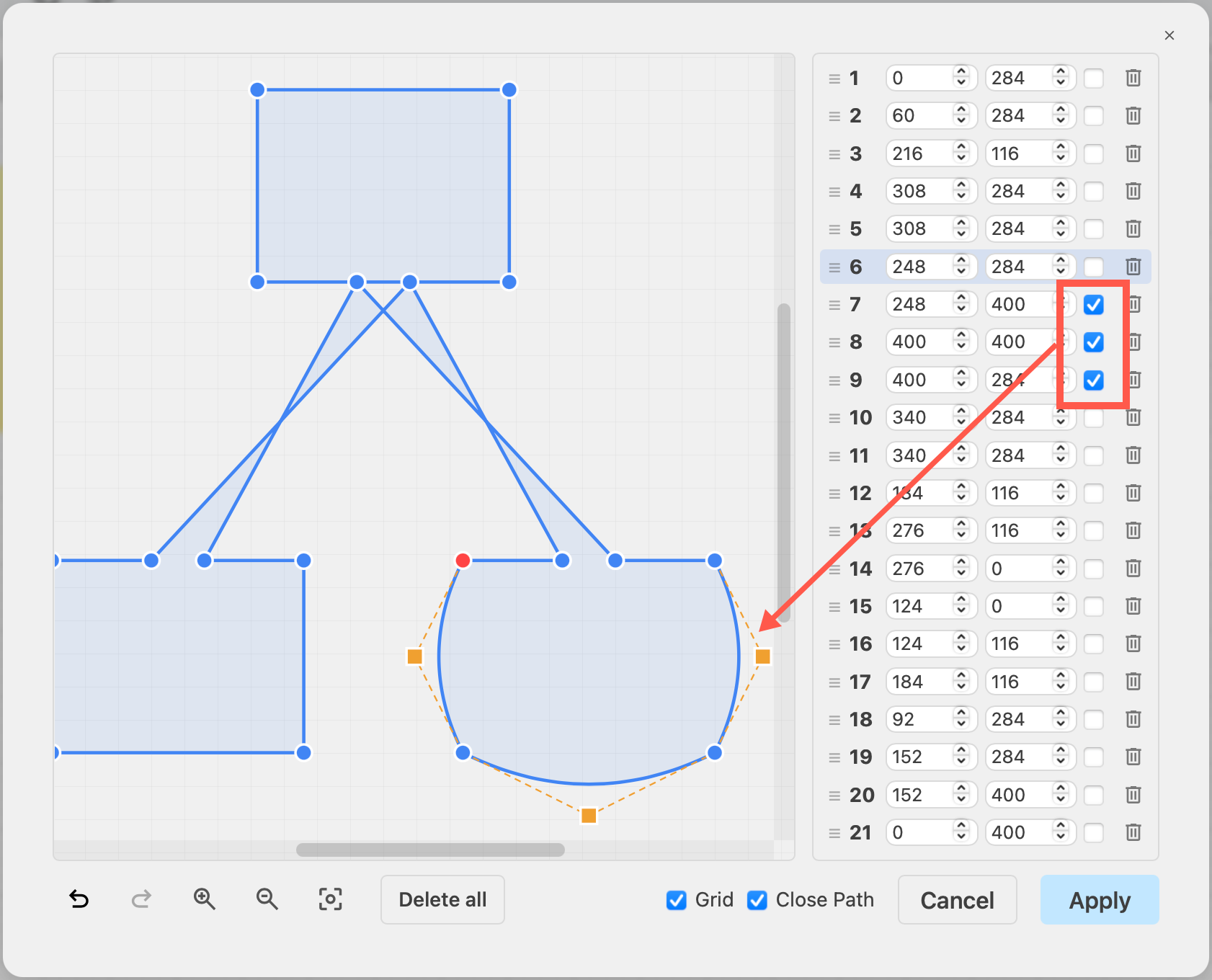
At the bottom left of the dialog, you can Undo and Redo changes, Zoom In and Zoom Out, and start over when you click Delete All
Once you have finished drawing your polygon, click Apply to add it to the drawing canvas.
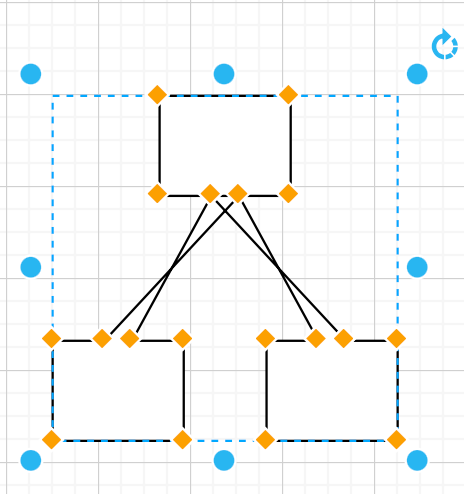
Edit an existing polygon
- Right-click on the polygon shape to open it in the polygon editor. Alternatively, select the polygon, then select Edit > Polygon from the menu. This only works with polygons drawn in this polygon editor.
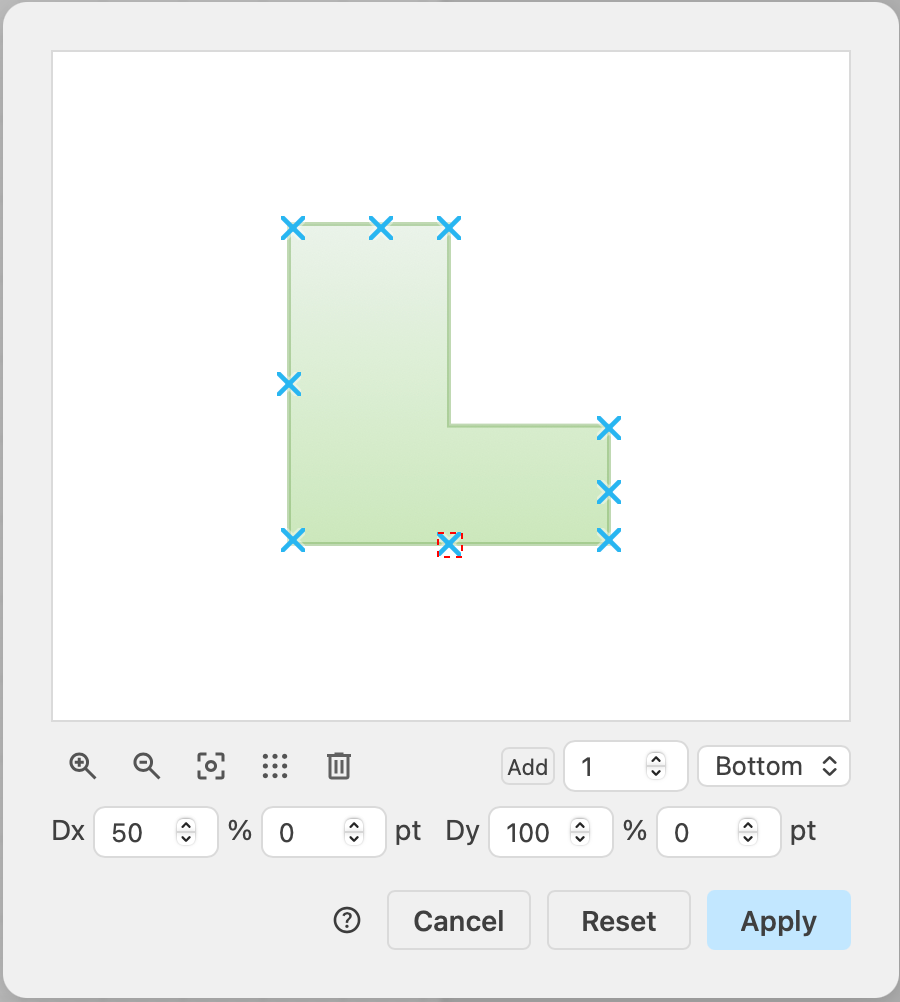
- Right-click on the shape and select Edit Connection Points, or select the shape and choose Edit > Edit Connection Points in the draw.io menu to set custom connection points.
Related
- Learn when it's a good idea to draw a custom polygon and see examples of complex polygon shapes drawn in the polygon editor.
- Style polygon shapes like any other shape via the Style tab in the format panel.