Search for diagrams in Confluence Cloud and Server
You can use the built-in search features to look for draw.io diagrams in Confluence Cloud, as well as Confluence Server and Data Center. In the following examples, you can see a comparison of how Confluence finds draw.io and Gliffy diagrams.
In the following examples, you can see a comparison of how Confluence finds draw.io and Gliffy diagrams based on different types of search terms.
In Confluence Cloud, the name of the diagram file is indexed by the search feature. The text of the labels inside your diagram is indexed too. To find it, use the search box on the draw.io Diagrams page, or filter the Confluence search by type.
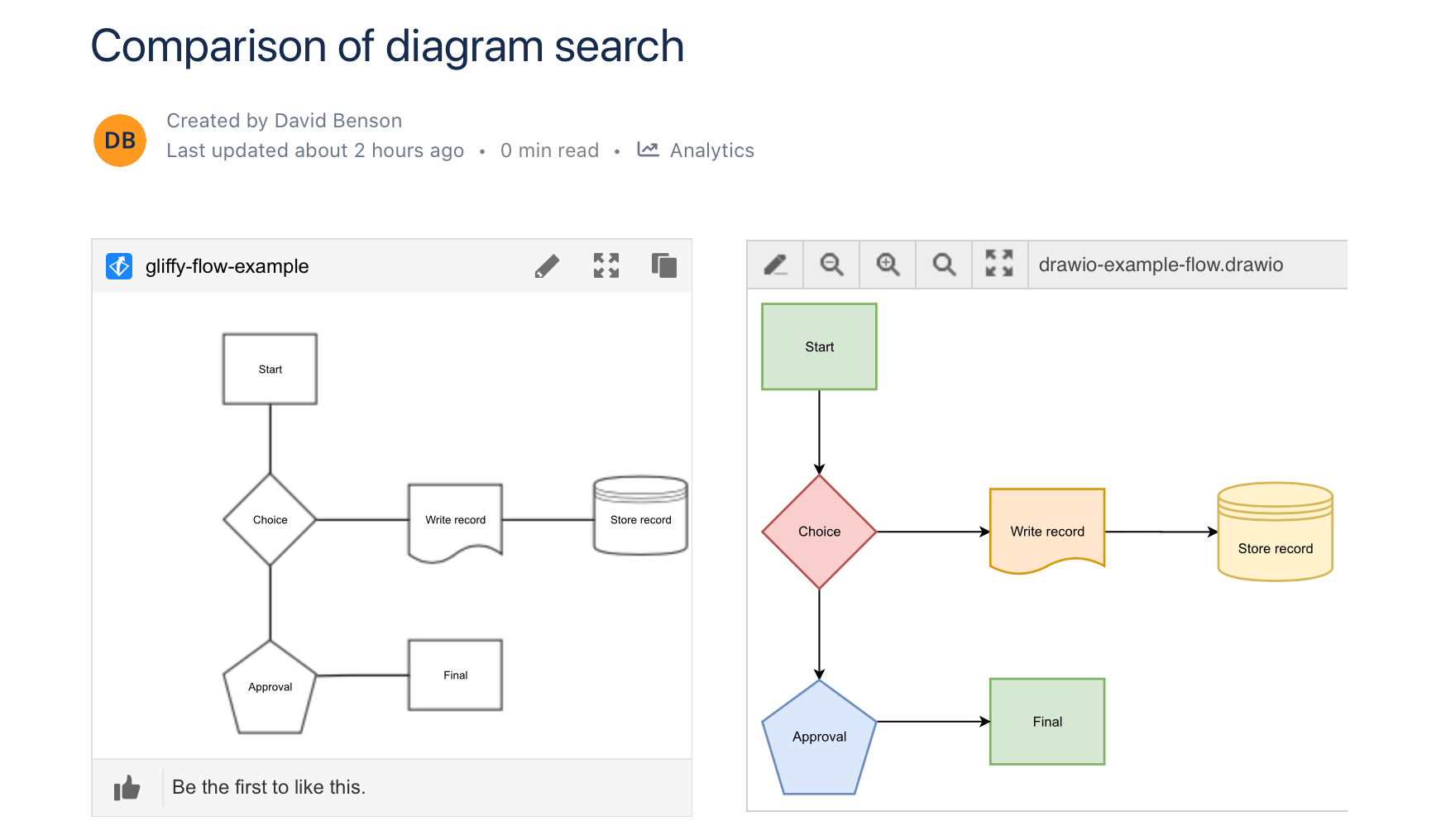
Search for a diagram filename
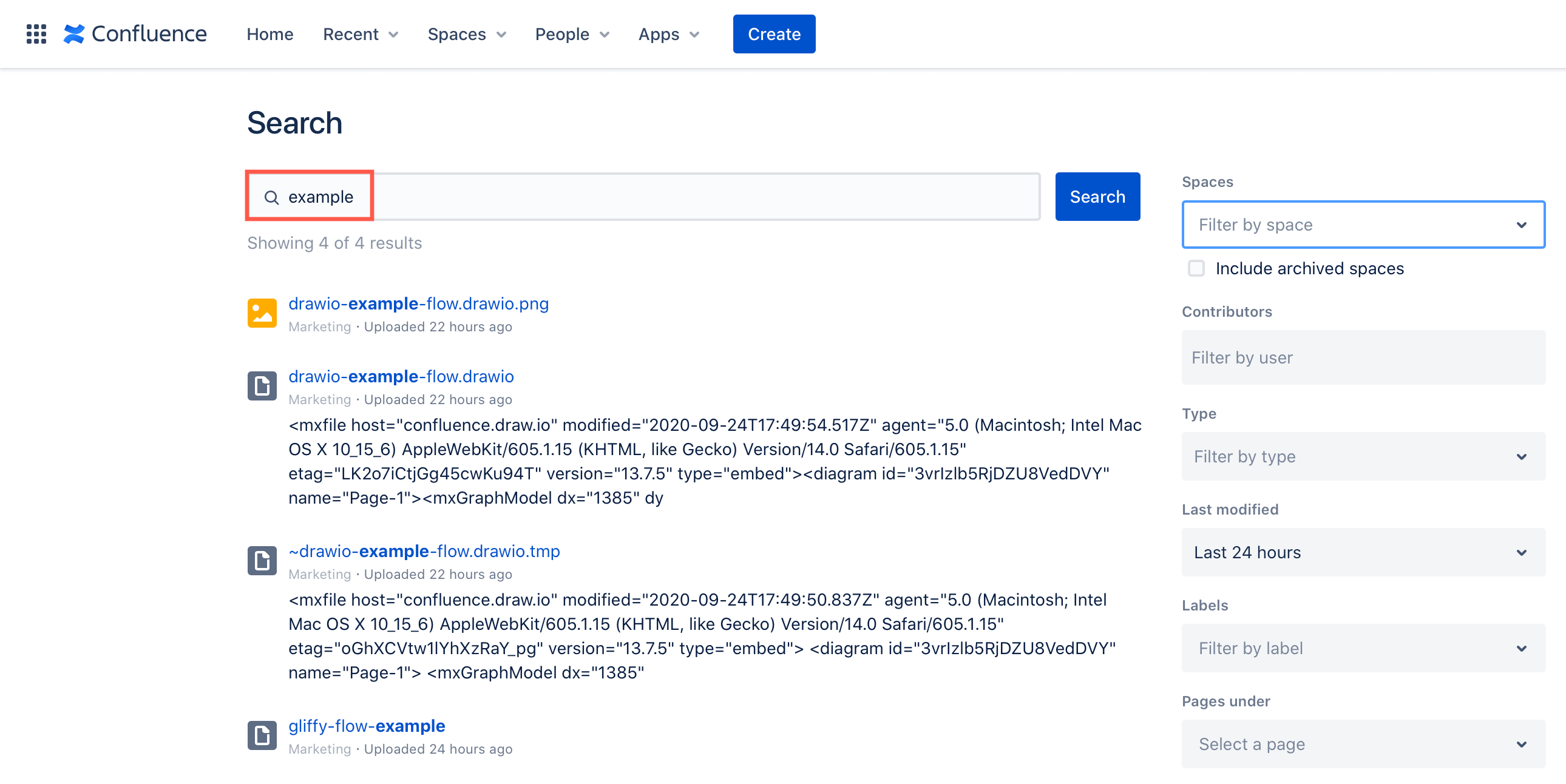
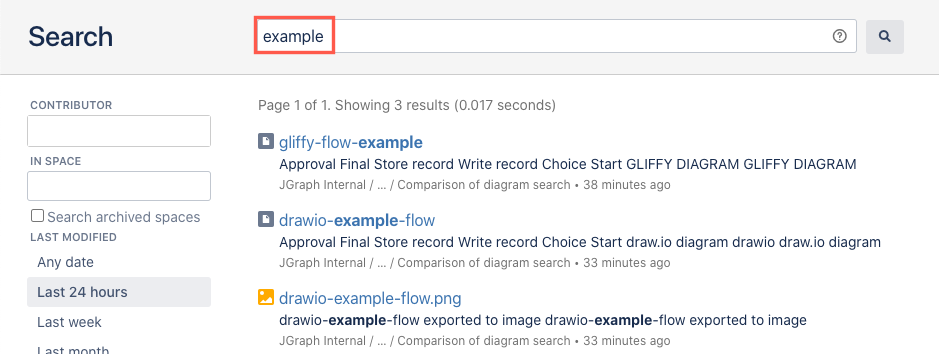
When you search for a diagram's filename, you will see that Confluence Cloud finds your diagram files, the PNG image version that is generated and shown in the page to viewers, as well as the temp save file (needed for collaborative editing).
Searching for a filename will find both draw.io and Gliffy diagrams in Confluence Cloud.
Search for label text
The quickest way to find a word that is used in a shape or connector label is the search box on the draw.io Diagrams page. Open it from Apps in the Confluence sidebar, or from Space apps in a space's sidebar.
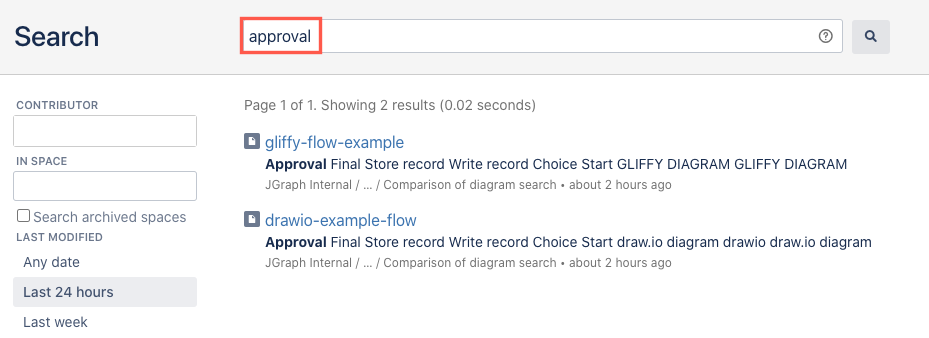
The search box matches the text inside your diagrams as well as their names. The text inside a diagram is the names of its pages and the text of its shape and connector labels. Each result shows the words around the match with the match highlighted, and the Confluence page the diagram is on.
When you open the draw.io Diagrams page from a space, the search covers that space. Tick All Spaces to search every space you have access to.
Use the Confluence search
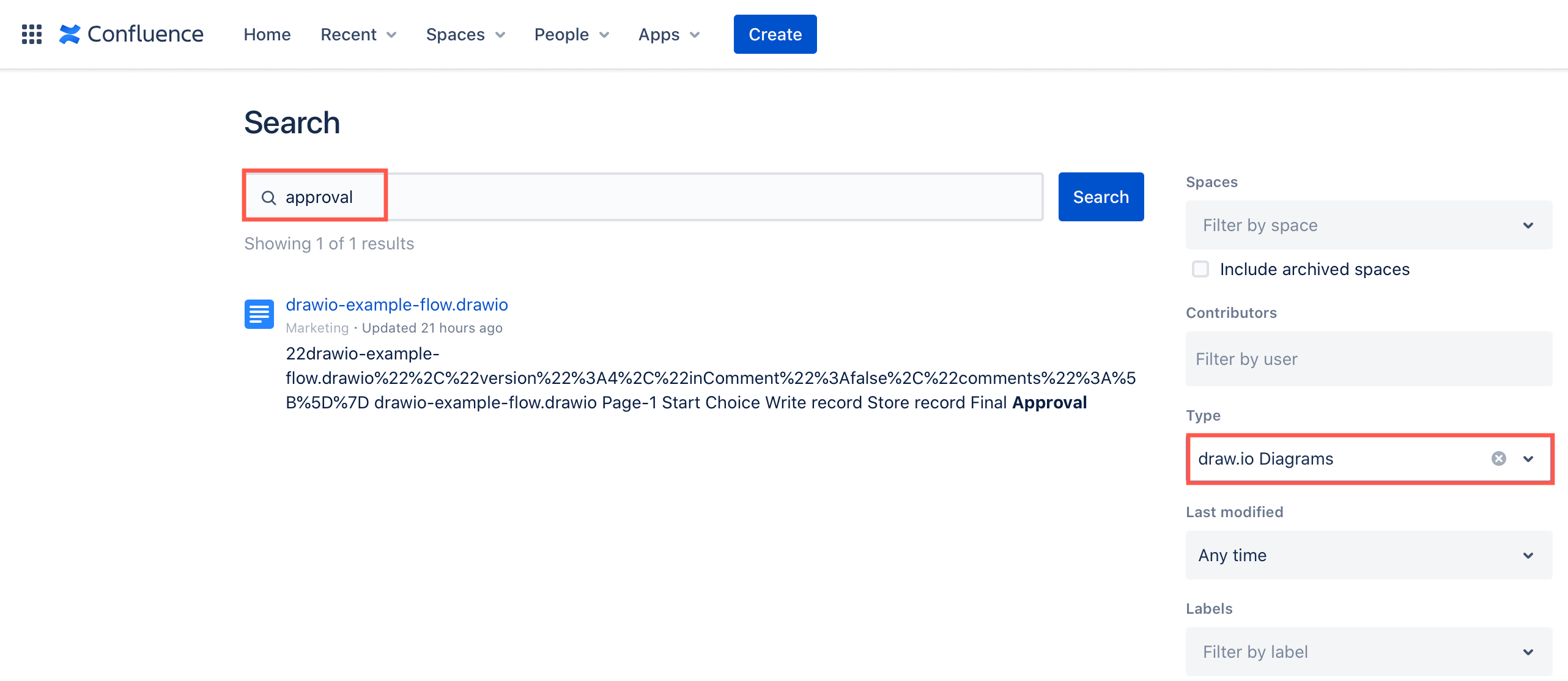
Enter a word or phrase that is used as part of a shape or connector label in the Confluence search bar, then filter the results to draw.io Diagrams in the advanced search.
Confluence Cloud does not index the contents of the diagram file that is attached to the page, so a basic unfiltered search will not return your diagram for a word that is only used inside it.
The Confluence search results do not show where the word is used. The excerpt under each result shows the start of the diagram's text, not the text around the match.
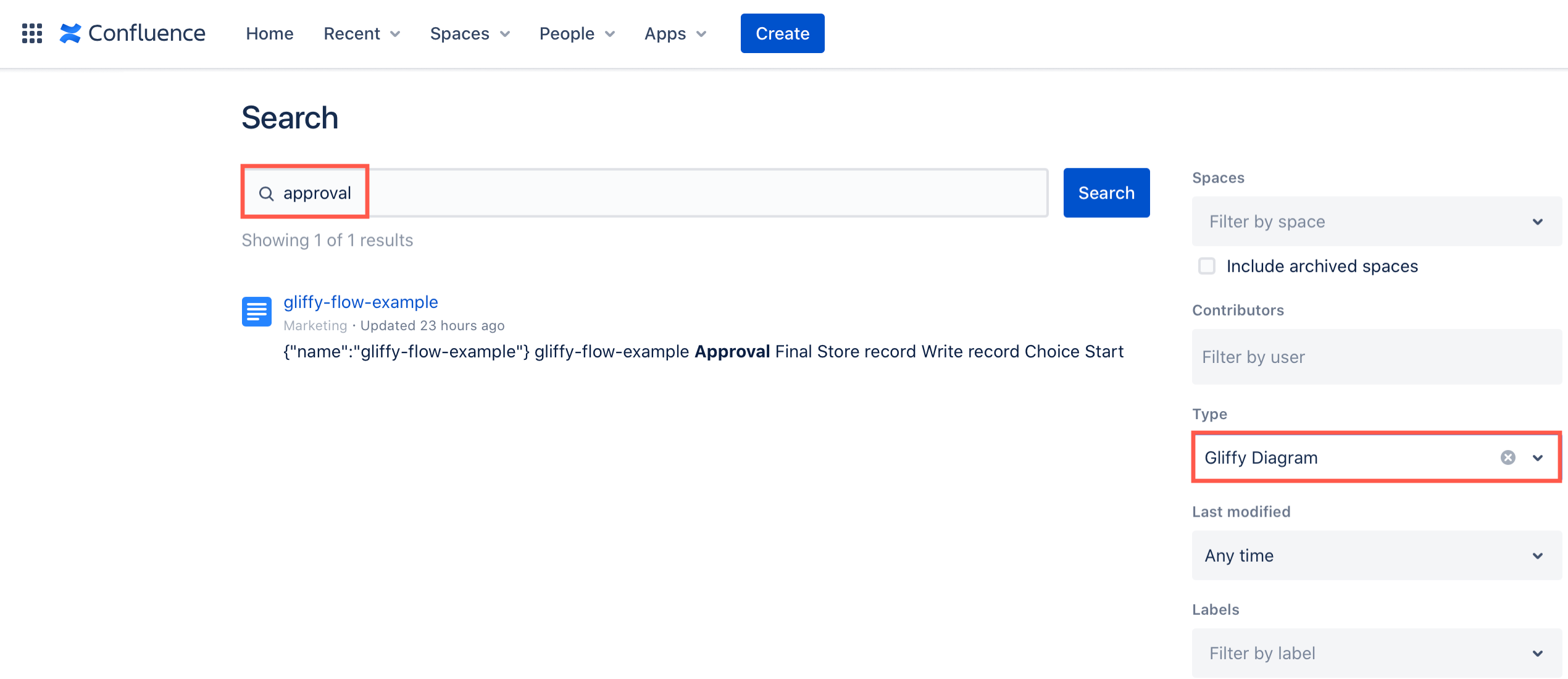
Note: Gliffy diagrams behave the same way. You need to filter the advanced Confluence Cloud search to Gliffy diagrams to find those where your word is used in a label.
Note: Some Confluence Cloud sites now use a newer search page, with a row of tabs for each product across the top. That page does not offer a filter for diagram content types at all, so labels inside diagrams cannot be found from it. Use the search box on the draw.io Diagrams page instead.
| draw.io | Gliffy |
|---|---|
 |  |
Search for the name of a shape
Searching for the name of a shape, such as shape=datastore, is not supported in Confluence Cloud. Shape names are held in the diagram's XML data, and Confluence Cloud does not index the contents of the diagram file that is attached to the page.
Note: This applies to Gliffy diagrams as well. Confluence Cloud does not find Gliffy diagrams based on a shape name either.
Diagram search summary: draw.io vs Gliffy in Confluence Cloud
Filename
- draw.io and Gliffy diagrams - basic and advanced search
Label text
- draw.io - search box on the draw.io Diagrams page, or advanced search
- Gliffy diagrams - advanced search only
Shape name
- draw.io - not searchable by shape names
- Gliffy diagrams - not searchable by shape names
Search for diagrams in Confluence Server and Data Center
In Confluence Server and Data Center, the name of the diagram file as well as the shape labels are indexed by the built-in search feature.
Note: Searching for a shape label is not supported in Confluence Server or Data Center
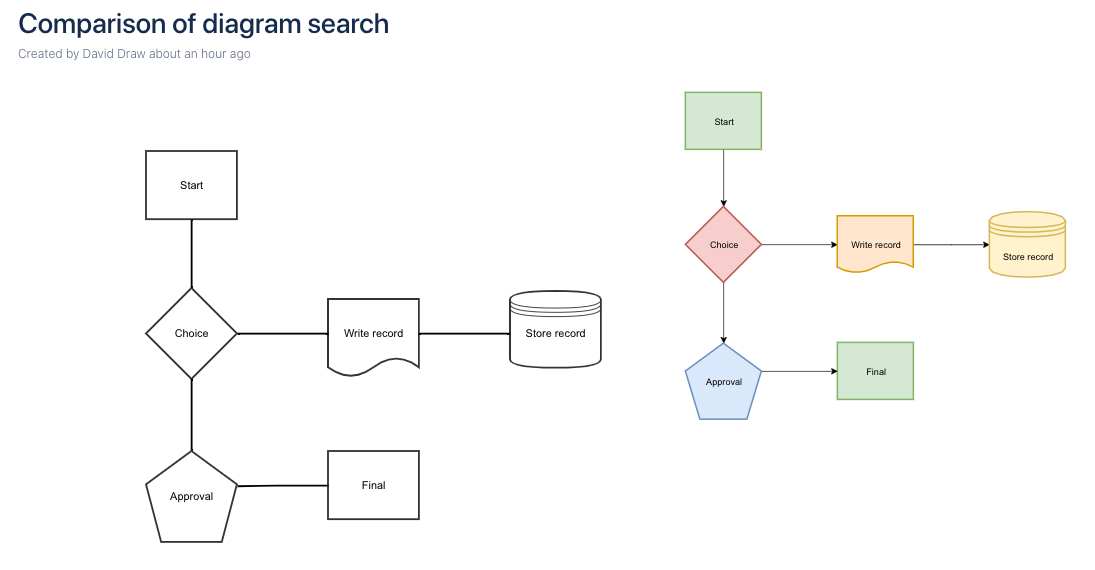
The example above of a Confluence Server page that includes the same diagram as a Gliffy and a draw.io version will return the search results shown below.
When you search for a filename, the Confluence search feature will find both the draw.io diagram file and the PNG image that is shown when you view a Confluence page.
| Filename | Label text |
|---|---|
 |  |