Customise the draw.io editor for all users in Confluence
Administrators can make it easier and faster for their users to use draw.io in Confluence Cloud by providing custom shape libraries, customised colour palettes and custom templates.
Links to detailed documentation
- Configuration reference - for all customisation options in all versions of the draw.io editor
- Set custom colours
- Set custom fonts
- Set custom styles
- Set up custom shape libraries
- Set up custom templates
- Enable diagram generation
Lockdown diagram data
If your organisation gas strict data management requirements, such as those in regulated industries like finance or healthcare, you'll be familiar with Atlassian's data residency settings to keep your data in one particular server region. Configure the draw.io advanced app edition to match this.
- Go to the draw.io app configuration section in your Confluence Cloud settings.
- Add the following JSON string:
"lockdown": trueto the configuration to restrict data transmission to between the browser and your Atlassian storage location.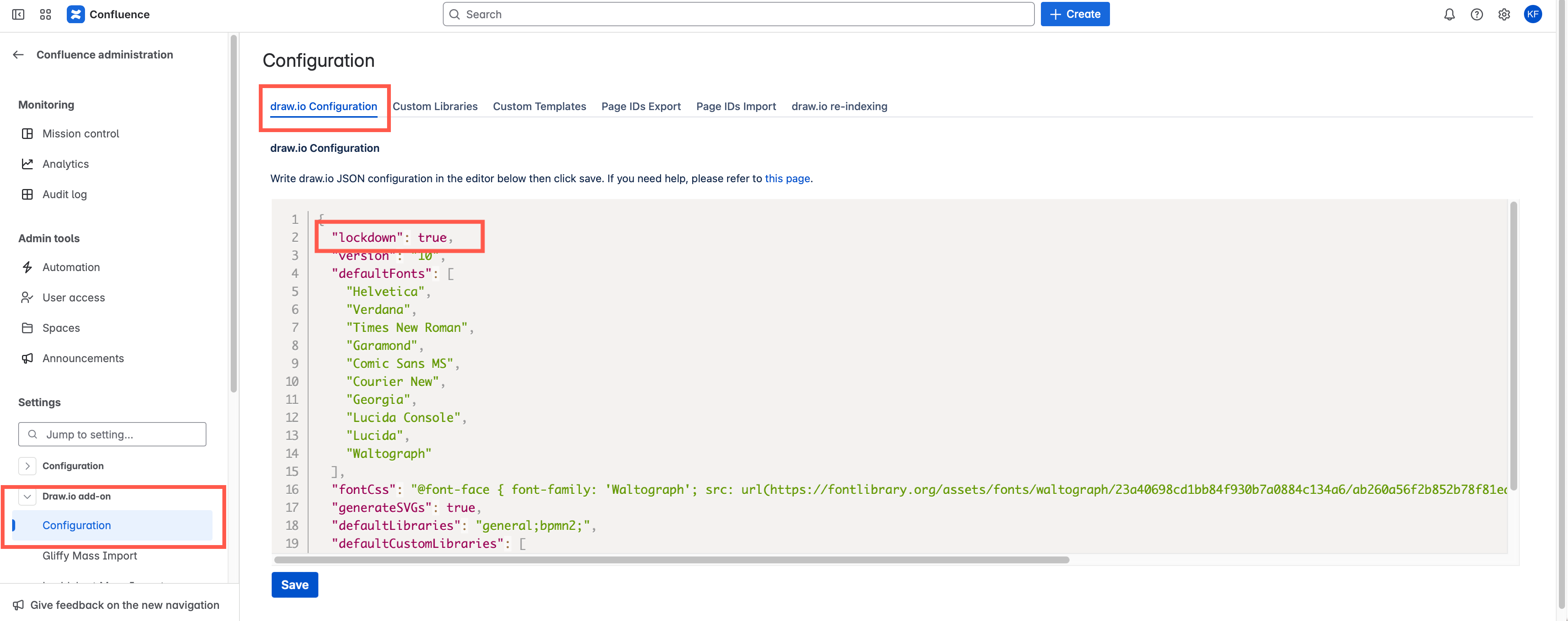
Learn more about data storage and flow of diagram data in draw.io for Confluence and Jira Cloud
Customise draw.io for Confluence Cloud
Confluence Cloud administrators can customise draw.io to make it easier and faster for their users to create diagrams following a consistent style. This is especially useful when they need to use corporate assets, follow corporate style guidelines, or use custom shape libraries and templates.
Enable diagram generation
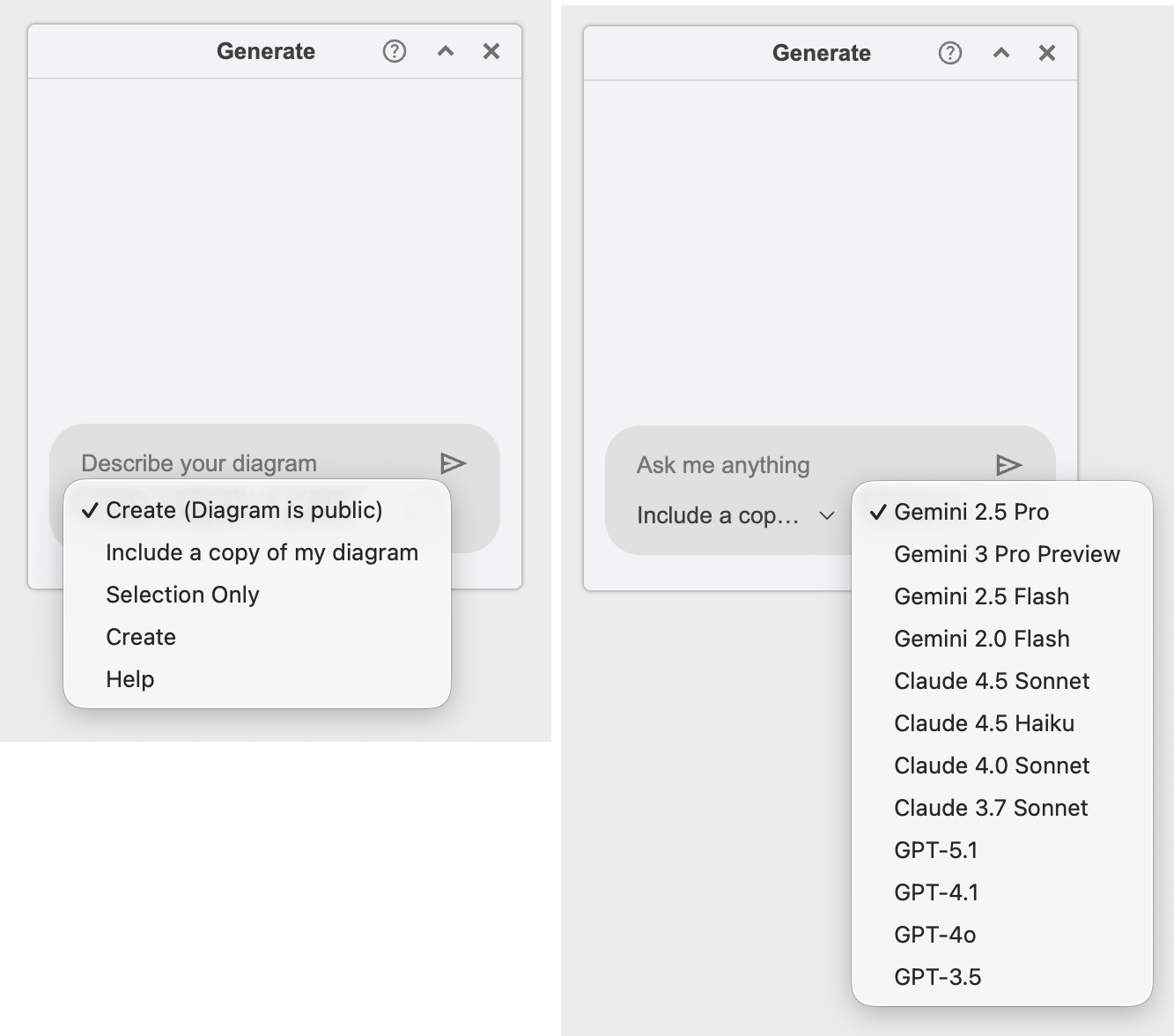
Diagram generation, using a variety of online AI models, is available in draw.io via the menus, in the template manager, via the shape search and the sparkle button (generate tool). The diagram generation features are disabled and hidden in draw.io for Confluence by default.
As an administrator, set "enableAi": true in the draw.io app configuration in your instance's administration settings to allow diagram generation.
Configure custom LLM models, actions and their default instructional prompts, and more via the draw.io configuration.
Set custom styles to match your corporate image
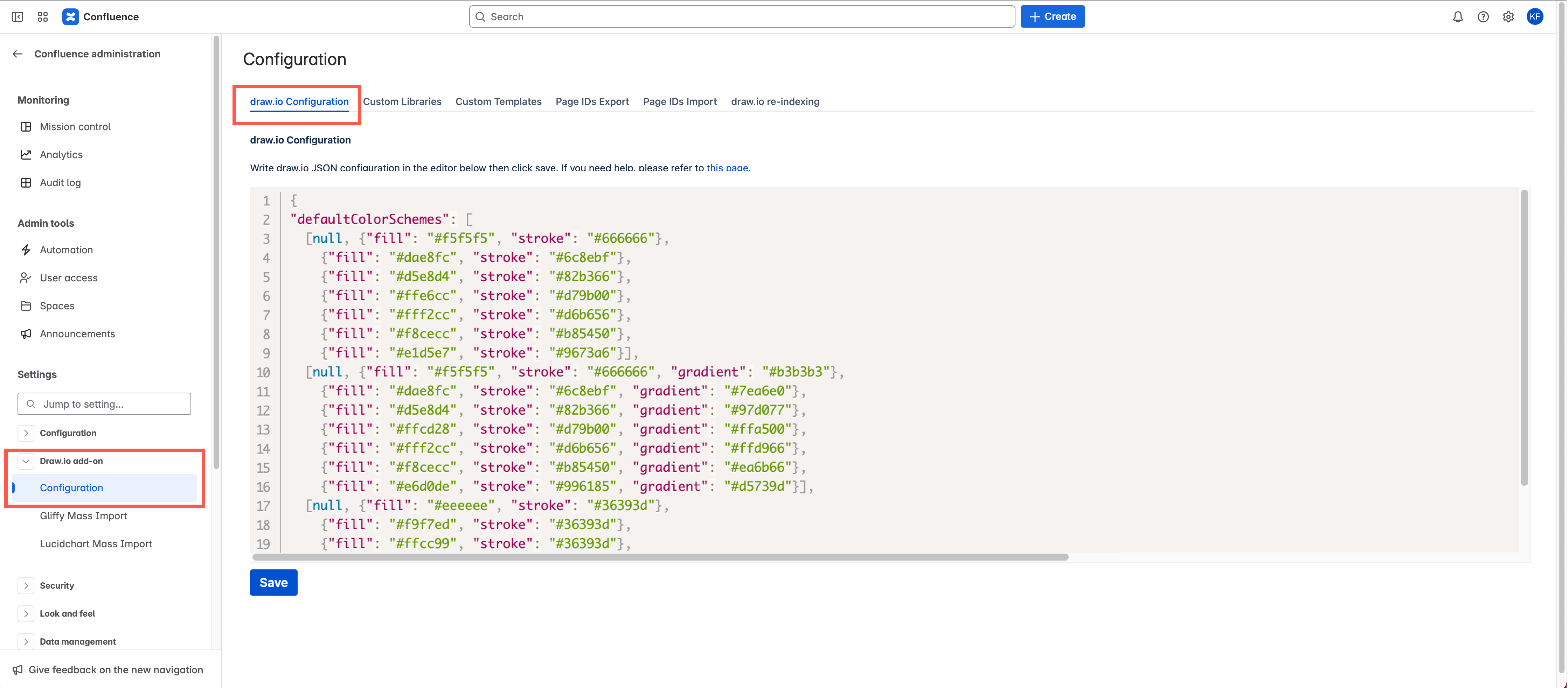
By editing the draw.io JSON configuration code, you can set new default shape and connector styles, colour palettes, and fonts, as well as the colour of the UI.
For detailed steps and examples, see the linked documentation for each feature you want to customise.
Customise the style palette: The style palette is displayed at the top of the format panel on the Style tab.
Customise the colour palettes: The colour palettes are displayed whenever you click on a colour button in the format panel. Customise one or more of the palettes to display your corporate colours.
Customise the font list: The font list appears on the Text tab in the format panel. Set which fonts appear in the draw.io font list by default, add fonts that are hosted on the web (e.g. Google), or add your own custom font file if you need to.
- Open your Confluence Cloud settings.
- Go to the draw.io Configuration in the Atlassian Marketplace section on the left.
- Edit the JSON configuration code in the draw.io Configuration tab.
Provide shapes and corporate assets in custom libraries
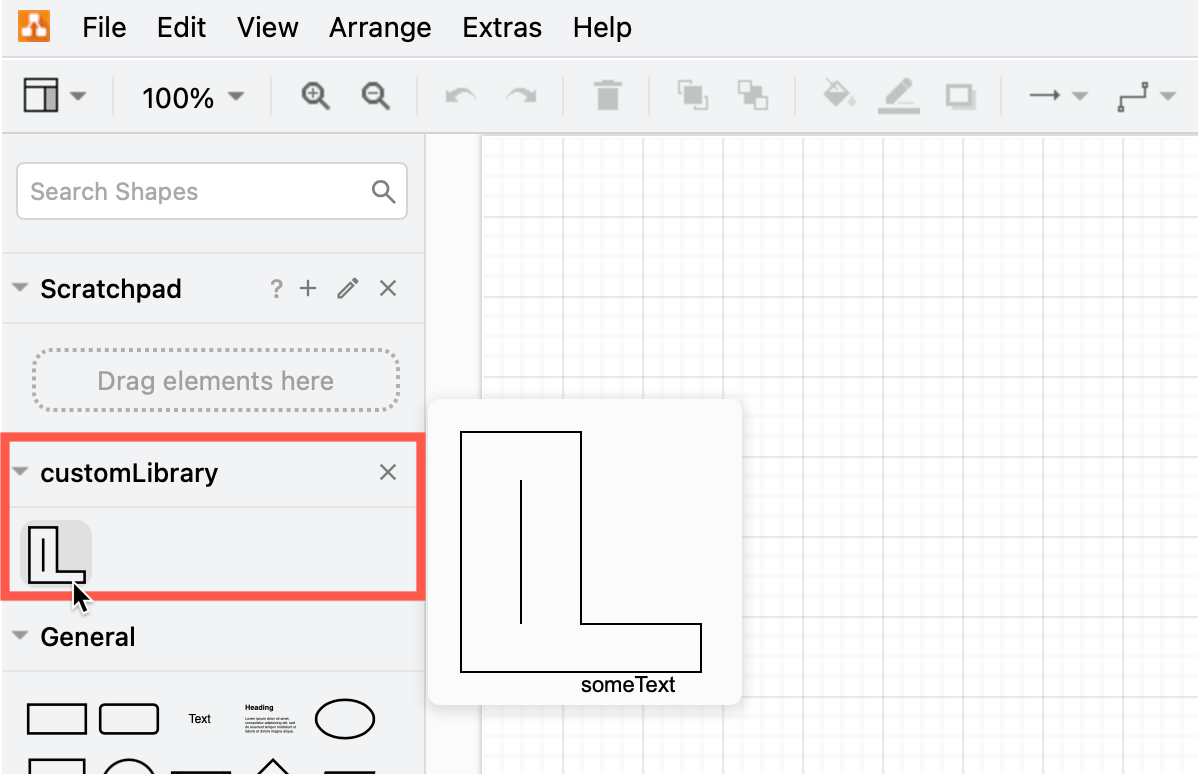
Make a custom shape library available by default: When your users need to add complex or specific shapes to their diagrams, or add images and other corporate assets (like a copyright notice or a logo), you can add a custom shape library to draw.io and make it available by default.
- Add the custom shape libraries via the Custom Libraries tab in the draw.io Configuration section in your Confluence Cloud Settings.
- Set it to open by default for all users by editing the JSON code on the draw.io Configuration tab.
Add custom templates
Custom templates are useful when multiple users need to create a similar set of diagrams, or work from the same foundation. They help users diagram both faster and more consistently in your corporate or departmental styles.
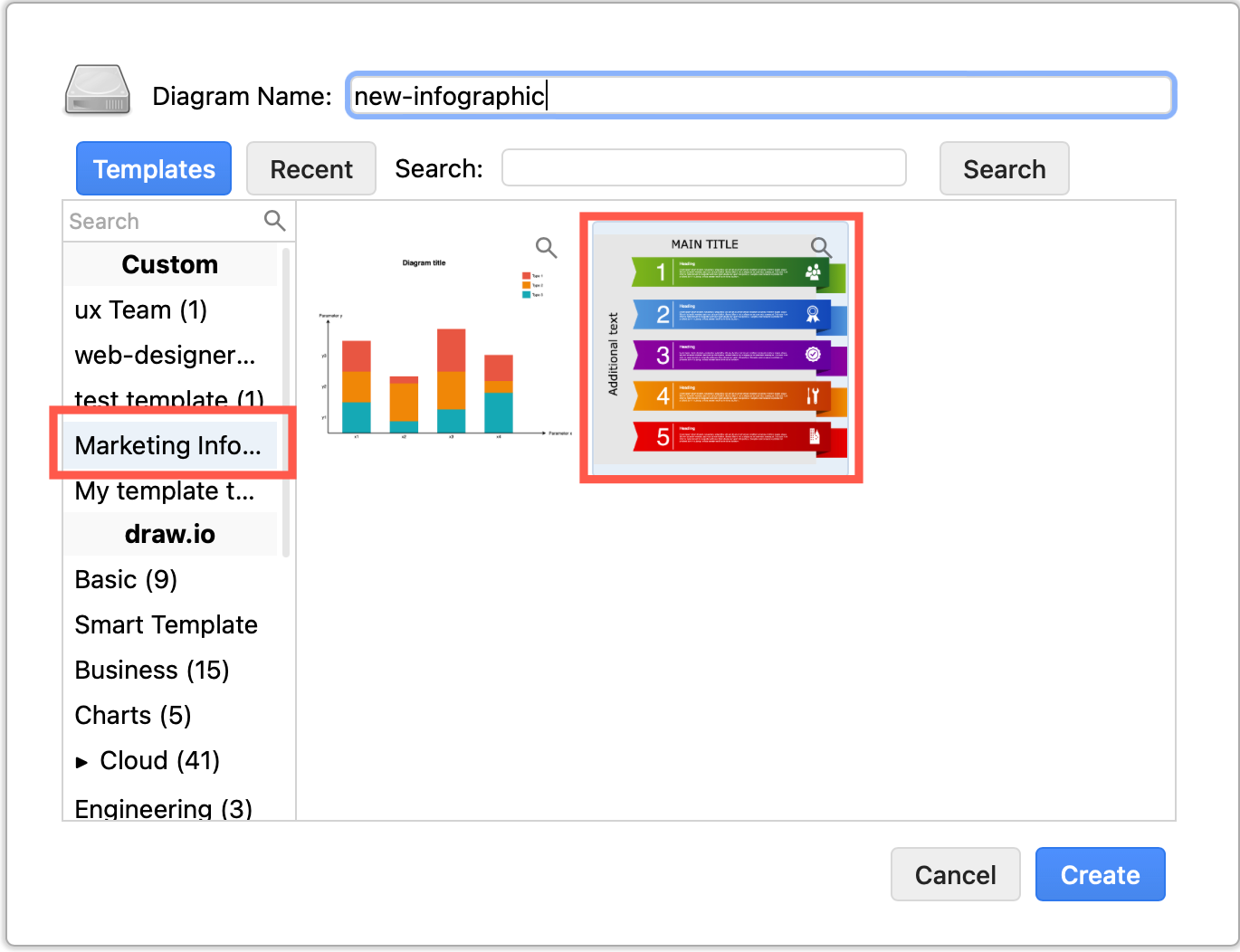
Add and categorise custom draw.io templates: You can custom template categories and diagrams that users will see first when they create a new draw.io diagram.
For example, add your own floorplan template for regularly changing seating arrangements, UML diagram templates for your core application code or databases, network diagram templates, infographic backgrounds, and more.
- Add the custom templates via the Custom Templates tab in the draw.io Configuration section in your Confluence Cloud Settings.
- Add template diagrams to your template category pages.
Set a custom menu colour and default theme
Setting a specific draw.io editor theme to be used by default whenever users create or edit a diagram is done in a similar way.
- Go to the draw.io Configuration tab in the draw.io Configuration section of your Confluence Cloud settings.
- Add the CSS code to customise the background colour of the menu bar.
- Set a default theme: kennedy, atlas, dark or min. For example, users will see an orange menu bar and use the Kennedy theme by default with the following configuration code:
{
  "css": ".geMenubarContainer { background-color: #F08705 !important; } .geMenubar { background-color: #F08705 !important; }“,
  "ui": "kennedy"
}
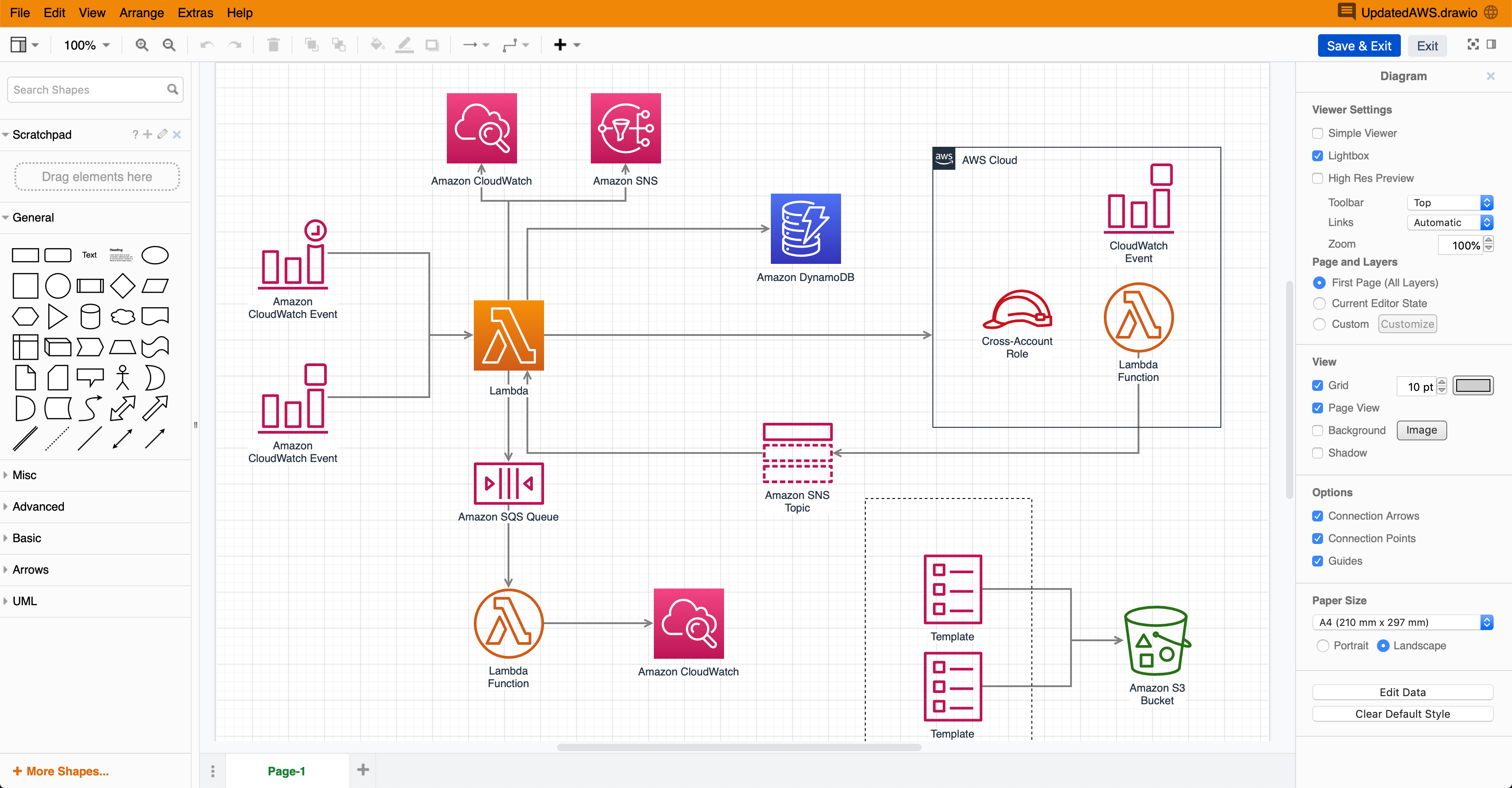
draw.io themes
There are three draw.io editor themes you can set as the default in Confluence Cloud.
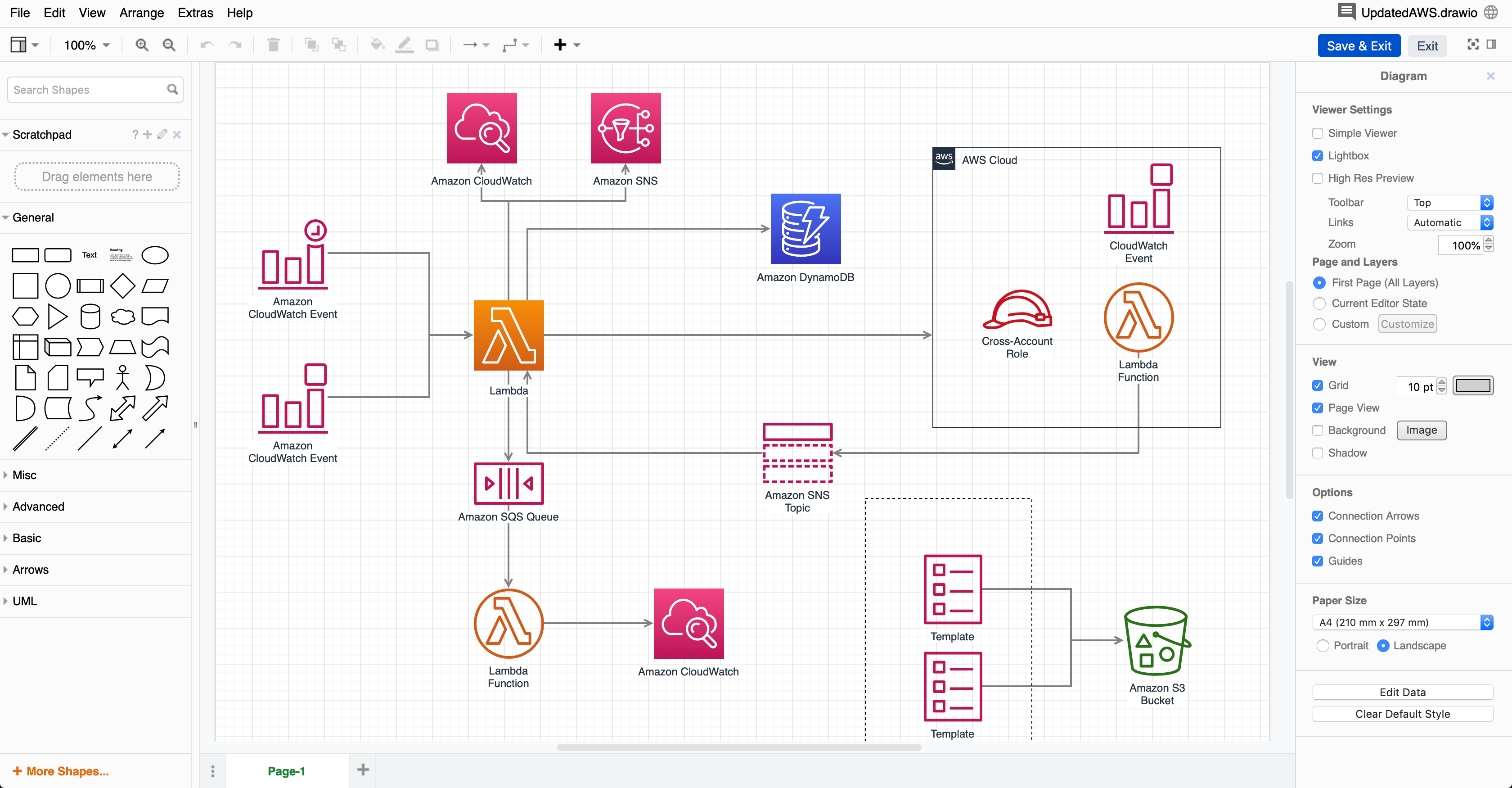
**kennedy:** The Kennedy theme has no draw.io logo to the left of the menu.
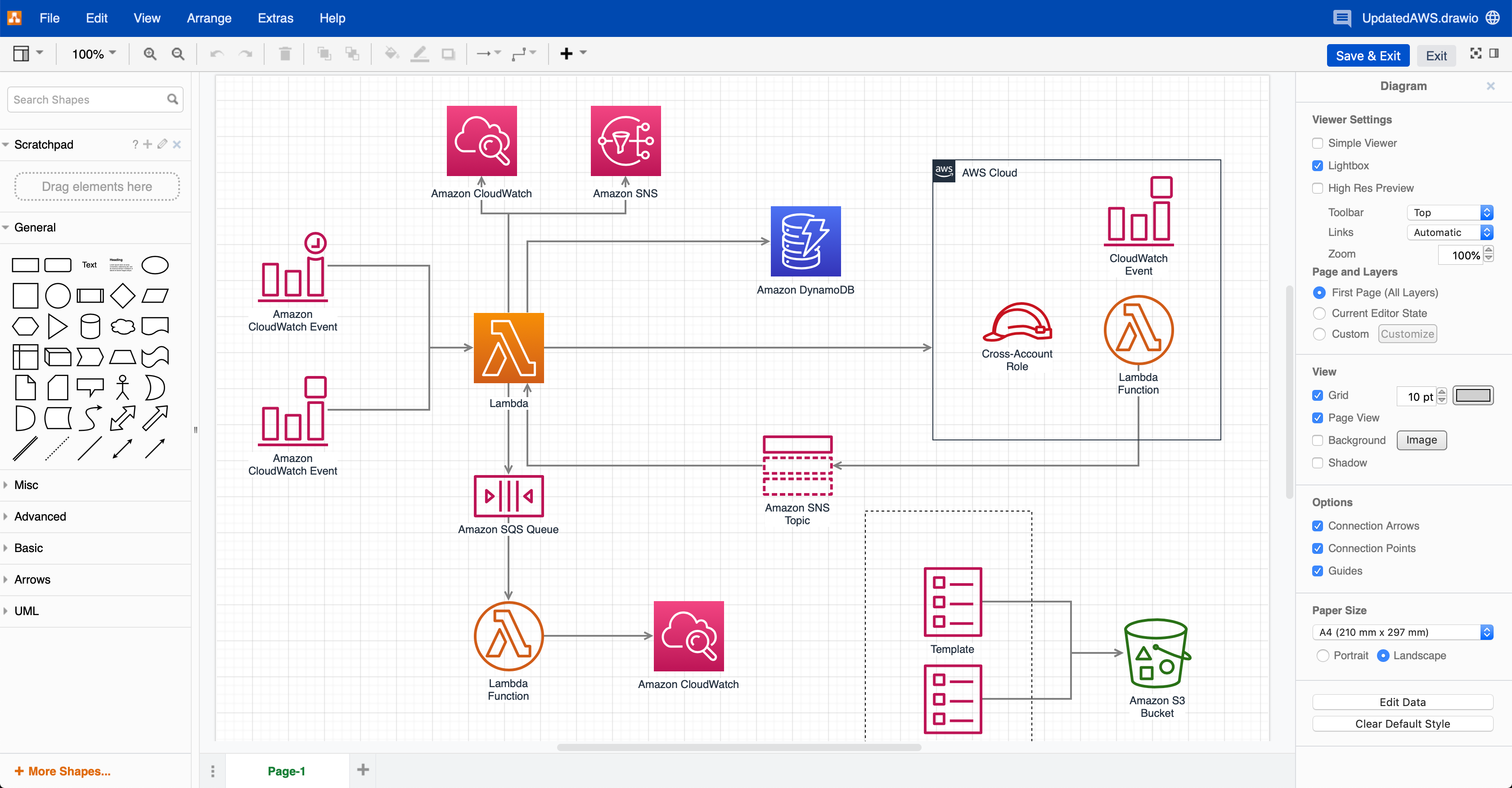
**atlassian:** The default Atlassian theme uses the Atlassian colours and includes the draw.io logo.
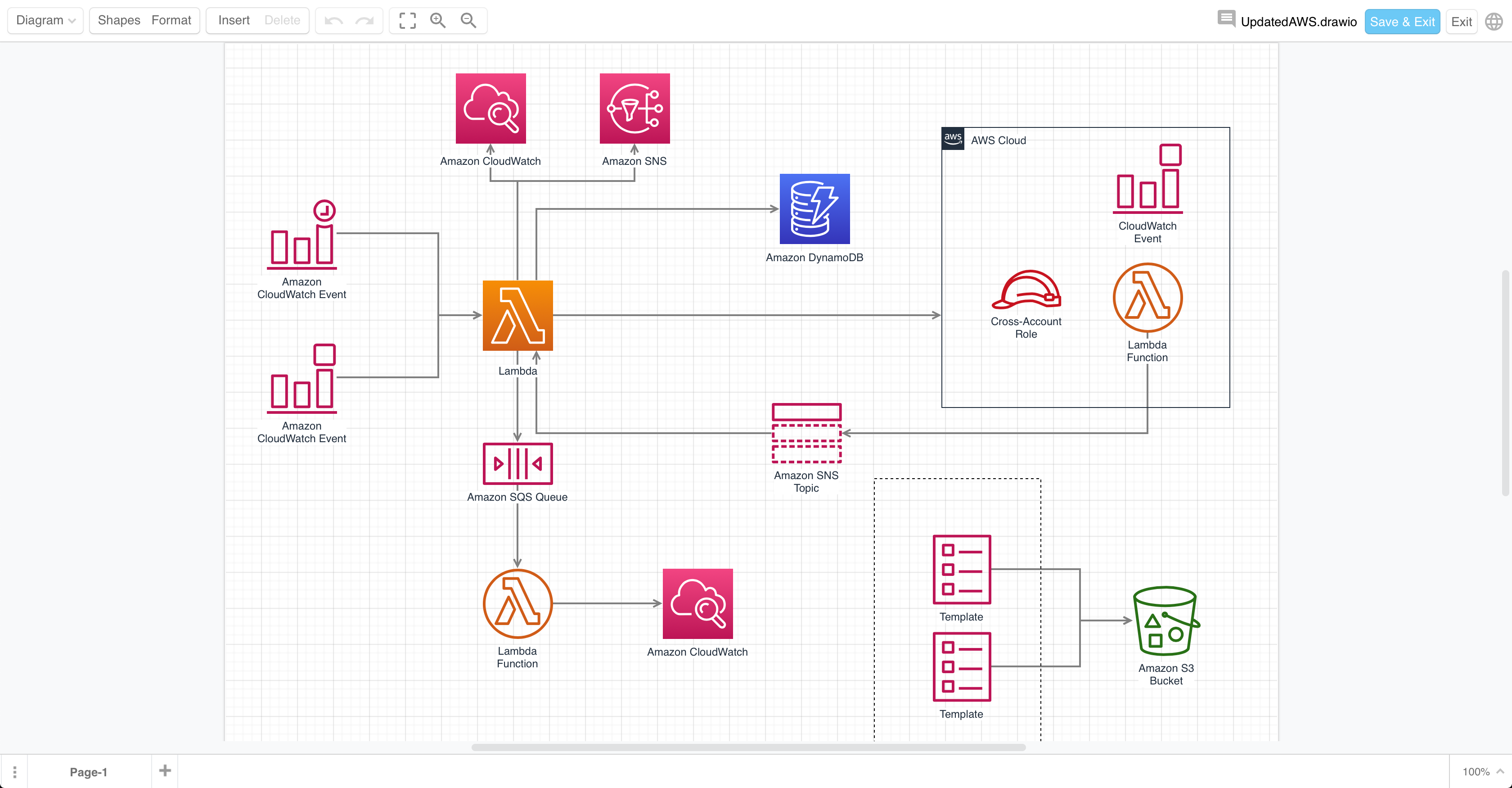
**min:** The Minimal theme shows you a larger drawing canvas and uses floating instead of fixed panels for shape libraries and format settings.
draw.io Board macro
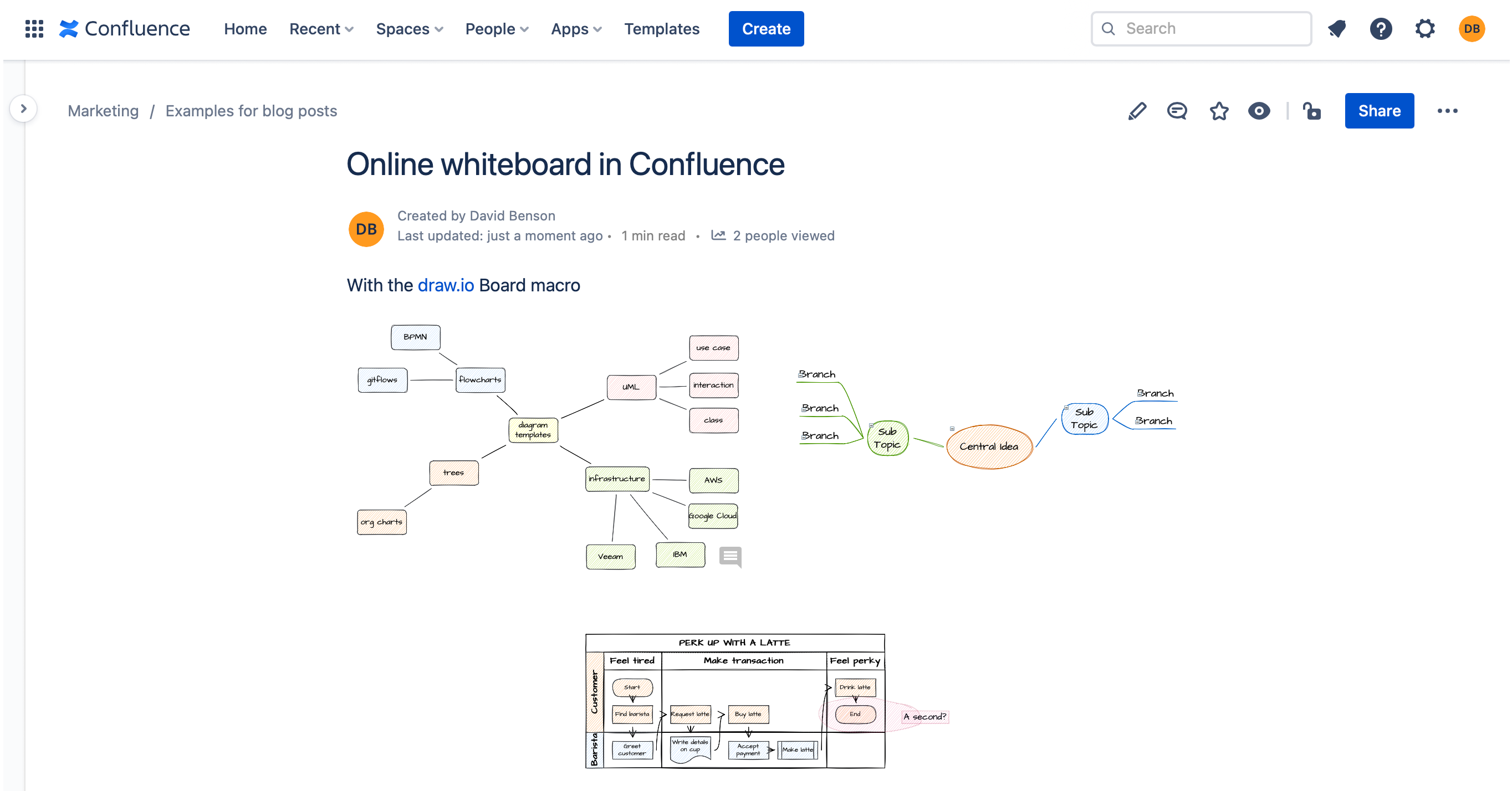
The simpler whiteboard-like editor theme (Sketch) is used by default in the draw.io Board macro.
Note: Dark mode with adaptive colours now works for all of the editor themes.
Confluence Server/Data Center - draw.io configuration
There are some different or additional configuration options for Confluence Data Center/Server.
- Enable Google Drive and Microsoft OneDrive integration.
- Configure a self-hosted Javascript viewer to enable exporting a diagram to HTML.
- Set up custom templates.
- Review all configuration options for draw.io for Server/Data Center.
- Users can change the link behaviour in each draw.io macro, or you can set a different default link behaviour instance wide.
Note: Diagram generation is not available in Confluence Server/Data Center.