Add draw.io to a board, item, dashboard or workspace in monday.com
You can add draw.io Diagrams or draw.io Boards in four places in monday.com. You can add as many as you need. Each place keeps its own diagrams.
Add draw.io to a board
- Open the board.
- Click + next to the views at the top of the board.
- Select draw.io Diagrams or draw.io Boards from the apps.
The view will be added to the board as a new tab. It holds any number of diagrams, each in its own tab.
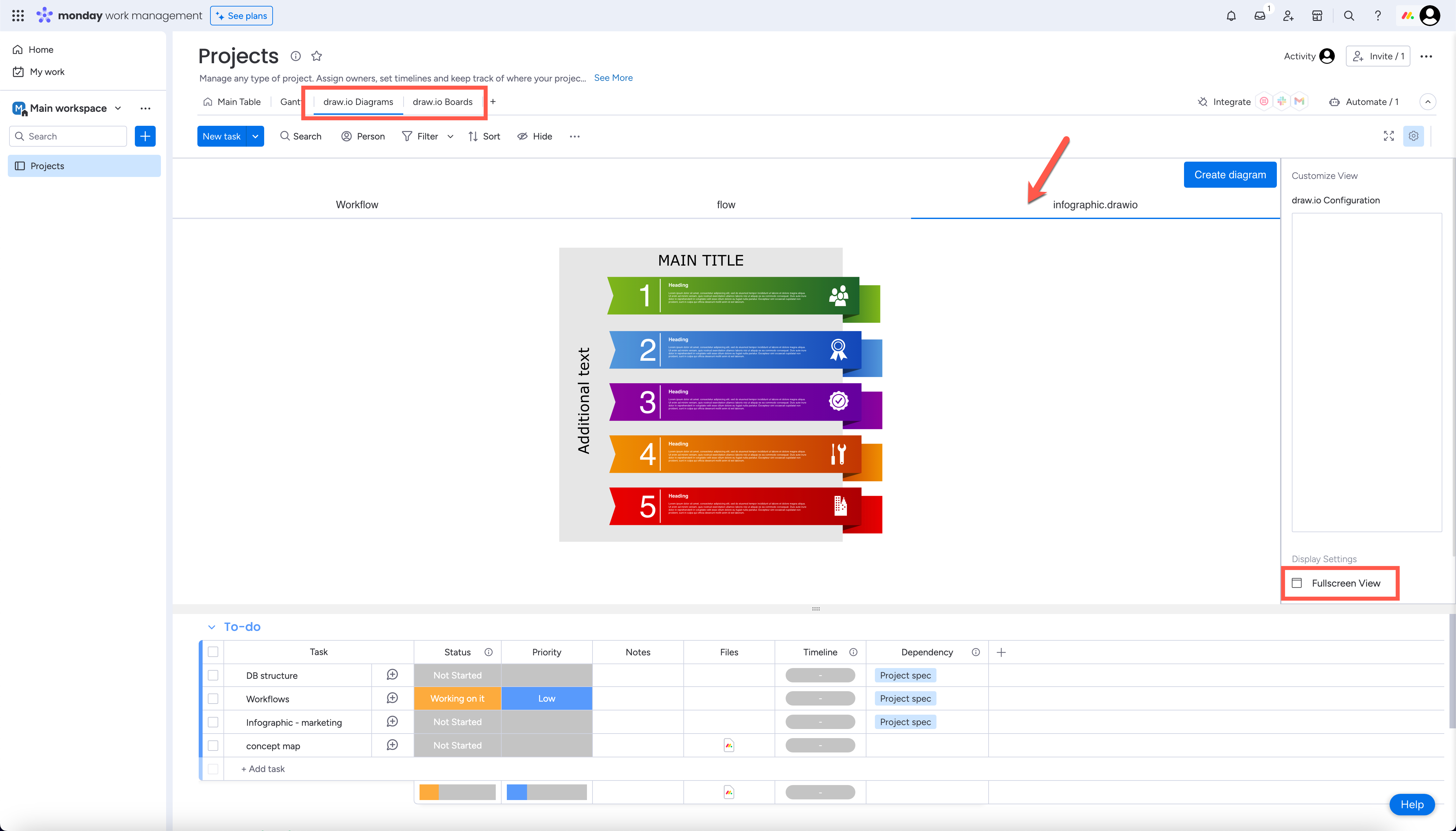
Fullscreen View: The table of the board is shown below the diagrams. To show only the diagrams, click the settings icon at the top right of the view, then select Fullscreen View.
Add draw.io to an item
- Click an item to open its item card.
- Click + next to the tabs of the item card, such as Updates.
- Select draw.io Diagrams or draw.io Boards from the apps.
The view will be added to the item card as a new tab.
Note: The item view belongs to the board, not to one item. Every item of the board shows the same diagrams. Use it for diagrams that all items share, such as the process they follow.
Add draw.io to a dashboard
- Open the dashboard.
- Click Add widget.
- Select draw.io Diagrams or draw.io Boards from the apps.
The widget will be added to the dashboard. A widget shows one diagram, with no tabs. While it is empty, it shows a Create diagram button.
Add draw.io to a workspace
- In the left pane, click + Add in your workspace.
- Select draw.io Diagrams or draw.io Boards from the apps.
The draw.io object will be listed in the workspace with your boards and docs. It holds any number of diagrams, each in its own tab.
Use a diagram in another place
A diagram created in one place isn't shown in another. For example, a dashboard widget can't show a diagram from a board. To use a diagram in another place, copy its shapes.
- Open the diagram in the editor.
- Press
Ctrl+A, thenCtrl+Con Windows, orCmd+A, thenCmd+Con macOS, to copy all shapes. - Click Exit, then create a new diagram in the other place.
- Press
Ctrl+Von Windows, orCmd+Von macOS.
The shapes will be pasted into the new diagram.