Create, edit and delete diagrams in monday.com
In a board view, item view or workspace object, each diagram has its own tab. A dashboard widget shows one diagram.
Create a diagram
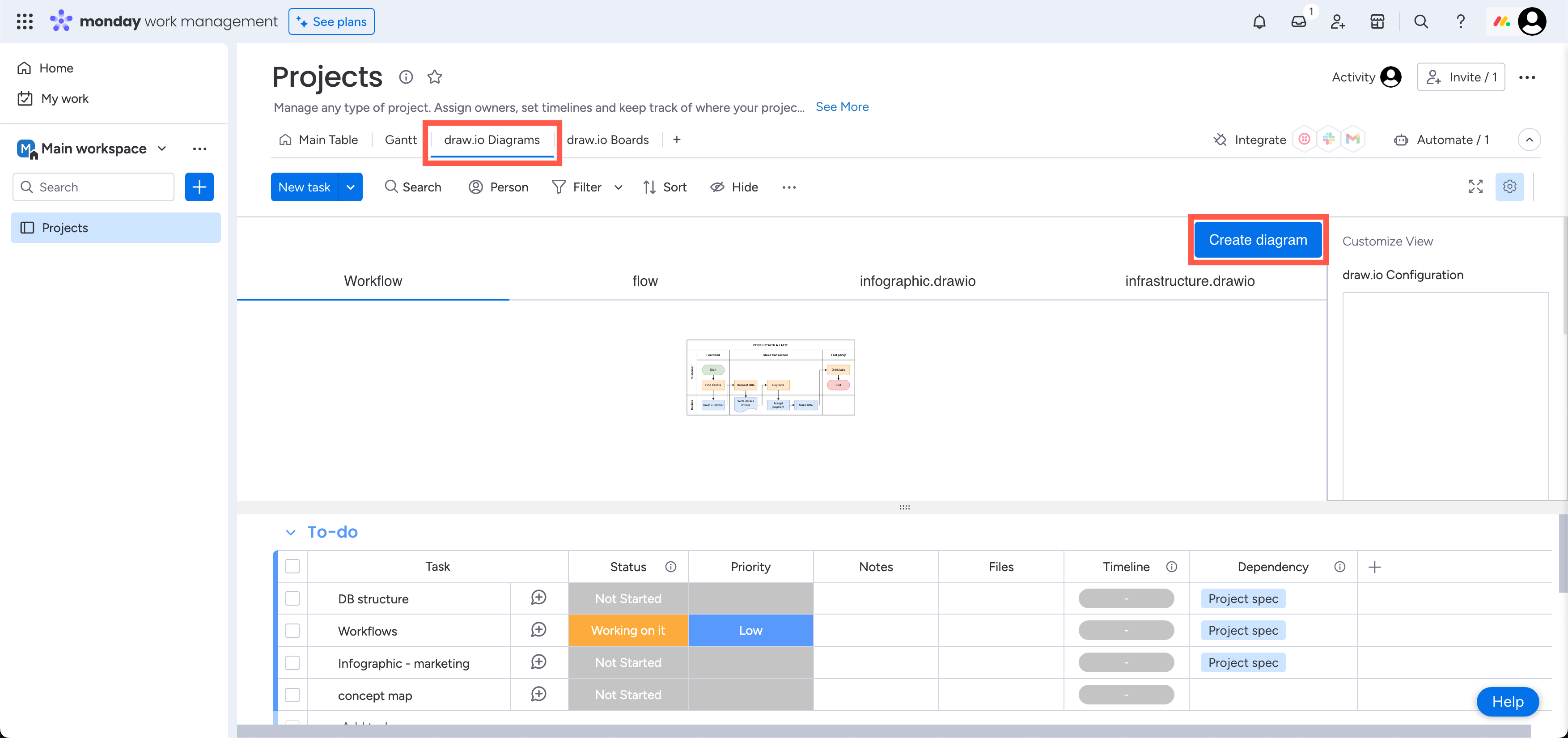
- Select the draw.io Diagrams view, then click Create diagram.
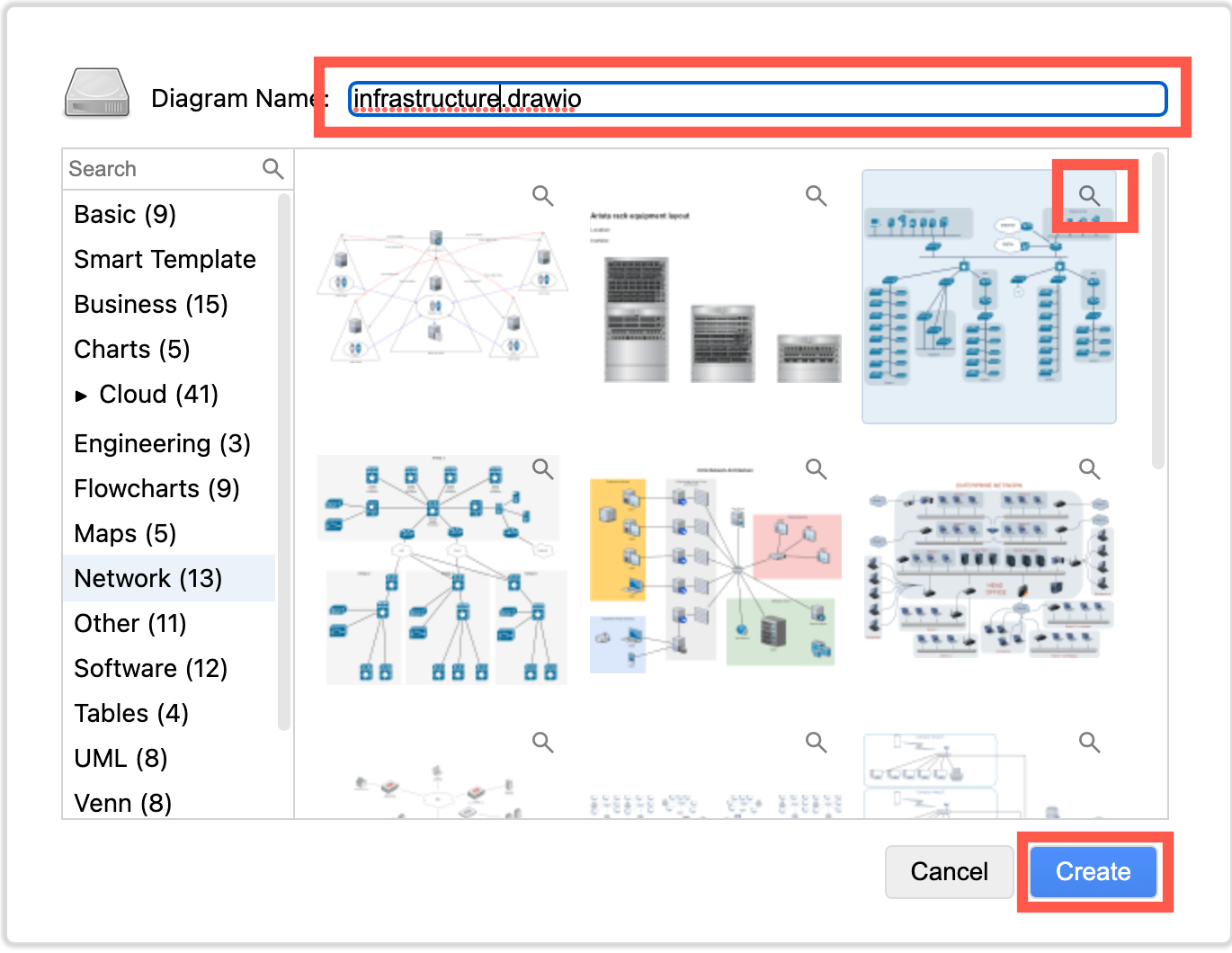
- Enter a name, select a template or a blank diagram, then click Create. Click the magnifying glass icon on a template to see a larger preview.
The draw.io editor will open with the template on the drawing canvas. The shapes panel, format panel, toolbar and menu are shown, so you can reach the shape libraries and tools for all kinds of technical diagrams.
If you are new to diagramming, follow the tutorial to draw a basic flow chart in draw.io. Skip ahead to the section where you add shapes to the drawing canvas, as your diagram is already stored in monday.com.
Create a board
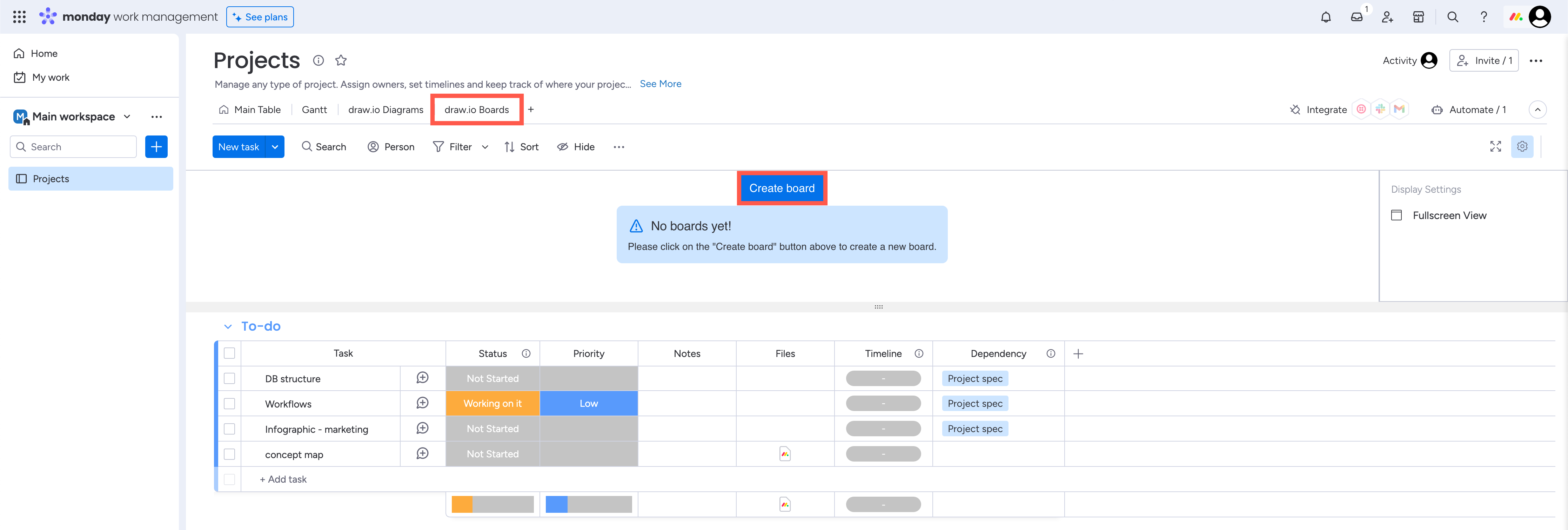
- Select the draw.io Boards view, then click Create board.
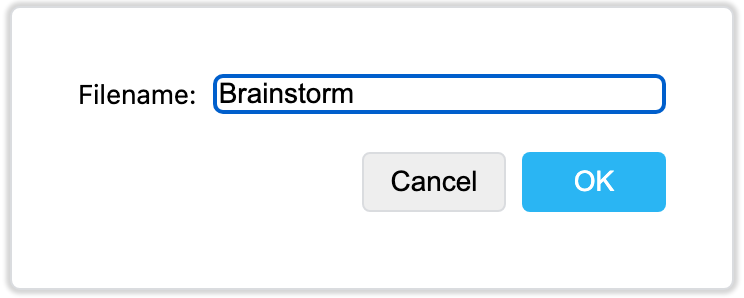
- Enter a name for the board, then click OK.
The editor will open in the Sketch theme with a blank drawing canvas. Use the toolbar on the left to add shapes and connectors, and the format panel to style them.
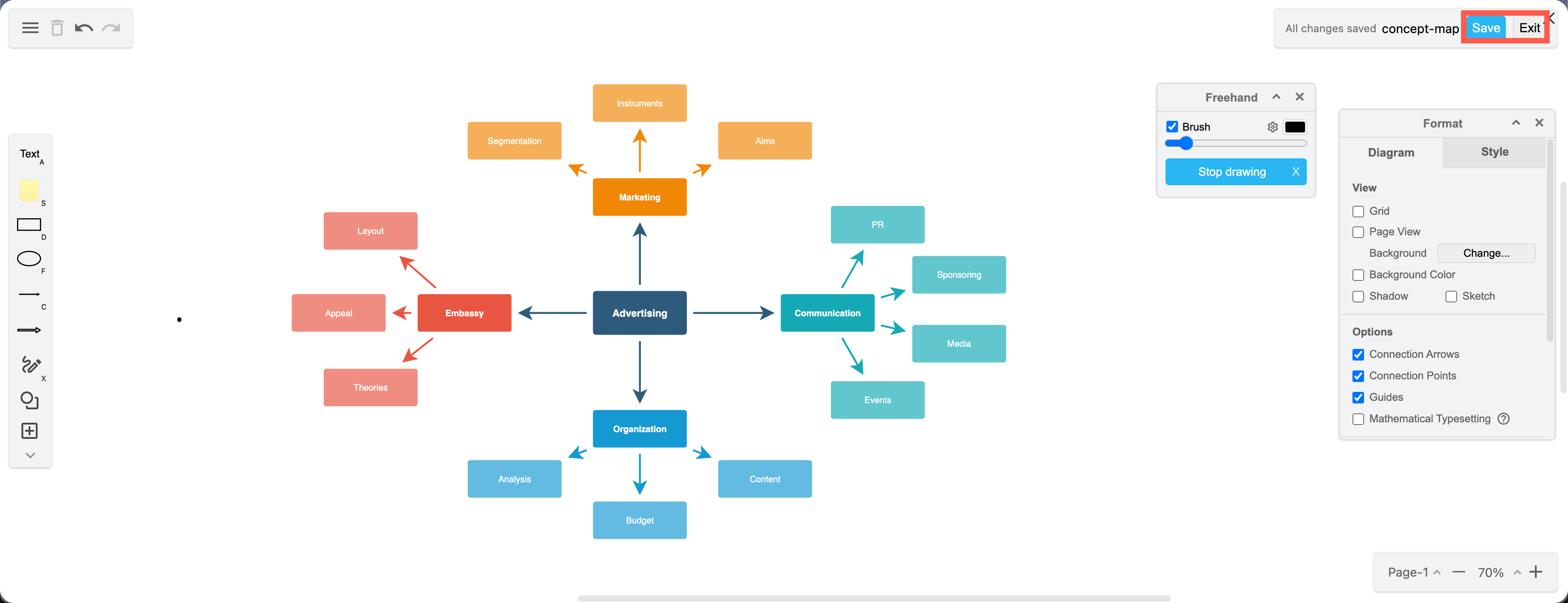
Learn how to use draw.io as an online whiteboard.
Save and exit the editor
Your changes are saved automatically while you work.
- Click Save to save your changes immediately.
- Click Exit to close the editor.
The view will show the saved diagram.
Edit a diagram
- Click the tab of the diagram.
- Hover over the diagram to see the toolbar, then click the pencil icon.
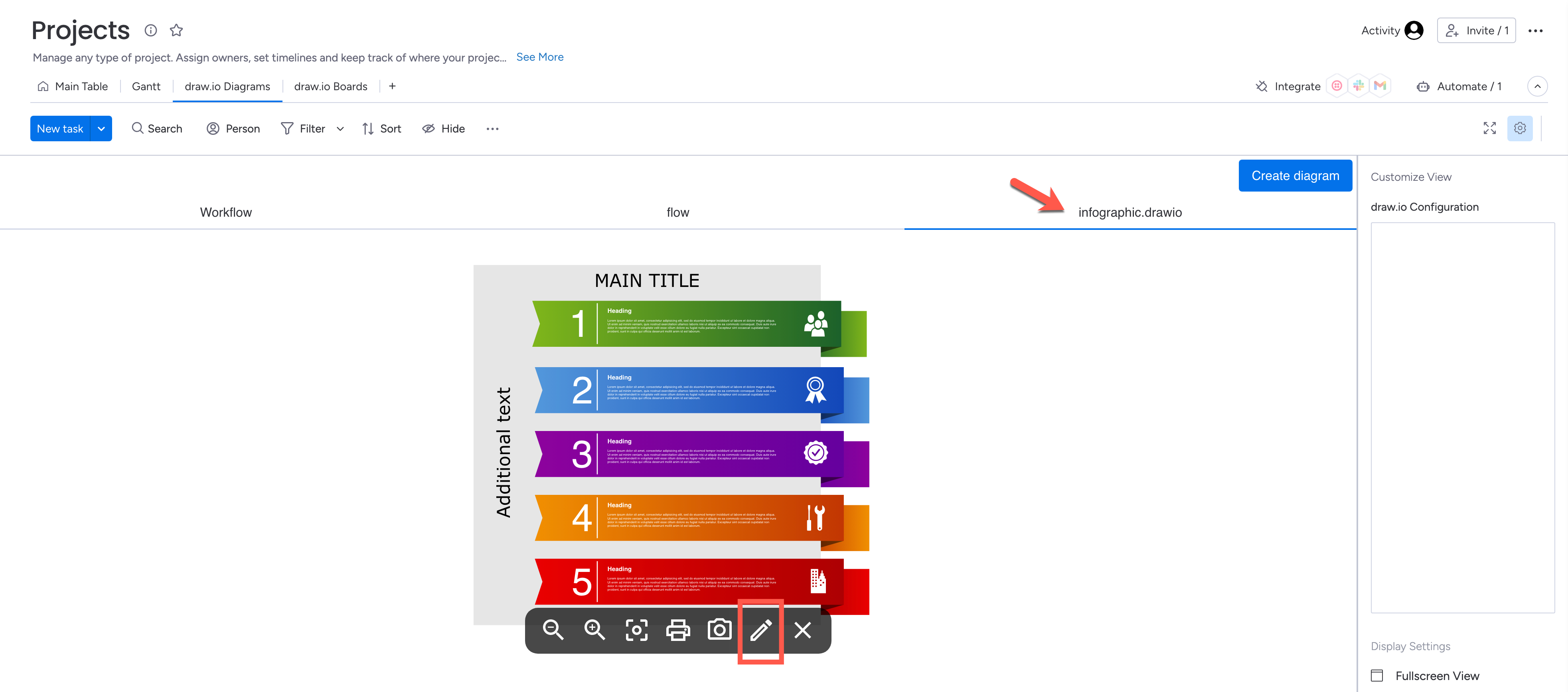
The diagram will open in the editor.
Rename a diagram
- Open the diagram in the editor.
- Select File > Rename from the menu. In draw.io Boards, open the menu at the top left first.
- Enter the new name, then click Rename.
The tab of the diagram will show the new name when you exit the editor.
Print or export a diagram
Hover over the diagram in the view to see the toolbar.
- Print: Click the printer icon.
- Export as an image: Click the camera icon.
In the editor, select File > Export as to export the diagram to other formats, such as PDF, SVG or XML.
Delete a diagram
- Hover over the diagram to see the toolbar, then click the cross icon.
- Click Delete to confirm.
The diagram will be deleted, and its tab will be removed.
Note: You can't restore a deleted diagram, as there is no revision history. To keep a copy, export the diagram before you delete it.