Global custom properties
You can define custom properties for the shapes and connectors in your diagrams.
You can also define your own global properties for your diagram, which work similarly to global variables, and whose values may be accessed by placeholders in labels and tooltips on shapes and connectors.
- Make sure nothing is selected in your diagram so you can see the Diagram tab in the format panel.
- Click on Edit Data to see the global custom properties.
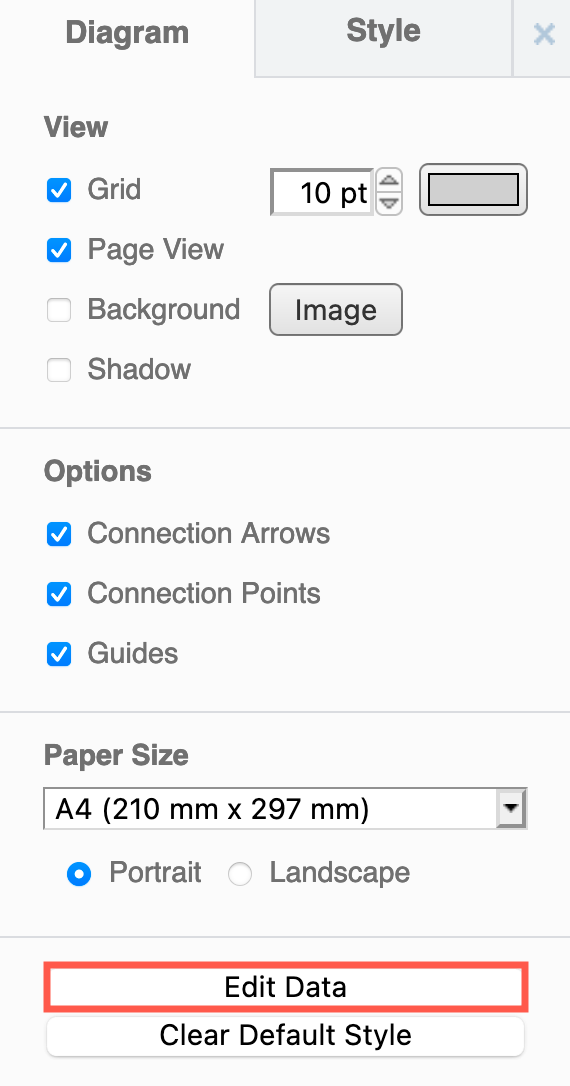
- Type a new property name in the text field, then click Add Property.
- When the name of the property appears on the left above the text field, enter a value in the field on the right, then click Apply.
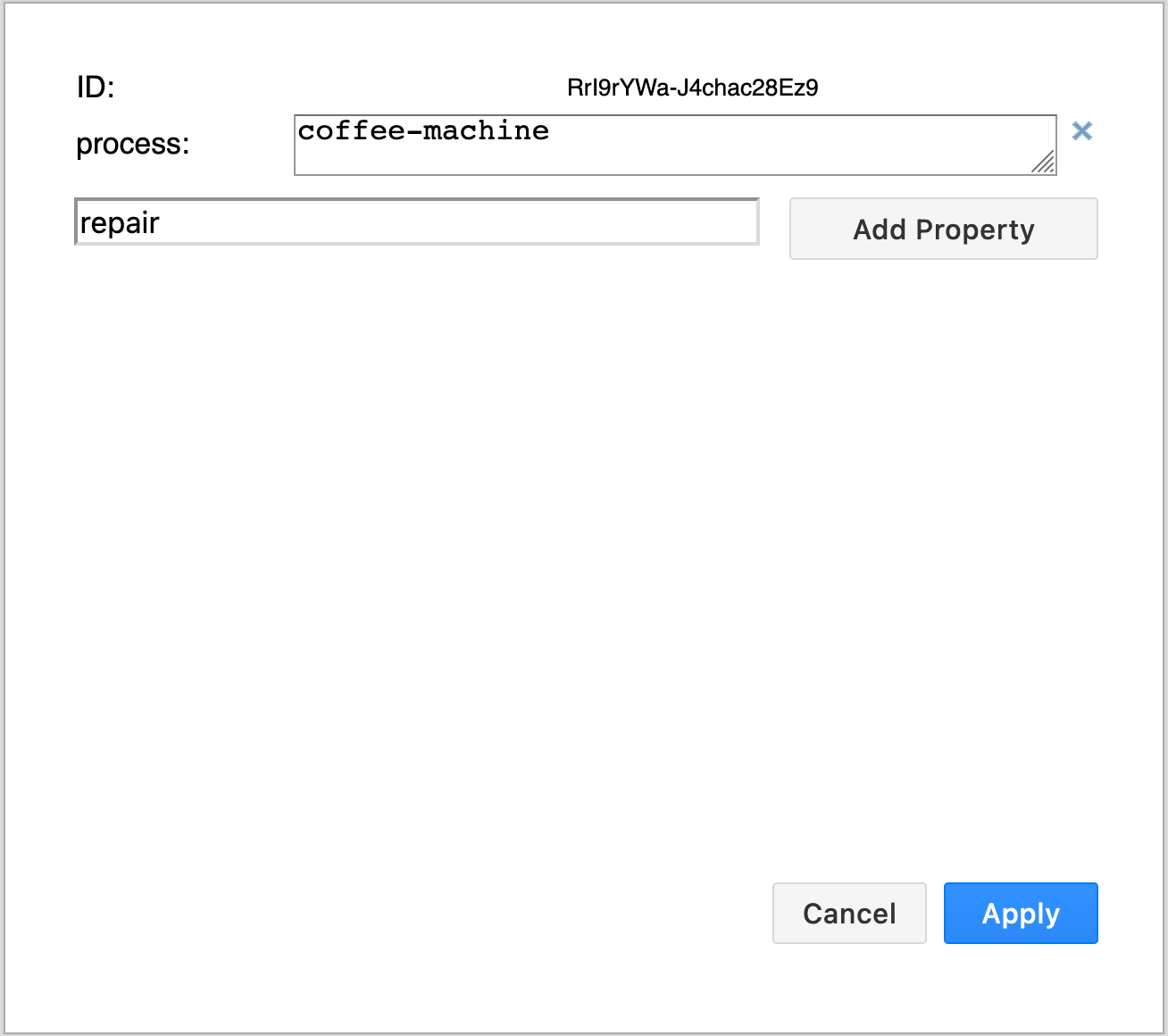
The properties you add this way belong to the current page (diagram) only. A multi-page file has separate global properties for each page.
File properties (variables for the whole file)
You can also define custom properties at the file level. Unlike the page-level global properties above, file properties are shared by every page in the file, so you can set a value once and reference it from a placeholder on any page.
- Open File > Properties.
- Click Edit Data.
- Add, edit and delete properties the same way as for a shape or page, then click Apply.
This is useful for values that apply to the whole document - for example a project name, a document version, a client name, or an author - that you want to reuse consistently across all pages.
Property scope
Custom properties can be defined at three scopes. When the same property name exists at more than one scope, the most specific value wins:
- Shape - defined on an individual shape (or inherited from an ancestor container/group).
- Page - the global properties of the current diagram page, described above.
- File - shared by every page in the file (File > Properties > Edit Data).
A shape property therefore overrides a page property, which overrides a file property. See placeholder labels respect scope for more detail on how the nearest matching value is chosen.