Apply layouts to organise diagrams quickly
You can use the automatic layout dialogs in draw.io to build neat flow charts, trees and other common diagram layouts quickly.
Note: The layouts feature has been recently reworked. To access the previous generation of layouts, select Arrange > Layouts > Legacy Layouts from the menu.
These layouts rearrange the shapes on the page automatically, based on how the shapes are connected. All of them except Org Chart are powered by the Eclipse Layout Kernel (ELK) layout engine.
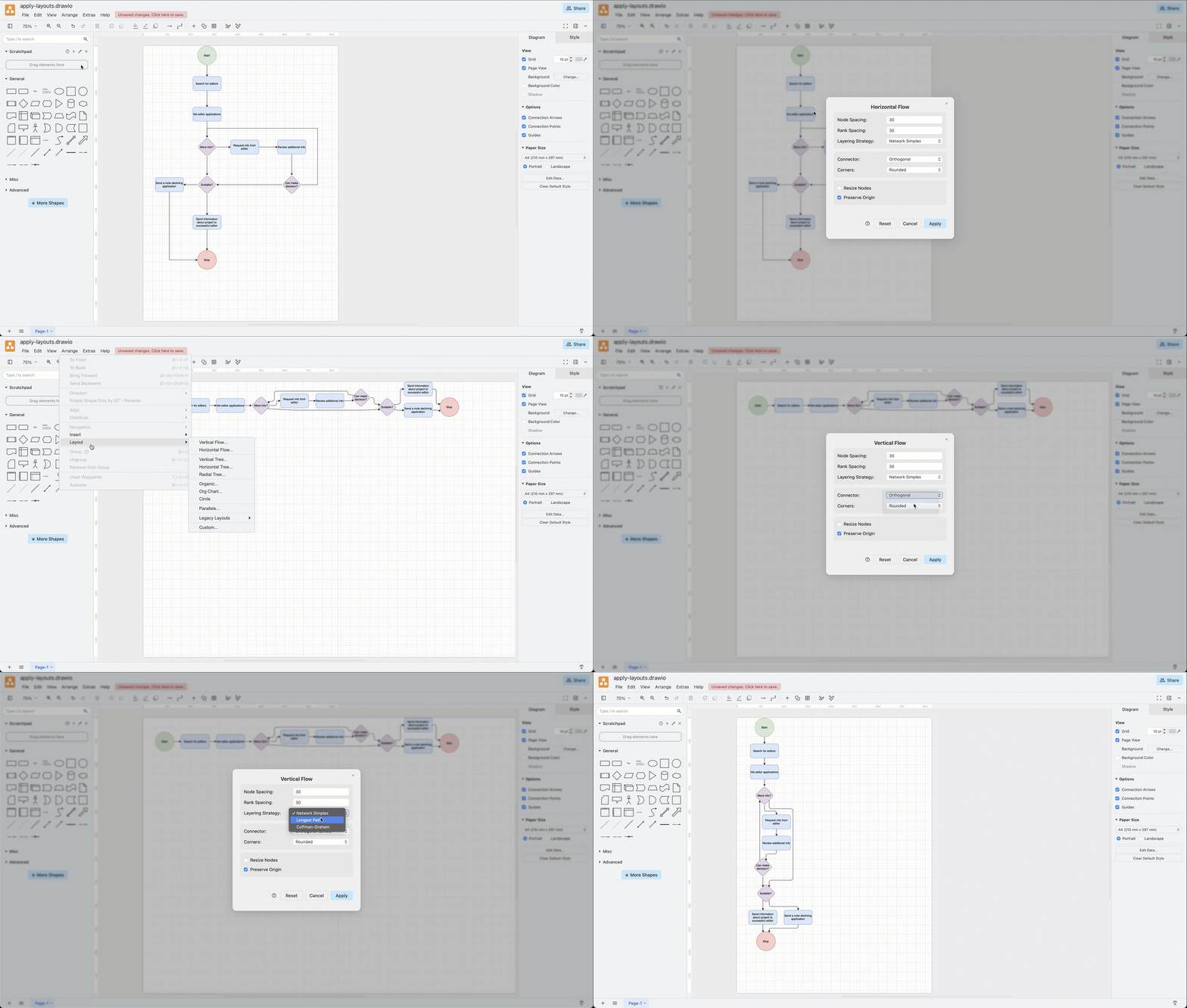
Available layout presets
- Flow layouts - vertical or horizontal
- Tree layouts - vertical or horizontal
- Radial tree layout
- Organic layout
- Org Chart layout
The Circle and Parallel layouts use the previous algorithms and are not currently configurable.
Common options that are applicable to multiple layouts are described below. For layout-specific options, please refer to the linked documentation above.
How the layout dialogs work
Connectors to and from shapes drive each of the layouts. The shape positions on the drawing canvas are computed based on how they are connected to each other, not on where they are on the page.
Shapes inside container shapes are arranged within their container when a layout is applied when you click Apply.
What gets laid out: All shapes on the current page are included in the layout. If a single container holding at least two shapes (for example a group) is selected when you pick the menu item, only the contents of that container are rearranged.
When you click Apply, the dialog is closed and the diagram is rearranged.
Click Cancel to return to the drawing canvas without applying the layout.
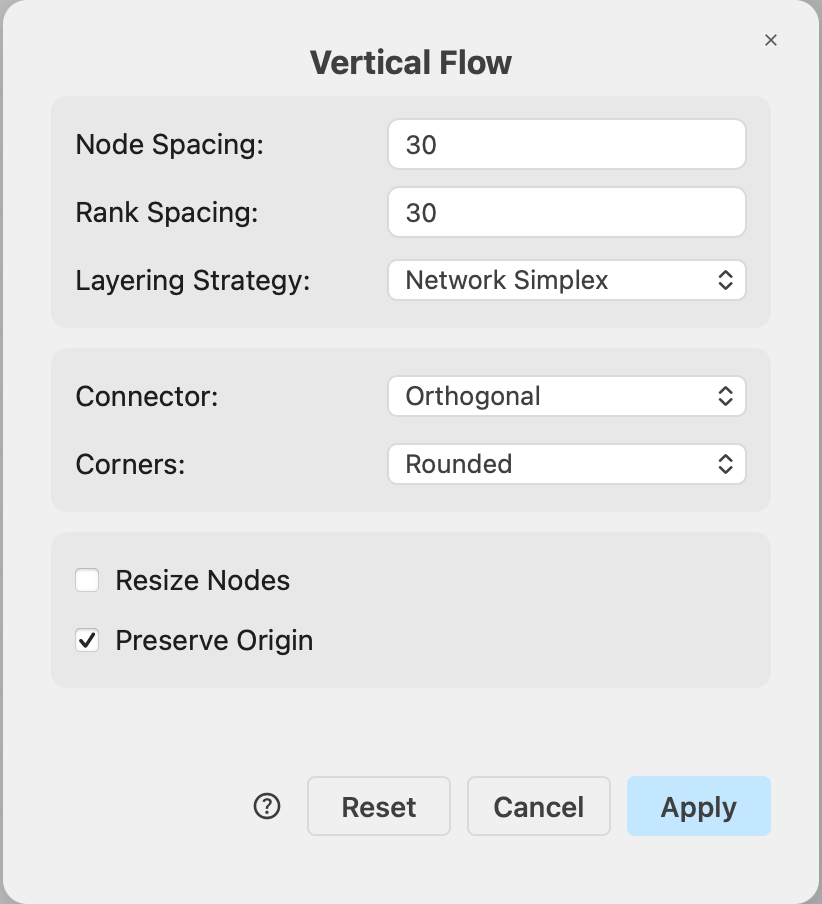
If you don't like the layout, undo it with the keyboard shortcut Ctrl+Z / Cmd+Z or click the Undo button in the toolbar.
Layout settings are remembered
The Flow, Tree, Radial Tree, and Organic layout dialogs store their last-used values in your browser, separately for each layout that you have applied.
Click Reset to discard the stored values and reopen the dialog with that layout's defaults.
Note: The Org Chart layout dialog always opens with its default values.
Custom layouts
Use this layout when you want to specify custom JSON options to the layout algorithm.
- Select Arrange > Layout > Custom.
- Select Add... from the drop down list to open a configuration dialog where you can enter custom JSON instructions for your custom layout.
- When you click Apply, the configuration is appended to the JSON definition for that layout instead of running it immediately.
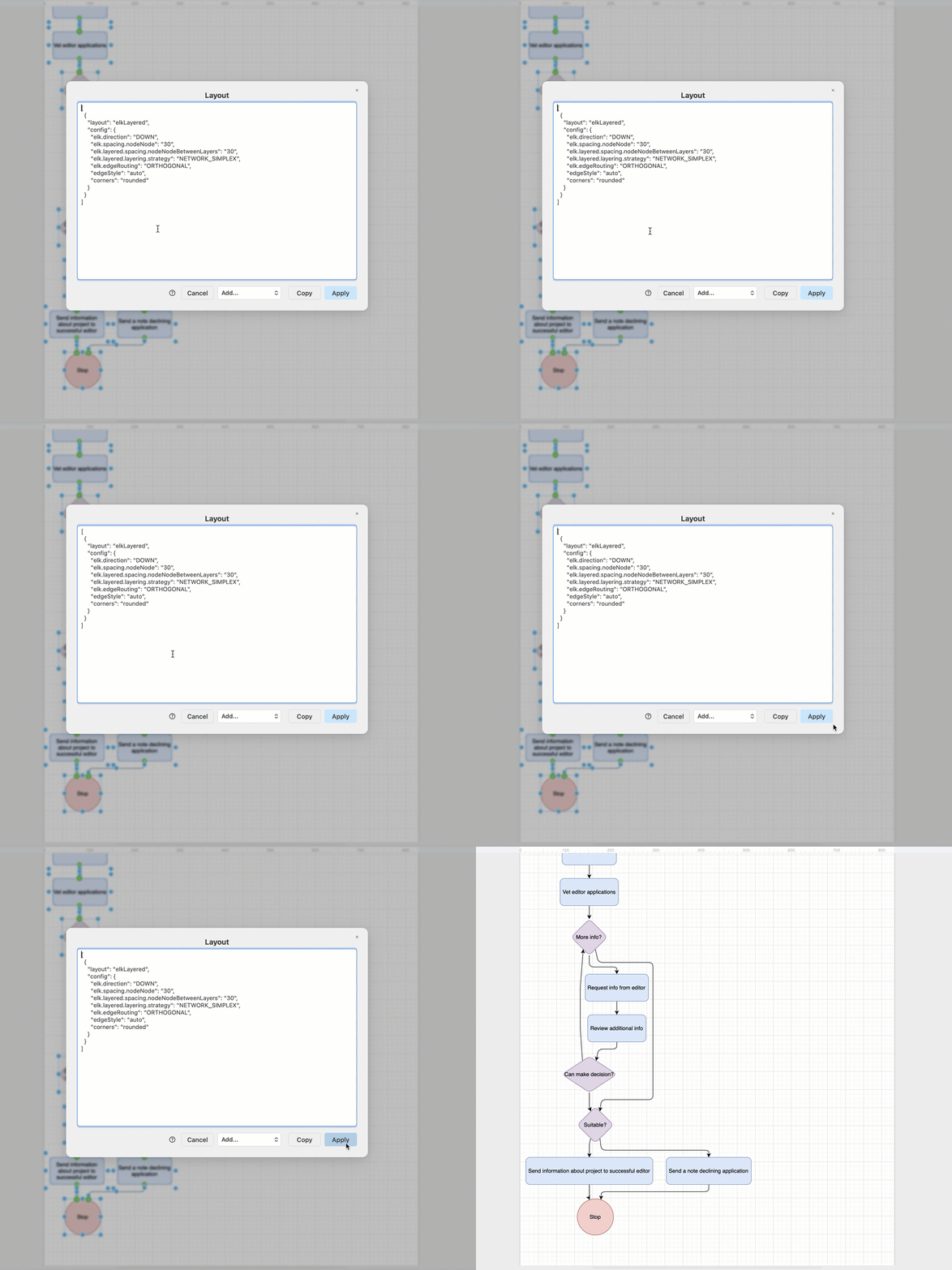
See the JSON layout specification for each layout
Apply a layout to your diagram
- Click Arrange > Layout, then select the diagram type and layout you want to use. Alternatively, click the
+icon in the toolbar, then select Layout and select the layout you want to use.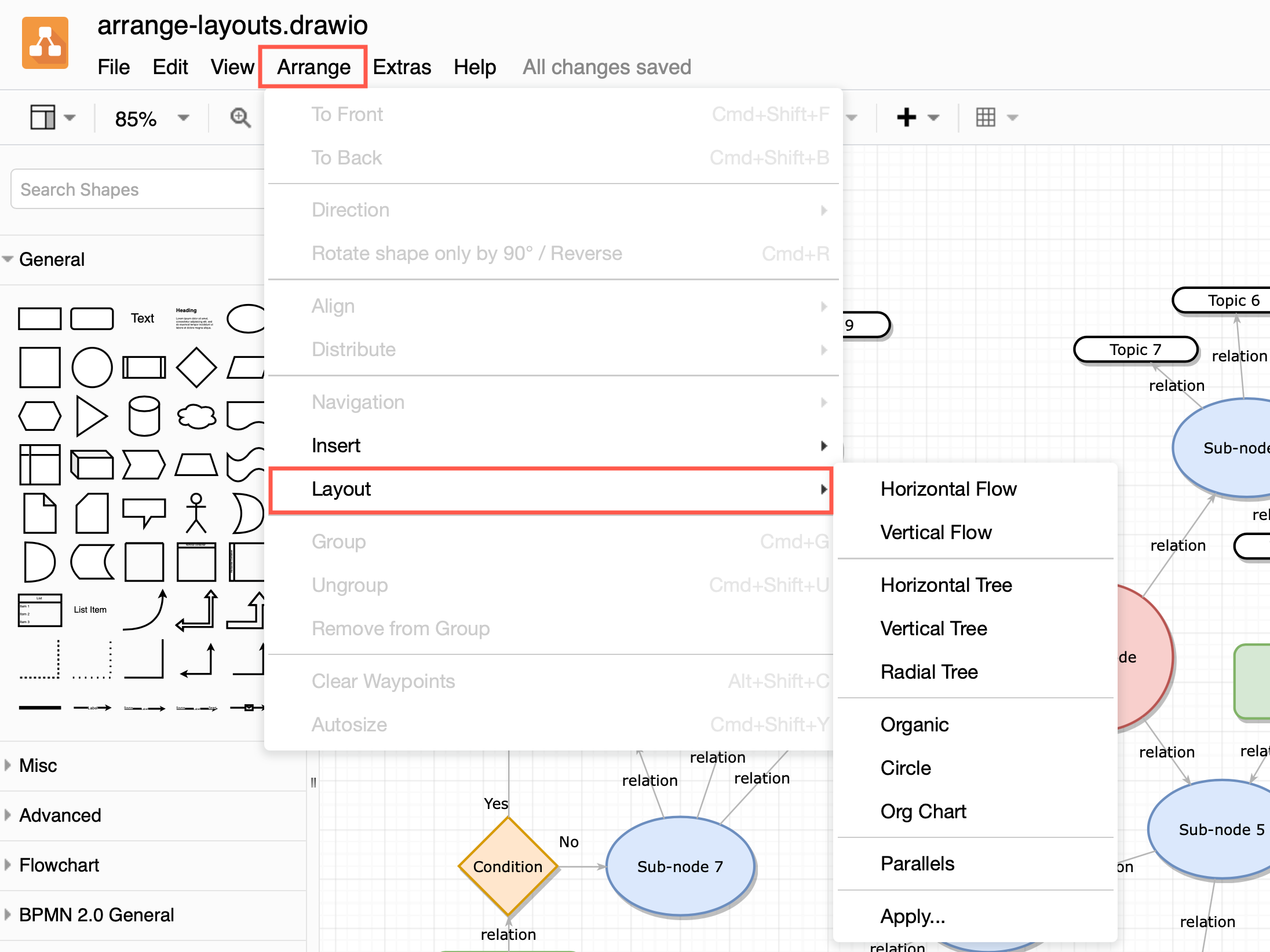
- Choose the options for your selected layout type.
- Click Apply to rearrange the shapes on the drawing canvas.

Tip: You can also automatically layout the existing shapes on the drawing canvas via Arrange > Layout, or use automated layout shapes for diagram portions within a container shape.
Common options for all layouts
The Flow, Tree, Radial Tree and Organic layout dialogs all end with the same edge and placement options:
Edge Style
For Tree, Radial Tree and Organic dialogs, this is how connectors are drawn after the layout is applied.
- Automatic (default) — picks the drawing style that matches the computed routing (straight lines for these layouts).
- Keep Existing Style — only the shapes move; every connector keeps its current style and manually added waypoints.
- Orthogonal — convert connectors to right-angle draw.io connectors.
- Straight — convert connectors to straight lines.
In the Flow layout dialogs, the Connector option is used instead.
Corners
The corner style where a connector bends is independent of the routing.
- Keep Existing Style (leave rounded/curved settings alone)
- Straight (sharp corners)
- Rounded
- Curved
The Flow layout dialogs default to Rounded, whereas all others default to Keep Existing Style. This has no effect when the Edge Style is set to Keep Existing Style.
Resize Nodes
By default, this is disabled. When you enable this option, the layout may also resize shapes, for example to fit their labels. When disabled, shapes keep their current size and only change positions on the drawing canvas.
Note: Container shapes will always be resized to fit their laid-out contents.
Preserve Origin
By default, this is set enabled, which keeps the top left corner of the rearranged diagram in exactly the same location on the drawing canvas as the top left corner of the original diagram.
When this option is disabled, the rearranged diagram will place the top-left corner of the diagram at the top-left corner of the page instead.
Use Selection as Root / Roots
When at least one shape is selected, this option is available in the layouts which contain a root shape.
When this option is enabled, the selected shape(s) are treated as the start of the diagram: the first shape in a Flow layout, the root(s) of a Tree layout, or the centre of a Radial Tree (which uses exactly one root — the first selected shape).
Note: For layout purposes, connectors pointing into a chosen root are treated as if they pointed away from the root shape, but the actual connector direction in the diagram (target and source) are not modified.
This option is enabled by default when a selected shape has at least one connection.
The Organic layout has no root shape, so this option is not available.
Related
- JSON layout specification for Apply Layouts and CSV import - run these layouts from a JSON definition (Arrange → Layout → Custom…) or as part of a CSV import.
- Eclipse Layout Kernael reference - documentation of the underlying layout algorithms and their full option set.