Synchronize and merge external changes to your diagram
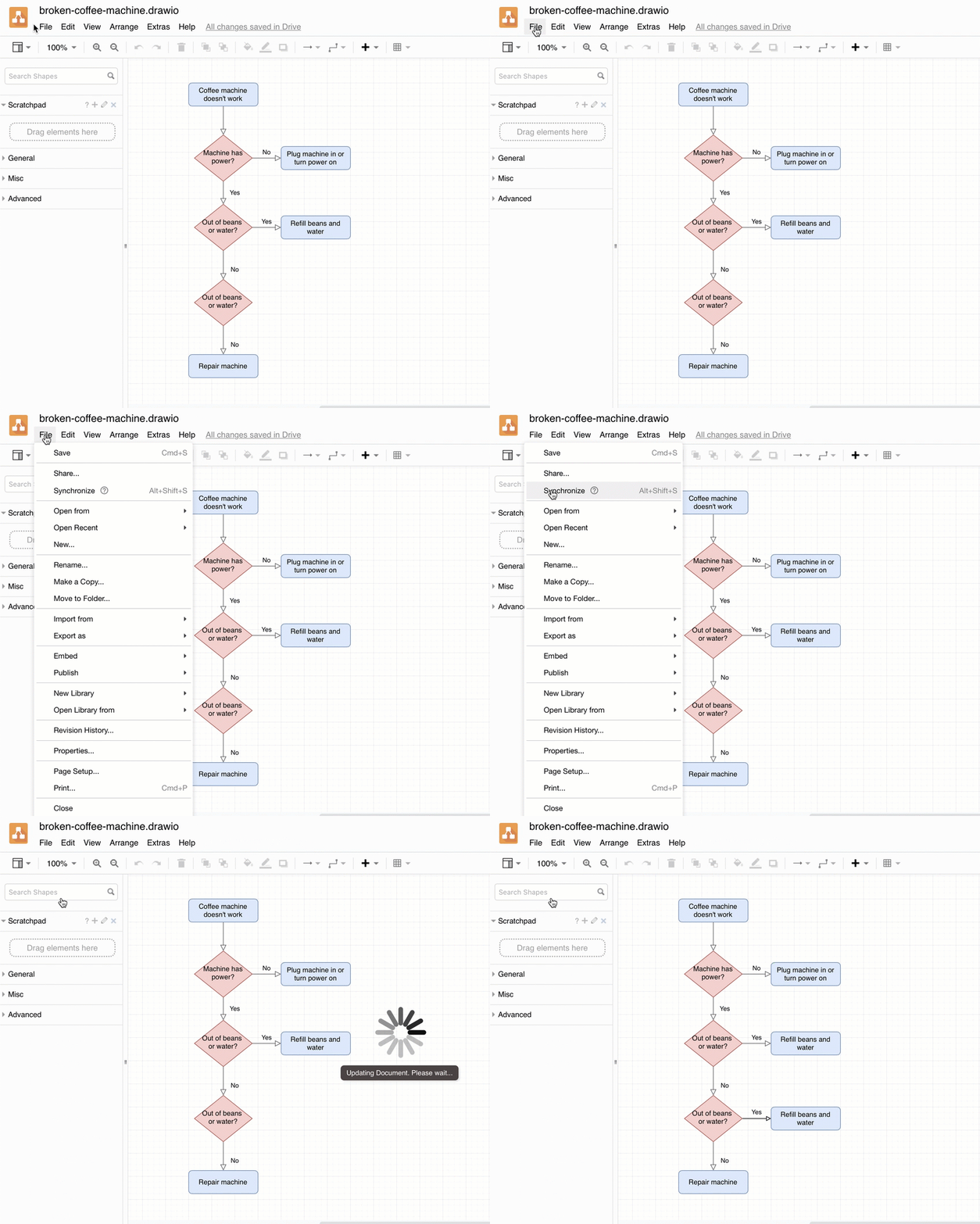
When you collaborate on a diagram, synchronize the changes made by others to merge them into the diagram you are currently editing.
The manual Synchronize feature works in the online version of draw.io with GitHub, GitLab, and Dropbox, and with the Desktop version on any files stored on any network drive.
Changes to diagrams stored in Google Drive or OneDrive are detected and merged automatically, unless you have disabled autosave or are working offline. If autosave is disabled or you are working offline, you can manually synchronize and merge any changes made by others.
Note: As there is no revision history in Dropbox, when changes are merged, the diagram file will be overwritten.
Merge external changes to your diagrams
Select File > Synchronize from the menu in draw.io to manually merge your changes.
Disable or enable the synchronize feature
If you don't want draw.io to merge changes automatically when working online with files stored in cloud platforms, you can disable this feature. This feature is enabled by default.
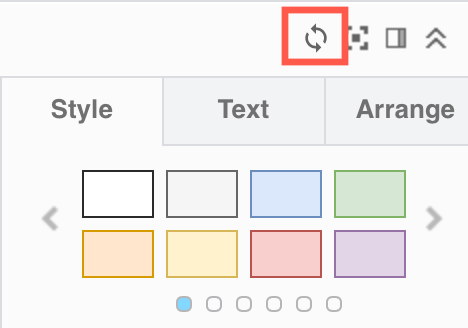
- Click on the synchronize tool (Online) in the toolbar above the format panel to turn it off.
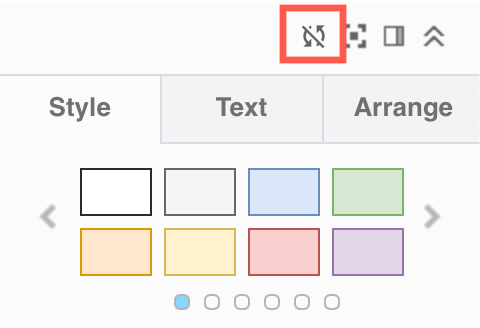
- Click on it again (Disconnected) to turn it back on.
How the synchronize tool works
Instead of overwriting the original file with changes made by others, their changes are merged with any changes you have made to your diagram in the following sequence.
